A non-engineer tried to semi-automate Google Cloud project creation with GAS using Claude

This page has been translated by machine translation. View original
Introduction
Hello, I'm Harada.
I'm a non-engineer, someone who doesn't normally write code.
In our team, we handle the work of creating Google Cloud projects for internal testing and handing them over to anyone who requests one.
Until now, we were setting things up one step at a time by clicking through the console screen,
but this time, with the goal of improving work efficiency and reducing mistakes,
I decided to semi-automate the process using Google Apps Script (GAS).
Here's a rough overview of what it does:
- Enter project creation information into a spreadsheet
- Select the target row
- Run "Generate gcloud command" from the menu
- Paste the generated command into Cloud Shell and execute it
- Write the results back to the management table
What I Built
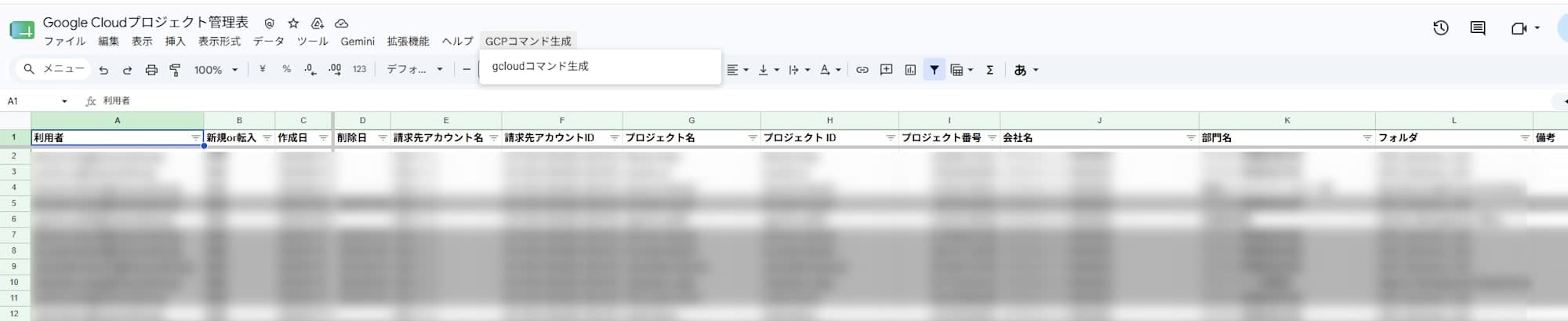
It adds a custom menu to a spreadsheet, and when you select the target row and run it, a gcloud command for creating a project is generated.
The menu looks like this:
GCP Command Generation
└ Generate gcloud command
The following information is entered in advance in the target row:
| Item | Content |
|---|---|
| User | Email address of the person using the project |
| Billing Account Name | The billing account to link |
| Billing Account ID | Billing account ID |
| Project Name | Name of the project to be created |
| Department Name | Affiliated department |
| Project ID | To be filled in after creation |
| Project Number | To be filled in after creation |
A separate sheet with a department list is also prepared so that a Google Cloud folder ID can be looked up from the department name.
Why I Built It
The original workflow involved transcribing application details into the management table and registering items one by one in the console.
When handling a large number of cases, mistakes inevitably happen……
For example:
- Forgetting to grant a role
- Forgetting to specify a folder
- Specifying the wrong folder
So, I decided to start by using GAS to handle everything up to command generation.
Rather than calling the Google Cloud API directly from GAS, I kept it limited to just generating the gcloud commands.
Since a person can review the contents before execution, even a non-engineer like me can avoid the situation of "running something without knowing what will happen."
Overall Flow
The part semi-automated with GAS is roughly steps C through E in the diagram above.
It handles checking the target row, validating input values, generating commands, and displaying them.
What GAS Handles
- Checking the target sheet and target row
- Checking required fields
- Validating the project name
- Generating project ID candidates
- Checking the format of the billing account ID
- Retrieving the folder ID from the department name
- Preventing re-execution on already-created rows
- Generating
gcloudcommands and displaying them in a dialog
Adding the Menu
function onOpenGcpTool() {
  SpreadsheetApp.getUi()
    .createMenu(CONFIG.MENU_NAME)
    .addItem(CONFIG.MENU_GENERATE_ITEM, 'generateGcloudCommands')
    .addToUi();
}
The menu name was defined as a constant.
const CONFIG = Object.freeze({
  HEADER_ROW: 1,
  MENU_NAME: 'GCP Command Generation',
  MENU_GENERATE_ITEM: 'Generate gcloud command',
});
Checking the Target Row
At execution time, it first checks whether the selected row is in the correct state.
Errors are triggered for all of the following: running on a sheet other than the target sheet, selecting multiple rows, selecting the header row, or selecting an empty row.
if (sheet.getName() !== SHEET_NAMES.PROJECT_LIST) {
  ui.alert('Please select the target row on the "Project List" sheet before running.');
  return;
}

if (activeRange.getNumRows() !== 1) {
  ui.alert('Multiple rows are selected. Please select only one data row.');
  return;
}
It may seem minor, but having this in place prevents "accidentally ran it on the wrong row" situations before they happen.
Checking the Project Name
Since Google Cloud project names have restrictions, the checks follow those rules exactly.
The rules are: 4–30 characters, only alphanumeric characters and certain symbols, and must end with a letter or number.
function validateProjectName(name) {
  const errors = [];

  if (!name) {
    errors.push('Project name is empty');
    return errors;
  }

  if (name.length < PROJECT_NAME_MIN_LENGTH || name.length > PROJECT_NAME_MAX_LENGTH) {
    errors.push(
      'Project name must be between ' + PROJECT_NAME_MIN_LENGTH + ' and ' + PROJECT_NAME_MAX_LENGTH +
      ' characters'
    );
  }

  if (!/^[a-zA-Z0-9' \-!]+$/.test(name)) {
    errors.push(
      'The project name contains characters that cannot be used'
    );
  }

  if (!/[a-zA-Z0-9]$/.test(name)) {
    errors.push('The project name must end with a letter or number');
  }

  return errors;
}
If _, ., or : sneak in during the application stage, this is where it gets caught.
Generating Project ID Candidates
A plausible ID is mechanically generated from the project name.
function generateProjectIdCandidate(name, row) {
  let id = name.toLowerCase();

  id = id.replace(/[^a-z0-9]+/g, '-');
  id = id.replace(/-+/g, '-');
  id = id.replace(/^-+/, '').replace(/-+$/, '');

  if (!/^[a-z]/.test(id)) {
    id = 'p-' + id;
  }

  if (id.length < PROJECT_ID_MIN_LENGTH) {
    id = id + '-' + String(row);
  }

  id = id.replace(/-+/g, '-').replace(/-+$/, '');

  while (id.length < PROJECT_ID_MIN_LENGTH) {
    id += '0';
  }

  if (id.length > PROJECT_ID_MAX_LENGTH) {
    id = id.substring(0, PROJECT_ID_MAX_LENGTH).replace(/-+$/, '');
  }

  return id;
}
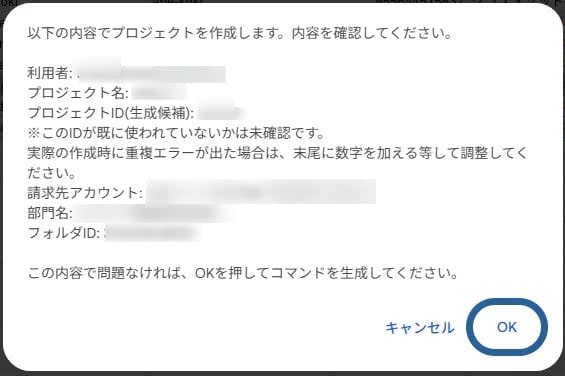
However, GAS does not check whether this ID is already in use. So a note is added to the confirmation dialog.
※ Whether this ID is already in use has not been verified.
If a duplicate error occurs during actual creation, please adjust by adding a number to the end, etc.
Preventing Re-execution on Already-Created Rows
Rows that already have a Project ID or Project Number are judged as already created, and processing is stopped.
if (existingProjectId || existingProjectNumber) {
  errors.push(
    'This row already has "' + HEADERS.PROJECT_ID + '" or "' +
    HEADERS.PROJECT_NUMBER + '" entered. Processing cannot continue as the project may already have been created.'
  );
}
If gcloud projects create fails, subsequent commands will also fail, but I wanted to stop things at the stage of an accidental operation before that, which is why I added this.
Generated Commands
The generated commands handle everything from project creation, linking to a billing account, enabling APIs, granting IAM roles, to creating budget alerts.
set -e
set -u
set -o pipefail

LOG_FILE=~/gcp_provision_project-id_$(date +%Y%m%d%H%M%S).log

(
  gcloud projects create 'project-id' \
    --name='Project Name' \
    --folder='123456789012'

  gcloud billing projects link 'project-id' \
    --billing-account='XXXXXX-XXXXXX-XXXXXX'

  gcloud services enable \
    billingbudgets.googleapis.com \
    monitoring.googleapis.com \
    --project='project-id'

  gcloud projects add-iam-policy-binding 'project-id' \
    --member='user:user@example.com' \
    --role='roles/owner'

  gcloud billing budgets create \
    --billing-account='XXXXXX-XXXXXX-XXXXXX' \
    --display-name='budget_project-id' \
    --budget-amount=5000JPY

  PROJECT_NUMBER=$(gcloud projects describe 'project-id' --format='value(projectNumber)')
  printf "%s\t%s\n" 'project-id' "$PROJECT_NUMBER"
) 2>&1 | tee "$LOG_FILE"
The first three lines are something I consider quite important.
set -e
set -u
set -o pipefail
This is because I want the script to stop if a command in the middle fails.
If billing linking and IAM granting continued even after a project creation failure, the cleanup would be a hassle.
Execution logs are also saved to a file.
Displaying the Commands
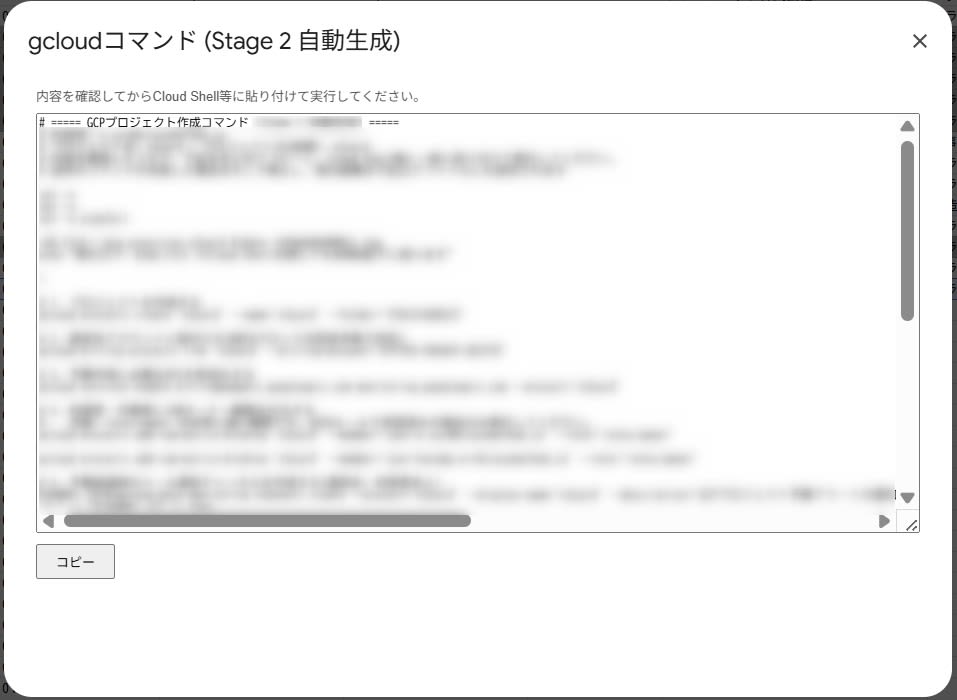
The generated commands are displayed in a modal using GAS's HTML Service.
function showCommandDialog_(ui, commandText) {
  const template = HtmlService.createTemplateFromFile('CommandDialog');
  template.commandText = commandText;

  const htmlOutput = template.evaluate().setWidth(900).setHeight(600);
  ui.showModalDialog(htmlOutput, 'gcloud command (Stage 2 Auto-generated)');
}
The HTML side is a truly simple structure with just a textarea and a copy button.
<textarea id="cmdText" readonly><?= commandText ?></textarea>

<button type="button" onclick="copyText()">Copy</button>
<span id="copied">Copied</span>
The flow is to review the contents, copy them, paste into Cloud Shell, and execute.
Billing Lock Was the One Thing I Couldn't Find a CLI Method For
Project creation and linking to a billing account worked fine with gcloud.
gcloud billing projects link 'project-id' \
  --billing-account='XXXXXX-XXXXXX-XXXXXX'
However, for the billing lock that is applied after linking, I couldn't find a way to complete it entirely via CLI.
In the end, this one step had to remain a manual console operation.
<Steps left as manual>
- Open the billing account management screen in the console
- Select the target billing account
- Find the target project ID
- Select "Lock billing" from the action menu
- Confirm that the lock icon appears
Things I Got Stuck On
Before release, an engineer reviewed it and gave me several points of feedback.
1. Unnecessary permissions were included in the OAuth scope
Honestly, I was in a state of "OAuth scope? What's that?", so I asked Claude about this too.
It's a list of permissions that tells GAS how far it's allowed to operate,
and the point was basically that it's safer to remove permissions you don't need.
The script.storage scope that was in appsscript.json wasn't used anywhere in this code, so I removed it.
2. Errors were appearing twice when folder ID retrieval failed
Even after a folder ID retrieval failure, subsequent checks kept running, resulting in similar errors appearing twice.
I fixed it so that if it fails, subsequent checks are skipped.
3. The trigger detection was too loose
GAS triggers are, roughly speaking, "schedules for when to run a process."
I was detecting them by function name alone, so I updated it to also check whether it's an ON_OPEN trigger (one that fires when the spreadsheet is opened).
This prevents false positives when a different type of trigger with the same function name is registered.
Where Claude Helped Me
I relied on Claude quite heavily for this one as well.
- The overall structure of the GAS code
- Handling rows and columns in spreadsheets
- Input validation
- Constructing
gcloudcommands - Shell escaping
- Explanations when I didn't understand the meaning of review feedback
These areas in particular were a great help.
The EventType.ON_OPEN topic and the OAuth scope topic were both completely incomprehensible to me at first, so I worked through them by bouncing ideas back and forth until I understood.
In the end, I had a person review it on GitHub, fixed the feedback, got an LGTM, and merged it.
I believe it's important to do both — consult with AI and have a person review it.
Summary
Rather than having GAS interact directly with Google Cloud, I kept the scope limited to just generating gcloud commands,
with a person executing them in Cloud Shell.
It's not full automation, but it reduces manual mistakes and has made it easier to incorporate into our operations.
For parts like the billing lock where there was no CLI solution, I honestly left them as manual steps, but I think it's still effective enough.
Even as a non-engineer, if you use Claude as a sounding board, you can surprisingly build this level of operational improvement tool — that's my honest takeaway from this experience.