I tried building a local AI coding environment with Ollama and OpenCode

This page has been translated by machine translation. View original
Companies are currently competing fiercely to improve AI accuracy. As a result, the operational costs of AI systems are trending upward, and I believe there will likely be a shift from flat-rate plans to pay-as-you-go pricing in the future.
I currently use Claude Pro for personal use, and signs of cost pressure are already beginning to appear. In March 2026, the rate at which session limits are consumed during peak hours (weekdays PT 5:00–11:00) was increased, and in addition to the per-5-hour session limit, a cap was also placed on weekly computational resource usage. It is impossible to rule out the possibility that flat-rate plan restrictions will tighten further, or that a shift to pay-as-you-go pricing will occur. To avoid scrambling for alternatives when that happens, I decided to try out local LLMs.
This article introduces the steps to build a fully local AI coding environment by installing Ollama as the local LLM runtime and OpenCode as the AI coding agent.
Test Environment
- MacBook Pro (M1 Pro / 32GB)
- macOS 26.4 (25E246)
- Ollama 0.20.5
- OpenCode 1.4.3
- gemma4:26b (running via Ollama)
What is Ollama
Ollama is an open-source tool for running LLMs in a local environment. It allows you to download and run various open-source models such as Meta Llama and Google Gemma with a single command.
What is OpenCode
OpenCode is an open-source terminal-based AI coding agent. Similar to Claude Code and GitHub Copilot CLI, it creates and edits code in the terminal based on natural language instructions.
A notable feature of OpenCode is its support for over 75 LLM providers. In addition to cloud-based models from OpenAI, Anthropic, and Google, it also supports locally running models via Ollama. This means you can run an AI coding agent entirely locally without relying on external APIs.
Step 1: Install Ollama
First, install Ollama. It can also be installed via Homebrew, but the official GitHub README.md introduces an installation method using the officially recommended install script, so I will use that method here.
curl -fsSL https://ollama.com/install.sh | sh
Once installation is complete, start Ollama.
ollama
The Ollama menu will appear in the terminal.
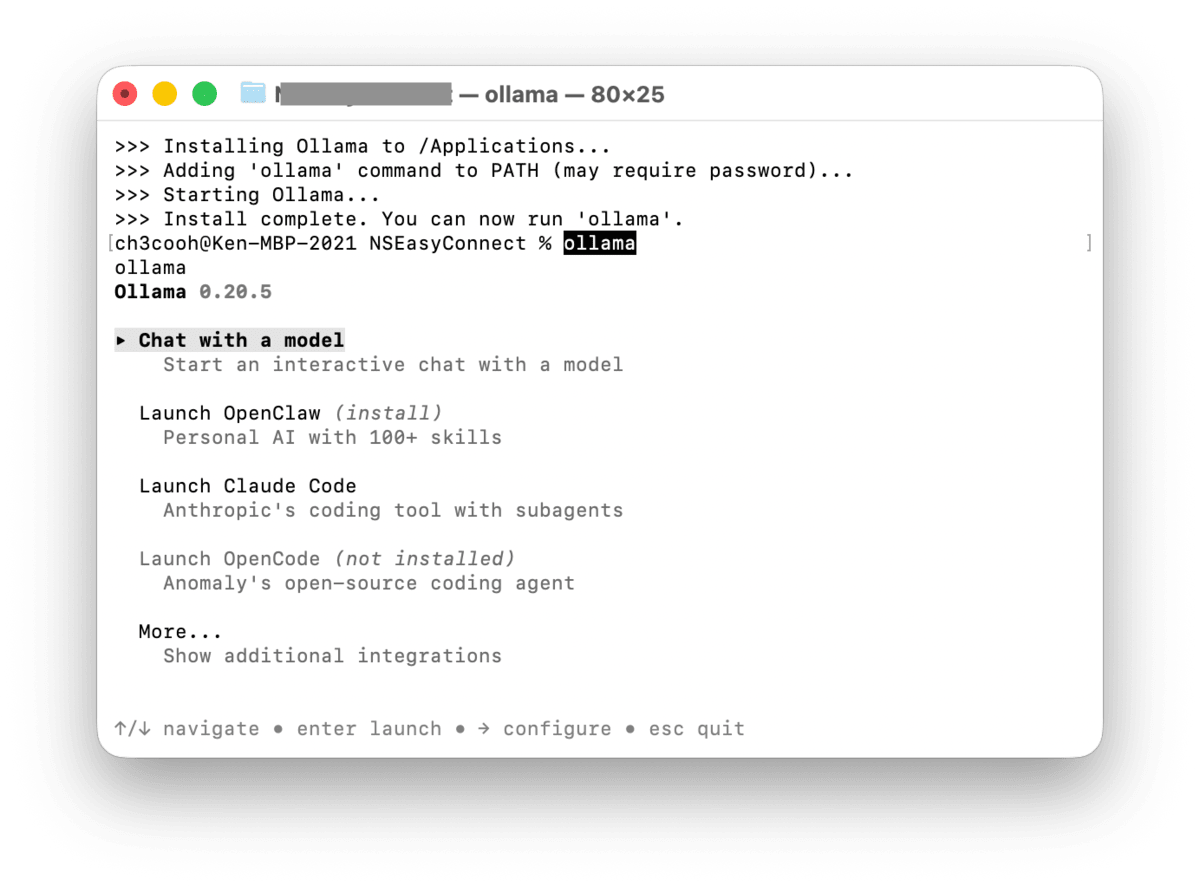
Selecting Chat with a model allows you to choose from several models. Since I want to try a local LLM, I will select gemma4.
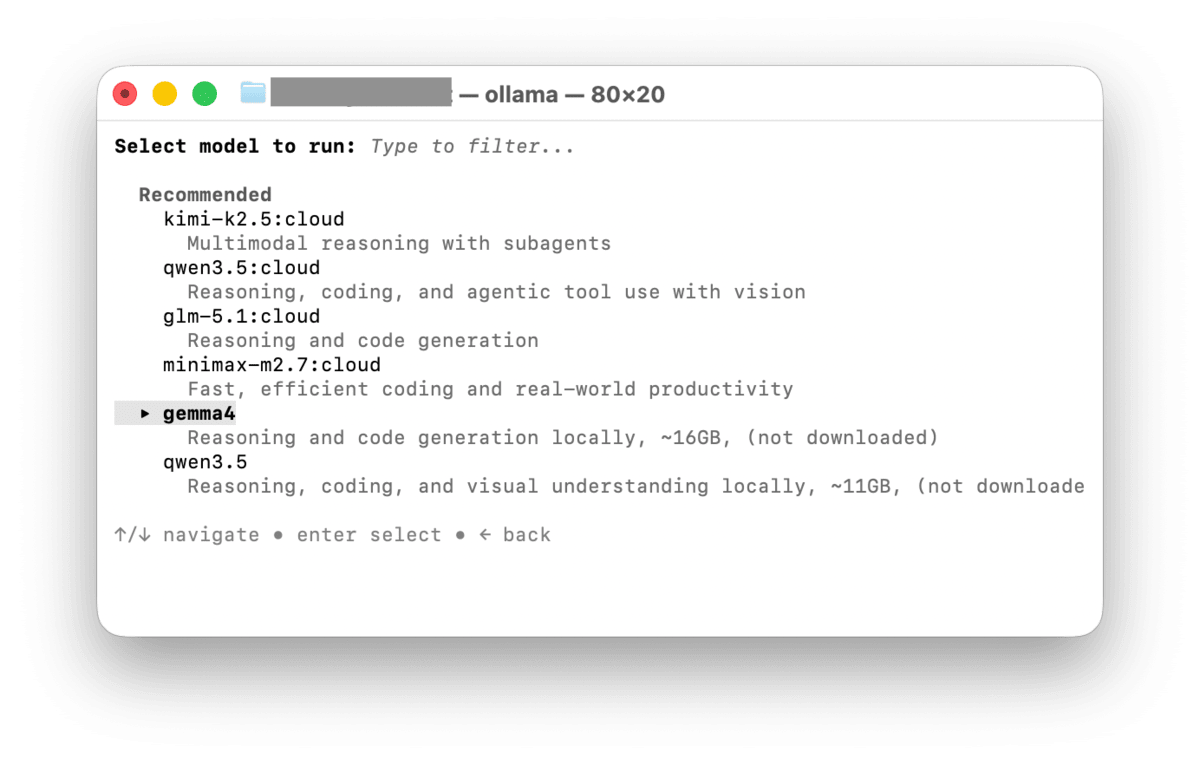
Once the download is complete, a chat session starts immediately. If a response is returned normally, the Ollama installation is successful.
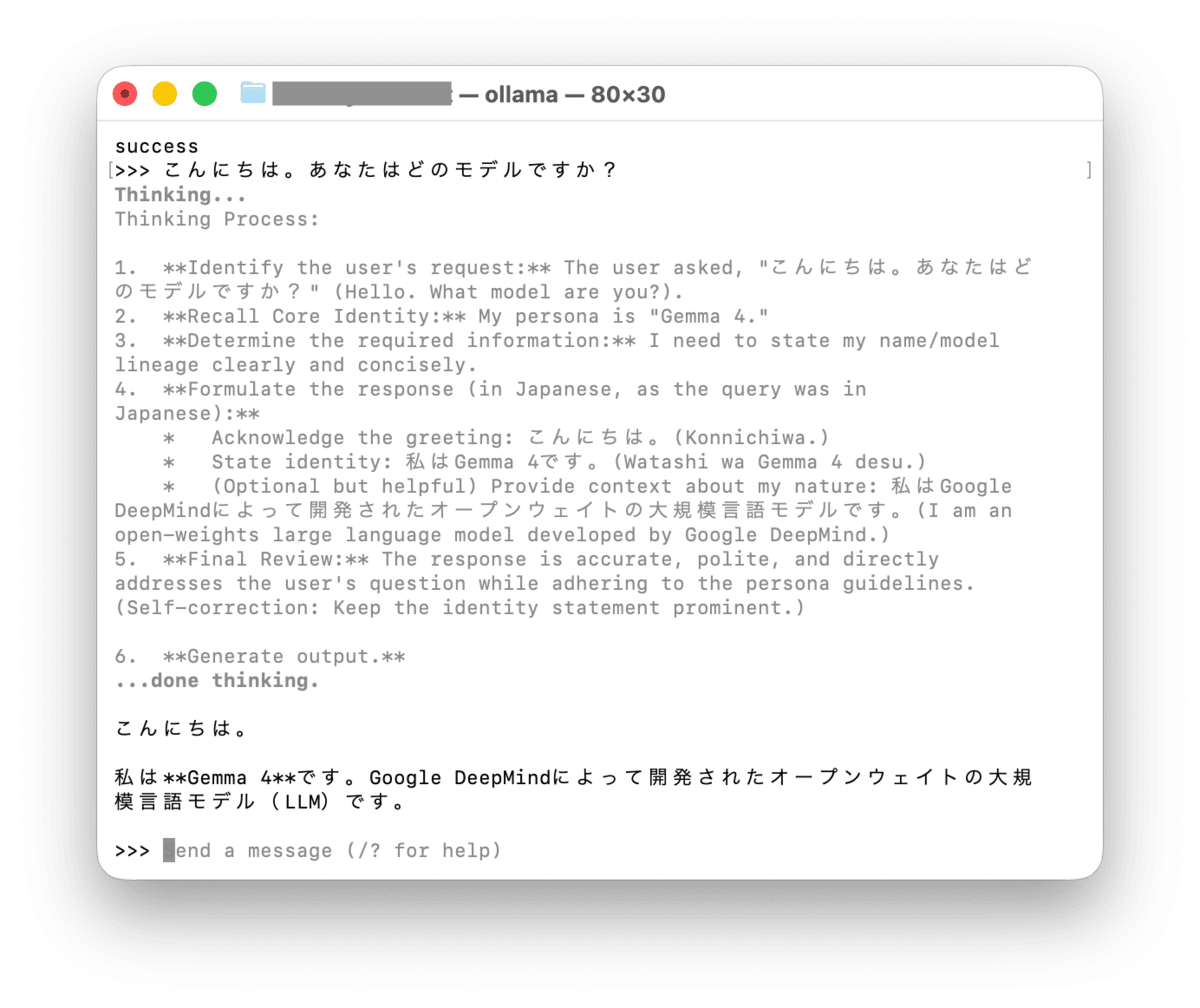
Type /exit to exit Ollama for now.
Step 2: Download a Model
In the Step 1 setup, the model was downloaded through an interactive selection at first launch, but for the model to be used with OpenCode, download it by explicitly specifying the parameter size.
This time I will use gemma4:26b. gemma4 is an open model released by Google based on Gemini, and is a new model released in April 2026. As I will describe later, the reason for choosing it is its fast response speed and comfortable usability even when running locally.
ollama pull gemma4:26b
Once the download is complete, verify that it works.
ollama run gemma4:26b "こんにちは。あなたはどのモデルですか?"
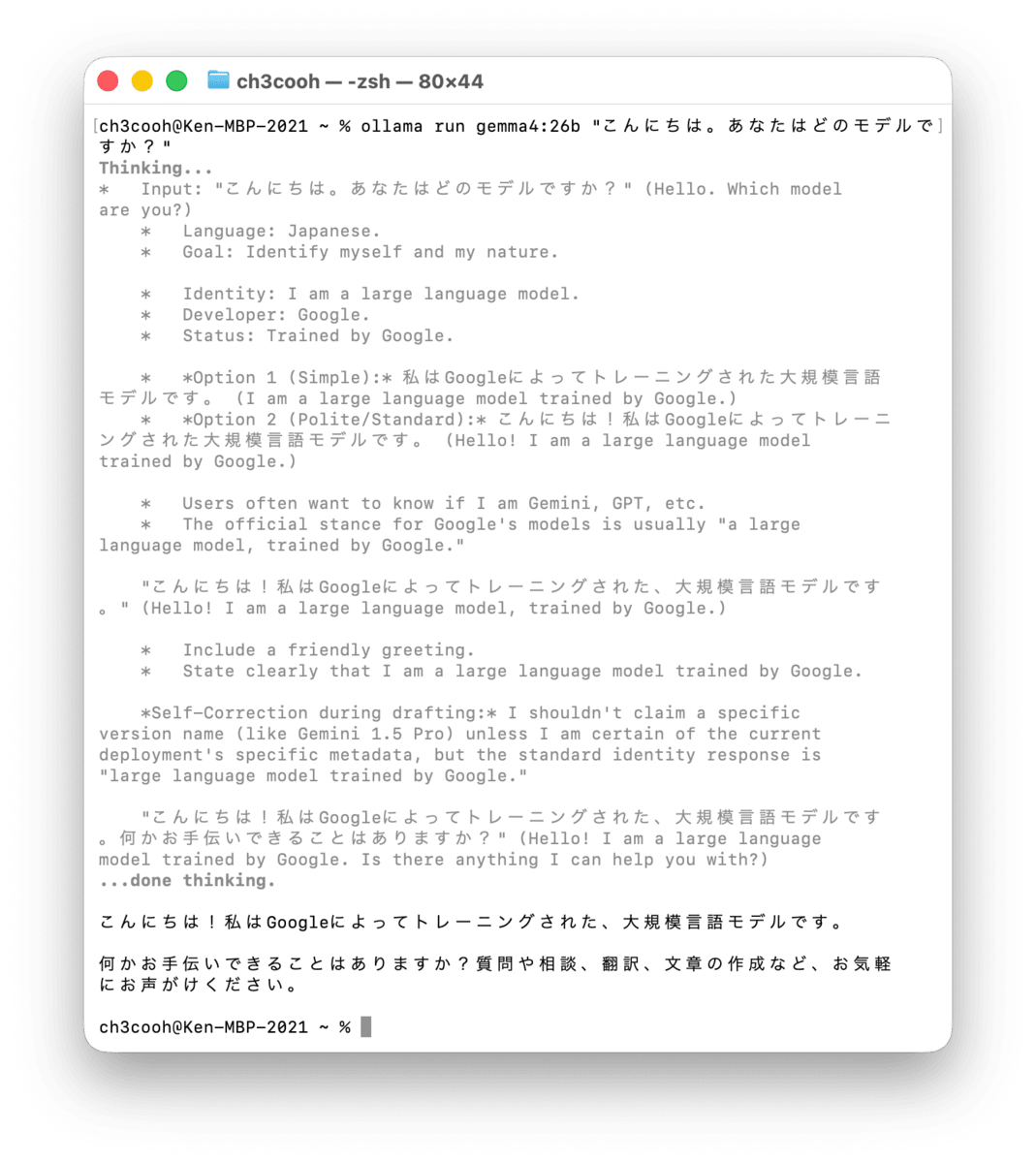
I also tried qwen3.5:27b, but in my environment the response was slow and it felt inconvenient to use. In contrast, gemma4:26b has fast responses and seems to perform reasonably accurate reasoning. Performance in this area will vary depending on the amount of available memory.
qwen3.5 appears to be highly rated for coding performance, so I plan to try it again at a later date.
Step 3: Install OpenCode
Next, install OpenCode.
curl -fsSL https://opencode.ai/install | bash
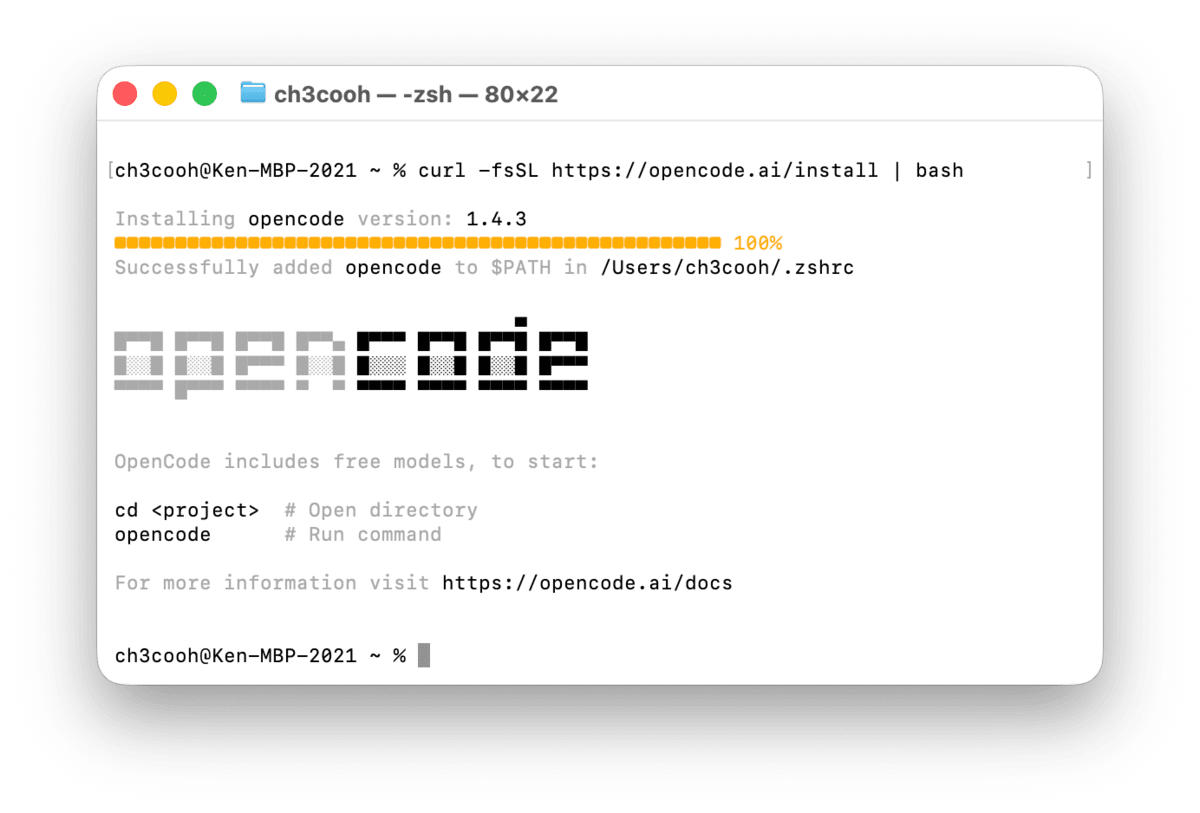
Once installation is complete, verify the version.
opencode --version

1.4.3
Step 4: Configure OpenCode
To use Ollama models with OpenCode, a configuration file needs to be created. Write the following content in the project's root directory, or as a global configuration at ~/.config/opencode/opencode.json.
{
  "$schema": "https://opencode.ai/config.json",
  "provider": {
    "ollama": {
      "npm": "@ai-sdk/openai-compatible",
      "options": {
        "baseURL": "http://localhost:11434/v1"
      },
      "models": {
        "gemma4:26b": {
          "name": "Gemma 4 26B"
        }
      }
    }
  }
}
The key points of the configuration are as follows.
- For
npm, specify the AI SDK provider package used internally by OpenCode. For Ollama integration, use@ai-sdk/openai-compatible. This package is automatically installed by OpenCode, so manual installation is not required. - For
baseURL, specify Ollama's OpenAI-compatible endpoint (http://localhost:11434/v1). Note that/v1is used rather than Ollama's native endpoint (/api). - For
models, specify the name of the model already downloaded in Ollama.
Ollama's default context window varies depending on available VRAM. In this test environment (32GB unified memory), 32K tokens was the default. If you want to change it, you can adjust it with Ollama's num_ctx parameter.
Step 5: Verify Operation
After confirming that Ollama is running, start OpenCode.
opencode
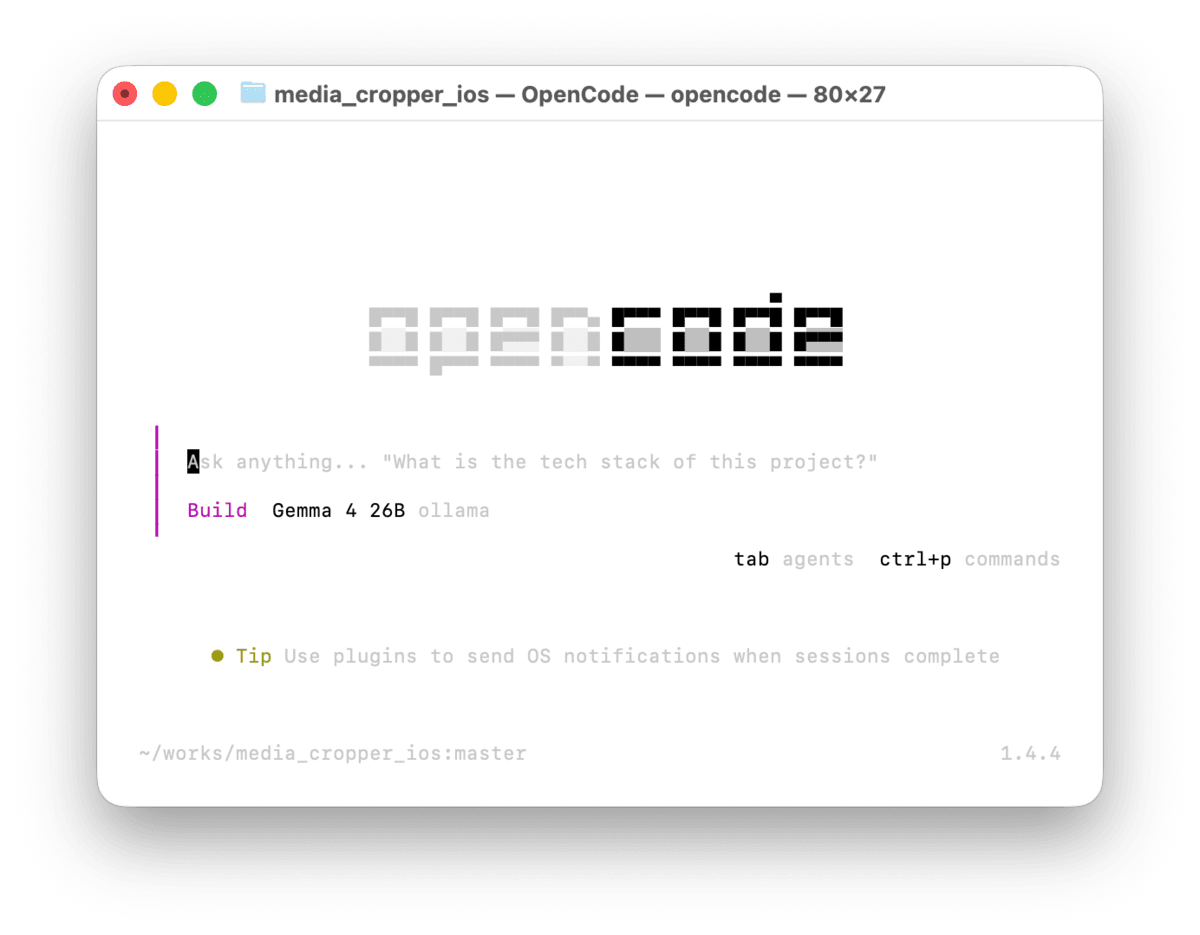
After launching, type /models and if Ollama's gemma4:26b appears as an option, the configuration has been applied correctly.
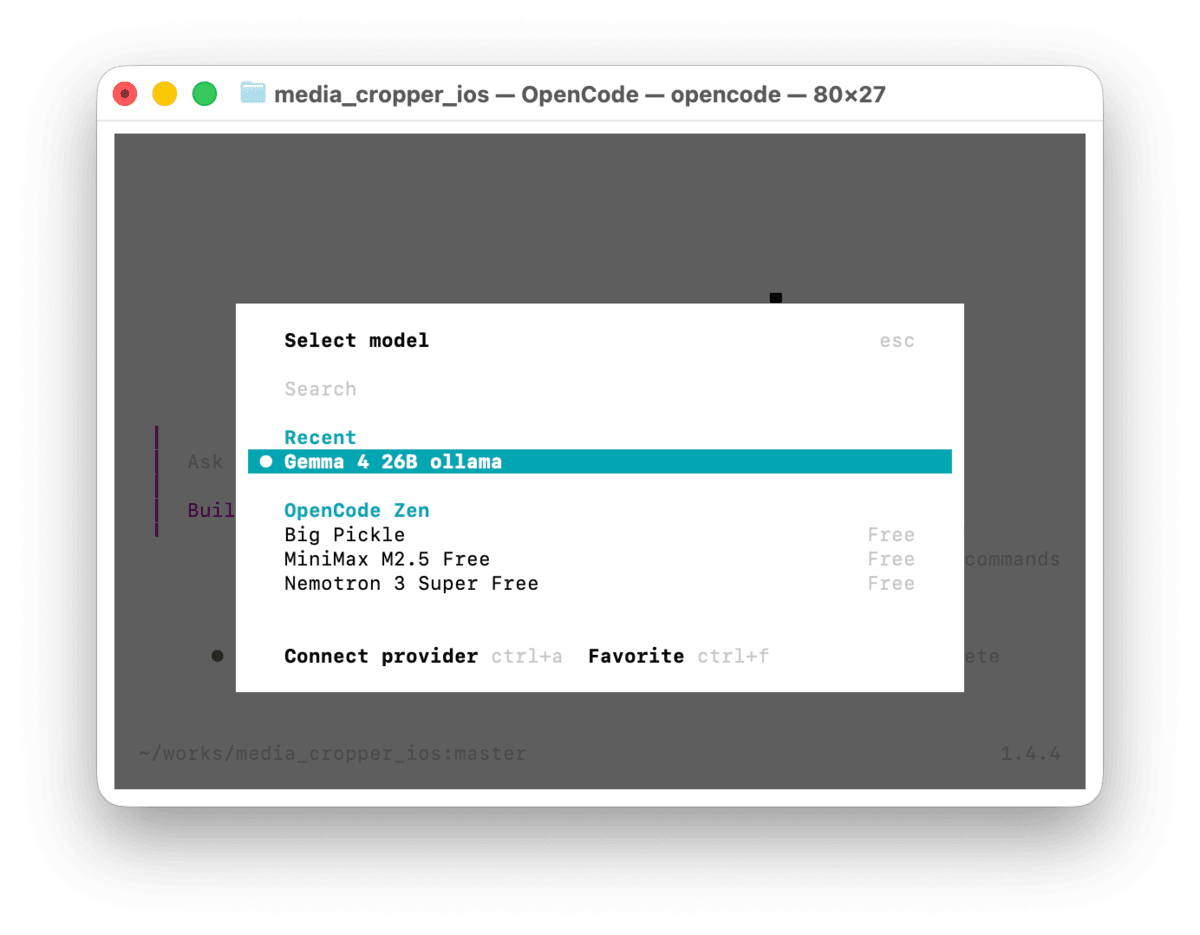
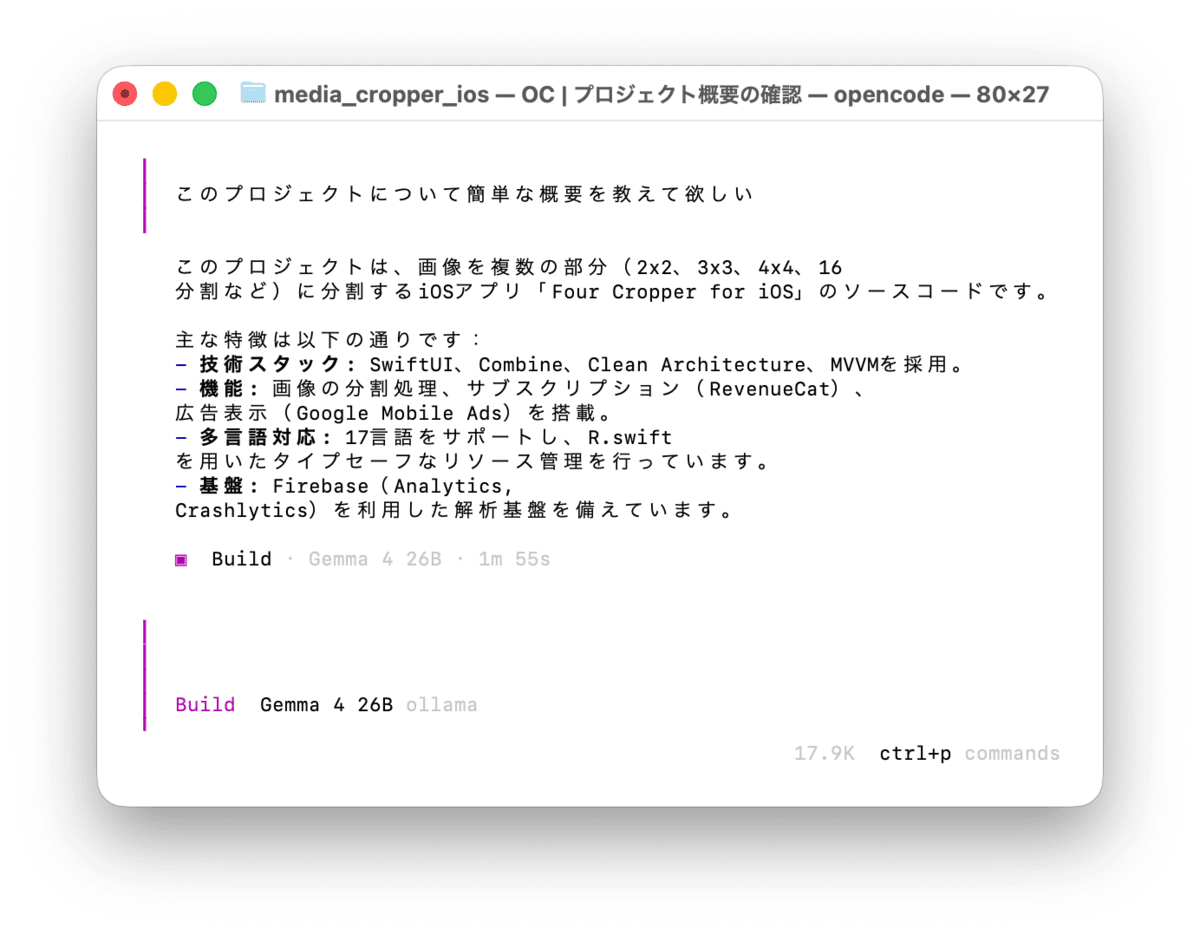
I entered a sample prompt and confirmed that a response was returned from the local model.
Summary
I introduced the steps for building a locally running AI coding environment by combining Ollama and OpenCode.
Local LLMs are less accurate compared to cloud-based models, but they do not require an internet connection and incur no API usage fees. I consider them a sufficient option for minor code generation in personal development or for use in projects where privacy is important.
The gemma4:26b used this time was not as usable for coding purposes as I had hoped, but I find it sufficiently practical for general question answering and research. I would like to make use of it for everyday use going forward. I also plan to try other models again, such as qwen3.5:27b, which is highly rated for coding performance.
Preparing a local LLM environment in anticipation of potential future price changes in cloud services will not be a wasted effort. I hope this serves as a helpful reference for those similarly considering the introduction of local LLMs.
References
- OpenCode Official Website
- OpenCode - Providers
- Ollama Official Website
- OpenCode - Ollama Integration
Job Openings: Classmethod is Hiring iOS Engineers
The Starbucks Digital Technology Division is looking for engineers capable of iOS app development. We are waiting for applications from those who would like to work with us while sharing information about new Xcode and iOS features in misc-ios and other channels!
We are also hiring iOS/Android engineers in other areas. Let's talk about mobile app development together!