
[New Feature] I Tried Publishing Markdown and HTML Files Created in CoCo Desktop as Artifacts

This page has been translated by machine translation. View original
I'm Suzuki from the Data Business Division.
It is now possible to publish Markdown files and HTML files created in CoCo Desktop as reports to Artifacts, so I gave it a try.
I think there are a wide variety of use cases, but being able to save analysis results as objects managed by Snowflake and share them with other users with governance applied is very convenient.
Let's take a look right away!
0. Preparation
First, I prepared sample data in Snowflake.
This time, I had already uploaded the data from the following quickstart for agent testing, so I used that data.
I used CoCo Desktop version 1.25.4.
1. Perform analysis in CoCo Desktop
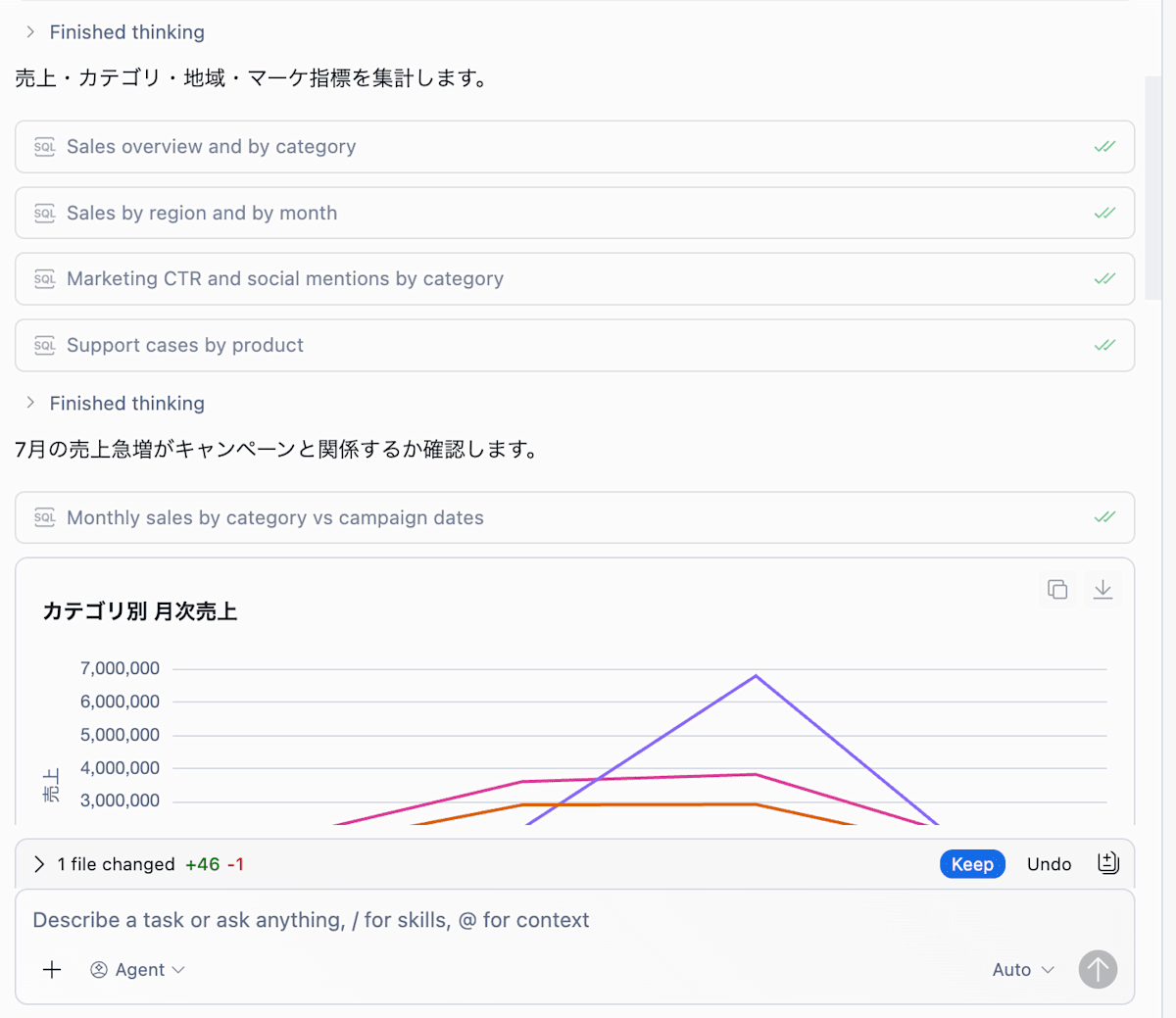
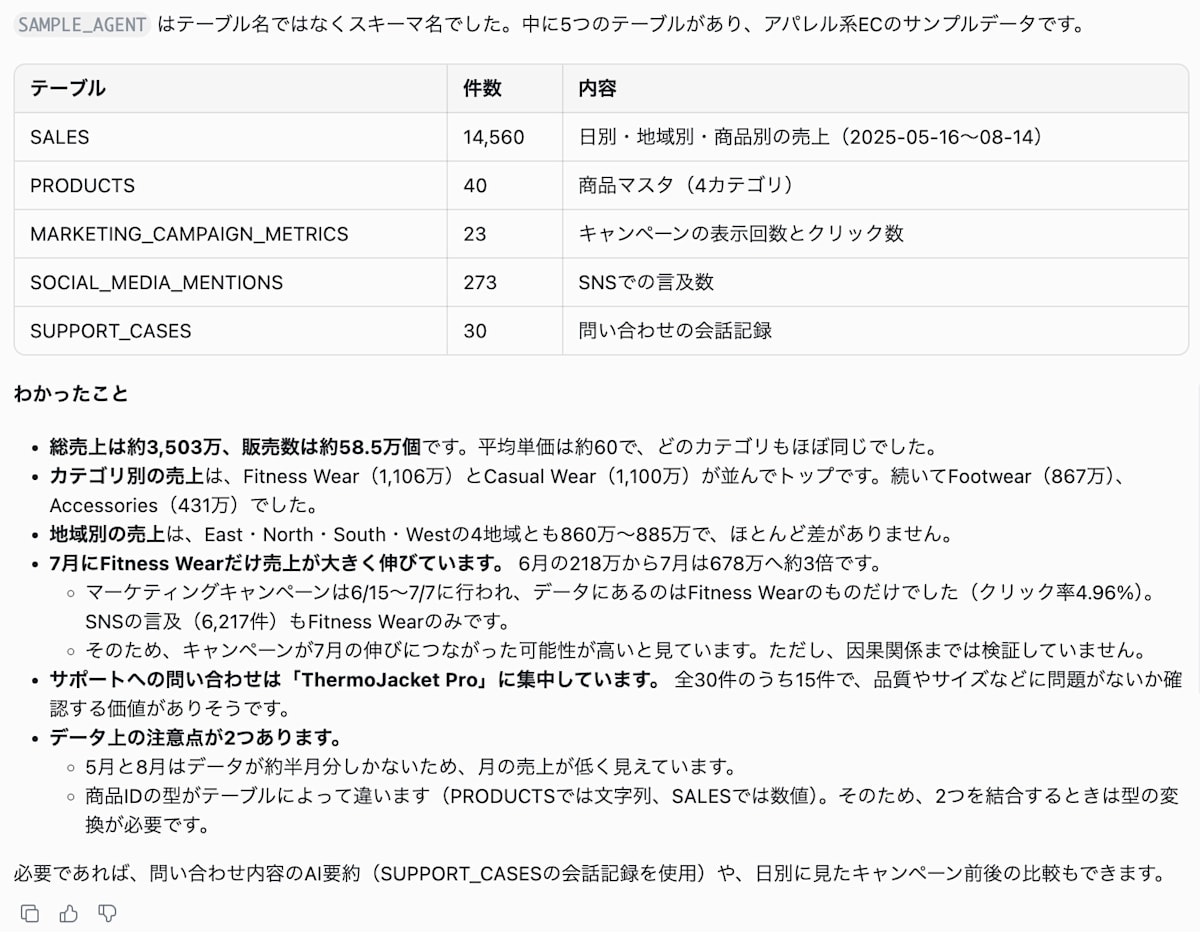
First, I performed an analysis in CoCo Desktop.
This time, as shown below, I specified the schema containing the data and asked it to "perform a simple analysis of the tables," having it check the trends in the data.
2. Publish the analysis results
Next, I asked it to publish the analysis as a report, as shown below.
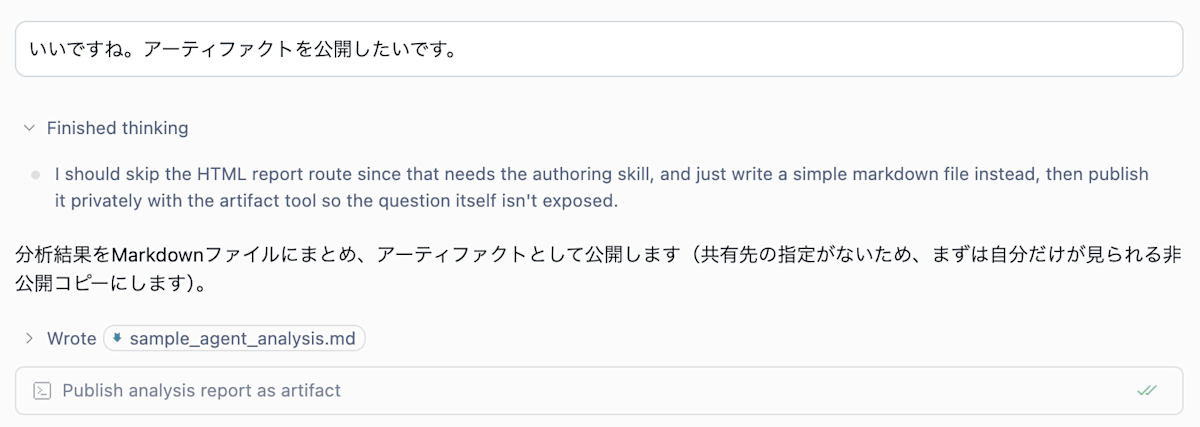
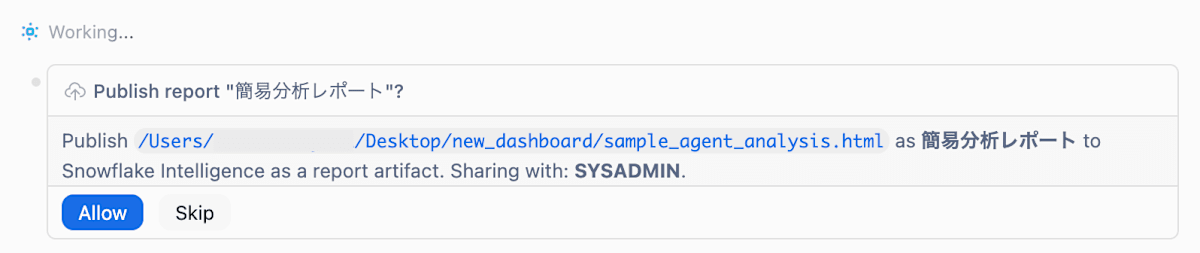
I was asked to confirm whether it was okay to publish using the cortex artifact publish command, so I had it run.
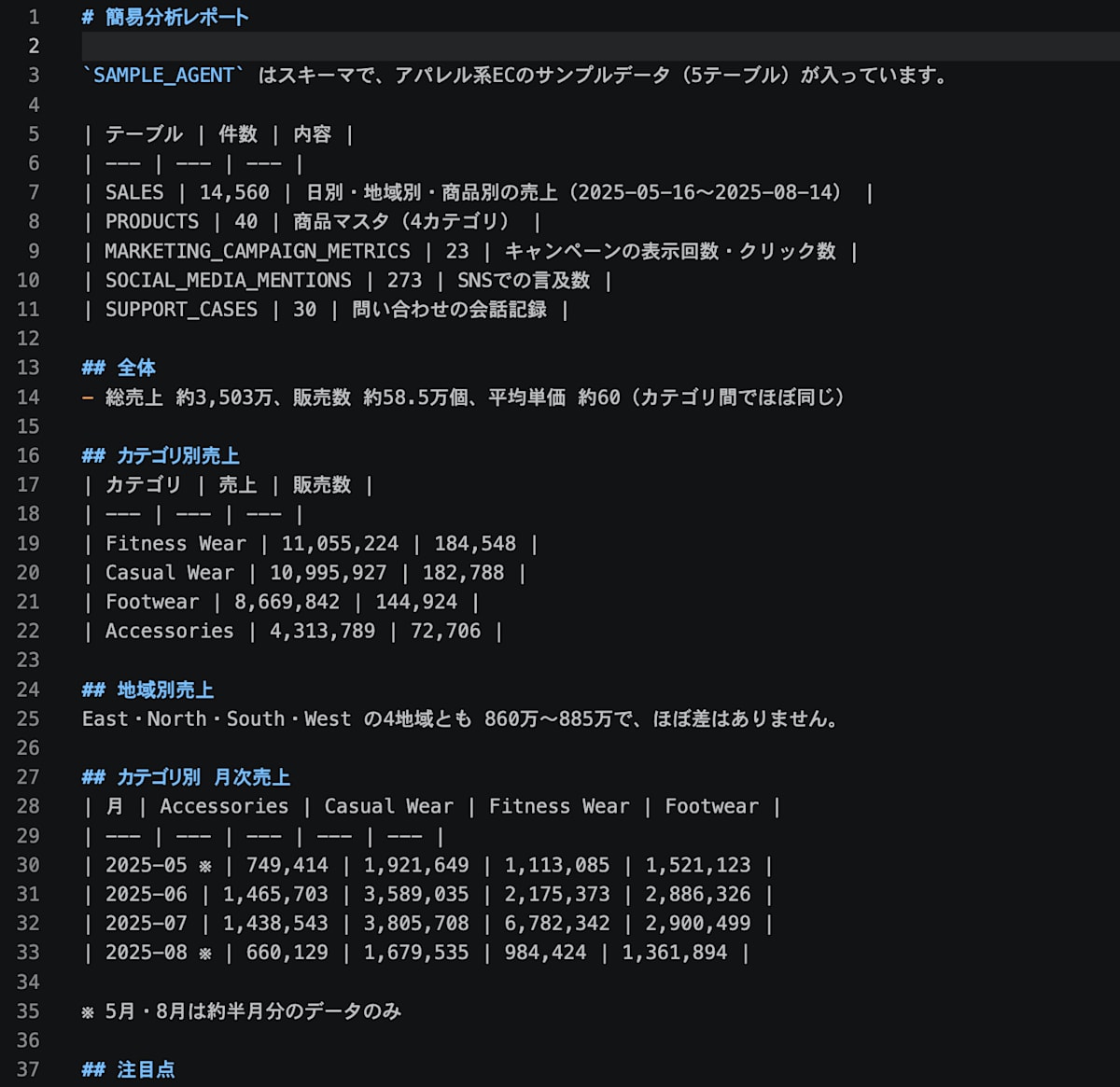
In addition, it also created a Markdown file in the local directory specified in the project where I was having the conversation. When I opened it in VSCode, it had the same content as the report we will check next.
3. Check the published report
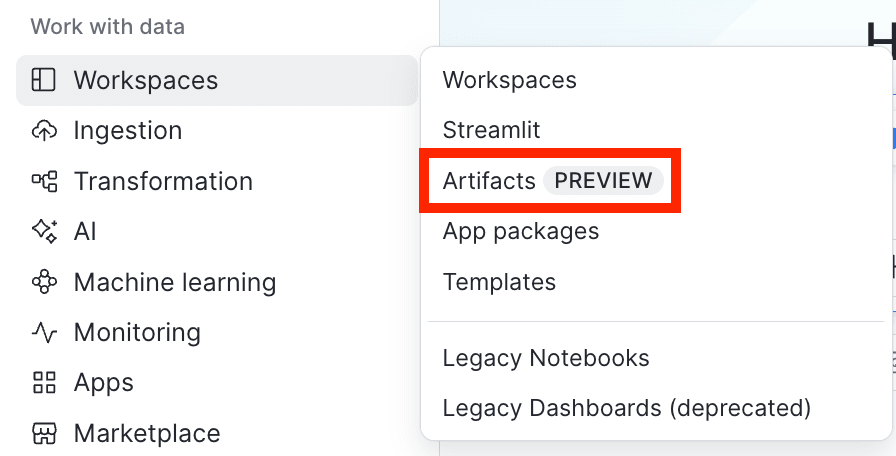
In Snowsight, I clicked Workspaces > Artifacts.
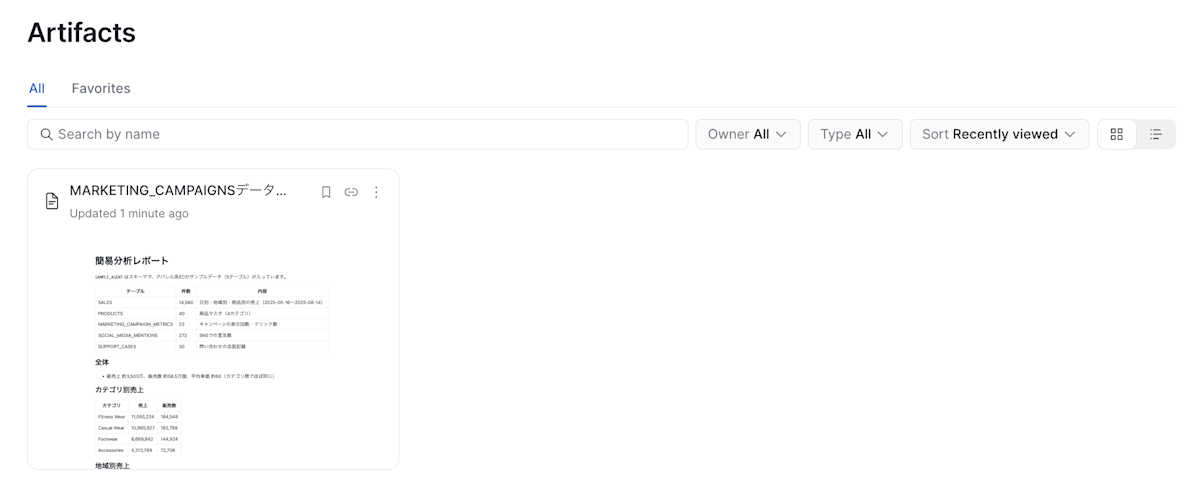
A list of artifacts was displayed, and the report I published was included.
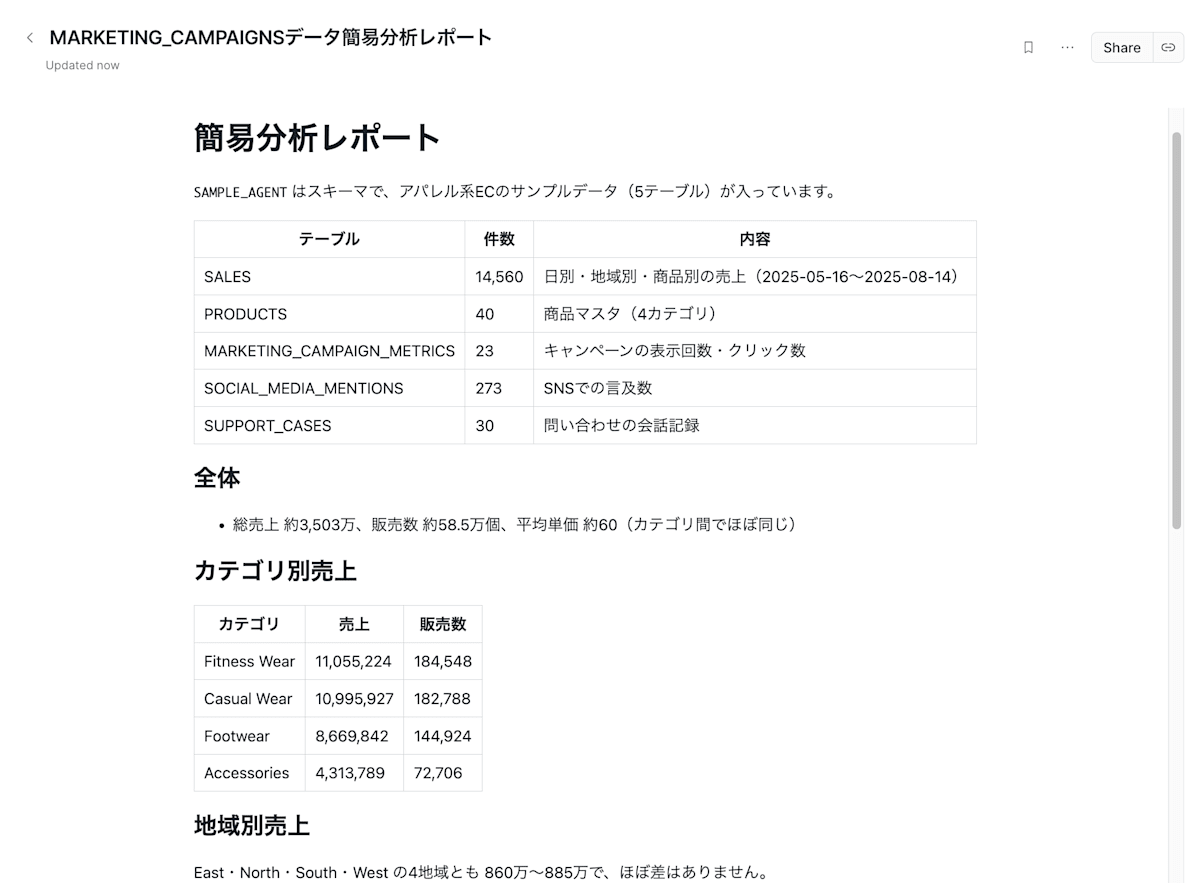
When I selected the report, I could view the Markdown report.
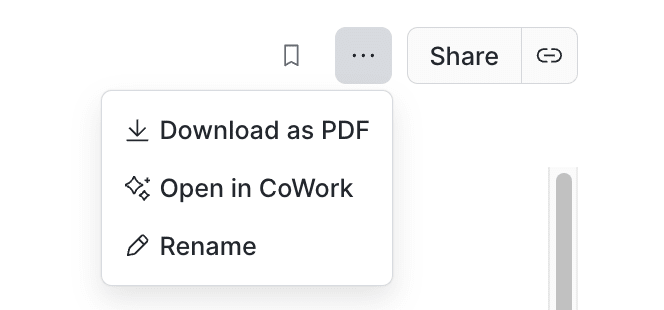
In addition to downloading the report as a PDF and renaming it, it was also possible to open it in CoWork.
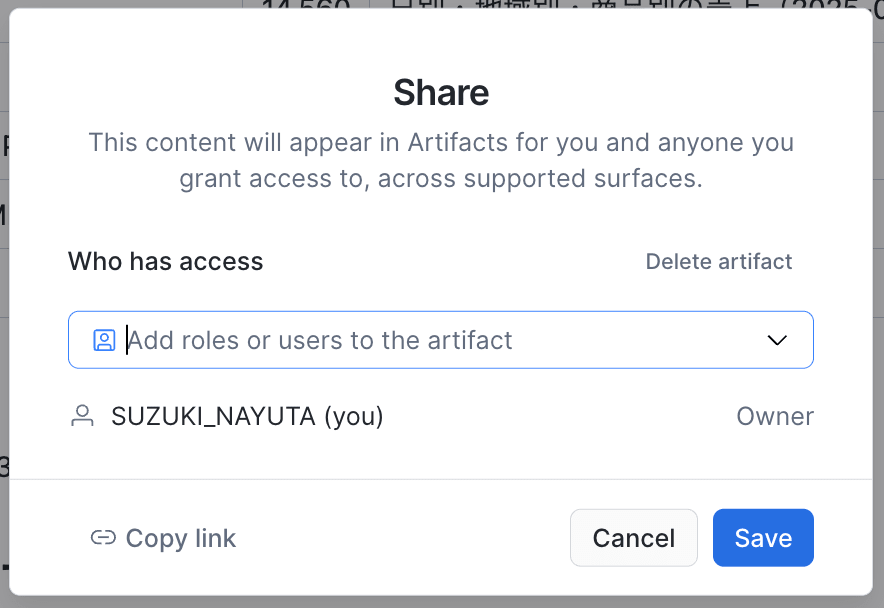
From the Share button, it was possible to specify particular roles and configure sharing. This looks like it will let you show the report to other users as well.
4. Open it in CoWork
From the Open in CoWork menu mentioned earlier, I opened the report in CoWork.
It looks like you can specify Cortex Agents and ask questions about the report.
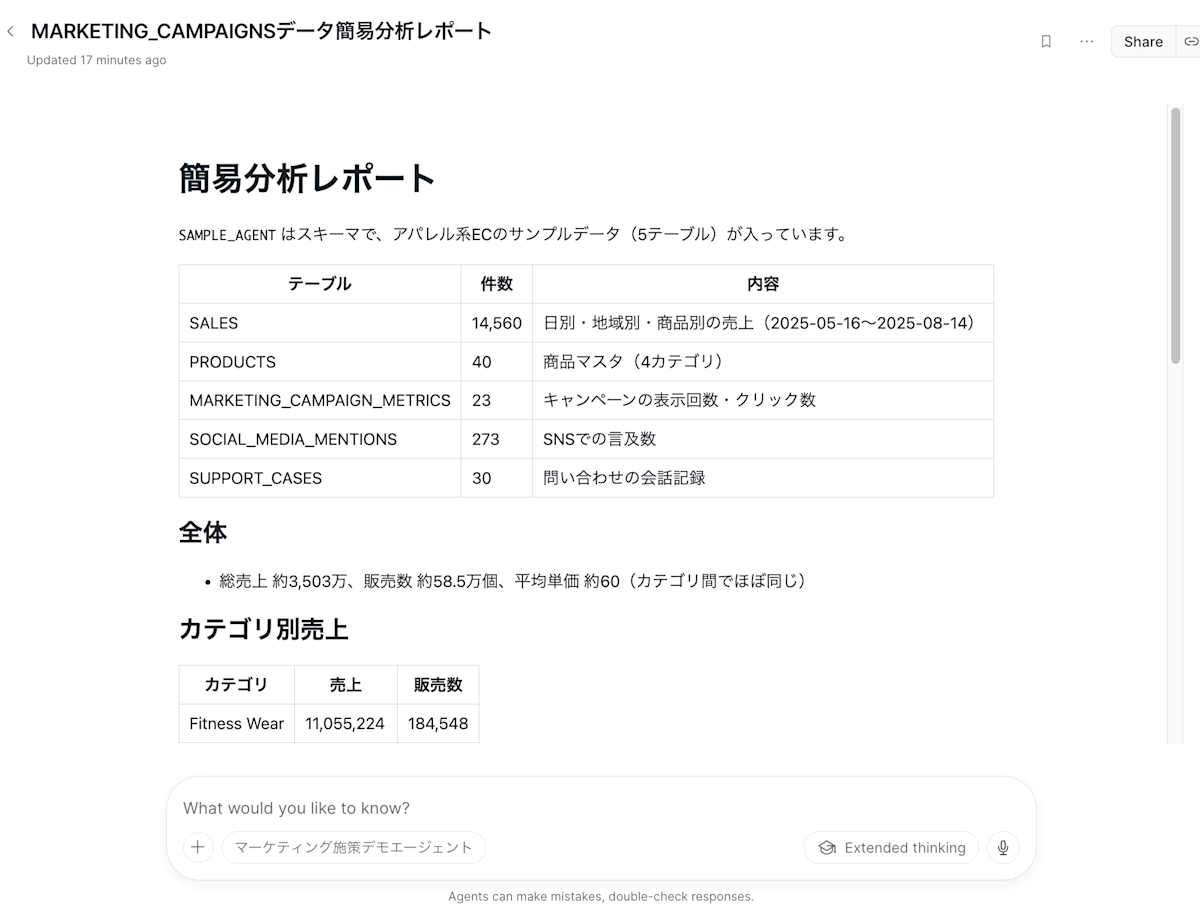
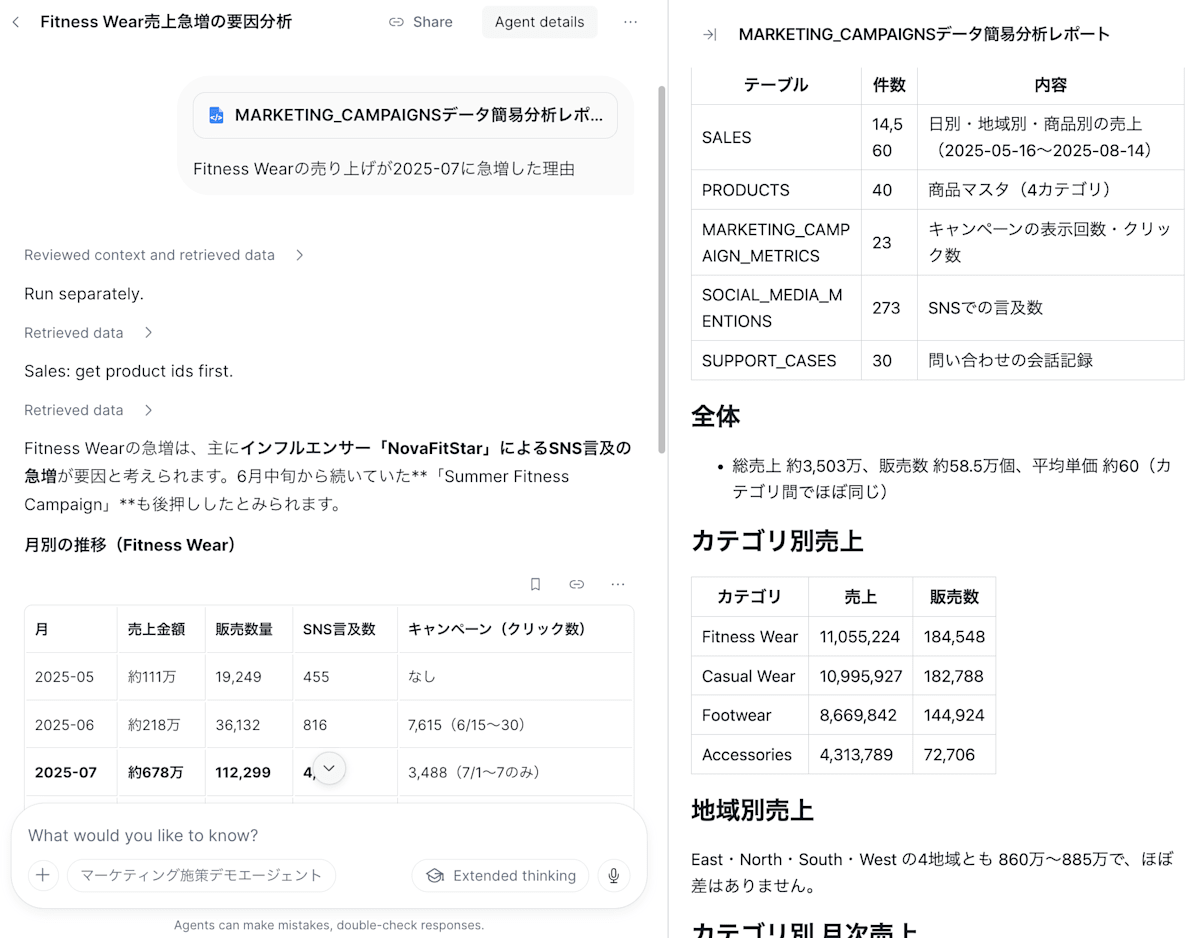
However, since this report is based on a Markdown file that does not include the specific analysis SQL statements, Cortex Agents cannot know exactly how the analysis was performed. On CoWork, the behavior was that Cortex Agents also referred to it as an attached file.
This time, I ran an additional analysis with an agent that had structured and unstructured analysis tools configured for the data the report was based on. If users actually want to perform additional analysis, it seems good to prepare an agent with the necessary tools configured in this way and make it available.
5. Try creating it as an HTML file too
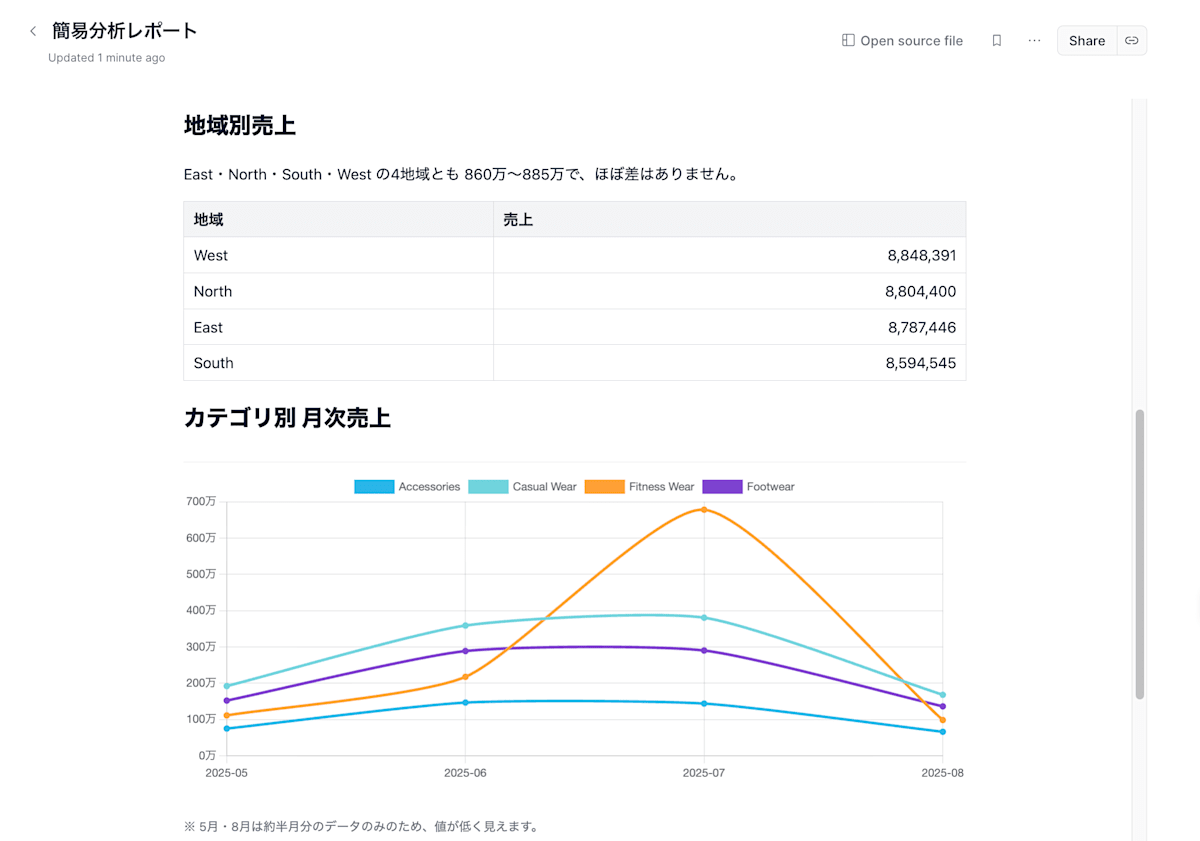
Since CoCo Desktop had also drawn charts, I asked it to turn the report into an HTML file, including the charts.
I asked it to create an HTML report including the charts. After that, I proceeded through to publishing in the order CoCo Desktop suggested.
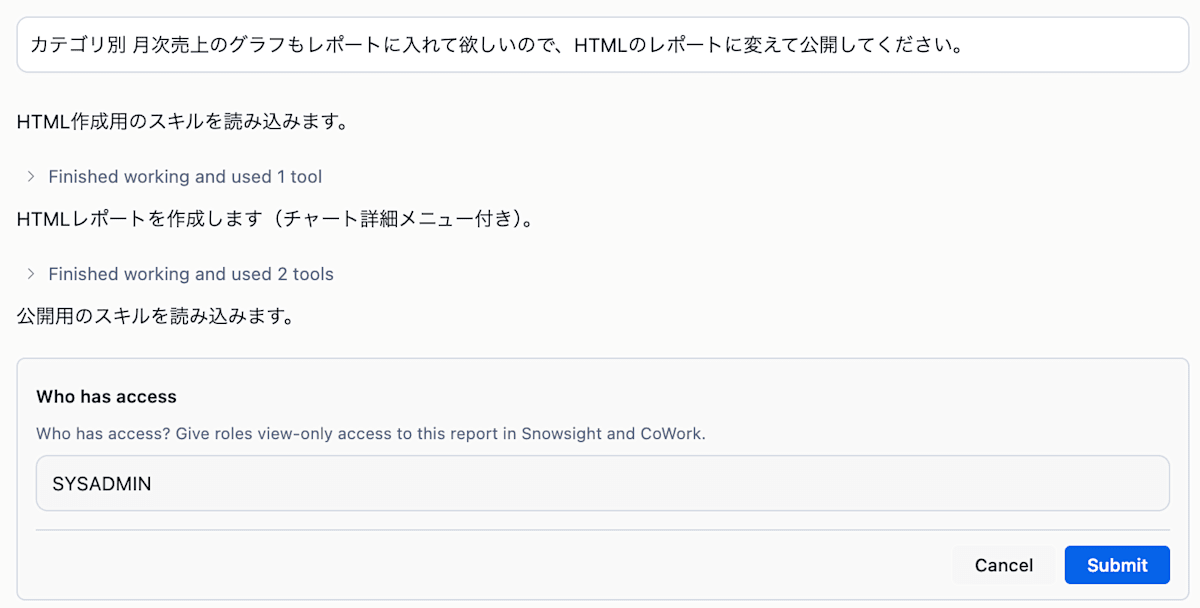
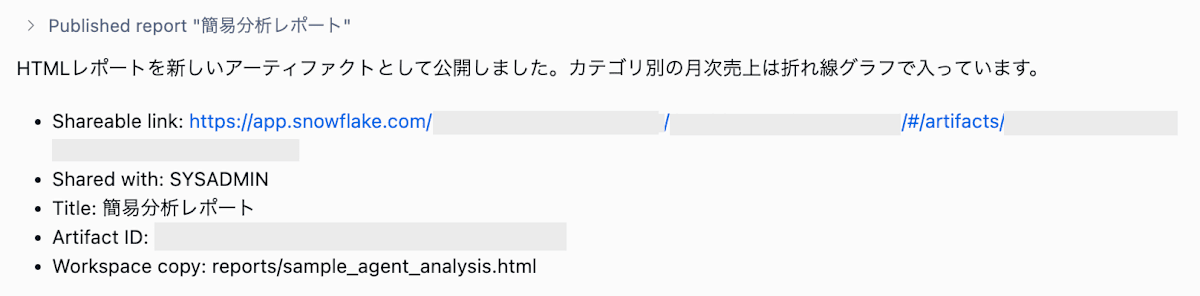
An HTML report with charts was created in Artifacts, as shown below.
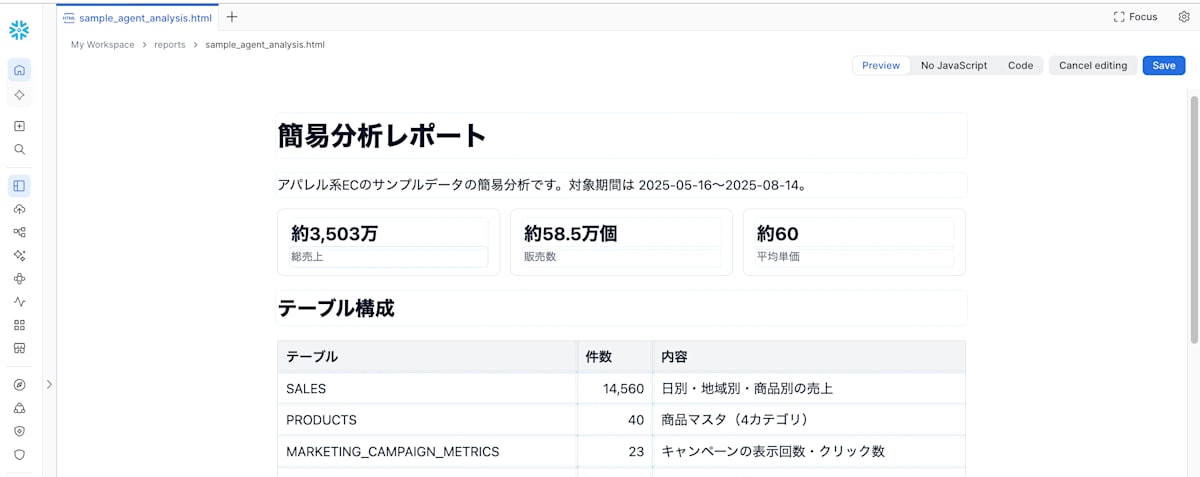
Unlike Markdown, it was possible to open it in Workspaces from Open source file and edit it.
Conclusion
I created HTML and Markdown files from the analysis results performed in CoCo Desktop and published them as reports to Artifacts.
Although this is currently a feature offered in preview, you can also ask questions about reports from CoWork, so it looks very promising. I'm looking forward to general availability.
Since there is also the new dashboards feature in addition to publishing analyses to Artifacts, combining the two should let you make even better use of Snowflake.
▼ Introduction article on the new dashboards