I Tried the herdr Desktop App and herdr-core, Comparing Them with the TUI Version

This page has been translated by machine translation. View original
Introduction
Hello, this is Shimada from the Manufacturing Business Technology Department at Classmethod.
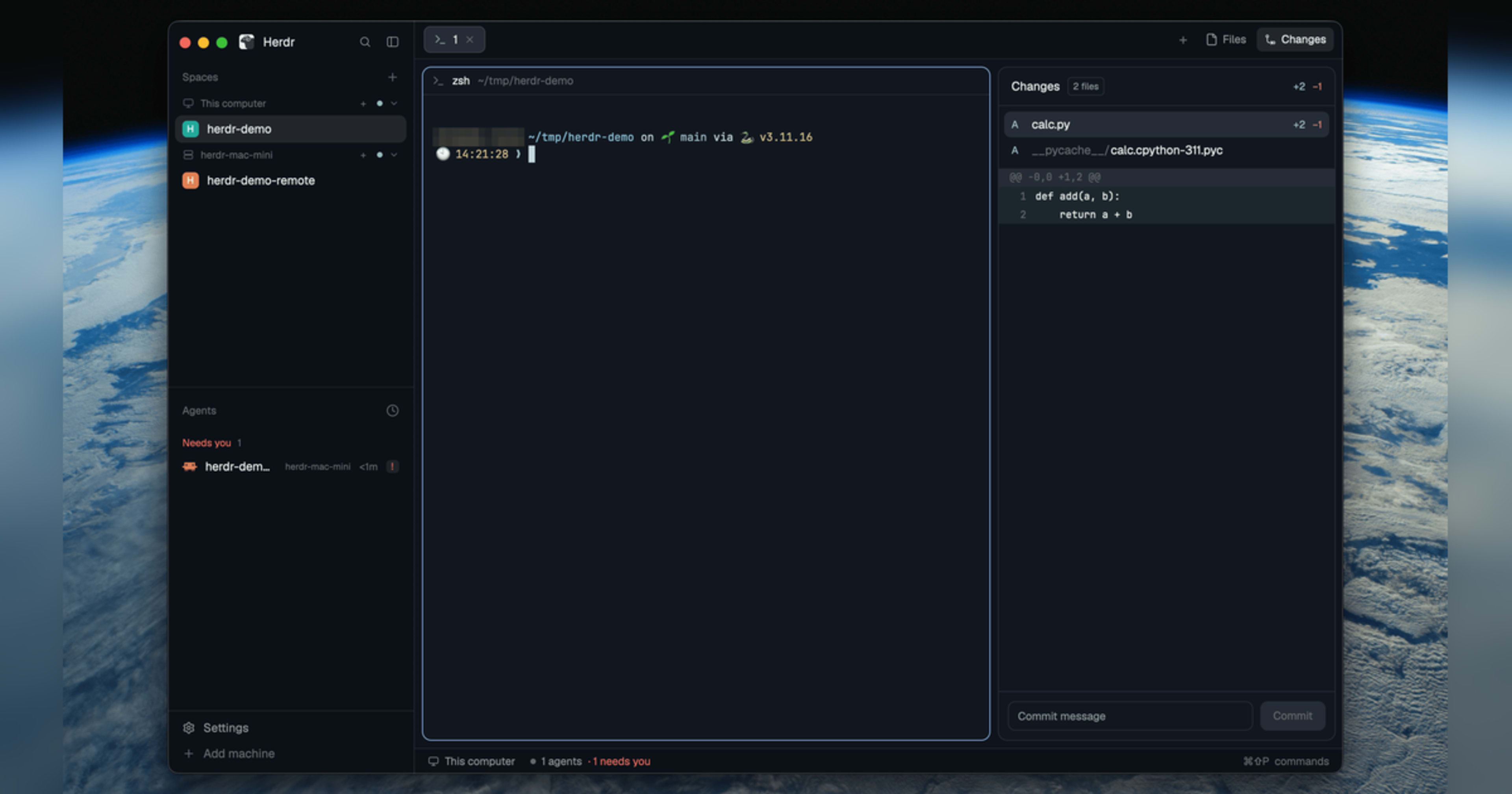
herdr has released a desktop app (Herdr app) and herdr-core, the runtime that serves as its foundation.
I had been using the TUI version of herdr that runs in the terminal, and after migrating from tmux I kept using it for work and other purposes.
In this article, I actually run the desktop app and herdr-core, and introduce the results of checking how they differ from the TUI version.
The contents of this article are as of 2026-11-04.
The versions used for verification were macOS 26.7.1, Herdr app 0.1.8 (labeled BETA), herdr-core 0.1.14, TUI herdr 0.9.0, and Claude Code 2.1.312.
Verification of mods and key operations was done with Herdr app 0.1.12 and herdr-core 0.1.16.
The relationship between herdr-core and the desktop app
herdr-core is a resident program that keeps terminals and agents running.
Its CLI is named hc, and it handles launching terminals, reading the screen, sending text, and waiting for completion.
The official page describes herdr-core as "draws nothing and guesses nothing," so it does not draw the screen.
The desktop app is one of the clients of herdr-core.
Even if you close the app window, the terminals keep running inside herdr-core.
When you add a remote machine, herdr-core runs on that machine too, and the app connects to it over SSH.
The TUI version of herdr is the same in that a server stays resident and holds the panes.
The difference is that while the TUI version bundles the server and rendering into a single product, in the new architecture the runtime (herdr-core) and the screen (Herdr app) are separate programs.
herdr-core can output its API in OpenRPC format with hc schema, so clients other than the app can also be built.
The TUI version and herdr-core are separate runtimes.
On my Mac, the TUI version's herdr server and herdr-core serve were running simultaneously as separate processes.
Panes opened in the TUI version do not appear in Herdr app as they are.
Installation and first launch
On macOS, you either install the DMG or run the install script from the terminal.
curl -fsSL https://releases.herdr.dev/app/install.sh | sh
After installation, herdr-core, its symbolic link hc, and herdr-app, which points to the app itself, were placed in ~/.local/bin.
$ hc --version
hc 0.1.14
$ hc server status
{"core":{...},"live":0,"pid":63181,"version":"0.1.14", ...}
When you launch the app, the welcome screen opens.
Three points are introduced as the app's main features: "It notifies you when an agent needs you," "Agents can launch helpers," and "Other machines can appear in the same window."
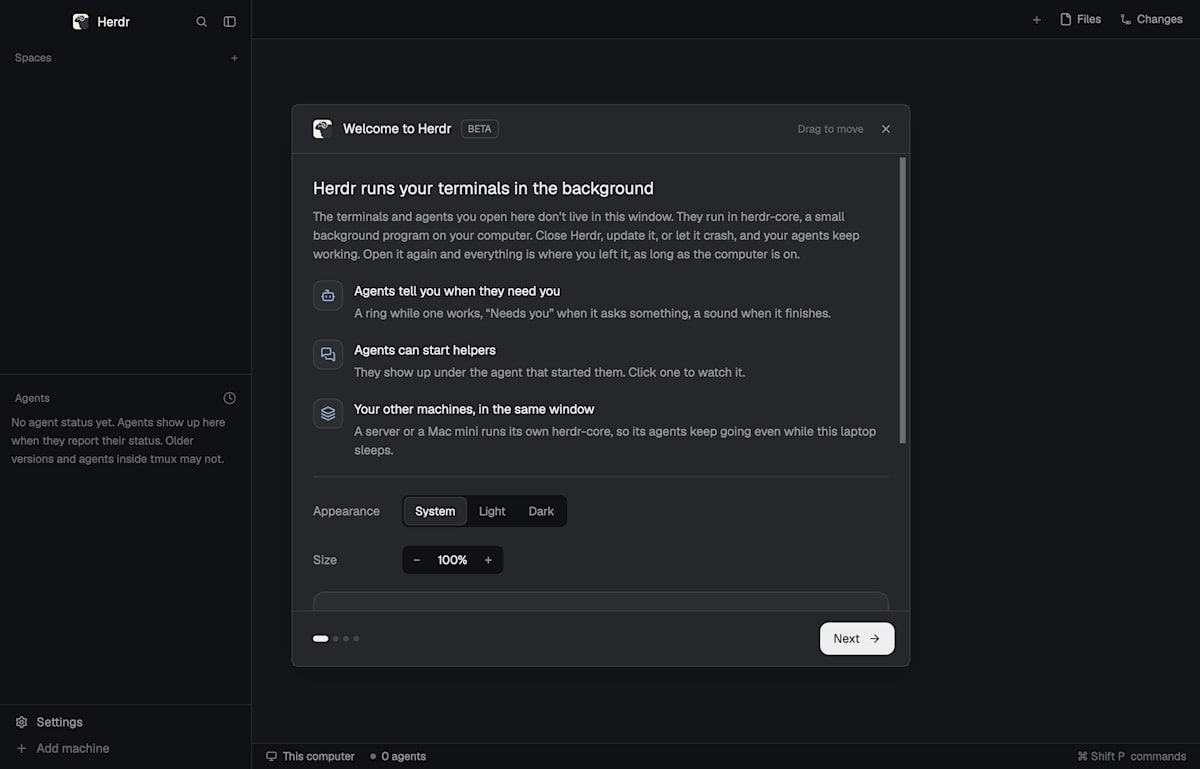
Welcome screen on first launch
The app's screen layout has a sidebar on the left with the list of spaces and agents, and tabs and panes on the right.
A space is a unit for each work location such as a repository, and a tab is a unit for each task within it.
Claude Code status display
In the TUI version, to show Claude Code's status in the sidebar, you had to install a hook script with herdr integration install claude.
herdr-core does not guess an agent's state from the strings on the screen.
It uses only the state that the program itself reports through an escape sequence called OSC 7501 (Program Status Protocol).
Claude Code's 2.1.295 changelog says "Added Program Status Protocol (OSC 7501) support," so it supports this protocol.
I launched Claude Code from hc and checked the status.
$ hc run --bg --name try1 claude "hello.txt に今日の日付を書いて終わって"
$ hc get try1 --json
{ ..., "status": {"app": "claude-code", "state": "done"}, "reported": true, ... }
I had configured nothing on the herdr-core side, yet the state of Claude Code after finishing its work was returned as done.
The state is one of working, blocked, idle, or done.
In the app's sidebar, blocked agents appear at the top of the list as "Needs you."
However, at the trust confirmation shown when a folder is opened for the first time, the status remained null (the same with herdr-core 0.1.16 and Claude Code 2.1.318).
Since it does not become blocked, the app cannot tell that the agent is waiting for input.
When launching from hc, I read the screen with hc read and approved with hc keys <terminal> down enter.
The herdr integration install claude hook that I had installed for the TUI version was still left in my settings.
So I also checked with Claude Code in a state where no hooks run at all, by adding an option that does not read user settings (--setting-sources project,local).
This check was done later with herdr-core 0.1.16 and Claude Code 2.1.318.
$ hc run --bg --name nohook claude --setting-sources project,local "hello.txt に今日の日付を書いて終わって"
$ hc get nohook --json
{ ..., "status": {"app": "claude-code", "msg": "Writing today's date to hello.txt", "state": "working"}, "reported": true, ... }
{ ..., "status": {"app": "claude-code", "state": "done"}, "reported": true, ... }
Even without hooks, the state changed from working to done.
To begin with, the TUI version's hook does nothing and exits unless the environment variables set by the TUI version (such as HERDR_ENV) are present.
Terminals launched by hc only get environment variables starting with HC_, such as HC_TERMINAL_ID, so the hook does not run under herdr-core.
Do terminals remain after closing the app?
I created a space from the app and asked Claude Code to fix a bug.
After the fix was finished, I quit the app and ran hc ls; the result is below.
$ hc ls
{"terminals":[{"address":"t2","agent":"claude-code","cwd":"/Users/<user>/tmp/herdr-demo","state":"live","status":"done","turn":1,"where":"herdr-demo / 1"}, ...]}
Even while the app was not running, terminal t2 remained live.
When I relaunched the app, the spaces and tabs were displayed in the same state as before I quit.
Terminals opened by the app get herdr.space and herdr.tab labels.
The app displays terminals with these labels in the corresponding space and tab.
Terminals you launch yourself with hc run will also appear in the app if you give them the same labels.
An agent launching an agent
In herdr-core, an agent can launch another agent (a sub-agent) with hc run.
The launched agent is recorded as a child of the launcher, and stops together with it when the launcher stops.
I asked the Claude Code running in the app to launch a reviewer agent.
hc run --bg --name reviewer claude "calc.py をレビューして、結果を hc send $HC_TERMINAL_ID で報告して" を実行して、レビュー役のエージェントを起動して。報告が来たら要約して
$HC_TERMINAL_ID contains the address of that terminal itself.
Claude Code launched reviewer, and reviewer sent the review result back to the launcher with hc send.
On the launcher's screen, it arrives as a message enclosed in <hc from="t3 reviewer">.
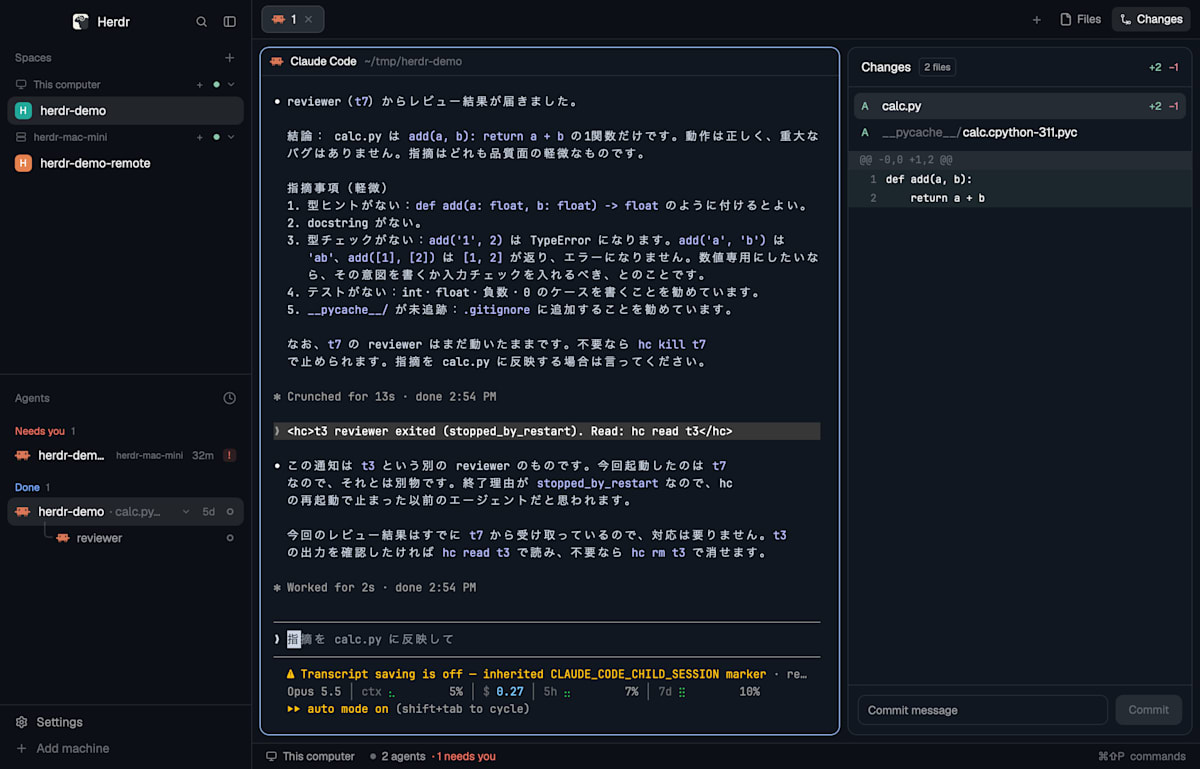
The sub-agent reviewer is displayed under its launcher. On the right is the Changes panel
In the sidebar's Agents, reviewer was displayed hanging below its launcher herdr-demo.
The Changes panel on the right shows the change diff of that repository, and also has a commit message input field and a commit button.
Even with the TUI version, if you had an agent read the official SKILL.md, it could create panes and run other agents.
With herdr-core, herdr-core itself holds the parent-child relationship between the launcher and the launched agent, and the CLI provides the means to wait for completion with hc wait and receive reports with hc send.
The manual for agents can be output with hc --skill.
Showing remote machines in the same sidebar
I added the Mac mini that I used as the TUI version's server in a previous article as a herdr-core machine.
You add it with "Add machine" in the app's sidebar or with the CLI's hc machine add.
hc machine add mac-mini
After adding it, hc and herdr-core were also placed in ~/.local/bin on the remote side.
The remote machine appears in the sidebar alongside "This computer," and you can create spaces beneath it.
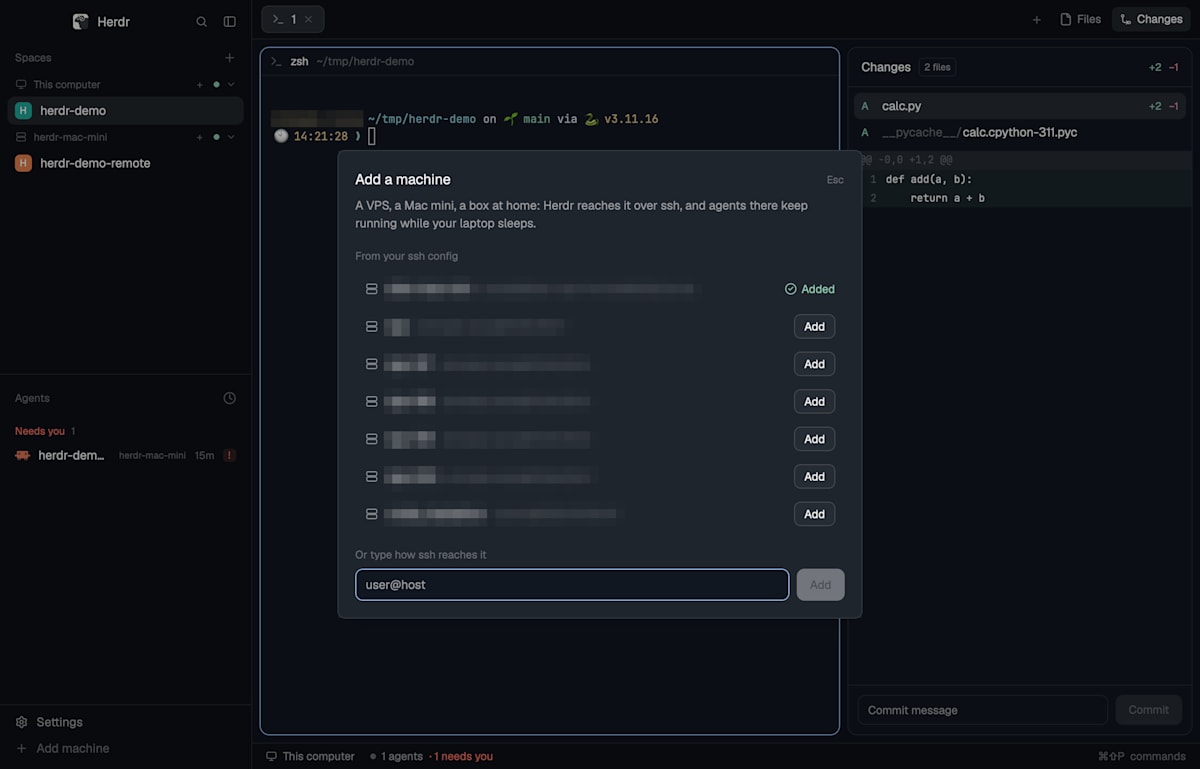
The Add machine dialog. Choose from the hosts in ssh config or enter user@host (hostnames and such are hidden with mosaic)
claude not found on the remote
When I tried to launch Claude Code in a remote space, I got the following error.
sh: claude: command not found
The app launches remote programs in the form sh -c '"$@"; exec "${SHELL:-sh}" -i'.
Because ~/.local/bin was not in the PATH of the non-interactive shell over SSH, claude could not be found.
After the launch failed, an interactive shell opened, and running claude from that shell worked.
Login expiry appears in "Needs you"
The login of the remote Claude Code had expired.
In this case, herdr-core reports the state as follows.
{"app": "claude-code", "kind": "auth", "msg": "Login expired · Please run /login", "state": "blocked"}
As in the earlier image, this agent appeared in the sidebar's "Needs you."
Since local agents and remote agents are lined up in one list, you can check in the same place which machine has a stopped agent.
Renaming a machine makes the status disappear
When I changed a machine's display name with hc machine rename, the remote agent's status no longer appeared in the app.
Although hc get returned blocked, in the app the pane heading became "Shell" and it also disappeared from the Agents list.
Restarting the app made no difference, and when I changed the name back, the status appeared immediately.
At present, it is safest to decide the machine name with --name when adding it and not change it afterward.
The screen can be changed through configuration files
The app's screen is entirely defined by files inside ~/.config/herdr-app.
The bundled AGENTS.md says that the layout, key bindings, and sidebar panels (mods) are reflected in about one second when you rewrite the files.
~/.config/herdr-app/
├── AGENTS.md        # エージェント向けの説明書(起動のたびに書き直される)
├── layouts/         # 画面の構成と見た目
├── keys.json        # キーバインド
├── settings.json    # 拡大率、音、フォントなど
├── mods/            # パネルを作る JavaScript
├── gpui-kit.d.ts    # mod から使える UI 要素の型
└── herdr.d.ts       # mod から使えるアプリのデータとコマンドの型
The official guide envisions a usage where you have an agent read this AGENTS.md and ask it things like "show a list of PRs in the sidebar."
Mods are a format that assembles GPUI elements in JavaScript; HTML, CSS, and web views cannot be used.
If you break the settings, you can return to the default layout with ctrl-alt-shift-escape.
In the app, the sidebar's space list and agent list, as well as the tab bar, are built with the same mod mechanism.
If you duplicate a default one and rewrite it, you can change the ordering of the list and the items displayed.
Building an Inbox panel with a mod
The default Agents list arranges agents by state.
However, agents that have finished their work remain in the list even after you have looked at them, so as the number of agents grows, it becomes hard to tell which ones you haven't checked yet.
So I built, as a mod, an Inbox panel where you can manually put away agents you have already checked.
- Needs you: Shows agents waiting for input (
blocked) at the top as cards - Finished: Shows agents that have finished their work as cards. Once checked, put them away with "Put away"
- Working: Shows agents in progress, one line each
- Put away: Agents that have been put away. When they start working again, they automatically return to the Finished side
Clicking a card moves you to that agent's pane (the agent.focus command).
For agents on remote machines, I add the machine name to the card.
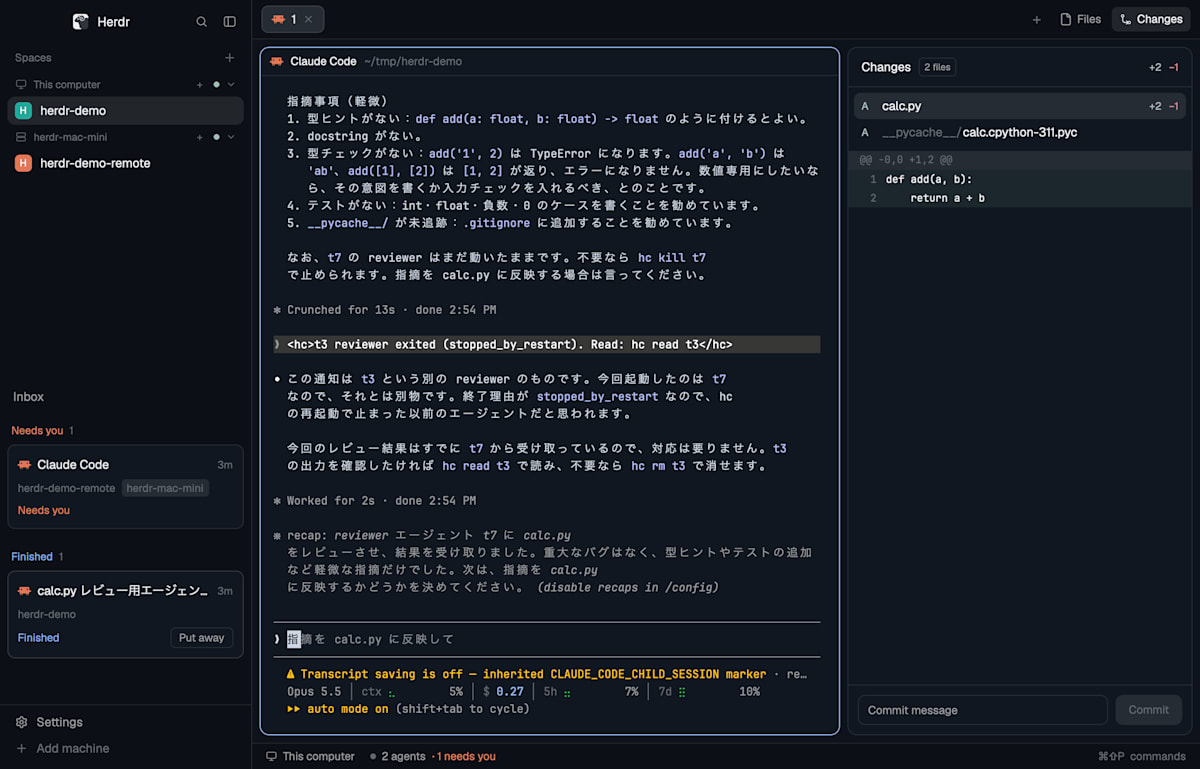
The screen with the sidebar's Agents replaced by the Inbox. Remote agents get a herdr-mac-mini label
A mod is loaded simply by placing main.js and mod.json in ~/.config/herdr-app/mods/inbox/.
The list of agents can be obtained with agents() of the herdr module, and render is automatically called again when the state changes, so no polling is needed.
The addresses of put-away agents are saved in each mod's localStorage.
{ "place": "right", "size": 300, "title": "Inbox" }
Full main.js
// Inbox: agents that need you on top, finished ones as cards you put away by hand.
//
// - Needs you: blocked agents. They can't be put away.
// - Finished: done or idle agents you haven't put away yet. "Put away" moves one
//   to the Put away list; it comes back by itself when it starts working again.
// - Working: a compact list with a spinner.

import { View, div, svg, image } from "gpui-kit";
import { v_flex, h_flex } from "gpui-base";
import { agents, theme, run, setAgentOrder } from "herdr";

const KEY = "put-away"; // localStorage: addresses put away, in order

const machineOf = (a) => (a.address.includes("/") ? a.address.split("/")[0] : null);

function ago(ms) {
  const m = Math.floor(ms / 60000);
  if (m < 1) return "now";
  if (m < 60) return `${m}m`;
  const h = Math.floor(m / 60);
  return h < 24 ? `${h}h` : `${Math.floor(h / 24)}d`;
}

function icon(p, color) {
  if (!p?.icon) return null;
  return p.tint ? svg(p.icon).size(14).flex_none().text_color(color) : image(p.icon).w(14).h(14).flex_none();
}

export default class Inbox extends View {
  init(_props, cx) {
    this.away = JSON.parse(localStorage.getItem(KEY) ?? "[]");
    this.since = JSON.parse(localStorage.getItem("since") ?? "{}"); // address -> { s, at }
    this.showAway = false;
    // Only to refresh the "5m" labels; live data re-renders by itself.
    cx.timer.every(30000, (cx) => cx.notify());
  }

  save() {
    localStorage.setItem(KEY, JSON.stringify(this.away));
  }

  putAway(address, cx) {
    if (!this.away.includes(address)) this.away.push(address);
    this.save();
    cx.notify();
  }

  bringBack(address, cx) {
    this.away = this.away.filter((x) => x !== address);
    this.save();
    cx.notify();
  }

  // Done and idle are one state here: looking at a done agent makes it idle.
  stamp(list, now) {
    let dirty = false;
    for (const a of list) {
      const s = a.status === "done" ? "idle" : a.status;
      if (this.since[a.address]?.s === s) continue;
      this.since[a.address] = { s, at: now };
      dirty = true;
    }
    if (dirty) localStorage.setItem("since", JSON.stringify(this.since));
  }

  // New work brings an agent back; a closed one is forgotten.
  sweep(list) {
    const live = new Map(list.map((a) => [a.address, a.status]));
    const kept = this.away.filter((x) => live.has(x) && !["working", "blocked"].includes(live.get(x)));
    if (kept.length !== this.away.length) {
      this.away = kept;
      this.save();
    }
  }

  heading(t, label, count, color) {
    return h_flex()
      .px(12)
      .pt(14)
      .pb(6)
      .gap(6)
      .items_center()
      .text_size(11.5)
      .text_color(color ?? t.dim)
      .child(div().child(label))
      .child(div().text_color(t.dim).child(String(count)));
  }

  where(t, a) {
    const m = machineOf(a);
    return h_flex()
      .gap(6)
      .text_size(11.5)
      .text_color(t.dim)
      .child(div().truncate().child(a.space_name))
      .when(Boolean(m), (el) => el.child(div().px(5).rounded(4).bg(t.raised).child(m)));
  }

  // A card: what it is, where it runs, what it last said, and its one action.
  card(t, a, now, action) {
    const blocked = a.status === "blocked";
    const accent = blocked ? t.blocked : t.done;
    return v_flex()
      .id(`card-${a.address}`)
      .mx(8)
      .mb(6)
      .p(10)
      .gap(5)
      .rounded(8)
      .border(1)
      .border_color(a.focused ? t.input : t.border)

      .bg(t.background)
      .hover((s) => s.bg(t.hover))
      .on_click(() => run("agent.focus", { terminal: a.address }))
      .child(
        h_flex()
          .gap(7)
          .items_center()
          .when(Boolean(icon(a.program, t.foreground)), (el) => el.child(icon(a.program, t.foreground)))
          .child(div().flex_1().truncate().text_size(13).text_color(t.foreground).child(a.title || a.tab_name))
          .child(div().flex_none().text_size(11).text_color(t.dim).child(ago(now - (this.since[a.address]?.at ?? now)))),
      )
      .child(this.where(t, a))
      .child(
        h_flex()
          .gap(6)
          .items_center()
          .child(div().flex_1().text_size(11.5).font_semibold().text_color(accent).child(blocked ? "Needs you" : "Finished"))
          .when(Boolean(action), (el) => el.child(action)),
      );
  }

  button(t, id, label, onClick) {
    return div()
      .id(id)
      .px(8)
      .h(22)
      .flex()
      .items_center()
      .rounded(5)
      .border(1)
      .border_color(t.border)
      .text_size(11.5)
      .text_color(t.muted)
      .hover((s) => s.bg(t.raised).text_color(t.foreground))
      .on_click((_e, cx) => {
        cx.stop_propagation();
        onClick(cx);
      })
      .child(label);
  }

  row(t, a, right) {
    return h_flex()
      .id(`row-${a.address}`)
      .mx(8)
      .px(8)
      .h(28)
      .gap(7)
      .items_center()
      .rounded(6)
      .hover((s) => s.bg(t.hover))
      .on_click(() => run("agent.focus", { terminal: a.address }))
      .when(Boolean(icon(a.program, t.muted)), (el) => el.child(icon(a.program, t.muted)))
      .child(div().flex_1().truncate().text_size(12.5).text_color(t.muted).child(a.title || a.tab_name))
      .child(div().flex_none().text_size(11).text_color(t.dim).child(a.space_name))
      .child(right);
  }

  render(cx) {
    const t = theme();
    const now = Date.now();
    const list = agents();
    this.stamp(list, now);
    this.sweep(list);

    const newest = (x, y) => (this.since[y.address]?.at ?? 0) - (this.since[x.address]?.at ?? 0);
    const needs = list.filter((a) => a.status === "blocked").sort(newest);
    const finished = list.filter((a) => ["done", "idle"].includes(a.status) && !this.away.includes(a.address)).sort(newest);
    const working = list.filter((a) => a.status === "working").sort(newest);
    const away = this.away.map((x) => list.find((a) => a.address === x)).filter(Boolean);
    setAgentOrder([...needs, ...finished, ...working, ...away].map((a) => a.address));

    const empty = !needs.length && !finished.length && !working.length;
    return v_flex()
      .id("inbox")
      .size_full()
      .bg(t.chrome)
      .overflow_y_scrollbar()
      .child(h_flex().px(14).pt(14).pb(2).text_size(13).text_color(t.muted).child("Inbox"))
      .when(empty, (el) => el.child(div().px(12).pt(10).text_size(12).text_color(t.dim).child("Nothing to look at.")))
      .when(needs.length > 0, (el) =>
        el.child(this.heading(t, "Needs you", needs.length, t.blocked)).children(needs.map((a) => this.card(t, a, now, null))),
      )
      .when(finished.length > 0, (el) =>
        el
          .child(this.heading(t, "Finished", finished.length, t.done))
          .children(finished.map((a) => this.card(t, a, now, this.button(t, `away-${a.address}`, "Put away", (cx) => this.putAway(a.address, cx))))),
      )
      .when(working.length > 0, (el) =>
        el
          .child(this.heading(t, "Working", working.length, t.working))
          .children(working.map((a) => this.row(t, a, svg("mods/workspace-chrome/spinner.svg").size(12).flex_none().text_color(t.working).spin(900)))),
      )
      .when(away.length > 0, (el) =>
        el
          .child(
            h_flex()
              .id("away-toggle")
              .hover((s) => s.text_color(t.foreground))
              .on_click((_e, cx) => {
                this.showAway = !this.showAway;
                cx.notify();
              })
              .child(this.heading(t, this.showAway ? "Put away ▾" : "Put away ▸", away.length)),
          )
          .when(this.showAway, (el) =>
            el.children(away.map((a) => this.row(t, a, this.button(t, `back-${a.address}`, "Bring back", (cx) => this.bringBack(a.address, cx))))),
          ),
      );
  }
}
After writing it, check whether it can be loaded with herdr-app check.
$ herdr-app check ~/.config/herdr-app/mods/inbox
check passed: /Users/<user>/.config/herdr-app/mods/inbox
Replacing the sidebar's Agents with the Inbox
The place in mod.json determines where in the currently displayed layout the mod is placed when Herdr first discovers it.
However, the default main layout is bundled with Herdr and its structure cannot be changed.
Therefore, with main as it was, the Inbox did not go into the sidebar.
So I duplicate main under the name inbox and rewrite the sidebar of the duplicated layout.
When you run layout.clone, ~/.config/herdr-app/layouts/inbox.json is created, and the display also switches to that layout.
herdr-app do layout.clone --name main --as inbox
The layout's sidebar is made up of the blocks brand, spaces, agents, and sidebar-footer from the top.
I changed the content of the agents block from the default agents mod to inbox.
{ "id": "agents", "type": "block", "content": { "mod": "inbox" }, "size": { "weight": 1 }, "min": 90 }
Once saved, the lower half of the sidebar immediately changes to the Inbox.
When you want to revert, switch to the default layout with herdr-app do layout.switch --name main.
Can tmux-style key operations be reproduced?
In the Rex article, I reproduced with init.lua the tmux prefix key (a key sequence like ctrl+q>v), a resize mode where you can keep pressing keys, and a copy mode that opens overlaid on a pane.
I tried whether the same could be done in Herdr app.
The prefix key is built with a mod
In ~/.config/herdr-app/keys.json, you assign one command to one key.
You cannot write a key sequence such as pressing ctrl+q and then v.
So I made it so that ctrl-q opens a small popup mod, and the next single key executes a command.
In keys.json, mod.open:prefix is assigned to ctrl-q.
The popup mod receives the key and performs pane splitting and movement, tab switching, copy mode, and so on.
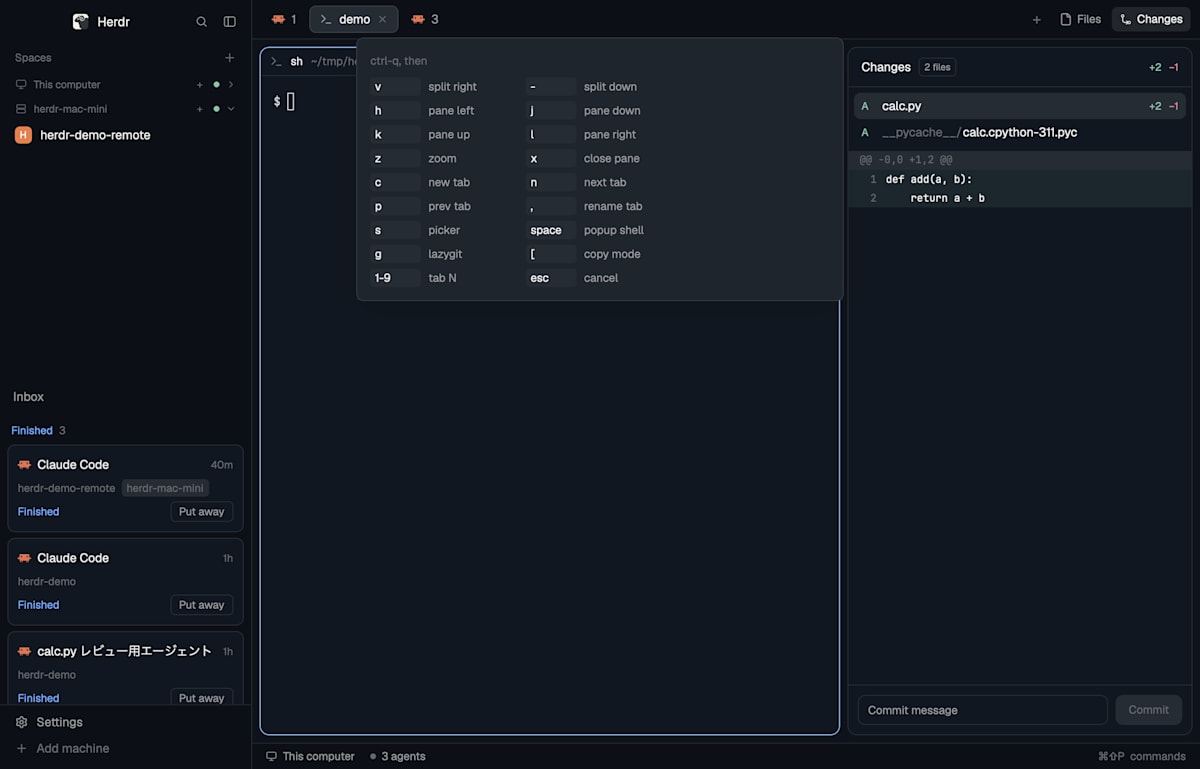
The prefix popup opened with ctrl-q. The next single key executes a command
Copy mode could be opened, but it was not practical
As with Rex, I built the copy mode by extracting the screen and history with hc read --lines and opening them in nvim.
To display it overlaid on a pane, I use the terminal.show command, which temporarily shows a different terminal in the pane.
When nvim is closed, the pane returns to showing the original terminal.
I stumbled on the following three points before it worked.
- A terminal immediately after being launched with
hc runis not yet recognized by the app. If you callterminal.showduring this time, it merely returns success and the display does not change. I had to call it again until the pane actually displayed that terminal. - After switching the display with
terminal.show, if you move focus to that pane withpane.focus, the display returns to the original terminal. nvim keeps running out of sight, so it is hard to notice. - A popup mod can also stop running processes at the moment it is closed. Processing that waits for terminal launch or display switching must be finished before closing the popup.
Also, calling hc read on a Claude Code pane sometimes stalls for about 2.5 seconds.
When it doesn't stall it takes less than 0.1 seconds, and whether it stalls had nothing to do with the number of lines read.
The cause is unknown.
I made it switch the pane first and show a loading indicator, but the waiting time until nvim opens itself could not be shortened.
Copy mode is meaningless unless it opens immediately when you want to select and copy text.
Since you are sometimes made to wait several seconds each time you press it, I judged it not practical as an everyday feature.
Resize could not be reproduced
Herdr app has no command for changing the size of a pane.
There is layout.resize, but its target is layout parts such as the sidebar, and it cannot be used for panes inside a tab.
As a result, the "mode where you keep resizing by pressing keys repeatedly" that I built with Rex could not be reproduced.
The prefix key and copy mode could be built with mods, but where Rex needs only the init.lua configuration, I had to refine things while investigating the app's detailed behavior.
Moreover, even the refined copy mode takes time to open, so it can't be used casually as with Rex.
As a screen for viewing agent states, I find Herdr app easier to read, but when it comes to the freedom to craft key operations to your own taste, I felt Rex was higher.
Handling of telemetry
By default, the app sends anonymous usage statistics once a day.
According to AGENTS.md, what is sent are counts such as the version, OS, types of agents run, numbers of spaces and tabs, and layouts used.
It states that terminal contents, file names, folder names, and space names are not sent, and that nothing is sent from herdr-core.
You can check the contents to be sent one item at a time in Privacy in the settings screen.
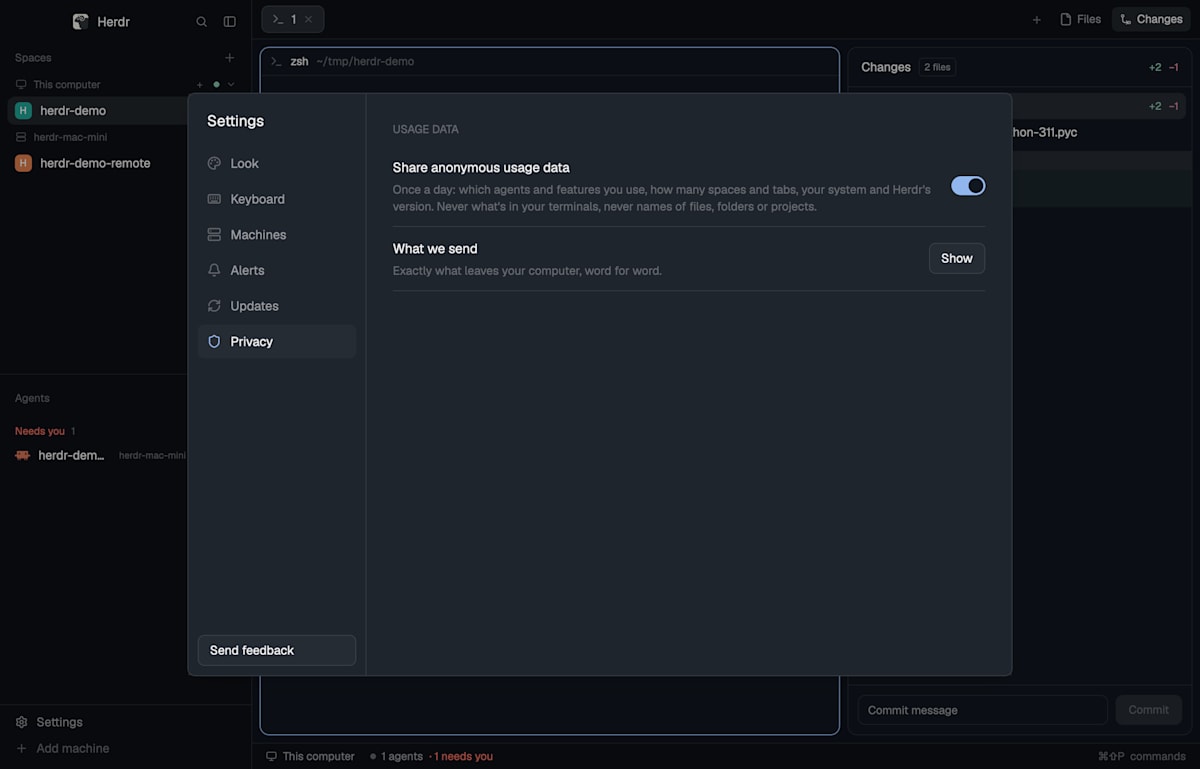
Privacy in the settings screen. Pressing Show displays the contents to be sent as they are
To turn it off, put the following single line in settings.json.
{
  "telemetry": false
}
To turn it off for just one launch, start the app with the environment variable DO_NOT_TRACK=1 or HERDR_TELEMETRY=0.
Comparison with the TUI version
Here is a table summarizing the differences so far.
| Item | TUI herdr | Herdr app + herdr-core |
|---|---|---|
| Screen | TUI inside the terminal | Native desktop app |
| Runtime | herdr server |
herdr-core (hc) |
| Claude Code status display | Integrated by installing a hook | Claude Code reports via OSC 7501 |
| Launching other agents | Have it read SKILL.md and operate via CLI |
hc run, with herdr-core managing the parent-child relationship |
| Remote machines | Connect with herdr --remote |
Add with hc machine add and show in the same sidebar |
| Changing appearance | config.toml and plugins |
Layouts and mods in ~/.config/herdr-app |
| Telemetry | None | Enabled by default, can be disabled in settings |
Conclusion
I tried the herdr desktop app and herdr-core while comparing them with the TUI version.
Claude Code's status display appeared without hooks, and sub-agents launched by agents were also lined up in the sidebar with their parent-child relationships.
Agents on the remote Mac mini also appear in the same list, so if you run agents on multiple machines, you can check them all together.
Mods can be written in a single JavaScript file, and you can add panels that use agent states to suit your own way of working.
On X, there are also users who have created and published a mod imitating T3 Code, which shows how high the degree of freedom is for users to rearrange the application UI themselves.
I look forward to future developments.