
Visualizing EC2 usage costs with Amazon Quick for evaluating Savings Plan purchases

This page has been translated by machine translation. View original
Hello. I am Kimura from the Cloud Business Division.
In this article, I would like to create a dashboard that visualizes EC2 usage that can be used to evaluate Savings Plan purchases. Using CUR billing information, we aim to be able to check how much cost is incurred for each type of SP, On-demand, and Spot on an hourly basis.
Introduction
Why hourly visualization is necessary
Suddenly, here's a quiz. When the same instance type is running at on-demand pricing in the following two environments, which one will have a larger discount application amount when purchasing an SP?
- Environment A: EC2 usage fee continues for 1 year, with on-demand usage cost of 240 USD per day. Purchase an SP for 5 USD/h.
- Environment B: EC2 usage fee continues for 1 year, with on-demand usage cost of 2400 USD per day. Purchase an SP for 50 USD/h.
As you might have guessed from this sudden quiz, the correct answer cannot be determined from this information alone. This is because we don't know the instance startup pattern.
In an extreme example, even if Environment B purchases SP about 10 times that of Environment A, the discount application amount can be larger in Environment A. This is because SP discount application occurs on an hourly basis.
- Environment A: 10 USD worth of usage spread over 24 hours
- Environment B: 2400 USD worth of usage concentrated in 1 hour
When actually calculated, the following amounts will be discounted by SP. For simplicity, let's assume the applicable discount rate is 50%.
- Environment A: 24 hours * 5 USD = 120 USD
- Environment B: 1 hour * 50 USD = 50 USD
For a clearer explanation of how SP discounts are applied, please refer to the following blog which is very informative for those who are unclear about the application process.
After providing a comparison based on discount application amounts for better understanding, I'd like to compare from the perspective of actual financial impact after SP purchase.
Environment A: 240 USD/day on-demand usage, purchasing 5 USD/h SP
- When using on-demand: 240 USD/day
- After SP purchase:
- SP commitment cost: 120 USD (5 USD/h × 24h)
- On-demand cost: 0 USD (all covered by SP)
- Total: 120 USD/day
- Financial impact: 240 - 120 = ▲120 USD/day (reduction)
Environment B: 2400 USD/day on-demand usage, purchasing 50 USD/h SP
- When using on-demand: 2400 USD/day
- After SP purchase:
- SP commitment cost: 1200 USD (50 USD/h × 24h)
- On-demand cost: 2300 USD (portion not covered by SP)
- Total: 3,500 USD/day
- Financial impact: 2400 - 3500 = +1100 USD/day (increase)
While Environment A achieves a reduction of 120 USD per day, Environment B sees a cost increase of 1100 USD.
This is because most of the purchased SP (23 hours worth) goes unused, resulting in wasted commitment costs.
While this is an extreme example, purchasing an SP without checking hourly usage patterns could lead to increased costs rather than optimization, depending on the discount rate.
To avoid such situations, it's important to understand not just "how much cost is incurred daily" but also "what usage patterns are generating these costs" on an hourly basis.
Now, let's explore how we can visualize this.
About Usage Pattern Visualization
Besides customizing the Quick Suite dashboard introduced in this article, there are several other ways to visualize EC2 usage on an hourly basis. Please proceed with the method that suits your environment.
1. Cost Explorer's Hourly Display
- Overview
By enabling hourly and resource-level data from the management account, you can check hourly usage status through the Cost Explorer GUI.
- Advantages:
- Easy setup (enabled with a few clicks from the management account)
- Intuitive operation on the AWS console
- No additional tools or services required
- Disadvantages:
- Period that can be displayed is limited to a maximum of 14 days
- Data storage incurs fees ($0.01 per 1,000 rows)
- Can only check within prepared items
- Some resellers have usage restrictions
- Recommended for:
- Those with little fluctuation in usage patterns who only need to understand short-term (2 weeks) data
- Those who want to understand hourly usage status simply
- Those who want to start checking immediately
2. SP Purchase Analyzer
- Overview
In the AWS Billing and Cost Management console, you can check SP purchase recommendations based on past usage patterns. AWS automatically suggests the optimal purchase amount.
- Advantages:
- AWS automatically calculates recommended values
- Can also check utilization rate and coverage rate after purchase
- No additional tools or setup required
- Can immediately check SP effectiveness
- Disadvantages:
- Analysis period is limited to the past 60 days
- Cannot customize or perform detailed analysis, and explaining the basis is difficult as details of the recommendation algorithm are unknown
- Some resellers have usage restrictions
- Recommended for:
- Those who want to purchase SP immediately based on AWS recommendations
- Those who want simple recommended values without complex analysis
- Those who want to monitor utilization rate after purchase
3. Cloud Intelligence Dashboards (CUDOS)
- Overview
A collection of Quick dashboard templates officially provided by AWS. Based on CUR data, you can deploy multiple high-functionality dashboards at once, including CUDOS Dashboard, Cost Intelligence Dashboard, KPI Dashboard, etc.
-
Advantages:
- High-functionality dashboards based on AWS official best practices
- Comprehensive analysis of EC2's SP application status, utilization rate, coverage rate, etc.
- Can analyze hourly usage patterns over long periods (as long as CUR data exists)
- Deploy multiple dashboards (CUDOS, KPI, Compute Optimizer, etc.) at once
- Continuous updates by the community
-
Disadvantages:
- Setup is somewhat complex (requires cid-cmd tool, Athena/Quick configuration)
- Quick usage fees are incurred
- Templates are so multi-functional that they're difficult to master at first glance
- Some learning required for customization
-
Recommended for:
- Those who want to build a comprehensive cost analysis environment at once
- Those who want to analyze based on AWS official best practices
- Those who want to analyze the overall costs including services other than EC2
- Organizations seriously advancing FinOps initiatives
4. Creating a Custom Dashboard with Quick (method introduced in this article)
- Overview
A method of loading CUR data into Quick and creating a dashboard from scratch to suit your purposes.
- Advantages:
- Completely free customization possible
- Can create a simple dashboard focused only on necessary information
- Can analyze hourly usage patterns over long periods (as long as CUR data exists)
- Can be completely tailored to company's analysis needs
- Disadvantages:
- Need to build the dashboard from scratch (setup takes time)
- Quick Suite usage fees are incurred
- Knowledge of Quick Suite operation required
- Recommended for:
- Those who want a simple dashboard specialized for specific purposes
- Those who find CUDOS excessive and want to focus on the minimum necessary analysis items
- Those who already have knowledge of Quick Suite and want to customize
In this article, I will introduce a method for creating a simple dashboard for considering SP purchases.
Creating the Dashboard
Now let's go through the process of creating a dashboard.
We'll use CUR as the data source, so if you haven't set it up yet, please do so following these instructions.
Preparing CUR
For details on setting up CUR, please refer to the following article:
This article assumes that CUR is already configured and data is being output to S3. We're proceeding with the parquet file format introduced in the blog above.
If you want to access past data from before the configuration, you can backfill up to 36 months. If necessary, please refer to the following:
Creating Athena Tables Using Glue Crawler
Once you have CUR data, create Athena tables to run queries.
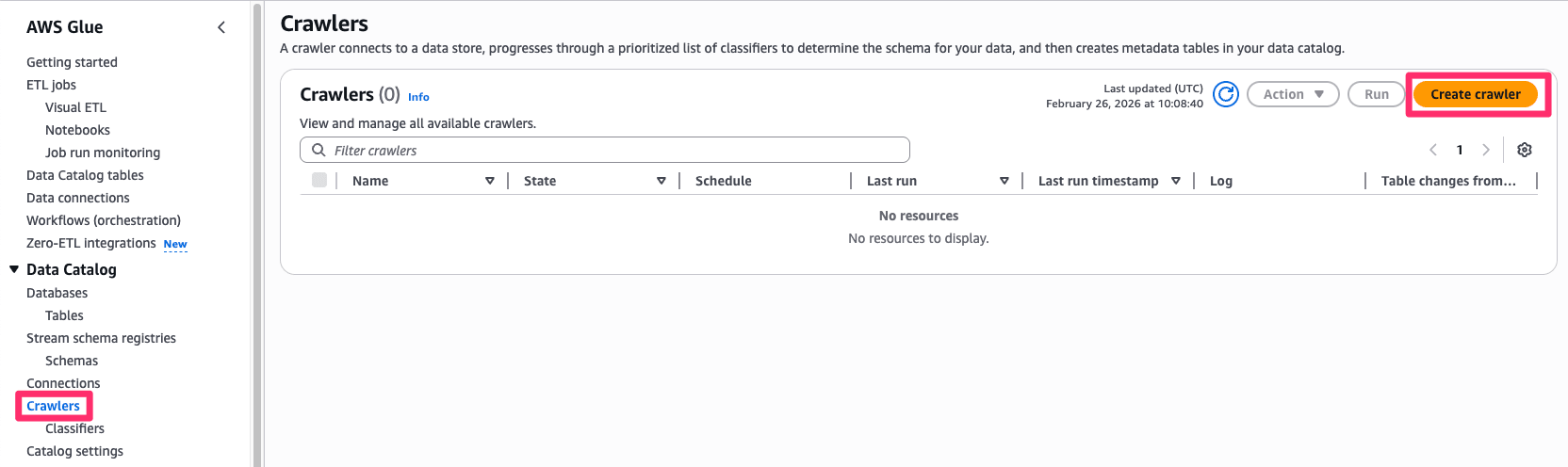
Start from the Glue screen.
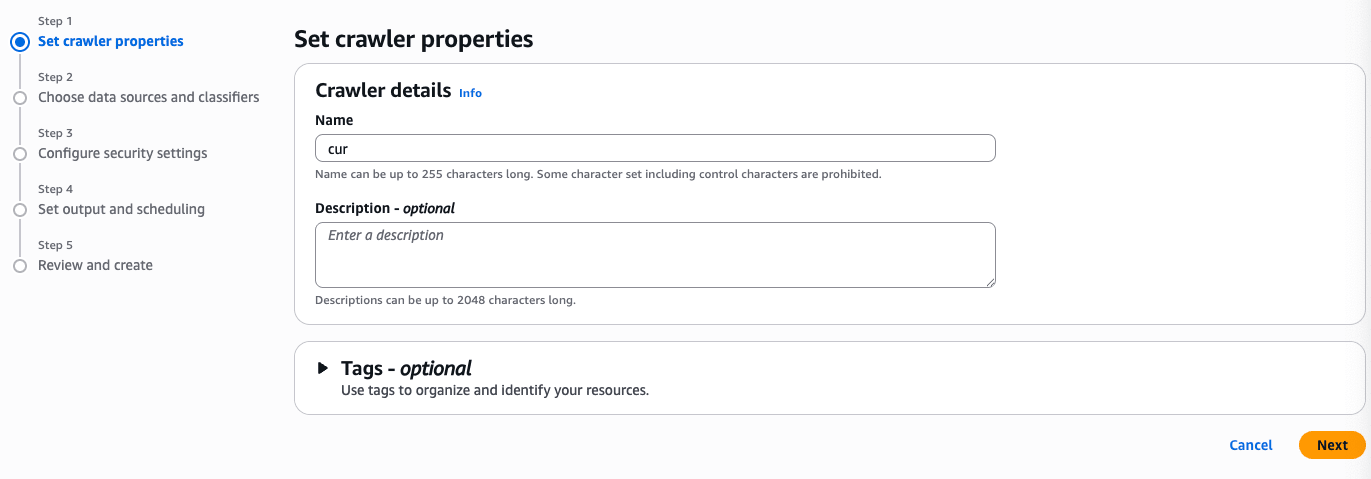
Set any name you like.
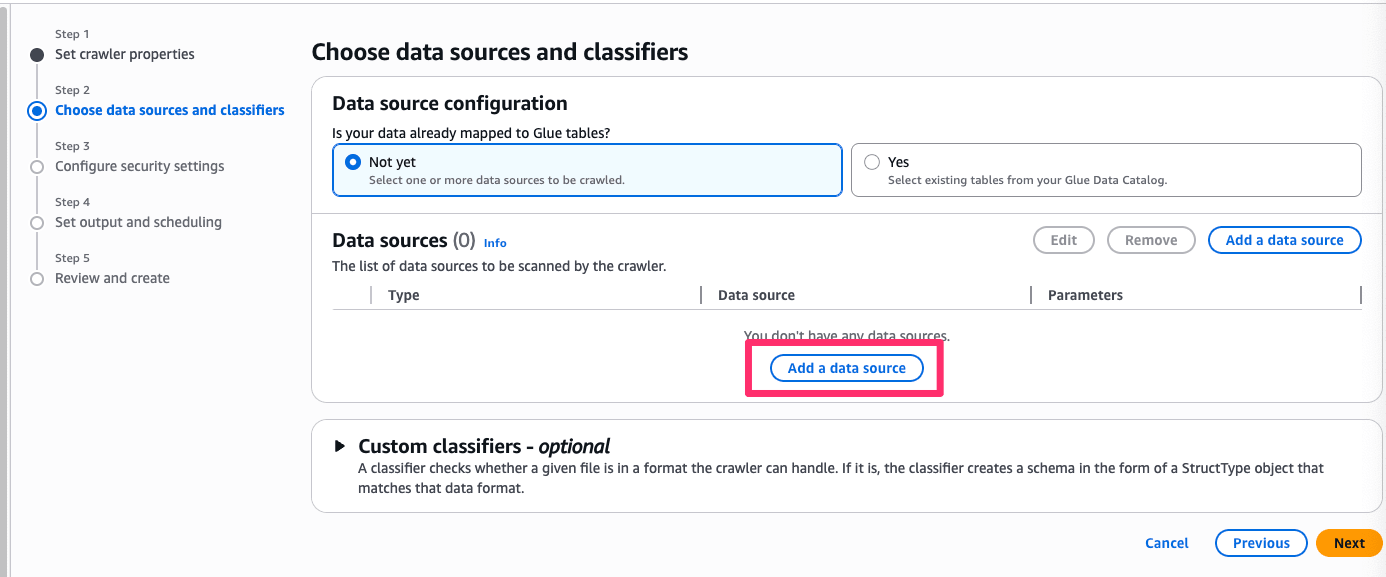
From Add data source, select the target S3 bucket.
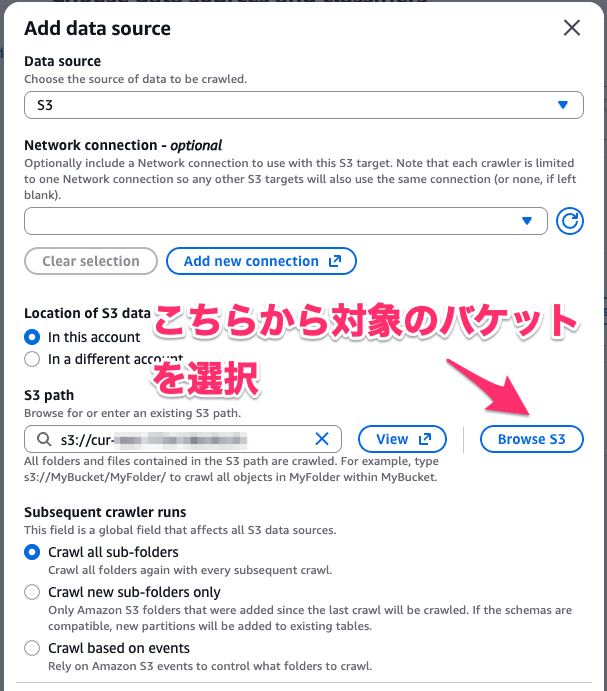
Specify the folder where the cur data is stored.

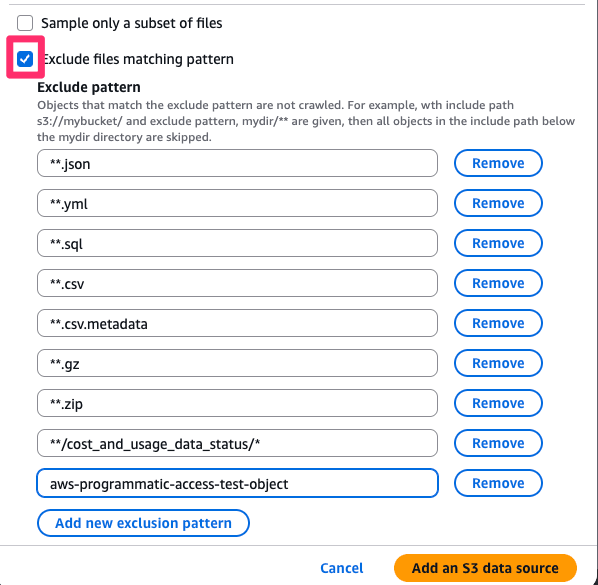
Next, set the following exclusion patterns:
**.json
**.yml
**.sql
**.csv
**.csv.metadata
**.gz
**.zip
**/cost_and_usage_data_status/*
aws-programmatic-access-test-object
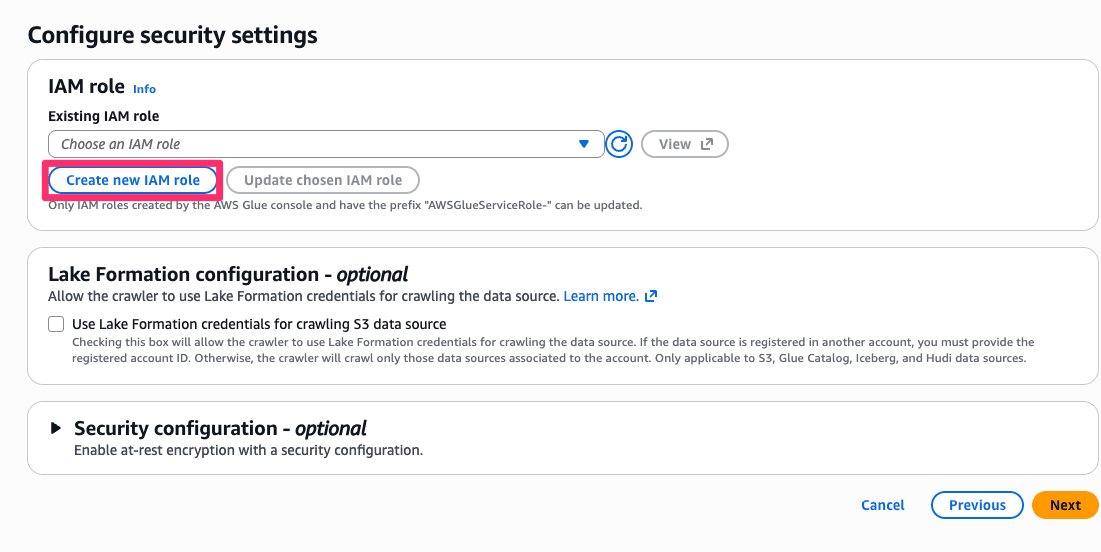
Create a new role with any name you like.
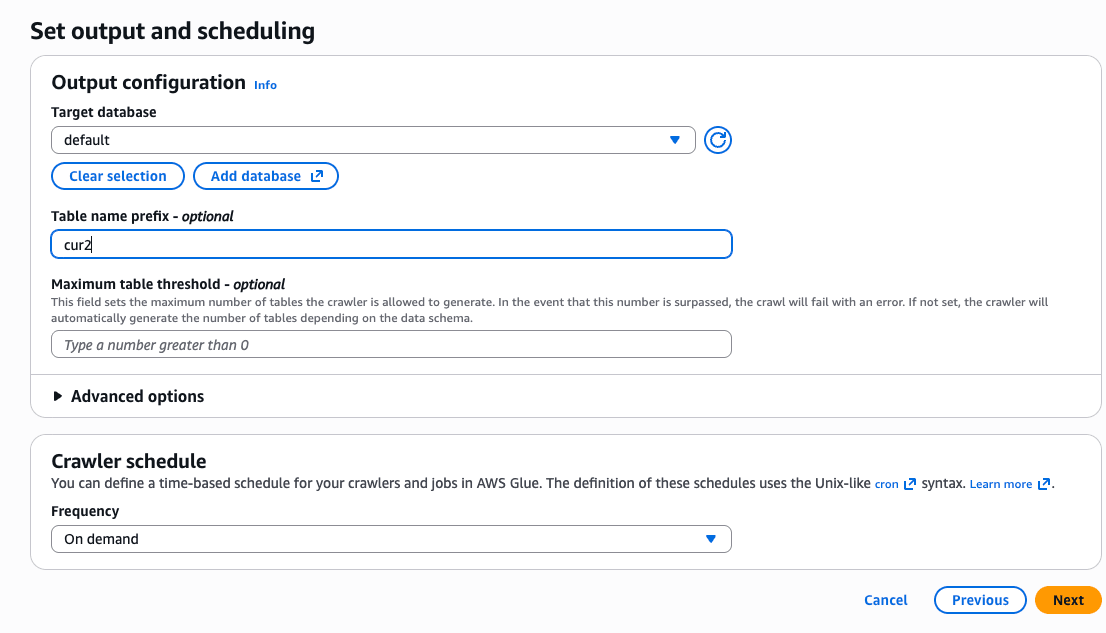
Finally, specify the database and optionally the table name to create it.
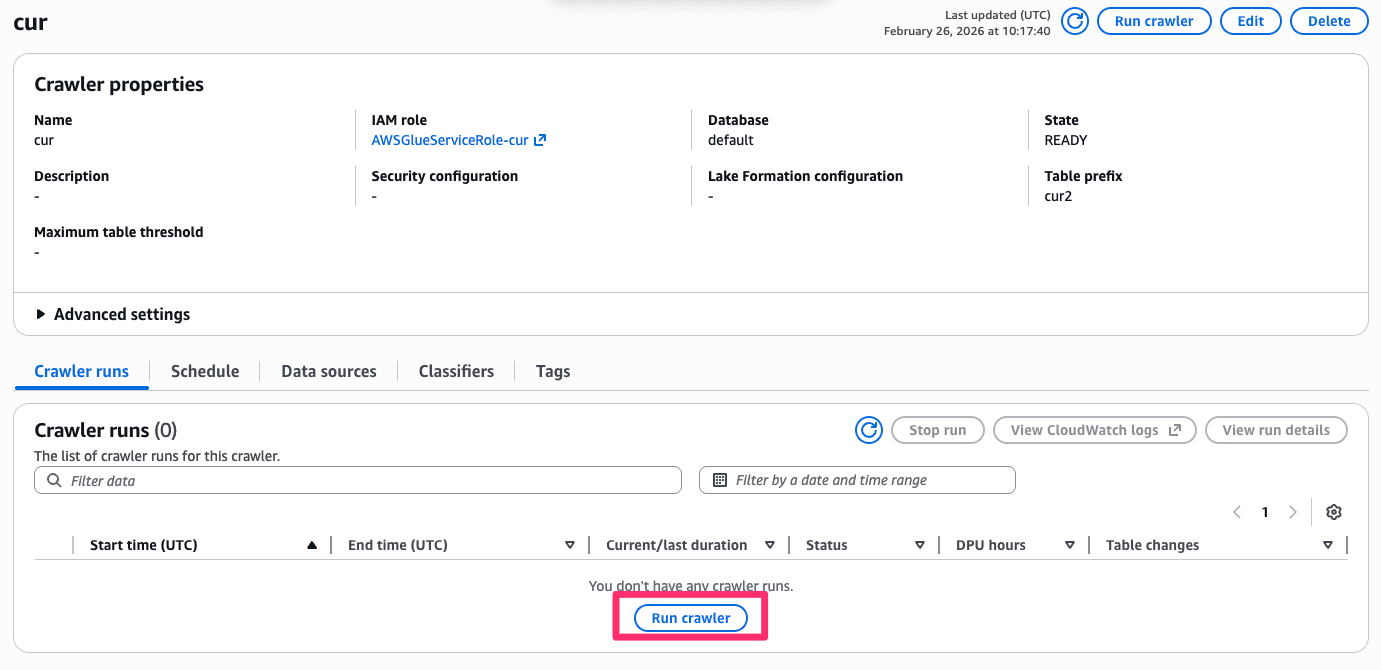
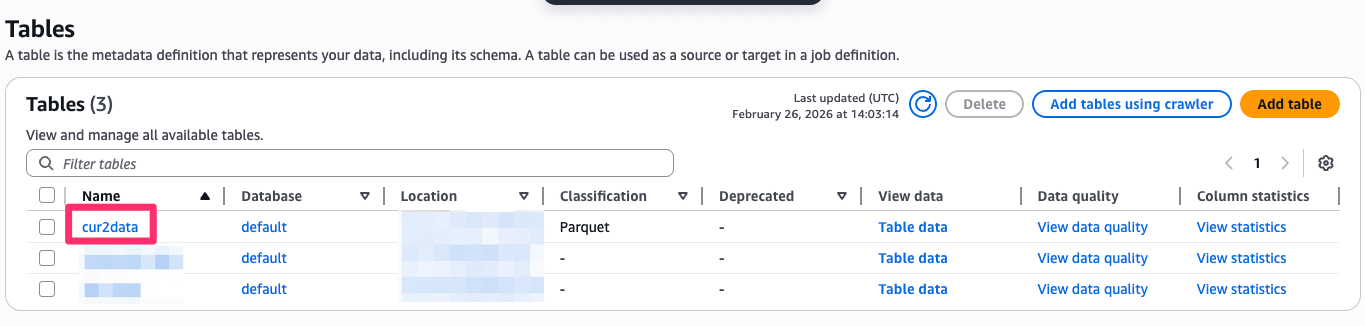
Once created, run the crawler.
If successful, you should see tables created as follows.
Creating a Dataset
Once the table is created, move to Quick and create a dataset.
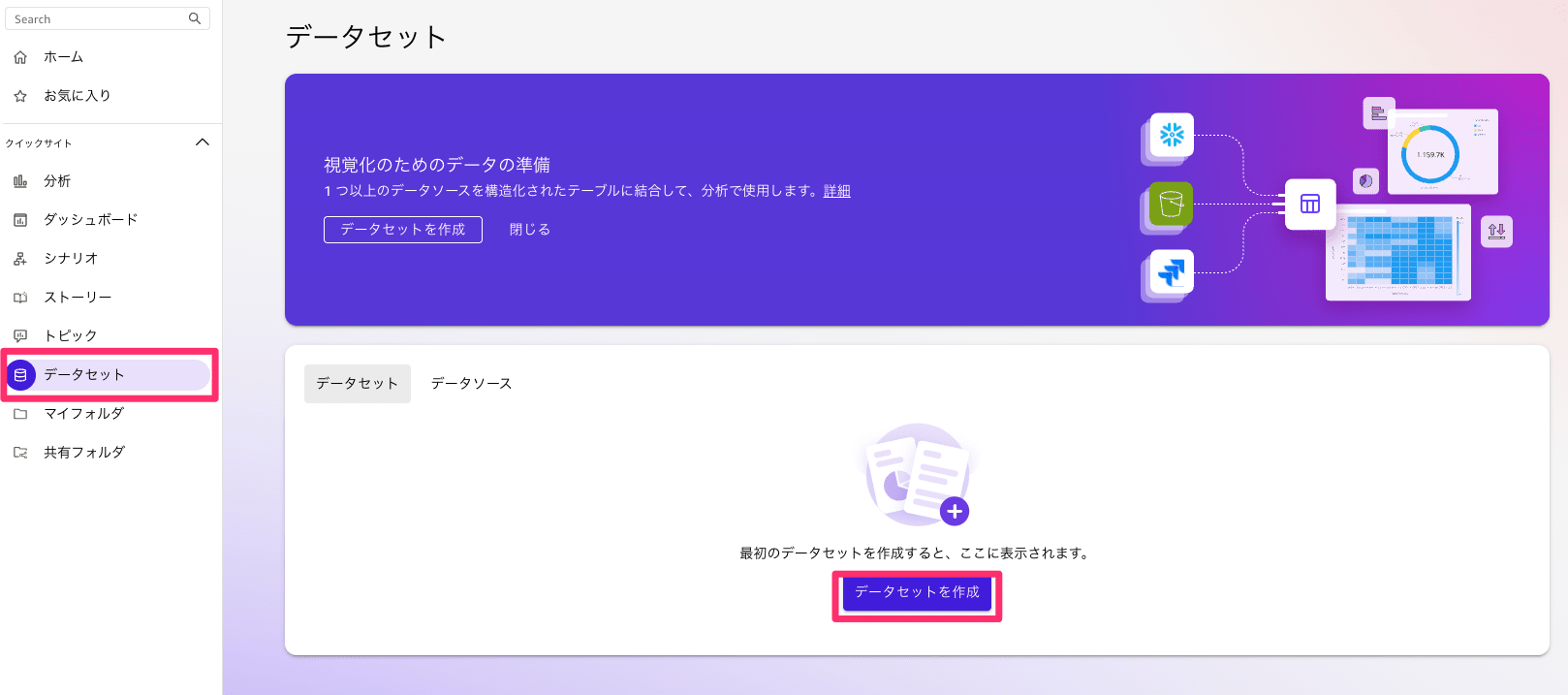
First, you need a data source, so create one.
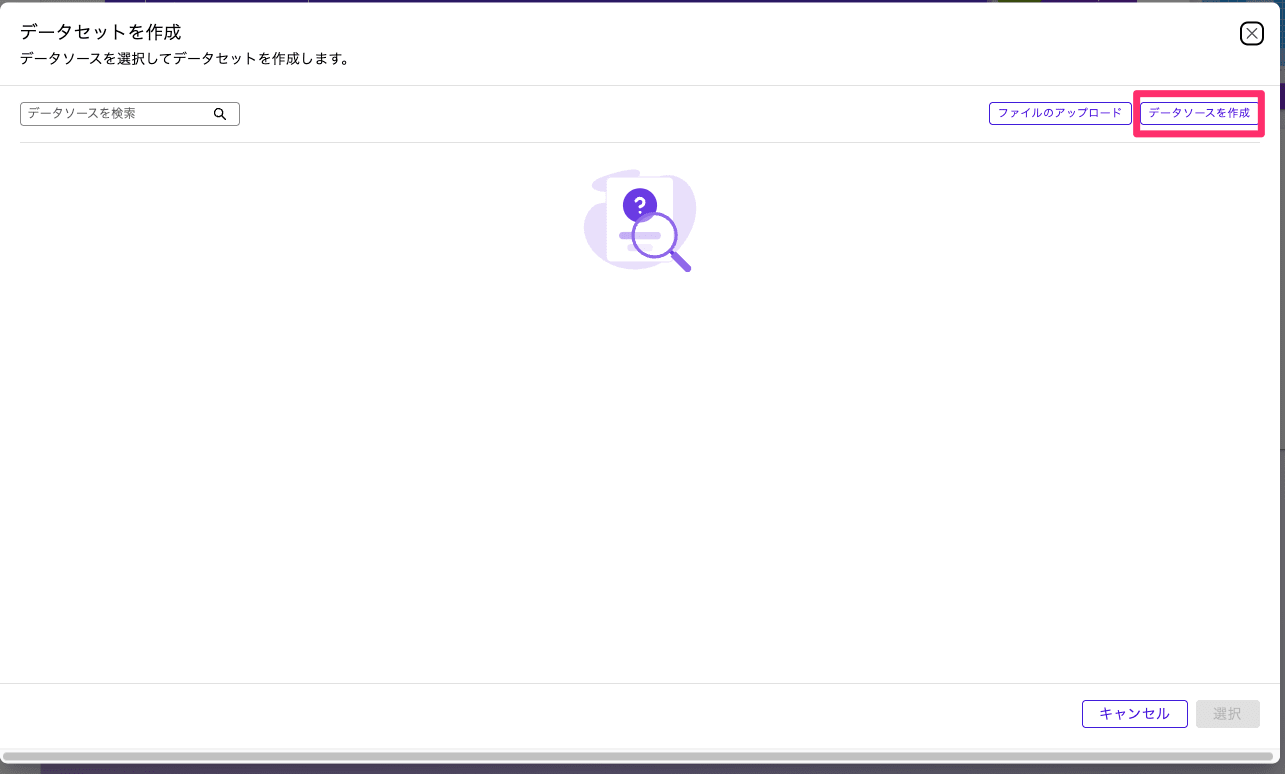
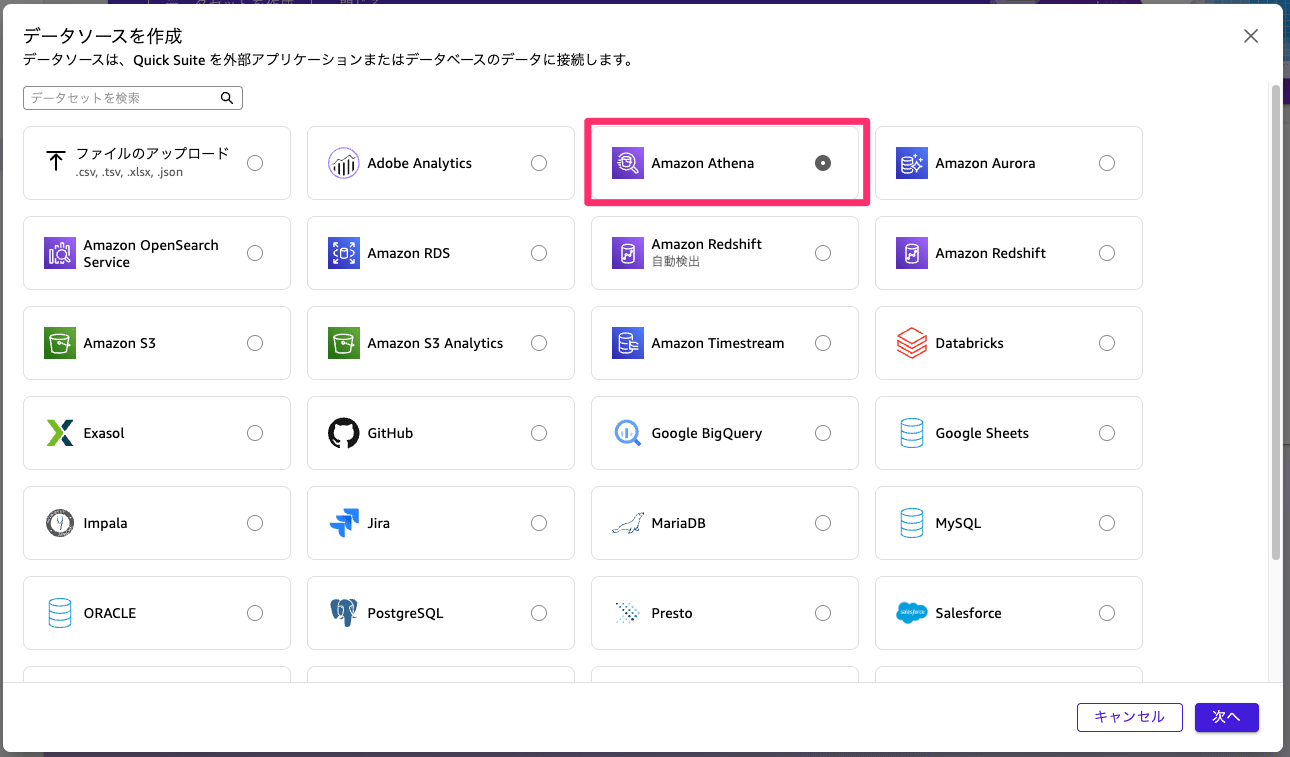
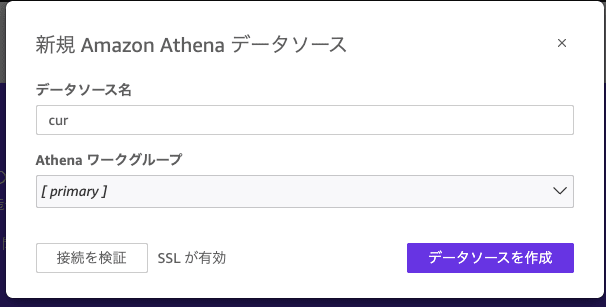
Once the data source is ready, create a dataset.
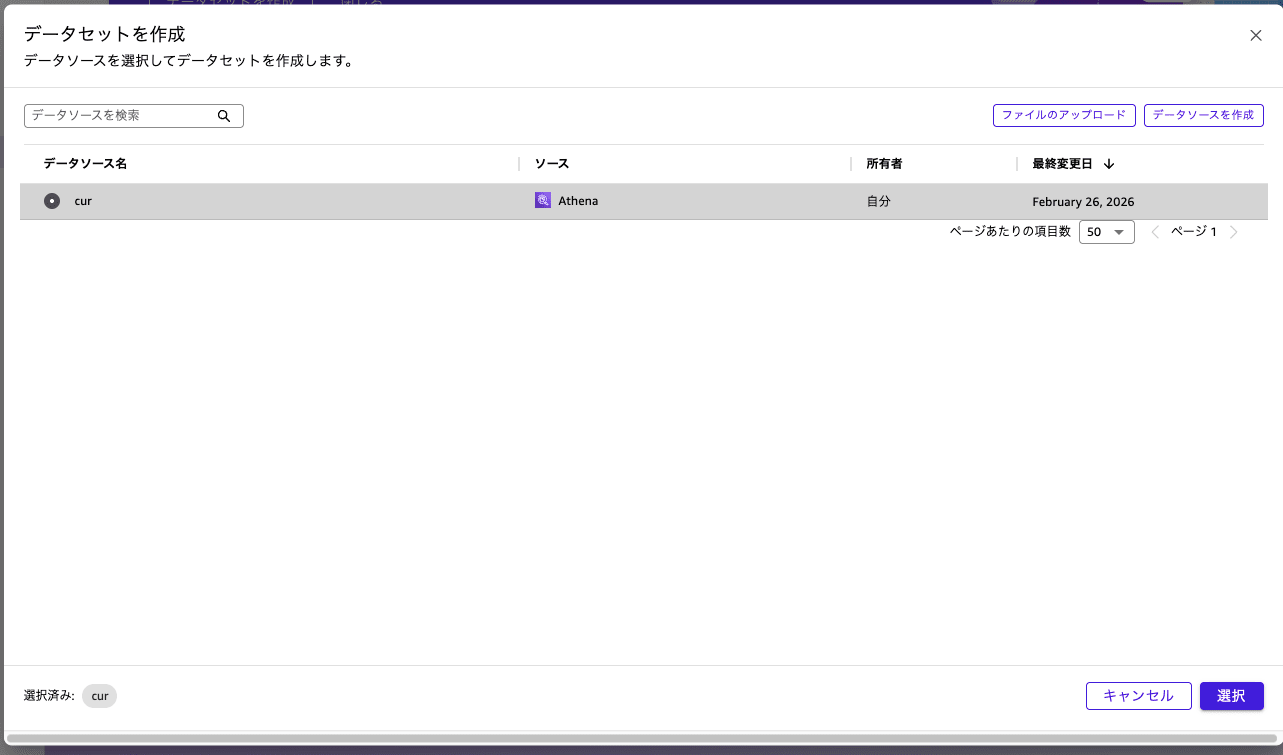
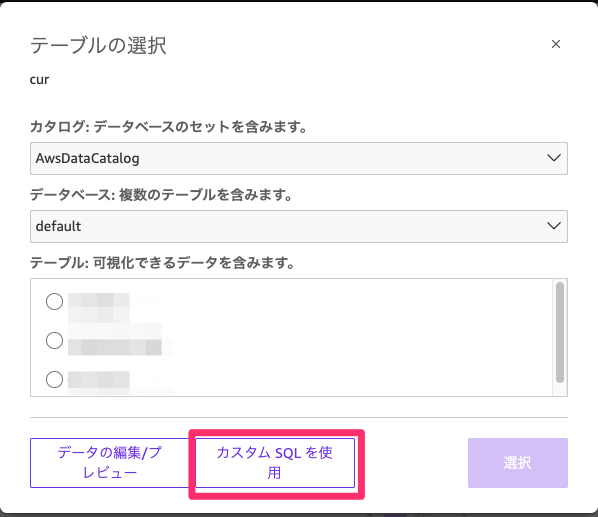
Enter the following SQL. Replace <database_name> and <table_name> as appropriate.
SELECT
DATE_TRUNC('hour', line_item_usage_start_date) as usage_hour,
line_item_usage_account_id as account_id,
line_item_usage_account_name as account_name,
product['region'] as region,
product_instance_type as instance_type,
product_instance_family as instance_family,
CASE
WHEN product_instance_type IS NOT NULL
THEN REGEXP_EXTRACT(product_instance_type, '^([a-z]+[0-9]+[a-z]*)')
ELSE product_instance_family
END as instance_family_only,
product['operating_system'] as operating_system,
line_item_usage_type as usage_type,
line_item_operation,
CASE
WHEN line_item_line_item_type IN ('SavingsPlanCoveredUsage', 'SavingsPlanNegation') THEN '1_SavingsPlan'
WHEN line_item_line_item_type = 'Usage' AND line_item_usage_type NOT LIKE '%SpotUsage%' THEN '2_OnDemand'
WHEN line_item_line_item_type = 'Usage' AND line_item_usage_type LIKE '%SpotUsage%' THEN '3_Spot'
WHEN line_item_line_item_type = 'DiscountedUsage' THEN '4_Reserved'
WHEN line_item_line_item_type = 'RIFee' THEN '4_Reserved'
ELSE '5_Other'
END as purchase_option,
SUM(line_item_usage_amount) as usage_hours,
-- Calculate effective cost of Savings Plans
SUM(
CASE
WHEN line_item_line_item_type IN ('SavingsPlanCoveredUsage', 'SavingsPlanNegation')
THEN savings_plan_savings_plan_effective_cost
ELSE line_item_unblended_cost
END
) as unblended_cost,
SUM(pricing_public_on_demand_cost) as on_demand_cost,
COUNT(DISTINCT line_item_resource_id) as instance_count
FROM <database_name>.<table_name>
WHERE
line_item_product_code = 'AmazonEC2'
AND product_servicecode = 'AmazonEC2'
AND product_product_family = 'Compute Instance'
AND line_item_line_item_type IN ('Usage', 'SavingsPlanCoveredUsage', 'DiscountedUsage', 'RIFee')
AND line_item_usage_start_date >= DATE('2024-1-01')
AND (product_instance_type IS NOT NULL OR line_item_line_item_type LIKE '%SavingsPlan%')
GROUP BY
DATE_TRUNC('hour', line_item_usage_start_date),
line_item_usage_account_id,
line_item_usage_account_name,
product['region'],
product_instance_type,
product_instance_family,
CASE
WHEN product_instance_type IS NOT NULL
THEN REGEXP_EXTRACT(product_instance_type, '^([a-z]+[0-9]+[a-z]*)')
ELSE product_instance_family
END,
product['operating_system'],
line_item_usage_type,
line_item_operation,
CASE
WHEN line_item_line_item_type IN ('SavingsPlanCoveredUsage', 'SavingsPlanNegation') THEN '1_SavingsPlan'
WHEN line_item_line_item_type = 'Usage' AND line_item_usage_type NOT LIKE '%SpotUsage%' THEN '2_OnDemand'
WHEN line_item_line_item_type = 'Usage' AND line_item_usage_type LIKE '%SpotUsage%' THEN '3_Spot'
WHEN line_item_line_item_type = 'DiscountedUsage' THEN '4_Reserved'
WHEN line_item_line_item_type = 'RIFee' THEN '4_Reserved'
ELSE '5_Other'
END
ORDER BY usage_hour DESC
Once the data is imported, create an analysis.
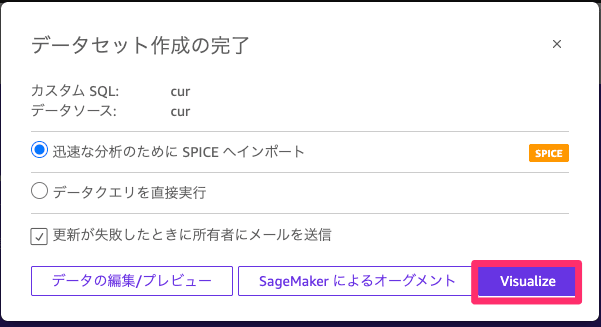
Creating the Dashboard
Now let's create a dashboard.
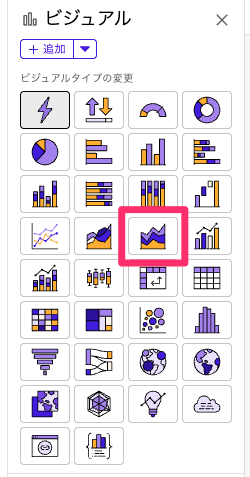
First, create a visual. Select a stacked area line graph.
You can choose values to set for each, please select the following three.
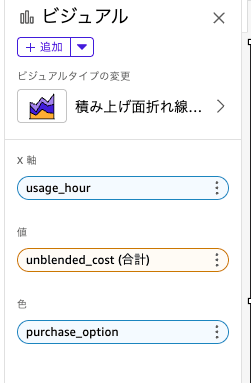
Once selected, the visual will display as follows.
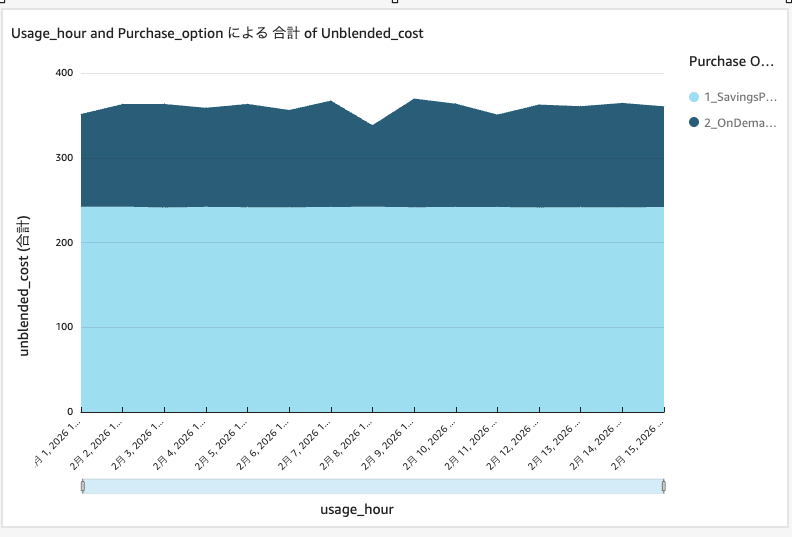
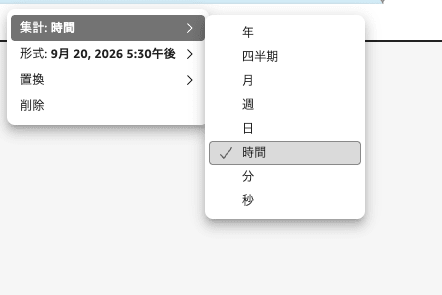
Initially, the X-axis aggregation unit is set to "day", so change it to hourly.
Then you can see the usage cost per hour as follows.
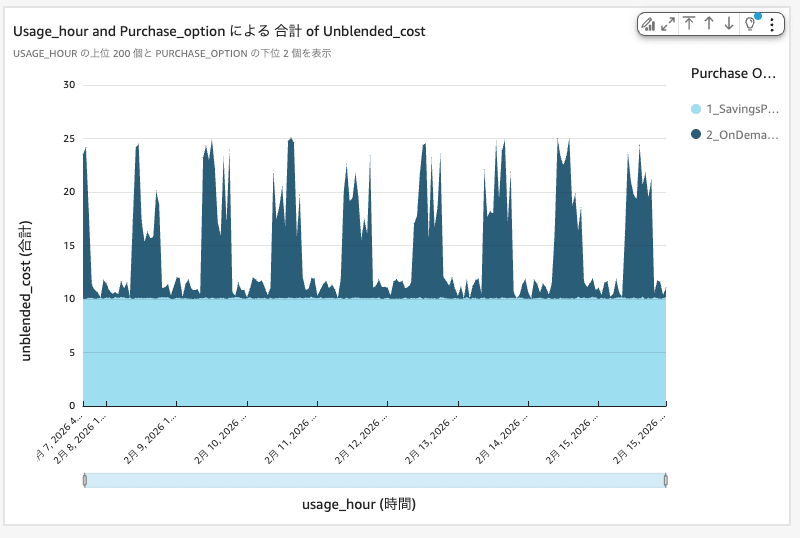
In this environment, you can see that SP is covering about 10 USD per hour.
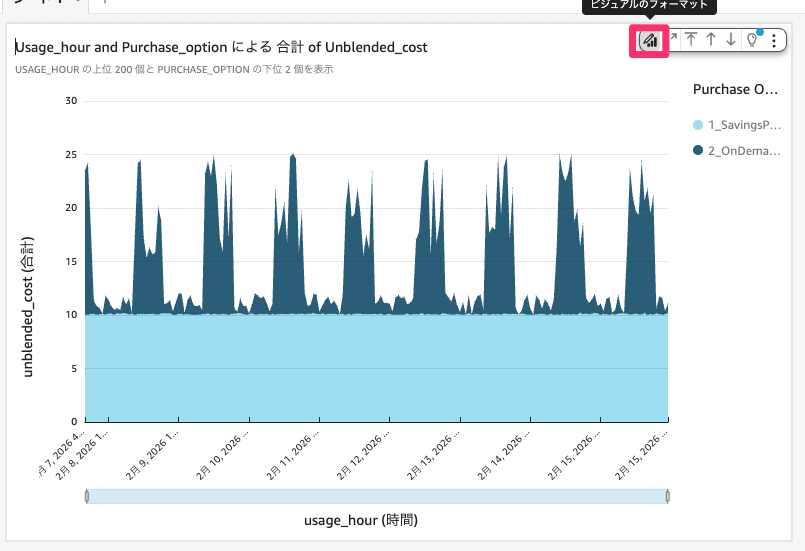
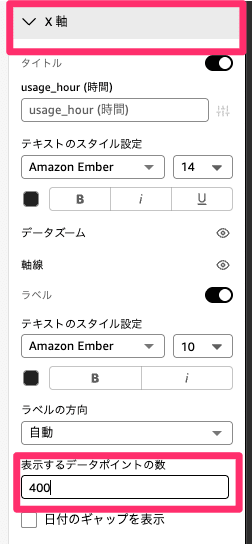
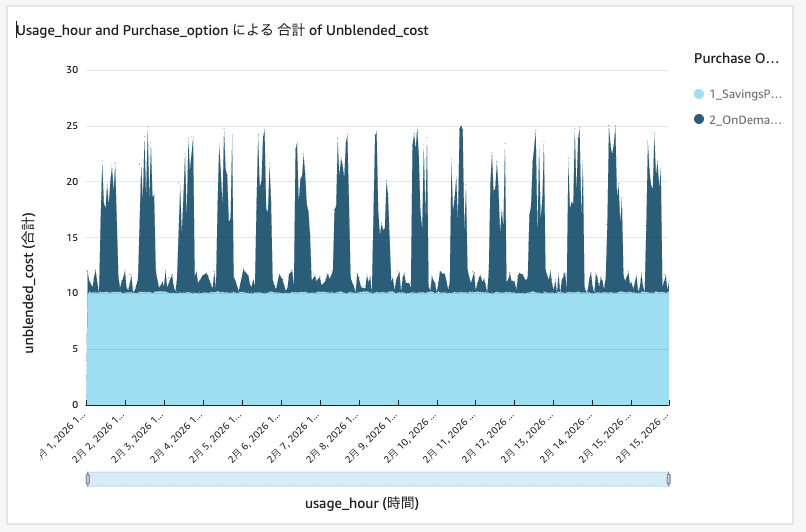
Next, let's expand the range of data that can be displayed. By default, there are 200 data points, so I want to expand it to the maximum of 400 (16 days).
Select the format of the visual, and enter 400 in the options, then click anywhere on the screen.
After changing, you can now see 16 days of data as follows.
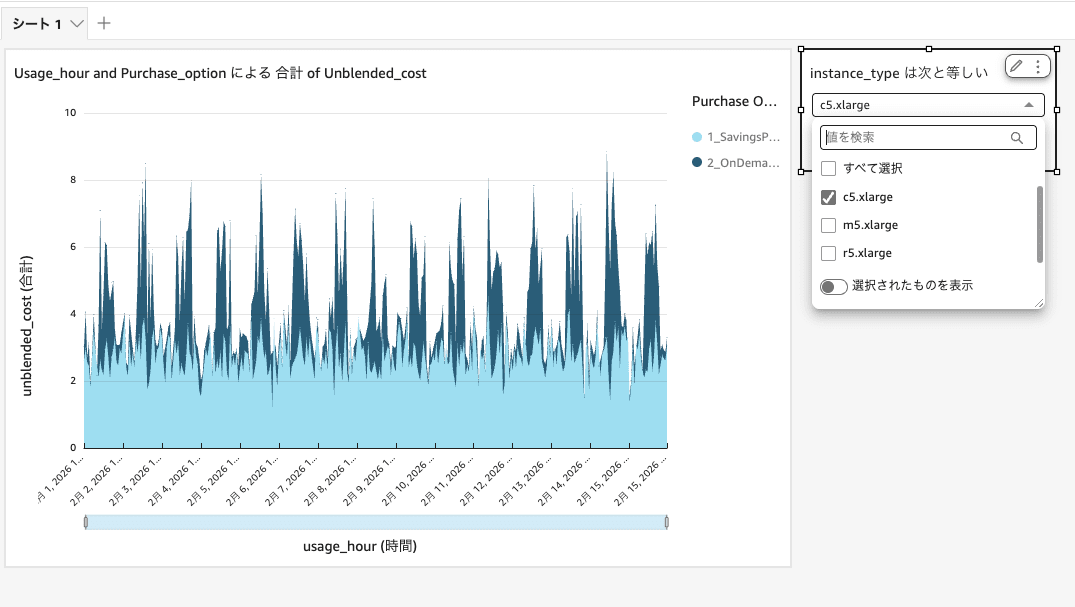
Next, let's set a filter by instance type. Select the created visual and press the filter button.
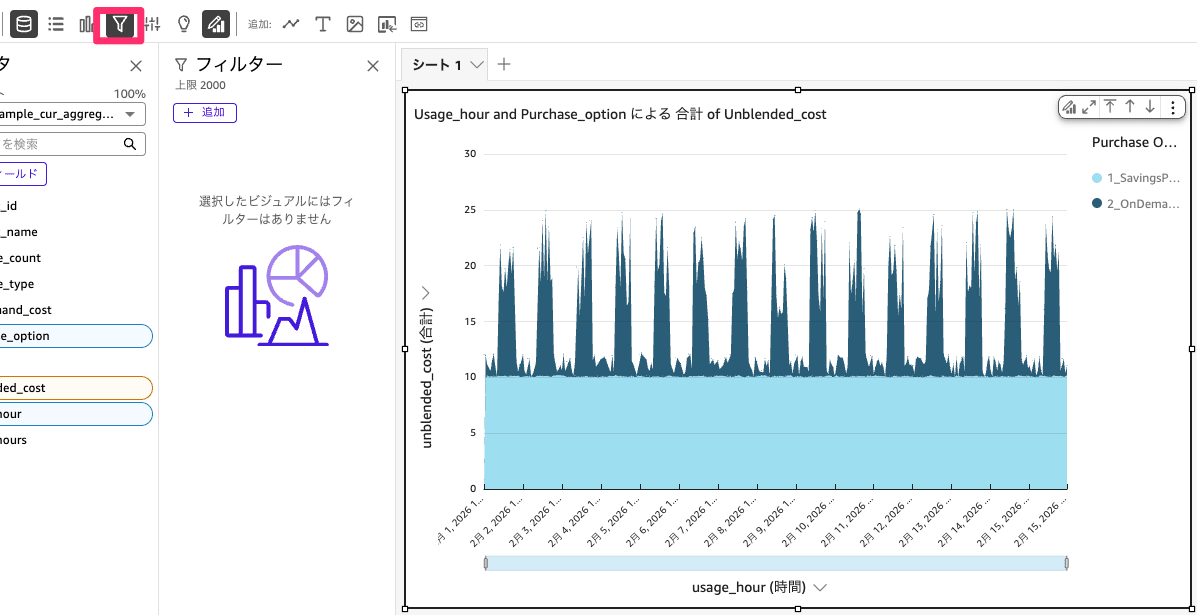
From Add filter, select "instance_type".
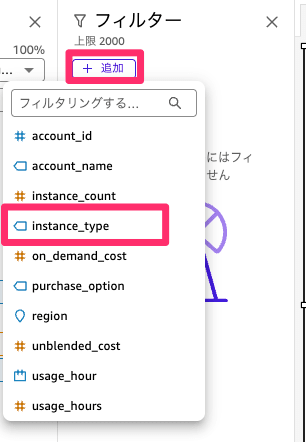
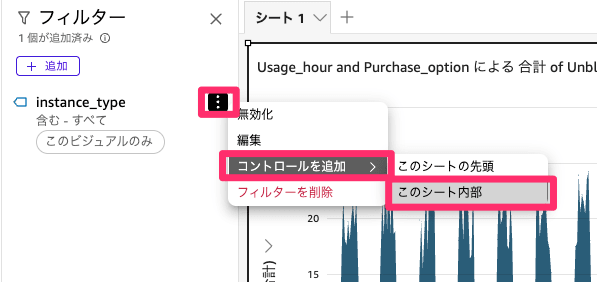
Once you've added the filter, add a control inside the sheet so that filters can be selected from the sheet, as follows.
Now you can filter by instance type as shown below. When considering an Instance SP, please use this to check usage costs.
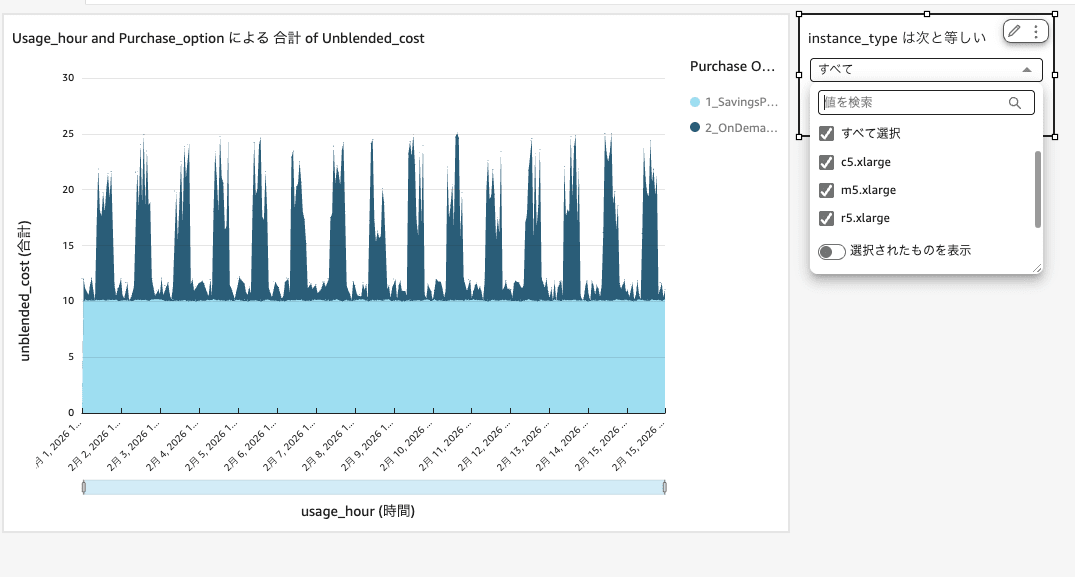
Applying the filter, you can see that c5.xlarge has significant fluctuations.
Similarly, by setting filters for period and account name, you can narrow down from the sheet. Please add them according to your usage.
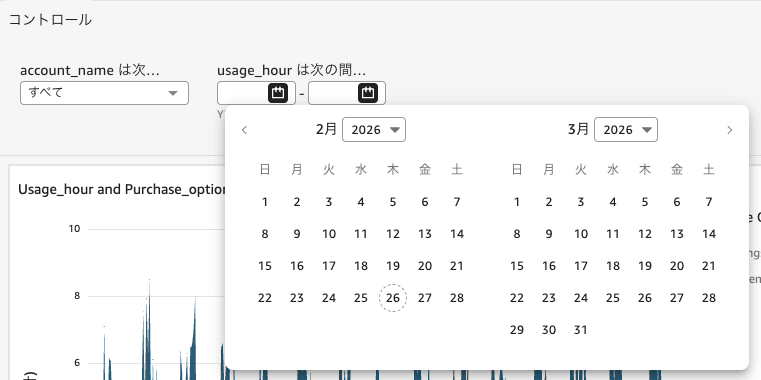
In this sample data, Spot is not included so it's not displayed, but it can be shown in the cost graph.
By checking on an hourly basis like this, you can use it as one of the materials for SP consideration.
Summary
In this article, we used Amazon Quick to check hourly usage fees.
When providing support for SP purchases, visualization greatly helped in determining purchase strategy and purchase amounts.
You can visualize other services in the same way, so try creating them by changing the SQL.
I hope this article will help you with cost optimization.
This was Kimura from the Cloud Business Division.