
I tried creating a user with "Web service access only" enabled in ServiceNow

This page has been translated by machine translation. View original
Introduction
When creating users (service accounts) for external system integration in ServiceNow, there are cases where you want to restrict access to API only, without allowing interactive UI login.
That's where the "Web service access only" field in the sys_user table comes in. This article introduces how to enable this field.
When actually working with it, I found that "Web service access only" is not a field you can directly check on the form, but rather an item that is automatically determined based on the value of Identity type. This article introduces 3 methods for enabling it, taking this relationship into account.
What is Web service access only
Web service access only is a field in the sys_user table. When enabled, the user cannot log in through the interactive UI and is limited to access via API only. It is an appropriate setting for users intended for external system integration.
In the official documentation, it is described as a Non-Interactive Sessions feature.
In our verification environment, this field already existed in the sys_user table.
Relationship with Identity type
The sys_user table also has a field called Identity type, which classifies whether a user is a real person or another type of entity. The official documentation describes it as follows.
Identity type Select the user identity type based on the user:
- Human - Select this for a real person, such as an employee, customer, or admin.
- Machine - Select this for a non-human system or device, such as a server, application, or service account that makes automated requests.
The Web service access only check box is automatically enabled when you select Machine in the Identity type field. The Web service access only check box is automatically disabled when you select Human or AI.
Select Identity type according to the type of user. Select Human when representing a real person such as an employee, customer, or administrator. Select Machine when representing a non-human entity such as a server, application, or service account that makes automated requests. When you select Machine for Identity type, the Web service access only checkbox is automatically enabled. It is automatically disabled when you select Human or AI.
https://www.servicenow.com/docs/r/platform-administration/user-administration/t_CreateAUser.html
Prerequisites
According to the official documentation, the role required to create a user is user_admin. For this verification, the default administrator user (admin) of a PDI was used.
Three Methods to Enable
In this verification, we confirmed that Web service access only can be enabled using all three of the following methods.
Method 1: Create a new user with Identity type set to Machine
Search for "Users" in the Filter Navigator and open it from System Security > Users and Groups > Users. Click New on the list screen that appears, and enter User ID, First name, and Last name. Change Identity type to Machine and then click Submit.
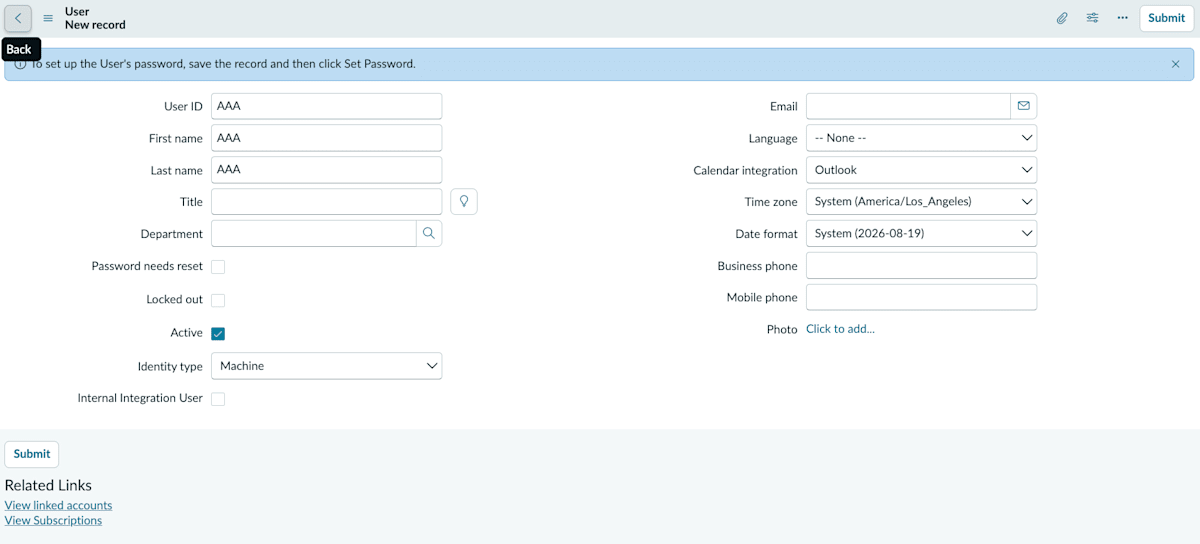
New User record creation screen
When saved in this state, the value of Web service access only is also automatically set to true.
Method 2: Change the Identity type of an existing Human user to Machine
If a user already exists with Identity type set to Human, open the record, change Identity type to Machine, and click Update.
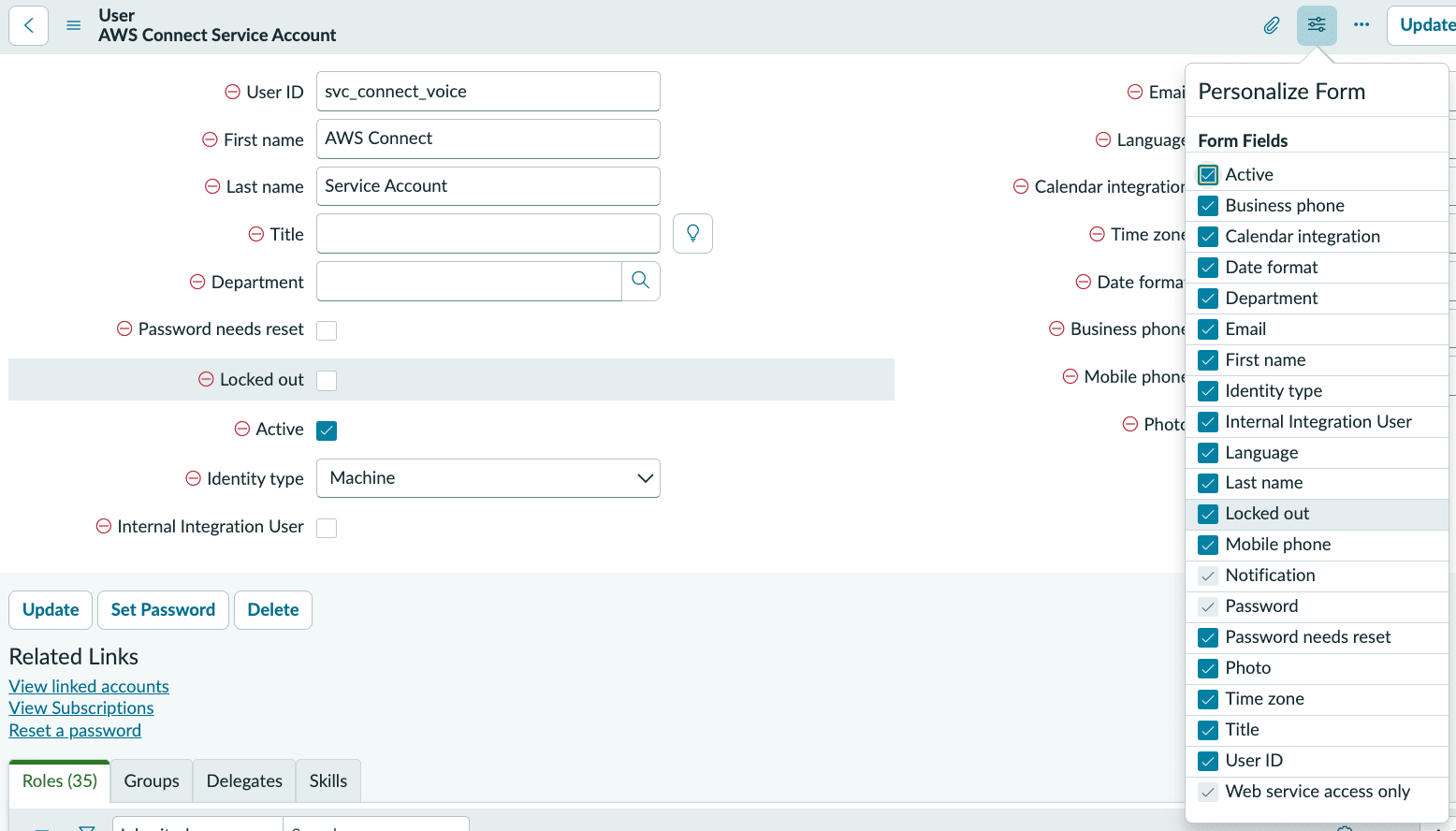
State where Identity type is Human. Web service access only is grayed out
At this point, the Web service access only checkbox itself is grayed out and cannot be clicked directly. When I tried changing Identity type to Machine, the checkbox remained grayed out, but the value automatically switched to true.
In other words, this field is not something the user directly operates on the screen, but rather a read-only-like field that the system automatically determines based on the value of Identity type.
Method 3: Set directly via Background Script
If it is difficult to change Identity type on the form, or if you want to process multiple records with a script, you can also update directly from Background Script. Search for "Scripts - Background" in the Filter Navigator and open it from System Definition > Scripts - Background. Run the following script. The user_name column of the sys_user table corresponds to User ID on the screen. Replace the target User ID part with the User ID of the target user.
var gr = new GlideRecord('sys_user');
if (gr.get('user_name', 'target User ID')) {
  gr.web_service_access_only = true;
  gr.update();
  gs.print('Updated: ' + gr.user_name + ' / web_service_access_only = ' + gr.web_service_access_only);
}
Paste this script as-is into the Scripts - Background input field.
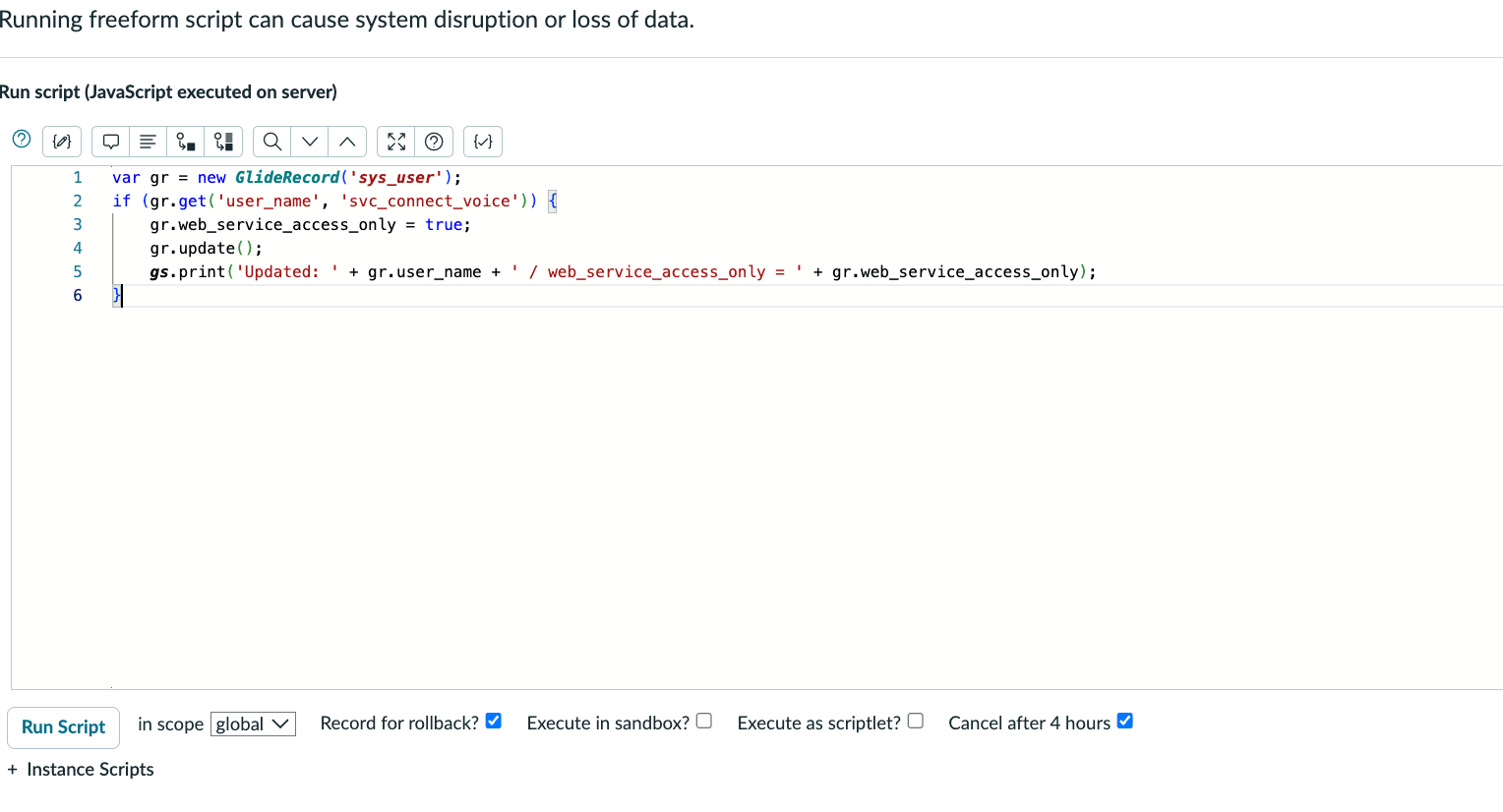
State where the script has been pasted into Scripts - Background. Run script will be executed after this
When executed, the log outputs "Setting Identity type to Machine as web_service_access_only is true". When you try to directly set web_service_access_only to true, the Business Rule changes Identity type to Machine to maintain consistency — this is the reverse behavior compared to Methods 1 and 2.
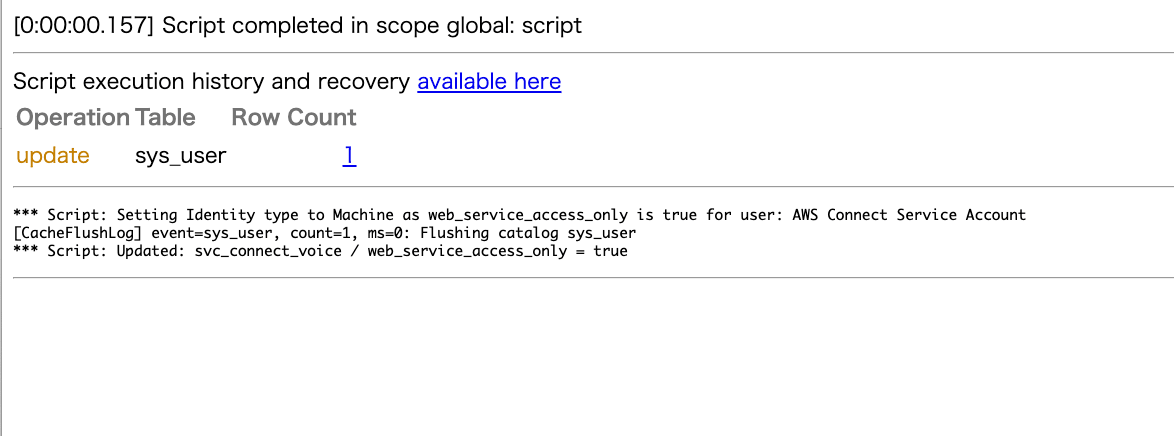
Background Script execution result. The log shows that Identity type has changed to Machine
Verifying on the List Screen
By opening the user list screen and adding the "Web service access only" column in the column settings, we were able to confirm that the value for the target user was true.

Screen confirming that Web service access only is true in the user list
Setting a Password and Roles
As needed, set a password using "Set Password" and assign roles from the "Roles" related list.
Summary
We walked through creating a user with Web service access only enabled in ServiceNow.
This field is not an item that can be directly clicked on the form, but rather an item that the system automatically determines based on the value of Identity type. To enable it, you can either set Identity type to Machine when creating a new user, change an existing user's Identity type from Human to Machine, or set the value directly via Background Script.
When creating a service account for external system integration, it is smoother to think in terms of Identity type rather than trying to operate the checkbox itself.