I Tried Out the New Amazon SES Console Feature "Guided Setup for Mail Manager SMTP"

This page has been translated by machine translation. View original
Introduction
On July 24, 2026, a guided setup for Mail Manager SMTP was added to the Amazon SES console. Simply by following the wizard, you can create the full set of resources required for SMTP sending: a traffic policy, a rule set, an IAM role, and an ingress endpoint. This guided setup is available in all Regions where SES is available.
The SES SMTP settings screen lists the existing IAM SMTP credentials alongside Mail Manager SMTP, which is now covered by the guided setup. The main differences between the two are as follows.
| Aspect | Mail Manager SMTP | IAM SMTP |
|---|---|---|
| Creating credentials | Specify an SMTP password that you set yourself or have auto-generated, or a Secrets Manager secret | Create an IAM user and use SMTP credentials derived from its access key |
| Creating an IAM user | Not required (the console creates an IAM role) | Required (IAM permissions such as iam:CreateUser and iam:PutGroupPolicy are needed) |
| Traffic policy / rule set | Created automatically during setup | Mail Manager traffic policies and rule sets are not used |
| Changing credentials | Change the password or secret on the ingress endpoint details screen | The documentation describes a procedure of deleting the SMTP user and recreating it |
| Regions where credentials can be created | All Regions where SES is available | Only some Regions |
Sources: Creating SMTP credentials using Mail Manager / Obtaining Amazon SES SMTP credentials
The same documentation states that using Mail Manager is recommended.
We will go through everything in order: setup, checking the resources, sending with Python, and checking the authentication results of the received email. The test environment is as follows. In this article, the sending domain is replaced with the example domain example.com, and the latter parts of the resource IDs and endpoint hostnames are masked.
| Item | Value |
|---|---|
| Region | us-east-1 |
| Sending domain | example.com (verified in SES, with DKIM/SPF/DMARC configured) |
| Recipient | Gmail |
| SES sending limits | Sandbox removed |
Setup in the Console
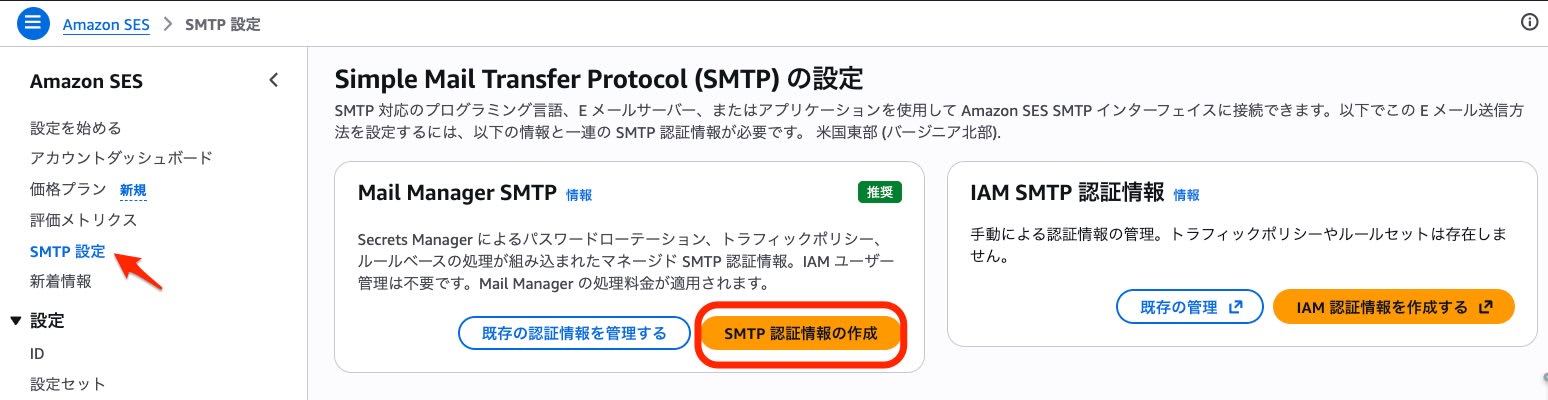
Start the guided setup from "Create SMTP credentials" on the Mail Manager SMTP side.
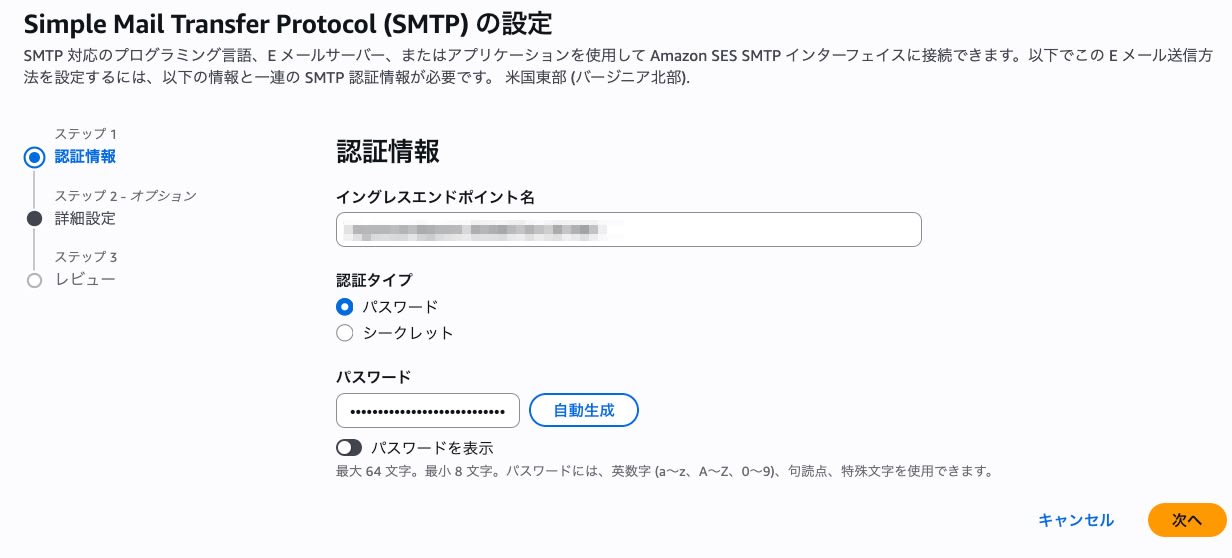
Step 1: Credentials
Enter the ingress endpoint name and choose the authentication type. This time I selected "Password" and created the password with the console's "Auto-generate" option.
Step 2: Advanced settings
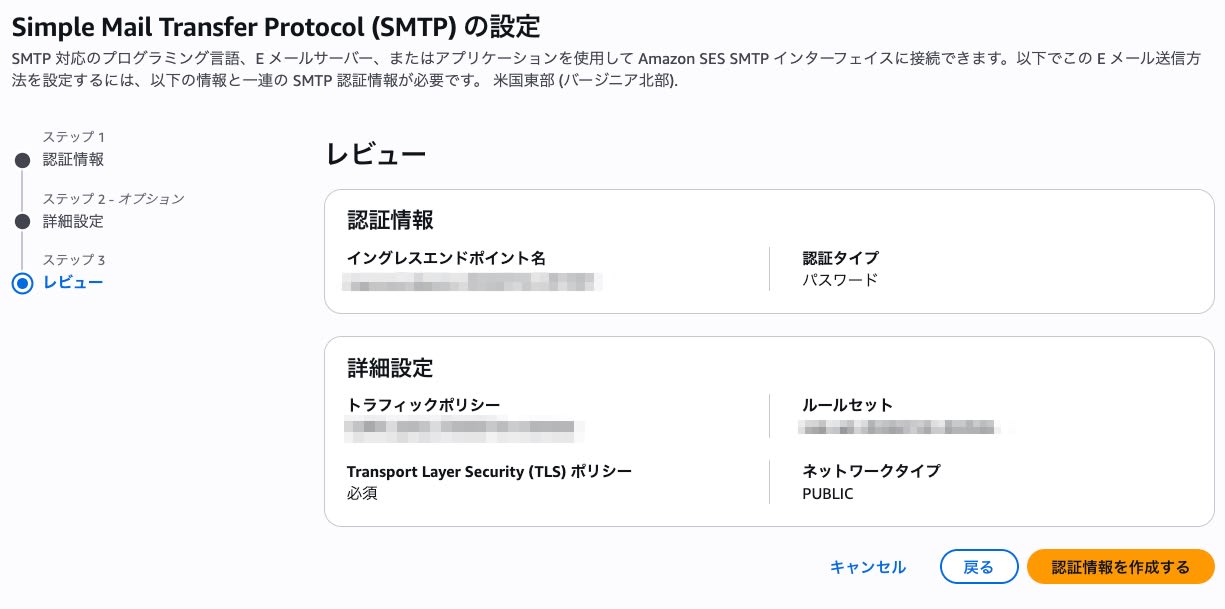
For the traffic policy and rule set, choose "Create new," and for the IAM role, create it with "Create a new role." In addition, specify the ingress endpoint's network type, IP address type, and TLS policy.
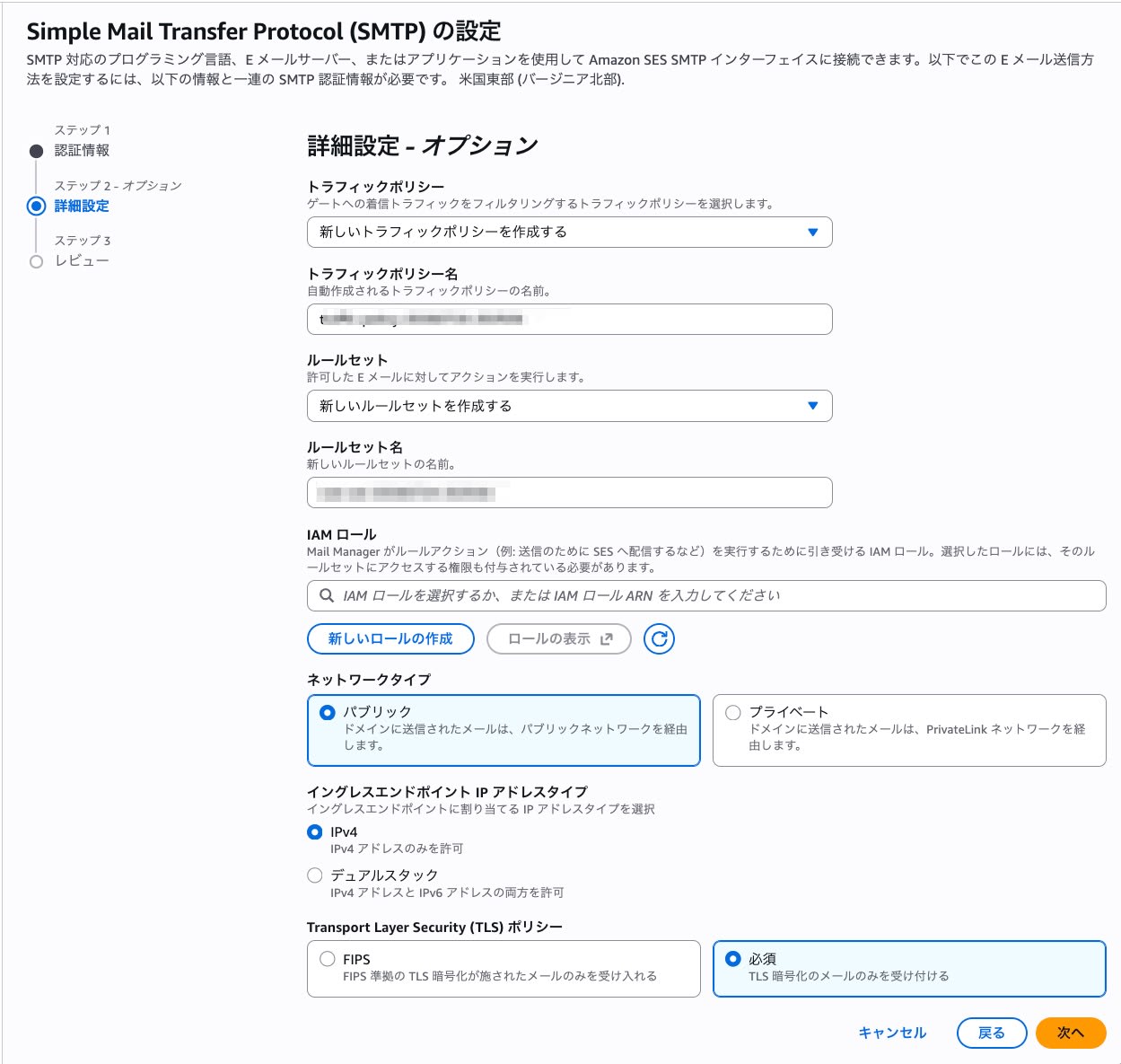
The settings applied in this setup are as follows. The descriptions for the network type, TLS policy, and IP address type are the wording shown on the screen.
| Setting | Value | Description |
|---|---|---|
| Network type | Public | Email sent to the domain passes through the public network |
| TLS policy | Required | Accepts only TLS-encrypted email |
| IP address type | IPv4 | Allows IPv4 addresses only |
| Authentication type | Password | Uses the password authentication specified in Step 1 |
| Traffic policy default action | ALLOW | Also allows traffic that does not match any conditions |
The description reads "email sent to the domain," from a receiving perspective, because a Mail Manager ingress endpoint is originally an entry point for receiving email. For this use case, the configuration is one where an SMTP client connects to this endpoint over the internet and hands off the email.
Step 3: Review
Check the credentials and advanced settings, then run "Create credentials."
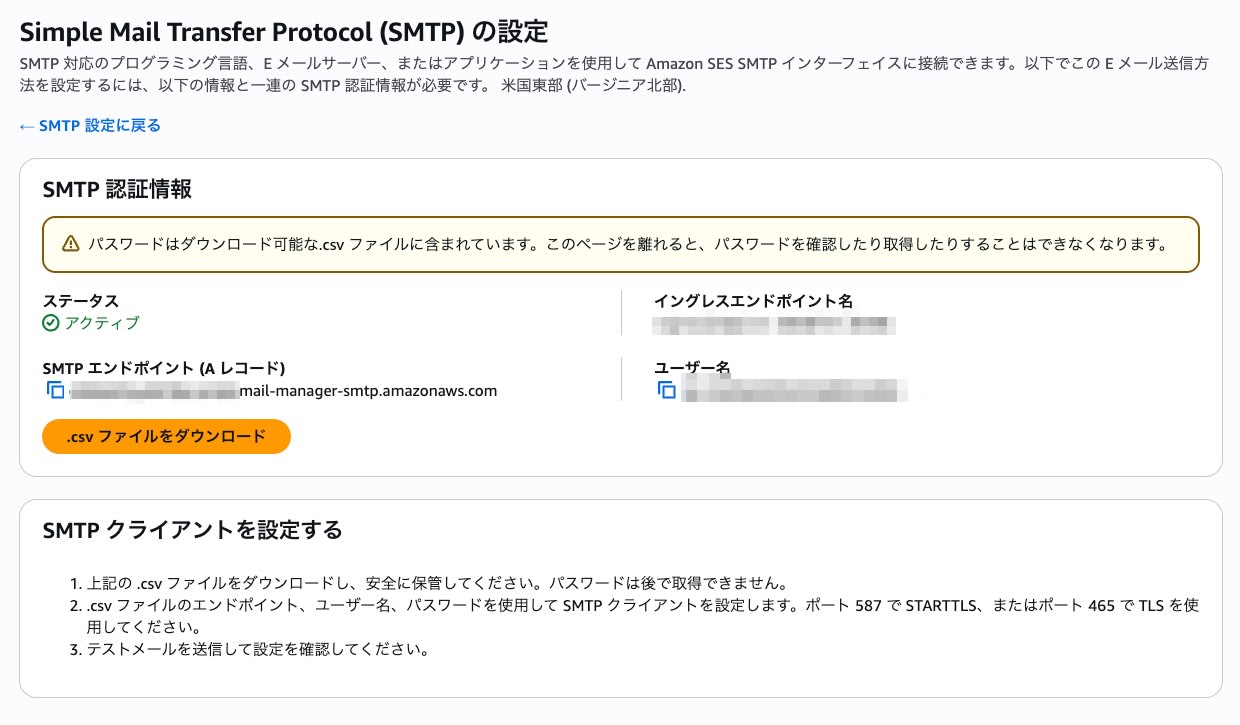
Setup complete
Once the status becomes active, the endpoint hostname (ARecord) and user name to specify in the SMTP client are displayed. You download the .csv file containing the password from this screen. The bottom of the screen also shows the setup procedure for an SMTP client that uses STARTTLS on port 587.
Checking the Created Resources (CLI)
Let's check what the wizard created using the Mail Manager API in the AWS CLI.
aws mailmanager list-ingress-points --region us-east-1
{
    "IngressPoints": [
        {
            "IngressPointName": "ingressendpoint-20260724-201901",
            "IngressPointId": "inp-4zdtzptathov...",
            "Status": "ACTIVE",
            "Type": "AUTH",
            "ARecord": "cdx6ee******.fips.****.mail-manager-smtp.amazonaws.com"
        }
    ]
}
Status is ACTIVE and Type is AUTH, so it was created as an ingress endpoint that accepts authenticated email from SMTP clients. The hostname in ARecord is the connection destination to set in the SMTP client.
aws mailmanager list-rule-sets --region us-east-1
{
    "RuleSets": [
        {
            "RuleSetId": "rs-5e7xcrj7pw6v...",
            "RuleSetName": "rule-set-20260724-202926",
            "LastModificationDate": "2026-07-25T05:31:01+09:00"
        }
    ]
}
aws mailmanager list-traffic-policies --region us-east-1
{
    "TrafficPolicies": [
        {
            "TrafficPolicyName": "traffic-policy-20260724-202926",
            "TrafficPolicyId": "tp-6woxwxztljlg...",
            "DefaultAction": "ALLOW"
        }
    ]
}
Here are the names and IDs of the three automatically created resources.
| Resource | Name | ID |
|---|---|---|
| Ingress endpoint | ingressendpoint-20260724-201901 | inp-4zdtzptathov... |
| Rule set | rule-set-20260724-202926 | rs-5e7xcrj7pw6v... |
| Traffic policy | traffic-policy-20260724-202926 | tp-6woxwxztljlg... |
In addition to the ingress endpoint, the rule set and traffic policy were also created by the time the wizard completed, so there was no need to create them separately. The IAM role that is created at the same time is not included in the Mail Manager API listings, so it is not covered here.
SMTP Connection and Send Test
This is a minimal Python script that authenticates and sends after STARTTLS encryption on port 587. Replace the hostname, user name, and password with the values from the .csv you downloaded on the completion screen before running it.
import smtplib
from email.mime.text import MIMEText

SMTP_HOST = "<SMTPエンドポイントのホスト名>"
SMTP_PORT = 587
SMTP_USER = "<SMTPユーザー名>"
SMTP_PASSWORD = "<SMTPパスワード>"
MAIL_FROM = "test@example.com"
MAIL_TO = "<Gmailアドレス>"

msg = MIMEText("SES Mail Manager SMTP からのテスト送信です。")
msg["Subject"] = "SES Mail Manager SMTP Test"
msg["From"] = MAIL_FROM
msg["To"] = MAIL_TO

server = smtplib.SMTP(SMTP_HOST, SMTP_PORT)
server.set_debuglevel(1)
server.ehlo()
server.starttls()
server.ehlo()
server.login(SMTP_USER, SMTP_PASSWORD)
server.sendmail(MAIL_FROM, [MAIL_TO], msg.as_string())
server.quit()
In the EHLO before STARTTLS, STARTTLS and AUTH PLAIN LOGIN were offered, and authentication via AUTH PLAIN succeeded.
send: 'STARTTLS\r\n'
reply: b'220 Ready to start TLS\r\n'
...
reply: b'235 Authentication successful.\r\n'
SMTP communication log (authentication part)
send: 'ehlo [<クライアントIP>]\r\n'
reply: b'250-****.mail-manager-smtp.amazonaws.com\r\n'
reply: b'250-8BITMIME\r\n'
reply: b'250-STARTTLS\r\n'
reply: b'250-AUTH PLAIN LOGIN\r\n'
reply: b'250 Ok\r\n'
reply: retcode (250); Msg: b'****.mail-manager-smtp.amazonaws.com\n8BITMIME\nSTARTTLS\nAUTH PLAIN LOGIN\nOk'
send: 'STARTTLS\r\n'
reply: b'220 Ready to start TLS\r\n'
reply: retcode (220); Msg: b'Ready to start TLS'
send: 'ehlo [<クライアントIP>]\r\n'
reply: b'250-****.mail-manager-smtp.amazonaws.com\r\n'
reply: b'250-8BITMIME\r\n'
reply: b'250-AUTH PLAIN LOGIN\r\n'
reply: b'250 Ok\r\n'
reply: retcode (250); Msg: b'****.mail-manager-smtp.amazonaws.com\n8BITMIME\nAUTH PLAIN LOGIN\nOk'
send: 'AUTH PLAIN <認証情報をマスク>\r\n'
reply: b'235 Authentication successful.\r\n'
reply: retcode (235); Msg: b'Authentication successful.'
send: 'quit\r\n'
reply: b'221 Bye\r\n'
reply: retcode (221); Msg: b'Bye'
In the EHLO after STARTTLS, STARTTLS disappeared and only AUTH PLAIN LOGIN was offered. The email was also sent successfully, and I confirmed it was received on the Gmail side.
Checking the Received Email Headers
| Check | Result |
|---|---|
| DKIM (example.com) | pass |
| DKIM (amazonses.com) | pass |
| SPF | pass |
| DMARC | pass (p=REJECT sp=REJECT) |
In this test, the reverse DNS of the sender was a host under smtp-out.amazonses.com. According to Gmail's received headers, the communication when delivering from SES to Gmail used TLS1_3 (TLS_AES_128_GCM_SHA256).
Summary
With the guided setup for Mail Manager SMTP, you can now create all the settings required for SMTP sending in one go.
If you are setting up SMTP sending from now on, I recommend avoiding the conventional IAM SMTP wherever possible. IAM SMTP is a method that creates an IAM user and a non-expiring access key for the SMTP credentials, and the person creating them also needs IAM permissions at the permissions-management level, such as iam:CreateUser and iam:PutGroupPolicy. When you want to change the password, you are still left with the operational burden of deleting and recreating the IAM user. The official documentation also recommends using Mail Manager.
With Mail Manager SMTP, no IAM user or access key is needed, and all you manage is the SMTP password or a Secrets Manager secret. With the password method I tried this time, changes can be completed on the ingress endpoint details screen. For environments already running on IAM SMTP, if they can connect to Mail Manager SMTP via STARTTLS, I recommend taking this opportunity to review them.
For SES pricing plans, please see the following article.
