When sharing objects in an S3 bucket with members who don't have IAM users or with external parties, consider using Storage Browser for S3 as well.

This page has been translated by machine translation. View original
I want to share files with members who don't have IAM users or with external parties over the internet while keeping costs and operational overhead low
Hello, I'm Nonpi (@non____97).
Have you ever wanted to share files over the internet with members who don't have IAM users or with external parties, while keeping costs and operational overhead low? I have.
If you're exchanging files with people inside your organization over a closed network, you might set up a file server to handle that.
On the other hand, when remote work requirements mean going through the internet, the bar gets higher.
Possible solutions in this case include the following:
- Connect to the file server via VPN software installed on client devices, such as Client VPN
- Connect to the file server after going through a VDI service such as WorkSpaces as an intermediary
- Place objects in an S3 bucket and connect via SFTP through AWS Transfer Family
- Place objects in an S3 bucket and manage objects from the AWS Management Console
The first and second options raise concerns about both cost and operational overhead.
Assuming 100 users connect an average of 2 hours per business day for file transfers, the cost estimate for Client VPN is as follows:
| Item | Amount |
|---|---|
| Client VPN endpoint cost (monthly) 2 subnets × 730 hours/month × $0.15 USD |
$219.00 USD |
| Client VPN connection cost 100 connections × 2 hours/day × 22 business days × $0.05 USD |
$220.00 USD |
| Total | $439.00 USD |
For WorkSpaces Personal, the costs are as follows:
| Item | Amount |
|---|---|
| WorkSpaces cost (100 instances × $10 USD monthly) + (100 instances × $0.27 USD hourly × 44 hours/month) |
$2,188.00 USD |
| Professional 2021 total cost | $0.00 USD |
| Standard 2021 total cost | $0.00 USD |
| Visual Studio 2022 total cost | $0.00 USD |
| Additional application bundle cost | $0.00 USD |
| Total | $2,188.00 USD |
While it's difficult to align the scenarios perfectly, for WorkSpaces Applications, the costs are as follows:
| Item | Formula | Amount |
|---|---|---|
| User license | 100 users × $4.19 USD/user | $419.00 USD |
| ─ Peak hours/month | 2 hours/day × 5 days/week × 4.35 weeks | 43.50 hours |
| ─ Peak instance hours | 20 concurrent users × 43.50 hours | 870.00 hours |
| Active streaming | 870.00 hours × $0.09 USD/hour | $78.30 USD |
| ─ Buffer instance hours | (2 peak instances × 43.50h) + (1 off-peak instance × 43.50h) | 87.00 hours |
| Stopped (buffer) instances | 87.00 hours × $0.029 USD/hour | $2.52 USD |
| Total | 419.00 + 78.30 + 2.52 | $499.82 USD |
Excluding file server costs, having these charges just for the connection-related components alone can have quite an impact, don't you think?
Additionally, for Client VPN and WorkSpaces Personal, if you use AD Connector or Managed Microsoft AD for authentication, those costs come on top. The charges are as follows:
| Directory type | Formula | Amount |
|---|---|---|
| AD Connector (Small) | 730 hours/month × $0.08 USD/hour | $58.40 USD |
| Managed Microsoft AD (Standard) | 2 instances (DC) × 730 hours/month × $0.073 USD/hour | $106.58 USD |
On top of that, there are file server costs as well. Even with Single-AZ in a scenario where you store 10TB of data, the following costs are incurred:
-
FSx for Windows File Server
Item Formula Amount Storage (HDD) 1,024.00 GB × $0.016 USD $16.38 USD Throughput capacity 128.00 MBps × $2.53 USD $323.84 USD Backup storage 10,240.00 GB × $0.05 USD $512.00 USD Total 16.38 + 323.84 + 512.00 $852.22 USD -
FSx for NetApp ONTAP
Item Formula Amount Storage (SSD) 10,240 GB × 0.20 (SSD ratio) × 0.85 (compression deduplication 1-0.15) × $0.15 USD $261.12 USD Storage (capacity pool) 10,240 GB × 0.80 (capacity pool ratio) × 0.85 (compression deduplication) × $0.0238 USD $165.72 USD Throughput/IOPS 128 MBps × $0.906 USD $115.97 USD Backup storage 10,240 GB × 0.85 (compression deduplication) × $0.05 USD $435.20 USD Total 261.12 + 165.72 + 115.97 + 0.00 + 435.20 $978.01 USD
Therefore, if the following requirements are met, I'd like to place data in an S3 bucket:
- NFS or SMB-based transfers are not required
- Objects can be downloaded each time they are viewed
- Fine-grained ACL changes at the object or prefix level are not necessary; it's sufficient to switch permissions at the top-level prefix level with just a few prefixes
With S3, even storing 10TB with the Standard storage class would only cost $256.00 USD. It's also nice that backups are unnecessary if you're okay with ignoring physical failures, given the eleven-nines durability of the data.
As for connecting to the S3 bucket itself, both options 3 and 4 mentioned earlier have their challenges.
This is where Storage Browser for S3 comes in as a candidate.
It's also nice that even with Cognito's Plus plan, usage by around 100 people would cost only about $2 USD per month. Including various charges around Amplify and other services, I think it would be around $300 USD for this scenario.
Transfer Family Web Apps offers similar functionality, but it requires IAM Identity Center.
If you're not using it, can't use it, or don't want to register users who only need access to objects in an S3 bucket into IAM Identity Center, Storage Browser for S3 would be the choice.
In terms of cost, excluding storage, there is a charge of $0.50 USD/hour/unit. It costs at least around $360 USD/month, which appears more expensive than Storage Browser for S3, but since Storage Browser for S3 requires coding and involves more resources to set up, it comes down to a TCO-based decision.
This time, I tried building a file sharing system using Storage Browser for S3.
Tried It Out
Verification Environment
The verification environment is as follows:
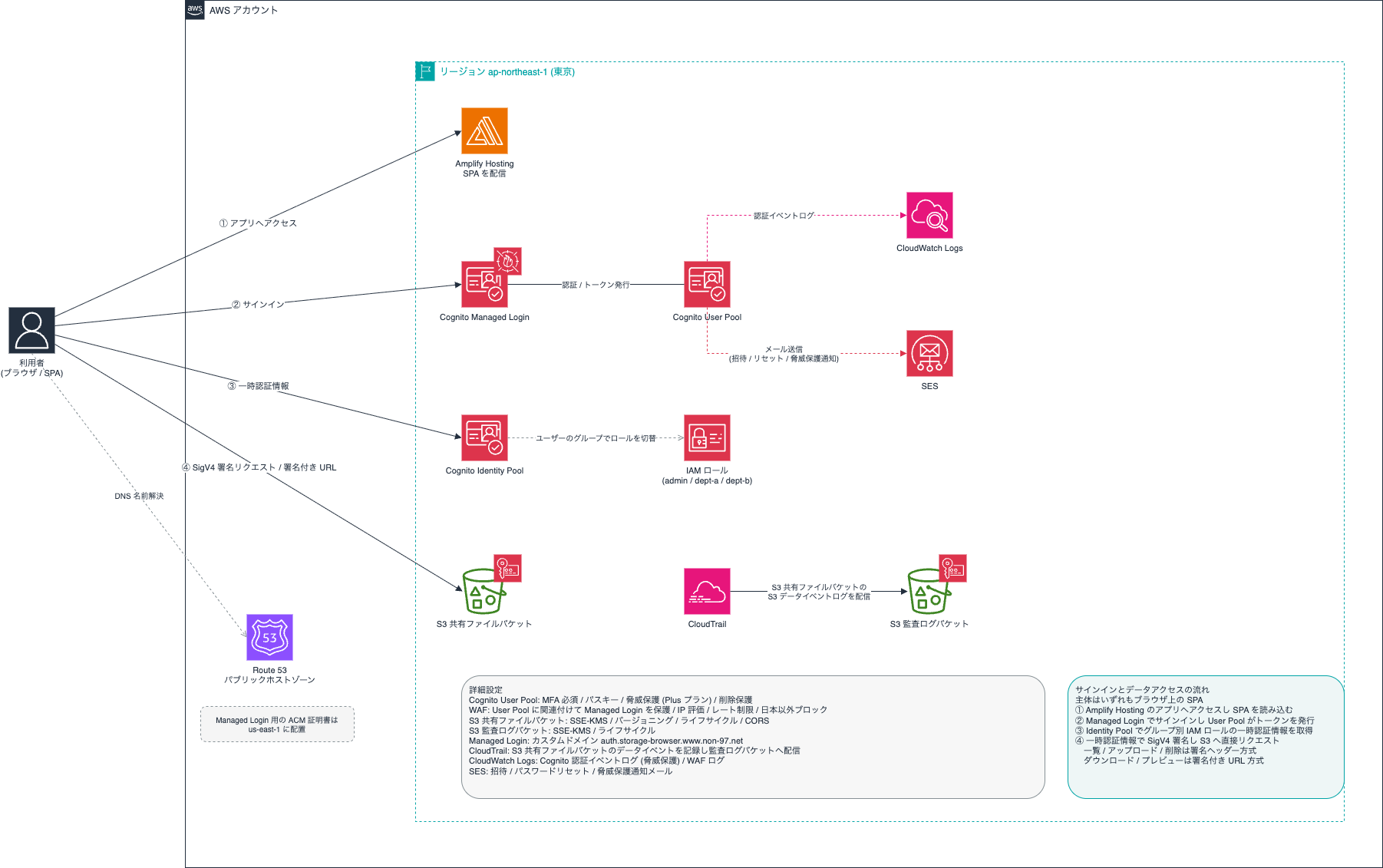
A React SPA is hosted on Amplify.
The code used is stored in the following GitHub repository:
The following are required as prerequisites:
- A Route 53 Public Hosted Zone that manages the DNS names used by Amplify and Cognito Managed Login
- An A record for the parent domain of the DNS name used by Cognito Managed Login
- Planned to be deleted after application deployment is complete
- An ACM certificate for use with Cognito Managed Login
- Required in us-east-1
- An Amazon SES identity used for invitation emails, password resets, etc.
Once preparations are complete, deploy from the Management Console using Amplify. The following should be helpful as a reference for the overall flow:
Note that when I tried it, the build failed with an OOM error unless the build instance was set to "Extra Large." If you encounter the same issue, try adjusting it.
After deployment is complete, run scripts/setup-custom-domain.sh. This associates the custom domain and deletes the dummy A record in the Route 53 Hosted Zone.
After that, add Cognito users as needed.
Login
Let's try some actual operations.
First, let's log in.
The current list of users is as follows:
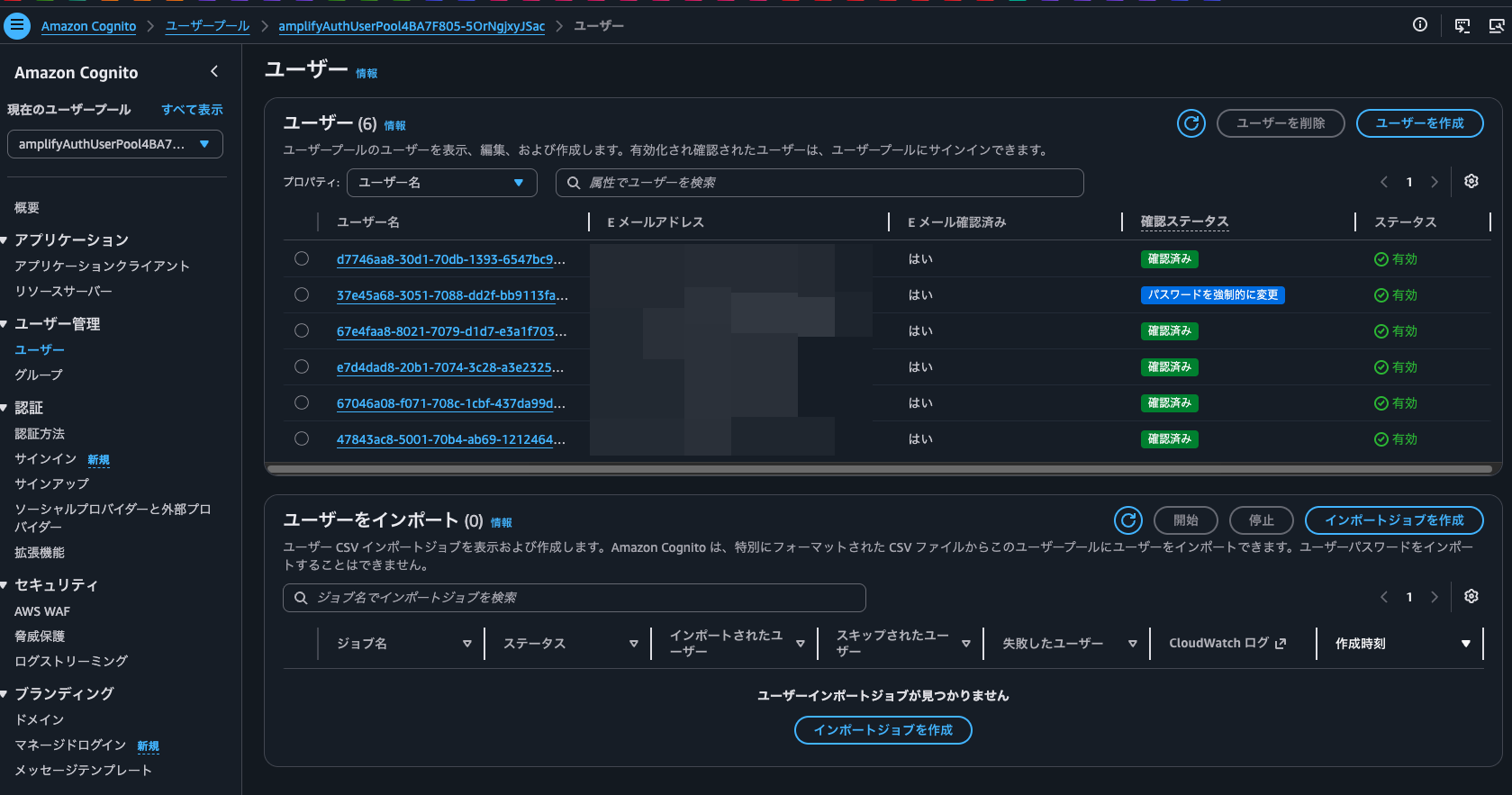
Let's try logging in with a user whose confirmation status is Force change password.
Note that this user belongs to the admin group.
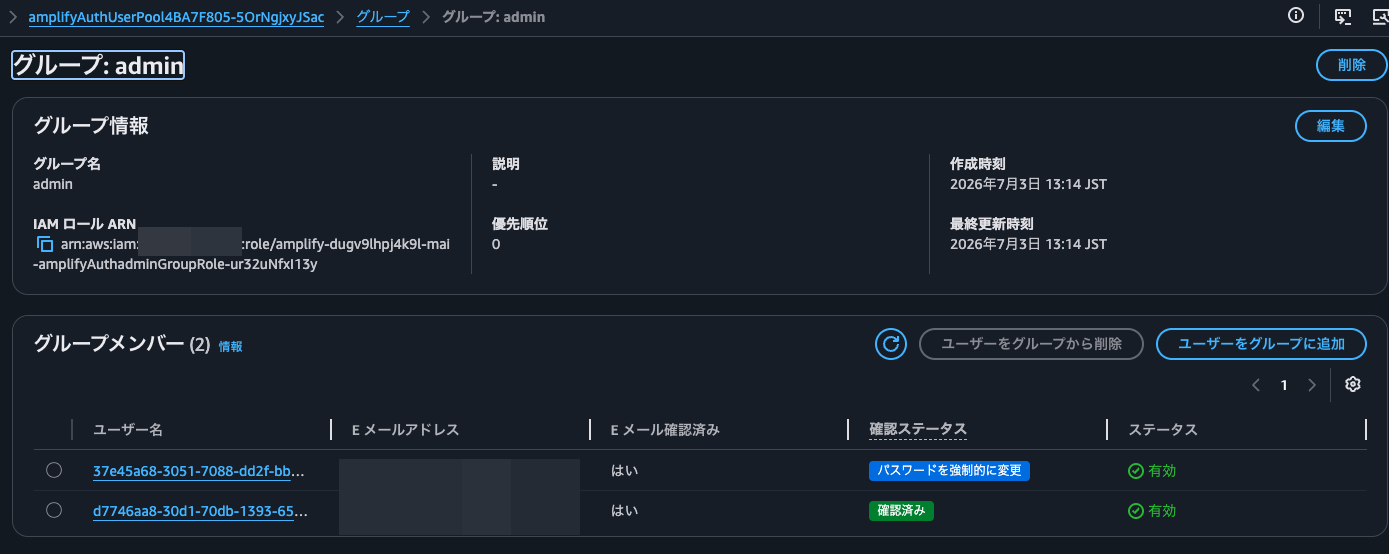
The area of the S3 bucket that users can access changes based on the IAM role assigned to the Cognito group they belong to. The IAM policy of the IAM role assigned to the admin group allows access to multiple prefixes, as shown below:
{
    "Version": "2012-10-17",
    "Statement": [
        {
            "Action": [
                "kms:Decrypt",
                "kms:Encrypt",
                "kms:ReEncrypt*",
                "kms:GenerateDataKey*"
            ],
            "Resource": "arn:aws:kms:ap-northeast-1:<AWSアカウントID>:key/ba958054-28bb-4656-b13e-6161d49e6e0c",
            "Effect": "Allow"
        }
    ]
}
{
    "Version": "2012-10-17",
    "Statement": [
        {
            "Action": "s3:GetObject",
            "Resource": [
                "arn:aws:s3:::amplify-dugv9lhpj4k9l-mai-sharedfilesbucket1afeda1-ukdr3hfjg7ua/shared/*",
                "arn:aws:s3:::amplify-dugv9lhpj4k9l-mai-sharedfilesbucket1afeda1-ukdr3hfjg7ua/dept-a/*",
                "arn:aws:s3:::amplify-dugv9lhpj4k9l-mai-sharedfilesbucket1afeda1-ukdr3hfjg7ua/dept-b/*"
            ],
            "Effect": "Allow"
        },
        {
            "Condition": {
                "StringLike": {
                    "s3:prefix": [
                        "shared/*",
                        "shared/",
                        "dept-a/*",
                        "dept-a/",
                        "dept-b/*",
                        "dept-b/"
                    ]
                }
            },
            "Action": "s3:ListBucket",
            "Resource": "arn:aws:s3:::amplify-dugv9lhpj4k9l-mai-sharedfilesbucket1afeda1-ukdr3hfjg7ua",
            "Effect": "Allow"
        },
        {
            "Action": "s3:PutObject",
            "Resource": [
                "arn:aws:s3:::amplify-dugv9lhpj4k9l-mai-sharedfilesbucket1afeda1-ukdr3hfjg7ua/shared/*",
                "arn:aws:s3:::amplify-dugv9lhpj4k9l-mai-sharedfilesbucket1afeda1-ukdr3hfjg7ua/dept-a/*",
                "arn:aws:s3:::amplify-dugv9lhpj4k9l-mai-sharedfilesbucket1afeda1-ukdr3hfjg7ua/dept-b/*"
            ],
            "Effect": "Allow"
        },
        {
            "Action": "s3:DeleteObject",
            "Resource": [
                "arn:aws:s3:::amplify-dugv9lhpj4k9l-mai-sharedfilesbucket1afeda1-ukdr3hfjg7ua/shared/*",
                "arn:aws:s3:::amplify-dugv9lhpj4k9l-mai-sharedfilesbucket1afeda1-ukdr3hfjg7ua/dept-a/*",
                "arn:aws:s3:::amplify-dugv9lhpj4k9l-mai-sharedfilesbucket1afeda1-ukdr3hfjg7ua/dept-b/*"
            ],
            "Effect": "Allow"
        }
    ]
}
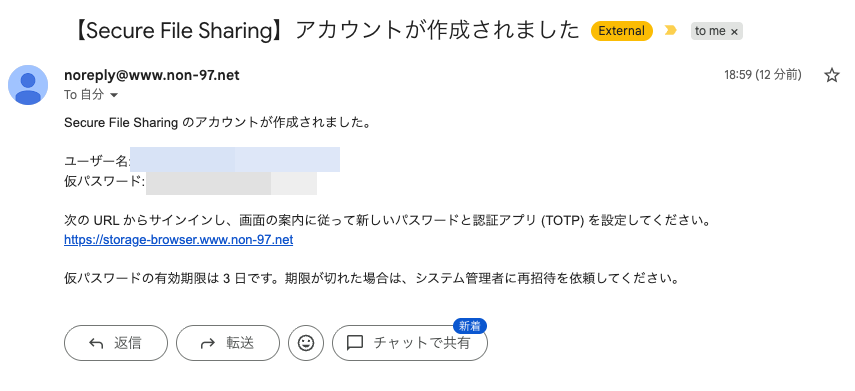
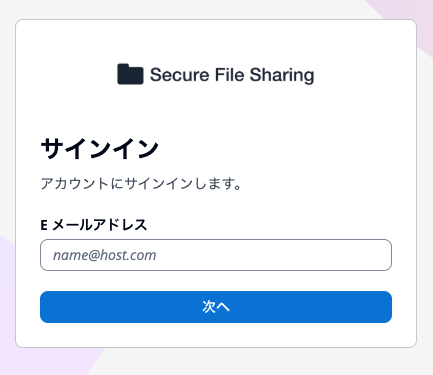
Since an invitation email has arrived, follow the invitation email to log in.
Enter your email address.
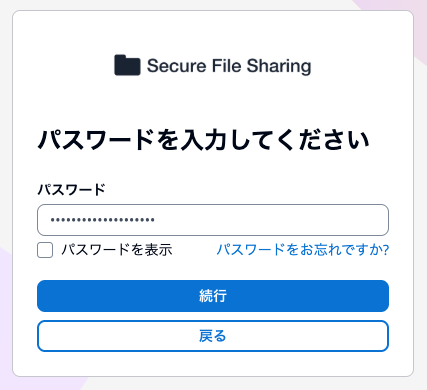
Enter the temporary password.
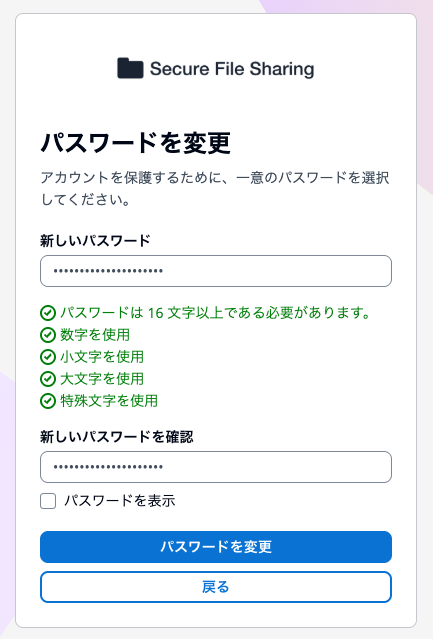
Change your password.
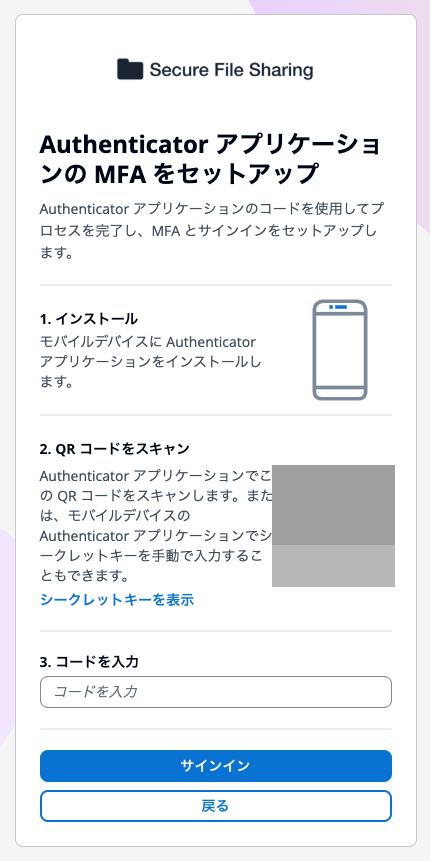
Since MFA is enforced, you are prompted to set up a TOTP Authenticator application. Register it.
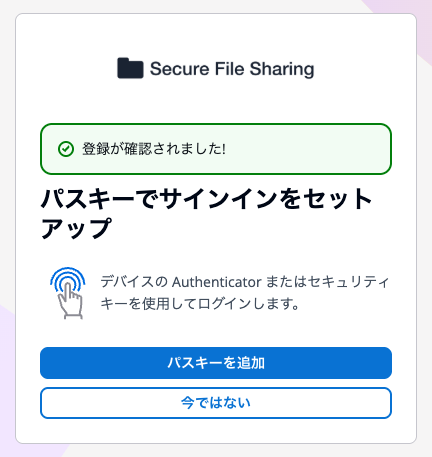
Since passkeys are also enabled, you are prompted to set up a passkey. It's not mandatory, but let's add a passkey.
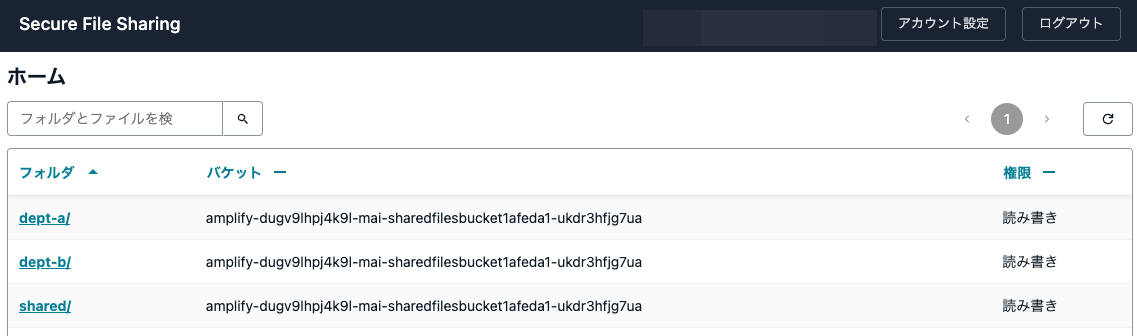
After login is complete, you can view a list of accessible areas as shown below.
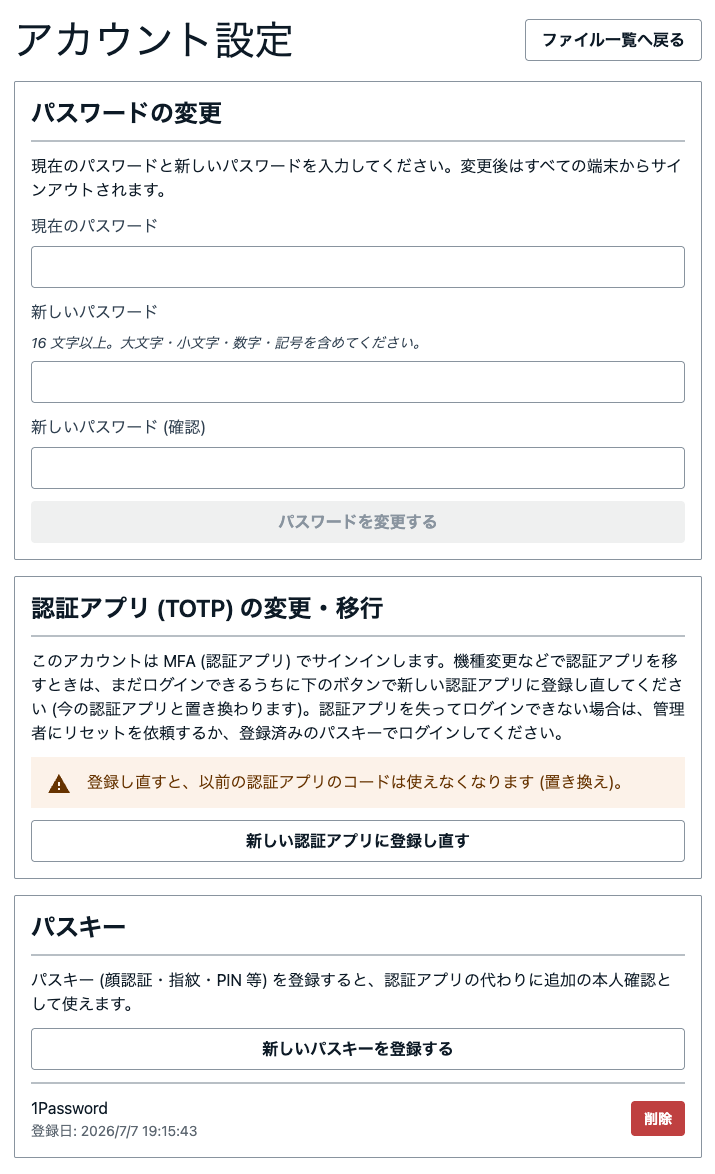
Checking the account settings, you can manage your password, authenticator app, and passkeys as shown below.
Uploading Objects
Let's try some object operations.
Open dept-a.
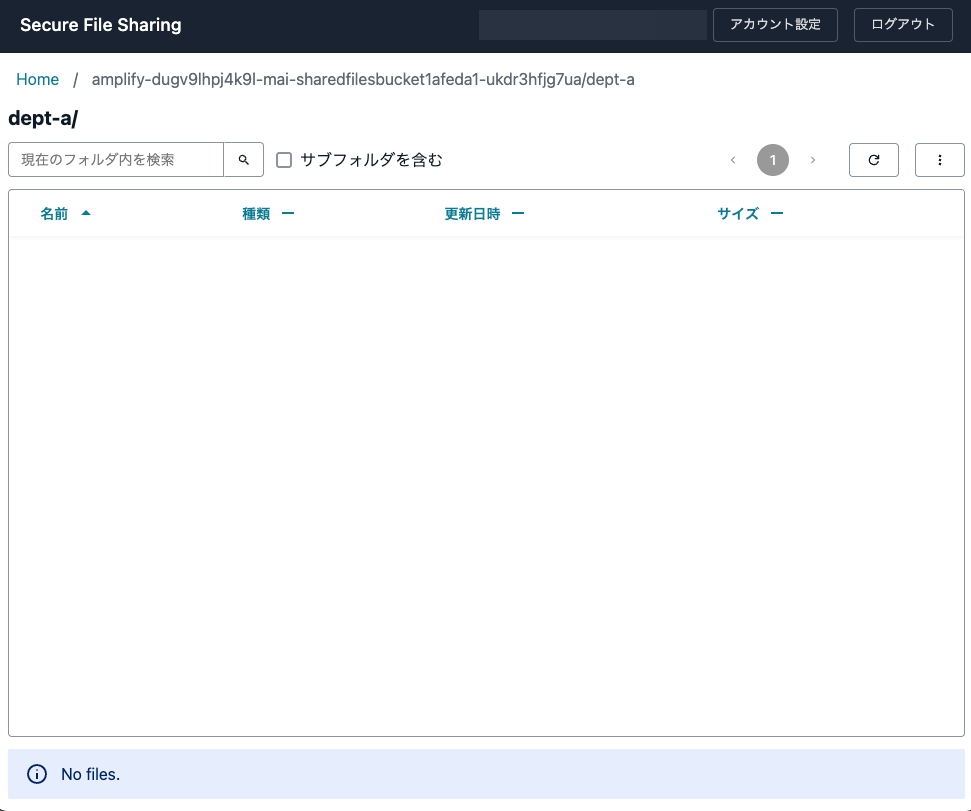
Select some files by drag and drop.
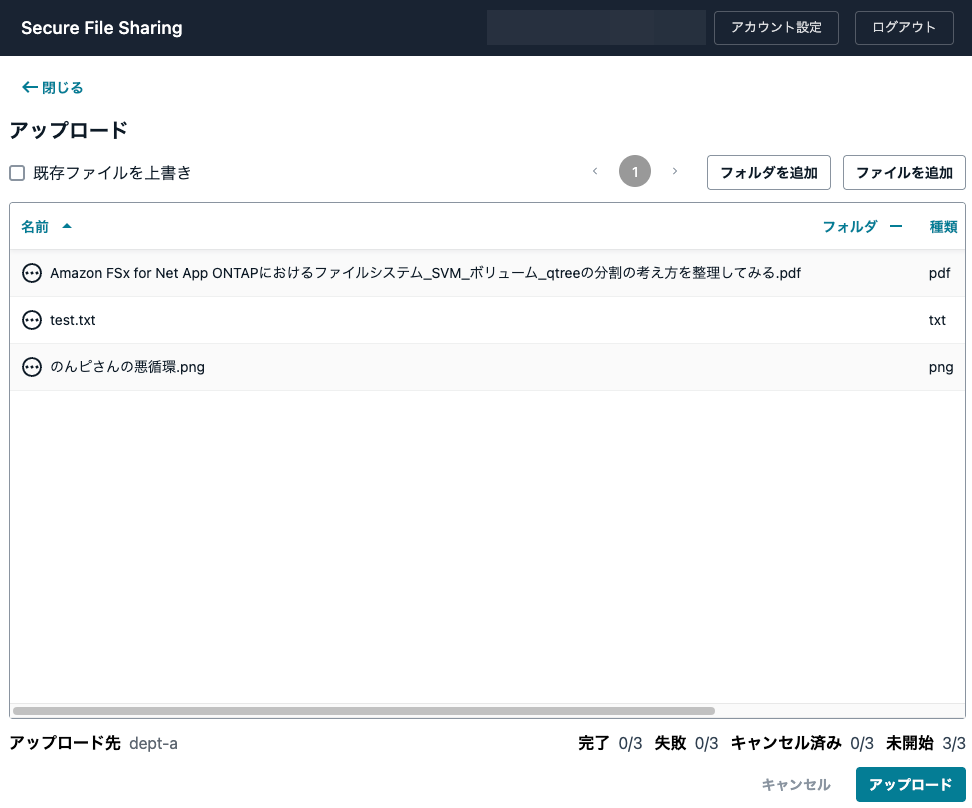
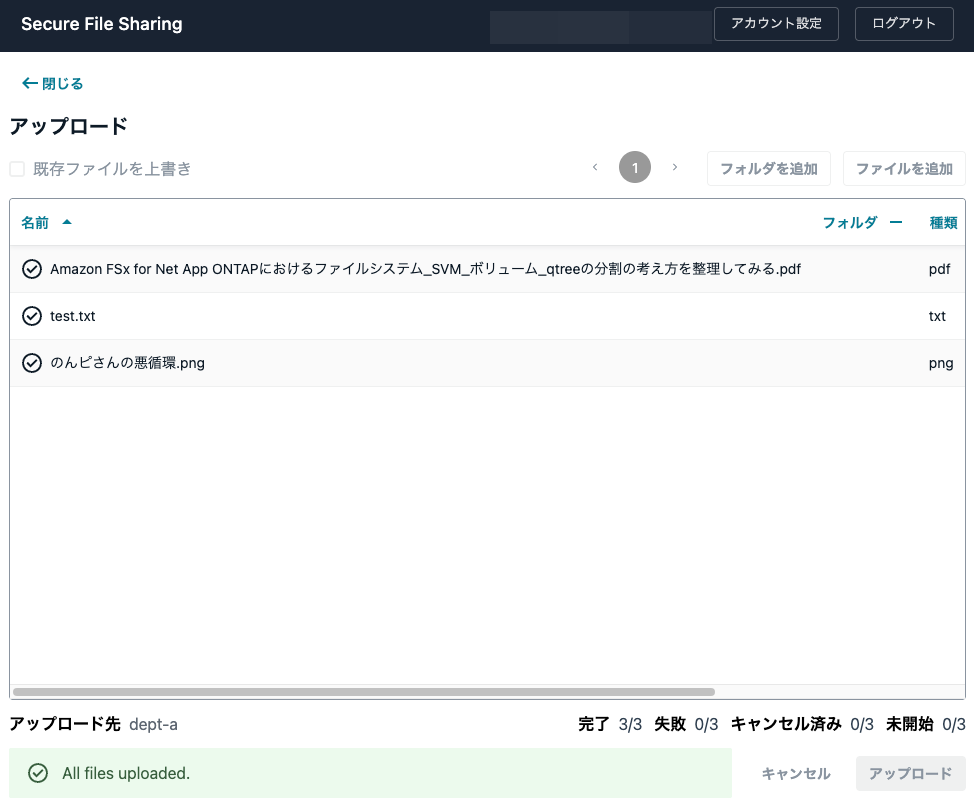
Click the Upload button and the upload is complete.
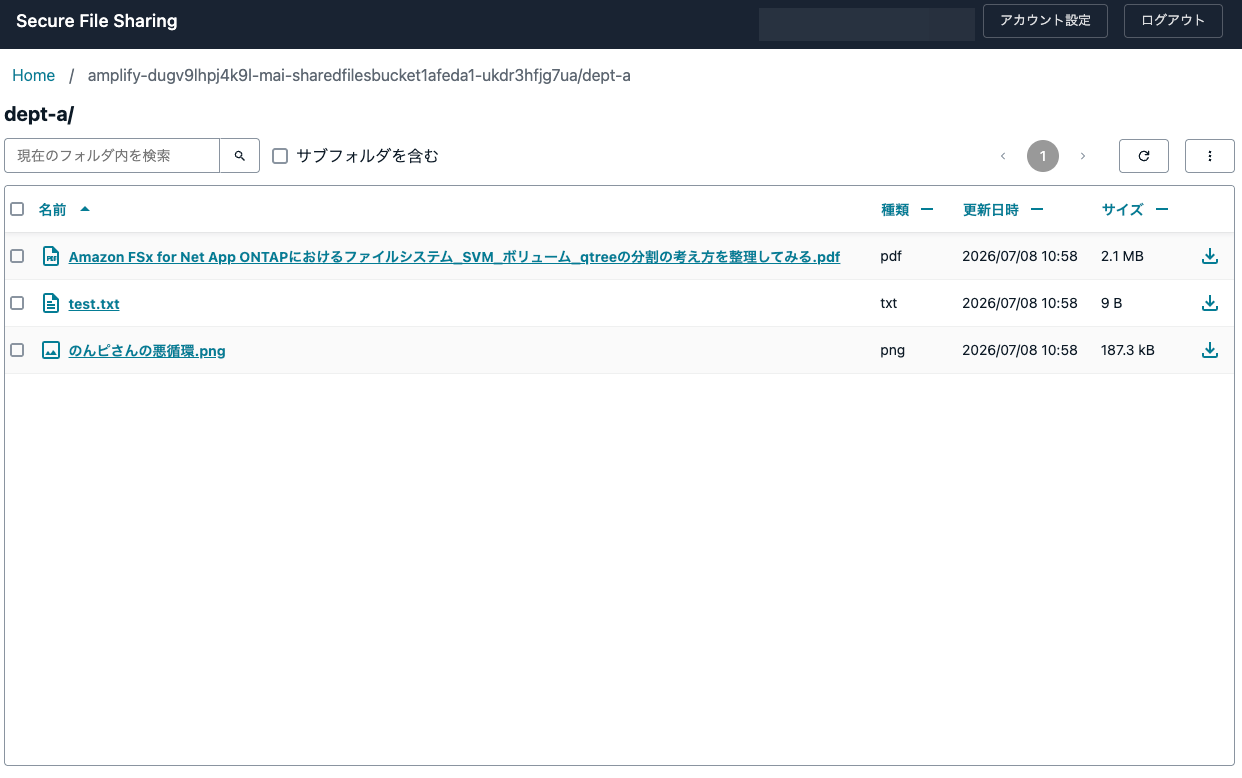
You can confirm the uploaded files.
Some files can also be previewed.
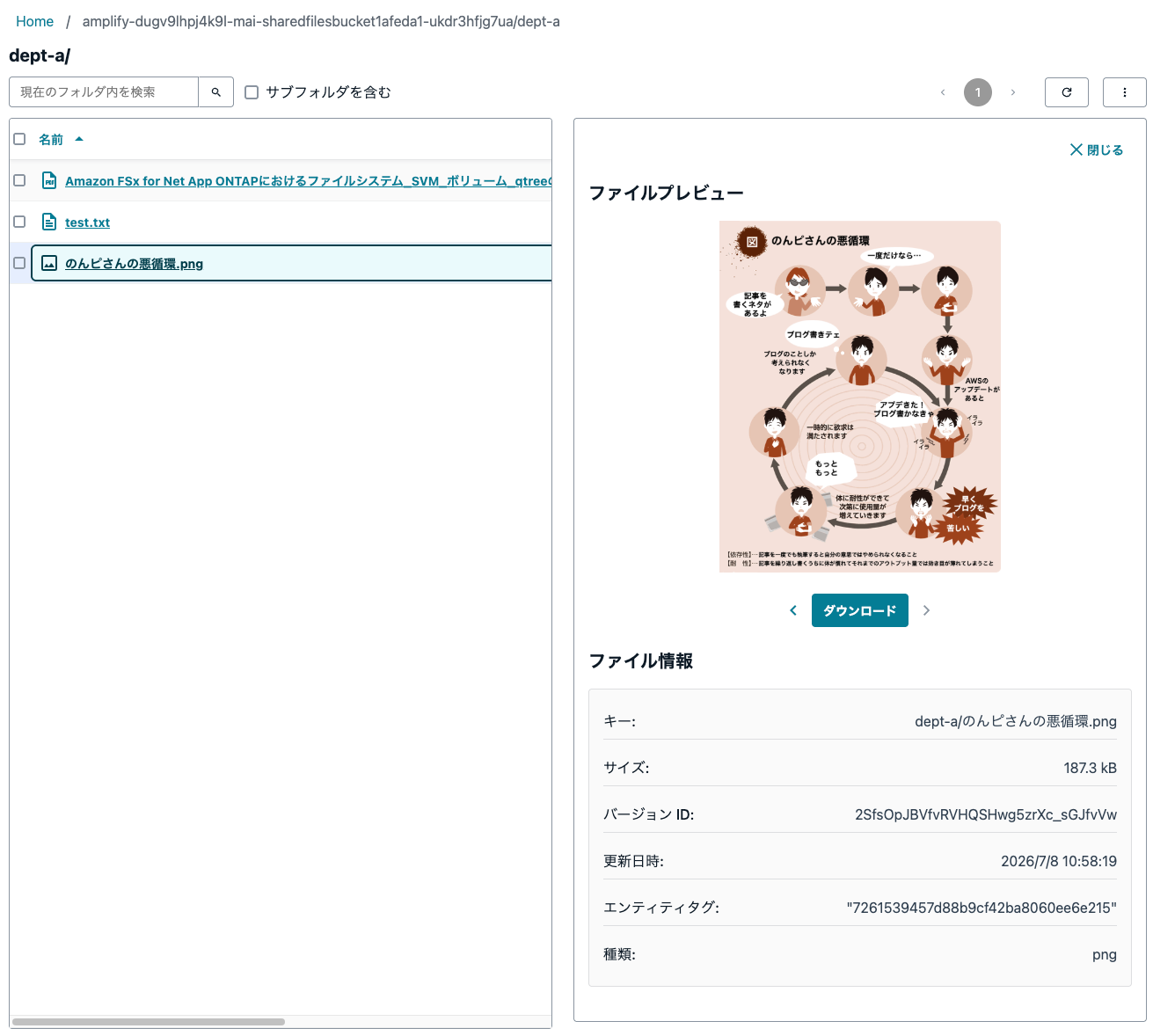
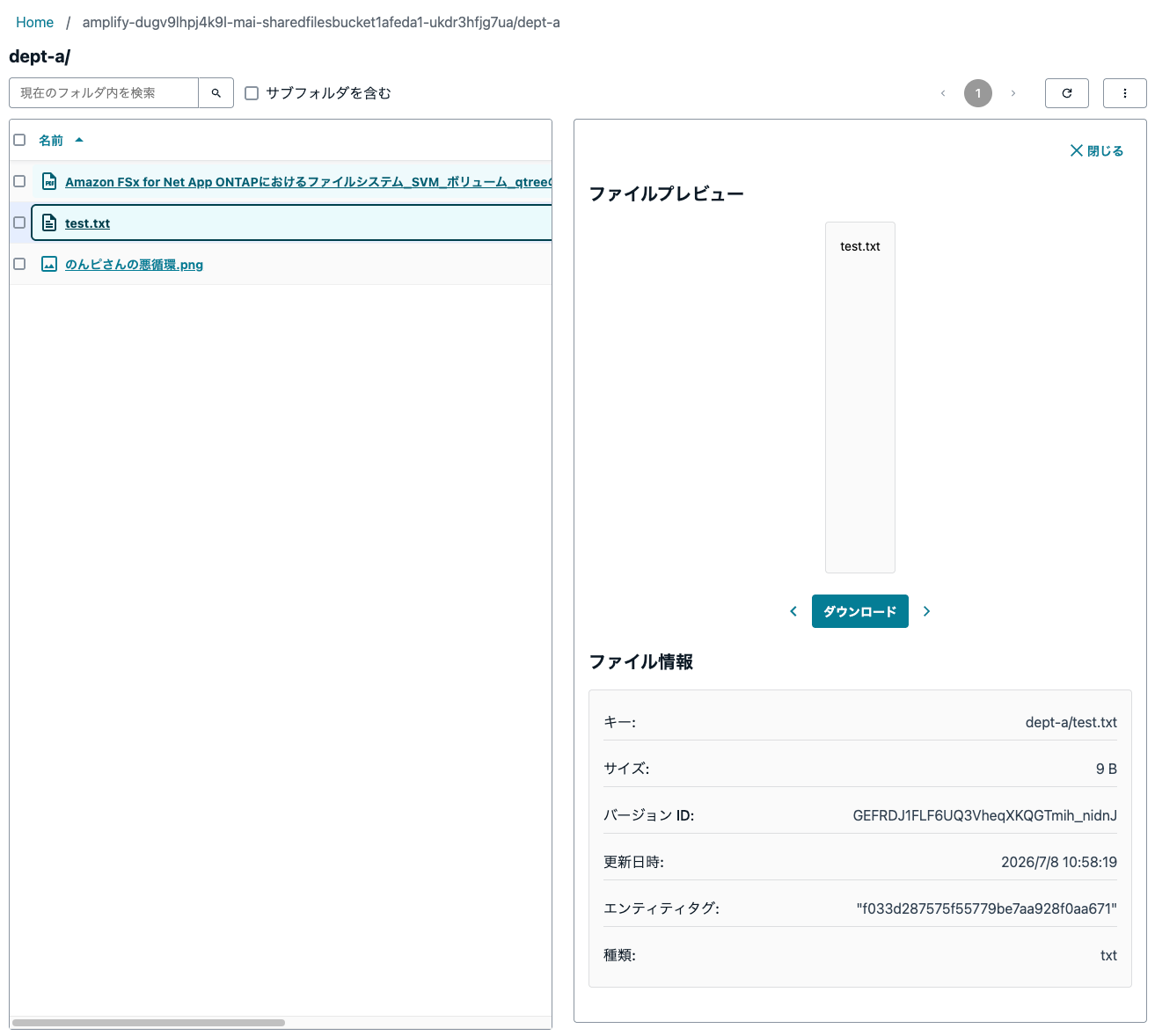
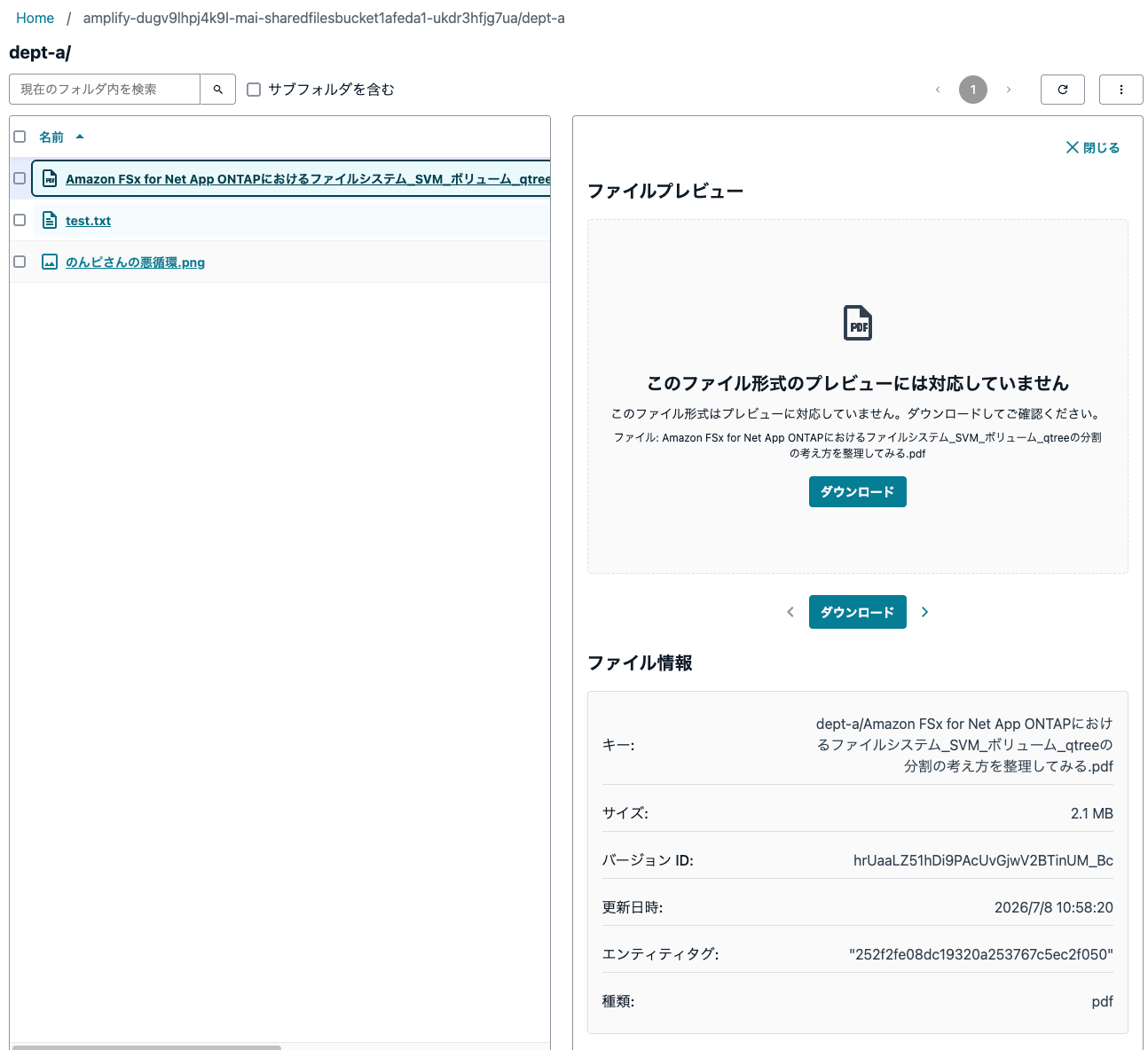
The supported file extensions for preview are as follows:
| Category | Supported Extensions |
|---|---|
| Image ( image ) | jpg, jpeg, png, gif, webp, svg, bmp, tiff, tif, ico, heic, heif, avif |
| Video ( video ) | mp4, avi, mov, wmv, flv, webm, mkv, m4v, mpg, mpeg, 3gp, ogv |
| Text ( text ) | txt, csv, log, json, xml, yaml, yml, ini, conf, cfg |
PDF, Excel, and Word files are commonly shared, but those cannot be previewed.
Creating Folders
You can also create folders.
Click Create folder from the menu on the right side of the screen.
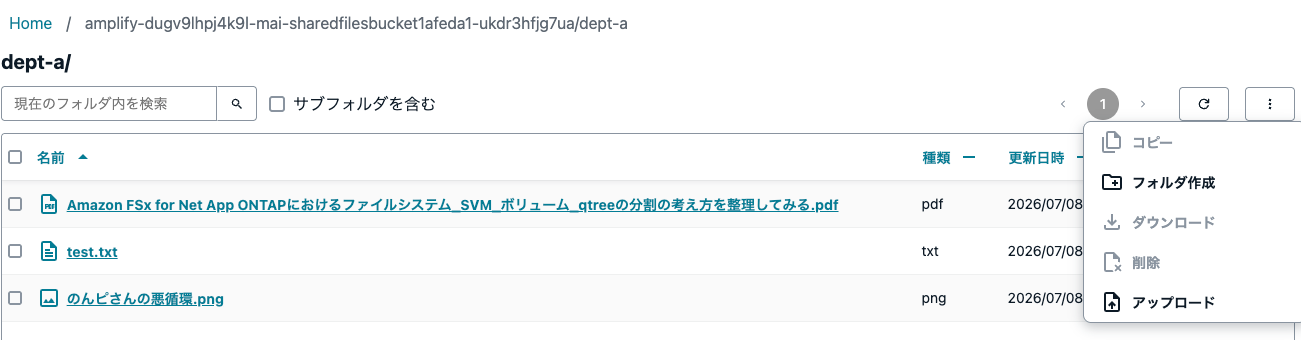
Enter the folder name and click Create folder to create the folder.
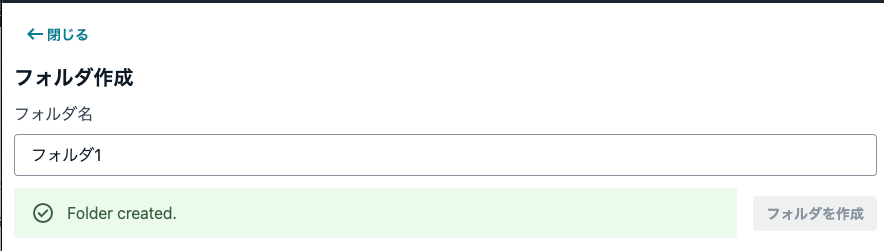
You can also create folders within folders.
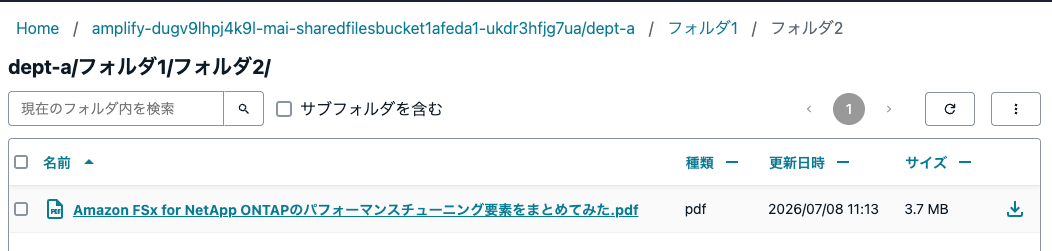
Search
Search is also available.
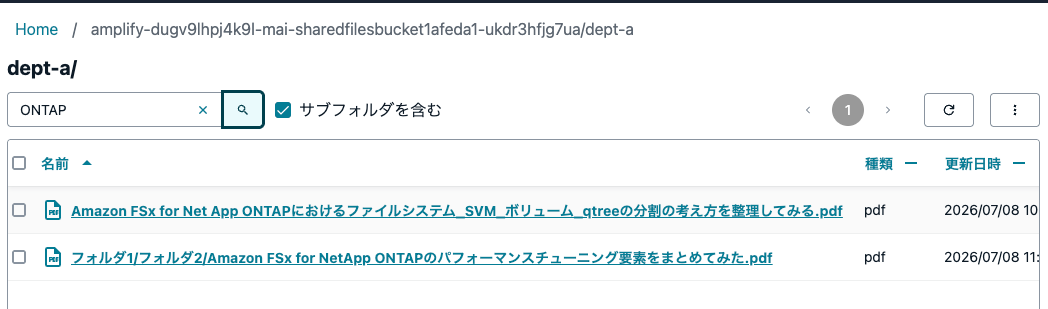
Search can be performed with a single keyword against folder names and file names. Note that you cannot search with multiple keywords, or search metadata or content.
Searching for ONTAP returned only one result.
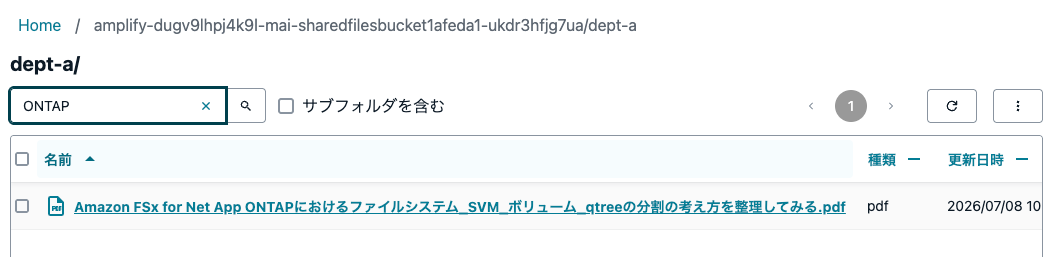
Searching again with Include subfolders checked, files within subfolders were also included in the search results.
Download
Let's try downloading files.
This time, we'll select the 2 files that came up in the search and download them.
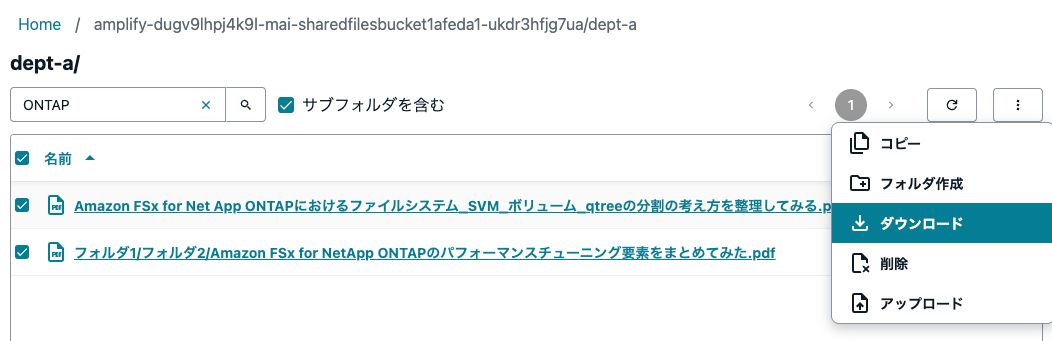
Confirm the targets, and if everything looks good, click Download.
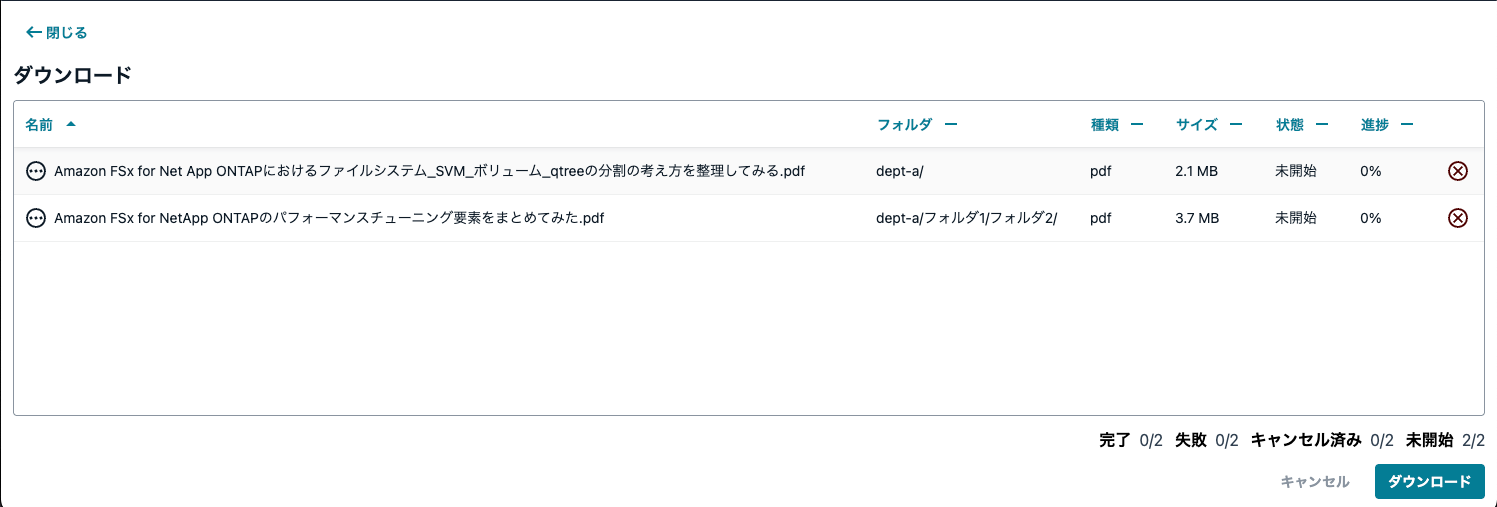
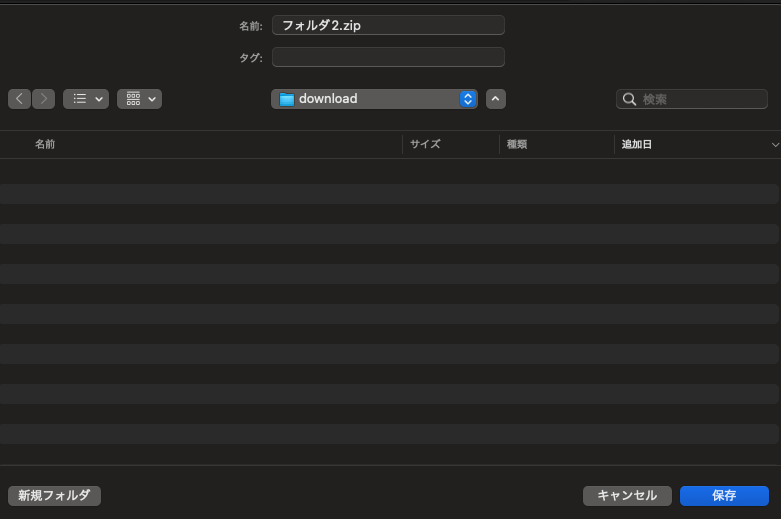
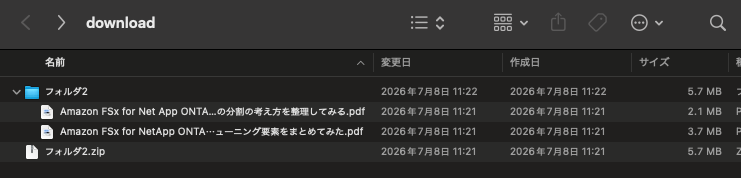
It then downloaded a zip file.
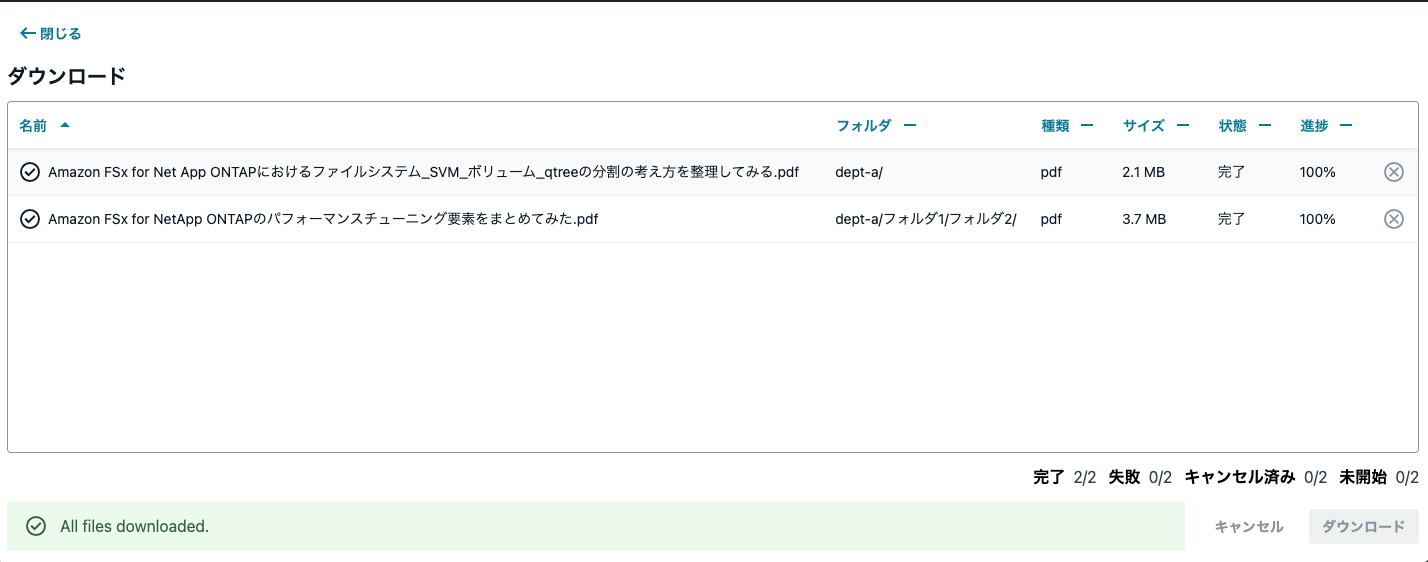
When the download is complete, it looks like this:
Extracting the downloaded zip file, you can confirm the two selected files.
Logging In as Another User
Let's check the behavior when logging in as a different user.
Since this user does not have permission for dept-a, it is not shown in the list.
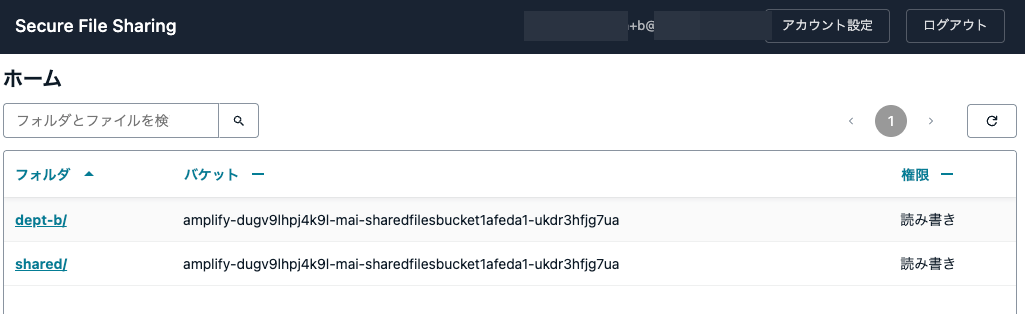
In this way, you can control the accessible areas based on the group the user belongs to.
When You Want to Share Files While Keeping Running Costs Low
We tried sharing objects in an S3 bucket using Storage Browser for S3.
Consider this option when it's difficult to procure services like Box or OneDrive.
I hope this article helps someone.
That's all from Nonpi (@non____97) of the Cloud Business Division, Consulting Department!
