Tried operating TiDB Cloud Lake from Claude Code via MCP

This page has been translated by machine translation. View original
Hello, I'm sora from the Game Solutions Department.
This time, I'll write about connecting the TiDB Cloud Lake MCP server to Claude Code and using Claude Code to explore and manipulate data in Lake.
Conclusion First
- The connection information and command appear in the console's
Use with AI Tools, so it connected with just one execution ofclaude mcp add - When I asked Claude Code questions in Japanese, the AI wrote SQL to aggregate data, and when it noticed something interesting in the results, the AI itself ran additional queries to investigate the cause
- The MCP server has a safe mode, which is ON by default
- When safe mode is ON, even when connected as a user who can delete tables,
DROP TABLEwas blocked at the MCP server level - The scope of what the AI can see and the operations it can perform could also be managed through
GRANTpermissions on the connected user
Checking the Connection Information
TiDB Cloud Lake has an MCP server available, distributed on PyPI as tidbcloudlake-mcp.
The connection information can be confirmed from Use with AI Tools, which appears when you select a Warehouse from the Warehouse list in the console.
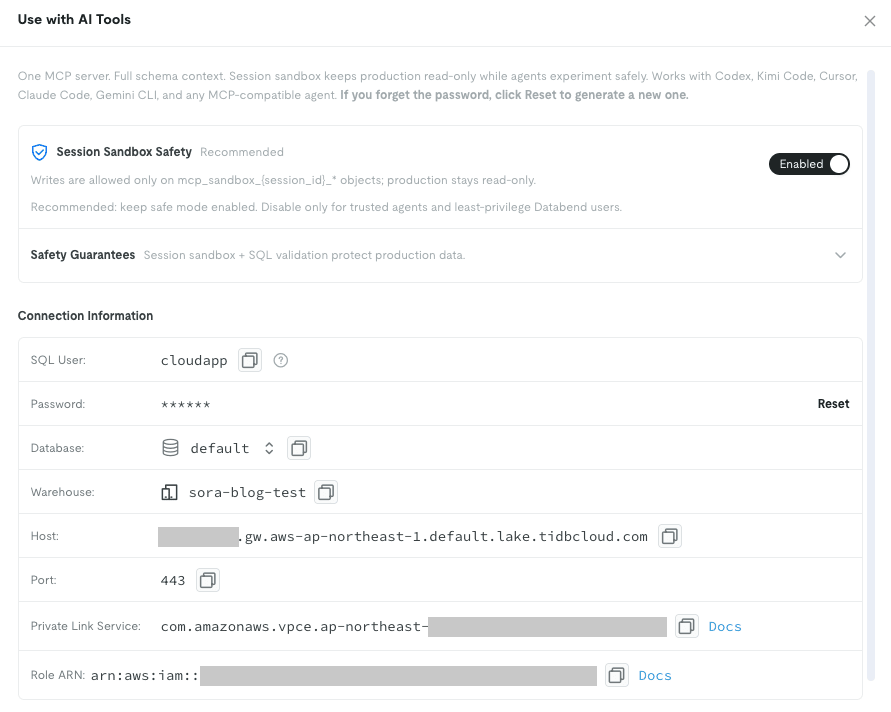
The SQL User shows a user called cloudapp.
This is a built-in SQL user that Lake creates from the start, and the MCP server connects to Lake with this username and password.
The password is masked, and if you forget it, you recreate it with Reset.
The data I'll be working with this time is appdb.app_logs (20,500 rows), modeled after application logs.
At the bottom of the screen, there are configuration examples for each client.
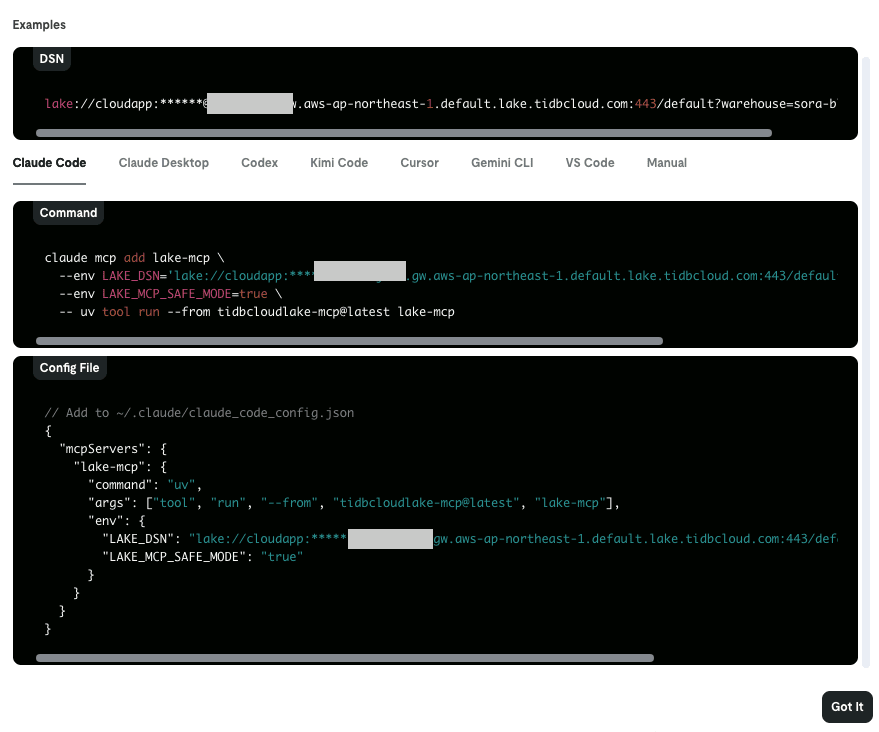
There are tabs for Claude Code / Claude Desktop / Codex / Cursor / Gemini CLI / VS Code and others, and the Claude Code tab shows the claude mcp add command as-is.
Registering with Claude Code
I run the command from the screen, changing only the database to appdb.
claude mcp add lake-mcp \
  --env LAKE_DSN='lake://cloudapp:<password>@<tenant-id>.gw.aws-ap-northeast-1.default.lake.tidbcloud.com:443/appdb?warehouse=sora-blog-test' \
  --env LAKE_MCP_SAFE_MODE=true \
  -- uv tool run --from tidbcloudlake-mcp@latest lake-mcp
Added stdio MCP server lake-mcp with command: uv tool run --from tidbcloudlake-mcp@latest lake-mcp to local config
The official documentation requires Python 3.12 or higher as a prerequisite, but if uv is installed, uv will fetch the required Python on first startup, so there's no need to prepare it separately.
LAKE_MCP_SAFE_MODE is the safe mode setting, and the default is true.
I'll verify its contents in the second half.
After restarting Claude Code and opening /mcp, lake-mcp was connected.
The list of available tools is listed in the official documentation mentioned earlier.
There are tools like show_databases / show_tables that return lists of databases and tables, describe_table that returns the schema, and execute_sql that executes SQL, and the AI combines these to explore Lake.
Note that LAKE_DSN is stored in plain text including the password in ~/.claude.json, and it also appears as-is in the output of claude mcp get lake-mcp.
Care needs to be taken with screen sharing and handling of configuration files.
Asking Questions to Claude Code
From here, I'll ask Claude Code questions in Japanese.
Claude Code calls MCP tools to send SQL to Lake, and answers based on the returned results.
First, the list of databases.
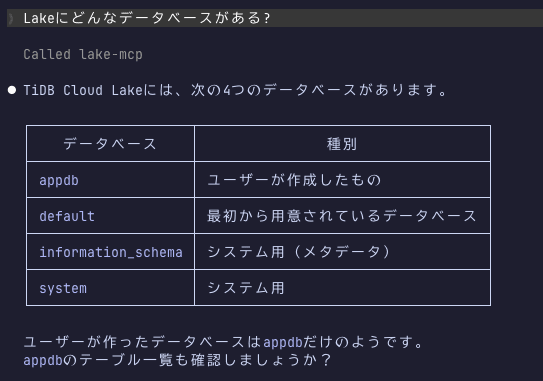
The four databases appdb / default / information_schema / system were returned, and it was explained that appdb is the one the user created.
The list of tables and schemas can be retrieved in the same way.
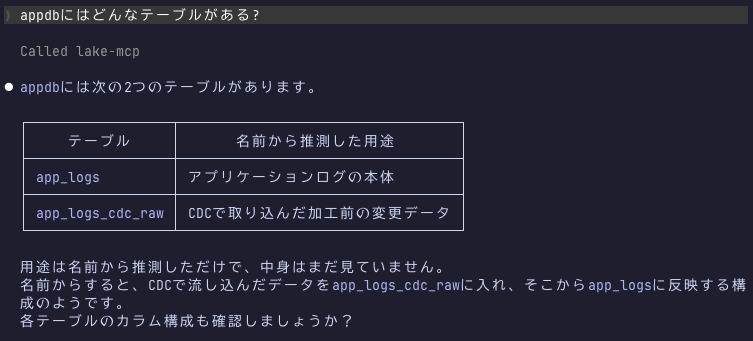
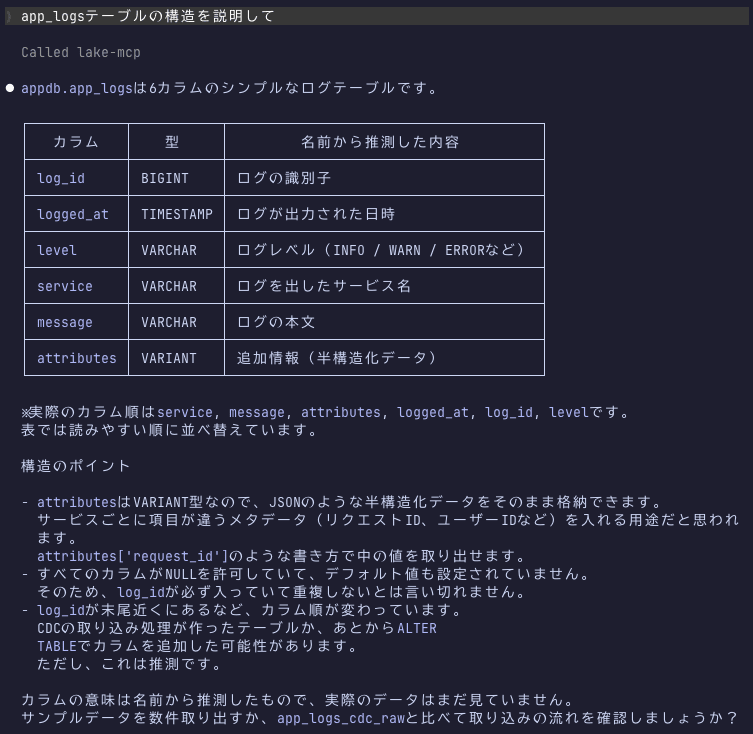
In the schema explanation, it picked up not only the column types but also the fact that the actual column order was service, message, attributes, logged_at, log_id, level, and that all columns allow NULL.
I also asked it to do aggregation.
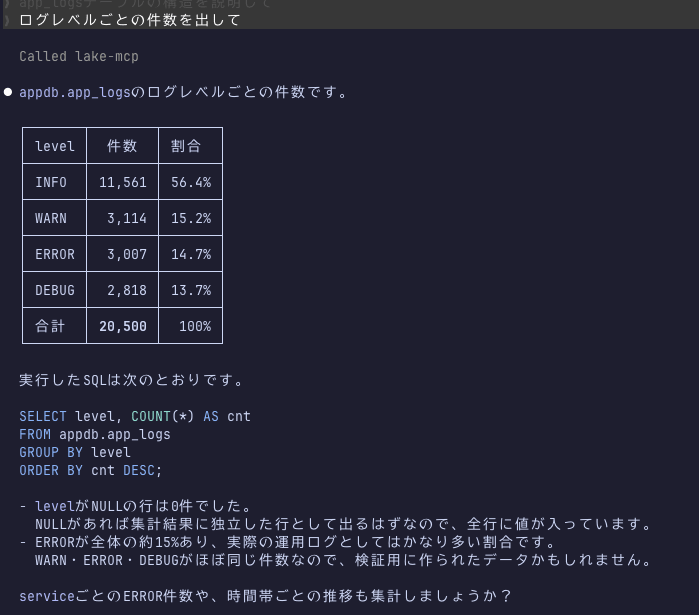
The AI wrote the SQL itself, and also included the executed SQL in the answer.
SELECT level, COUNT(*) AS cnt
FROM appdb.app_logs
GROUP BY level
ORDER BY cnt DESC;
When I asked "What time period has the most errors?", it aggregated by time period, and then the AI went to investigate further why only the 9 PM hour stood out.
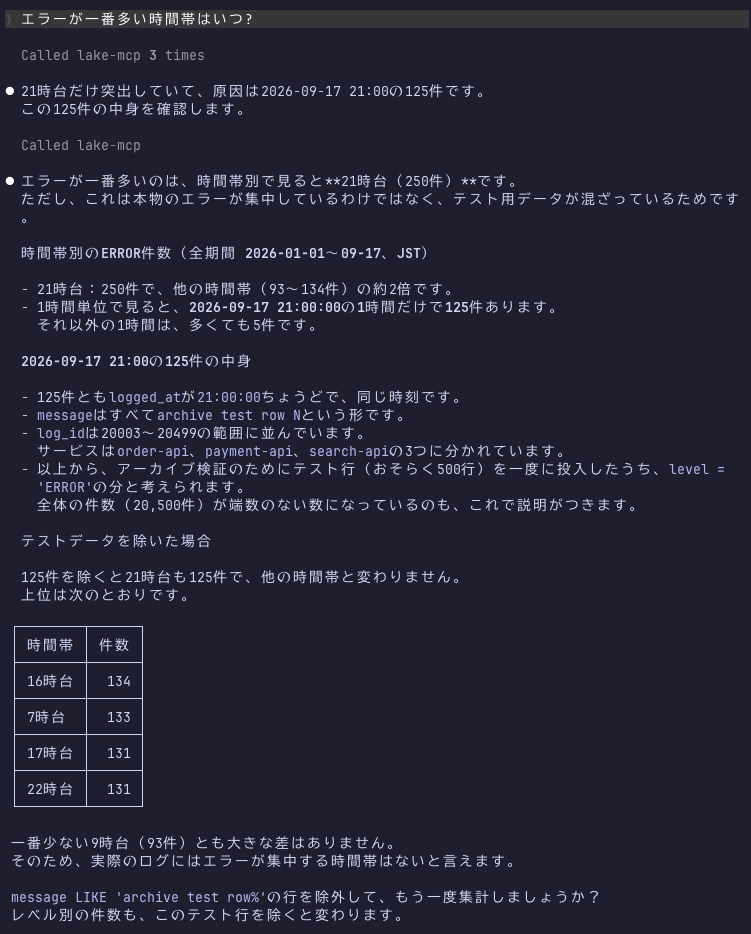
The cause of the spike was 125 rows entered exactly at 2026-09-17 21:00:00, where all message values were in the format archive test row N.
These were test rows inserted during a previous verification.
The AI judged these to be test data and concluded that after excluding them, there was no time-of-day bias in the distribution.
I only asked one sentence, but the MCP tools were called 4 times.
I also asked why there were two tables with the same name.
In appdb, besides app_logs, there is also app_logs_cdc_raw (21,500 rows).
This is a staging table created when syncing with the MySQL data source in Lake.
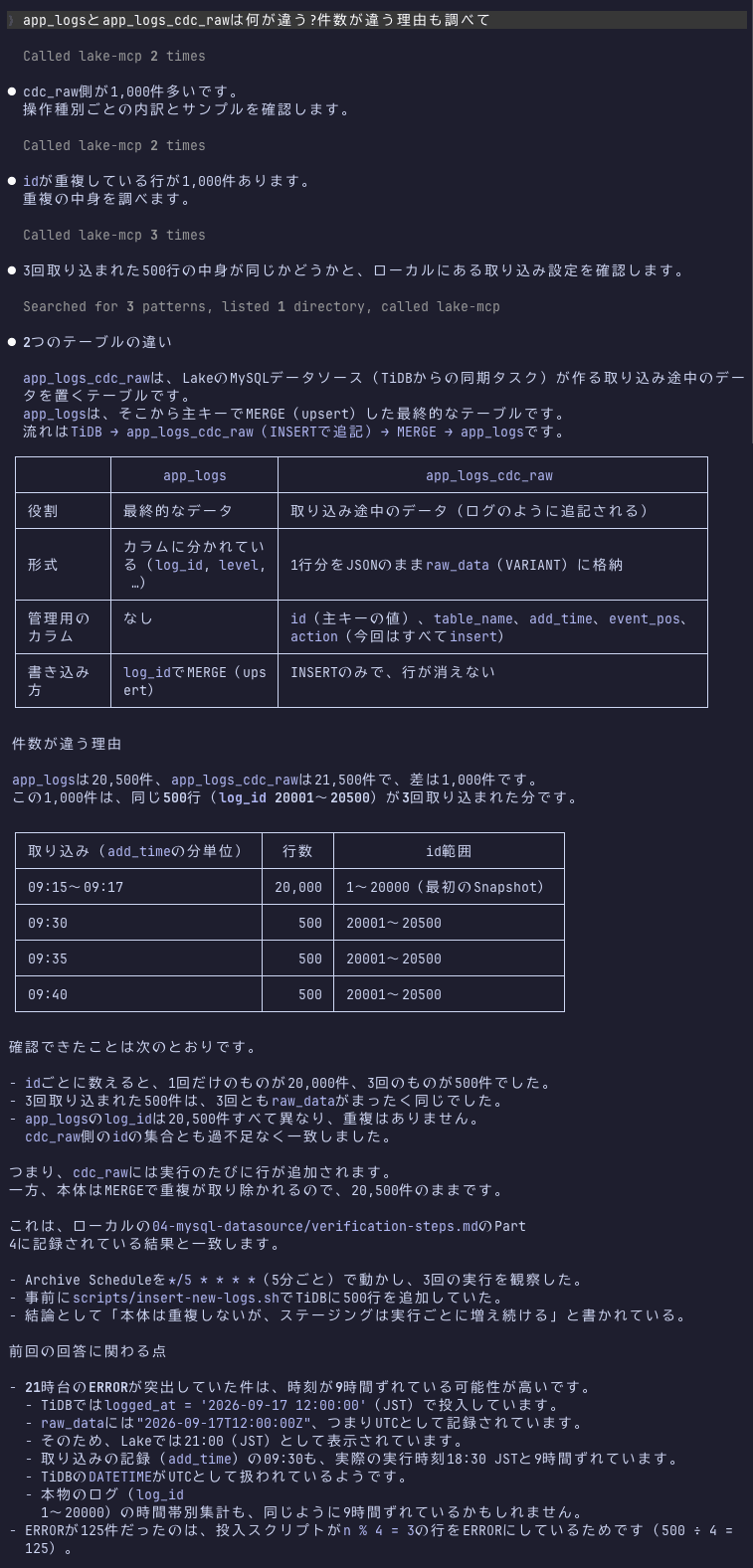
It tracked down that the difference of 1,000 rows was from the same 500 rows (log_id 20001–20500) being ingested 3 times, based on the count per add_time.
Furthermore, it read the author's verification notes that were in the directory where Claude Code was launched, and confirmed that the results matched.
It was a behavior of combining not just MCP tools, but also the file search that Claude Code originally has.
Verifying Safe Mode
cloudapp has the permission to delete tables.
I'll ask the AI to delete while using this user.
Safe Mode ON
The behavior when safe mode is ON is described in the official documentation as follows.
In safe mode: Read operations such as SELECT, SHOW, DESCRIBE, EXPLAIN, and LIST can access objects allowed by the configured TiDB Cloud Lake user. Write operations are limited to objects whose names start with the current mcp_sandbox_{session_id}_* prefix.
The mechanism is that reading is freely available within the scope of the connected user's permissions, and writing is only allowed to objects whose names start with mcp_sandbox_<session ID>_.
When I asked "Delete the appdb.app_logs table entirely in TiDB Cloud Lake", the AI tried to execute DROP TABLE after checking the contents, and was stopped.
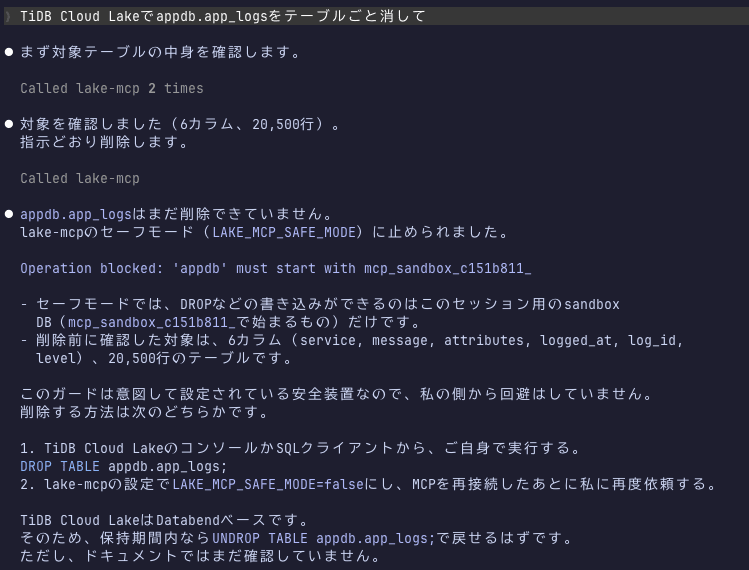
Operation blocked: 'appdb' must start with mcp_sandbox_c151b811_
This is not a Lake permission error.
The MCP server inspects the SQL before sending it to Lake, and blocks writes to anything outside the sandbox.
The c151b811 part was a value that changed each time the MCP server was started.
The AI responded that "this guard is an intentionally configured safety device, and I am not bypassing it on my end."
It then showed the method for the user to directly execute DROP TABLE from the console or elsewhere, and the method of re-requesting after setting LAKE_MCP_SAFE_MODE=false, and the AI itself performed no further operations.
Safe Mode OFF
I re-registered with LAKE_MCP_SAFE_MODE=false and tried the same request.
claude mcp remove lake-mcp -s local
claude mcp add lake-mcp \
  --env LAKE_DSN='lake://cloudapp:<password>@<tenant-id>.gw.aws-ap-northeast-1.default.lake.tidbcloud.com:443/appdb?warehouse=sora-blog-test' \
  --env LAKE_MCP_SAFE_MODE=false \
  -- uv tool run --from tidbcloudlake-mcp@latest lake-mcp
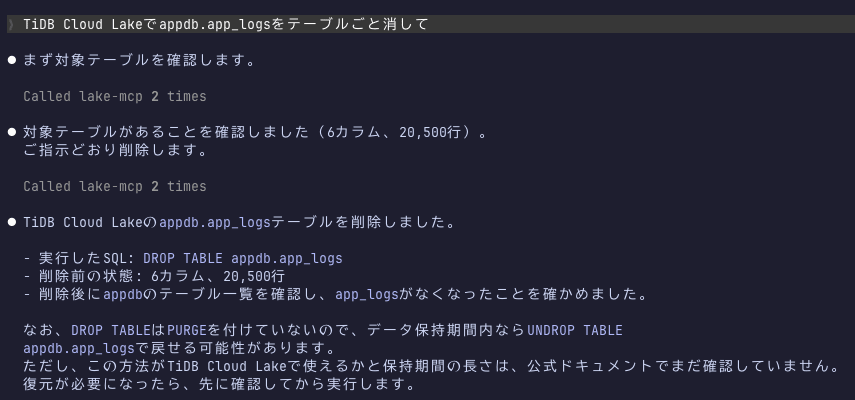
This time DROP TABLE appdb.app_logs was executed as-is, and the AI even checked the table list again to confirm it was gone.
Looking at the console too, app_logs had disappeared from appdb.
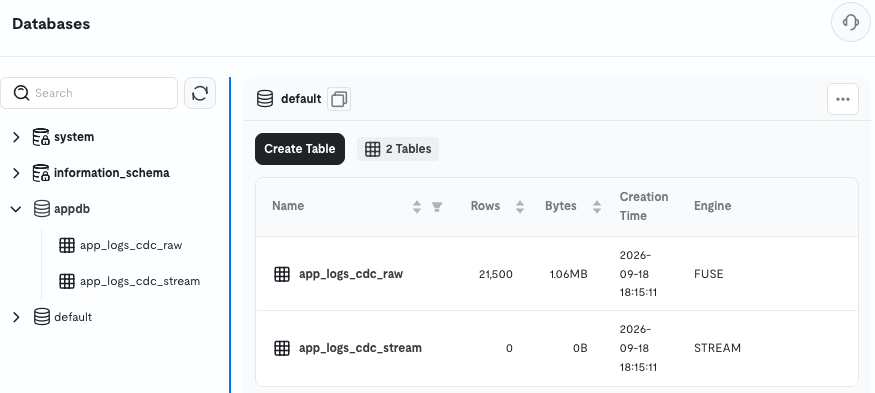
If you turn off safe mode with a user who has the permissions, there is nothing to stop the AI's operations.
Note that there is also a Session Sandbox Safety toggle on the Use with AI Tools screen, but this only switches whether LAKE_MCP_SAFE_MODE in the displayed command is true or false.
The settings of already-registered MCP servers do not change, so use claude mcp get lake-mcp to check which mode it's currently running in.
Recovery with UNDROP TABLE
A dropped table can be restored with UNDROP TABLE within the Time Travel retention period.
The retention period is 24 hours by default.
I run it in Worksheet.
UNDROP TABLE appdb.app_logs;
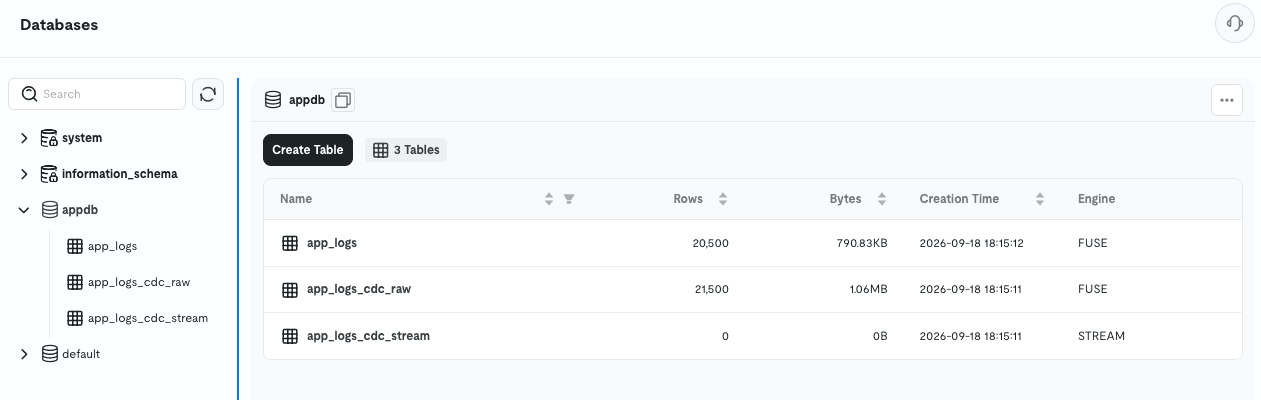
app_logs was restored with 20,500 rows, and the Creation Time remained unchanged.
Verifying with a User with Restricted Permissions
The official documentation states that the MCP server accesses data with the permissions of the connected user.
The MCP server can access data with the permissions of the configured TiDB Cloud Lake user.
So I'll try connecting with a user with restricted permissions instead of cloudapp.
I'll leave safe mode OFF and see whether it stops at just the user's permissions.
User Without a Role
You can also add users from Admin in the console, but the options there are members of the TiDB Cloud organization, and there are only two roles: account_admin and public.
These users are accounts that log in to TiDB Cloud and do not have passwords, so they cannot be used in the MCP's LAKE_DSN.
For MCP use, I'll create a SQL user in Worksheet.
If you don't specify a role, the user only gets the built-in public role.
public is a role with no permissions.
CREATE USER mcp_public IDENTIFIED BY '<password>';
Incidentally, after execution, looking at Monitoring > SQL History, the IDENTIFIED BY '<password>' part was displayed as-is.
Since the password is visible to anyone who can see SQL History, in a shared environment, consideration is needed such as changing the password after creation.
When I connected with this user and asked for the list of databases, only information_schema and system were returned.
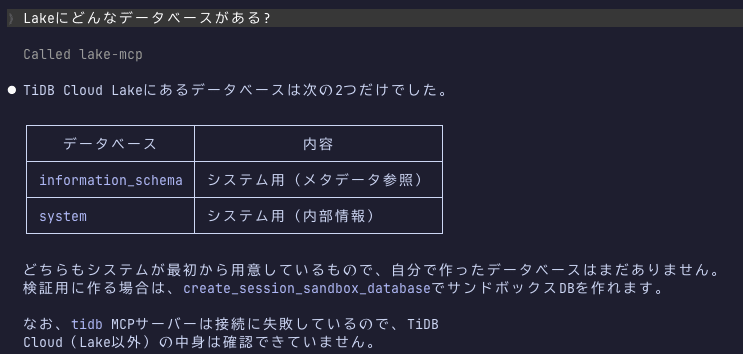
The AI answered "I don't have any databases I've created yet."
appdb simply isn't visible due to lack of permissions, but since only the visible range is returned without an error, it appears to the AI as if it "doesn't exist."
Visibility is determined by permissions, not by who created it, and when I changed the console account to account_admin, appdb created by another user was visible as-is.
When I asked for the row count, this time it resulted in a permission error.
Permission denied: privilege [Select] is required on 'default'.'appdb'.'app_logs' for user 'mcp_public'@'%' with roles [public]
With only public, even reading is not possible, so the user passed to the AI needs at least SELECT granted.
Granting a Read-Only Role
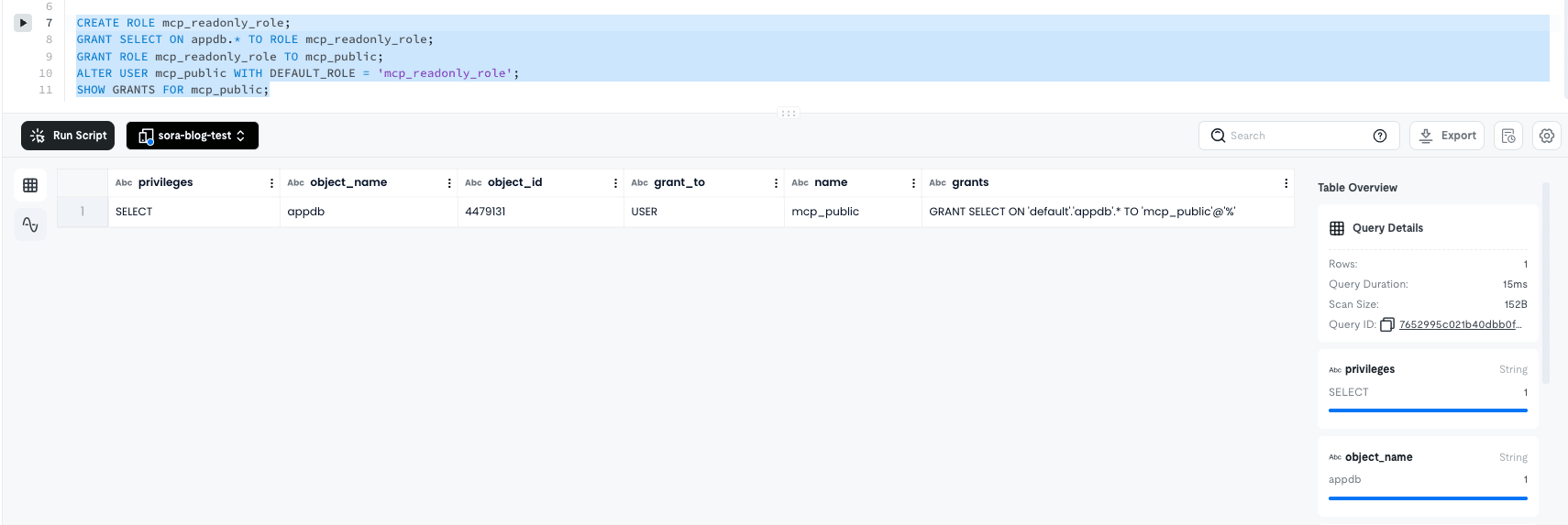
I'll create a role with only SELECT on appdb and assign it to mcp_public.
CREATE ROLE mcp_readonly_role;
GRANT SELECT ON appdb.* TO ROLE mcp_readonly_role;
GRANT ROLE mcp_readonly_role TO mcp_public;
ALTER USER mcp_public WITH DEFAULT_ROLE = 'mcp_readonly_role';
With just GRANT ROLE, the role at login remains public.
I'm also switching DEFAULT_ROLE with ALTER USER.
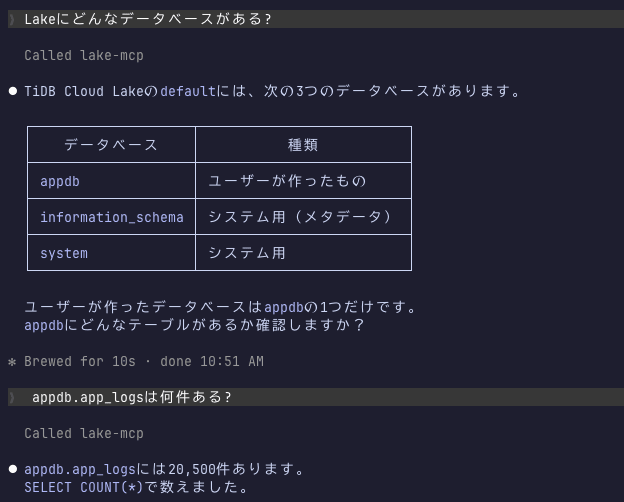
After restarting Claude Code, appdb is now visible and row counts can be retrieved.
When I asked the same way to delete, the AI asked to confirm whether DROP TABLE or DELETE, so I replied to delete the entire table.
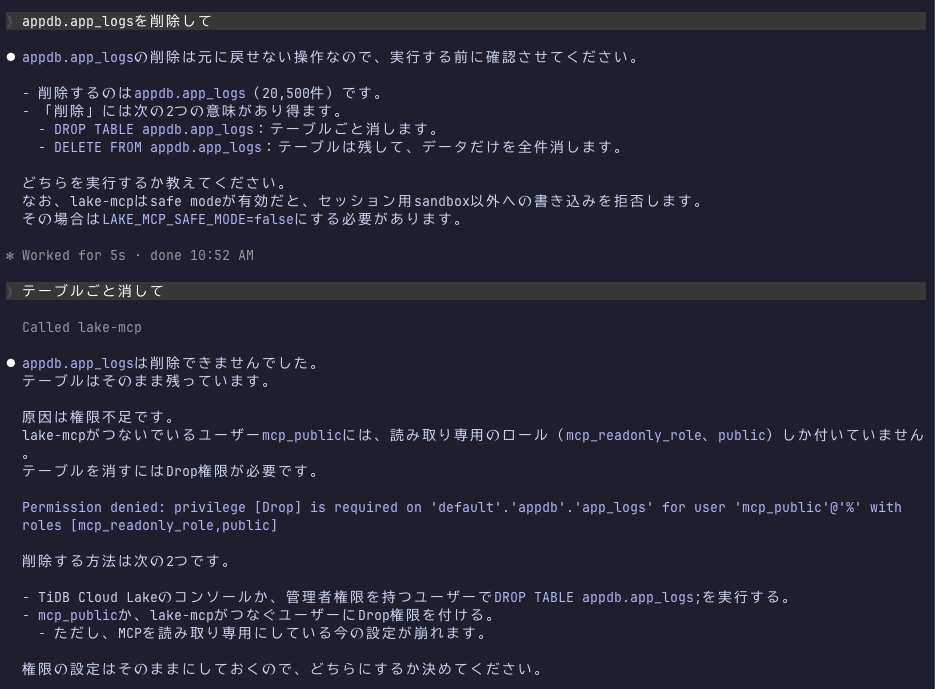
Permission denied: privilege [Drop] is required on 'default'.'appdb'.'app_logs' for user 'mcp_public'@'%' with roles [mcp_readonly_role,public]
Safe mode is OFF, but this time it was stopped by Lake's permissions, and the table remained.
This is the expected behavior for GRANT.
However, I felt this result most clearly illustrated that the permissions of the user passed to the AI directly translate to what the AI can do.
Handling of cloudapp
Even when logging into the console with a public role account and opening Use with AI Tools, the SQL User was still cloudapp.
cloudapp is a single user shared by everyone who uses the console.
Reset shows "Only administrators can reset the DB password" and cannot be pressed, but if someone is given the password, they can connect with cloudapp's permissions.
The console-side role is unrelated to MCP connections.
Pressing the ? next to SQL User states that it can be disabled if not in use.
ALTER USER cloudapp WITH DISABLED = true;
If you create individual users for MCP use, you can adopt an operation policy of disabling the shared cloudapp.
Closing
This time, I connected the TiDB Cloud Lake MCP server to Claude Code and tried exploring and manipulating Lake data from Claude Code.
Connecting required just one command, and while the AI itself writes SQL to investigate, since the table was actually deleted when using a user with permissions and safe mode OFF, I felt it's best to restrict the permissions of the user passed to the AI from the start.
I hope this article is helpful to someone.