I Tried Out Organization SSO in TiDB Cloud

This page has been translated by machine translation. View original
Hello, I'm sora from the Game Solutions Department.
In this post, I'll write about trying out Organization SSO in TiDB Cloud.
What is Organization SSO?
TiDB Cloud has two types of login: Standard SSO and Organization SSO.
Standard SSO is enabled from the start for all Organizations, and you can log in with a Google, GitHub, or Microsoft account.
However, there is no setting to restrict access to "only accounts from this domain."
To restrict by domain, you need to enable Organization SSO.
| Item | Standard SSO | Organization SSO |
|---|---|---|
| Initial state | Enabled for all Organizations | Disabled |
| Login URL | https://tidbcloud.com |
https://tidbcloud.com/enterprise/signin/<any name> |
| Authentication methods | Google, GitHub, Microsoft | Username and Password, Google, GitHub, Microsoft, OIDC, SAML (multiple can be selected) |
| Domain restriction | Not possible | Can be set per authentication method with "Allowed Email Domains" |
| Requirements | None | Paid Organization |
On https://tidbcloud.com, you can also log in with an email address and password.
The specifications of Organization SSO are summarized in the following documentation.
Organization SSO itself is free, but it can only be used with a paid Organization.
When I opened Organization Settings > "Authentication" in an Organization without a registered credit card, it displayed "Organization SSO is a free feature for paid organization. Add a credit card to unlock it." and I couldn't enable it.

Also, only users with the Organization Owner role can enable it.
Enabling Organization SSO
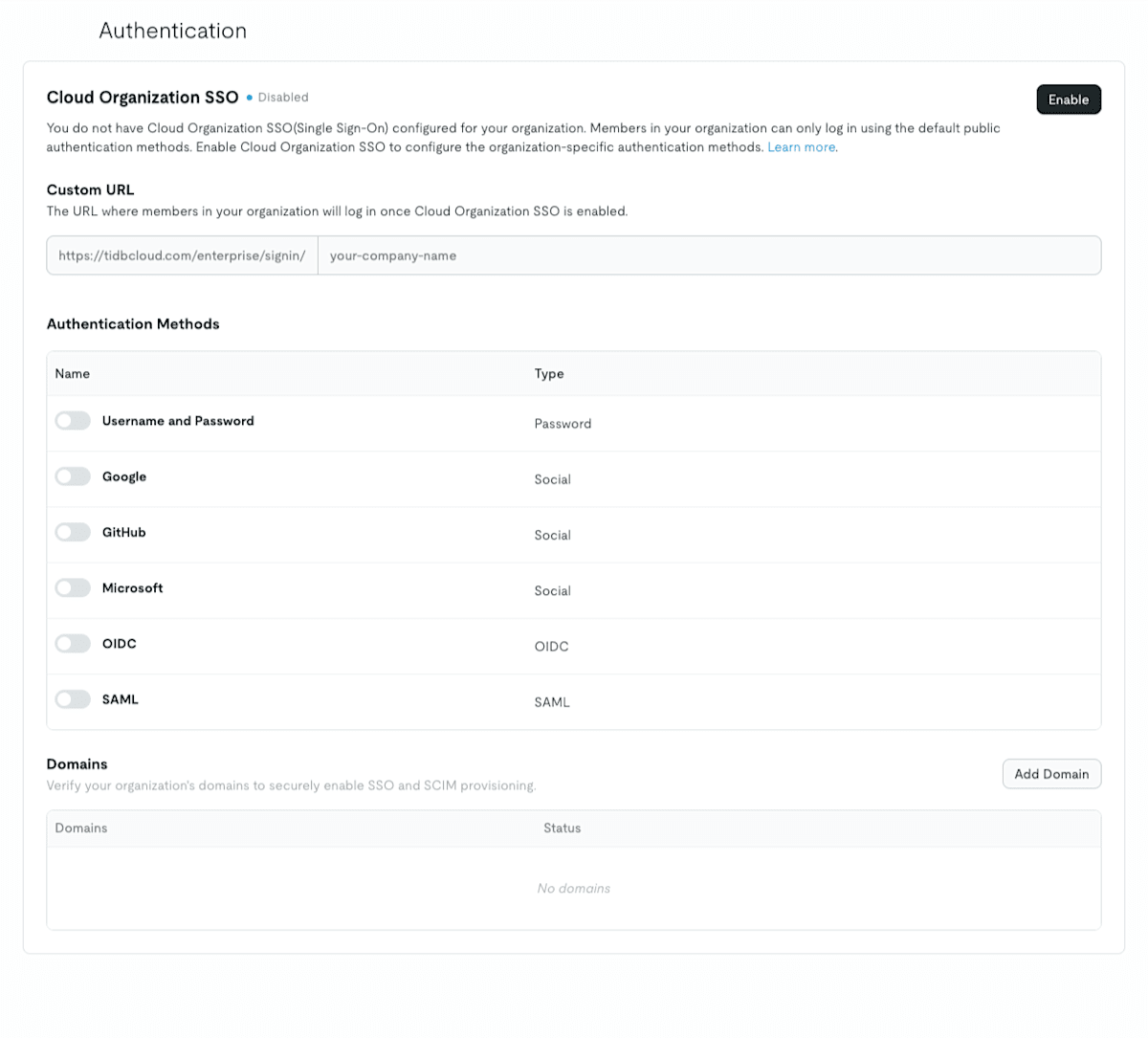
The screen before enabling
When I opened "Authentication" in an Organization with a registered credit card, "Cloud Organization SSO" was "Disabled."
Entering the custom URL
When you click "Enable," a dialog appears asking you to enter a custom URL.
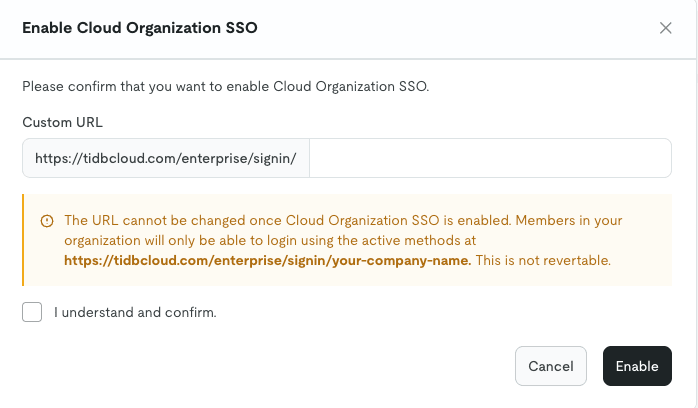
The dialog says the following.
The URL cannot be changed once Cloud Organization SSO is enabled. Members in your organization will only be able to login using the active methods at https://tidbcloud.com/enterprise/signin/your-company-name. This is not revertable.
The custom URL cannot be changed from the screen once enabled.
The documentation says to contact TiDB Cloud Support if you want to change it.
It also says that Organization SSO itself cannot be disabled once enabled.
The documentation says the custom URL must be unique across all of TiDB Cloud.
The points to understand before enabling are as follows.
- It cannot be disabled from the console; if you want to disable it, you need to request it via a support ticket
- If you want to use the same custom URL for a different Organization after deleting an Organization, you also need to request it via a support ticket
When you enter a name and check "I understand and confirm.", the URL in the notice also changes to the name you entered.
For an Organization that has members, this dialog says "The following users will receive an email notification to re-join the organization once Cloud Organization SSO is enabled." and also shows a list of users who will receive the re-join email.
I, the person performing the operation, was not in the list, so it seems the email isn't sent to the person who enables it.
The screen after enabling
When I clicked "Enable," it switched to "Enabled" on the same screen.
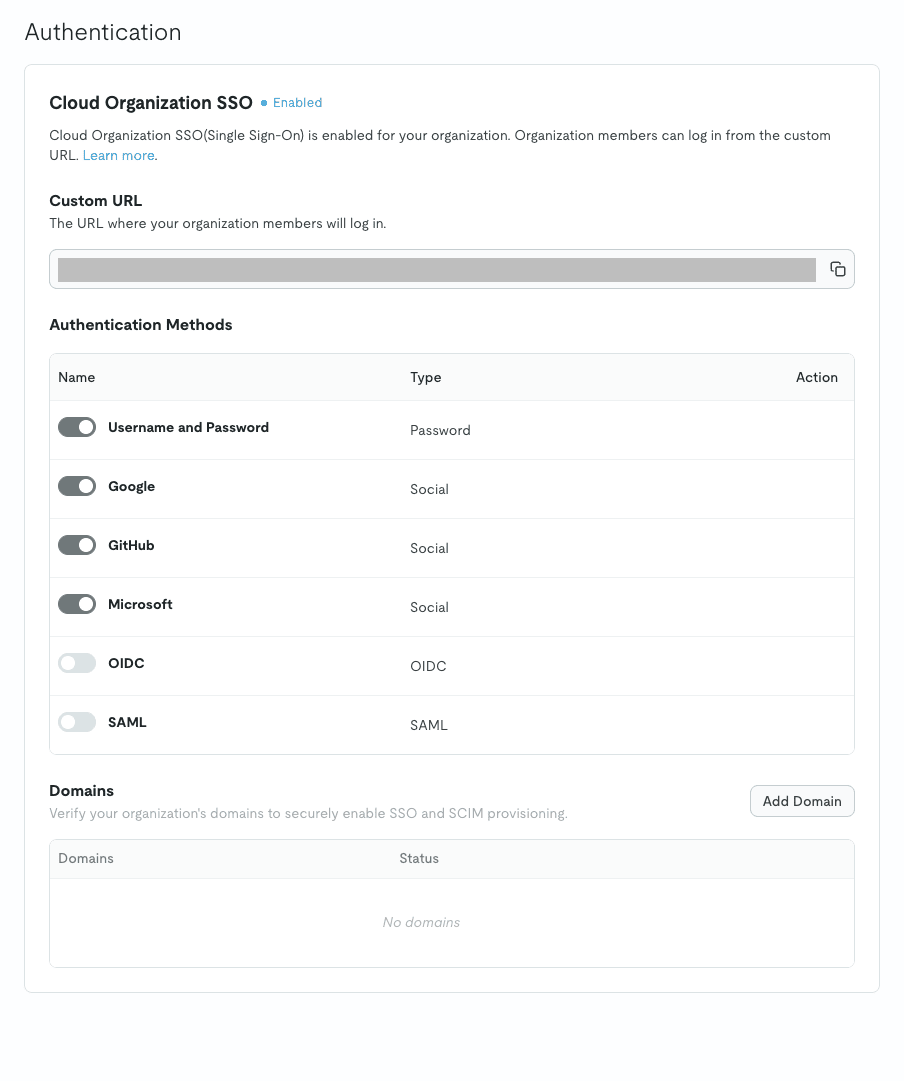
The authentication methods after enabling are as follows.
| Name | Type | After enabling |
|---|---|---|
| Username and Password | Password | On |
| Social | On | |
| GitHub | Social | On |
| Microsoft | Social | On |
| OIDC | OIDC | Off |
| SAML | SAML | Off |
Simply enabling it does not narrow down the available authentication methods.
You need to turn off the methods you don't use and restrict the domains.
After enabling, I couldn't operate the toggles on the same screen, and when I hovered the cursor over them, "This method is currently disabled and cannot be activated until SSO is enabled." was displayed.
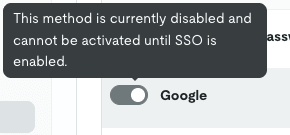
Since it is already enabled, the screen display is probably stale.
After moving to another screen and reopening "Authentication," I could operate the toggles, and an edit icon also appeared in the "Action" column.
Configuring authentication methods
Disabling GitHub and Microsoft
When I opened the custom URL after enabling, all four methods were listed on the login screen as follows.
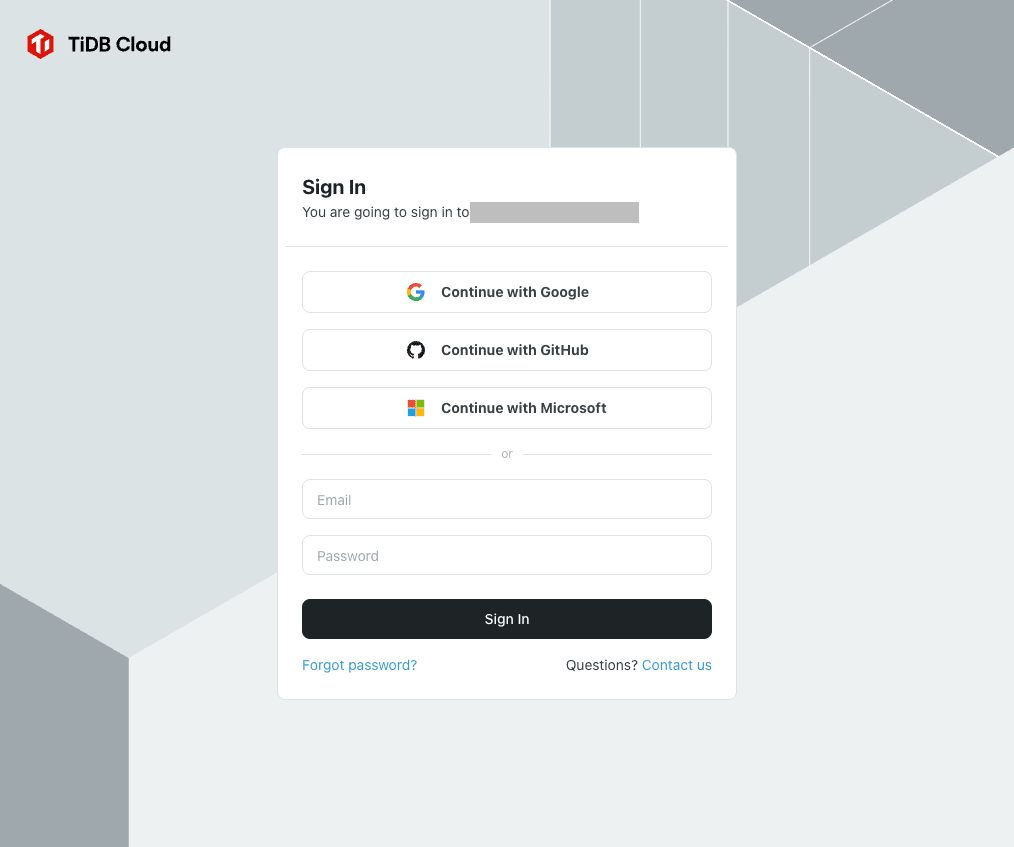
The login screen displays the Organization name as "You are going to sign in to <Organization name>."
This time we only use Google, so I'll turn off the GitHub and Microsoft toggles.
When turning them off, the following confirmation dialog appears.
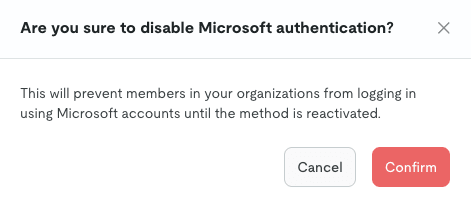
I left Username and Password on at this point.
This is so that if I make a mistake in the Google domain setting, I can log in with a password and revert the setting.
Restricting the Google domain
When I clicked the edit icon on the Google row, "Authentication Method Details" opened.
The domain restriction is done with "Allowed Email Domains," and the description says "Only the specified email domains will be allowed to use this authentication method."
Enter the domain without @, and separate multiple domains with commas.
This time I entered our company's domain.
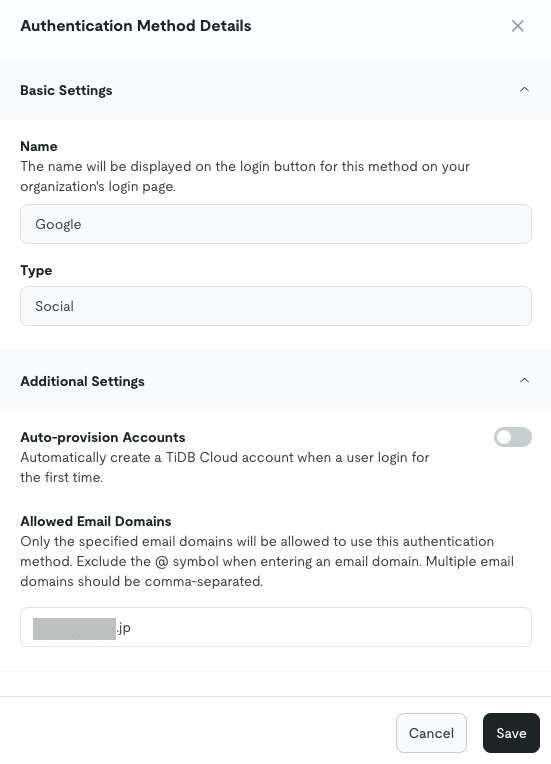
"Auto-provision Accounts" above it is a setting that automatically creates accounts for users who log in for the first time.
When turned on, anyone who logs in with that authentication method can get in even without being invited, and is given the Organization Viewer role.
This time I want only invited people to be able to get in, so I left it in the default off state.
Even if you save without entering the domain you use for your own login, no warning appears and it is saved as is.
The documentation also says to enter your own domain so you don't get locked out, so you need to check your input before saving.
Verification
Logging in with the company domain
After logging out once and opening the custom URL, the GitHub and Microsoft buttons had disappeared from the login screen, leaving only Google and Email/Password.
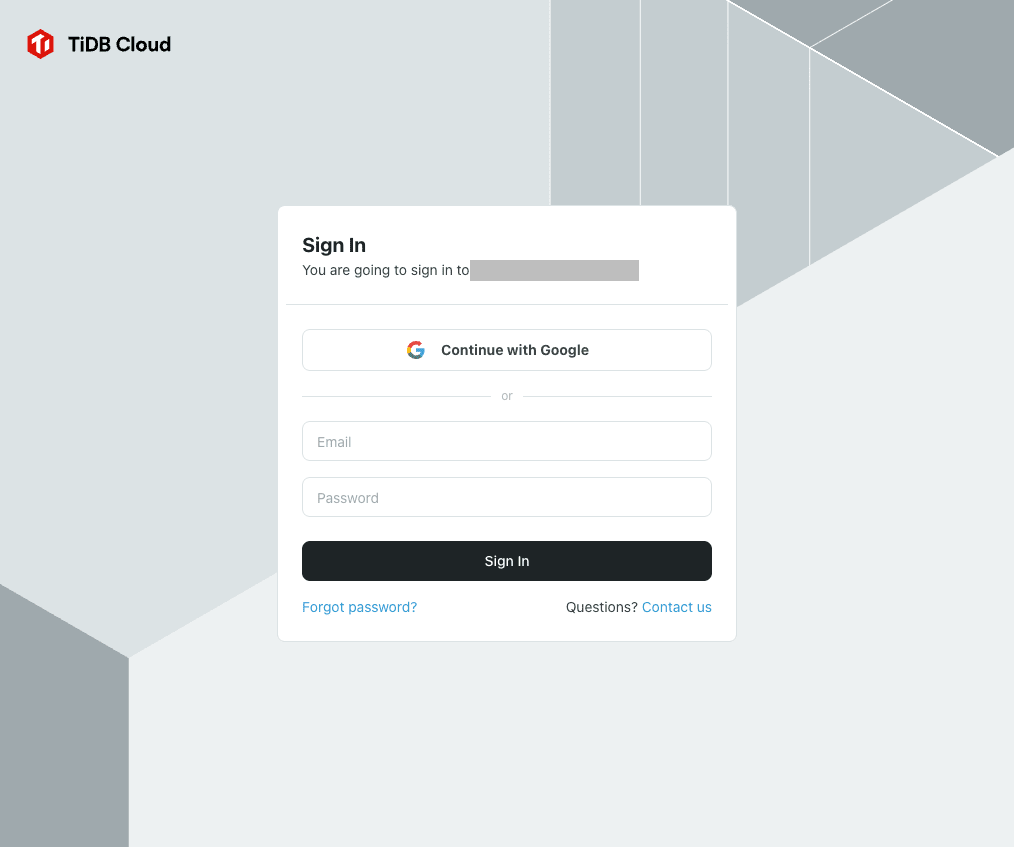
When I logged in with a Google account on the company domain via "Continue with Google," I was able to get into the Organization.
Logging in with another domain
To check whether accounts from other domains are rejected, I temporarily changed Allowed Email Domains to example.com and logged in with a company-domain account.
This is because I didn't have a Google account at hand, other than the company domain, that I was allowed to use.
When I logged in via "Continue with Google," the following error appeared and I couldn't get in.
Error Occurred
Invalid email domain for this login method.
Please try again later or contact support team for assistance.
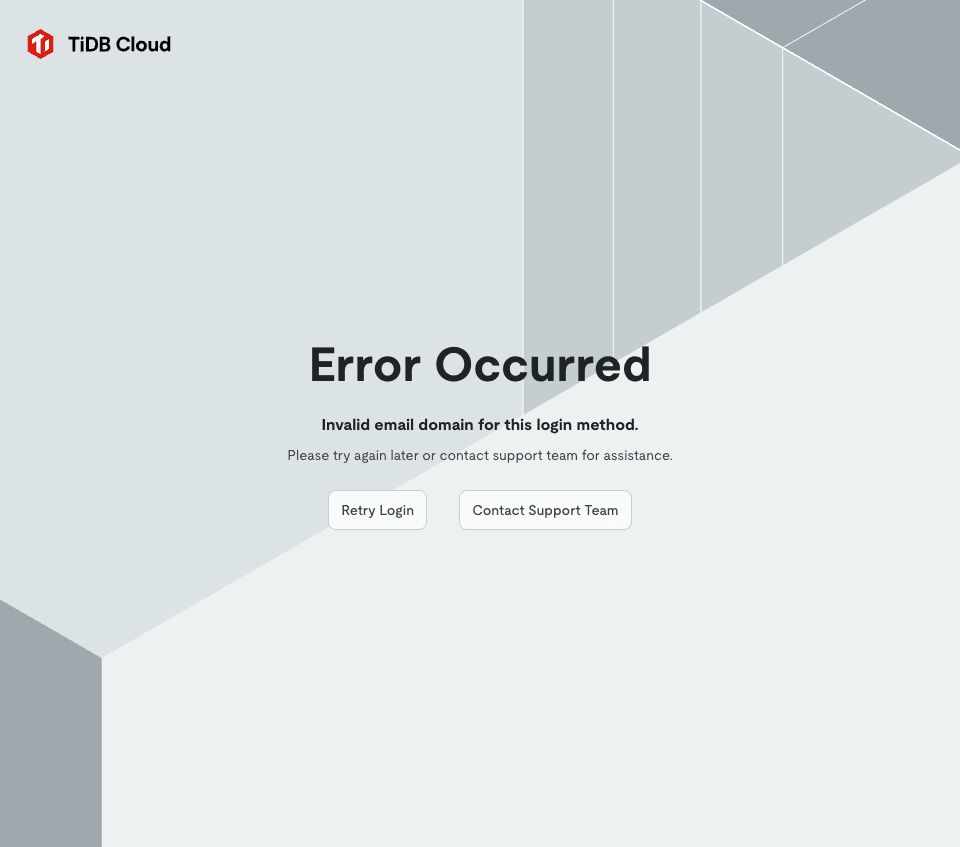
However, even in the same state, I could log in with the same account using Username and Password.
Allowed Email Domains is a per-authentication-method setting, so the Google setting has no bearing on password login.
The error message also says "for this login method."
After checking, I changed Allowed Email Domains back to the company domain.
Disabling Username and Password
To restrict access to only the company domain, you also need to turn off Username and Password.
The documentation also says the following.
If you want to enforce the use of SSO for your organization, you can disable the username and password authentication method.
The TiDB Cloud password is set separately from the Google Workspace account.
Therefore, if you leave the password enabled, even people whose Google Workspace accounts have been suspended could still get in with their password.
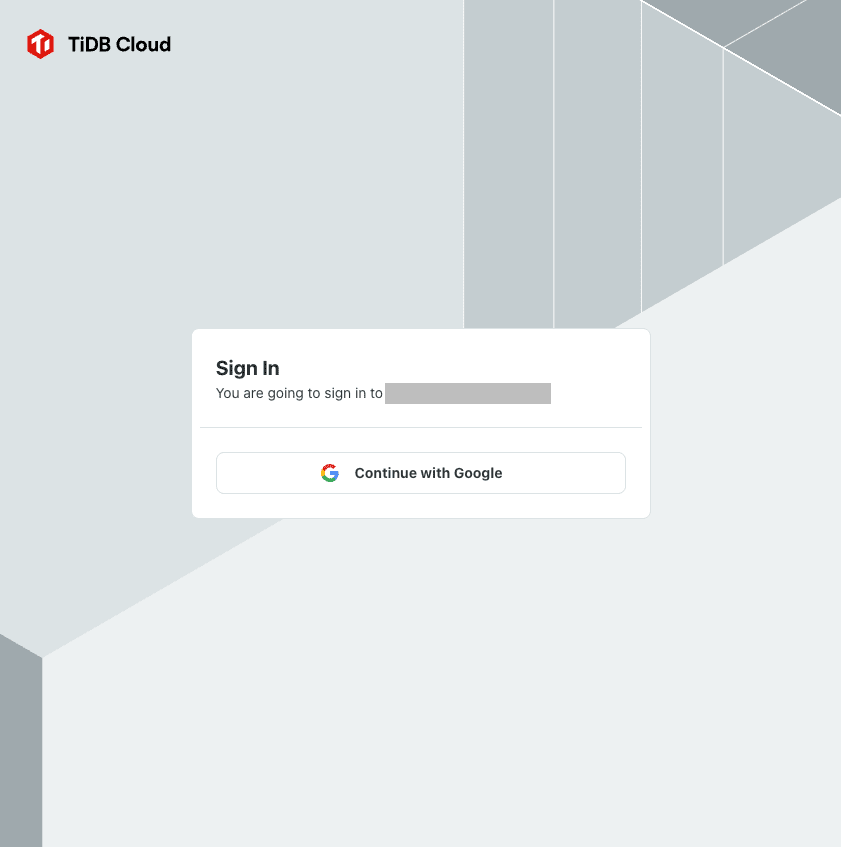
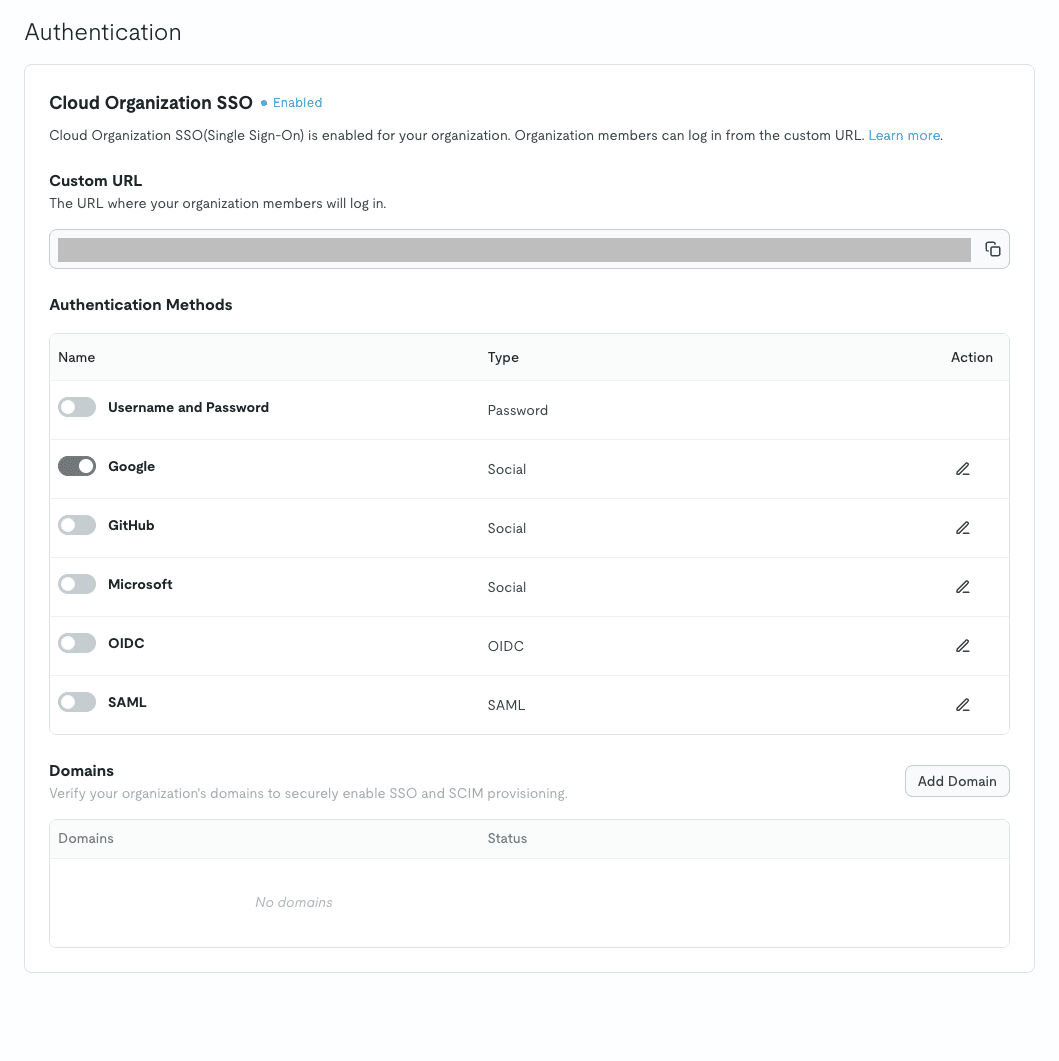
When I turned off Username and Password, only Google was left on.
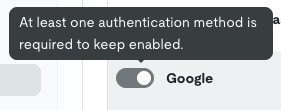
When I hovered over the Google toggle, "At least one authentication method is required to keep enabled." was displayed, and I couldn't turn it off.
On the custom URL's login screen as well, the Email and Password input fields disappeared, leaving only "Continue with Google."
The final Authentication screen is as follows.
Switching to other Organizations
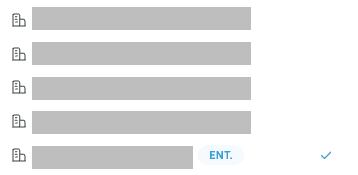
If you belong to multiple Organizations, the Organization with SSO enabled gets an "ENT." label in the Organization list.
After logging in from the custom URL, when I selected an Organization without Organization SSO enabled from the list, I was redirected to the normal login screen.
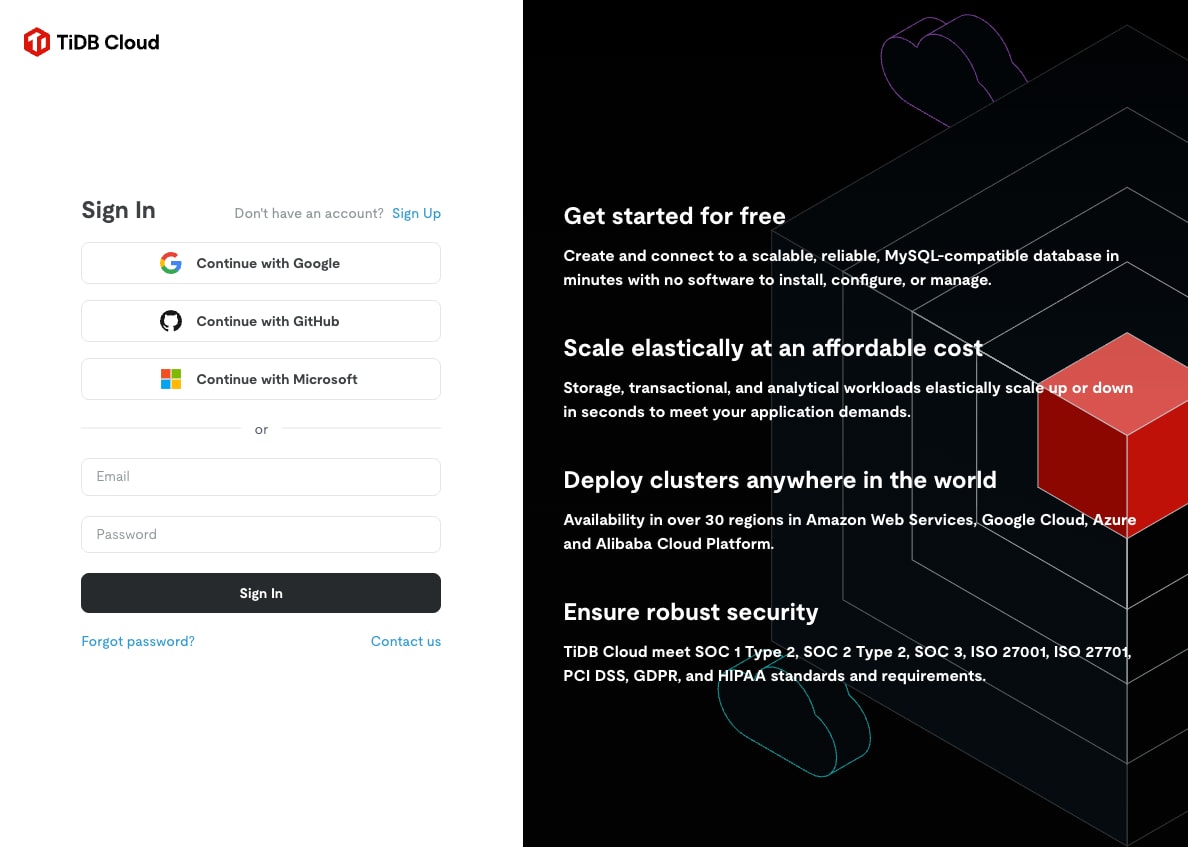
Conversely, after logging in from https://tidbcloud.com, when I selected the Organization with SSO enabled, I was redirected to that Organization's login screen (Google only this time).
The same happened whether I had logged in with a password or with Google.
In either direction, you have to log in again each time you switch.
Conclusion
This time, I tried out Organization SSO in TiDB Cloud.
I hope this article is helpful to someone.