Modern View Has Been Implemented in Alteryx Designer

This page has been translated by machine translation. View original
Overview
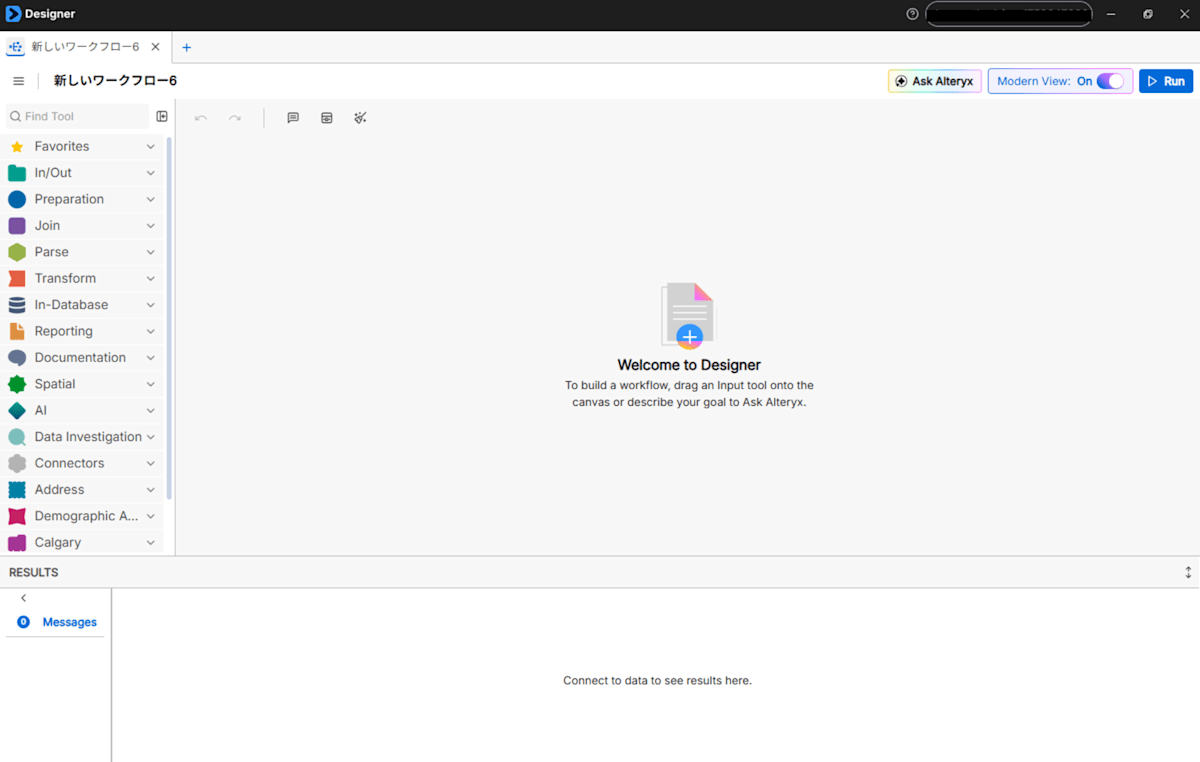
Starting with Alteryx Designer 2026.3, Modern View has been implemented as a preview feature that lets you change the look of the application.
With the tool palette moved to the left edge of the screen, among other changes, it is now closer to Alteryx Designer Cloud than the conventional interface.
Along with the Modern View preview, the conventional look is now called Classic View.
You can switch between the views with a single button at the top right of the screen, so users currently using Classic View on a supported version can try it out easily.
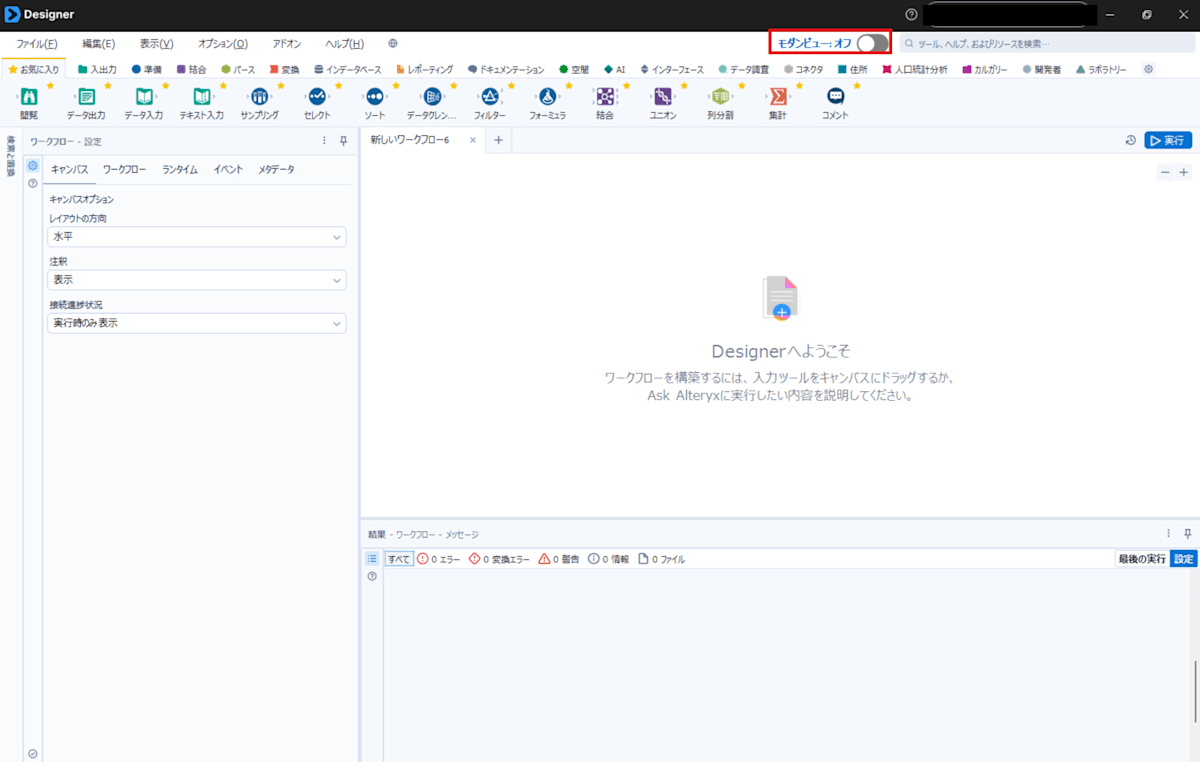
In this article, we will look at the features of Modern View and compare it with Classic View.
Changes
The official Alteryx release notes list this as a major change to the user interface.[1]
Let's pick out some notable points.
Modern View is currently available as a preview.
The preview lets you experience Alteryx's upcoming new features early.
Features may change as development progresses.
As mentioned above, Modern View is currently a preview feature.
Therefore, including the functional differences from Classic View described below, active updates can be expected.
Changes in Modern View
The basic experience of building workflows is the same as before, but the location and behavior of some controls differ from Classic View.Tool palette: You can browse tools in a vertical list, search within the palette, and double-click a tool to add it to the canvas.
(Omitted)
Menus and panels: In Modern View, some app menu options, context menu actions, workflow tab actions, and panel customization options are not available.
The most noticeable change is probably that the layout is now nearly equivalent to Designer Cloud.
The app itself is Designer Desktop-like, so you can use all of the tools that had some restrictions in Designer Cloud while keeping the same feel as Designer Cloud.
The functionality of the same tool does not seem to differ between views, but note that some tool names have changed.[2]
The tool names in the Japanese version did not appear to have changed.
| Tool Category | Classic View | Modern View |
|---|---|---|
| Preparation | Auto Field | Auto Column |
| Preparation | Multi-Field Binning | Multi-Column Binning |
| Preparation | Multi-Field Formula | Multi-Column Formula |
| Preparation | Record ID | Row ID |
| Preparation | Select Records | Select Rows |
| Join | Append Fields | Append Columns |
| Transform | Count Records | Count Rows |
| Developer | Field Info | Column Info |
Also, as noted at the end of the quote at the beginning, in terms of features other than tools, it does not seem to be fully compatible with Classic View.
For the features that are currently unavailable, please see the excerpt below and the comparison table in the official documentation.[3]
Available with limitations
You can open and edit macro and analytic app workflows with limited functionality.
Workflows that use Interface tools or the Interface Designer may require Classic View.Some workflow tabs, context menus, app menu options, panel customization, and advanced options are available with limited functionality.
If the fully modernized configuration screen is not available, configure the tool in the Classic configuration area.
Workflows containing containers and comments may look different when switching between Modern View and Classic View due to differences in size and margins.
Currently unavailable
Interface Designer, Interface tools, Action tools, and Interface anchors.
Selected user settings, global search results, [Help] menu items, language switching, license options, dependency management, workflow comparison, workflow locking, and In-DB connection management.
Some file types and workflow packaging scenarios, such as workflow groups, packaged workflows, packaged tools, and certain Alteryx data or special files.
When considering actual operations, I felt that you need to take into account that almost all the features that existed in the menu bar and workflow export are unavailable.
It is probably best to treat it purely as a preview feature for a period of trying out how it feels, and basically continue using Classic View.
Let's look forward to future updates.
Tidy
A new feature to help with tool layout in workflows, Tidy, has been implemented.
Tidy reportedly organizes only the layout without changing any tool settings or relationships, so it looks very useful for maintaining existing workflows.
Trying it out
As a sample, I prepared a workflow in which the tools are arranged messily as shown below.
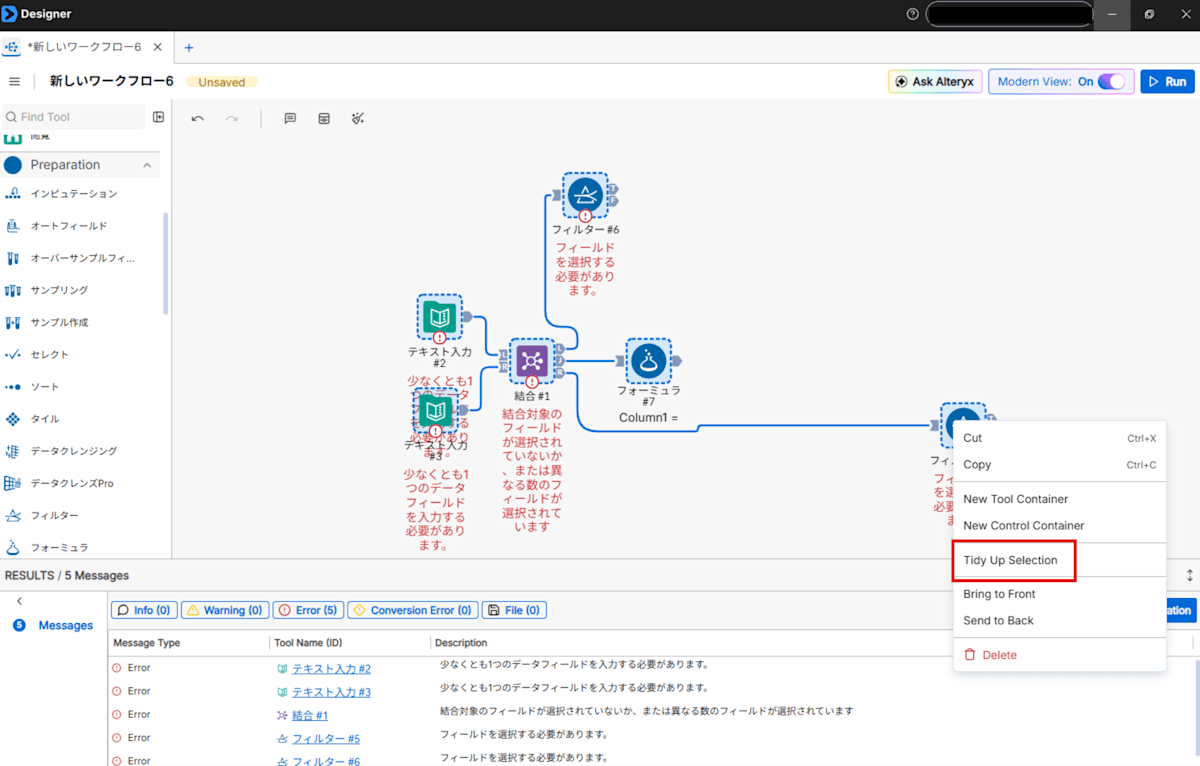
Select all the tools in the range you want to organize and right-click on any of the tools, and the "Tidy Up Selection" menu appears.
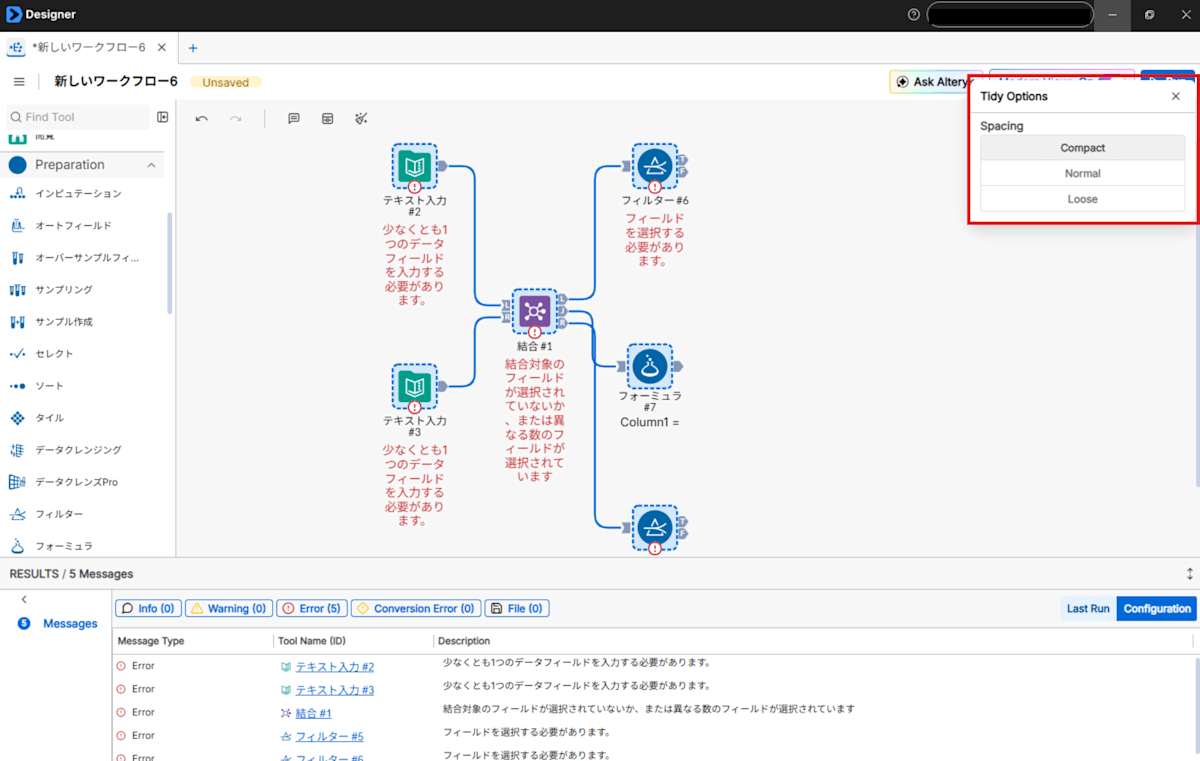
You can see that the layout already becomes considerably cleaner at the moment you click the menu.
It seems you can also choose the distance between tools from three options.
Since the rearrangement of tools by Tidy is treated as a single action, you can also revert it with just one Undo (Ctrl + z on Windows).
If you struggle with work on large-scale workflows, why not give it a try?
References
[1] Designer Modern View
[2] Tool comparison between Modern View and Classic View
[3] Features available in Modern View and Classic View
[4] Tidy