
Switch between Markdown display and source in Warp with ⌘E

This page has been translated by machine translation. View original
Hey! I'm Yuji Nishimura from the Operations team!
Warp's Markdown viewer has a feature to toggle between rendered display and raw source display. In Warp 2026.10.15, a keyboard shortcut was added for this toggle.
What We'll Cover
- The rendered / raw toggle shortcut added in Warp 2026.10.15
- How to rebind the shortcut to your own key
- Version requirements for using this feature
What Was Added
The Warp changelog for the 2026.10.15 release includes the following change:
Added a keyboard shortcut (⌘+E on macOS or Ctrl+E on Windows/Linux, rebindable) to toggle Markdown files between rendered and raw view.
On macOS, press ⌘E, and on Windows / Linux, press Ctrl+E to toggle Markdown files between rendered view and raw view. The shortcut can be rebound to a different key.
The Rendered / Raw toggle itself has existed for some time, and the 2026.05.27 and 2026.08.27 releases in the changelog also include changes related to the Rendered / Raw toggle. What was added this time is a keyboard shortcut to perform this toggle.
Difference Between Rendered View and Raw View
In general, the rendered view of Markdown interprets the syntax and displays headings, lists, code blocks, and other elements in a formatted way, making it suitable for reading documents.
The raw view is the original text containing the syntax itself, such as #, -, and ```. It's needed in situations like these:
- When you want to check the syntax itself (since formatting hides the symbols)
- When you want to copy the body text including the syntax as-is
With ⌘E / Ctrl+E, you can read in rendered view by default and switch to raw view only when needed, all from the keyboard.
Trying the Toggle in Practice
I tested this on macOS 26.6.1 with Warp v0.2026.10.14.08.27.01, opening a sample.md file that includes headings, lists, and code blocks.
When I opened the Markdown file in Warp, it displayed in rendered view in the Markdown viewer. There's a Rendered / Raw toggle button in the upper right.
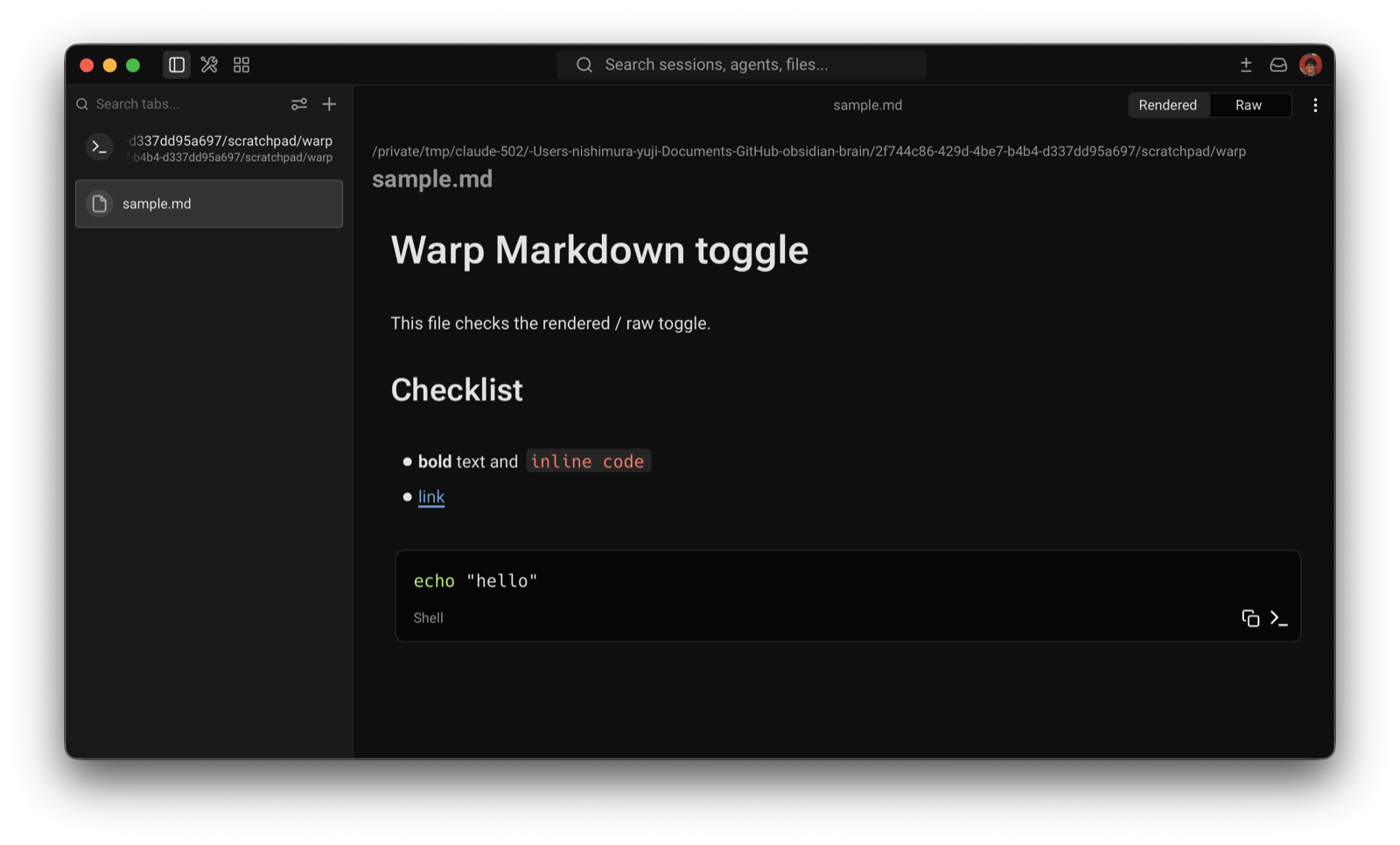
Pressing ⌘E in this state switched to a source view with line numbers, and the selection in the upper right changed to Raw. Syntax like #, **, and ``` is visible as-is.
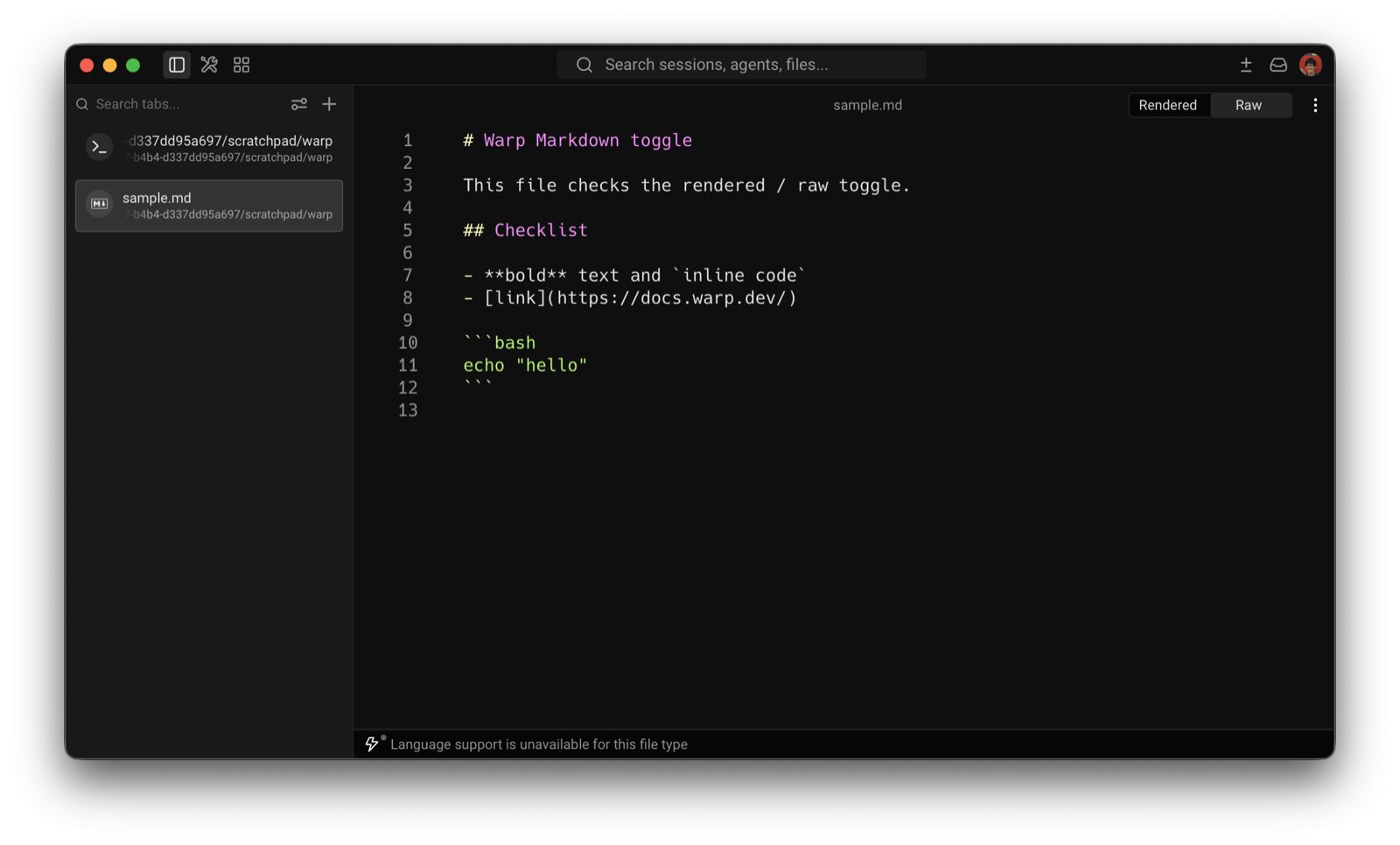
Pressing ⌘E again returned to the rendered view. It's a back-and-forth action with a single key.
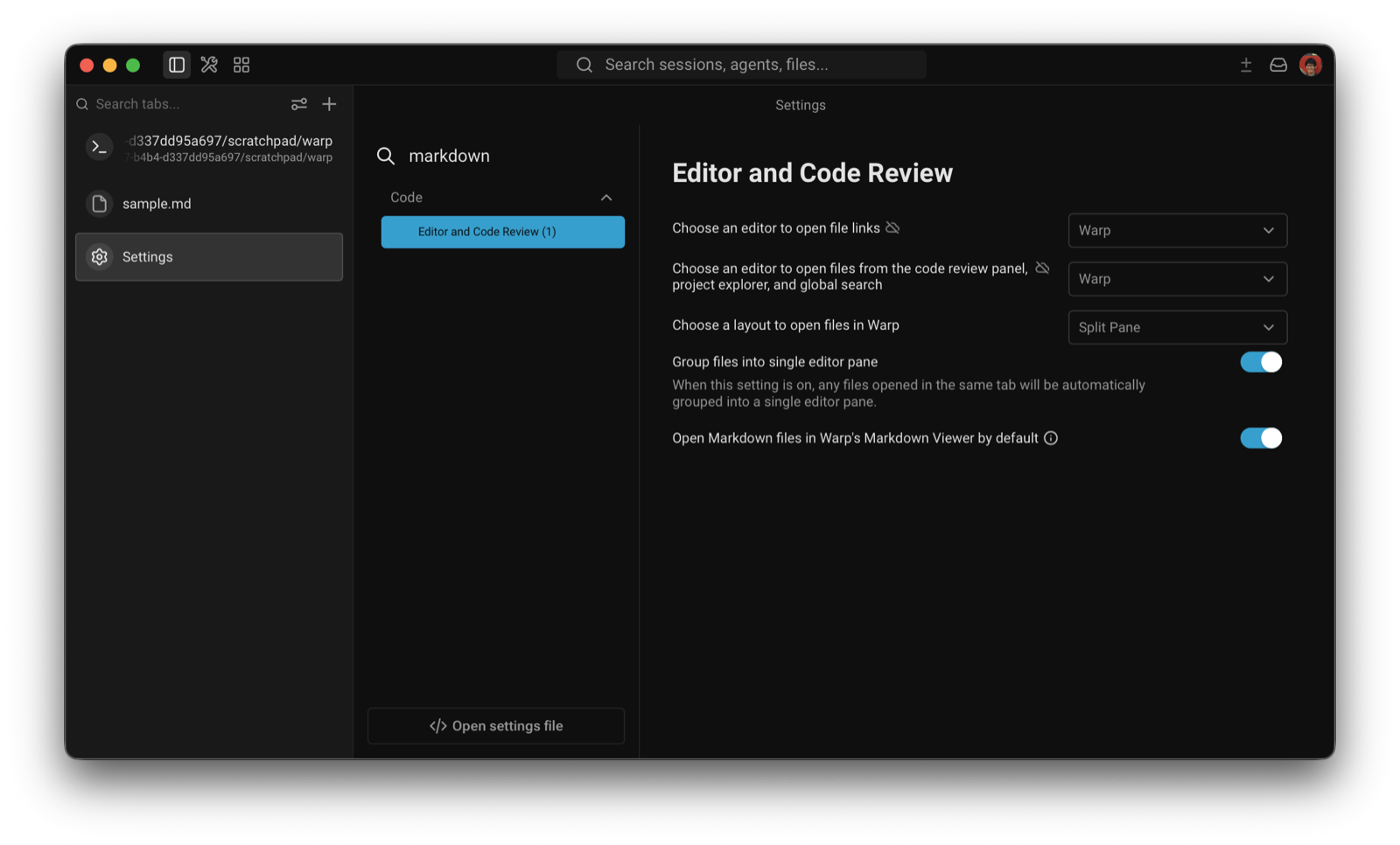
Whether Markdown files initially open in rendered view is determined by "Open Markdown files in Warp's Markdown Viewer by default" under Settings > Editor and Code Review. In my environment, this setting was turned on.
Rebinding the Shortcut
If you want to assign ⌘E / Ctrl+E to a different key, you can change it from Warp's keyboard shortcut settings.
The official documentation describes how to make changes from the settings screen as follows:
- Open Settings > Keyboard shortcuts
- Search for rebindable actions or existing shortcuts in the search bar
- Set any key, clear it, or restore the default
The action corresponding to this toggle is not yet listed in the official documentation's shortcut list. After checking the strings contained in the Warp executable on my machine, the action identifier is markdown:toggle_display_mode, the display name is "Toggle Markdown rendered/raw view", and the default key is cmdorctrl-e. I was unable to confirm whether it actually appears under this name in the settings screen list.
If you prefer to manage it via a file, place a keybindings.yaml following the instructions in the keysets repository linked from the official documentation. According to the README, the file location is as follows:
- macOS / Linux:
~/.warp/keybindings.yaml - Windows:
$env:LOCALAPPDATA\warp\Warp\config\keybindings.yaml
The README states that keybinding customizations made after loading a preset are also saved to keybindings.yaml.
Prerequisites for Use
This feature was added in Warp 2026.10.15 (internal version v0.2026.10.14.08.27). Since versions prior to that do not have this shortcut, if it's unavailable, you'll need to update Warp to 2026.10.15 or later.
Summary
In Warp 2026.10.15, you can now toggle between Markdown rendered view and raw view with ⌘E (macOS) / Ctrl+E (Windows/Linux). The shortcut is rebindable and can be changed from the settings screen or via keybindings.yaml. You can now switch entirely from the keyboard—rendered view for reading, and raw view when you need to check syntax or copy content.
I hope this is helpful to someone.
Reference Links: