
Create a local Git tag for a commit in Zed 1.24.2

This page has been translated by machine translation. View original
Hey! I'm Nishimura Yuji from the Operations team!
While browsing commit history in Zed, whenever I thought "I want to tag this commit," I would switch to the terminal and run git tag. As of Zed 1.24.2, you can now create local tags directly from commits in Git history and Git Graph.
In this article, I'll go over two ways to create tags and how to push them to a remote.
What We'll Cover
What you'll learn from this article:
- Two ways to create local tags on commits in Zed 1.24.2
- Why tags created this way are not automatically pushed to the remote
- How to push tags to the remote
Prerequisites
Environment
- Tool / Version: Zed 1.24.2 or later (verified on macOS 26.6.1, Zed 1.24.2, git 2.56.0)
- Target: A project opened as a Git repository
Assumed Knowledge
- You have a Git repository open in Zed
- You have used Git tags before
For verification, I used a throwaway repository with just three commits.
Two Ways to Create a Tag
According to the Zed 1.24.2 release notes (2026-10-14), there are two entry points for creating tags.
Creating from the Context Menu
According to the release notes, Create Tag… has been added to the context menus in Git history and Git Graph. This method lets you specify any commit while viewing the history. I tried it using Git Graph.
Git Graph can be opened from the command palette with git graph: open. Right-clicking on a commit row shows Create Tag… in the menu.
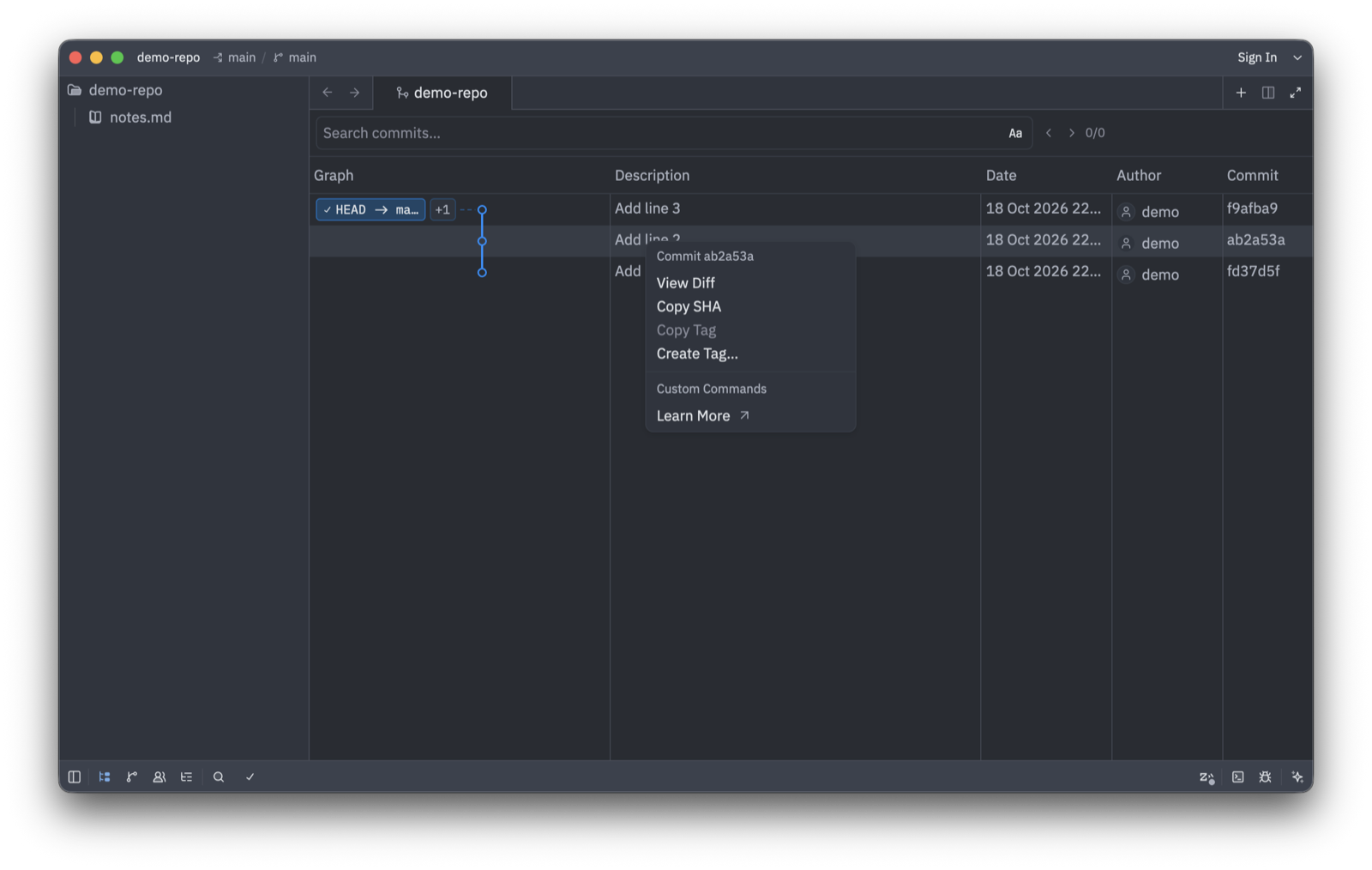
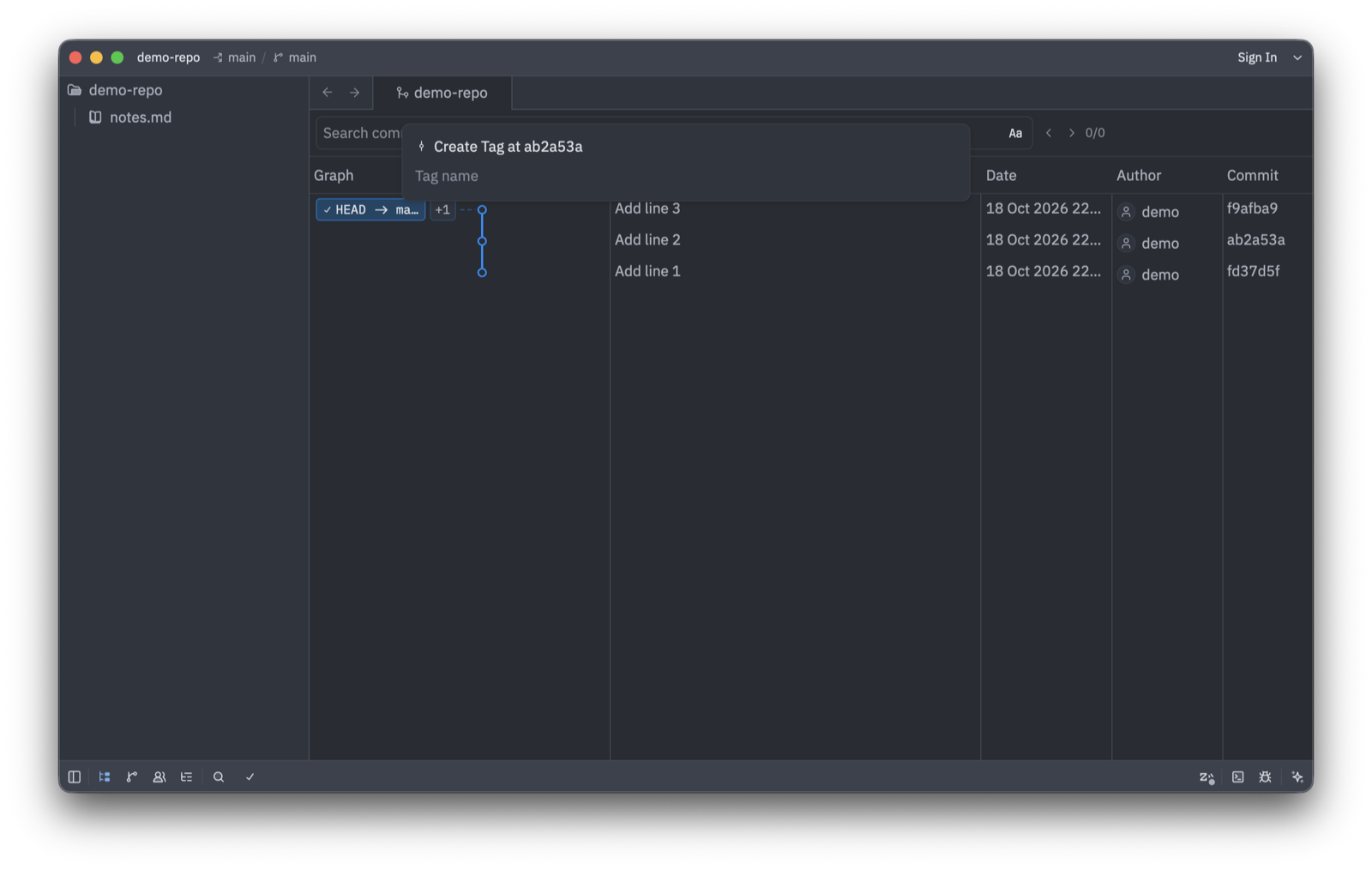
Selecting Create Tag… opens a Tag name input field with the title "Create Tag at ab2a53a."
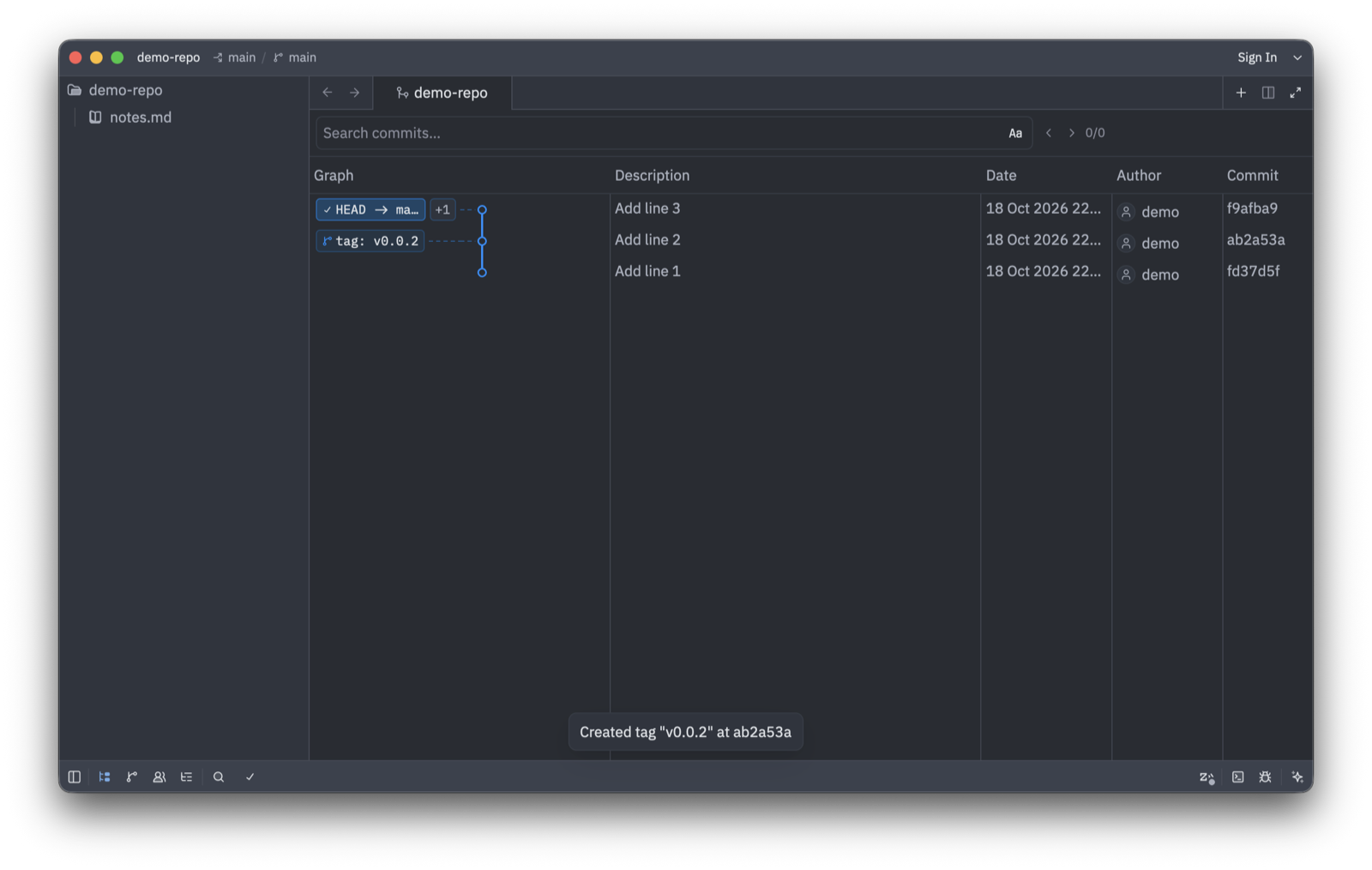
After entering v0.0.2 as the tag name and pressing Enter, a notification saying "Created tag "v0.0.2" at ab2a53a" appeared, and tag: v0.0.2 was shown on the commit in the graph.
I did not try the Git history (file history) menu this time.
Creating from the Command Palette
Running git: create tag at head from the command palette creates a local tag at the current HEAD. You can find it by typing createtag in the command palette.
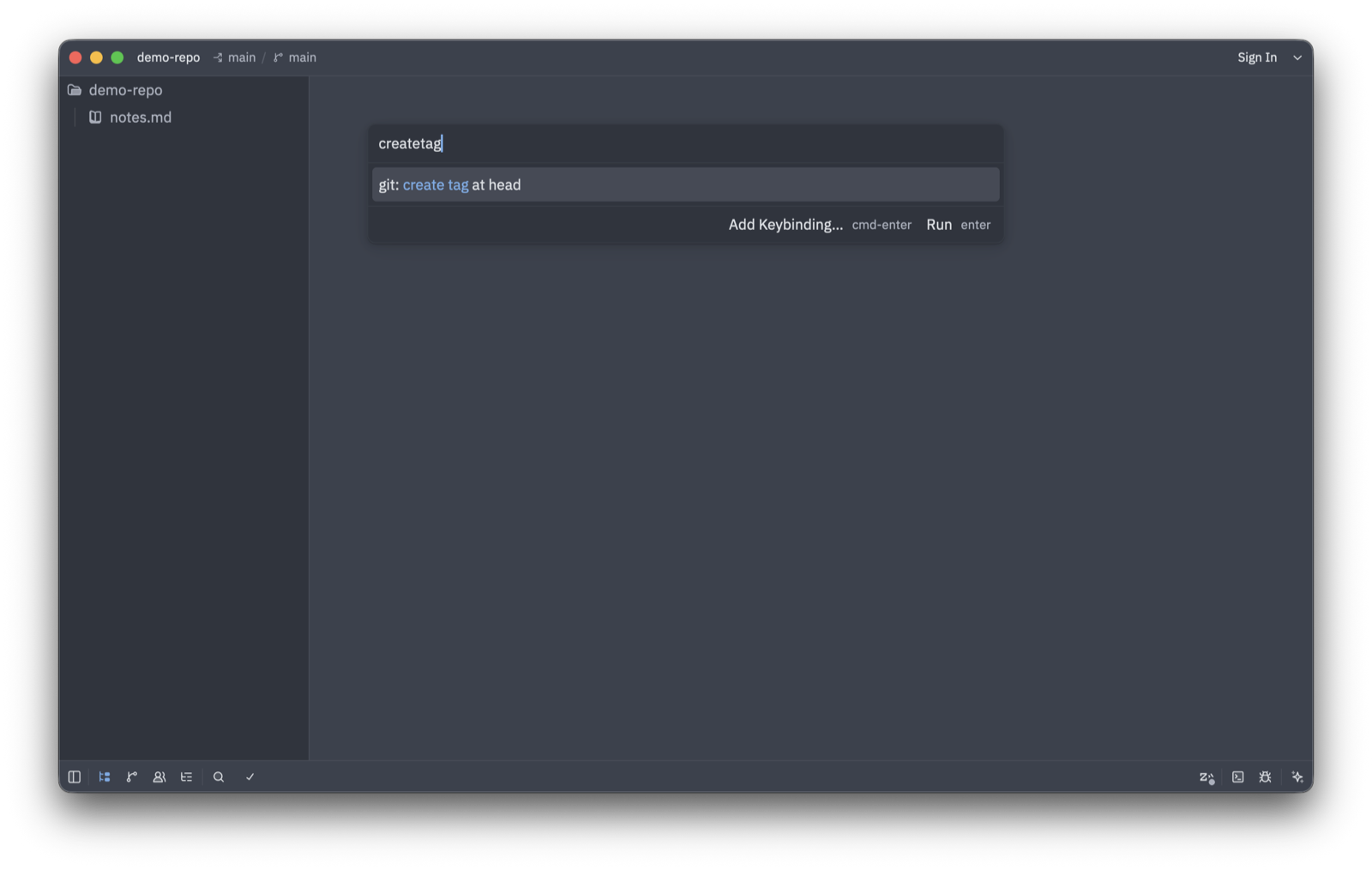
Running it opens an input field titled "Create Tag at f9afba9 (HEAD)." Enter a tag name and press Enter.
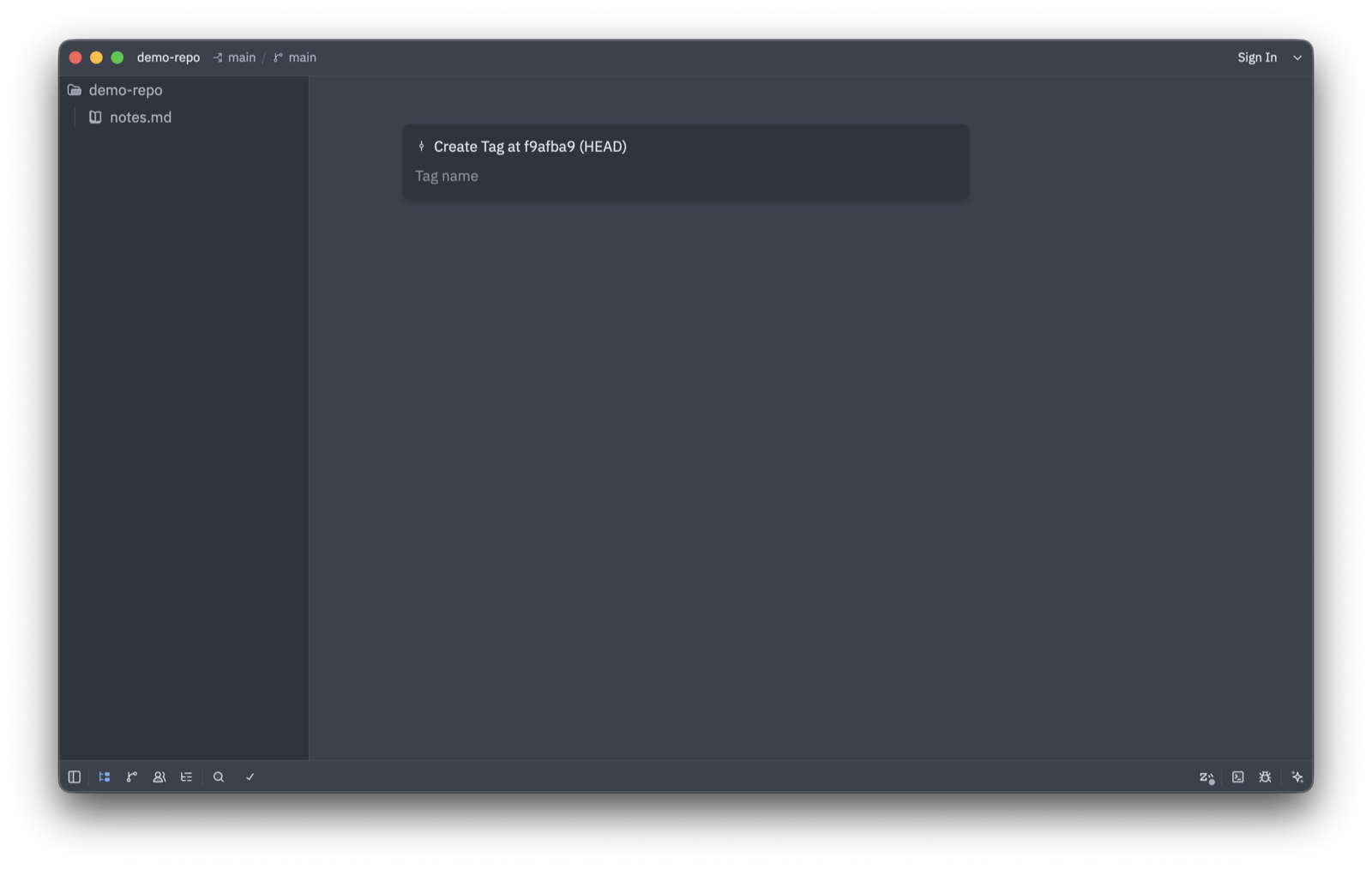
After creating v0.1.0, running git cat-file -t v0.1.0 returned commit. As stated in the Git documentation, what gets created is a lightweight tag. This is the faster option when you simply want to tag the commit you're currently working on.
The difference between the two methods is how you select the target commit. Use the context menu to select any commit from the history, and use the command when HEAD is fine.
Created Tags Are Not Automatically Pushed
The release notes explicitly state: "Tags are not pushed automatically." I tested this using a local bare repository as the origin, and after creating a tag in Zed, the tag did not appear in git ls-remote. Tags created in Zed remain local.
To reflect them on the remote, you need to explicitly push the tag.
git push origin <tagname>
To send all local tags at once:
git push origin --tags
Since --tags sends all tags, including ones you may not intend to push, it's a good idea to check the list with git tag first. Also, since Zed creates lightweight tags, git push --follow-tags (which only pushes annotated tags along with a branch) will not send them. Running git push --follow-tags origin main did not add the tag to the remote, but specifying the tag name with git push origin v0.2.0 did push it successfully.
Gotchas
You Cannot Create a Tag with the Same Name
According to the pull request that added the tag creation feature, tags are created without overwriting existing ones. Attempting to create v0.1.0 again after it already exists shows a "Failed to create tag" dialog with reference already exists, and the tag is not created.
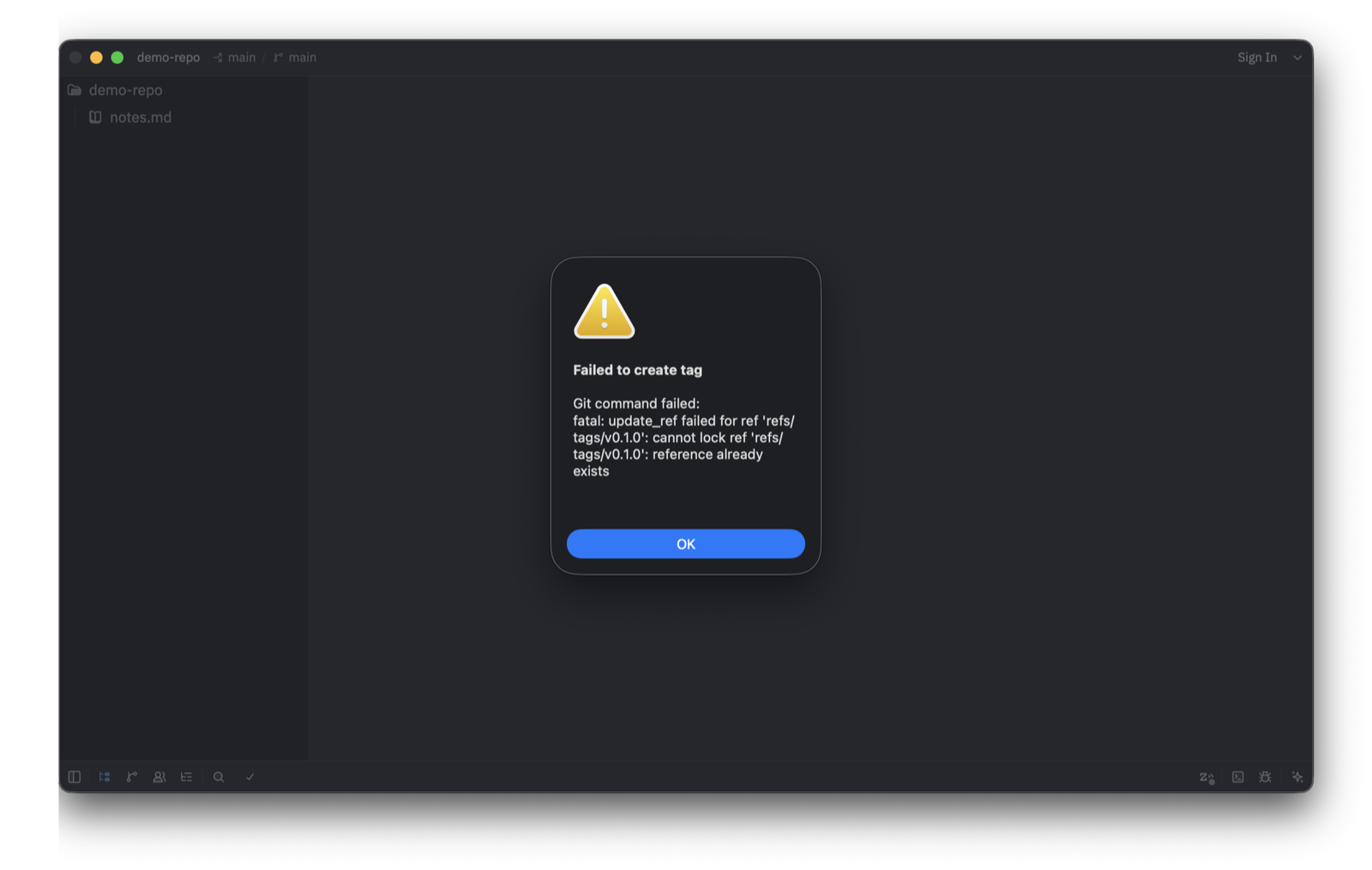
If you want to reassign the tag, either use a different name or first delete the existing tag with git tag -d <tagname>.
Summary
As of Zed 1.24.2, you can create local tags on commits. There are two ways to do it: via the context menu in Git history / Git Graph (Create Tag…) and via the command palette (git: create tag at head). Tags created this way are not automatically pushed to the remote, so use git push to share them when needed. This means you can handle tagging entirely within the editor, and only run git push when you want to share.
I hope this is helpful to someone.
Reference Links: