Use Notion content in Help Center (FAQ) and AI Agent (chatbot) with Zendesk external knowledge source connector

This page has been translated by machine translation. View original
Hello, I'm Irii from the Business Efficiency Solutions Department.
In April 2026, Zendesk announced the general availability (GA) of a feature to connect Notion as an external knowledge source.
In Zendesk, not only Help Center articles but also knowledge stored in external services can be used as sources for search and AI responses. This feature is called external content sources (external knowledge source connectors).
There are many cases where internal knowledge is spread across Notion, Google Drive, Confluence, and other services. Using this feature, you can consolidate them into Zendesk and reference them across Help Center (FAQ) search, AI agents (chatbots), and ticket management screens.
Until now, there were many cases where the need to migrate knowledge to Zendesk was a barrier when considering the use of AI agents and other features in Zendesk, and this update resolves that issue.
This article uses the Notion connector as an example to introduce everything from setup to utilization in each feature and operational considerations, along with verification results.
Understanding the Overview of External Content Sources
Checking Supported Connectors
The knowledge connectors that can be connected as external content sources are as follows.
- Amazon S3
- Zendesk (another Zendesk account)
- Google Drive
- Box
- SharePoint
- Notion
- Document360
- Confluence
- Guru
In addition to these, you can also import content from any website using a web crawler or API.
Understanding When External Content Is Used
When an external content source is connected, it is utilized in the following scenarios.
Help Center Search
When end users perform keyword searches in the Help Center, external content appears in the search results.
Generative Search (Quick Answers)
An AI-generated answer is displayed at the top of the Help Center search results, with external content also used as a reference source.
AI Agent Generative Responses
When an AI agent (chatbot) responds to end user questions, it references external content as a knowledge source.
Knowledge Panel in the Ticket Management Screen
When agents search for knowledge while handling tickets, external content also becomes a reference source for quick answers.
Checking Prerequisites
To use external content sources, the following conditions must be met.
- Any Zendesk Suite plan, or Support + Guide Professional or higher
- Up to 50 external content sources can be connected (refer to knowledge base product limitations)
- The storage limit for external data varies by plan
Understanding the Limitations of the Notion Connector
The Notion connector has the following specific limitations.
- Due to Notion's limitations, only one Notion connection can be created per Zendesk account
- Sync targets are top-level pages in team spaces and their subpages (only pages containing content in the body)
- Sync is automatically performed every 24 hours (manual immediate sync is also available)
- When adding new top-level pages, the connection must be deleted and recreated
Setting Up the Notion Connector
STEP 1: Prepare Test Content on the Notion Side
First, create verification pages under the Notion Teamspace. This time, we prepared the following 6 pages as support knowledge for a fictional EC site.
- Return and Exchange Policy
- Account Setup Guide
- About Shipping
- Common Troubleshooting and Solutions
- Pricing Plan List
- Frequently Asked Questions (FAQ)
STEP 2: Create a Connection from Zendesk
-
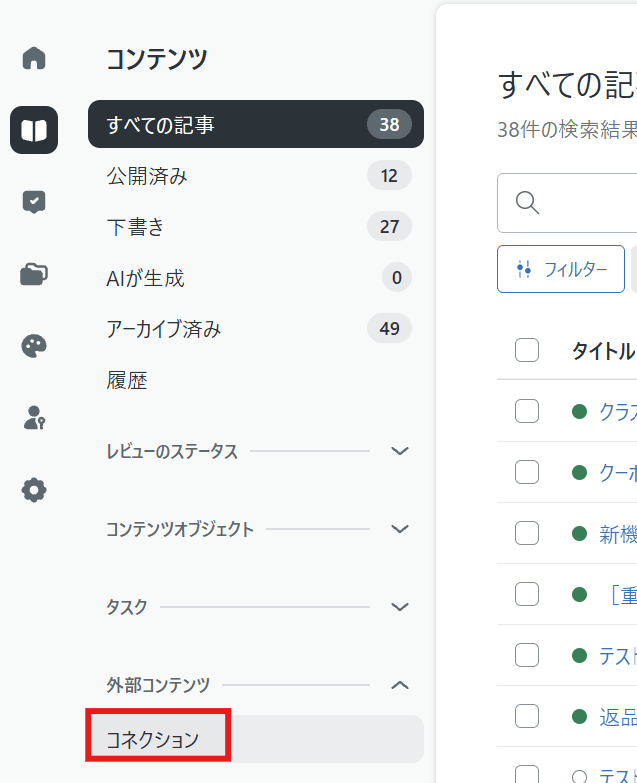
In the knowledge base management screen, click "Manage Articles" in the sidebar
-
Click "External Content" > "Connections"
-
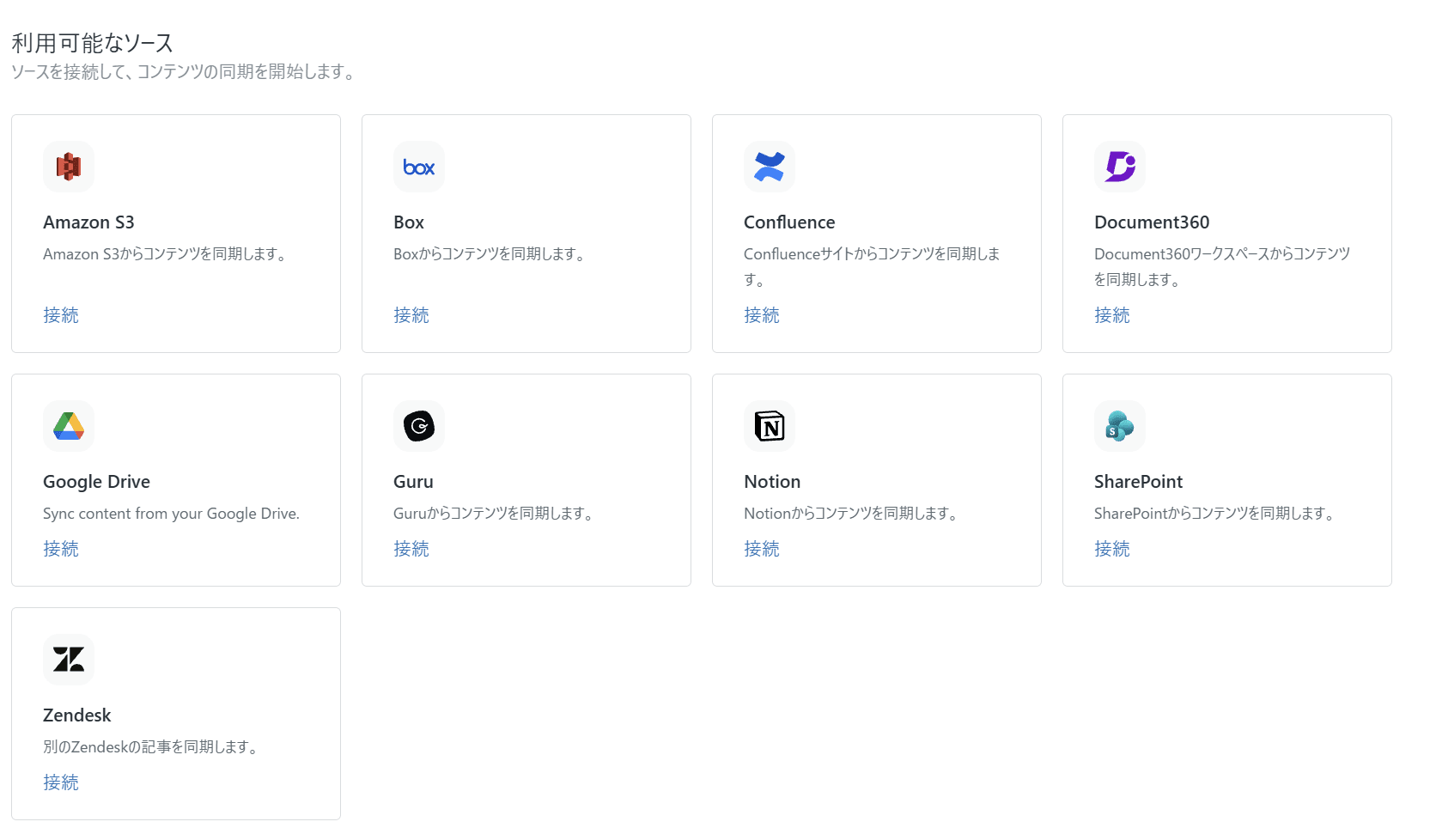
In the "Available Sources" section, click "Connect" for Notion
-
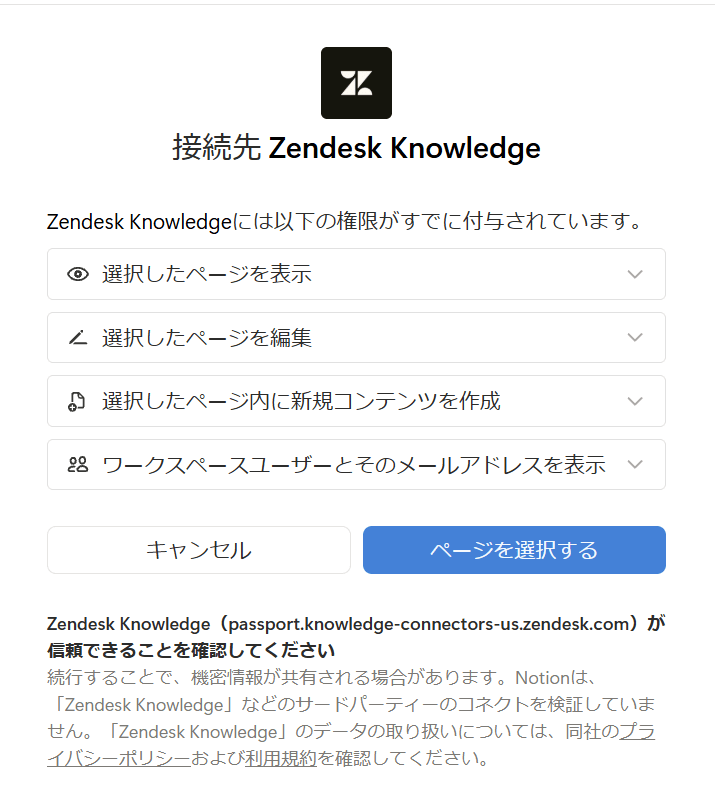
Click "Continue" and the Notion authentication screen will appear
-
Select the Notion Teamspace from the dropdown list in the upper right, and click "Select Pages"
-
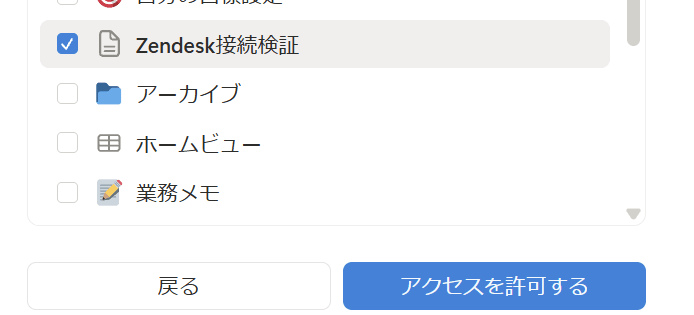
Select the pages to sync and click "Allow Access"
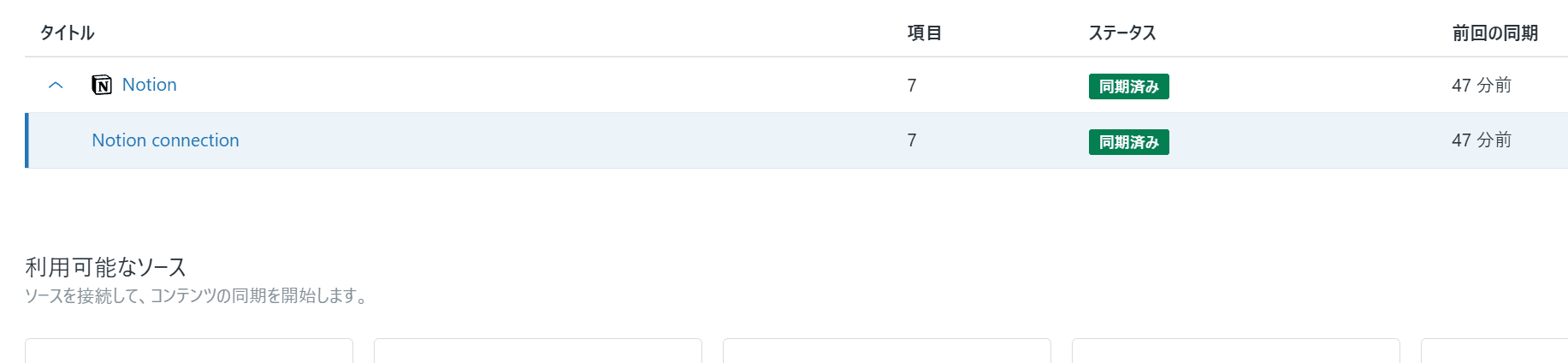
Once authentication is complete, the initial sync will start automatically. When the sync is complete, the status will change to "Synced" and the number of synced items will be displayed. This time, 7 items (6 pages + parent page) were synced.
Displaying External Content in Help Center Search
Adding Notion as a Search Source
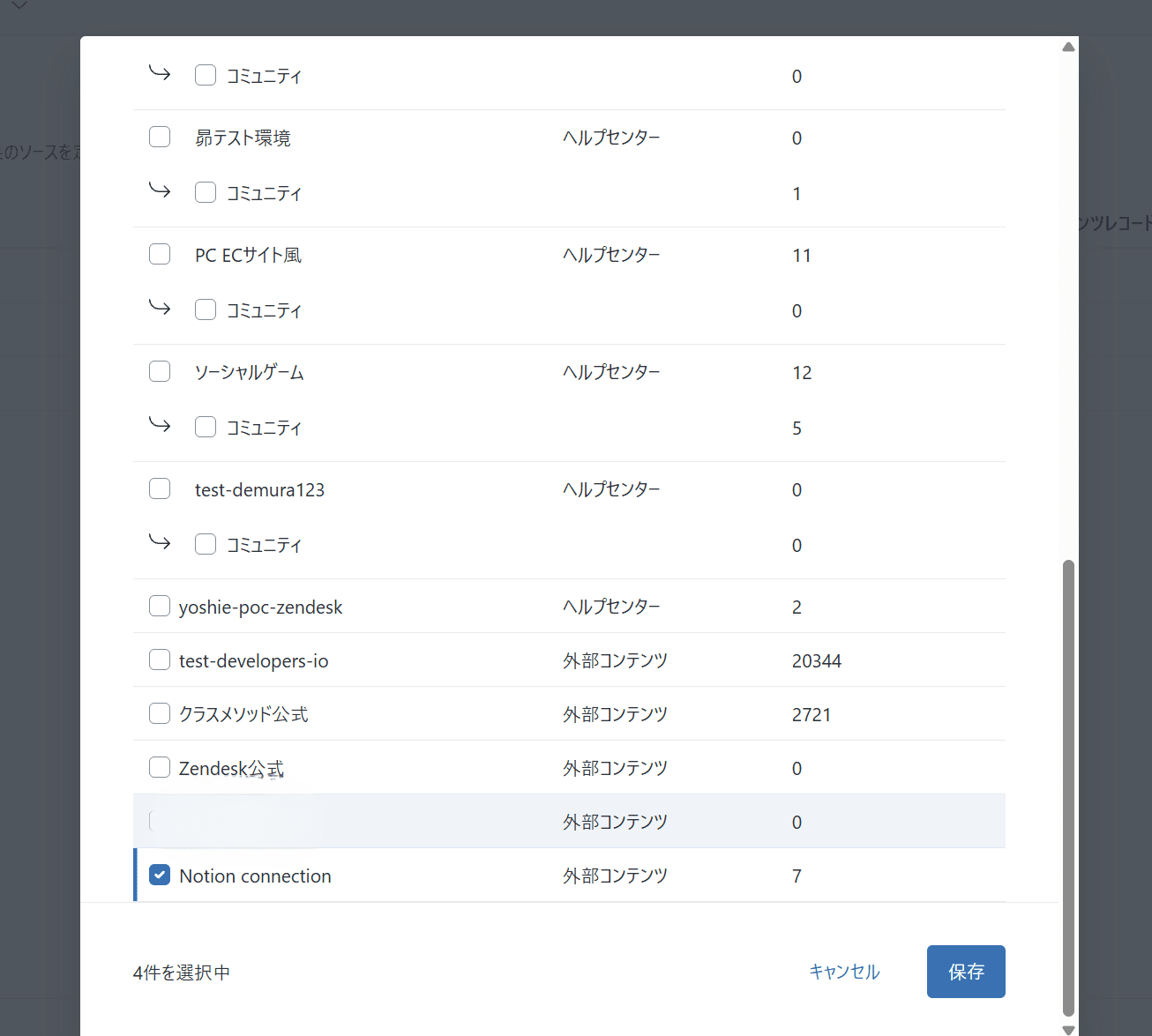
Simply creating a connection does not display external content in Help Center search results. You need to explicitly add it as a search source in the search settings.
- In the knowledge base management screen, click the settings icon in the sidebar
- Click "Search Settings"
- Click "Manage" under "Search Sources"
- In the "Manage Search Sources" list, check the Notion connection you created
- Click "Save"
Checking the Search Results
After configuration, external content will appear in search results when performing keyword searches in the Help Center.
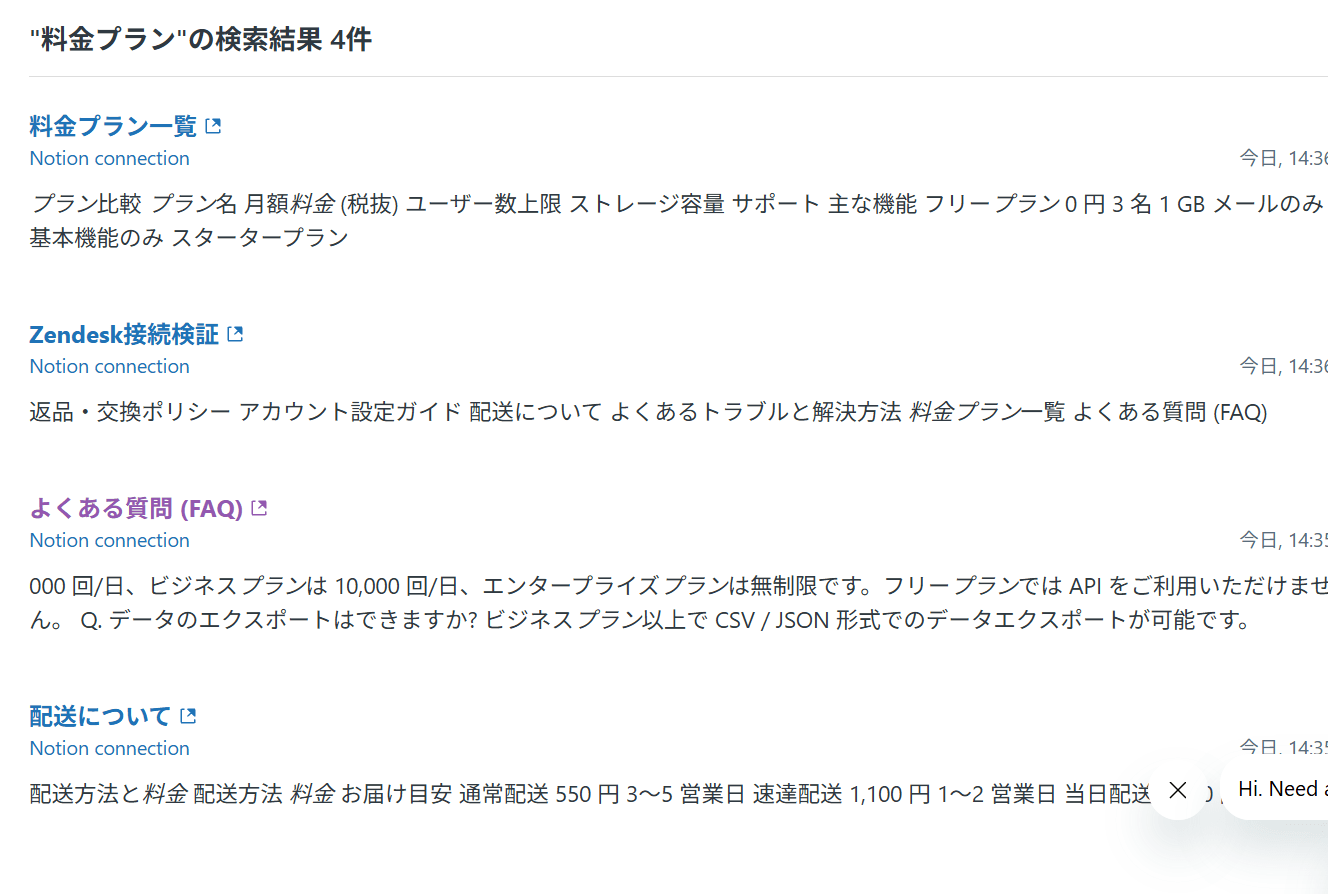
When searching for "pricing plan," pages created in Notion such as "Pricing Plan List" and "Frequently Asked Questions" appeared in the results. External content has an external link icon, and clicking it navigates to the original page in Notion.
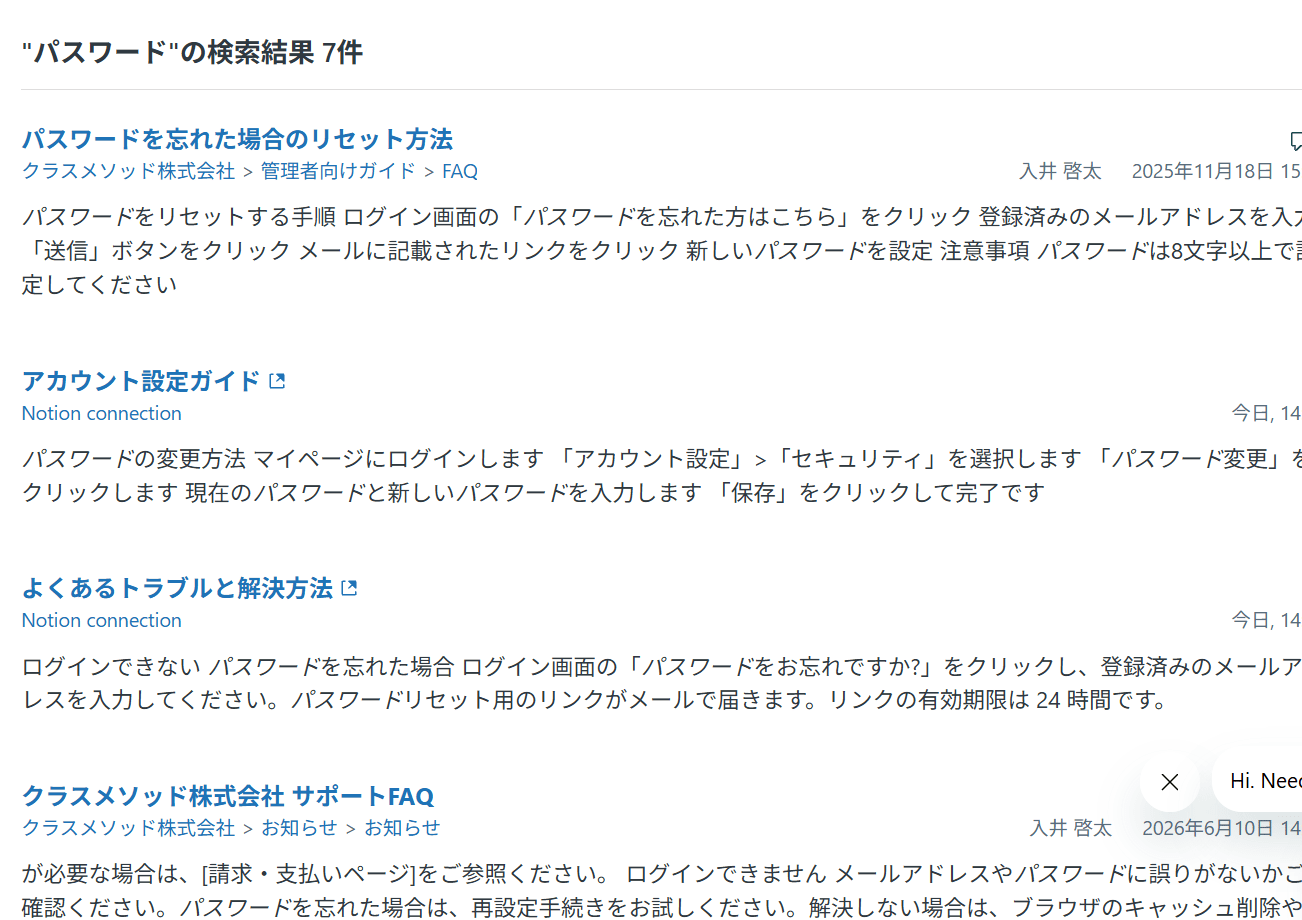
When searching for "password," Notion content (Account Setup Guide, Common Troubleshooting and Solutions) and existing Help Center articles were displayed together. In this way, existing knowledge and external content are searched simultaneously.
Referencing External Content with Generative Search (Quick Answers)
When generative search (quick answers) is enabled in the Help Center, an AI-generated answer is displayed at the top of search results. External content is also used as a reference source for these answers.
When searching for "password," an AI-summarized answer about the password reset procedure was displayed. In addition to existing Help Center articles, Notion's "Account Setup Guide" was shown with an external link icon as a reference source.
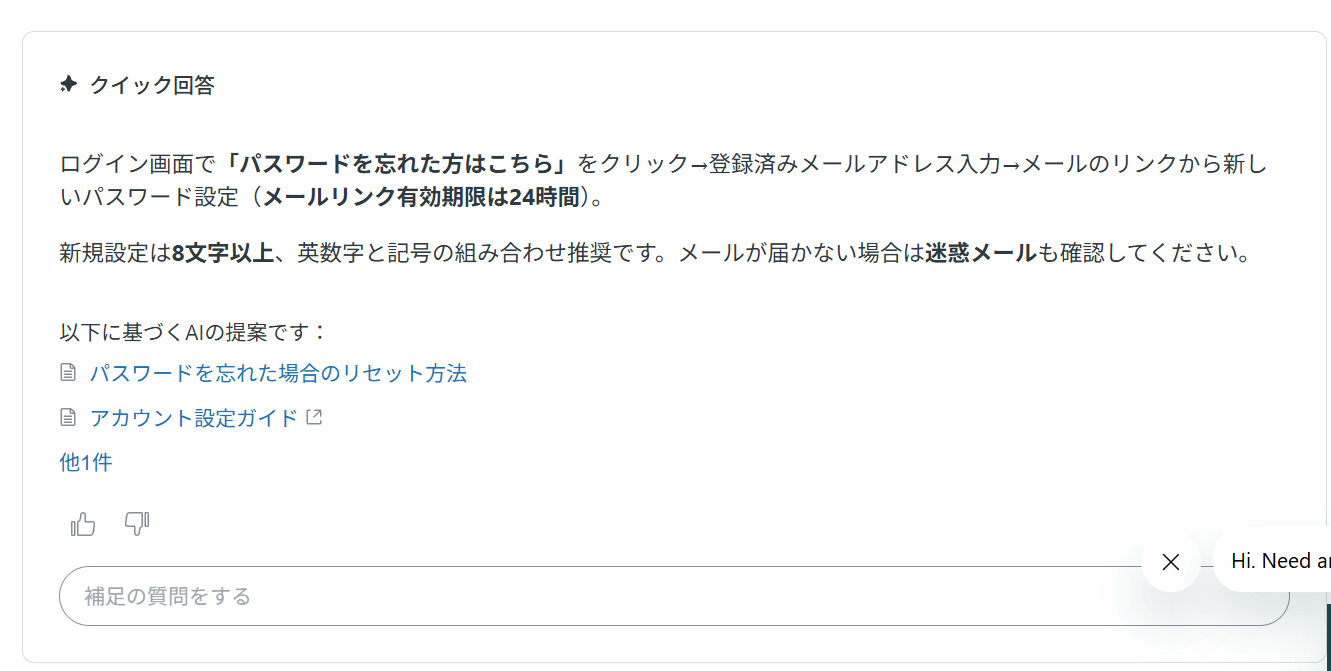
When similar content exists in both Help Center articles and Notion, the AI references both sources to generate its response. Even if there is duplicate information, it appropriately consolidates it, so using existing knowledge together with external content improves information coverage.
Adding Notion as a Knowledge Source for AI Agents
Enabling External Content Sources
For AI agents to reference external content and generate responses, you need to explicitly add it as a knowledge source.
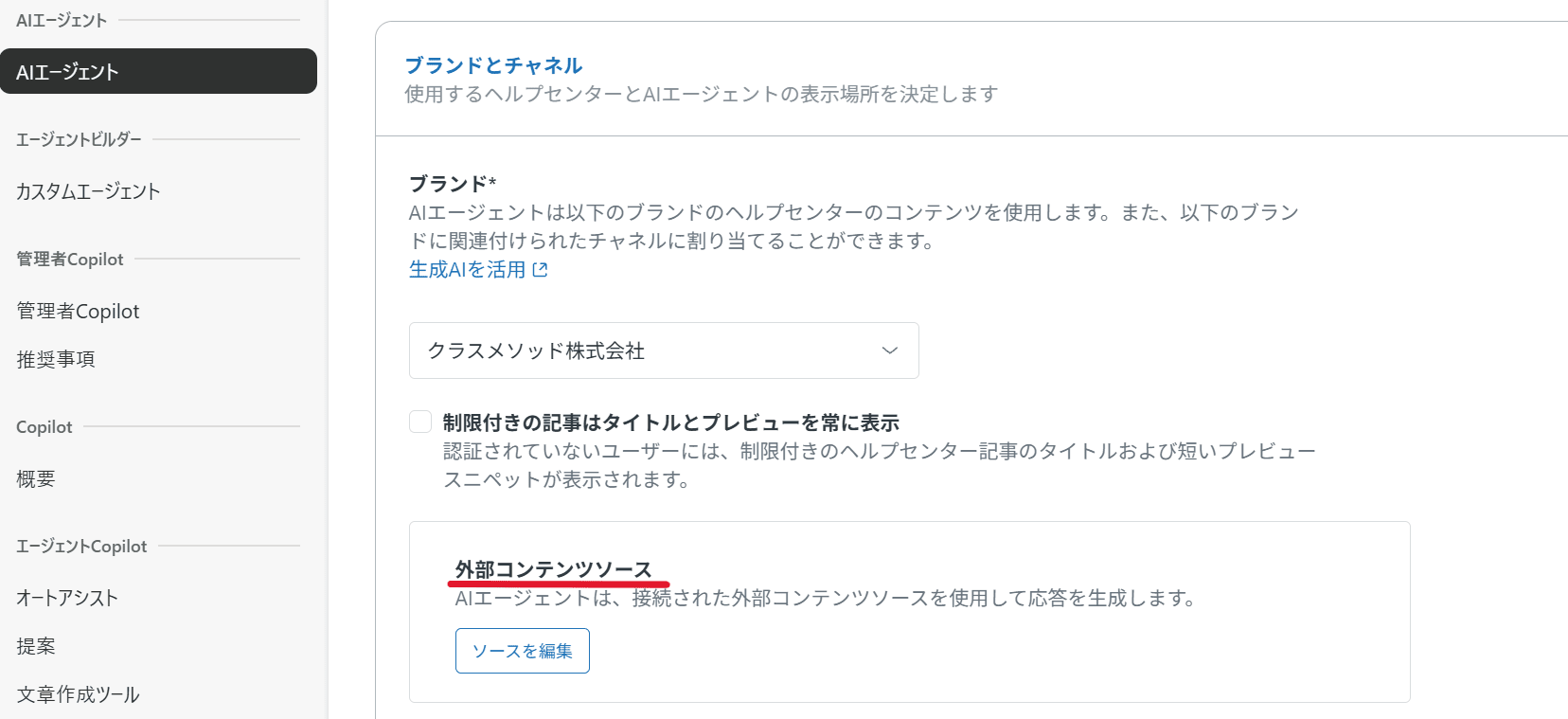
- In the Admin Center, navigate to "Channels" > "AI Agents" > "AI Agents"
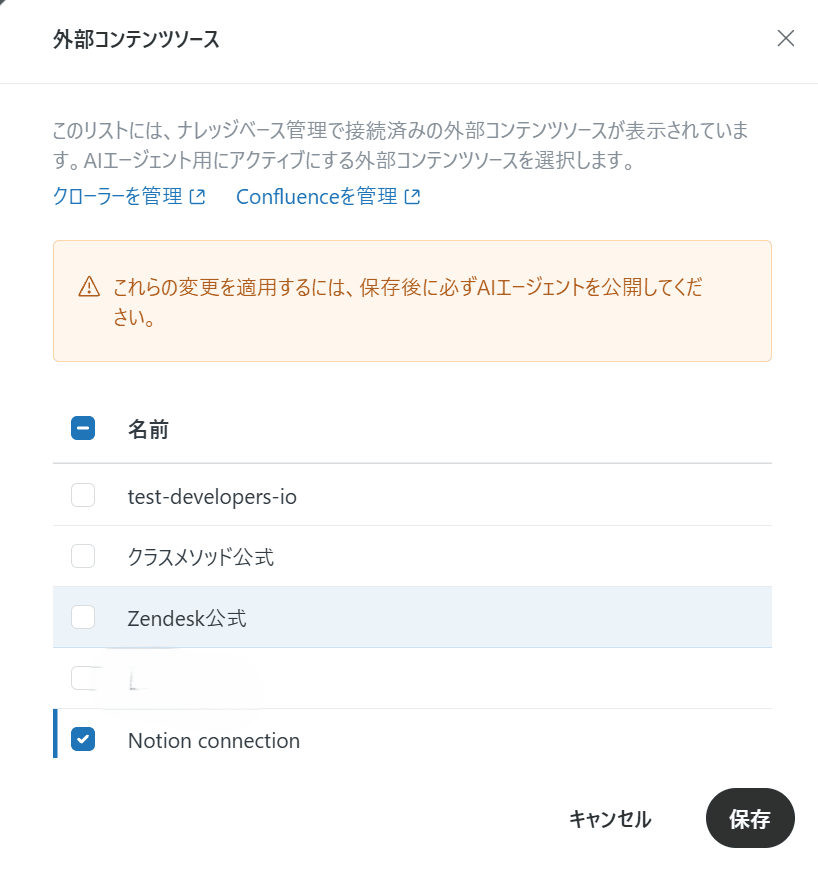
- In the "Brands and Channels" section, click "Edit Sources" under "External Content Sources"
- A list of external content sources will appear; check the Notion connection
- Click "Save"
Checking AI Agent Responses
After configuration, when I asked the AI agent "Please tell me the return procedure," it generated a response referencing the return policy content created in Notion. At the bottom of the response, a card for "Return and Exchange Procedure" was displayed as a reference source, providing a link to the original Notion page.
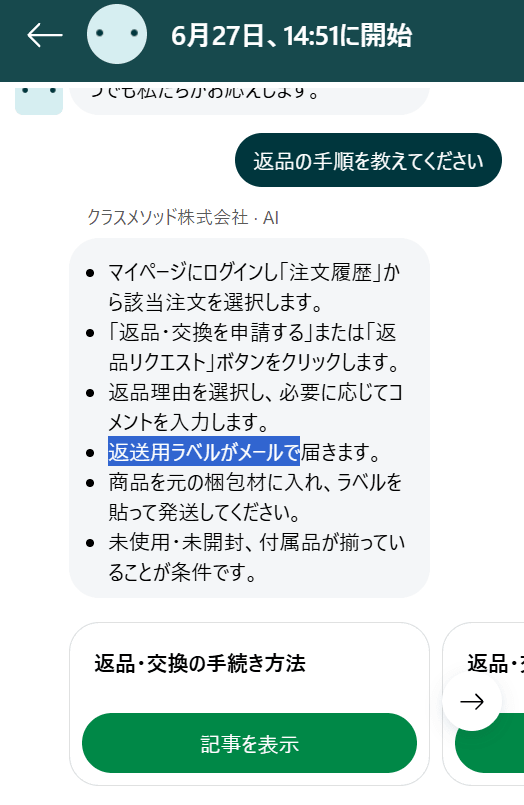
When similar content exists in both Help Center articles and Notion, the AI agent references both sources to generate its response. This enables integrated responses even when knowledge is distributed across multiple locations.
Utilizing the Knowledge Panel in the Ticket Management Screen
When agents use quick answers from the knowledge panel while handling tickets, external content is also referenced.
When searching for "pricing plan" in the knowledge panel, a quick answer was generated referencing Notion's "Pricing Plan List." The pricing, user limit, and storage capacity for the four plans were correctly displayed.
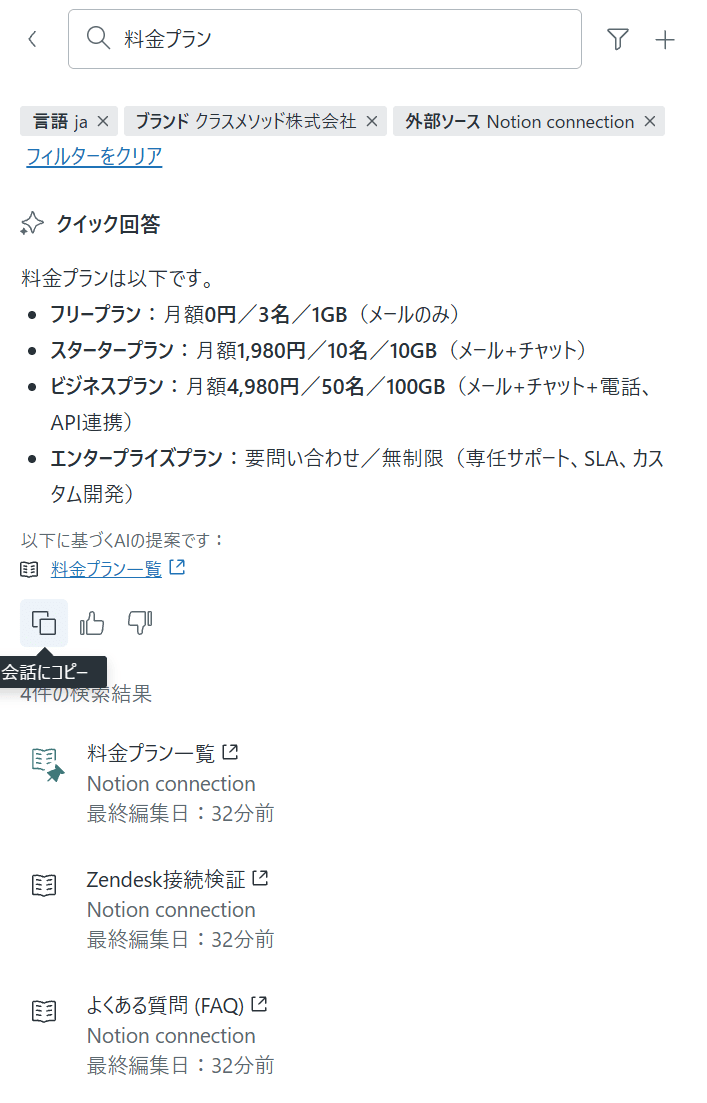
In the knowledge panel, you can include Notion articles in the search by specifying the filter "External Source: Notion connection." Please note that if you do not specify this filter, the results will not appear in the search.
The content of quick answers can be pinned to tickets or copied to replies, just like regular Help Center article search results.
Verifying Behavior During Operation
Adding Subpages and Re-syncing
When a subpage is added under an existing page in Notion, it is automatically incorporated as knowledge simply by re-syncing.
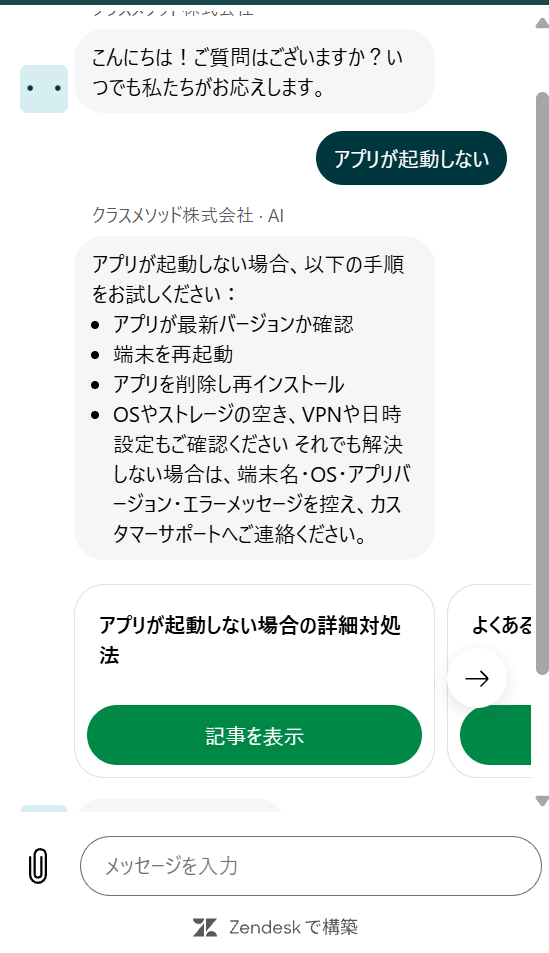
As a verification test, I added a subpage called "Detailed Solutions for When the App Won't Launch" under "Common Troubleshooting and Solutions," then performed a manual re-sync on the Zendesk side.

After re-syncing, the number of synced items increased from 7 to 8. When I asked the AI agent "The app won't launch," it generated a response referencing the content of the added subpage (troubleshooting steps for iOS/Android, checking storage and VPN).
Disconnecting the Connection
When a connection is no longer needed, you can disconnect it by selecting "Delete Connection" from the same options menu. When deleted, all content within that connection is also deleted and becomes unavailable everywhere external content is used.
Summary
We confirmed that by using Zendesk's external content source connector, Notion knowledge can be utilized across Help Center search, generative search, AI agents, and Agent Workspace.
The major benefit is that there is no need to migrate knowledge to Zendesk, as you can use your existing Notion workspace as-is. Since adding subpages is also reflected simply by re-syncing, there is almost no operational overhead.
In environments where internal knowledge is distributed across multiple services, leveraging the external content source connector can be expected to improve support quality and increase agent work efficiency, so please refer to this article and give it a try.