
[Long-Awaited Update] Amazon Quick on desktop Now Supports Existing Sign-In Methods! Trying It Out with IAM Federation and Invited Users

This page has been translated by machine translation. View original
I'm Ishikawa from the Cloud Business Headquarters. Amazon Quick on desktop can now use the sign-in method already configured in your organization's Amazon Quick as is. It took time to investigate and verify the whole picture, but today I tried it with a Quick account configured with IAM federation. I added a desktop connector and confirmed that both an IAM federation user and a user invited by email address from the Quick admin console can sign in to the desktop app. I also checked how the app behaves when the connector is deleted, and the cleanup steps.
It was announced that the Amazon Quick desktop app (Amazon Quick on desktop) can now use the same sign-in method as the web version for an organization's Quick account. Once an administrator adds a desktop connector in the Quick console, there is no need to register an OIDC application in the IdP or configure a separate desktop-specific sign-in. Users who can sign in to Quick on the web can also sign in to the desktop app.
This applies to Quick accounts that use IAM Identity Center, IAM federation, or Quick native users. If you want to manage desktop sign-in separately on the IdP side, you can still set up a dedicated IdP configuration with Microsoft Entra ID, Google Workspace, Okta, Ping Identity, and others, as before.
The dedicated IdP configuration (OIDC integration with Microsoft Entra ID) is introduced in the following article.
The Quick account and user types I tried
The Quick account used this time has the authentication type IDENTITY_POOL. With this type, IAM federation users and users managed by Quick (Quick-managed users) can be used in the same account. This time I tried the following two types of users.
| Item | IAM federation user | Invited user (Quick-managed user) |
|---|---|---|
| Correspondence with Quick user | Tied to an IAM role session. The user name is "role name/role session name" | Created by an administrator inviting them by email address from the Quick admin console |
| Signing in to Quick Web | Sign in to the AWS Management Console, then open Quick. This time, I switched roles with MFA from an IAM user in a different account | Set a password from the link in the invitation email, then enter the account name, user name, and password on the Quick sign-in screen |
IdentityType |
IAM |
QUICKSIGHT |
| User this time | <role name>/<session name> (administrator) |
desktop-tester (reader = Quick Essentials) |
For both users, as long as there was a browser signed in to Quick Web, a single desktop connector let them sign in to the desktop app (described later).
What is a desktop connector (existing sign-in method)?
A desktop connector is an account-level setting that enables access from the Quick desktop app to a Quick account. You add it from the Quick console under “Manage account” > “Inbound connectors”, and choose one of the following two ways to configure identity.
- Use Quick's existing configured sign-in method (the method added in this update)
- Configure an identity provider (a method that uses a dedicated OAuth client)
The main specifications described in the official documentation are as follows.
- The desktop app is available only in Regions that support Agentic Features.
- Desktop app version 1.1.4053 or later is required.
- When you add a connector, desktop access is enabled immediately for all users in the account. If you want to roll it out gradually, first restrict the “Quick desktop” capability with custom permissions.
- Signing in requires an active Quick Web session in the browser. If there is no session, you are first prompted to sign in to Quick.
- A sign-in is valid for up to 30 days, and access is refreshed in the background every hour.
- The app stores tokens in the OS credential store (Keychain on macOS). Only while signing in, it listens for a response from the browser at
http://localhost:18080and uses PKCE.
The sign-in flow confirmed in this verification is illustrated below.
What gets created when you add a connector
When you add a connector, only settings inside the Quick account are created. Nothing is added to the IdP or to users' PCs. The following summarizes the official documentation and what I confirmed in the verification described later.
| Location | Change when the connector is added |
|---|---|
| Quick account (us-east-1) | One OAuth application (called an access control application in the API) is created and associated with the connector. The name is Quick Desktop, the ID is Quick-Desktop-<UUID>, it is a public client, and the redirect URI is http://localhost:18080 |
| IdP | Nothing is registered. There is no need to register an OIDC application in the IdP |
| Users' PCs | Nothing is installed. The desktop app is installed separately, by each user's download or distribution via MDM |
The OAuth application that is created is the client registration information that the desktop app uses when connecting to Quick. It is not a user's login state, so each user must sign in from the desktop app themselves.
- You can check it in the “OAuth application” field on the connector's edit screen (pencil icon) and with the CLI command
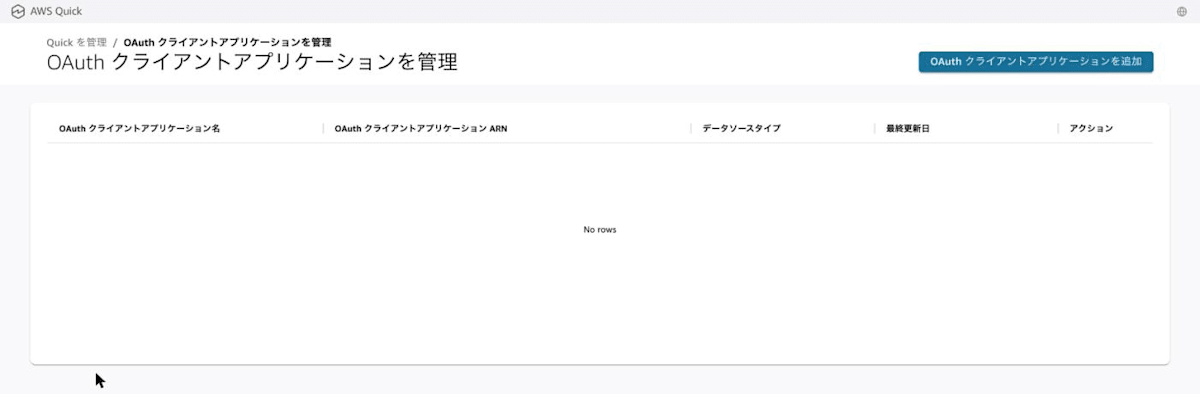
aws quicksight list-access-control-applications. It is not displayed on the console's “Manage OAuth client applications” screen (described later). - Even if you delete the connector, the OAuth application remains. To delete it, set it to
DISABLEDwith the CLI and then delete it (described later). - If you add the connector again, a new OAuth application is also created and the client ID changes (described later).
Trying it out
Prerequisites
- AWS account (with a Quick Enterprise Edition subscription)
- Quick authentication method: IAM federation (
AuthenticationType: IDENTITY_POOL) - Quick identity Region: us-east-1 (N. Virginia)
- Quick user: one ADMIN user tied to the session of a role switched to from an IAM user in a different account
- Desktop app: Amazon Quick 1.2.4660 (macOS, Apple Silicon)
- AWS CLI: 2.42.1
Before adding, there were 0 inbound connectors.
% aws quicksight list-inbound-connectors --aws-account-id 123456789012 --region us-east-1
{
    "InboundConnectorSummaries": [],
    "Status": 200,
    "RequestId": "0f8d68c2-cde5-4dda-aa11-3eb86c912edb"
}
Adding a desktop connector
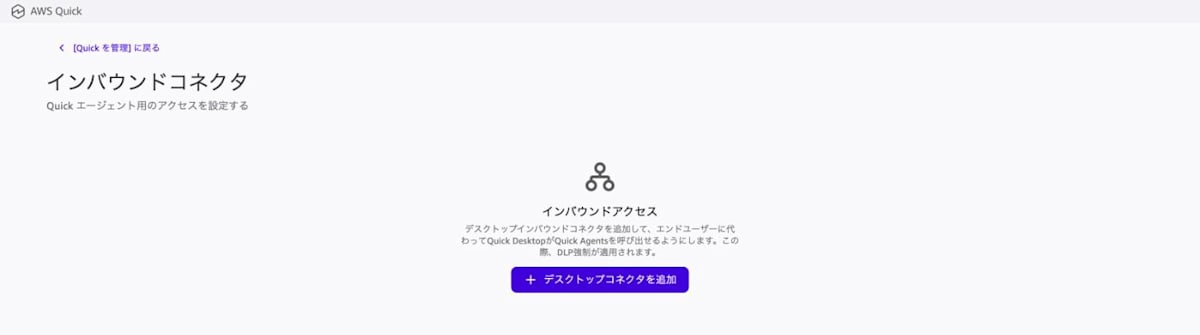
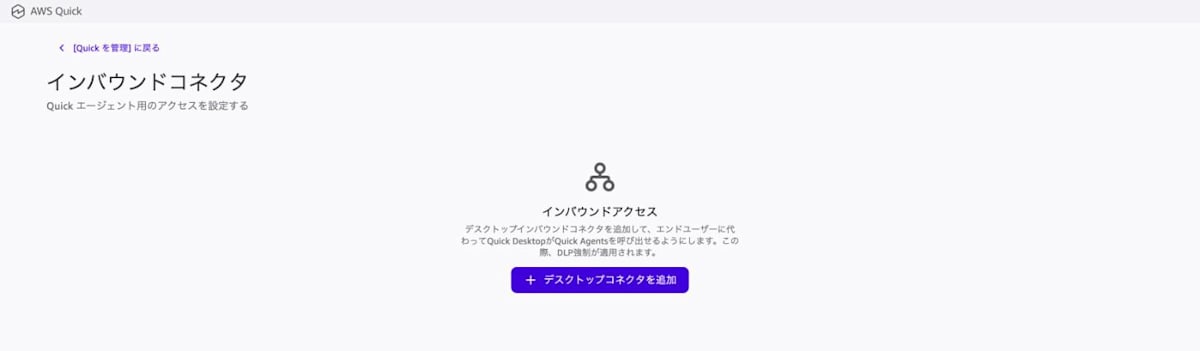
In the Quick console, open profile icon > “Manage account” > “Inbound connectors”. When there are no connectors, only the “Add desktop connector” button is displayed.
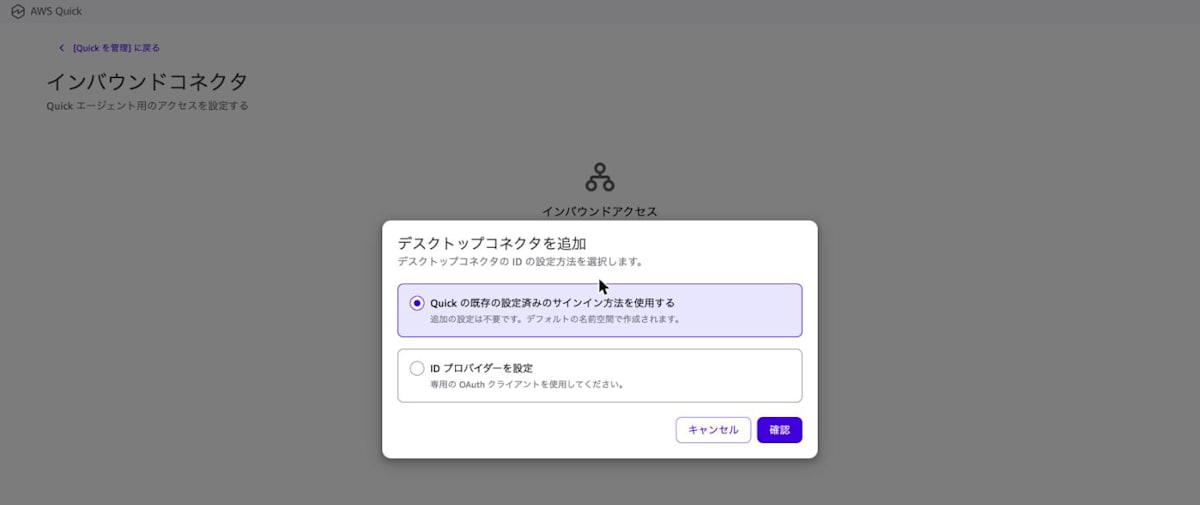
When you press “Add desktop connector”, a dialog for choosing how to configure identity appears. “Use Quick's existing configured sign-in method” is selected by default, with the note “No additional configuration is required. It will be created in the default namespace.” I left it as is and pressed “Confirm”.
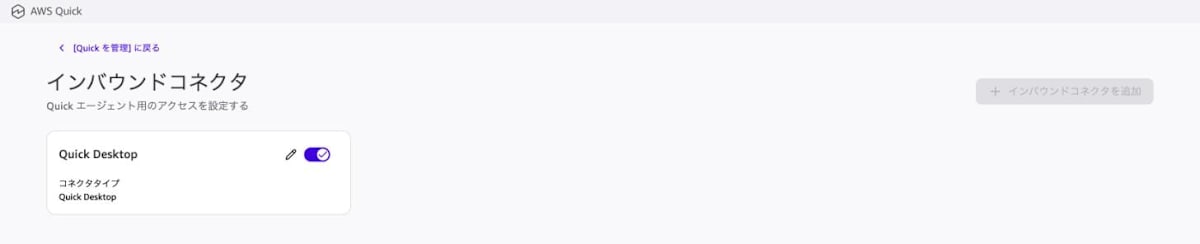
A “Quick Desktop” card with the connector type Quick Desktop was created in the enabled state. The “Add inbound connector” button at the top right can no longer be pressed.
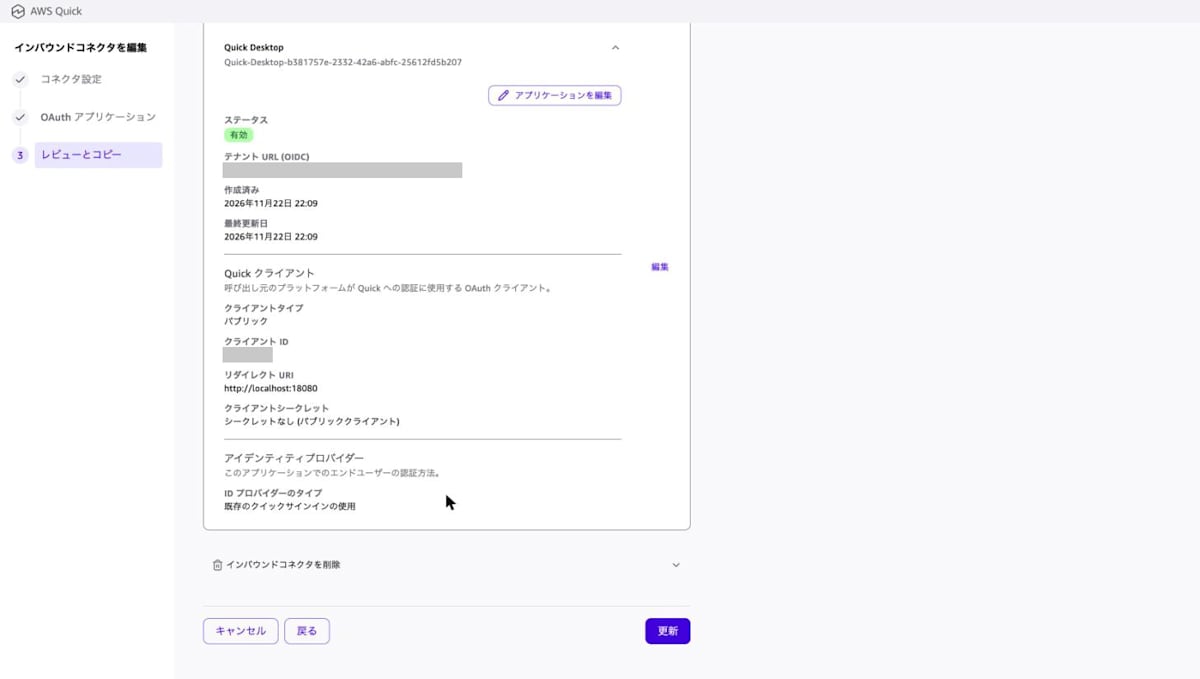
Checking the created resources
In the console, you can check the same details from the pencil icon (edit) on the connector card. The client type was shown as “Public” and the identity provider type as “Use existing Quick sign-in”.
Signing in from the desktop app
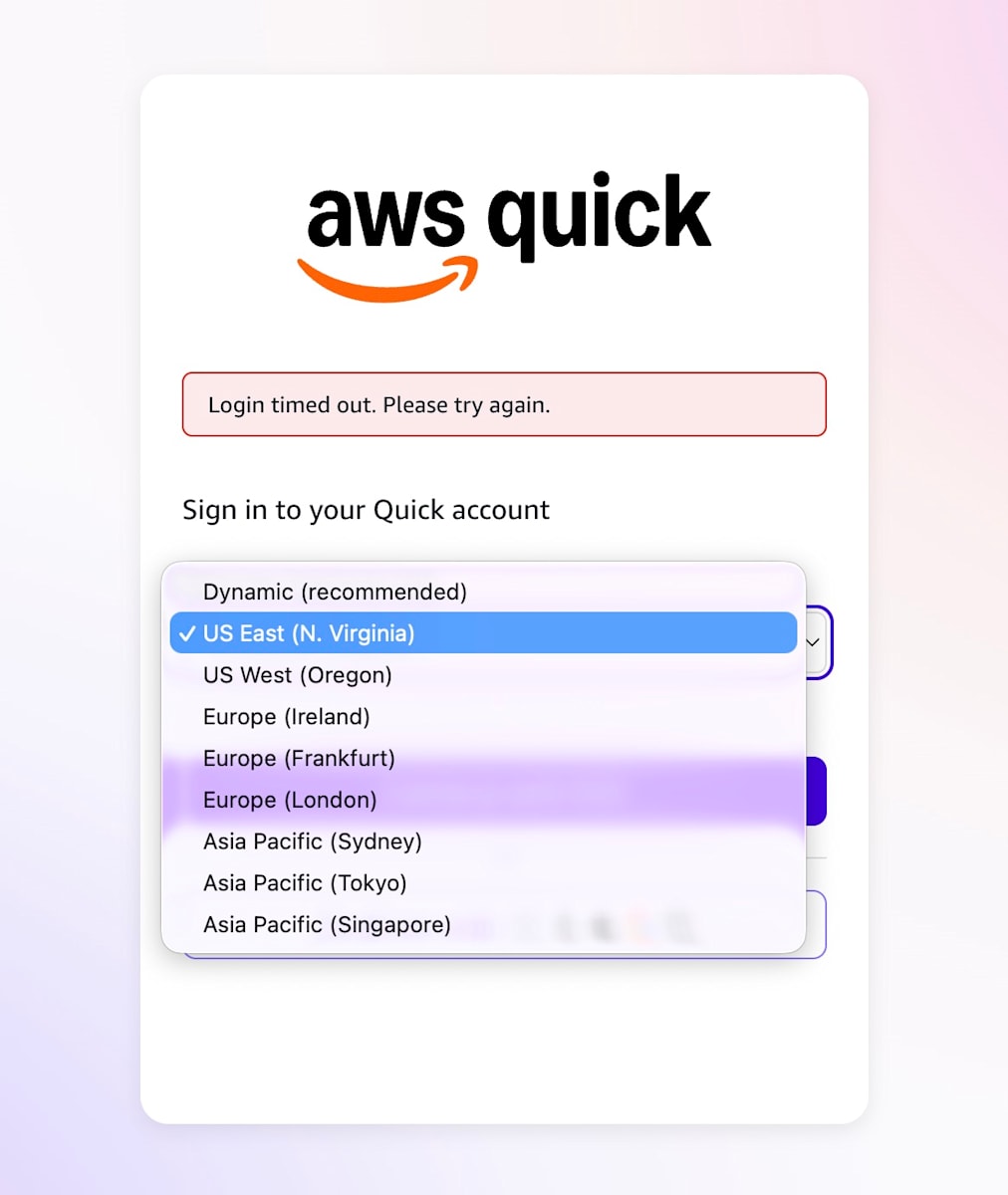
I opened the desktop app's sign-in screen. The v1.2.4660 sign-in screen used for this verification showed three items: “Region (for Enterprise SSO)”, “Continue with SSO”, and “Continue with (for personal accounts)”.
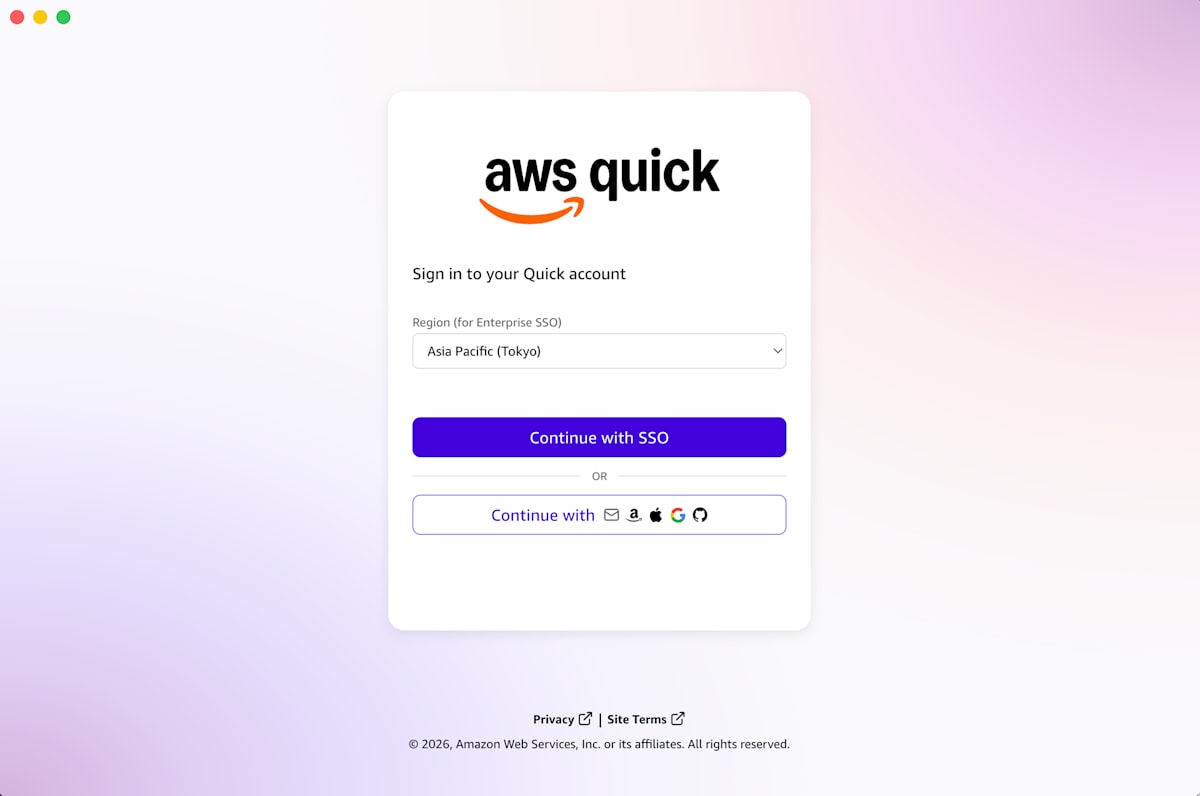
From the Region pull-down, I selected US East (N. Virginia), where I created the connector, and pressed “Continue with SSO” (the options in the pull-down are introduced in the invited user section in the second half).
The app showed “Signing you in”, and https://us-east-1.quicksight.aws.amazon.com/sn/auth/signin?qwSurface=desktop... opened in the default browser (Chrome).
Chrome still had the session where I had switched roles from the AWS Management Console and signed in to Quick Web. Because of this, Quick's account selection screen was displayed.
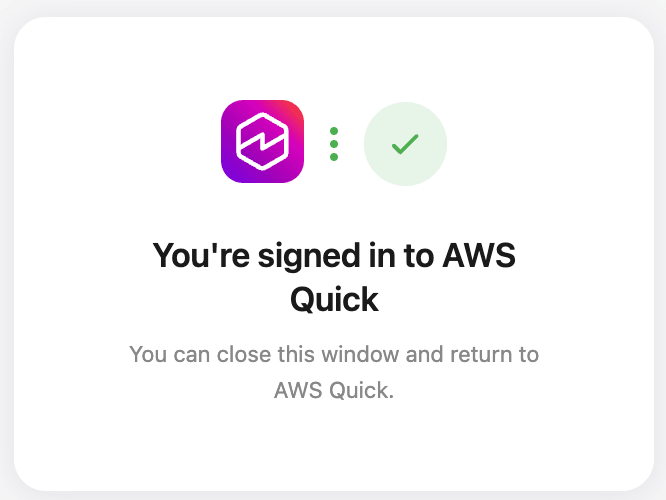
When I selected the account, the browser was redirected to http://localhost:18080/?code=... and “You're signed in to AWS Quick” was displayed.
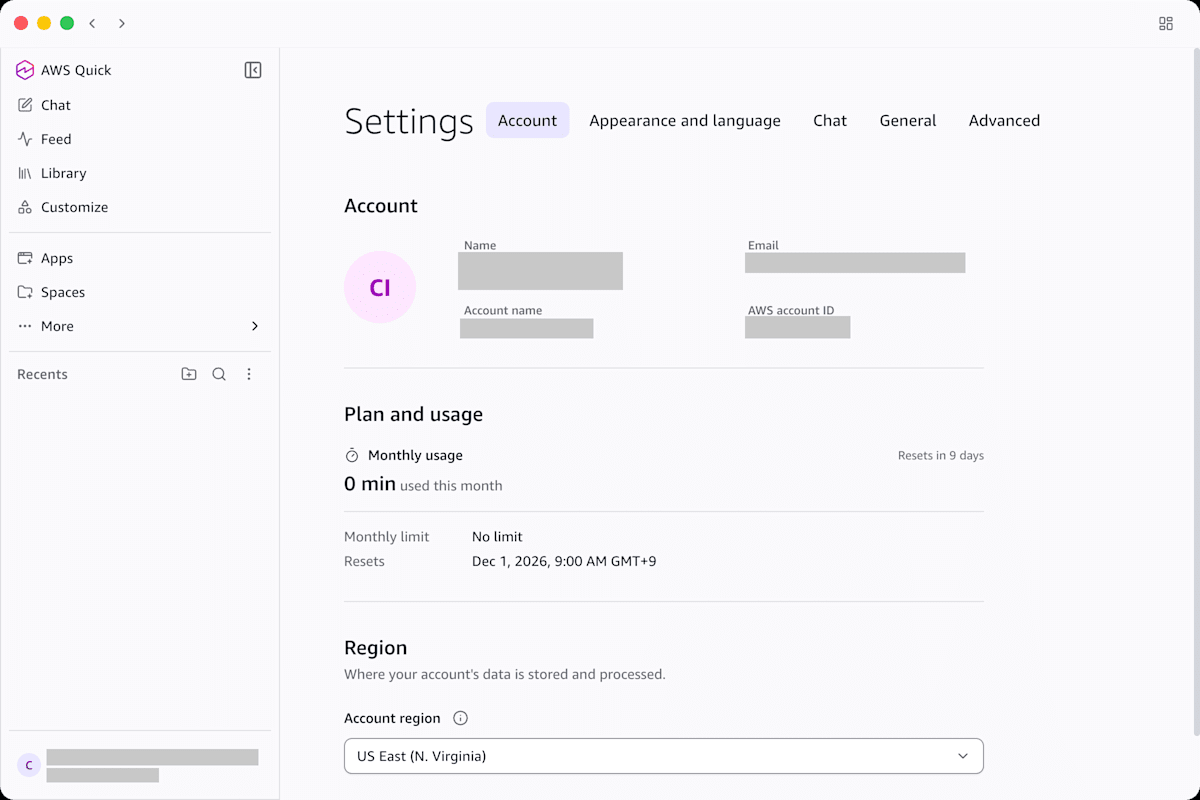
When I returned to the app, the Home screen was displayed and it was ready to use as is. On the Account tab of the settings screen, you can see the IAM federation Quick user name (<role name>/<session name>), the Quick account name, and the Region US East (N. Virginia). I did not send any chats, so this month's usage remains 0 min.
Trying whether the desktop connector can be deleted
When you add a connector, desktop access is enabled immediately for all users. Since it affects all users, I wondered whether it can be returned to the original state, so I checked whether the connector can be deleted.
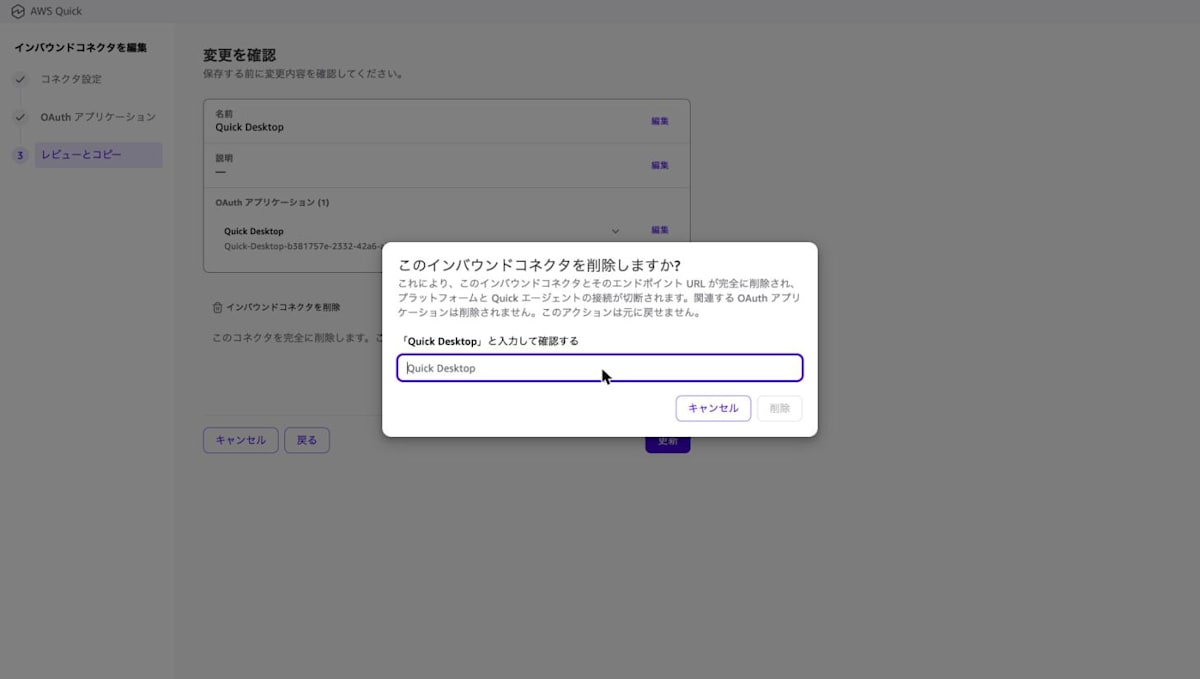
I opened the edit screen from the pencil icon on the connector card, expanded “Delete inbound connector”, and pressed the delete button, which displayed a confirmation dialog. The dialog says “The associated OAuth application will not be deleted.” and the connector could be deleted by entering the connector name “Quick Desktop”.
After deletion, the number of inbound connectors returned to 0.
However, as the dialog explained, the OAuth application remained in the ENABLED state.
% aws quicksight list-access-control-applications --aws-account-id 123456789012 --region us-east-1 --query 'AccessControlApplications[].[ApplicationId,Name,Status,TenantUrl]' --output table
------------------------------------------------------------------------------------------------------------------------------------------------
|                                                         ListAccessControlApplications                                                        |
+-----------------------------------------------------+----------------+----------+------------------------------------------------------------+
|  Quick-Desktop-b381757e-2332-42a6-abfc-25612fd5b207 |  Quick Desktop |  ENABLED |  https://auth-xxxxxxxx.us-east-1.enterprise.quick.aws.com  |
+-----------------------------------------------------+----------------+----------+------------------------------------------------------------+
When the connector was deleted in the console, UpdateInboundConnector and DeleteInboundConnector were called.
% aws cloudtrail lookup-events --region us-east-1 --start-time 2026-11-22T13:25:00Z --lookup-attributes AttributeKey=EventSource,AttributeValue=quicksight.amazonaws.com --query 'Events[?starts_with(EventName, `Delete`) || starts_with(EventName, `Update`) || starts_with(EventName, `Create`)].[EventTime,EventName,Username]' --output table
-------------------------------------------------------------------------------
|                                LookupEvents                                 |
+---------------------------+--------------------------+----------------------+
|  2026-11-22T22:30:30+09:00|  DeleteInboundConnector  |  <セッション名>       |
|  2026-11-22T22:30:30+09:00|  UpdateInboundConnector  |  <セッション名>       |
+---------------------------+--------------------------+----------------------+
I also want to delete the remaining OAuth application. Because it was not displayed on the console's “Manage OAuth client applications” screen, I deleted it with the CLI.
When I tried to delete it while it was ENABLED, I was told to set it to DISABLED before deleting.
% aws quicksight delete-access-control-application --aws-account-id 123456789012 --application-id Quick-Desktop-b381757e-2332-42a6-abfc-25612fd5b207 --region us-east-1
aws: [ERROR]: An error occurred (ConflictException) when calling the DeleteAccessControlApplication operation: AccessControlApplication 'Quick-Desktop-b381757e-2332-42a6-abfc-25612fd5b207' must be DISABLED before it can be deleted. Disable it and retry.
I changed it to DISABLED and then deleted it.
% aws quicksight update-access-control-application --aws-account-id 123456789012 --application-id Quick-Desktop-b381757e-2332-42a6-abfc-25612fd5b207 --status DISABLED --region us-east-1
{
    "Status": 200,
    "RequestId": "bfd07766-44b1-40f5-860d-730e7f0e07ec",
    "ApplicationId": "Quick-Desktop-b381757e-2332-42a6-abfc-25612fd5b207",
    "Arn": "arn:aws:quicksight:us-east-1:123456789012:access-control-application/Quick-Desktop-b381757e-2332-42a6-abfc-25612fd5b207",
    "AccessControlApplicationStatus": "DISABLED",
    "LastUpdatedTime": "2026-11-22T23:06:01.162000+09:00"
}
% aws quicksight delete-access-control-application --aws-account-id 123456789012 --application-id Quick-Desktop-b381757e-2332-42a6-abfc-25612fd5b207 --region us-east-1
{
    "Status": 200,
    "RequestId": "07171b8c-1907-482c-9328-7b5972c88dd7",
    "ApplicationId": "Quick-Desktop-b381757e-2332-42a6-abfc-25612fd5b207"
}
% aws quicksight list-access-control-applications --aws-account-id 123456789012 --region us-east-1
{
    "AccessControlApplications": [],
    "Status": 200,
    "RequestId": "6697deec-973d-4a9c-8fde-67d4e9bf033c"
}
Trying to add an invited user (Quick-managed user)
From here, I also try a user invited by email address from the Quick admin console.
First, I added the desktop connector again using the same steps as in the first half. The TenantUrl was the same as the first time, but the OAuth application was newly created and its client ID was also different from the first time.
% aws quicksight describe-inbound-connector --aws-account-id 123456789012 --inbound-connector-id ibc-desktop-123456789012-us-east-1 --region us-east-1 --query 'InboundConnector.[Name,Status,TenantUrl,CreatedTime]' --output table
----------------------------------------------------------
|                DescribeInboundConnector                |
+--------------------------------------------------------+
|  Quick Desktop                                         |
|  ENABLED                                               |
|  https://dxxxxxxxx.us-east-1.enterprise.quick.aws.com  |
|  2026-11-22T23:31:56.233000+09:00                      |
+--------------------------------------------------------+
% aws quicksight list-access-control-applications --aws-account-id 123456789012 --region us-east-1 --query 'AccessControlApplications[].[ApplicationId,Status,TenantUrl,QuickAuthenticationConfiguration.QuickAuthenticationConfigurationDetail.QuickManagedPublicAuthCode.ClientId]' --output table
------------------------------------------------------------------------------------------------------------------------------------------
|                                                      ListAccessControlApplications                                                     |
+-----------------------------------------------------+----------+------------------------------------------------------------+----------+
|  Quick-Desktop-8585df30-6d7d-4ee1-b791-0a16b4aa1f46 |  ENABLED |  https://auth-xxxxxxxx.us-east-1.enterprise.quick.aws.com  |  yyyyyyy |
+-----------------------------------------------------+----------+------------------------------------------------------------+----------+
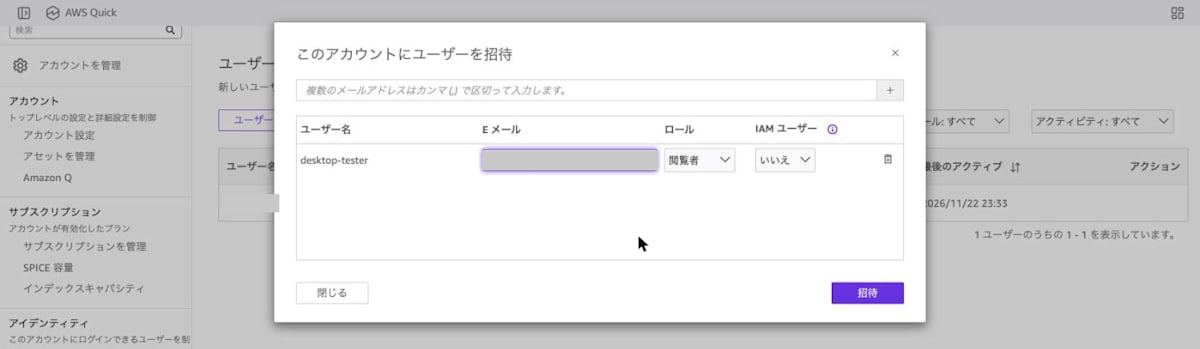
Next, I invite a user from “Manage account” > “Manage users” > “Invite user”. I entered the email address in the “Email” field, chose “Reader” as the role, and invited the user with “IAM user” left as “No”.
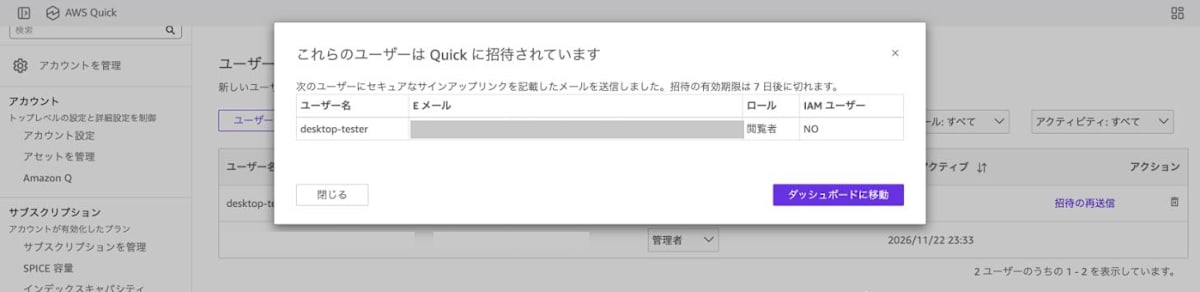
The invitation email was sent, and the invitation's expiration was shown as 7 days.
I set a password from the link in the invitation email and signed in to Quick Web in Chrome as desktop-tester.
Now I sign in to the desktop app as the invited user. On the desktop app's sign-in screen, I opened the Region pull-down. The “Login timed out. Please try again.” at the top is a message displayed when the sign-in I tried before that timed out. Please ignore it.
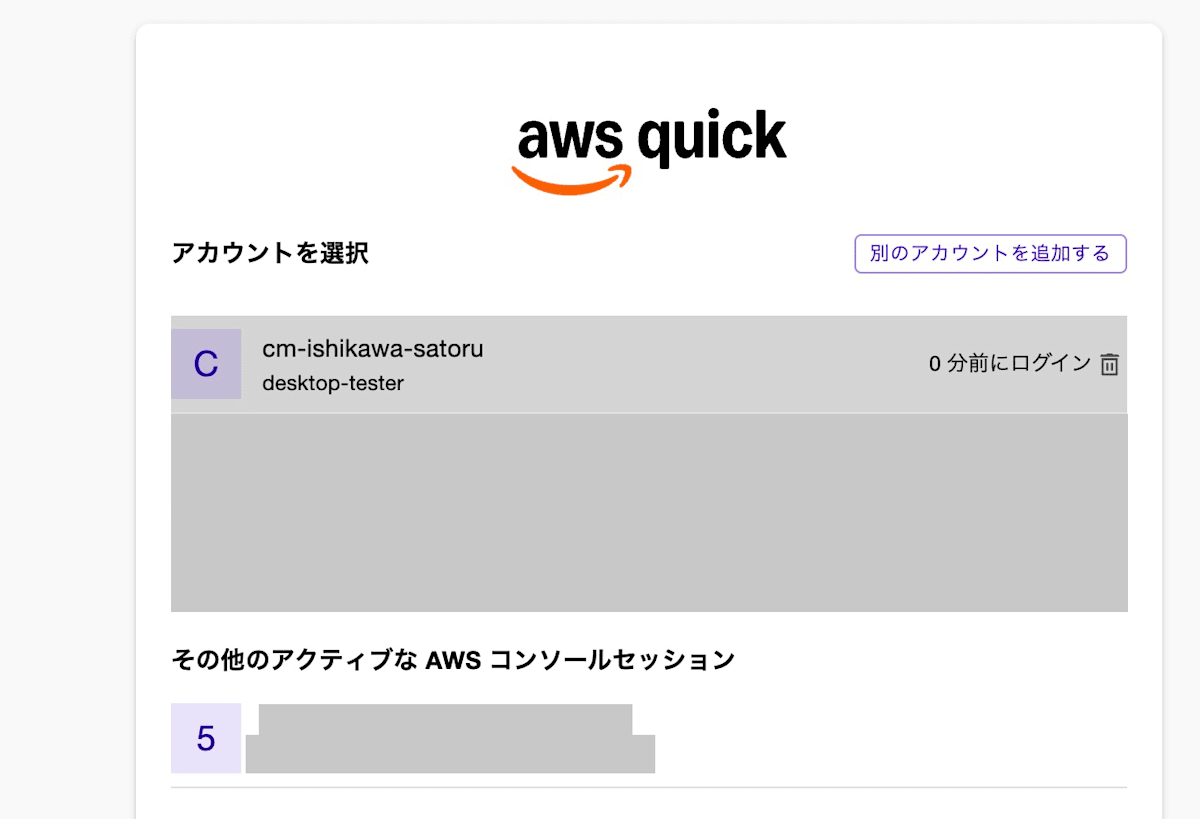
When I selected US East (N. Virginia) and pressed “Continue with SSO”, the browser's account selection screen showed a row for desktop-tester of cm-ishikawa-satoru. Below it, as “Other active AWS console sessions”, the IAM federation user currently signed in to the Management Console was also displayed (the rows for other Quick accounts and the account IDs are hidden). I selected the desktop-tester row.
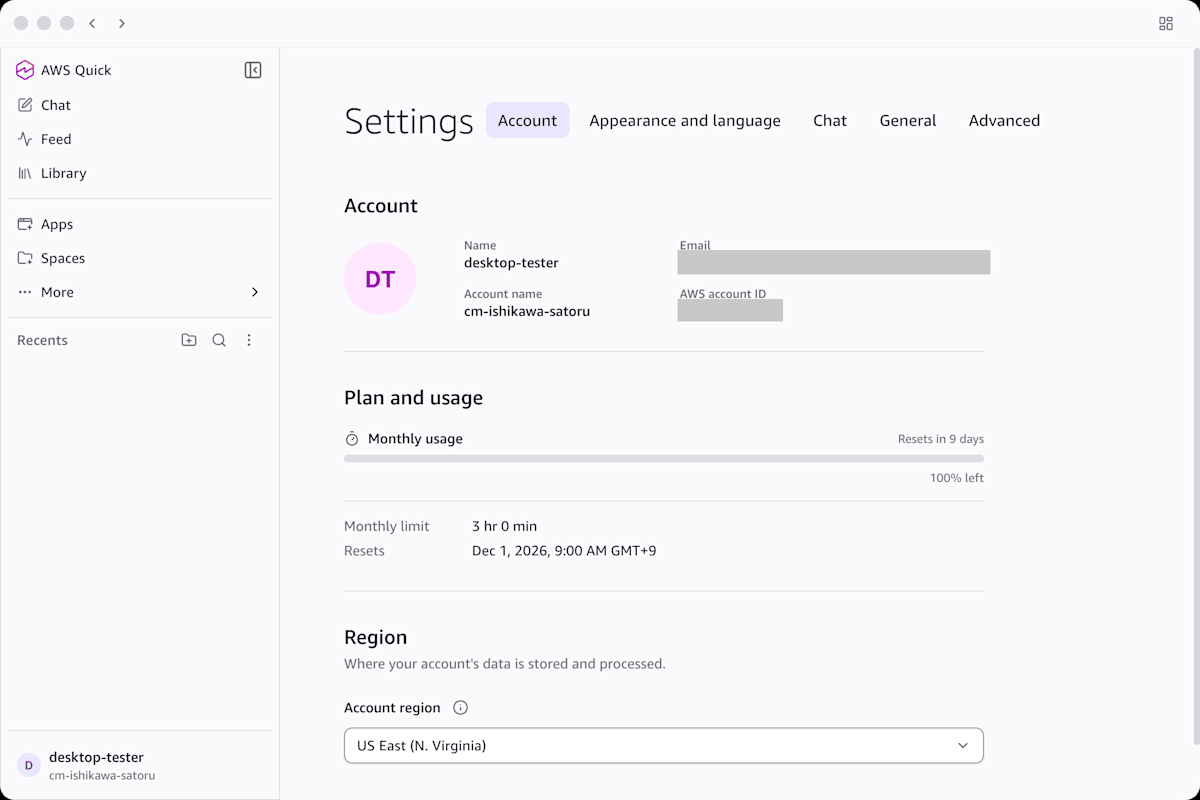
As in the first half, “You're signed in to AWS Quick” was displayed, and the app became ready to use. On the Account tab of the settings screen, Name desktop-tester and Account name cm-ishikawa-satoru are shown. The Monthly limit under Plan and usage was 3 hr 0 min.
The CloudTrail CreateOAuthToken event was recorded with userName as desktop-tester. clientId is the client ID of the OAuth application of the connector that I added again.
{
 "eventTime": "2026-11-22T15:21:21Z",
 "eventName": "CreateOAuthToken",
 "userIdentity": {
  "type": "FederatedUser",
  ...
  "userName": "desktop-tester"
 },
 "requestParameters": {
  "clientId": "yyyyyyy",
  "grantType": "authorization_code",
  "code": "<redacted>",
  "redirectUri": "http://localhost:18080",
  "codeVerifier": "<redacted>",
  "resource": "https://dxxxxxxxx.us-east-1.enterprise.quick.aws.com"
 },
 ...
}
The invited user could also sign in with the same connector and the same flow as the IAM federation user.
Cleaning up after verifying the invited user
To avoid getting stuck at “Setting things up” as in the first half, I signed desktop-tester out of the app before deleting the connector. After signing out, there were 0 entries in profiles.json and 0 quickwork-related items in the Keychain.
entries: 0 | last_active: None
quickwork keychain items: 0
I did the cleanup with the CLI. After deleting the user, when I tried to delete the connector as is, I was told to set it to DISABLED, just like the OAuth application. This is probably why UpdateInboundConnector was called first when deleting in the console.
% aws quicksight delete-user --aws-account-id 123456789012 --namespace default --user-name desktop-tester --region us-east-1
{
    "Status": 200,
    "RequestId": "36cb6ebd-70a0-4899-958e-496b7055470d"
}
% aws quicksight delete-inbound-connector --aws-account-id 123456789012 --inbound-connector-id ibc-desktop-123456789012-us-east-1 --region us-east-1
aws: [ERROR]: An error occurred (ConflictException) when calling the DeleteInboundConnector operation: InboundConnector 'ibc-desktop-123456789012-us-east-1' must be DISABLED before it can be deleted. Disable it and retry.
% aws quicksight update-inbound-connector --aws-account-id 123456789012 --inbound-connector-id ibc-desktop-123456789012-us-east-1 --inbound-connector-status DISABLED --region us-east-1
{
    "Status": 200,
    "RequestId": "2f522c3e-cbfa-4be0-919d-327edb4eabea",
    "InboundConnectorId": "ibc-desktop-123456789012-us-east-1",
    "Arn": "arn:aws:quicksight:us-east-1:123456789012:inbound-connector/ibc-desktop-123456789012-us-east-1",
    "InboundConnectorStatus": "DISABLED",
    "LastUpdatedTime": "2026-11-23T00:35:09.161000+09:00"
}
% aws quicksight delete-inbound-connector --aws-account-id 123456789012 --inbound-connector-id ibc-desktop-123456789012-us-east-1 --region us-east-1
{
    "Status": 200,
    "RequestId": "84f3d068-0fd8-4c09-8c0a-ed8430d85d29",
    "InboundConnectorId": "ibc-desktop-123456789012-us-east-1"
}
As in the first half, I disabled the OAuth application with update-access-control-application --status DISABLED and then deleted it with delete-access-control-application. Finally, I confirmed that the Quick users were back to only the one IAM federation user, and that both the inbound connectors and the OAuth applications were at 0.
Discussion
- The invited user (Quick-managed user) could also use the desktop app with the same connector. In an
IDENTITY_POOLaccount, both IAM federation users and Quick-managed users can sign in with a single connector. It also worked with the reader (Quick Essentials) role. The Monthly limit on the settings screen was 3 hr 0 min, which matched the pricing page's statement that “Essentials includes 3 agent hours per month until January 31, 2027”. - The app's screens differed from the documentation. The documentation describes a step to enter the account name, but in v1.2.4660 the screen is one where you select a Region and press “Continue with SSO”, and the account was selected on the browser side. If you create a procedure manual for users, check the screens with the version of the app you distribute.
- When the connector is deleted, a signed-in app stops working without waiting for the token to expire. This time, a 401 error occurred 18 seconds after deletion, and after restarting, the app stayed stuck at “Setting things up” and did not return to the sign-in screen. I was able to confirm this time that after signing out from the app, neither the
profiles.jsonentry nor the quickwork-related items in the Keychain remained. For that reason, if you delete the connector, having users sign out from the app first should avoid this state (the app's behavior when the connector is deleted after signing out is unverified). If the goal is to stop desktop use, the documentation guides you to restrict the “Quick desktop” capability with custom permissions. - Even if you delete the connector, the OAuth application remains. Because it is not displayed on the console's “Manage OAuth client applications” screen, I had to check it with the CLI (
list-access-control-applications) and set it toDISABLEDbefore deleting it. When deleting the connector with the CLI as well, you need to disable it first withupdate-inbound-connector --inbound-connector-status DISABLED.
Conclusion
In a Quick account configured with IAM federation, I added a desktop connector using “Quick's existing configured sign-in method” and confirmed that I could sign in to the desktop app. There is no need to register an OIDC application in the IdP, and any user who can sign in to Quick Web can start using the desktop app just by selecting the account in the browser. A user invited by email address from the Quick admin console (reader = Quick Essentials) could also use the desktop app with the same connector.
On the other hand, when the connector is deleted, a signed-in app can no longer call the API after 18 seconds, and in v1.2.4660 it ended up in a state where it did not even return to the sign-in screen. In addition, the automatically created OAuth application remains even if the connector is deleted. If you use this in operations, I recommend deciding the steps for disabling and deleting in advance.
If you want to manage desktop sign-in separately on the IdP side, you can still choose the dedicated IdP configuration as before. Also, authentication for invited users is only with a user ID and password, and does not support MFA. Please choose between them according to your organization's requirements.