
In Amazon Connect Customer AI Agent's Agent Assistance, the logged-in user also needs tool permissions.

This page has been translated by machine translation. View original
Problem
I am validating a configuration for Amazon Connect Customer AI Agent's agent assistance that calls a Flow module tool (hereinafter referred to as "flow module tool") from an orchestration-type AI agent.
The security profile associated with the AI agent allows access to the target flow module tool.
However, when I had the AI agent execute the flow module tool from the agent workspace, it failed, and neither the flow module nor the subsequent AWS Lambda function was executed.
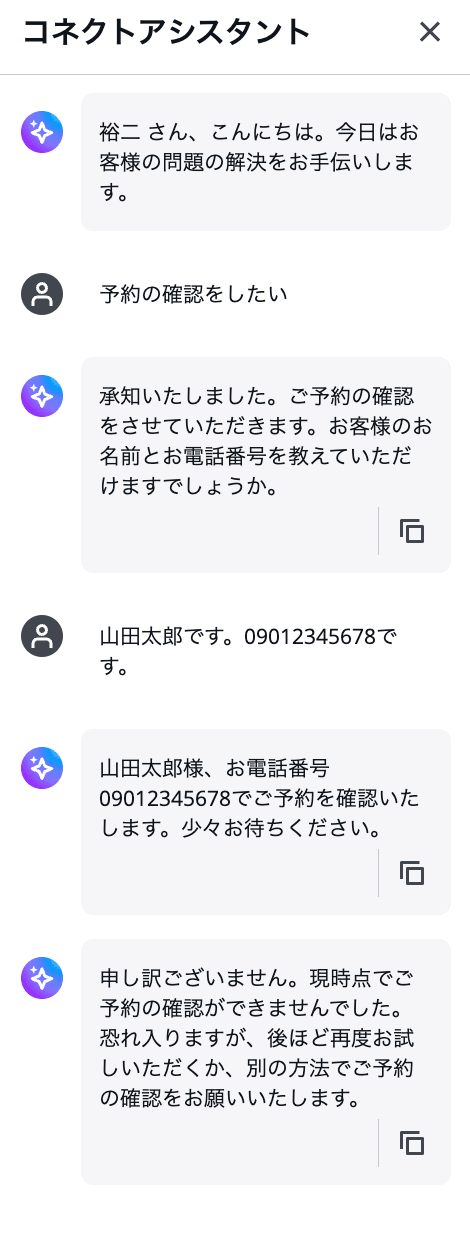
Screen showing failure when executing the flow module tool from the agent workspace
Part of the AI agent log is as follows.
{
  "status": "error",
  "message": "MCP tool execution failed: MCP error -32001: Tool is not allowed"
}
Is it insufficient to only configure tool access permissions on the AI agent side?
Answer
In conclusion, when using an AI agent for agent assistance, not only the AI agent but also the security profile assigned to the logged-in user of the agent workspace must have access permissions to the target tool.
In this article, the user who logs into the agent workspace and uses agent assistance is referred to as the "logged-in user."
In this configuration, access permissions to the flow module tool must be configured for both of the following.
| Permission Target | Required Configuration |
|---|---|
| AI Agent | Allow access to the target flow module tool |
| Logged-in User | Allow access to the same flow module tool in the assigned security profile |
In this validation, Tool is not allowed occurred when only the AI agent side had permissions and the logged-in user side did not.
Why the Logged-in User Also Needs Permissions
The AI agent for agent assistance operates within the session context of the user logged into the agent workspace.
Therefore, tool calls are authorized by combining not only the AI agent's permissions but also the permissions of the security profile assigned to the logged-in user.
Even if the AI agent side has access permissions to a tool, the target tool cannot be executed if the logged-in user side does not have the same permissions.
The official documentation also explains that when using an AI agent for agent assistance, the security profile of the user utilizing the agent workspace must have the same access permissions as the tools configured in the AI agent.
In other words, the following settings must each be verified separately.
- Add the flow module tool to the AI agent
- Allow access to the target tool in the security profile associated with the AI agent
- Allow access to the same tool in the security profile assigned to the logged-in user
Simply adding a tool to the AI agent does not complete the permission configuration required to execute the tool from agent assistance.
Security Profile Configuration
When calling a flow module tool from agent assistance, verify the security profiles for both the AI agent and the logged-in user.
Security Profile on the AI Agent Side
In the security profile associated with the AI agent, allow access to the flow module tool to be called.
The configuration for adding tools in the AI agent settings screen and the access permissions granted by the security profile are separate settings.
Therefore, in addition to confirming that the tool has been added to the AI agent, verify that access to the target tool is permitted in the associated security profile.
Security Profile on the Logged-in User Side
In the security profile assigned to the logged-in user of the agent workspace, also allow access to the flow module tool that the AI agent calls.
In this validation, I opened the security profile assigned to the logged-in user and allowed access to the target flow module tool.
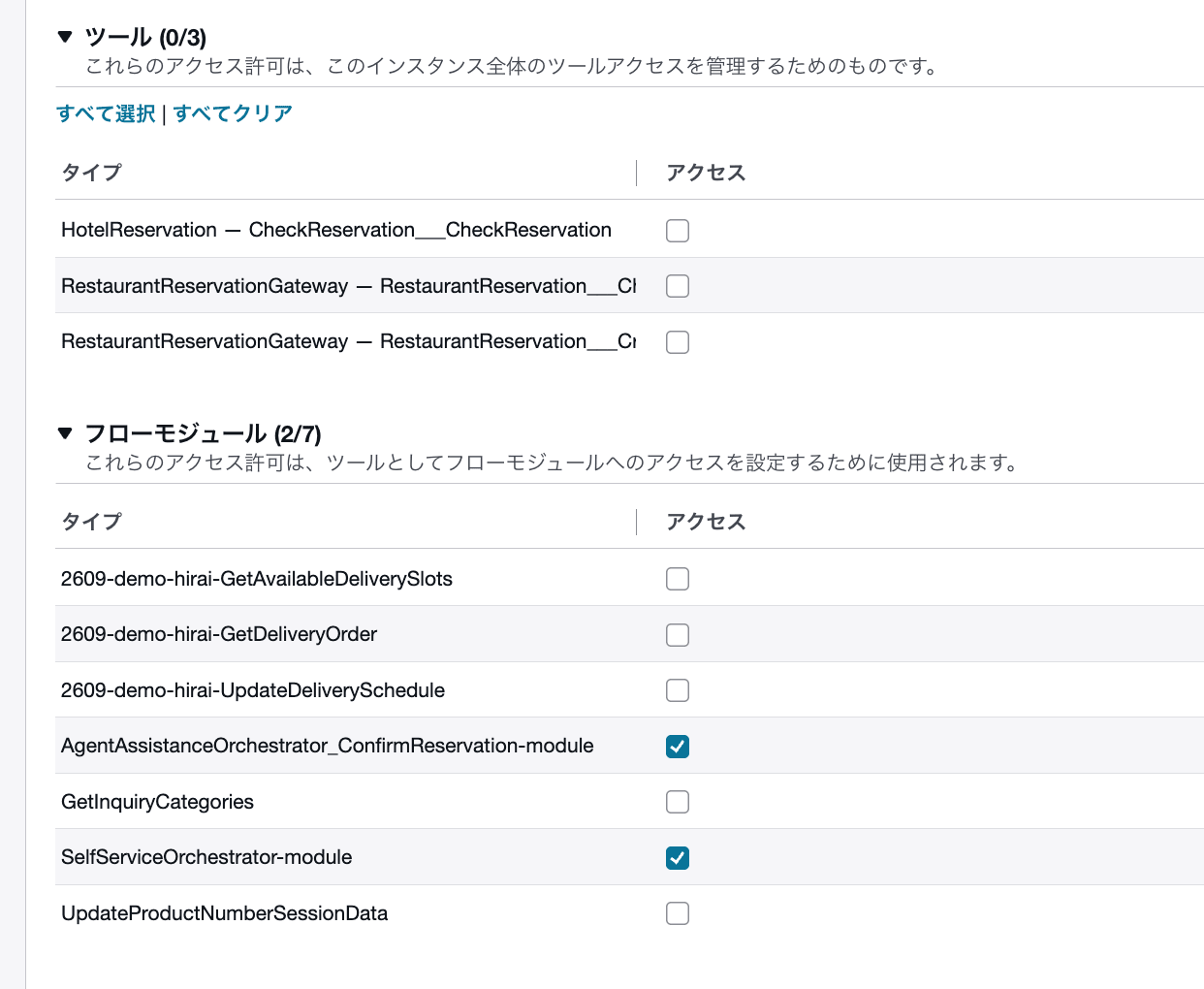
Screen showing the security profile assigned to the logged-in user configured to allow access to the target flow module tool
If multiple security profiles are assigned to a logged-in user, review the entire set of settings applied to that user.
Also, in the security profile, confirm that the flow module tool that the AI agent actually calls is included as an access permission target.
Operation Verification
After allowing access to the target flow module tool in the security profile assigned to the logged-in user, I verified the operation again from the agent workspace.
In this validation, correcting the logged-in user's permissions resolved the following error.
MCP tool execution failed: MCP error -32001: Tool is not allowed
However, after correcting the permissions, a different error occurred.
MCP tool execution failed: Failed to start flow module execution.
Since the error content changed from Tool is not allowed, I determined that the logged-in user's insufficient permissions were resolved, and that a separate issue occurred after tool authorization.
In this validation, after subsequently correcting the flow module configuration, the flow module tool execution succeeded.
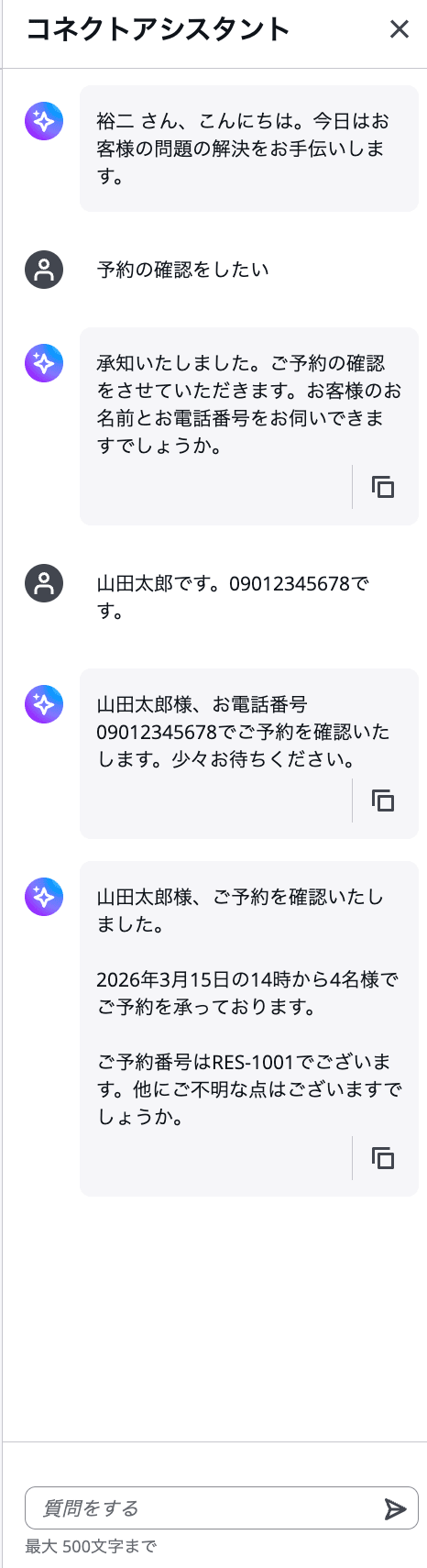
Screen showing successful tool execution after correcting the logged-in user's permissions and the flow module configuration
The two errors confirmed this time need to be investigated separately as follows.
| Error | Cause Confirmed This Time | First Items to Check |
|---|---|---|
MCP error -32001: Tool is not allowed |
Insufficient tool permissions on the logged-in user side | Security profiles of the AI agent and the logged-in user |
Failed to start flow module execution |
Flow module configuration | Configuration of the flow module associated with the flow module tool |
Changes in Errors Observed During This Validation
Tool is not allowed
Initially, the following error occurred when executing the flow module tool.
MCP tool execution failed: MCP error -32001: Tool is not allowed
In this validation, the cause was that access to the target flow module tool was not permitted in the security profile assigned to the logged-in user.
After reviewing the following settings and adding the missing permissions to the logged-in user's security profile, Tool is not allowed was resolved.
- The target flow module tool has been added to the AI agent
- Access to the target tool is permitted in the security profile associated with the AI agent
- Access to the same tool is permitted in the security profile assigned to the logged-in user
At this point, the flow module and subsequent Lambda function were not executed, and no Lambda function logs were output.
That is correct. The main subject of this article is the logged-in user's tool permissions, and Failed to start flow module execution is a supplementary event.
Explaining details such as InvokeLambdaFunction, EndFlowModuleExecution, and the output schema would scatter the article's main focus. It is best to write only that a different error occurred after correcting the permissions, and that it was resolved by correcting the flow module's output configuration, as follows.
Failed to start flow module execution
After correcting the logged-in user's permissions, the following error occurred.
MCP tool execution failed: Failed to start flow module execution.
In this validation, the cause was that the format of the result returned by the flow module did not match the output schema defined in the flow module. After correcting the configuration to return results that matched the output schema, the flow module tool execution succeeded.
The two errors confirmed this time and their resolution results are as follows.
| Error | Cause Confirmed This Time | Action Taken This Time |
|---|---|---|
MCP error -32001: Tool is not allowed |
The logged-in user did not have access permissions to the target tool | Allowed access to the target tool in the security profile assigned to the logged-in user |
Failed to start flow module execution |
The format of the result returned by the flow module did not match the output schema | Corrected the configuration to return results matching the output schema |
Tool is not allowed and Failed to start flow module execution occurred due to different causes in this validation. The former was caused by insufficient permissions on the logged-in user side, and the latter was caused by a mismatch in the flow module's output configuration.
Summary
When using Amazon Connect Customer AI Agent for agent assistance, access permissions to flow module tools are required not only for the AI agent but also for the logged-in user of the agent workspace.
If Tool is not allowed occurs, check whether access to the target tool is permitted in the security profile assigned to the logged-in user.
In this validation, Failed to start flow module execution, which occurred after correcting the permissions, was resolved by matching the format of the result returned by the flow module with the output schema. Since the two errors have different causes, they need to be investigated separately.
