
Amazon Connect customers can now specify call flow versions and aliases

This page has been translated by machine translation. View original
Introduction
Amazon Connect customers can now use flow versions and aliases. When associating a flow with a phone number, you can specify a particular version or alias.
I became aware of this update when I noticed that APIs for manipulating flow aliases had been added to AWS API Changes.
By using aliases, you can switch the content of the flow in use by updating the version that the alias references, rather than changing the association on the phone number side.
In this article, I will try creating versions and aliases for an existing flow, changing the referenced version, associating it with a phone number, and verifying the configuration results.
What Are Versions and Aliases?
The official documentation describes versions and aliases as follows.
| Item | Overview |
|---|---|
| Version | An immutable snapshot that preserves the content of a flow at a specific point in time |
| Alias | A reference to a specific version. The referenced version can be changed |
For example, you can create an alias called prd, associate it with version 1, and then change the reference to version 2 at release time.
The differences when referencing a flow from a phone number are as follows.
| Phone number specification | Flow content referenced |
|---|---|
| Neither version nor alias specified | Latest published content |
| Version specified | The specified version |
| Alias specified | The version associated with the alias |
Specifying a version or alias is optional. If not specified, the latest published content is referenced.
Therefore, simply creating a version does not fix the reference from an existing phone number to that specific version. If you want to separate publishing from switching the referenced content, specify a version or alias on the phone number side as well.
Trying to Configure Versions and Aliases for an Existing Flow
For this exercise, I used an existing flow that was already associated with a phone number.
The configuration proceeds in the following order.
- Verify the association between the existing phone number and flow
- Create version 1 and alias
prd - Modify the flow and create version 2 when publishing
- Change the reference destination of alias
prdto version 2 - Associate alias
prdwith the phone number
In this case, I changed the alias reference destination first, then associated it with the phone number.
Checking the Existing Phone Number Configuration
First, I checked the phone number list.
The "Contact flow/IVR" column showed the existing flow that was already associated.
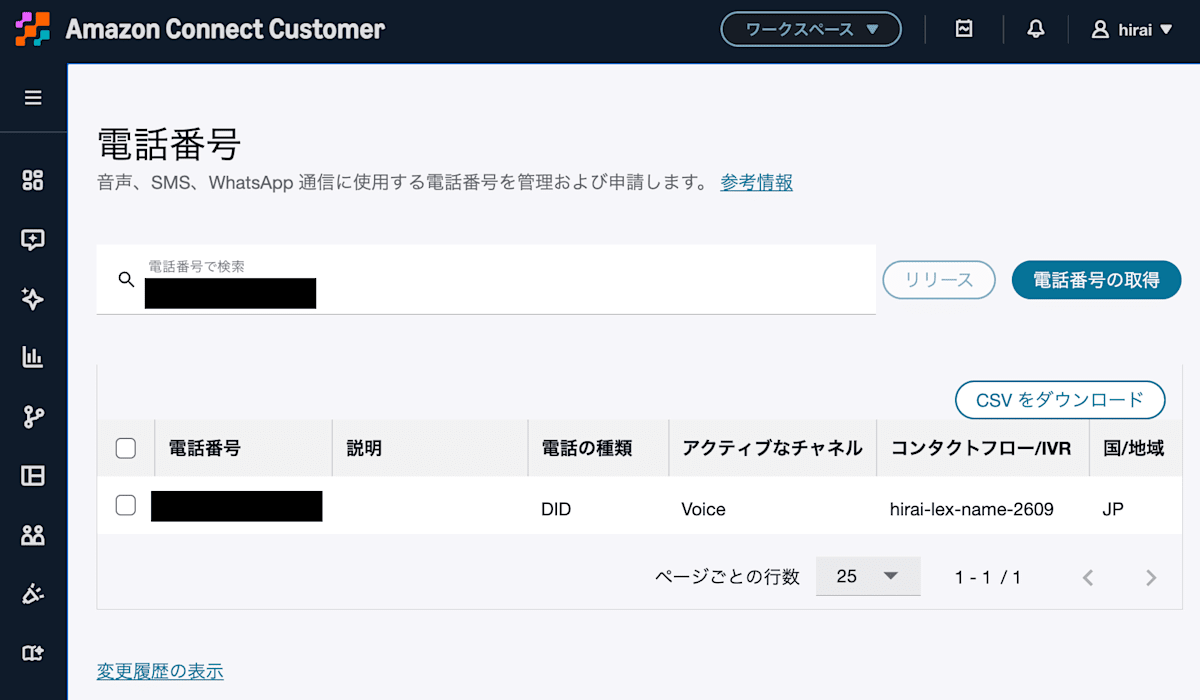
When I clicked the target phone number, a field for specifying an alias or version had been added below the flow selection field.
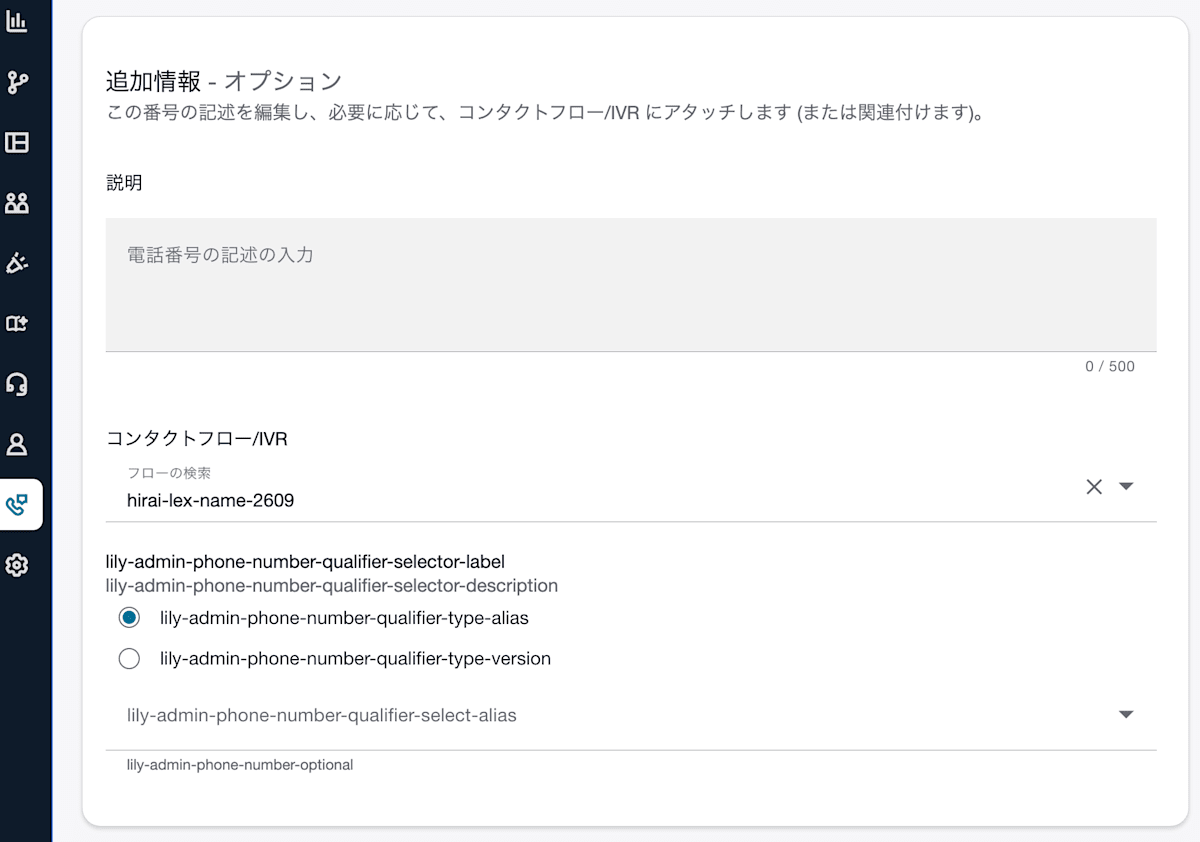
At this point, since no versions or aliases had been created for the target flow, there were no options available to select.
Note that in the environment used for this article, some labels were displayed as strings like lily-admin-… rather than descriptive text at the time of writing. Going forward, those items will be referred to as "alias" and "version."
Creating Version 1 and an Alias
I opened the target flow and checked the [Versions] tab.
The existing flow showed "Versions (0)", meaning no numbered versions had been created yet.
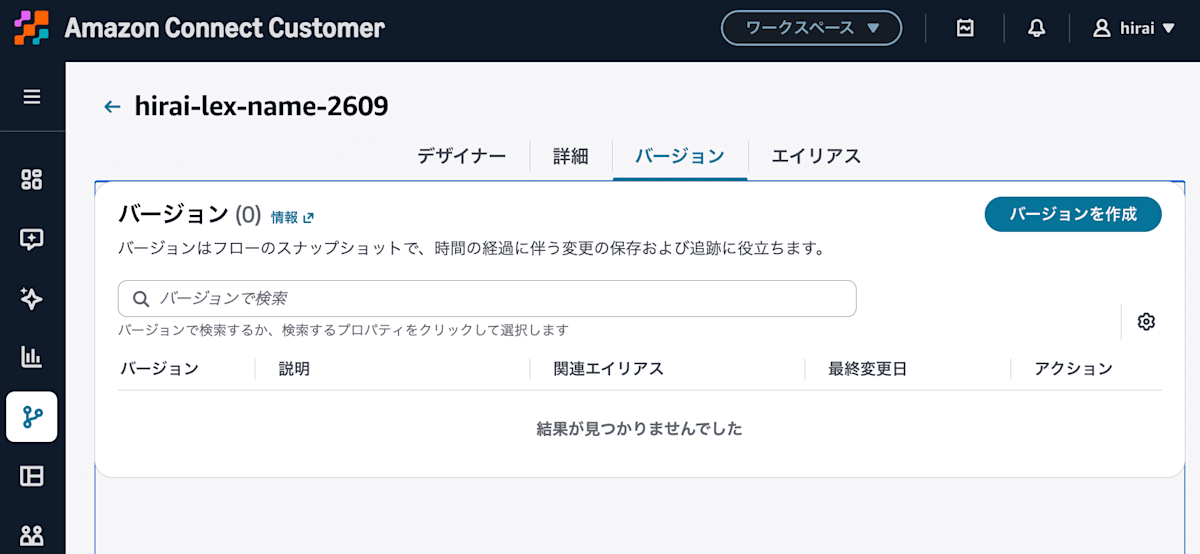
I selected [Create version].
On the creation screen, in addition to a version description, I could also specify an alias association. This time I selected [Create alias] to create both the version and alias on the same screen.
| Setting item | Value used this time |
|---|---|
| Version description | This is version 1. |
| Alias association | Create alias |
| Alias name | prd |
| Alias description | Production environment |
prd is the name I used this time and is not a fixed alias name. Please specify a name that suits your own environment.
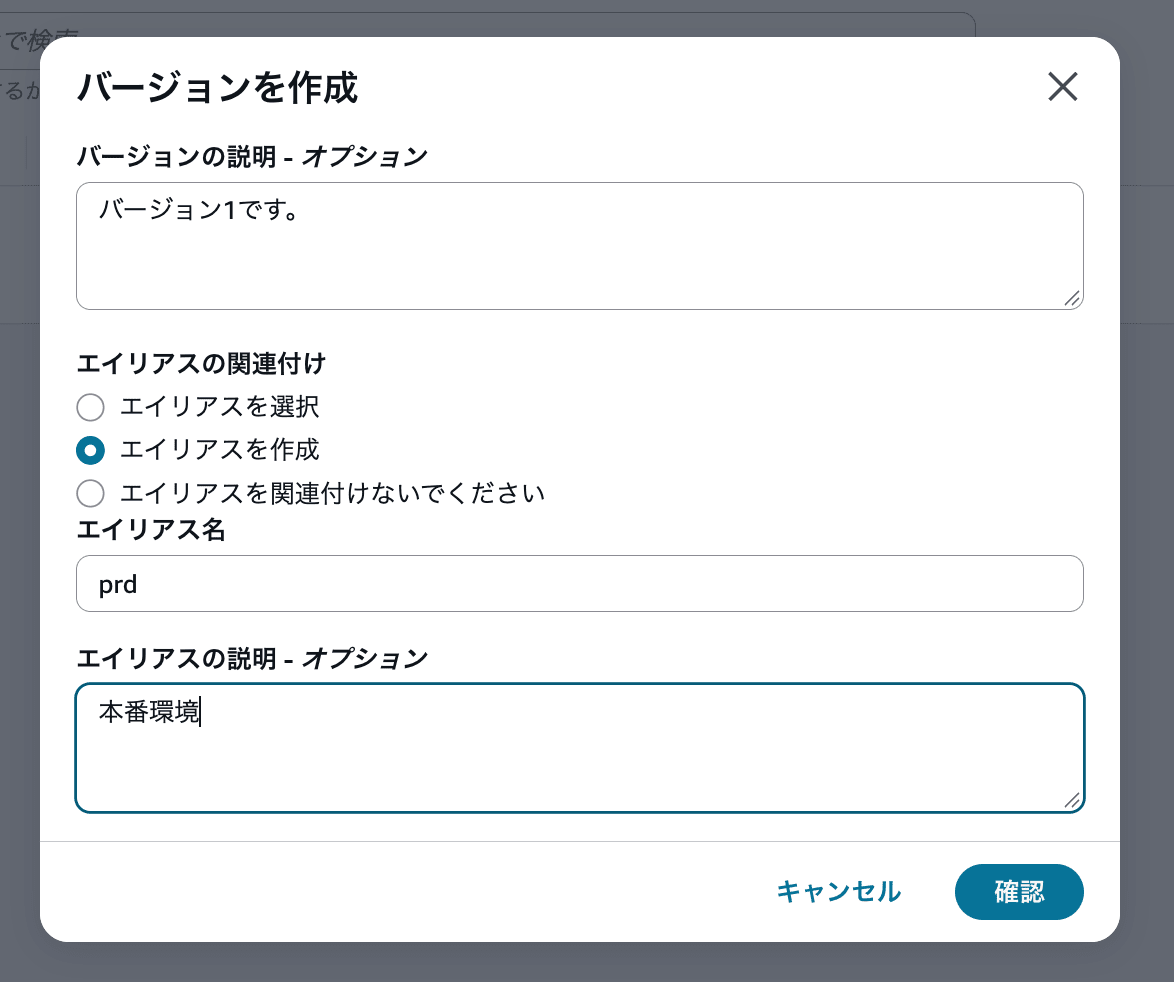
When I selected [Confirm], version 1 was created. prd is also displayed in the "Associated alias" column.
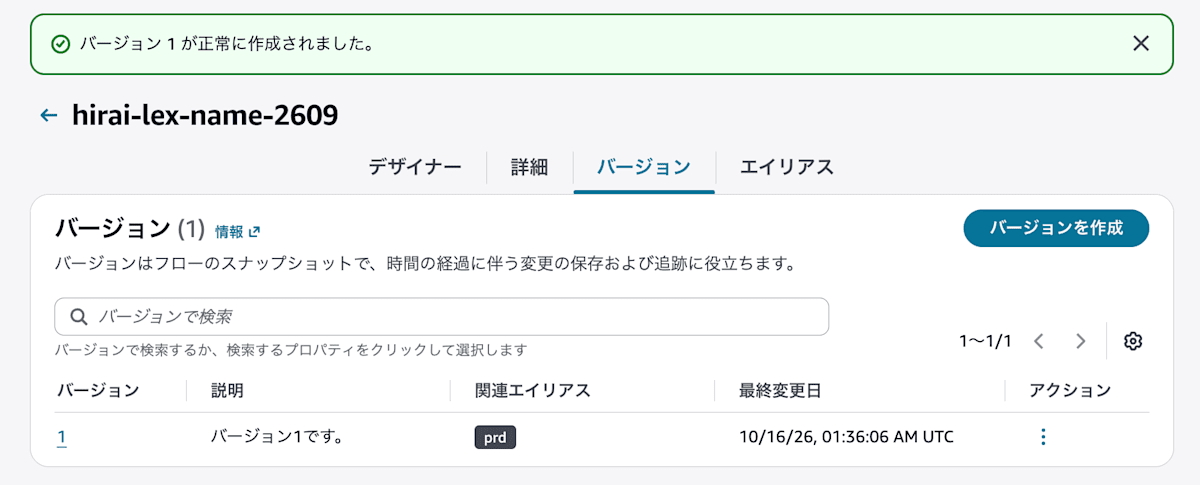
At this point, alias prd is referencing version 1. The association on the phone number side has not been changed yet.
Modifying the Flow and Creating Version 2 When Publishing
Next, I modified the flow and published it.
In the publish dialog, I checked [Create new version]. For the version description, I entered the following.
Version 2
Changed 〇〇
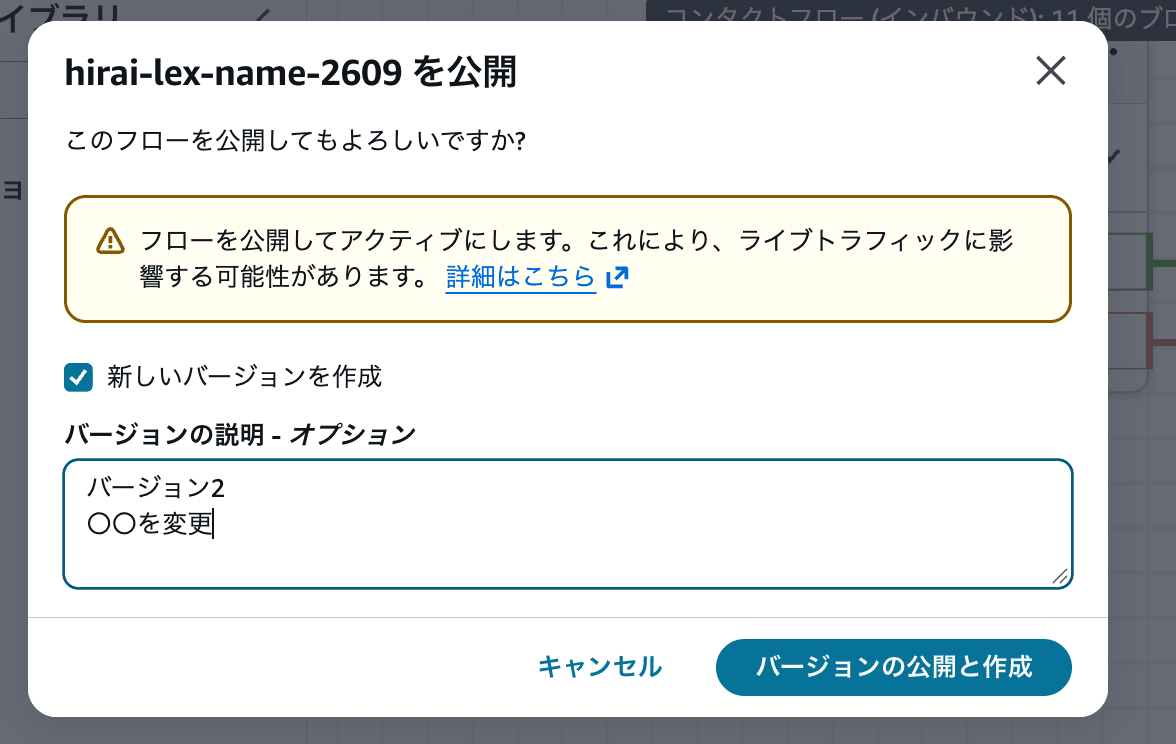
I selected [Publish and create version] to create the new version.
Note that this operation not only creates a version but also publishes the flow. Phone numbers and other sources referencing this flow without specifying a version or alias will reference the latest published content. Please verify the impact on existing references before performing this operation.
Changing the Alias Reference Destination to Version 2
When I opened the [Aliases] tab, the "Associated version" for prd was still 1.
I selected [Edit] from the [Actions] menu for the target row.
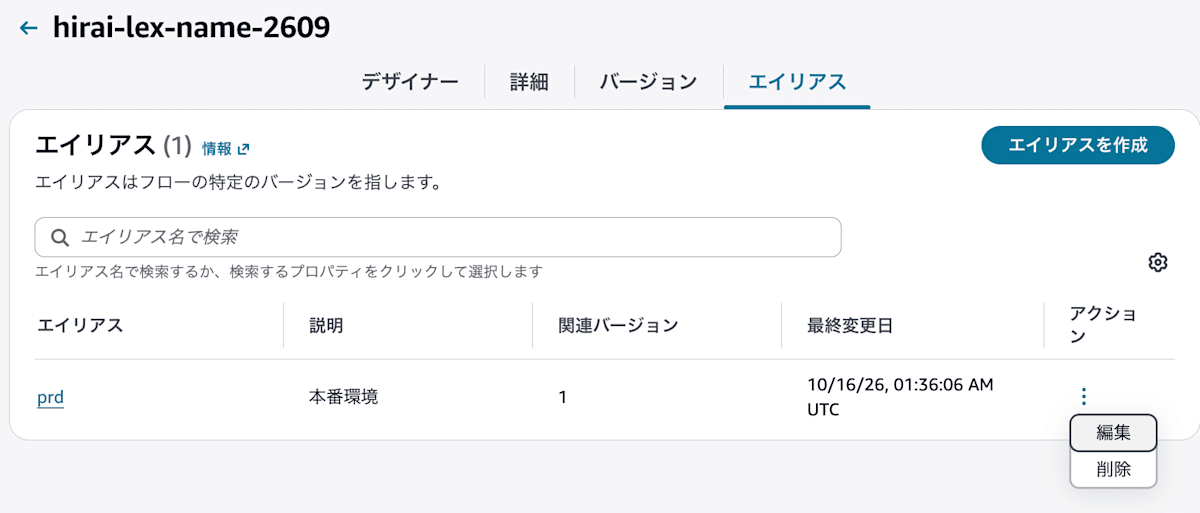
On the update screen, I left the name and description unchanged and changed "Version" to 2.
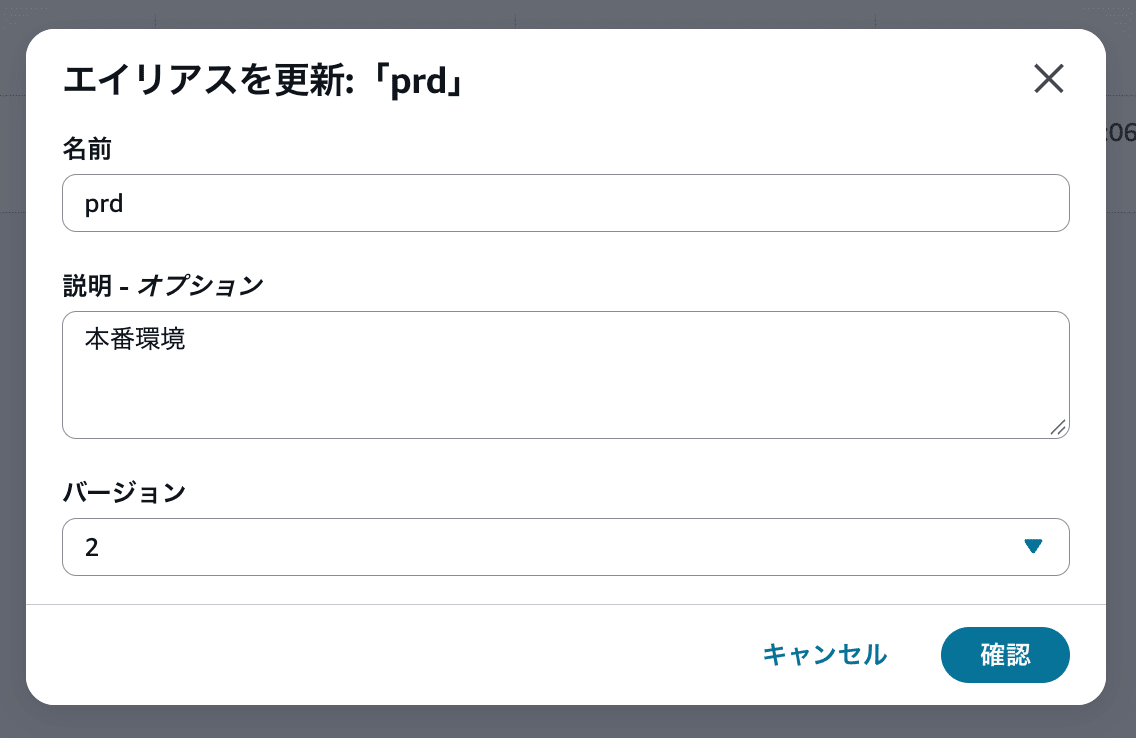
When I selected [Confirm], an update completion message was displayed. The "Associated version" in the list also changed to 2.
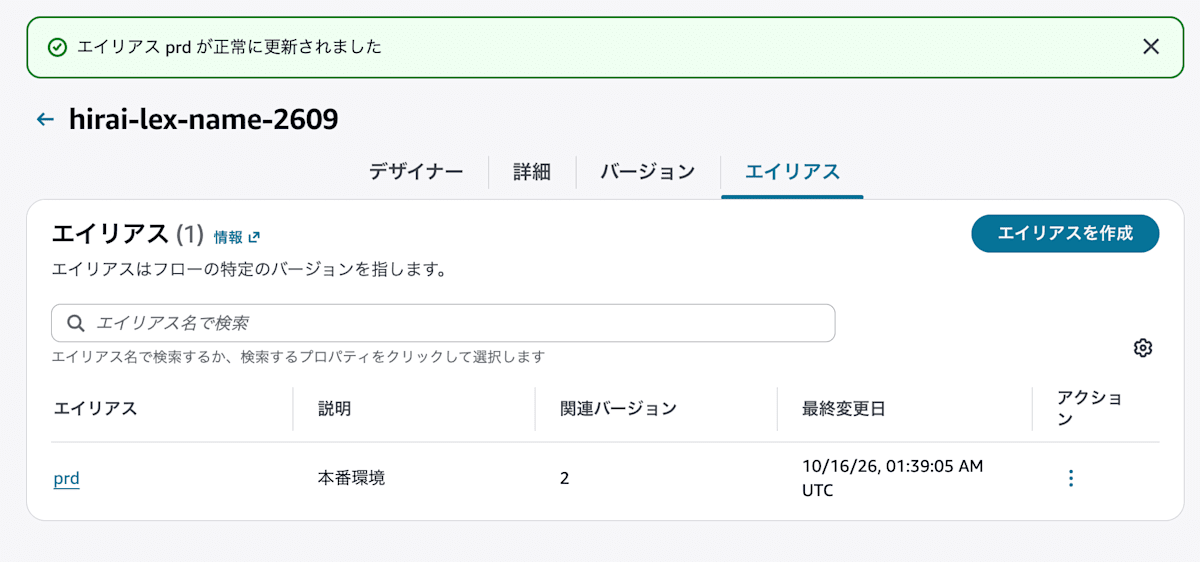
I was able to confirm in the management console that simply creating a new version does not change the reference destination of prd, and that the reference can be changed to version 2 by editing the alias.
Associating an Alias with the Phone Number
I returned to the phone number details screen and selected the target existing flow under "Contact flow/IVR."
When I selected the alias side and opened the selection field, the created prd was displayed. The description "Production environment" was also visible.
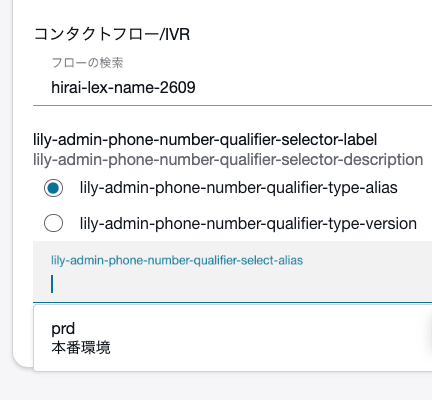
It was also possible to directly select a specific version instead of an alias.
When I selected the version side and opened the selection field, version 1 and version 2 were displayed along with their respective descriptions.
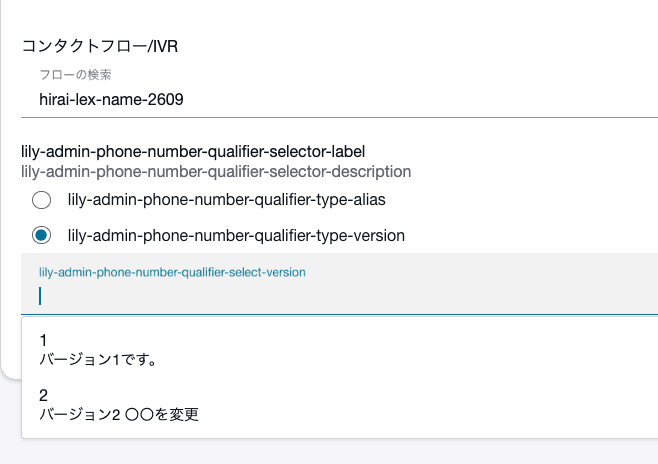
This time, I selected alias prd for the final association and saved. The configuration is as follows.
- Flow associated with phone number: existing flow
- Alias specified:
prd- Alias reference destination: version 2
- Alias specified:
This configured the phone number to reference alias prd.
Verifying the Phone Number Association Results
Checking the Phone Number List Display
After saving with the alias specified, I checked the phone number list.
In this environment, the "Contact flow/IVR" column continued to display only the flow name, and the alias name was not displayed.
From the list alone, it was not possible to determine whether only a flow was specified or whether an alias was also specified.
Checking the Phone Number Details Screen
I clicked the target phone number in the list and opened the details screen.
The existing flow was shown under "Contact flow/IVR," and prd was displayed in the alias selection field.
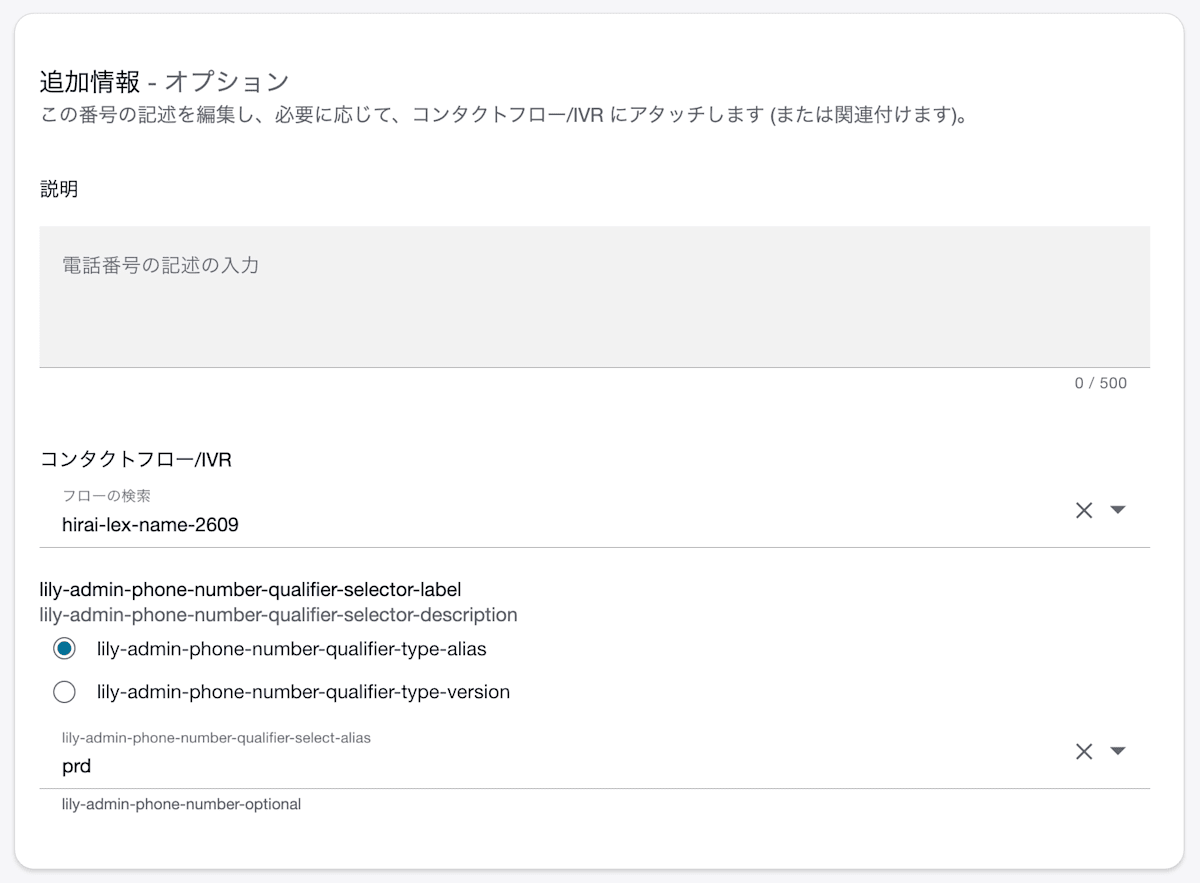
Although the alias name was not displayed in the phone number list, I was able to confirm that prd was associated by opening the details screen.
Checking the Change History
I also checked the change history from [View change history] in the phone number list.
The before-change column showed only the flow name, while the after-change column showed the flow name along with Alias: prd.
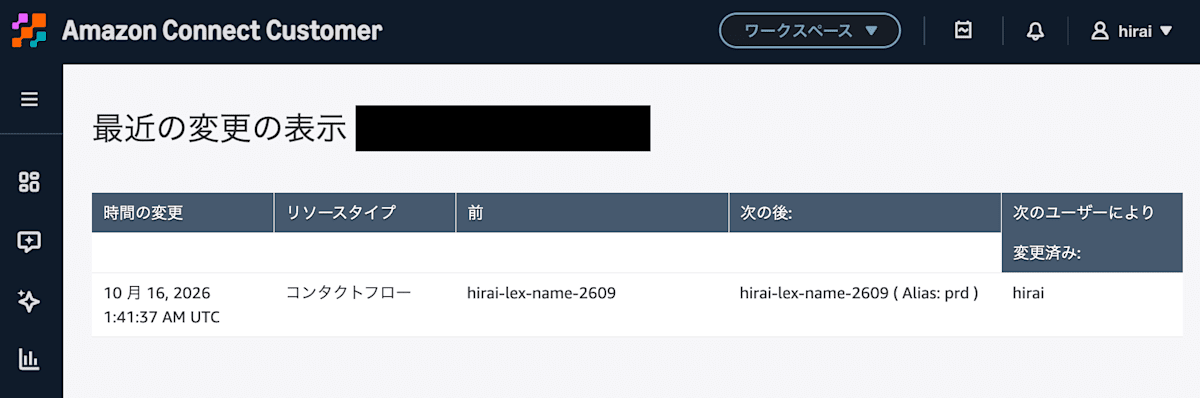
This confirmed that the phone number association had been changed from "flow only" to "flow alias prd."
Summary
I created versions and aliases for an existing Amazon Connect flow and verified the alias reference destination change and phone number association.
In this environment, the alias name was not displayed in the phone number list, but the association could be confirmed from the phone number details screen and change history.
References that do not specify a version or alias will reference the latest published content. When operating with publishing and version switching separated, it is important to verify not only the alias creation but also the association on the phone number side.
