I Tried Checking the Connection with Google Cloud Using the AWS CLI in the Tokyo Region for AWS Interconnect - multicloud

This page has been translated by machine translation. View original
Introduction
In the AWS Interconnect - multicloud region table, the Tokyo-to-Tokyo combination is now selectable.
On the AWS side it is the Tokyo Region (ap-northeast-1), and on the Google Cloud side it is Google Cloud Tokyo (asia-northeast1).
AWS Interconnect had so far been rolled out mainly in North America, but it is now possible to connect from the Tokyo Region to Google Cloud as well.
In this article, after checking the Tokyo Environment with the AWS CLI, I create a 500Mbps Connection on the AWS side and a transport with the same bandwidth on the Google Cloud side, and present the results of checking their states.
Verification
I performed the AWS-side operations with AWS CLI 2.39.0 and the Google Cloud-side operations with the gcloud CLI (Google Cloud SDK 591.0.0).
Tokyo Environment
I retrieved the list of Environments in the Tokyo Region.
aws interconnect list-environments --region ap-northeast-1
{
    "environments": [
        {
            "provider": {
                "cloudServiceProvider": "gcp"
            },
            "location": "asia-northeast1",
            "environmentId": "mce-aws-gcp-nrt",
            "state": "available",
            "bandwidths": {
                "available": [
                    "500Mbps",
                    "1Gbps",
                    "2Gbps",
                    "5Gbps",
                    "10Gbps",
                    "20Gbps",
                    "50Gbps"
                ],
                "supported": [
                    "500Mbps",
                    "1Gbps",
                    "2Gbps",
                    "5Gbps",
                    "10Gbps",
                    "20Gbps",
                    "50Gbps"
                ]
            },
            "type": "Multicloud",
            "remoteIdentifierType": "account"
        }
    ]
}
The only Environment returned for the Tokyo Region was the one for Google Cloud (asia-northeast1), and its state is available. A state of available means the Environment is usable and new Connections can be requested. In bandwidths, available is the bandwidth currently usable, and supported is the bandwidth the Environment plans to support. Both had seven options, from 500Mbps to 50Gbps.
remoteIdentifierType is the type of identifier passed to remoteAccount when creating a Connection. Its value is account. In the procedure in the GA blog, a Google Cloud project ID is specified here.
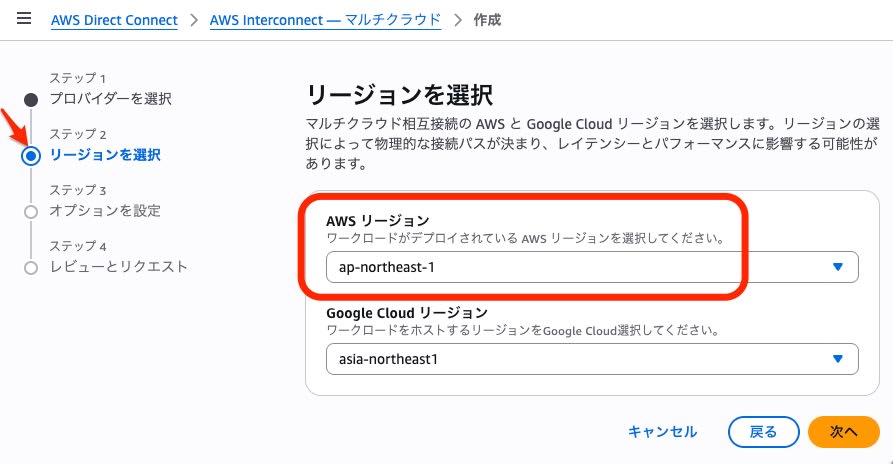
In the management console, in step 2 of the Connection creation wizard, you can select the AWS Region ap-northeast-1 and the Google Cloud region asia-northeast1.
Attach Point
Specifying an Attach Point is required to create a Connection, and this time I specified a Direct Connect Gateway. Without a Direct Connect Gateway, list-attach-points returned an empty array ("attachPoints": []). After I created a Direct Connect Gateway, one Attach Point was returned for the same Environment.
I created the Direct Connect Gateway with the following command.
aws directconnect create-direct-connect-gateway \
  --region ap-northeast-1 \
  --direct-connect-gateway-name <dxgw-name> \
  --amazon-side-asn 64512
Here is the list of Attach Points after creation.
aws interconnect list-attach-points --region ap-northeast-1 --environment-id mce-aws-gcp-nrt
{
    "attachPoints": [
        {
            "type": "DirectConnectGateway",
            "identifier": "<dxgw-id>",
            "name": "<dxgw-name>"
        }
    ]
}
Creating the Connection
I created a 500Mbps Connection to Google Cloud in Tokyo with the following command.
aws interconnect create-connection \
  --region ap-northeast-1 \
  --bandwidth 500Mbps \
  --attach-point directConnectGateway=<dxgw-id> \
  --environment-id mce-aws-gcp-nrt \
  --remote-account identifier=<google-cloud-project-id>
According to the help of AWS CLI 2.39.0, three parameters are required: bandwidth, Attach Point, and Environment ID. For the Attach Point, you specify either directConnectGateway (the ID of the Direct Connect Gateway) or arn. --remote-account is optional, but in the command above I passed the Google Cloud project ID, following the procedure in the GA blog.
The state immediately after creation was requested. The response contained the provider (gcp), location (asia-northeast1), bandwidth (500Mbps), and an activationKey (activation key). The help says that you hand this activation key to the portal of the other side (Google Cloud in this case) and confirm the connection on both sides.
Transport on the Google Cloud side
On the Google Cloud side, I enabled the Network Connectivity API and then created a transport.
When creating it, I passed the activation key, the VPC network, and the routes to advertise. According to the help, --advertised-routes is optional. This time I specified one range of an existing subnet in the default VPC.
gcloud services enable networkconnectivity.googleapis.com

gcloud network-connectivity transports create <transport-name> \
  --region=asia-northeast1 \
  --activation-key=<activation-key> \
  --network=default \
  --advertised-routes=<cidr>
Here is an excerpt of the transport after creation.
gcloud network-connectivity transports describe <transport-name> --region=asia-northeast1 --format=yaml
bandwidth: BPS_500M
remoteProfile: projects/<project-id>/locations/asia-northeast1/remoteTransportProfiles/aws-ap-northeast-1
stackType: IPV4_ONLY
state: CREATING
The overview page for Partner Cross-Cloud Interconnect states that the connection bandwidth is "1 Gbps to 100 Gbps". This time I was able to create a 500Mbps transport as well.
According to the same overview page, by default you can have up to one transport per project per region.
In the transport details in the Google Cloud console, the bandwidth field showed "500 MB/s", while the API value was BPS_500M.
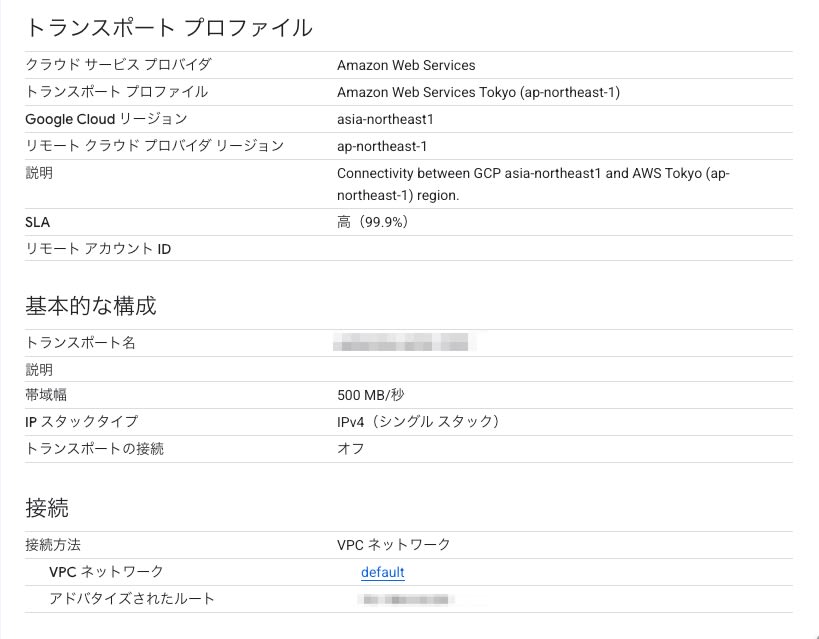
State after creation
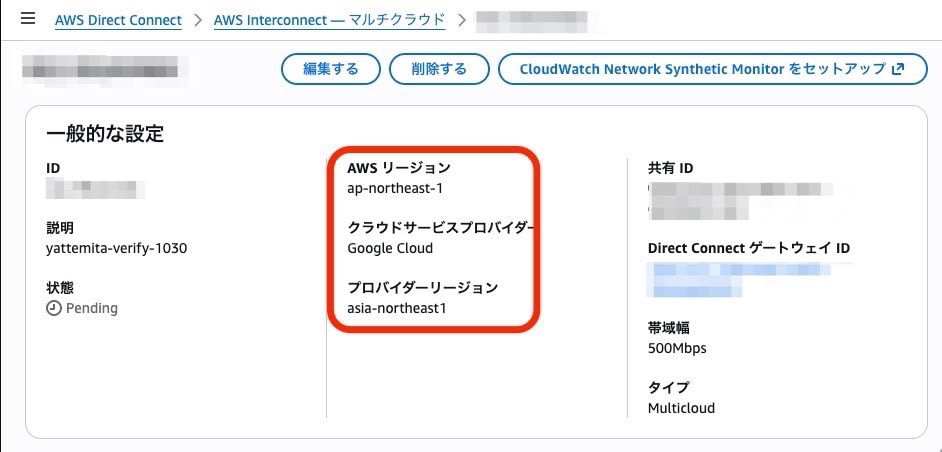
The Connection on the AWS side changed from requested to pending.
The transport on the Google Cloud side changed from CREATING to PENDING_CONFIG. I confirmed PENDING_CONFIG about 7 minutes after the transport was created.
In the procedure in the GA blog, after the transport reaches PENDING_CONFIG, you create peering. The peering is set up between the Google Cloud VPC and the peeringNetwork included in the transport's output. The IP address ranges of the VPCs on the Google Cloud side and the AWS side cannot overlap. The GA blog then confirms that the Connection on the AWS side becomes available.
This time I deleted the transport and the Connection without creating the peering, so the Connection did not progress to available.
I deleted the resources in this order: the transport on the Google Cloud side, the Connection on the AWS side, and the Direct Connect Gateway. Even after running delete-connection, the Connection on the AWS side stayed pending while waiting for the transport deletion. When I checked about 5 minutes after requesting deletion, the transport had disappeared from the list and the Connection was deleted. I deleted the Direct Connect Gateway after confirming that the Connection had become deleted.
Commands used for deletion
gcloud network-connectivity transports delete <transport-name> \
  --region=asia-northeast1 --async

aws interconnect delete-connection \
  --region ap-northeast-1 \
  --identifier <connection-id>

# After the transport disappears from the list and the Connection becomes deleted
aws directconnect delete-direct-connect-gateway \
  --region ap-northeast-1 \
  --direct-connect-gateway-id <dxgw-id>
Pricing
On the AWS side, for each GA CSP and each AWS Region, you can use one local (Tier 1) 500Mbps Connection for free. The 500Mbps Connection to Google Cloud in Tokyo meets the bandwidth and CSP conditions. Whether it counts as local (Tier 1) is determined by whether the endpoint connected via the Direct Connect Gateway is in the same Region as the Connection. The AWS Service Terms apply to this free tier.
On the Google Cloud side, separately from the AWS charges, an hourly fee is charged per transport. The billed party is the project that owns the transport. The bandwidths listed in the pricing table are four: 1 Gbps, 5 Gbps, 10 Gbps, and 100 Gbps, and I could not confirm the current unit price for 500Mbps.
Summary
With AWS Interconnect, connecting from the Tokyo Region to Google Cloud is now possible. If you have a requirement to connect the Tokyo Regions of AWS and Google Cloud, please consider it as a strong candidate.
This time the support launched in Tokyo was for Google Cloud, but I look forward to expansion to other cloud services as well.
