AWS Interconnect - multicloud の東京リージョンで Google Cloud との接続を AWS CLI で確認してみた

はじめに
AWS Interconnect - multicloud のリージョン表で、東京同士の組み合わせが選択可能になりました。
AWS 側は東京リージョン(ap-northeast-1)、Google Cloud 側は Google Cloud Tokyo(asia-northeast1)です。
AWS Interconnect はこれまで北米中心の展開でしたが、東京リージョンから Google Cloud へも接続できるようになりました。
この記事では、AWS CLI で東京の Environment を確認したうえで、AWS 側で 500Mbps の Connection を、Google Cloud 側で同じ帯域の transport を作成し、状態を確認した結果を紹介します。
検証内容
AWS 側の操作は AWS CLI 2.39.0、Google Cloud 側の操作は gcloud CLI(Google Cloud SDK 591.0.0)で行いました。
東京の Environment
東京リージョンの Environment の一覧を取得しました。
aws interconnect list-environments --region ap-northeast-1
{
    "environments": [
        {
            "provider": {
                "cloudServiceProvider": "gcp"
            },
            "location": "asia-northeast1",
            "environmentId": "mce-aws-gcp-nrt",
            "state": "available",
            "bandwidths": {
                "available": [
                    "500Mbps",
                    "1Gbps",
                    "2Gbps",
                    "5Gbps",
                    "10Gbps",
                    "20Gbps",
                    "50Gbps"
                ],
                "supported": [
                    "500Mbps",
                    "1Gbps",
                    "2Gbps",
                    "5Gbps",
                    "10Gbps",
                    "20Gbps",
                    "50Gbps"
                ]
            },
            "type": "Multicloud",
            "remoteIdentifierType": "account"
        }
    ]
}
東京リージョンで返った Environment は Google Cloud(asia-northeast1)向けの1件で、state は available です。state の available は、Environment が利用可能で、新しい Connection をリクエストできる状態を指します。bandwidths の available は現在使える帯域、supported はその Environment が対応を予定している帯域です。どちらも 500Mbps から 50Gbps までの7種でした。
remoteIdentifierType は、Connection の作成時に remoteAccount へ渡す識別情報の種類です。値は account です。GA ブログの手順では、ここに Google Cloud のプロジェクト ID を指定しています。
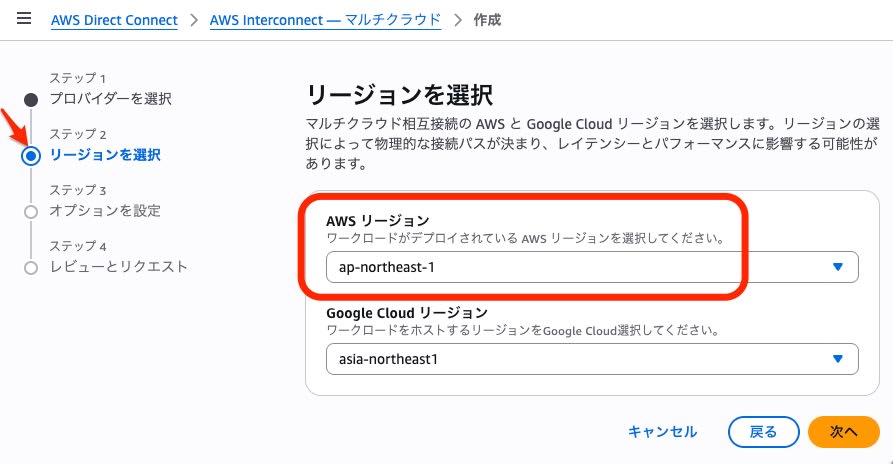
マネジメントコンソールでは、Connection 作成ウィザードのステップ2で、AWS リージョン ap-northeast-1 と Google Cloud リージョン asia-northeast1 を選べます。
Attach Point
Connection の作成には Attach Point の指定が必須で、今回は Direct Connect Gateway を指定しました。Direct Connect Gateway がない状態では、list-attach-points が空配列("attachPoints": [])を返しました。Direct Connect Gateway を作成した後は、同じ Environment で Attach Point が1件返りました。
Direct Connect Gateway は次のコマンドで作成しました。
aws directconnect create-direct-connect-gateway \
  --region ap-northeast-1 \
  --direct-connect-gateway-name <dxgw-name> \
  --amazon-side-asn 64512
作成後の Attach Point の一覧です。
aws interconnect list-attach-points --region ap-northeast-1 --environment-id mce-aws-gcp-nrt
{
    "attachPoints": [
        {
            "type": "DirectConnectGateway",
            "identifier": "<dxgw-id>",
            "name": "<dxgw-name>"
        }
    ]
}
Connection の作成
東京の Google Cloud 向けに、500Mbps の Connection を次のコマンドで作成しました。
aws interconnect create-connection \
  --region ap-northeast-1 \
  --bandwidth 500Mbps \
  --attach-point directConnectGateway=<dxgw-id> \
  --environment-id mce-aws-gcp-nrt \
  --remote-account identifier=<google-cloud-project-id>
AWS CLI 2.39.0 の help によると、帯域、Attach Point、Environment ID の3つが必須です。Attach Point は、directConnectGateway(Direct Connect Gateway の ID)か arn のどちらか一方を指定します。--remote-account は任意ですが、上のコマンドでは GA ブログの手順に合わせて、Google Cloud のプロジェクト ID を渡しました。
作成直後の state は requested でした。応答には、provider(gcp)、location(asia-northeast1)、bandwidth(500Mbps)と、activationKey(アクティベーションキー)が入っていました。help には、このアクティベーションキーを相手側(今回は Google Cloud)のポータルへ渡し、両側で接続を確定すると書かれています。
Google Cloud 側の transport
Google Cloud 側では、Network Connectivity API を有効にしてから、transport を作成しました。
作成時に、アクティベーションキー、VPC ネットワーク、アドバタイズするルートを渡しました。--advertised-routes は、help によると任意です。今回は default VPC の既存サブネットの範囲を1つ指定しました。
gcloud services enable networkconnectivity.googleapis.com

gcloud network-connectivity transports create <transport-name> \
  --region=asia-northeast1 \
  --activation-key=<activation-key> \
  --network=default \
  --advertised-routes=<cidr>
作成後の transport の抜粋です。
gcloud network-connectivity transports describe <transport-name> --region=asia-northeast1 --format=yaml
bandwidth: BPS_500M
remoteProfile: projects/<project-id>/locations/asia-northeast1/remoteTransportProfiles/aws-ap-northeast-1
stackType: IPV4_ONLY
state: CREATING
Partner Cross-Cloud Interconnect の概要ページには、接続の帯域が「1 Gbps から 100 Gbps」と書かれています。今回は 500Mbps の transport も作成できました。
同じ概要ページによると、transport は既定で1プロジェクト・1リージョンあたり1つまでです。
Google Cloud コンソールの transport 詳細では帯域幅の欄が「500 MB/秒」、API の値は BPS_500M でした。
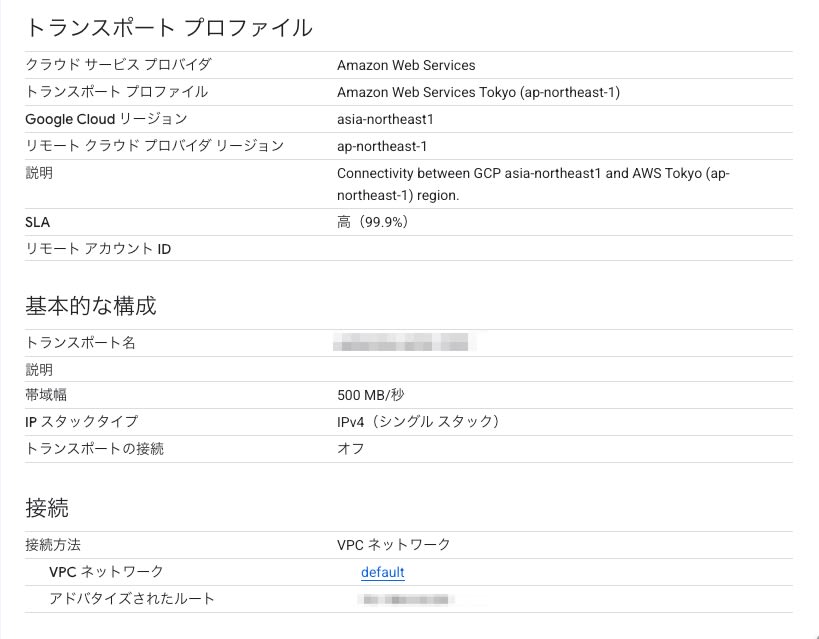
作成後の状態
AWS 側の Connection は requested から pending に変わりました。
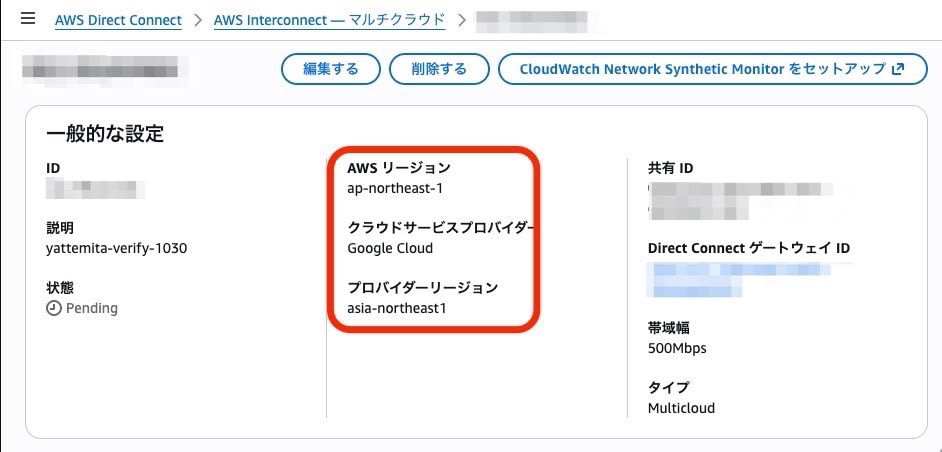
Google Cloud 側の transport は CREATING から PENDING_CONFIG に変わりました。PENDING_CONFIG を確認したのは、transport の作成から約7分後でした。
GA ブログの手順では、transport が PENDING_CONFIG になった後、ピアリングを作成します。ピアリングは、Google Cloud の VPC と、transport の出力に含まれる peeringNetwork との間に張ります。Google Cloud 側と AWS 側の VPC の IP アドレス範囲は重複させられません。GA ブログでは、その後 AWS 側の Connection が available になることを確認しています。
今回はピアリングを作らずに transport と Connection を削除したため、Connection は available まで進めていません。
削除は、Google Cloud 側の transport、AWS 側の Connection、Direct Connect Gateway の順に行いました。AWS 側の Connection は delete-connection を実行した後も、transport の削除を待つ間は pending のままでした。削除を要求してから約5分後に確認すると、transport は一覧から消え、Connection も deleted になっていました。Direct Connect Gateway は、Connection が deleted になったのを確認してから削除しています。
削除に使ったコマンド
gcloud network-connectivity transports delete <transport-name> \
  --region=asia-northeast1 --async

aws interconnect delete-connection \
  --region ap-northeast-1 \
  --identifier <connection-id>

# transport が一覧から消え、Connection が deleted になってから
aws directconnect delete-direct-connect-gateway \
  --region ap-northeast-1 \
  --direct-connect-gateway-id <dxgw-id>
料金
AWS 側では、GA 済みの CSP ごと・AWS リージョンごとに、ローカル(Tier 1)の 500Mbps の Connection を1本まで無料で利用できます。東京の Google Cloud 向けの 500Mbps の Connection は、帯域と CSP の条件を満たします。ローカル(Tier 1)に当たるかは、Direct Connect Gateway 経由でつなぐエンドポイントが Connection と同じリージョンにあるかで決まります。この無料枠には AWS Service Terms が適用されます。
Google Cloud 側では、AWS の料金とは別に、transport ごとに時間単位の料金がかかります。課金先は transport を持つプロジェクトです。料金表に載っている帯域は 1 Gbps、5 Gbps、10 Gbps、100 Gbps の4つで、500Mbps の現時点での単価は確認できませんでした。
まとめ
AWS Interconnect で、東京リージョンから Google Cloud への接続が可能になりました。AWS と Google Cloud の東京リージョンを接続する要件がある場合、有力な候補としてご検討ください。
今回東京でサポートが開始されたのは Google Cloud でしたが、他のクラウドサービスへの展開にも期待したいと思います。