![[Quick Tip] I tried having Claude Code organize the commands I always manually approve into /fewer-permission-prompts](https://images.ctfassets.net/ct0aopd36mqt/3KBTm8tdpO9RJJuaVvVzod/a9964bb03097b448b2327edc6920bf9f/Claude.png?w=3840&fm=webp)
[Quick Tip] I tried having Claude Code organize the commands I always manually approve into /fewer-permission-prompts

This page has been translated by machine translation. View original
Introduction
Hello, I'm Masaoka from the AI Business Division, Generative AI Integration Department, West Japan Development Team.
When using Claude Code, there are situations where you need to manually approve the same commands over and over. You could add them to the allow list, but sometimes it's hard to know what to add.
That's where Claude Code's built-in skill /fewer-permission-prompts comes in handy. This time, I actually ran it to see what gets added to the allow list.
In this article, I'll briefly introduce the results of actually running /fewer-permission-prompts and the caveats I noticed along the way. I won't cover auto mode or the details of allow list syntax.
What is /fewer-permission-prompts
It's a skill built into Claude Code that you can launch simply by typing /fewer-permission-prompts. What it does is straightforward, and it works as follows.
- Scans transcripts from up to the 50 most recent sessions under
~/.claude/projects/(across all projects, not just the current one) - Tallies the number of Bash command and MCP tool calls
- Filters down to read-only ones, excluding those already auto-approved or those that enable arbitrary code execution
- Presents up to the top 20 items that appeared 3 or more times, sorted by frequency
- Merges them into the project's
.claude/settings.json
This skill is most effective for people who aren't using auto mode and are approving everything manually.
Trying It Out
This time, I ran it from a state where there was no .claude/settings.json under the project, to make the behavior easier to observe.
When I ran /fewer-permission-prompts, the transcripts from the 50 most recent sessions were scanned. In my environment, 565 Bash calls and 52 MCP calls were targeted.
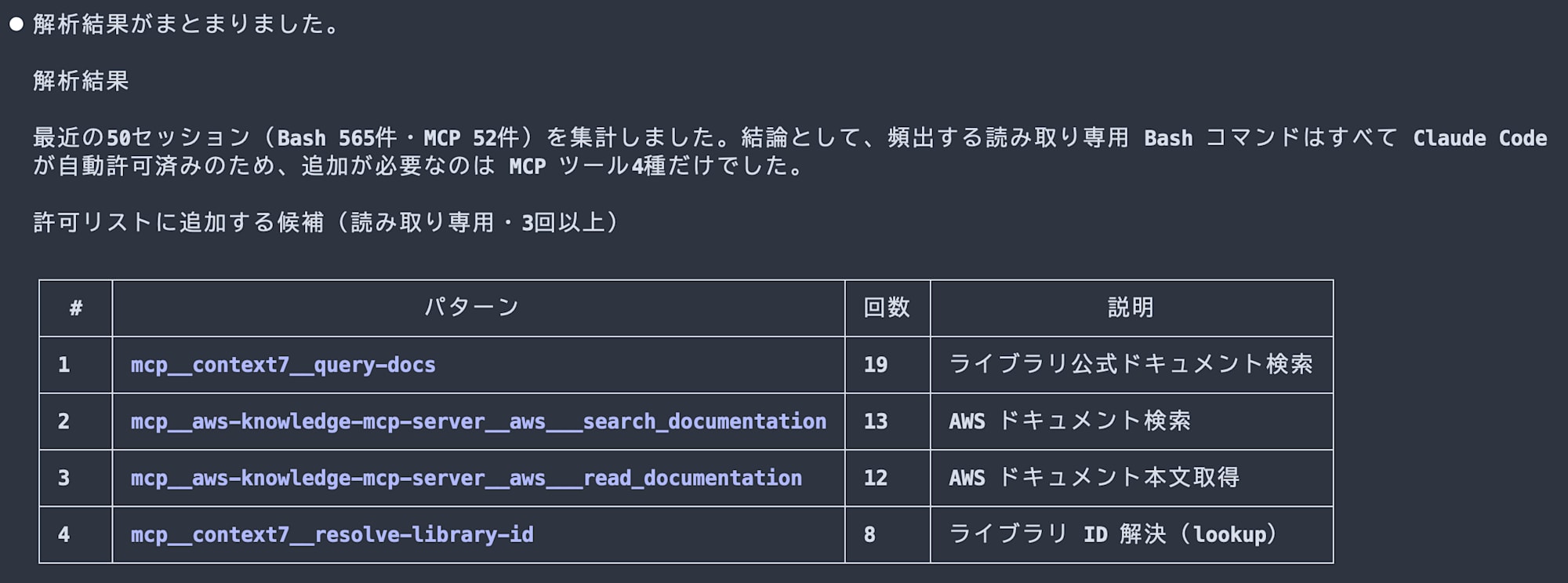
Only 4 MCP tools of the document retrieval type were added. Since the tally is done across all projects, tools used in projects other than the current one also come up as candidates.
Read-only Bash commands like grep, find, and ls appeared frequently, but they were excluded from being added because Claude Code already auto-approves them. On the other hand, things that could lead to arbitrary code execution like python3 or docker exec, and state-changing ones like mkdir or rm, were also excluded.

You can see that rather than simply adding "frequently used" items, it selects only those that can be safely skipped.
Confirming the Reflection in settings.json
Here is the .claude/settings.json generated after running it.
{
  "permissions": {
    "allow": [
      "mcp__context7__query-docs",
      "mcp__context7__resolve-library-id",
      "mcp__aws-knowledge-mcp-server__aws___search_documentation",
      "mcp__aws-knowledge-mcp-server__aws___read_documentation"
    ]
  }
}
Other settings such as permissions.deny and permissions.ask were not changed.
Caveats
It's important to note that the write destination is .claude/settings.json. It is not the User profile's ~/.claude/settings.json or the local .claude/settings.local.json.
This time, since I ran it from a state where .claude/settings.json didn't exist, a new file was created. If you're already using a project-side settings file, the behavior will be to merge into that file.
Summary
/fewer-permission-prompts turned out to be a convenient skill for organizing read-only commands that tend to require manual approval.
It seems like a good idea to run it periodically whenever permission prompts start to bother you.