![[Non-Engineer Claude/Claude Code Series] I tried connecting my daily task management (Google Calendar / ToDo) with Claude to build a more seamless and personalized work environment](https://images.ctfassets.net/ct0aopd36mqt/3KBTm8tdpO9RJJuaVvVzod/a9964bb03097b448b2327edc6920bf9f/Claude.png?w=3840&fm=webp)
[Non-Engineer Claude/Claude Code Series] I tried connecting my daily task management (Google Calendar / ToDo) with Claude to build a more seamless and personalized work environment

This page has been translated by machine translation. View original
About This Series
I'm Jinno from Classmethod's Account Sales Department. My usual work involves account sales for public cloud services like AWS and cloud services like Claude.
This time, I'd like to share how I resolved my selfish desire to "handle work tasks through Claude as much as possible, but without changing my own task management approach."
Recently, a significant portion of my work environment has shifted toward Claude. At the same time, I've been managing my personal schedule and to-do items the same way I always have — with Google Calendar and ToDo. These two worlds were disconnected, and it had been quietly bothering me — until I found a way to resolve it without changing my workflow at all. I'd like to write about that process here.
I Wanted to Rely on Claude, But Couldn't Fully Commit
Meeting prep, meeting minutes, document creation — I've been delegating a significant amount of work to Claude lately. What's great about it is that within our conversations, Claude picks up on context from past exchanges and files in folders and keeps things moving. Within that "closed world," there's no more fragmentation of information.
However, I've been managing my schedule and to-do list with Google Calendar and ToDo for as long as I can remember. During work hours, I line up my schedule and tasks on the calendar, and even when unexpected tasks come up, I flexibly rearrange things by dragging and dropping.
The quiet frustration I had was that "next actions" born from work I'd delegated to Claude existed inside Claude, but never appeared on the calendar-based ToDo list I always look at.
I thought, "Maybe I can connect them through a Claude-to-Google Calendar connector?" but while the calendar could be read, the ToDo list side couldn't be referenced or updated through the connector. (At least not within the scope of what I had access to.)
As I started using Claude more in my work, my throughput and speed improved dramatically, which also meant more tasks to manage. I wanted to resolve the following frustrations:
- Tasks remaining in my head live in ToDo, while tasks derived from Claude-processed work live in Claude (making task management increasingly difficult to navigate across both)
- When a task arises offline, I have to decide whether to throw it to Claude or keep it in Google Calendar (this added a subtle cognitive load each time a task came up, since I had to consider whether it could be handled by Claude)
When I boiled it down, my wish was actually very simple:
I want to handle as much work as possible through Claude. But I don't want to change how I work — lining up my schedule and tasks on the calendar and viewing them together.
I wanted to satisfy both at the same time.
Even While Using Claude, My Tasks Were Scattered
Let me share a bit of background.
I use Claude Code with separate folders (and CLAUDE.md files) for each project. There's a folder for Customer A, a folder for Customer B, an internal folder, and so on. This way, the scope of what Claude references and where created files are stored stays organized by project, and I find it easy to use.
The downside, however, is that this creates a problem: tasks that don't yet belong to any specific project, or vague thoughts and ideas, have no clear folder to go into. The more folders I create, the more homeless ideas end up floating in limbo.
So I had already created a place called inbox — a single spot to write anything. (In practice, it's a free-text .md file.) Tasks, ideas, project notes — anything goes in there, with no required format. Later, I ask Claude to help think things through, shape them into tasks, and sort them into the appropriate project folders.
I decided to build a "hub between me and Claude" based on this already-existing inbox.
What I Built — From Inbox to Google ToDo
The earlier "connector can't reach ToDo" problem. This was resolved by using Google's dedicated ToDo endpoint (Google Tasks API). I consulted with Claude about how to "register inbox contents into Google ToDo," and we built the system together.
How I Divide My "Writing Spaces"
Since starting to use Claude, I've organized where I write things based on whether something has been shaped into a task or not.
- Inbox … Where I write ideas that haven't yet become tasks (the free-text .md file mentioned earlier)
- Google ToDo … Where I write tasks with a defined scope — the kind I'm committed to doing (managed alongside my schedule in Google Calendar)
Vague things that just popped into my head go straight to the inbox for now. Things that are clearly defined as something I need to do get written directly into ToDo from the start.
Then, ideas that have accumulated in the inbox get talked through with Claude — "so, what exactly do I need to do?" — and broken down to the level of actionable tasks, then registered in ToDo. This "idea → task" dialogue is something Claude and I do regularly — it's part of my everyday workflow.
My 3 Actions When a Task Is Born
Tasks tend to arise in roughly three situations. I've decided what to do in each case.
| My Action | When It Applies | What I Do |
|---|---|---|
| ① Task Registration | The action is clear (can be turned into a task) | Write directly into Google ToDo (Calendar) |
| ② Jotting Notes | Still a loose idea (can't be turned into a task yet) | Write it in the inbox |
| ③ Providing Transcript | Meetings etc., where data (transcript) exists | Pass to Claude Code for minutes + task extraction |
① is for things already solidified as "I need to do this." Rather than routing through the inbox, I write these directly into my usual Google ToDo (Calendar).
② is for ideas that haven't taken shape yet. I toss them into the inbox for now, and later talk through them with Claude — "so, what do I actually need to do?" — until they're broken down into actionable tasks. Mid-conversation, if I say "add that to the tasks," Claude will append it to the inbox (I've set things up so Claude doesn't pick things up on its own — it only registers something when I ask it to).
③ is for meeting transcripts. I extended my existing system for auto-generating meeting minutes (Claude's "skill" /minutes) to not just create minutes, but also extract action items addressed to me and turn them into tasks. Tasks born in a meeting flow directly into the task pipeline.
The Big Picture
Here's a diagram showing how tasks move from creation to eventually landing on the calendar:
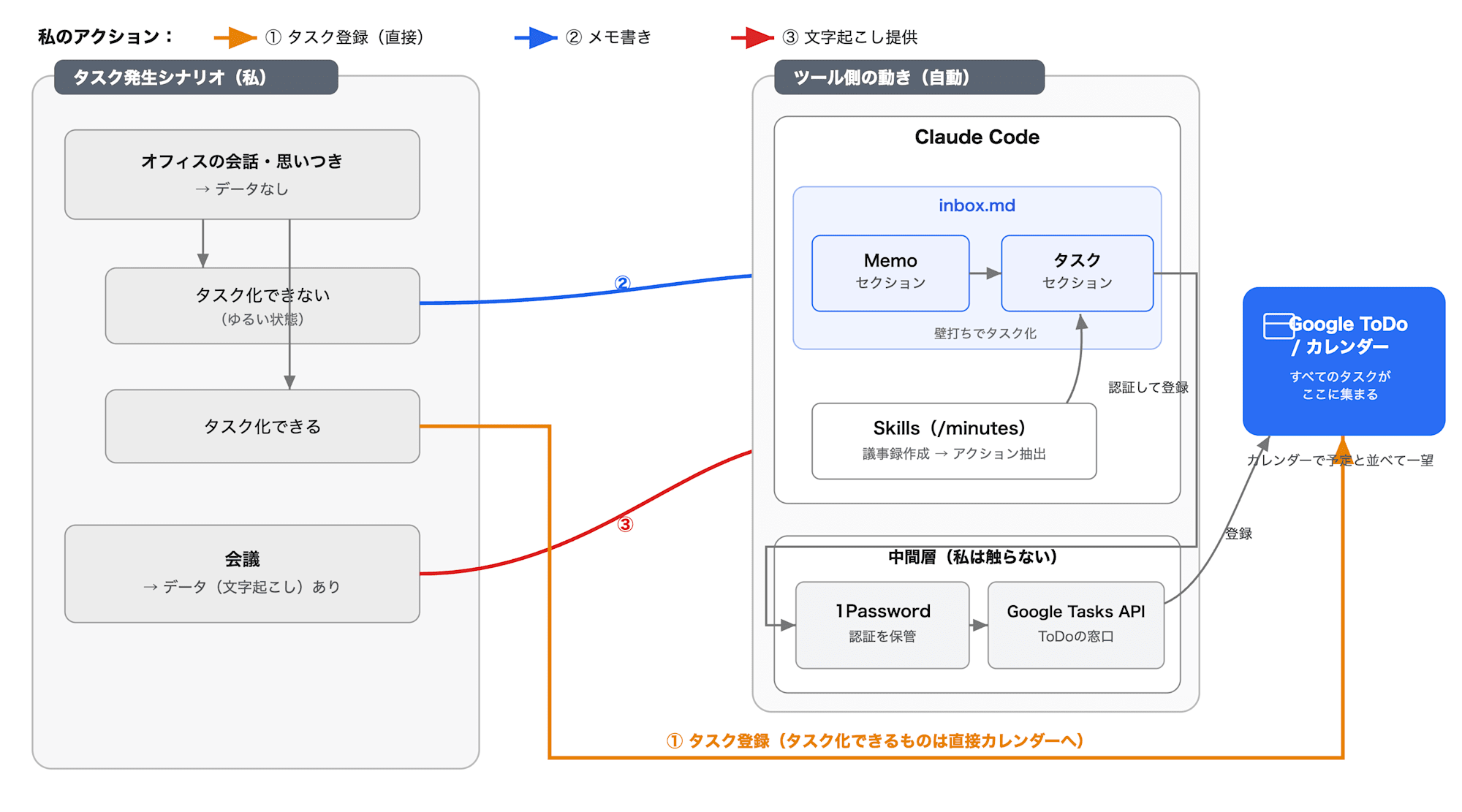
The key point is that I decide which action to take based on the nature of the task and whether data is available, and whichever path I choose, the task ends up registered in Google ToDo. Confirmed tasks (①) go directly to Google ToDo (Calendar); loose ideas (②) go to the inbox and get shaped into tasks through dialogue; meetings (③) go from transcript to minutes and then to tasks. No matter which route, all finalized tasks converge on the calendar. The ideal of unified management without changing my workflow has been achieved.
Sorting Inbox Contents Into Project-Specific Lists
Items accumulated in the inbox are reviewed by Claude, which then sorts and registers them into project-specific Google ToDo lists. "If it's about Customer A, it goes to Customer A's list." "If it's about management, it goes to the management list." Since my ToDo is organized into lists by project, by the time something is registered, it's already sorted into "which project this task belongs to."
How I Built It — A Process Overview for Those Who Want to Try
For those asking "so how do you actually do it?" — here's a rough overview of the steps. Since nearly all the coding can be left to Claude, the only thing you need to do yourself is the "setup."
STEP 1: Preparation on the Google Cloud Side (Just Clicking)
To programmatically interact with Google ToDo (Tasks), you need to register with Google: "I authorize this app to have access." In the Google Cloud management console, do the following:
- Set up a project (think of it as Google's unit of work)
- Enable the Tasks API (think of it as turning on "the window to interact with ToDo")
- Create an OAuth client (the key point is to select "Desktop app" as the type) and download the configuration file (JSON)
No coding here — just clicks on a screen. Takes about 5–10 minutes.
💡 If you're using a company Google Workspace, don't go ahead on your own with a personal cloud account — check with IT to have a project provisioned for you. I also went through internal procedures for this step.
STEP 2: Store Credentials in 1Password (To Avoid Leaving Plaintext)
The downloaded JSON contains a "key." Don't leave it sitting on your PC as-is. Here's what I did:
- Save the downloaded JSON in 1Password
- Delete the original file from the local download folder
- Going forward, scripts only read from 1Password at execution time (no keys left on the PC or in code)
The actual work of "putting it in 1Password and deleting the original" was handled by Claude once I told it "I downloaded it." I leave the how (what commands to run) to Claude, and I only specify the policy — "don't leave it in plaintext" — that division of responsibility felt just right.
After that, I asked Claude to "create a script to register inbox contents into Google ToDo" and refined it through dialogue.
What I Learned From This
Learning 1: To Maximize Impact, Minimize Changes to Your Workflow
When leveraging AI, I found that having more interfaces (entry and exit points for information) makes it harder to see results. The more I relied on Claude, the more two separate worlds emerged — "the world inside Claude" and "the world in my own hands" — and moving between them became a hassle. I realized it's important to identify the key interfaces in how you do your work, and build an environment where you can effectively collaborate with AI around those anchors.
From there, thinking about how to connect those key interfaces to Claude makes it easier to benefit from AI-driven efficiency without drastically changing your existing workflow.
Learning 2: Combining "Authentication" and "Visual Review" Into the Same Step Achieves Both Security and Ease
Authentication for security can sometimes get in the way of automation. In fact, when I previously tried to fully automate my attendance time-stamping (my failure story blog), the authentication kept expiring after a set period, requiring manual intervention each time, and it ultimately didn't work out.
This time, I didn't want full automation to begin with — I wanted to visually review the tasks before registering them. So I thought: if I bundle the authentication into that same moment of visual review, I could satisfy both security and reduced operational burden at once.
In practice, the flow works like this:
- First, display a list only, without registering (a preview of which tasks go into which lists)
- Visually review the contents myself
- If it looks good, authenticate and execute the registration at that point
Since I'm already taking action to review things, authentication happens "while I'm at it" — and it doesn't feel like much of a burden.
The same "authentication required" step can feel completely different depending on where you place it in the workflow — that was one of my discoveries this time.
That's all!
I hope this is helpful for non-engineers looking to connect AI with their own way of working.