![[Copilot Studio] Tried Templates, Autonomous Triggers, and Multi-Agent: From Design to Operation Verification](https://images.ctfassets.net/ct0aopd36mqt/wp-thumbnail-00eddef75cb5ee39286e0aa370a96e4f/040bbf127b84da0ee2c483485da1dd29/microsoft-eyecatch.jpg?w=3840&fm=webp)
[Copilot Studio] Tried Templates, Autonomous Triggers, and Multi-Agent: From Design to Operation Verification

This page has been translated by machine translation. View original
Introduction
Hello, I'm Kema.
In the series so far, we've been building up a single agent. Giving it instructions, loading knowledge, and adding behavior with topics, tools, and flows. This lets you create "one solid agent."
On the other hand, different kinds of requests come up in real-world situations. "Starting from scratch every time is exhausting, so I'd like to start from a template." "I want it to run automatically at set times without someone having to talk to it." "Having one agent do everything gets complicated, so I'd like to separate agents by role." These are all about expanding the configuration of agents.
So in this article, I've covered three topics — templates & managed agents, autonomous triggers, and multi-agent setups — and organized what each can do as of June 2026. I'll actually run through creating from a template and multi-agent delegation, and for autonomous triggers I'll cover checking the settings screen and prerequisites. I hope this serves as a reference for those who want to expand their options for building agents in Copilot Studio.
This article is the 4th installment in a series on building agents with Copilot Studio.
Target audience: Those who want to understand how to expand configurations in Copilot Studio, such as using templates, automatic startup, and multi-agent coordination.
Series Article List
| # | Theme | Article |
|---|---|---|
| Part 1 | First Agent | Creating Your First Agent |
| Part 2 | Knowledge | Trying Knowledge-Grounded Answers Based on Files |
| Part 3 | Topics, Tools, Flows | Building "Behavior" with Topics, Tools, and Agent Flows |
| Part 4 | Templates, Autonomous Triggers, Multi-Agent | (This article) |
1. What We'll Do This Time
- Create an agent from a template and actually run it
- Check the types of autonomous triggers and understand the setup and prerequisites for automatic startup
- Organize the three configuration patterns for multi-agent setups
2. Templates and Managed Agents: Not Starting from Scratch
Available Templates
Agents don't have to be built from a blank slate — you can start from a prepared template. There are broadly two types.
- Templates: Starter templates with a name, description, and instructions already filled in. You customize these as a base for your own needs.
- Managed Agents: Nearly complete solutions built for specific business tasks (many are in preview).
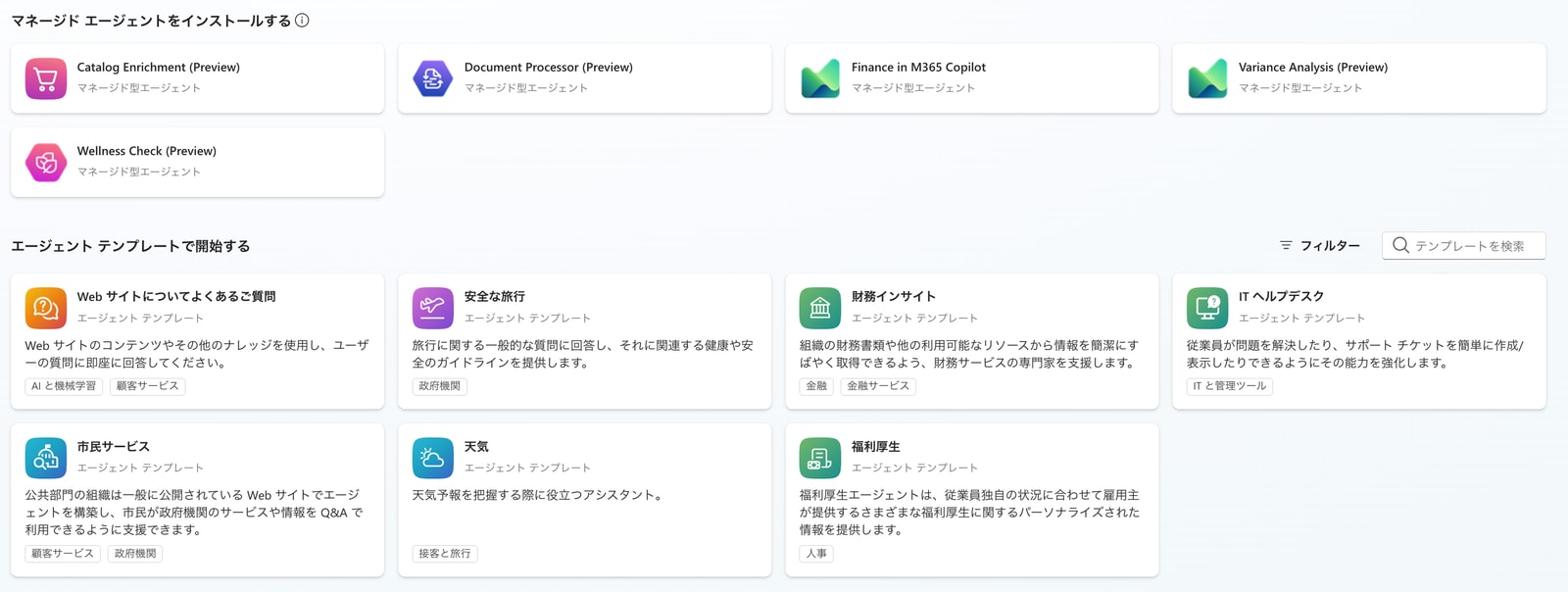
The list for installing managed agents. Business-specific agents are lined up (many are Preview). Below the same screen, the "Start with an agent template" gallery continues.
Templates are positioned as "a starting point with content already in place," while managed agents are "nearly complete solutions." If there's a template close to what you want to do, you can get to a working shape faster than building from scratch.
Testing It: Creating and Running an Agent from a Template
Whether a template is "just a skeleton with a name and description" or "something that works right away" isn't clear until you actually try it. So I created one agent from a weather-answering template and ran it.
One thing I noticed during creation was that some templates require connecting to an external connector.
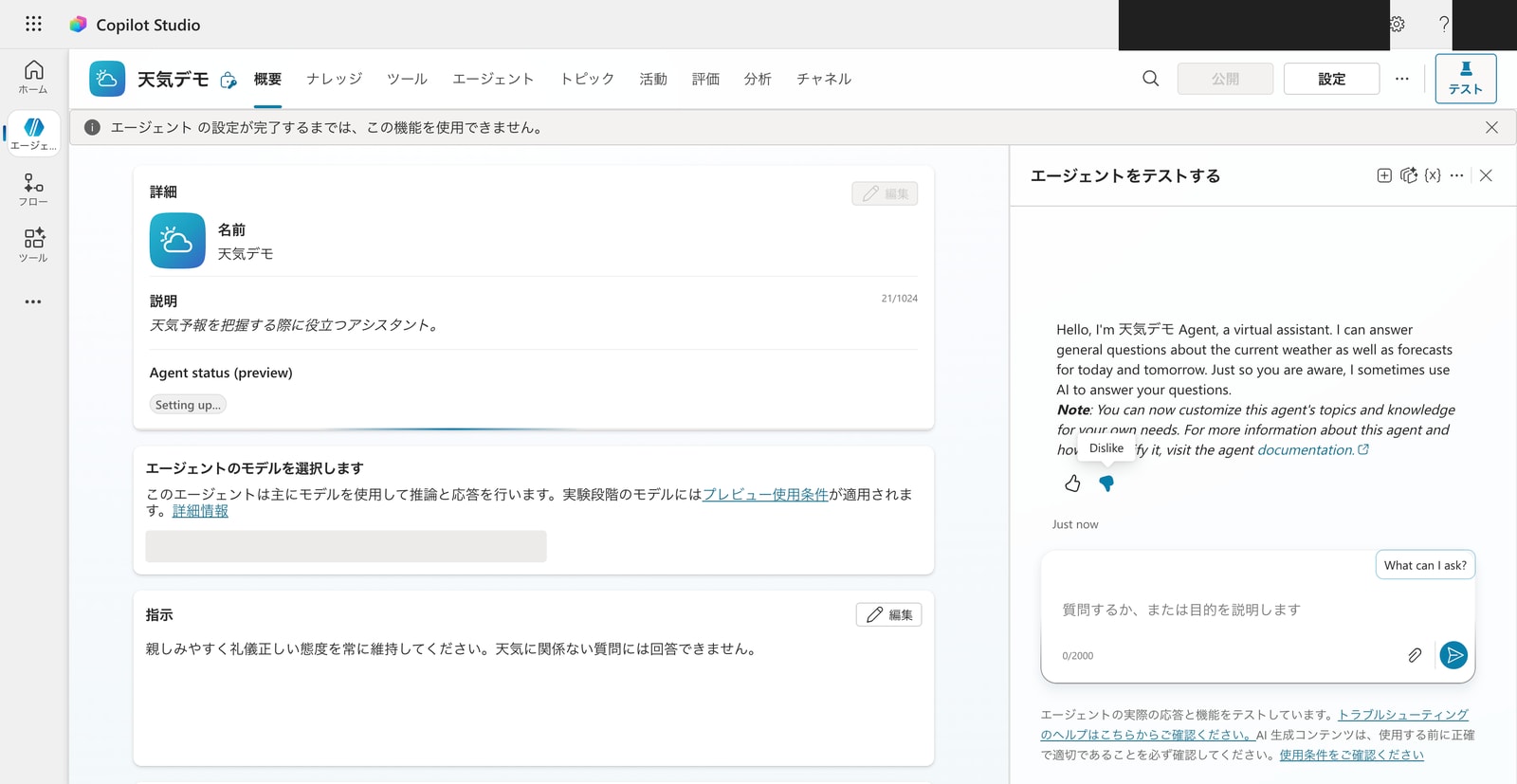
Overview screen of the agent created from the weather template. It's ready with a name, description, and instructions already filled in.
After completing the connection and creating it, an agent integrated with the MSN Weather connector was ready. I typed "Get Forecast For Today" in the test chat.
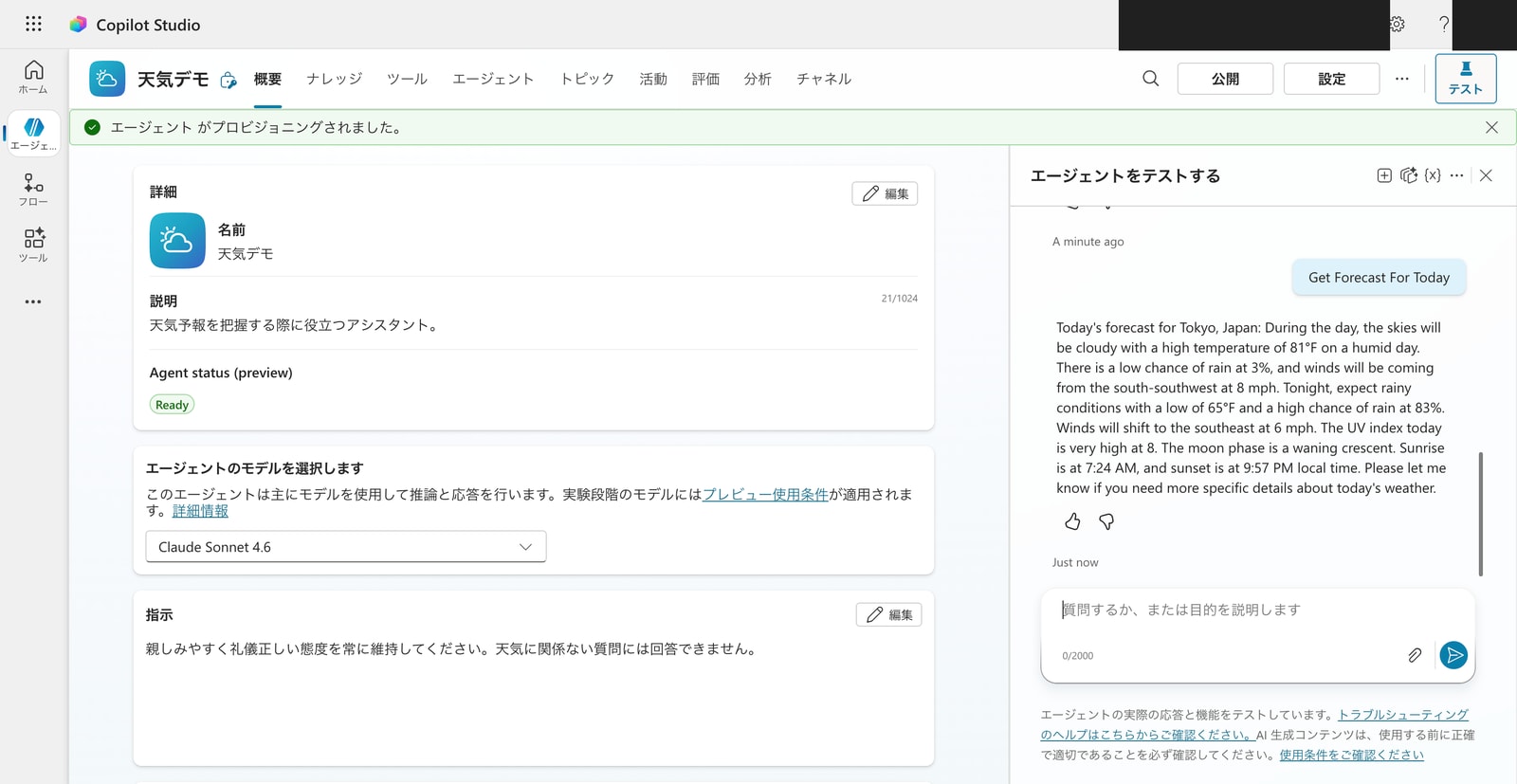
When asking about the weather in the test chat, the MSN Weather connector was actually called and a real forecast was returned.
When I actually asked about the weather, MSN Weather was called and a real forecast came back. This confirmed that templates are not "just a name skeleton" — they come ready to run, including connector integration.
Managed agents and agent templates are currently available in English only and should be limited to internal use within your organization.
Source: Weather (agent template) | Microsoft Learn
3. Autonomous Triggers: Running Without Someone Talking to It
All the agents up to this point have been ones that "run when someone talks to them."
With autonomous triggers, you can make an agent start on its own in response to a specific event, without anyone talking to it.
Types of Triggers
Opening "Add a trigger" from the "Triggers" section on the overview screen shows a list of startup events.
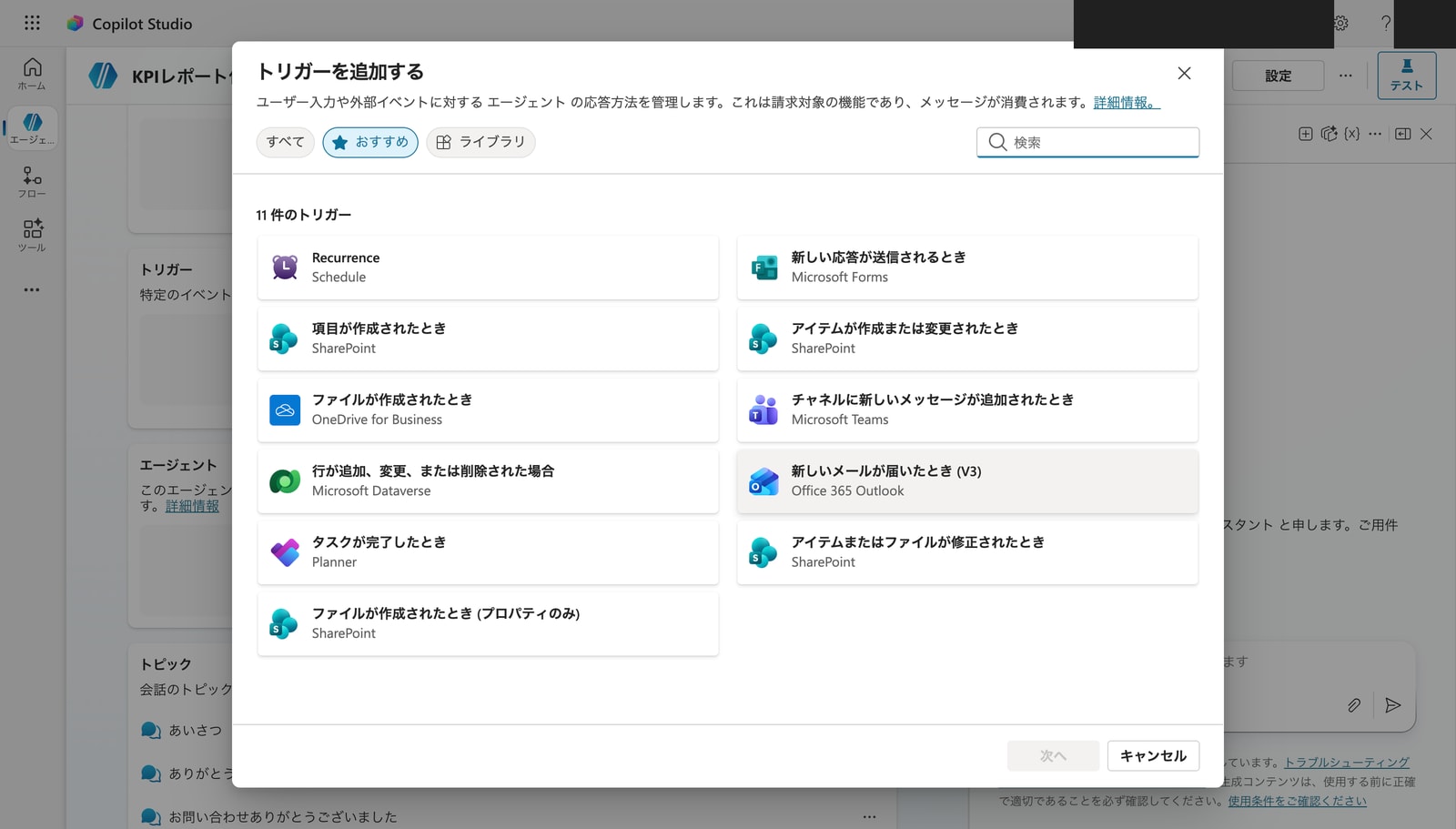
Add a trigger. You can set various events as triggers, such as schedule (recurring execution), email received, Teams messages, Planner tasks, and file updates.
In my environment, the following triggers were available.
- Schedule (recurring execution): Starts at a set time each day, or on a time-based schedule
- Email received (Outlook): Starts when a specific email arrives
- Teams message: Starts when a message arrives on Teams
- Planner tasks / file updates / various connector events: Starts in response to changes on the business system side
For example, a process like "every Monday morning, aggregate last week's KPIs and create a report" can be automated by combining a schedule trigger with the flows from the previous article. It becomes an agent that runs at set times without someone having to ask every time.
Publishing Is a Prerequisite for Autonomous Execution
There's an important point to note here. To actually have an autonomous trigger run automatically, the agent must be published first.
Trigger settings can be configured in the editing screen without publishing. However, the autonomous execution itself — "actually running automatically when a schedule fires" or "running when an email arrives" — only works once the agent is published. The official documentation also states clearly that the agent won't react automatically before it's published.
Before you publish your agent with a new event trigger, the agent doesn't automatically react to that trigger.
Source: Event trigger overview | Microsoft Learn
In this article, I'll cover checking the types of triggers and their settings, but won't demonstrate autonomous execution since that involves publishing.
There are also two important prerequisites to keep in mind.
- Generative orchestration is required: Event triggers (autonomous triggers) can only be used with agents that have generative orchestration enabled.
- Impact on billing: Enabling event triggers can affect billing (Copilot Credits) calculations. Schedule triggers in particular use more resources the shorter the interval, so be careful with frequency settings.
This feature is only available for agents with generative orchestration turned on.
Enabling event triggers can impact how billing is calculated.
Source: Event trigger overview | Microsoft Learn
4. Multi-Agent: Dividing Work Among Multiple Agents
Having one agent do everything causes instructions, topics, and tools to pile up and become difficult to manage. Multi-agent is a configuration where agents are separated by role, and a parent agent delegates processing to child agents. This time, I'll actually create one child agent and confirm the delegation from the parent.
Connecting Agents
Adding an agent in the "Agents" section of the overview screen opens the "Select how to extend your agent" dialog.
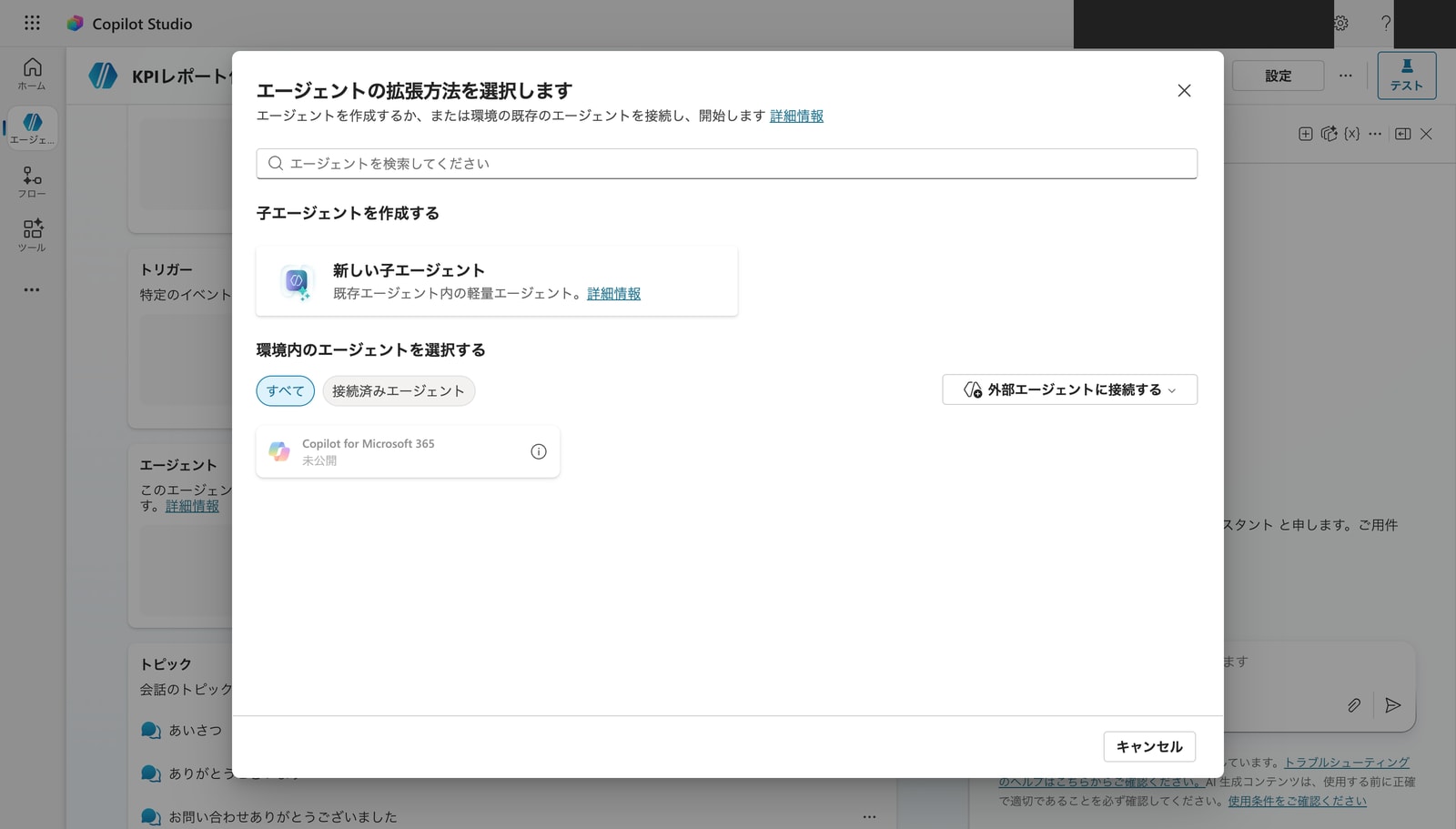
"Select how to extend your agent" dialog. Choose from three options: create a child agent, select an agent in the environment, or connect to an external agent.
There are broadly three types of agents you can connect.
| Pattern | What to Connect | Suitable For |
|---|---|---|
| Child agent | A subordinate agent created specifically for this agent | When you want to divide a large task by role |
| Another agent in the environment | An existing agent in the same environment | When you want to reuse an existing agent as a component |
| External agent | A published agent in a different environment or from an external source | When coordinating across organizations or with external services |
Trying It Out: Creating a Child Agent and Delegating to It
Here I'll create one "child agent." I selected "New child agent" and set the name, description, and instructions. The description in particular is what the parent uses to decide which agent to delegate to. The key is to clearly write "what this agent does." For this example, I made it responsible for explaining KPI terminology.
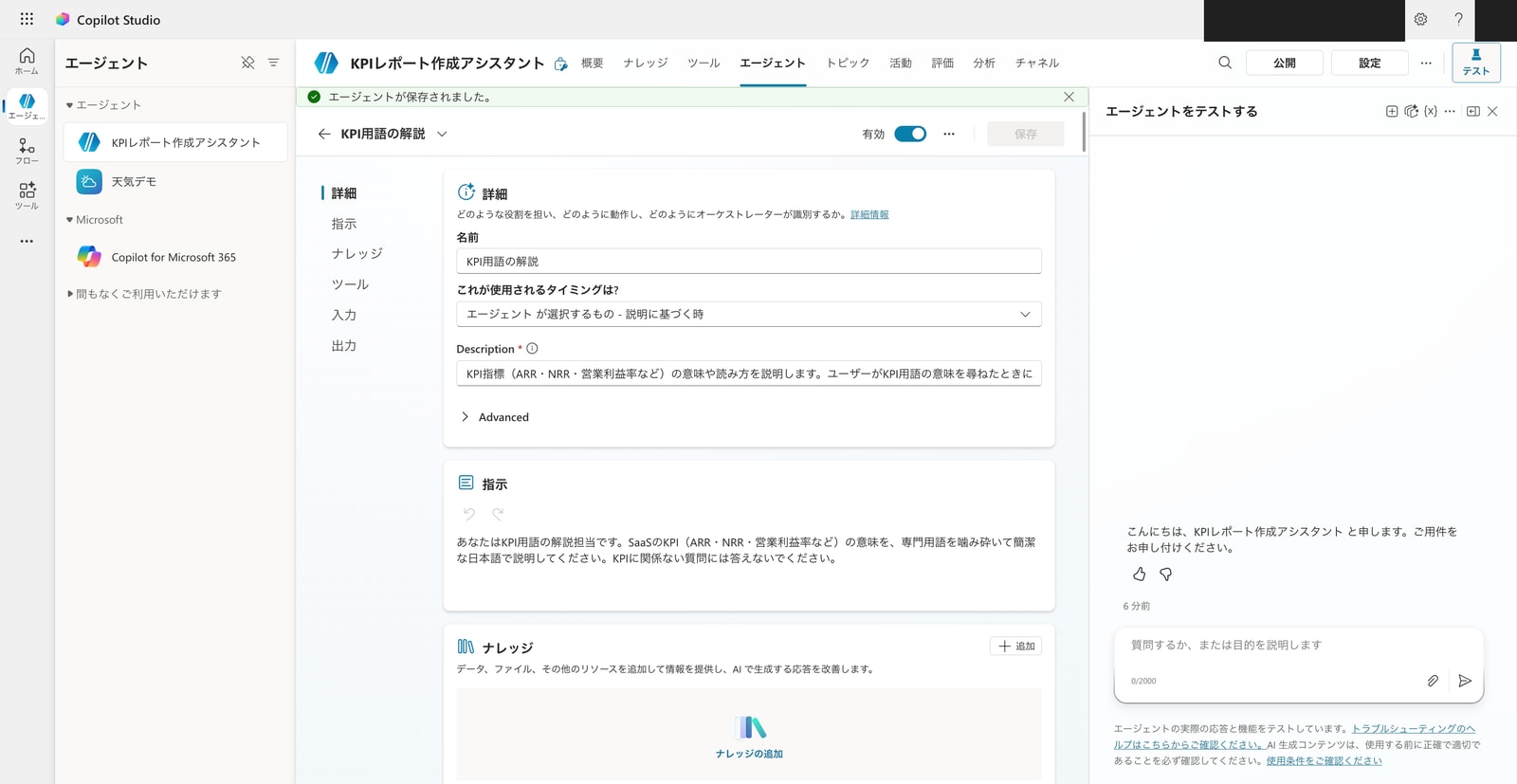
Creating child agent "KPI Terminology Explanation." Set the name, description, and instructions, then saved. By writing "Explains the meaning of KPI metrics" in the Description, the parent reads this description to decide where to delegate.
After saving, I asked "What does NRR mean?" in the test chat of the parent agent "KPI Report Creation Assistant." The parent didn't answer itself — it delegated the processing to the child agent "KPI Terminology Explanation," and the child returned the meaning of NRR.
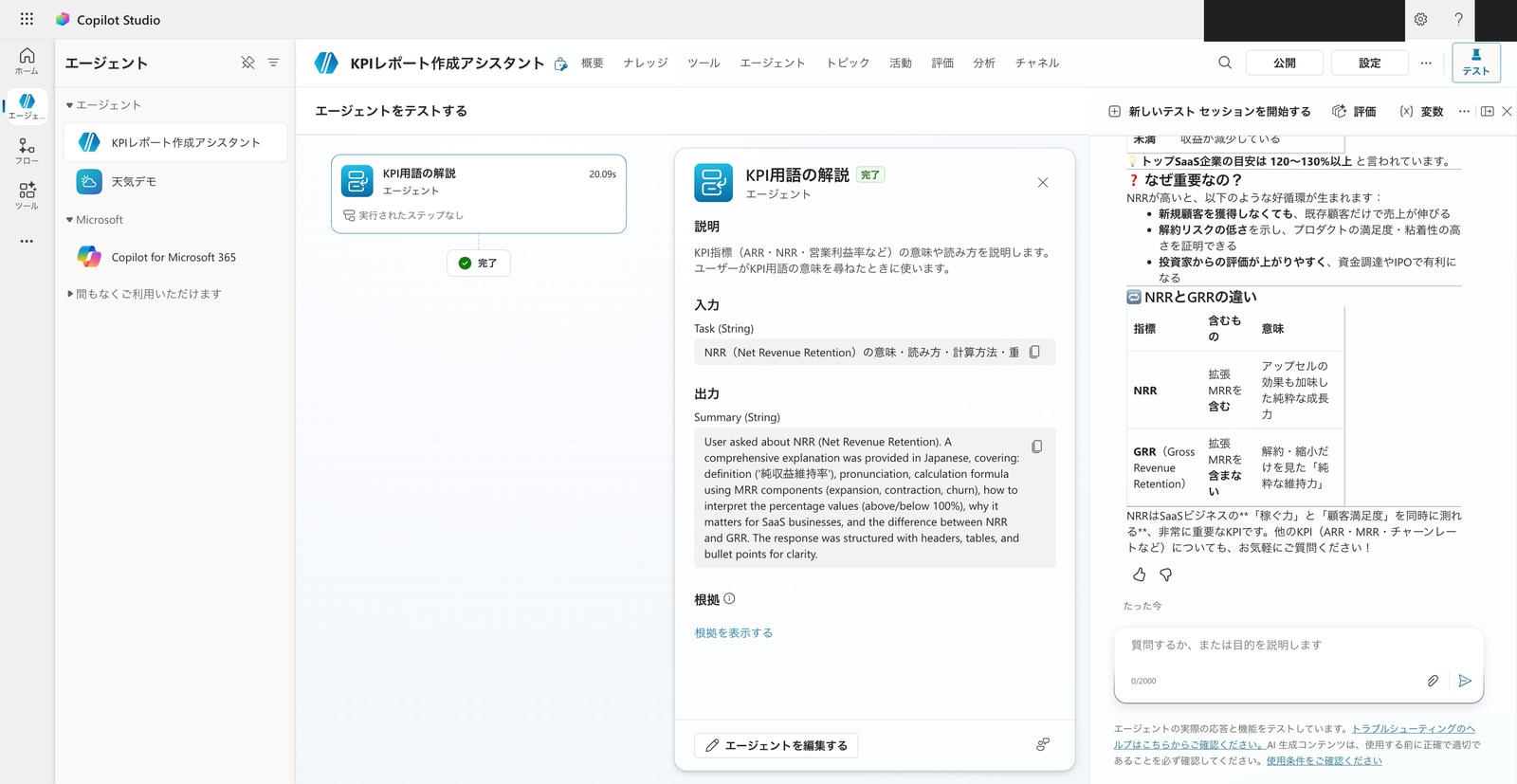
When a KPI term is asked in the parent's test chat, the "KPI Terminology Explanation" agent appears in the activity. You can see the input (Task) being passed from parent to child, and the child's output (Summary) being returned. In the end, an explanation including the difference between NRR and GRR was returned.
The key point is that the user didn't specify "use the child agent." The parent read the child agent's description and judged that this question should be handled by "KPI Terminology Explanation" and delegated accordingly. This is how multi-agent delegation works with generative orchestration.
Separating agents by role makes the responsibility of each agent clearer than cramming everything into one, and also makes maintenance easier. For a KPI report like this one, you could also consider a configuration where a data collection agent, an aggregation agent, and a report creation agent are separated, with the parent delegating to them in sequence.
5. Summary
I confirmed three mechanisms for expanding agent configurations.
- Templates & Managed Agents: A way to start without building from scratch. When I actually created a weather agent from a template, it worked right away including connector integration, and a real forecast was returned.
- Autonomous Triggers: Can automatically start in response to events like schedules or received emails, without someone talking to it. Trigger types can be checked without publishing, but autonomous execution requires publishing (enabling it can affect billing).
- Multi-Agent: A configuration where agents are separated by role and processing is delegated. I actually created a child agent "KPI Terminology Explanation," and confirmed that when a KPI term was asked to the parent, it was delegated to the child and an answer was returned. Connection comes in three patterns: child, in-environment, and external.
Rather than just building up a single agent, knowing how to expand — starting quickly from a template, running automatically, and dividing up responsibilities — lets you choose configurations that fit your business needs.