I tried adding an MCP server to a DevOps Agent and investigating the OS of EC2

This page has been translated by machine translation. View original
Hello. This is Takayama.
DevOps Agent cannot execute commands on an EC2 OS to investigate, from the perspective of guardrails that prevent environment changes.
Therefore, information such as processes and OS logs cannot be used as investigation material for DevOps Agent, unless it is being sent to CloudWatch or similar.
Using Directed Actions (agent actions) added in an update, it is possible to run OS investigations through SSM Documents.
However, this requires approval for each execution and cannot be used within Investigation (autonomous investigation).
Ideally, we would like to be able to perform OS investigations even within Investigation, while keeping permissions limited to read-only.
This is where MCP server-based extension of DevOps Agent capabilities comes in handy.
An MCP server template is introduced in the following blog post.
This time, we will create an MCP server that retrieves EC2 OS information and test whether OS investigation can be performed within Investigation.
Summary First
- The MCP server is published via Lambda Function URL (
AWS_IAM), and DevOps Agent connects to it using SigV4- Sample code: https://github.com/nyankotaro/devops-agent-os-mcp
- In the MCP server, commands for OS information retrieval are fixed in SSM Documents and exposed as tools, minimizing the risk of destructive operations
- By adding an OS investigation MCP server, it becomes possible to autonomously identify the causing process from OS information even within Investigation
Architecture
The architecture for this time is as follows.
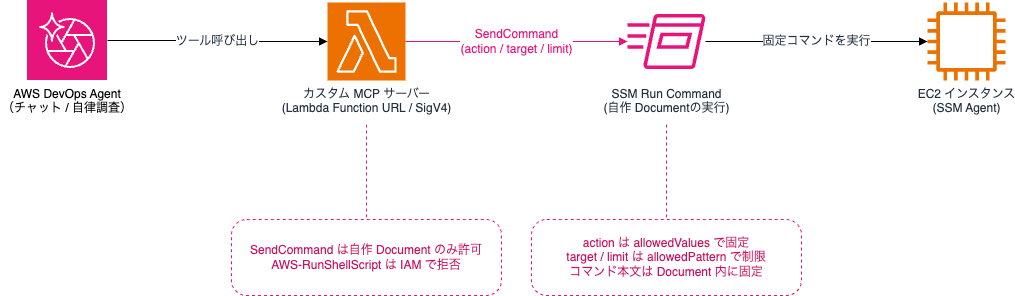
When DevOps Agent calls an MCP tool, the MCP server (Lambda) executes a custom Document via SSM Run Command.
The Document executes fixed commands on the EC2, and the results are returned to the Agent.
The Agent itself is not given SSM permissions, and only the Lambda execution role is allowed to call SSM.
Trying It Out
MCP Implementation
For OS investigation, it is necessary to execute commands on the EC2 using ssm:SendCommand.
However, SendCommand is a permission that allows executing arbitrary commands, which carries the risk of destructive operations.
This is likely why SendCommand is not included in the standard permissions for DevOps Agent.
Therefore, this time we fixed the commands to be executed in an SSM Document, and designed it so that the Agent only passes "which investigation to run and on which instance."
The seven tools published are as follows.
| Tool | Retrievable Content | Main Arguments |
|---|---|---|
get_os_summary |
OS type, kernel, hostname, uptime | instance_id |
get_resource_usage |
CPU and memory status, processes with high CPU usage | instance_id, top_n |
get_disk_usage |
Free space and inode usage per filesystem | instance_id |
get_network_state |
Listening ports and processes, socket statistics | instance_id |
get_service_status |
systemd service status and recent logs | instance_id, service |
search_system_log |
journalctl error logs (can be filtered by string) | instance_id, pattern, lines |
get_kernel_messages |
Tail of dmesg | instance_id, lines |
Each tool corresponds to the action parameter of the SSM Document.
Only the seven predefined values can be specified for action, and the characters usable in target are also limited to alphanumerics and some symbols.
If a value does not meet these conditions, SSM will reject it with InvalidParameters.
parameters:
  action:
    type: String
    allowedValues: [os_summary, resource_usage, disk_usage, network_state, service_status, system_log, kernel_messages]
  target:
    type: String
    default: ''
    allowedPattern: '^[A-Za-z0-9._@:-]{0,64}$'
  limit:
    type: String
    default: '200'
    allowedPattern: '^[1-9][0-9]{0,3}$'
SSM Document execution section (excerpt)
case "{{ action }}" in
  os_summary)
    uname -a
    cat /etc/os-release
    hostnamectl 2>/dev/null || hostname
    uptime
    ;;
  resource_usage)
    uptime
    free -m
    ps aux --sort=-%cpu | head -n "{{ limit }}"
    ;;
  disk_usage)
    df -hT
    df -i
    ;;
  # Below: network_state / service_status / system_log / kernel_messages
  *)
    echo "unsupported action"
    exit 1
    ;;
esac
Also, in the Lambda IAM policy, the target of ssm:SendCommand is restricted to this Document.
Documents that allow executing arbitrary commands, such as AWS-RunShellScript, cannot be sent from Lambda.
This time, Lambda is published via Function URL (authentication method AWS_IAM) and deployed with CDK.
npx cdk deploy os-investigation-mcp-stack
The CDK app is published in the following repository.
When deployment is complete, the Function URL is output in the Outputs.
Outputs:
os-investigation-mcp-stack.McpEndpoint = https://xxxxxxxxxxxxxxxxxxxxxxxxxxxxxxxx.lambda-url.ap-northeast-1.on.aws/
os-investigation-mcp-stack.InvestigationDocumentName = OsInvestigationReadOnly
Registering the MCP Server with DevOps Agent
Next, register the deployed Lambda as an MCP server in DevOps Agent.
In the target Agent Space, open "Features" > "MCP Servers" and proceed with registration.
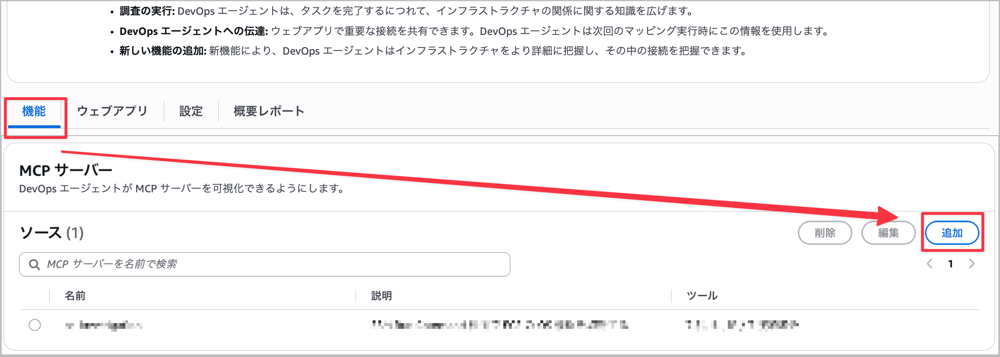
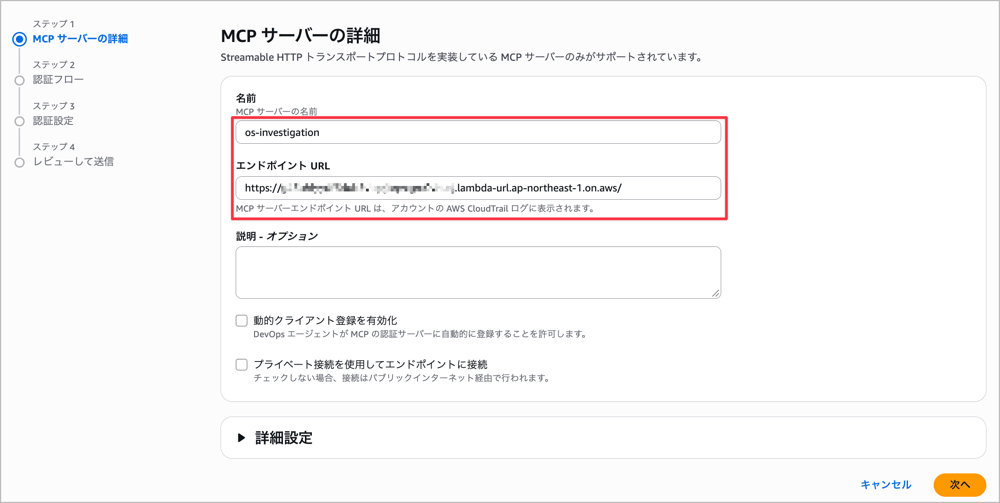
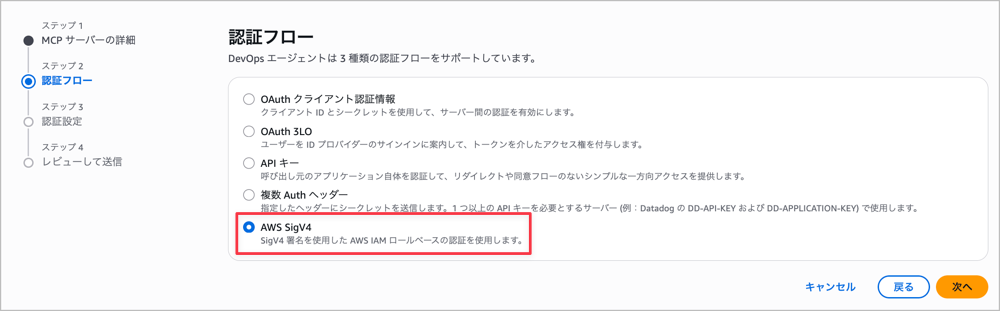
Select "AWS SigV4" for the authentication flow and configure as follows.
| Item | Setting Value |
|---|---|
| Endpoint URL | Function URL |
| IAM Role | IAM role assumed by DevOps Agent |
| AWS Region | ap-northeast-1 |
| Service Name | lambda |
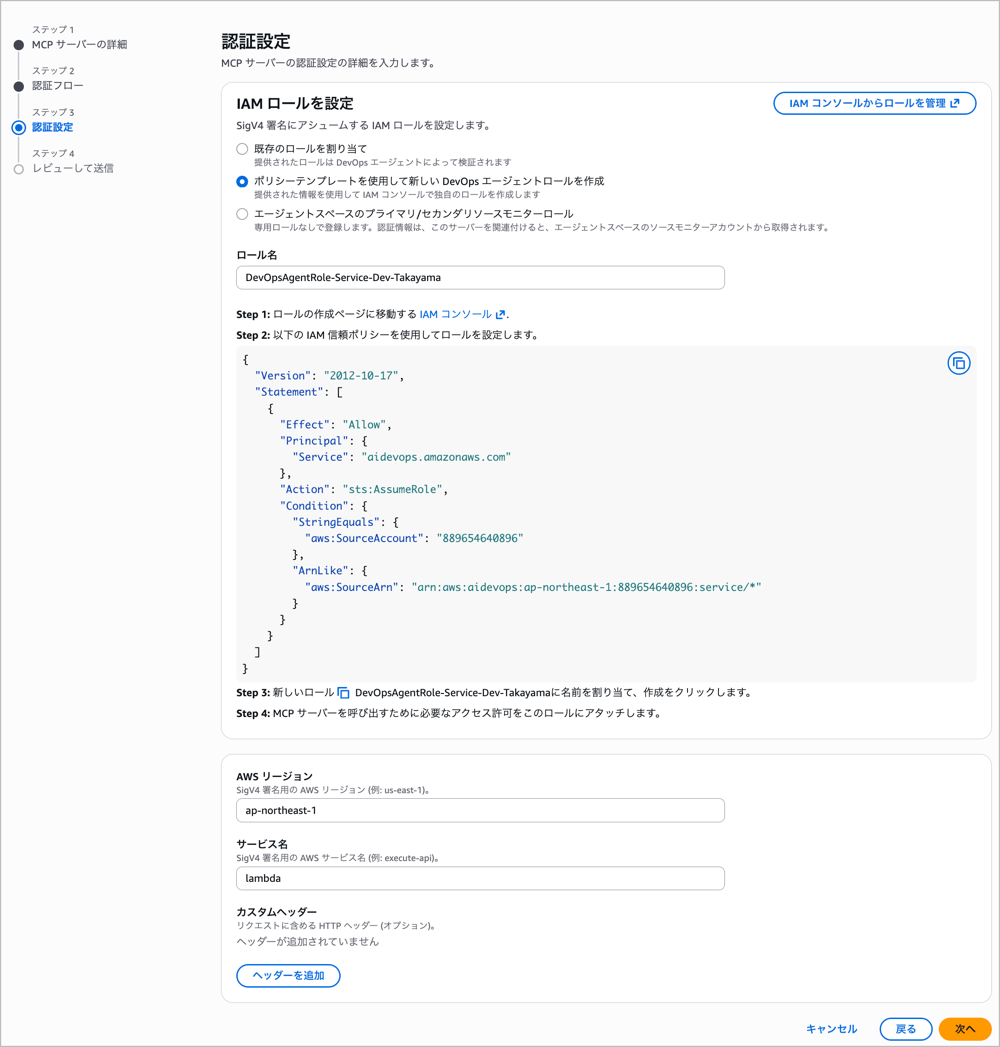
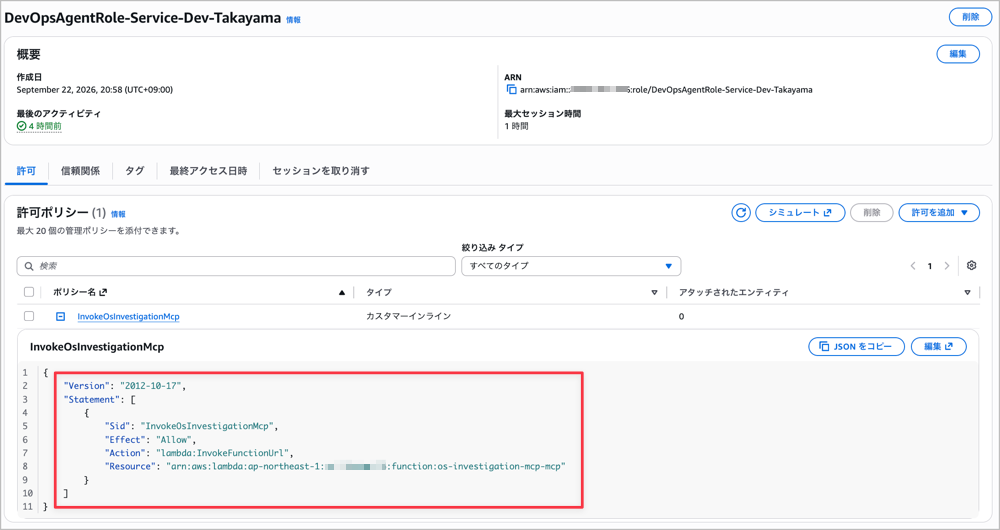
The "IAM role assumed by DevOps Agent" needs to have permission to invoke the Function URL.
Once registered, select the tools to use from "MCP Server Tools."
Tools must be assigned to one of the following three categories, and the category determines how the Agent behaves when calling the tool.
| Category | Meaning | Behavior |
|---|---|---|
READ_ONLY |
Tools that only read information | Can be used as read-only actions |
MUTATIVE |
Tools that can create or modify resources | Requires enabling agent actions and approval for each chat operation |
DESTRUCTIVE |
Tools that delete resources or make irreversible changes | Agent will not call tools in this category |
Reference: Categorizing tools for third-party integrations
For custom MCP servers, this classification must be determined as the user's responsibility.
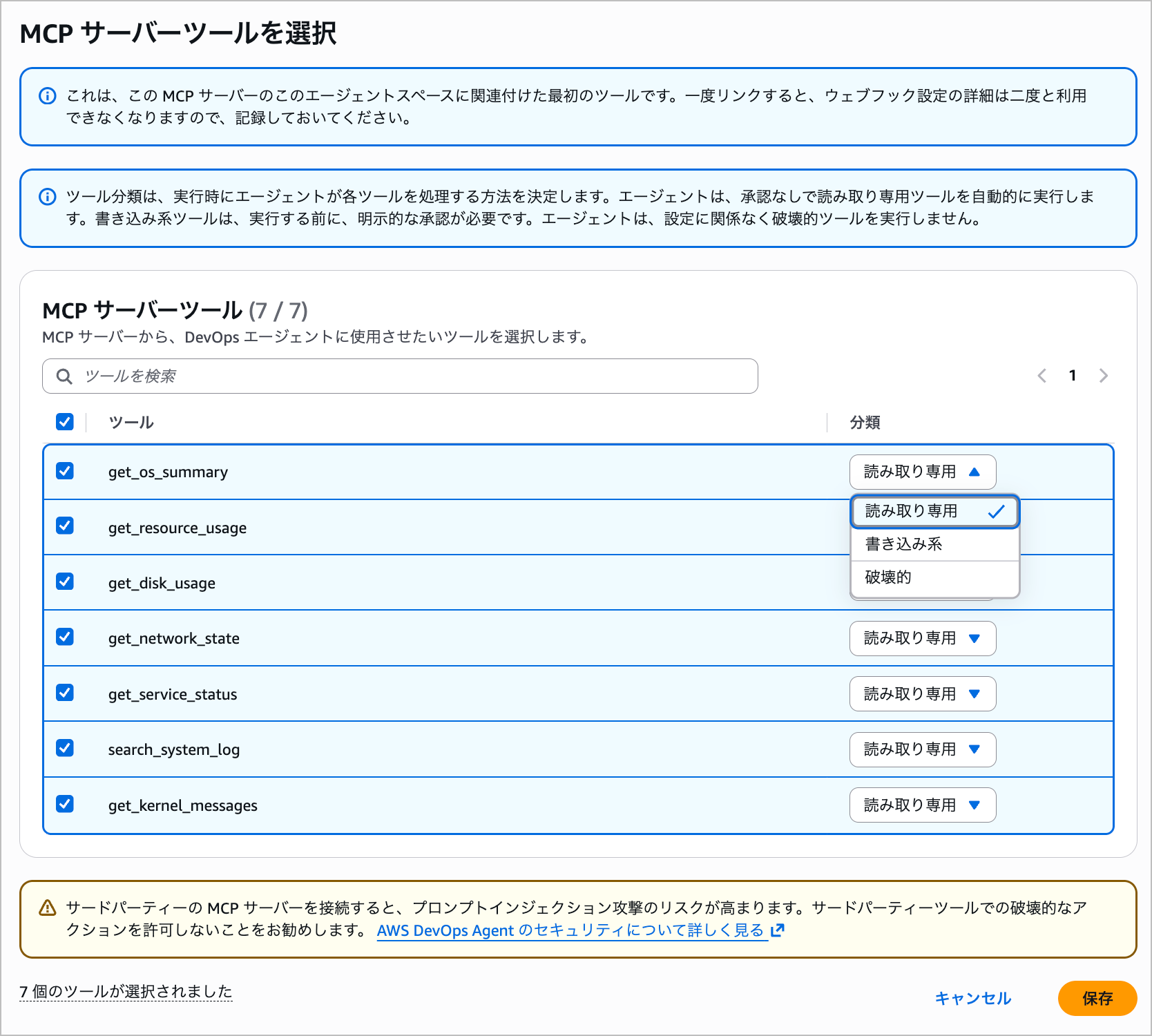
Since we are using an SSM Document that defines only commands for checking OS status, we assign it to READ_ONLY.
Performing OS Investigation in Investigation
Now let's actually have Investigation perform the investigation.
On a test EC2 (Amazon Linux 2023), we run two yes commands under the name report-batch to pin the CPU.
We renamed it from yes to a batch processing-style name to prevent the process name from immediately revealing the cause.
Connect to the EC2 via Session Manager and run the following commands.
sudo cp /usr/bin/yes /usr/local/bin/report-batch
sudo setsid -f /usr/local/bin/report-batch > /dev/null 2>&1
sudo setsid -f /usr/local/bin/report-batch > /dev/null 2>&1
In this state, we have Investigation investigate the cause with the following prompt.
EC2 instance i-xxxxxxxxxxxxxxxxx (Amazon Linux 2023) has been experiencing high CPU usage, and there are reports of slow response.
This instance does not send OS internal metrics or logs to CloudWatch.
Please investigate the cause of the high CPU usage and report the candidate causes.
Please separate confirmed facts from items that could not be confirmed.
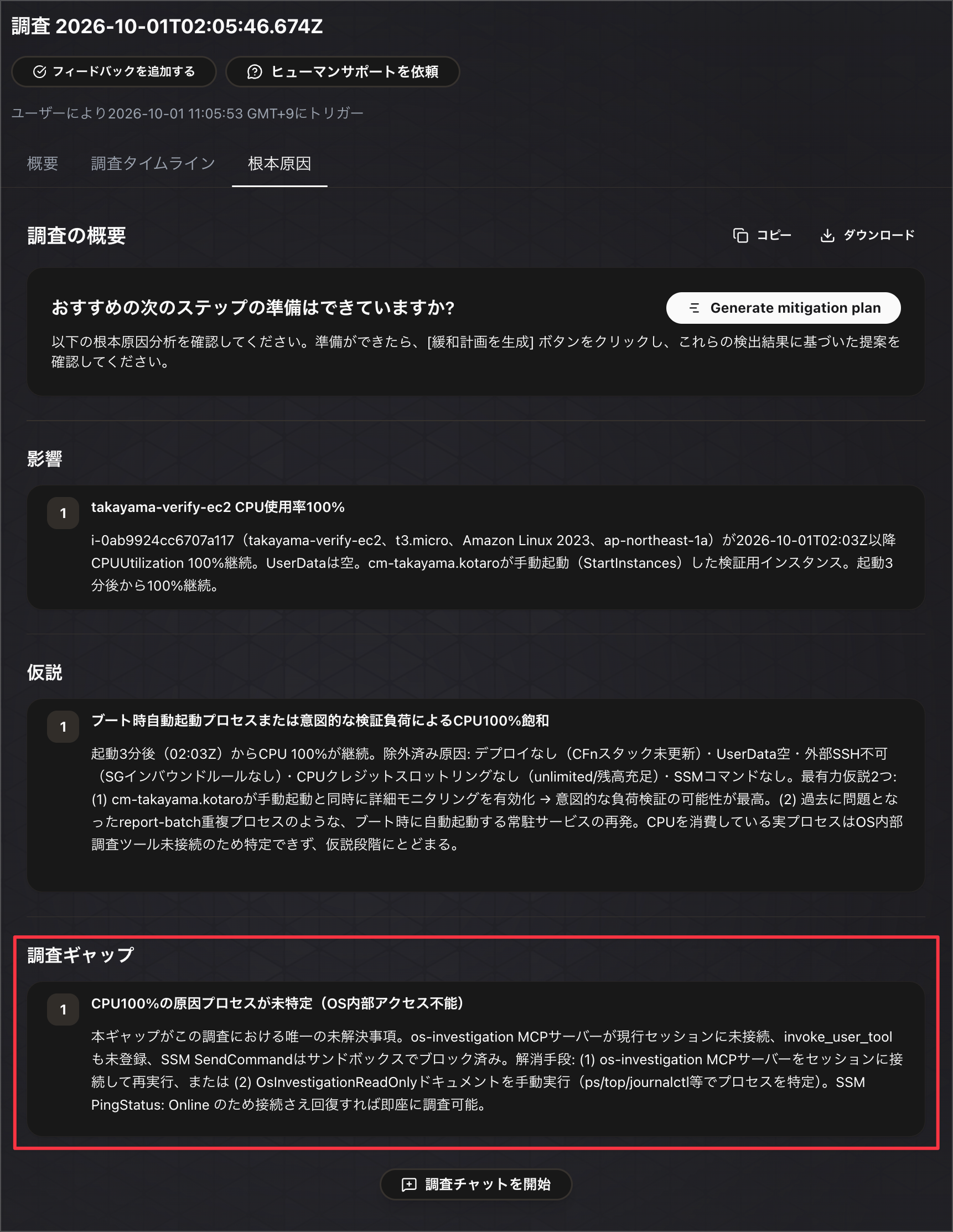
First, let's have it investigate without the MCP server.
As indicated in the investigation gaps, since the OS internals cannot be confirmed, it was unable to identify the process causing the issue.
(Note that report-batch appears in the hypotheses, but this was referenced from a previous test investigation and was not identified in this investigation.)
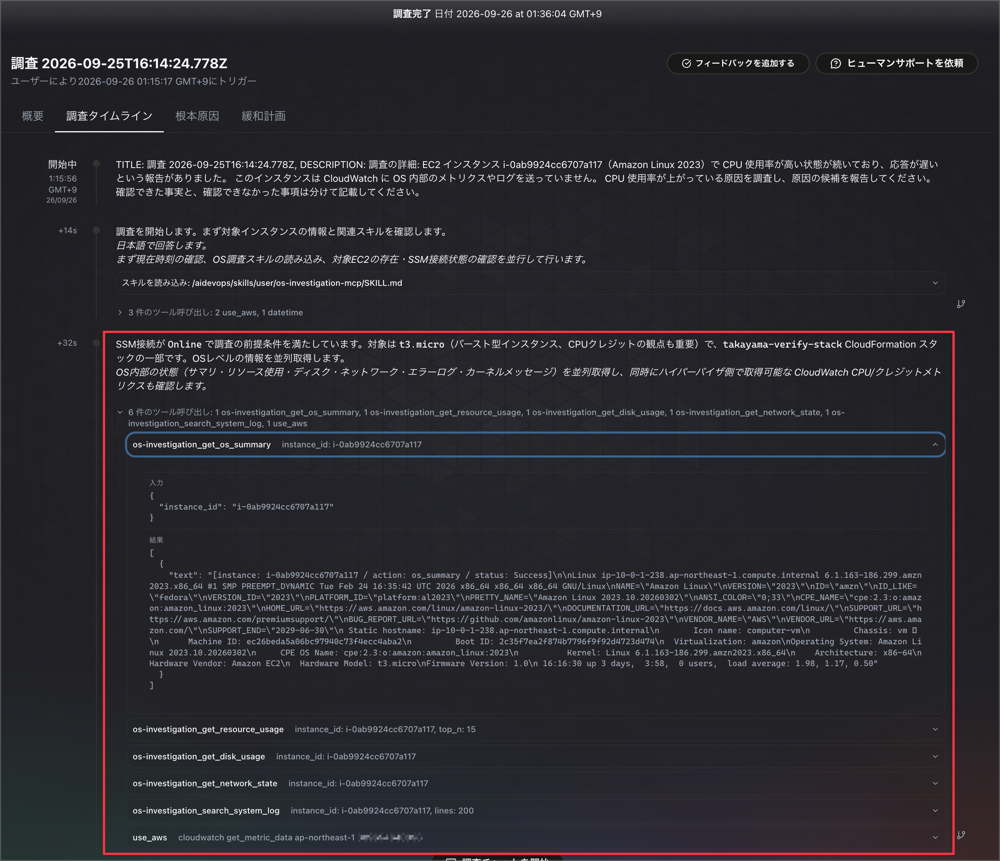
Next, let's submit the same prompt with the MCP server added.
This time, after confirming that SSM is available, it calls the registered OS investigation MCP tools.
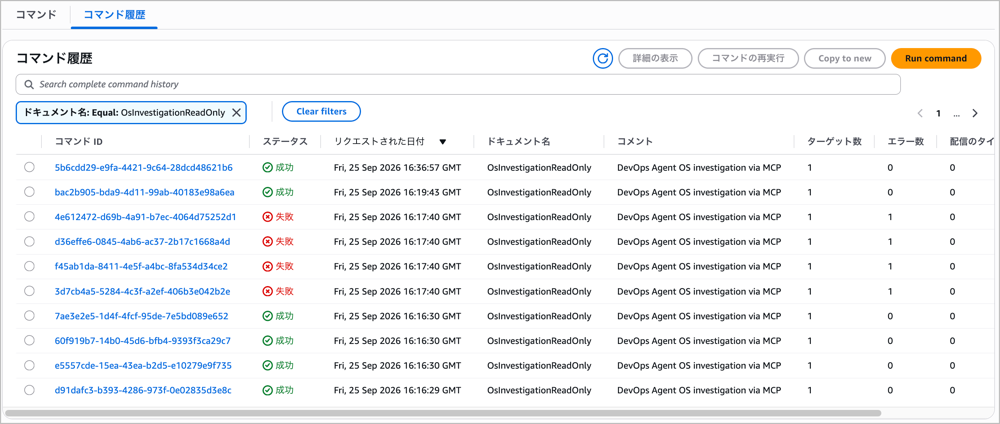
Since the MCP tool content is SSM Document Run Commands, the execution records remain in the Run Command "Command History."
If configured to output to CloudWatch Logs, the OS investigation results can also be retained.
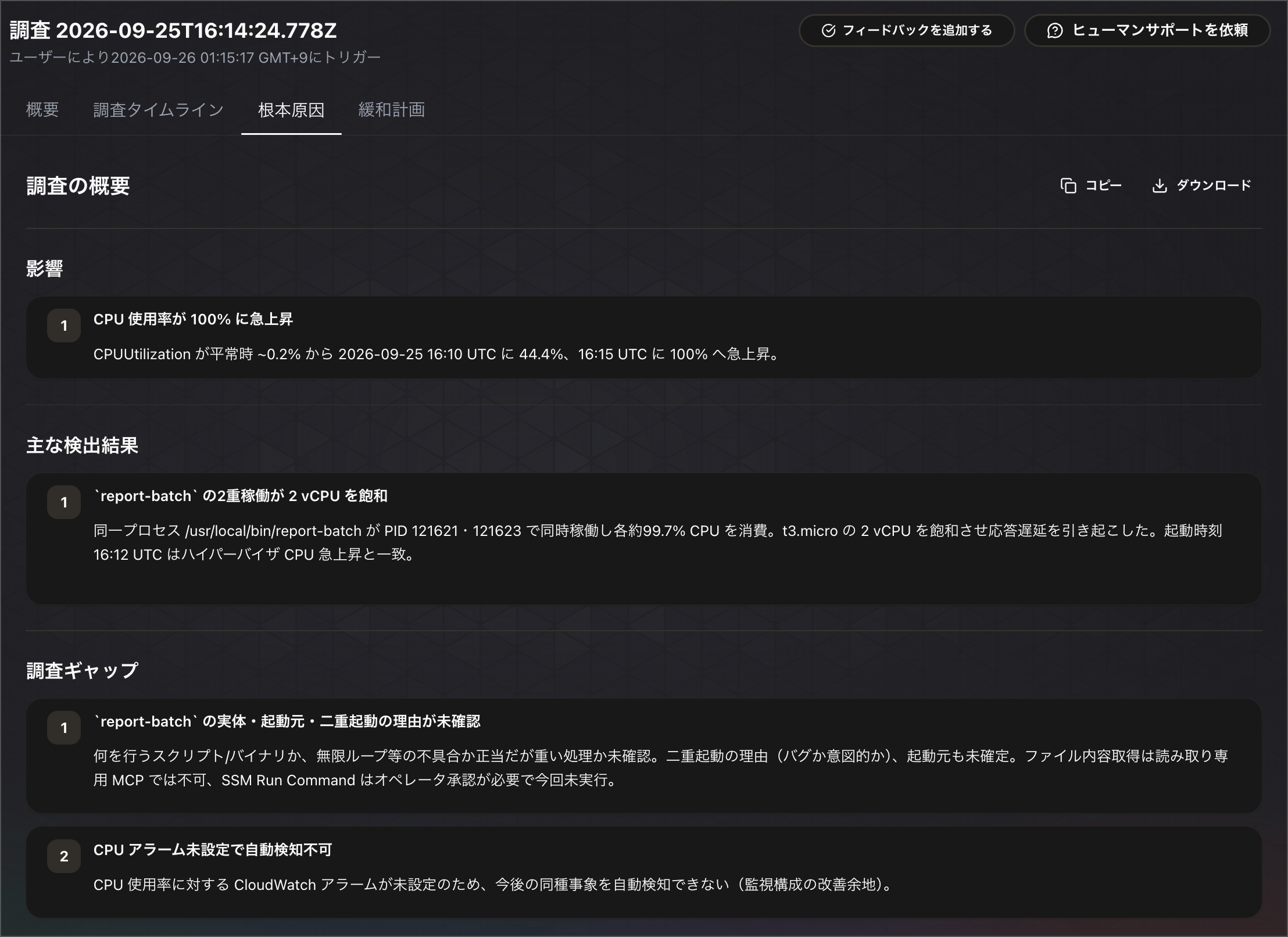
By being able to retrieve OS information, the report-batch process was identified as the root cause, and a mitigation plan including stopping the process was created.
Since it is based on OS information, the mitigation plan also includes operations on the OS.
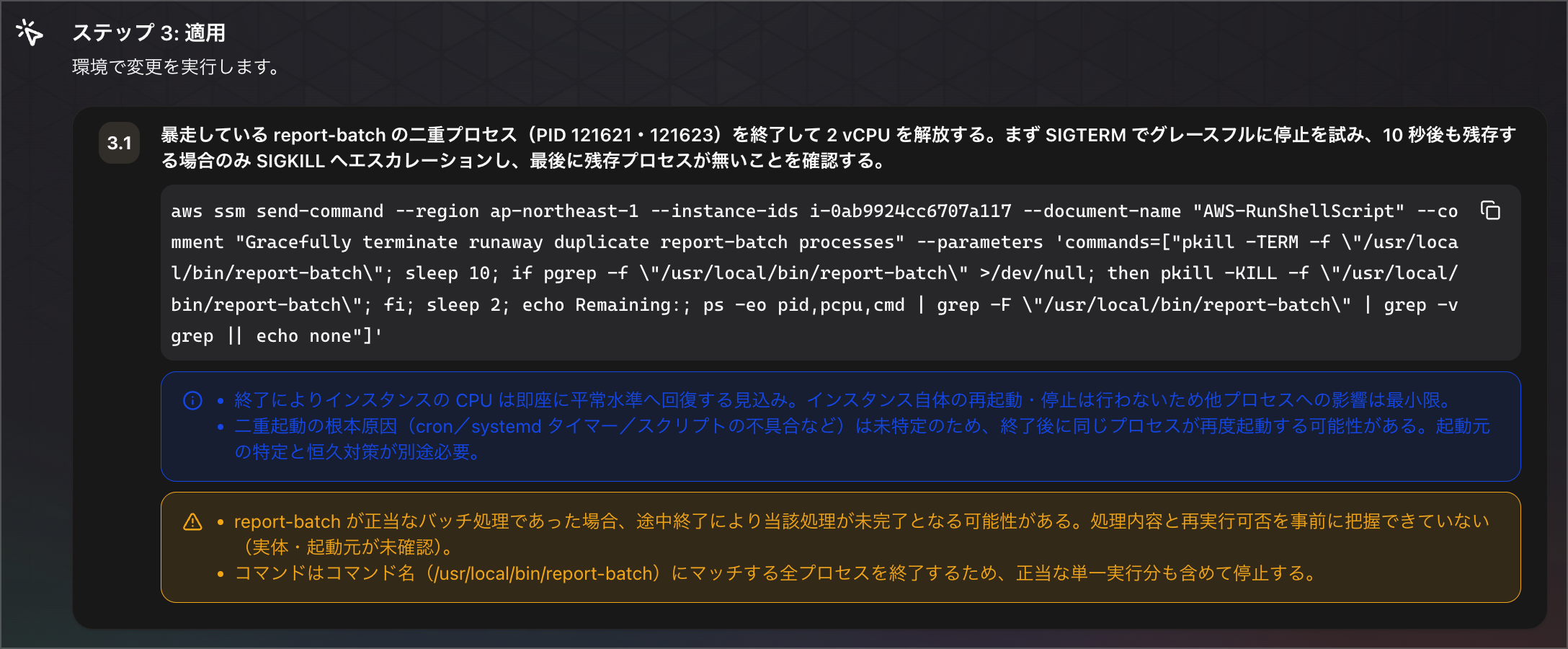
Since we have the mitigation plan, let's instruct the agent action to execute it.
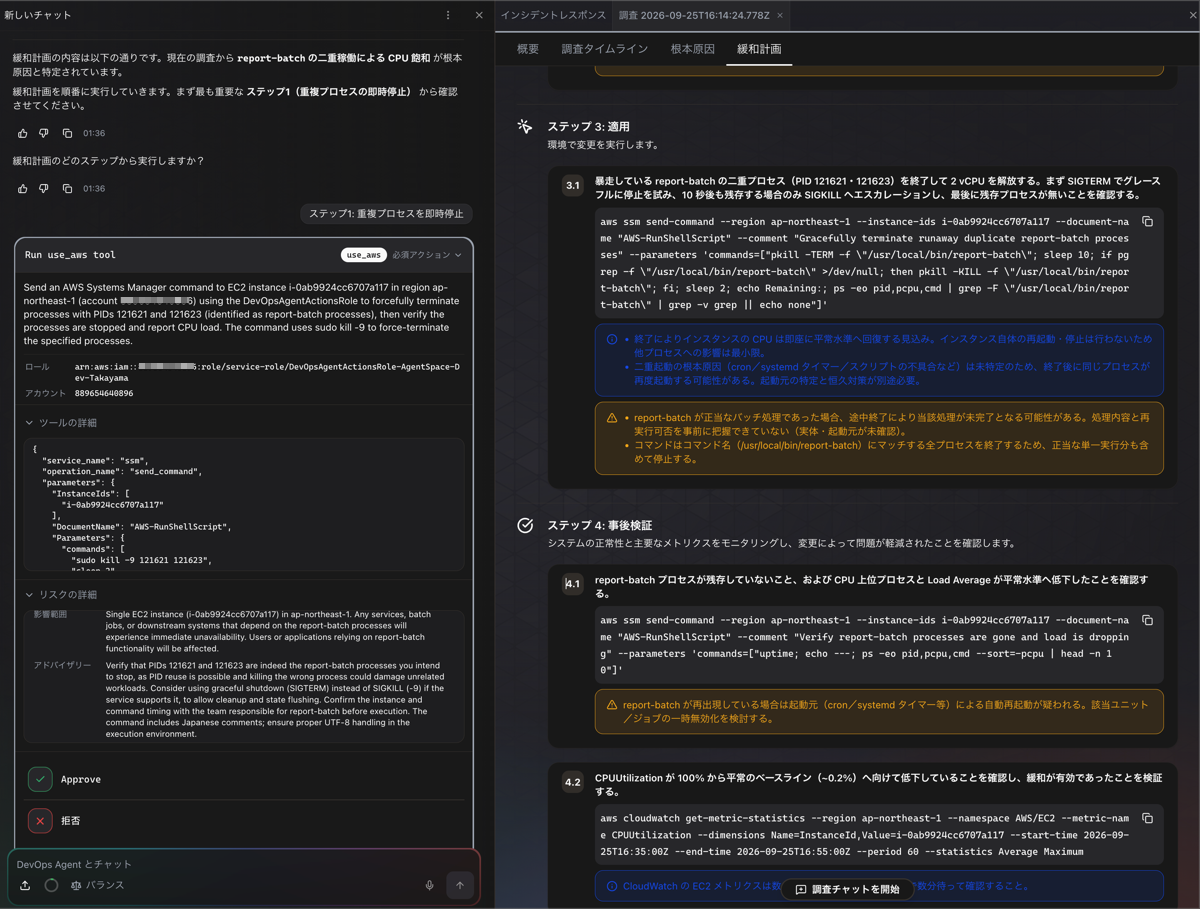
Looking at the execution content, it is executing a command to stop the report-batch process using AWS-RunShellScript.
{
  "service_name": "ssm",
  "operation_name": "send_command",
  "parameters": {
    "InstanceIds": [
      "i-0ab9924cc6707a117"
    ],
    "DocumentName": "AWS-RunShellScript",
    "Parameters": {
      "commands": [
        "sudo kill -9 121621 121623",
        "sleep 2",
        "echo '=== Process stop confirmation ==='",
        "ps aux | grep report-batch | grep -v grep || echo 'All report-batch processes have been stopped'",
        "echo '=== Current CPU load ==='",
        "uptime"
      ]
    },
    "Comment": "Mitigation plan step 1: Stop duplicate report-batch processes"
  },
  "aws_region": "ap-northeast-1",
  "aws_account_id": "xxxxxxxxxxxx"
}
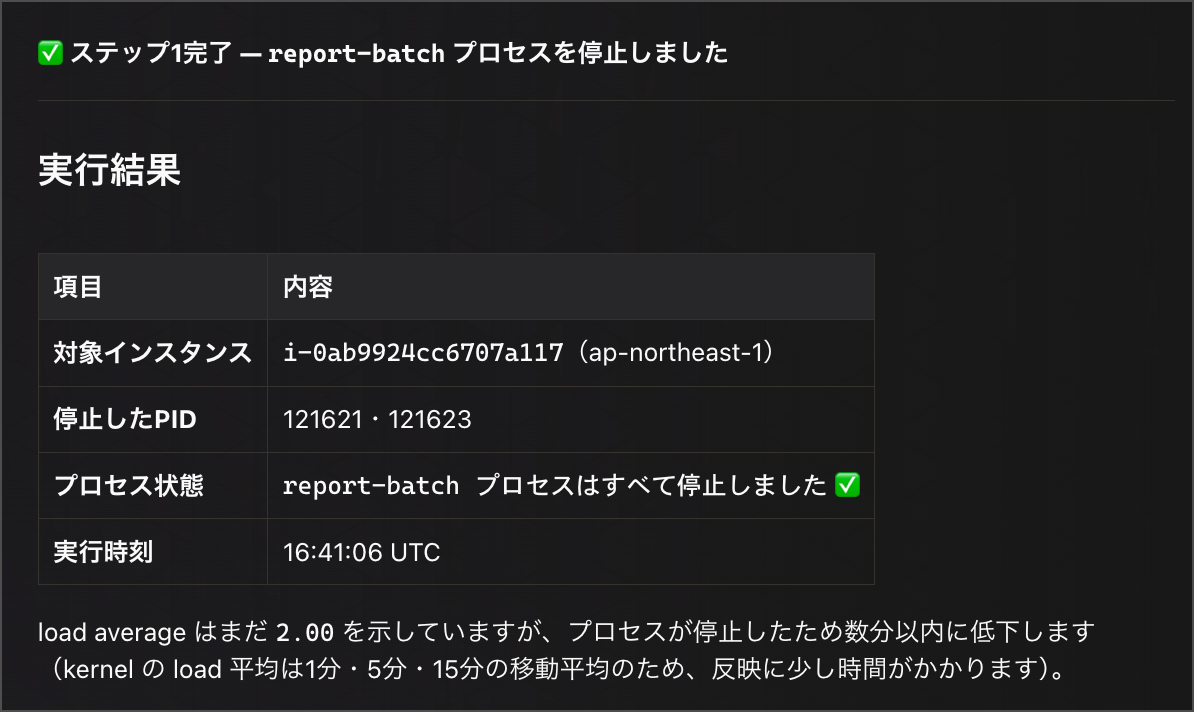
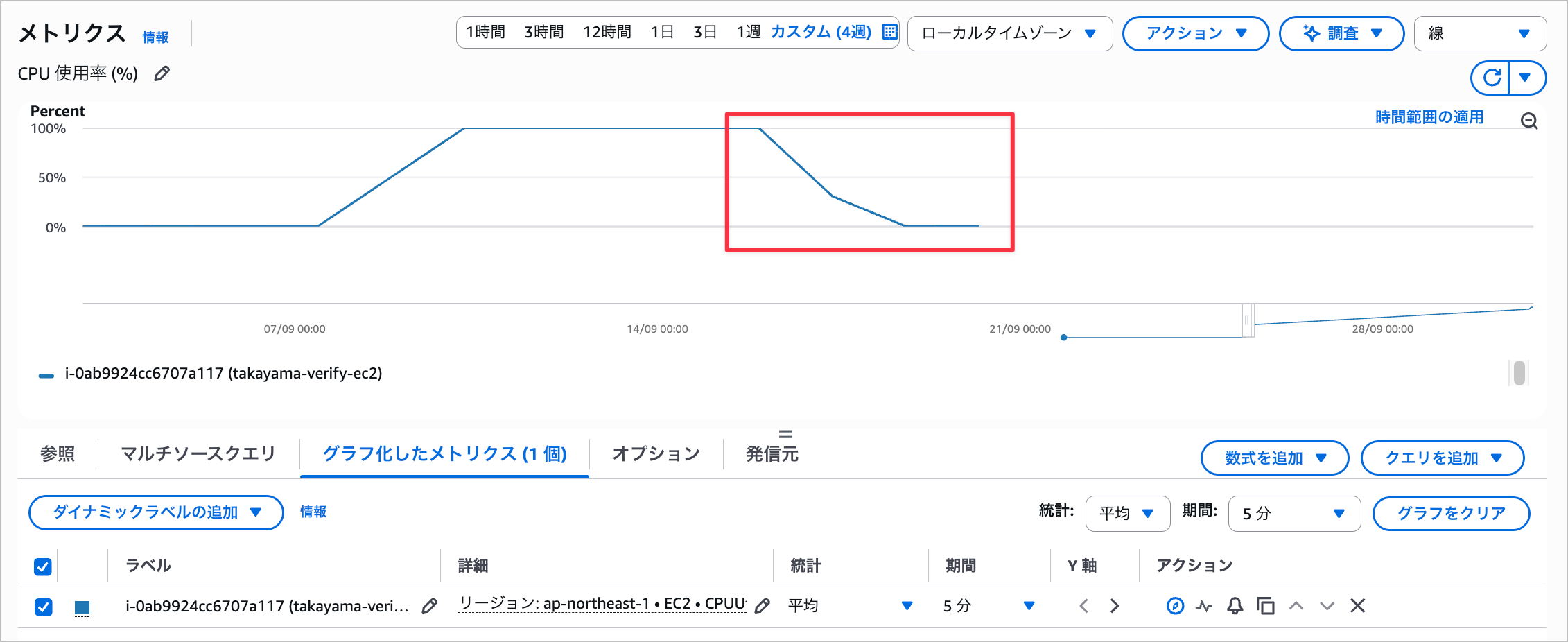
The agent action also completed successfully, and CPU metric recovery was confirmed.
Closing
This time, we created an MCP server that retrieves EC2 OS information and added it to DevOps Agent.
Since commands are being executed on the OS, it is important not to allow the Agent to execute arbitrary commands.
By fixing the content to be executed in an SSM Document and ensuring that the Lambda execution role can only send that Document, we allow the Agent to only choose what to investigate, preventing unexpected commands from being executed on the OS.
This time we limited it to Linux and only commands for checking basic OS status, but
by adding investigation types to the SSM Document, it should be possible to compose investigations tailored to the environment, such as checking application logs or investigations for Windows.
By adding the MCP server, it became possible to identify the causing process from OS information even within Investigation, and to connect it to mitigation via agent actions.
Since OS investigation can be added while keeping permissions limited to read-only, DevOps Agent OS investigation becomes possible even in environments that are not sending OS information to CloudWatch.
I hope this article is helpful to someone.
That's all from Takayama (@nyan_kotaroo).
