
I checked how to deal with the situation when you cannot delete a schedule in PagerDuty

This page has been translated by machine translation. View original
Hello. This is Takayama.
When deleting a user that was registered in a PagerDuty schedule, you may see the following error.
This schedule contains inactive users. Please remove the inactive users to ensure that incidents will reach all responders.
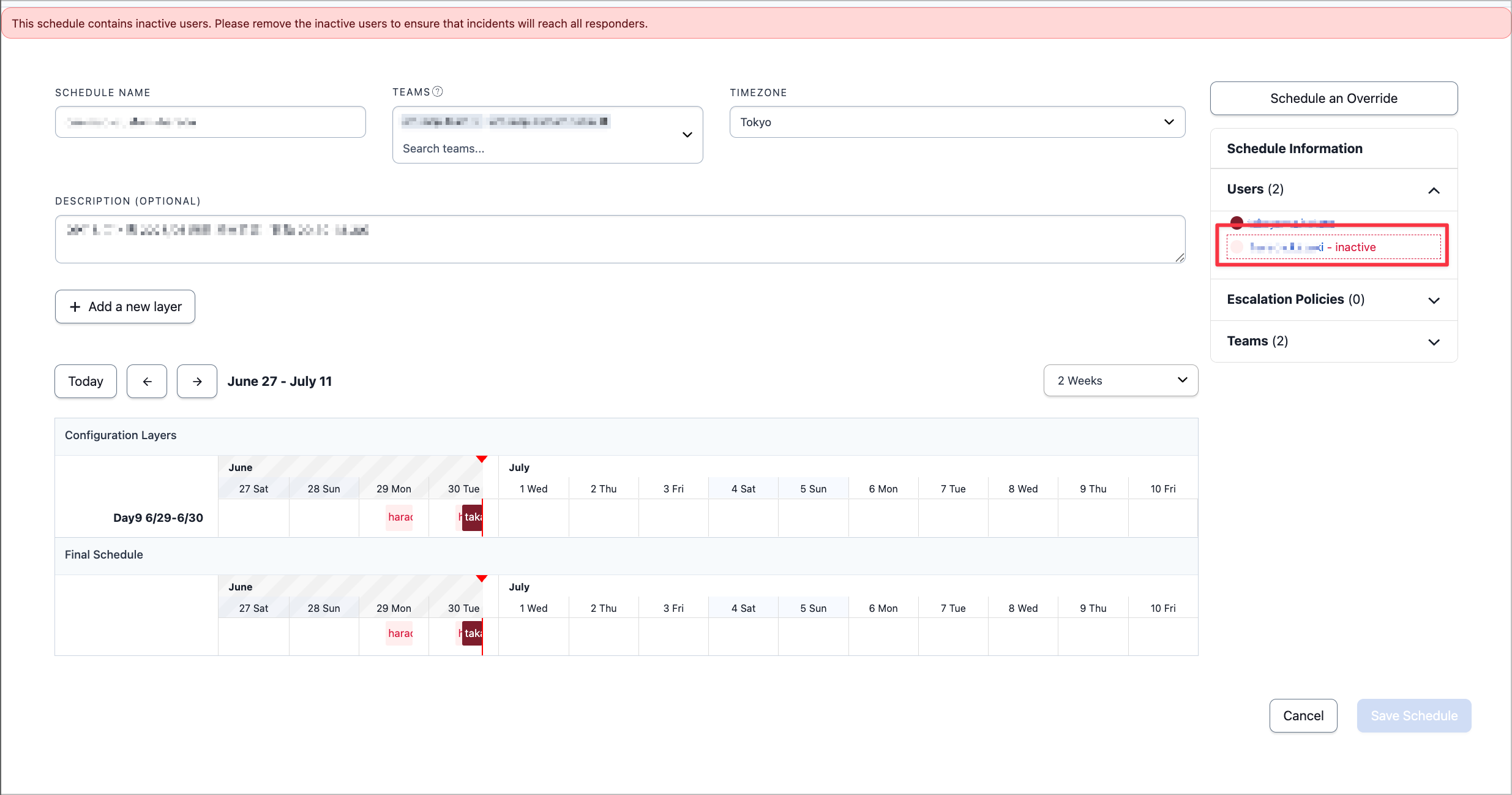
Since we were not using this schedule itself, we tried to delete it, but the following error appeared and we were unable to delete it.
Schedule can't be deleted if it's being used by an escalation policy snapshot with open incidents
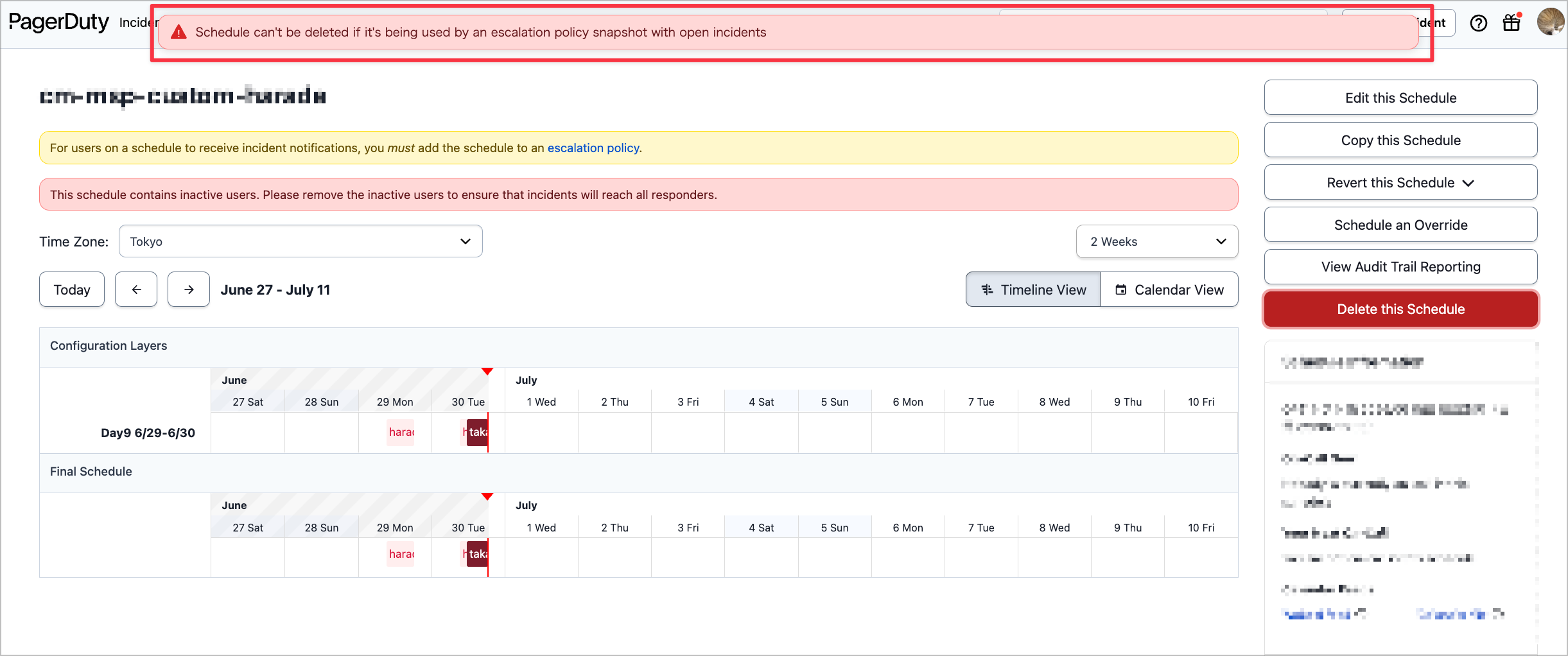
Since it took a while to go from the error message to the direct resolution, I'll summarize this as a gotcha point in an article.
Cause
Searching for the error message didn't immediately lead to a solution, but the official documentation for escalation policies clearly described the cause and how to address it.
Deleting Users and Schedules
When an incident triggers, PagerDuty records a snapshot of a service's escalation policy and uses this version throughout the entirety of the incident's lifecycle. This means you will not be able to delete any users or schedules that were on the escalation policy when the incident triggered. If you need to delete such a user or schedule, you have two options:
- Resolve any associated incidents.
- After making the desired changes to the escalation policy, reassign the incident to the same escalation policy. This records a new escalation policy snapshot and allows you to delete any users or schedules captured in the previous snapshot.
Japanese translation:
Deleting Users and Schedules
When an incident is triggered, PagerDuty records a snapshot of the service's escalation policy and uses that version throughout the entire lifecycle of the incident. This means you cannot delete users or schedules that were included in the escalation policy at the time the incident was triggered. If you need to delete such a user or schedule, you have two options.
- Resolve the associated open incidents
- After removing the schedule from the escalation policy, reassign the incident to the same escalation policy (a new snapshot will be recorded, making it possible to delete schedules from the old snapshot)
https://support.pagerduty.com/main/docs/escalation-policies#escalation-policy-changes
Solution
The documentation pretty much covers the solution, but let's try the actual steps here.
As mentioned in the cause above, there are two solutions.
- Resolve the associated open incidents
- After removing the schedule from the escalation policy, reassign the incident to the same escalation policy (a new snapshot will be recorded, making it possible to delete schedules from the old snapshot)
The easiest approach is option 1, but there may be cases where you cannot close the incident.
So this time, let's try option 2.
Reassigning the Escalation Policy
First, before reassigning the escalation policy, remove the unnecessary users and schedules from the target escalation policy.
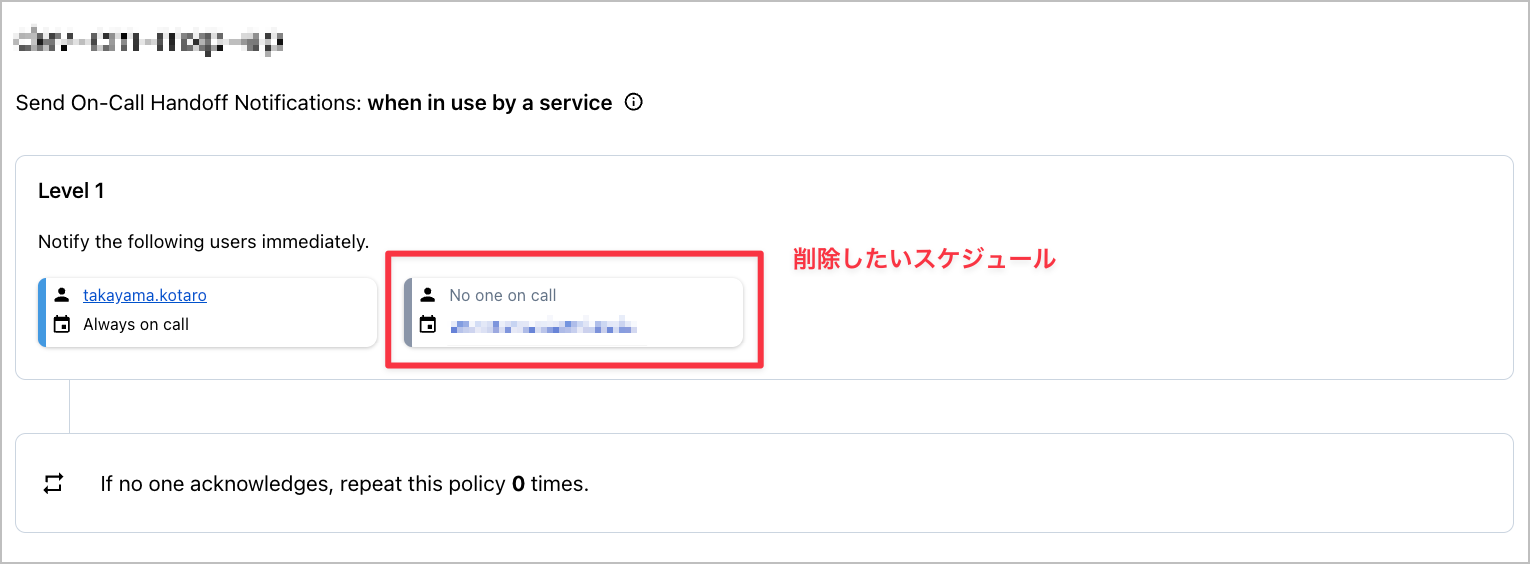
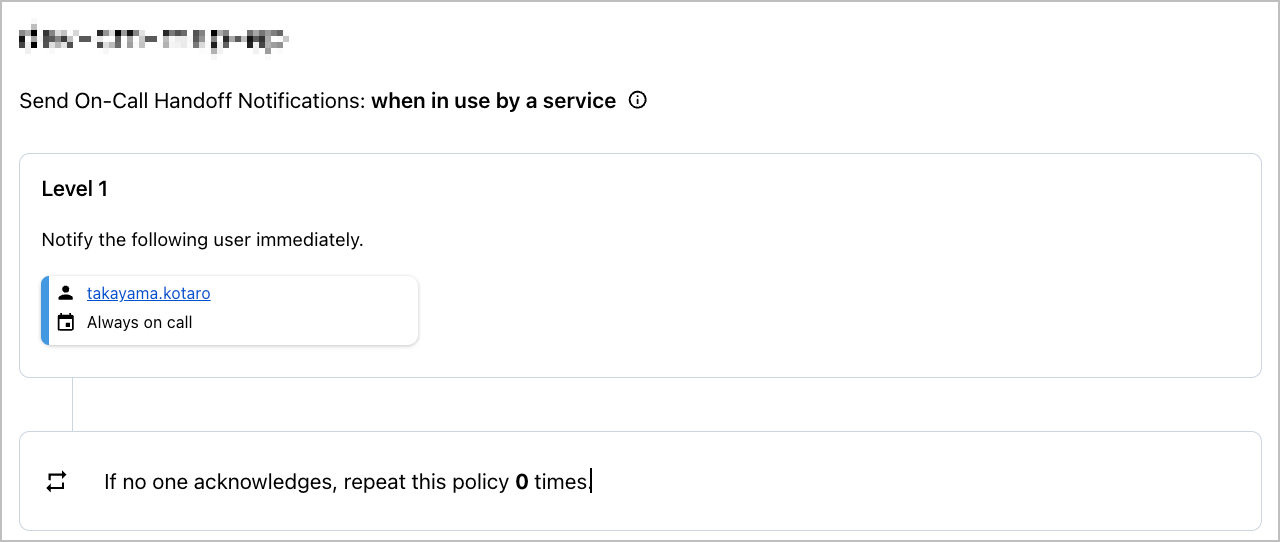
Once you have removed the users and schedules to be deleted, reassign the incident to the same escalation policy.
Three methods for reassigning are introduced: Web App / Mobile App / API.
Here we will introduce the Web App method.
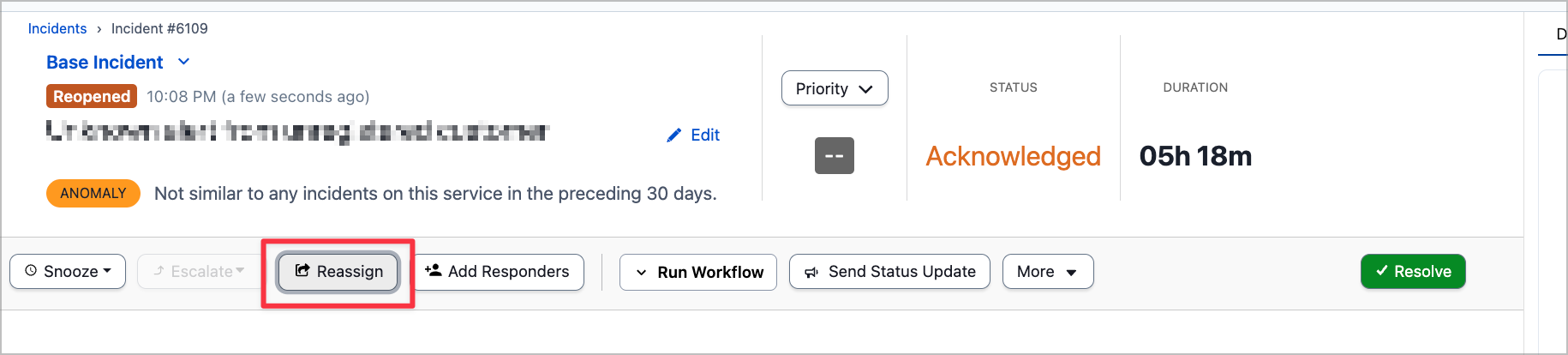
Open the target incident and click the Reassign button.
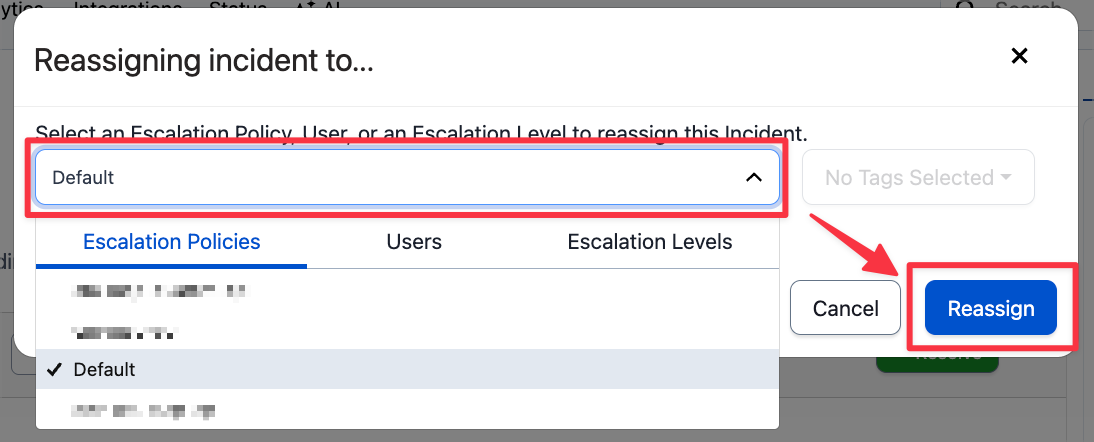
When Reassigning incident to... is displayed, select the escalation policy from which the unnecessary users and schedules have been removed, and click the Reassign button.
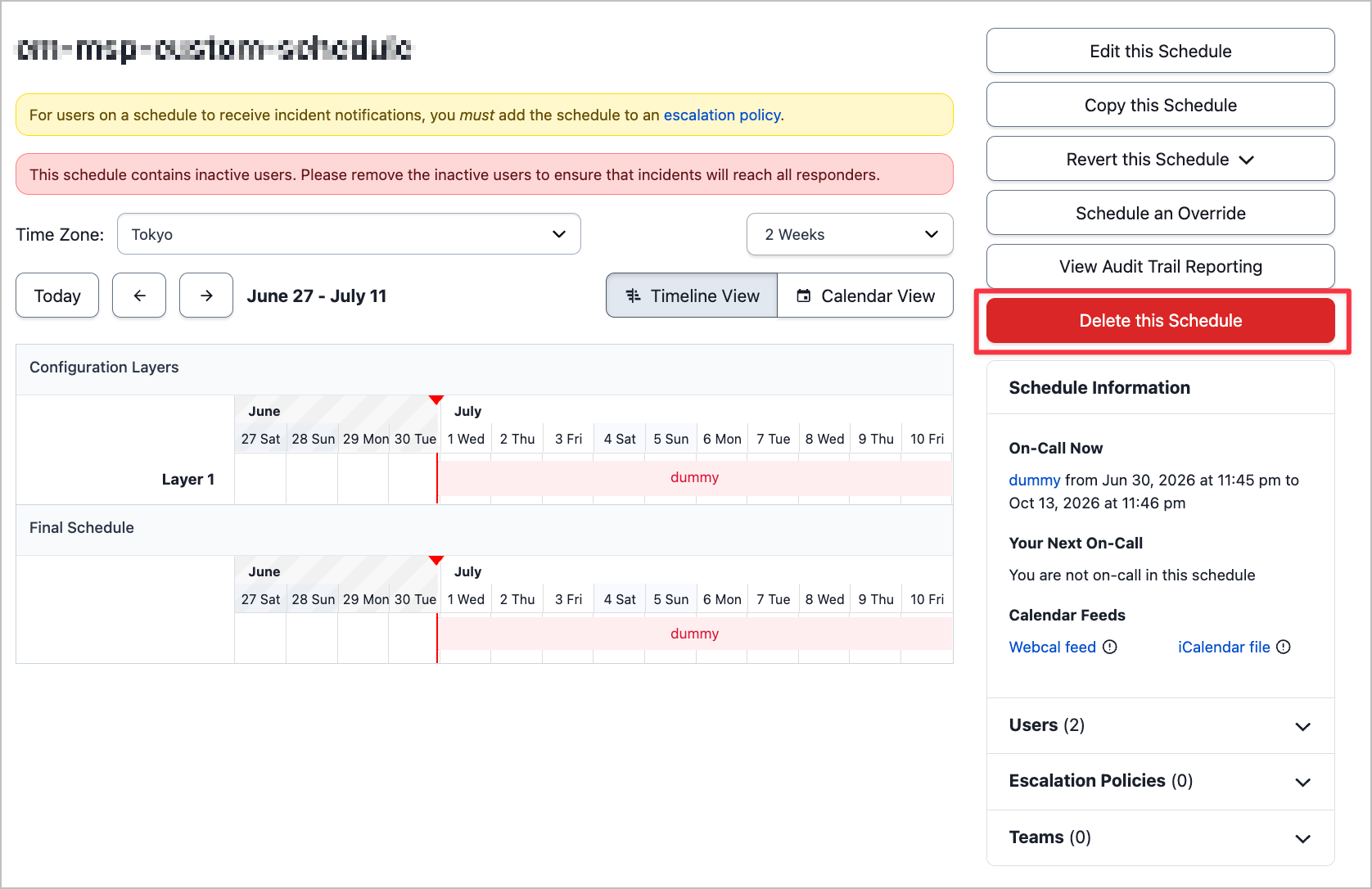
Once you have completed the reassignment for all incidents associated with the escalation policy that had unnecessary users or schedules linked to it, you will be able to delete the schedule.
Closing
I have summarized how to handle the error "Schedule can't be deleted if it's being used by an escalation policy snapshot with open incidents" that appears when trying to delete a schedule in PagerDuty.
I think it can be a tricky point that even after removing a schedule from an escalation policy, you still cannot delete it if an open incident is tied to a past snapshot.
This time we resolved the issue by reassigning the escalation policy, but there is a downside in that reassigning causes notifications to be resent.
If there is no urgency, it might be smoother to wait for the relevant open incidents to naturally close before deleting the schedule.
I hope this article is helpful to someone.
That's all from Takayama (@nyan_kotaroo).