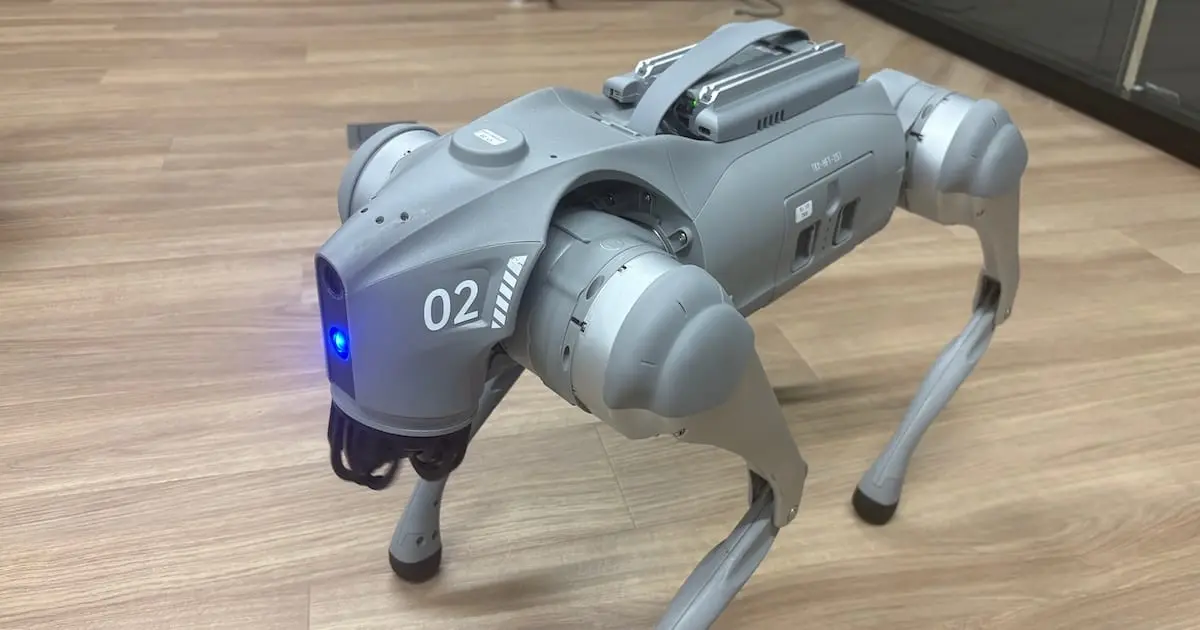
Robot Visual Inspection Agent Utilizing Unitree Go2 and G1: Completion of PoC Through Processing Speed Optimization and G1 Camera Compatibility Verification

This page has been translated by machine translation. View original
Introduction
In previous articles, we built a visual inspection agent that uses Grounding DINO Tiny for object detection, geometric calculations with a forward-route ROI, a deterministic Python policy, and a Streamlit dashboard, all taking the Unitree Go2's front camera image as input.
The current basic configuration is as follows.
Go2 front camera
  ↓
read-only camera capture
  ↓
latest.jpg mailbox
  ↓
Grounding DINO Tiny
  ↓
bounding box
  ↓
Geometric calculation with forward-route ROI
  ↓
deterministic risk policy
  ↓
JSON / overlay
  ↓
Streamlit dashboard
This system is an advisory-only prototype for operators to check the situation ahead during manual operation.
It is not connected to robot control of any kind — including movement, stopping, arms, hands, or grasping for Go2 or G1.
This article focuses on the following two points.
- How we analyzed and optimized the processing speed of the inspection pipeline
- Confirming that read-only camera images can also be captured on G1 and fed into the existing Grounding DINO analyzer
Ultimately, on Go2, we improved the mailbox update interval for the latest image from approximately every 3–4 seconds to approximately every 1 second. On G1, we confirmed that JPEG images can be obtained from the same VideoClient-compatible path and processed by the existing analyzer.
Go2 Demo Video
The final demo video for Go2 is shown below.
What We Accomplished This Week
This week, we mainly implemented and verified the following.
- Improved the analyzer to measure processing by individual stage
- Identified full-resolution PNG overlay output as a major bottleneck
- Reduced the overlay for dashboard display to a maximum width of 1280px and optimized PNG output cost
- Measured processing time in the persistent analyzer
- Changed Go2 camera capture from a one-shot process launch approach to a persistent VideoClient capture loop
- Improved the
latest.jpgupdate interval on Go2 from approximately 3–4 seconds to approximately 1 second - Re-verified the real Go2 pipeline including the
latest.jpgmailbox, CUDA analyzer, and dashboard - Investigated camera sources on the G1 Jetson
- Checked the G1's
/frontvideostreamtopic and existing camera-related implementations - Obtained JPEG images read-only from the Go2 VideoClient-compatible path on G1
- Fed G1 camera images into the existing Grounding DINO analyzer and confirmed the detector and overlay work correctly
This time as well, no movement commands were used for Go2 or G1 — including movement, arms, hands, grasping, or sport API.
Breaking Down the Analyzer Processing Time
Initially, we assumed the Grounding DINO Tiny model forward pass was consuming the most time.
However, when we actually broke down the analyzer processing into the following stages and measured them, a different bottleneck emerged.
image load
preprocessing
model forward
post-process
object conversion
geometry policy
overlay write
JSON output
Because CUDA processing runs asynchronously, measuring only the model forward on the CPU-side clock can make it appear shorter than it actually is.
Therefore, we performed CUDA synchronization before and after the model forward to record a more accurate timing.
torch.cuda.synchronize()

forward_start = time.perf_counter()

with torch.inference_mode():
    outputs = model(**inputs)

torch.cuda.synchronize()

model_forward_sec = time.perf_counter() - forward_start
This measurement made it possible to compare not just inference, but also image loading, preprocessing, post-processing, and overlay output.
An Unexpected Bottleneck: Full-Resolution PNG Overlay
In the initial offline benchmark, the results were as follows.
model_forward_sec:
  1.8079 sec

overlay_write_sec:
  1.9481 sec

total_analyze_sec:
  3.9458 sec
The process of drawing bboxes and ROIs onto a 1920×1080 image and saving it as a PNG was consuming more time than the Grounding DINO Tiny model forward pass.
Based on this result, we judged that optimizing the display output first would be more effective than changing the model.
The important point is not to change the image, bboxes, ROI, thresholds, or geometry policy used for risk determination.
The only target for modification is the overlay image displayed on the dashboard.
Optimizing the Dashboard Overlay
For the optimization, we adopted the following approach.
Image for determination:
  Maintain original resolution

Grounding DINO input:
  No change

Bounding box:
  No change

ROI geometry:
  No change

Risk policy:
  No change

Dashboard display overlay:
  After drawing bboxes and ROI on the original image,
  reduce to a maximum width of 1280px and save as PNG
In other words, we did not touch any parts related to physical risk determination, and only lightened the operator-facing display output.
The single-image benchmark after optimization yielded the following results.
model_forward_sec:
  1.2296 sec

overlay_write_sec:
  0.1480 sec

total_analyze_sec:
  1.5777 sec
The overlay write was reduced from approximately 1.95 seconds to approximately 0.15 seconds.
1.9481 sec
  ↓
0.1480 sec
This is a reduction of approximately 92%!
However, this single-image benchmark represents the result of a newly launched analyzer processing its first image.
Since it includes warm-up costs such as CUDA context initialization, GPU memory allocation, and kernel selection, it is not treated as a representative value for normal persistent runtime.
Warm Performance of the Persistent Analyzer
In a warm benchmark where multiple images are processed while keeping the same analyzer process running, the following values were confirmed.
model forward:
  approximately 0.3356 sec

image load:
  approximately 0.0646 sec

preprocessing:
  approximately 0.0285 sec

post-processing:
  approximately 0.0606 sec

overlay write:
  approximately 0.1393 sec

analyzer processing before result publication:
  approximately 0.6507 sec
From these results, the internal processing of the persistent analyzer had been improved to approximately 0.65 seconds.
Meanwhile, from saved real Go2 dashboard results, the following values were also confirmed.
Inference:
  0.235 sec

Capture to Analysis:
  0.775 sec
Capture to Analysis includes analyzer detection after mailbox update, image decode, preprocessing, model forward, geometry, overlay, and JSON output.
It does not include browser rendering or operator reaction time.
The key point here is that even if the analyzer processing is sped up, if camera images are only supplied every few seconds, the dashboard will not appear smooth.
The Next Bottleneck: Go2 Camera Image Supply
After improving the analyzer processing time, when checking the dashboard on the real Go2 pipeline, results came out quickly, but the screen still appeared to update every few seconds.
Investigating the cause, the conventional capture path had the following structure.
Python process launch
  ↓
ChannelFactoryInitialize
  ↓
VideoClient.Init
  ↓
Execute GetImageSample once
  ↓
JPEG output
  ↓
Process terminates
  ↓
Restart in next cycle
Even when changing the capture interval to 1 second, the actual latest.jpg update was approximately every 3–4 seconds.
This is because the time includes not just the configured sleep interval, but also the Python process launch, DDS initialization, VideoClient initialization, and one-shot camera request each time.
Persistent VideoClient Capture Loop
Therefore, we changed the Go2 camera capture to a persistent process.
The new configuration is as follows.
ChannelFactoryInitialize
  ↓
VideoClient.Init
  ↓
while loop
  ↓
GetImageSample
  ↓
JPEG validation
  ↓
.latest.jpg.tmp
  ↓
atomic replace
  ↓
latest.jpg
Initialization is performed only once, after which GetImageSample() is called repeatedly using the same VideoClient.
Conceptually, the configuration is as follows.
ChannelFactoryInitialize(0, interface)

client = VideoClient()
client.SetTimeout(3.0)
client.Init()

while True:
    code, data = client.GetImageSample()

    if code == 0:
        write_latest_jpeg_atomically(data)
This capture loop does not call the Go2 movement API.
It only performs front camera image requests and writes latest.jpg on the host.
It also does not accumulate timestamped raw images in the input directory, but always retains only the single most recent image.
Improving the Go2 Image Update Interval to Approximately 1 Second
After verifying the persistent VideoClient capture loop on the real Go2, the latest.jpg update became approximately every 1 second.
former repeated one-shot capture:
  approximately every 3–4 sec

persistent VideoClient capture:
  approximately every 1 sec
At the time of the first acquisition, the following light processing times were also confirmed.
GetImageSample request:
  approximately 0.009 sec

mailbox publish:
  approximately 0.0125 sec
Of course, there may be variation depending on the actual camera frame availability and DDS communication status.
However, compared to the previous approach of relaunching the Python process and VideoClient each time, the update feel of the dashboard was clearly improved.
The current Go2 pipeline is as follows.
Go2 front camera
  ↓
persistent read-only VideoClient capture loop
  ↓
latest.jpg mailbox
  ↓
Grounding DINO Tiny on CUDA
  ↓
deterministic ROI geometry
  ↓
JSON / overlay
  ↓
Streamlit dashboard
The approximately 1-second update mentioned in this article refers to the update interval of the periodic still-image mailbox.
It does not mean that a continuous video stream is being analyzed directly.
G1 Camera Compatibility Smoke Test
In addition to improving the processing speed of Go2, we also verified G1 camera compatibility.
We first investigated existing camera-related implementations on the G1 Jetson.
The confirmed front camera topic is as follows.
ROS 2 topic:
  /frontvideostream

message type:
  unitree_go/msg/Go2FrontVideoData
The documentation of the existing project recorded that this topic contains an H.264 encoded video stream.
On the other hand, in the current G1 environment, we were also able to confirm that the Go2 SDK VideoClient-compatible path actually works.
ChannelFactoryInitialize(0, "eth0")
  ↓
VideoClient.Init
  ↓
GetImageSample
  ↓
valid JPEG bytes
The obtained JPEG could be decoded with Pillow and fed directly into the existing Grounding DINO analyzer.
G1 Demo Image
For G1, we conducted a read-only smoke test this time to verify camera compatibility and analyzer input.
Since G1 movement and manipulation are not within the scope of this article, we did not create a movement demo video like the one for Go2.
Instead, we present the detector and overlay results for a G1 camera image.
Demo image
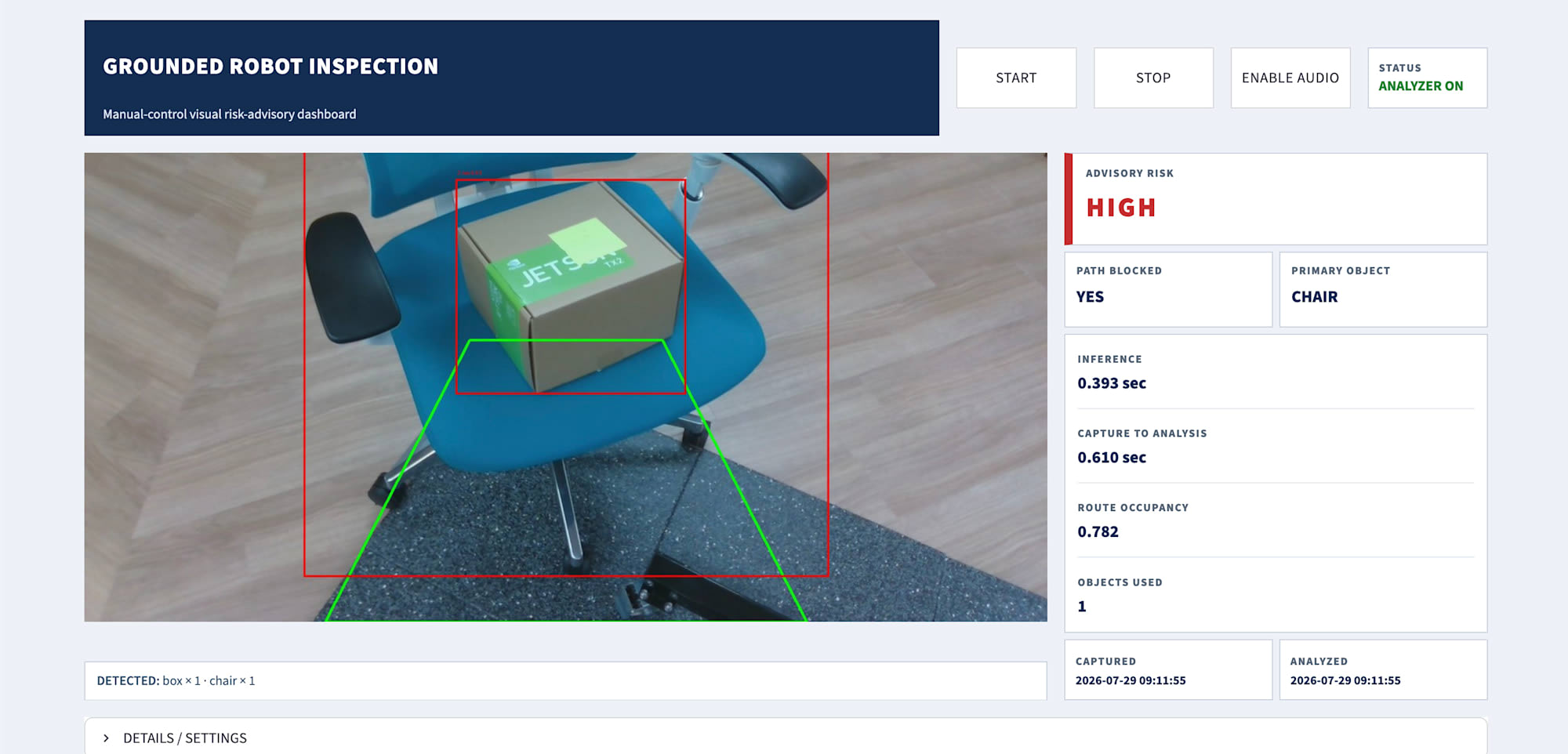
What we were able to confirm this time is as follows.
G1 front camera
  ↓
VideoClient compatibility path
  ↓
valid JPEG
  ↓
Grounding DINO analyzer input
  ↓
detection / overlay output
G1 camera images were processed by the existing analyzer without any major issues.
However, the forward-route ROI designed for Go2 has not been validated as a navigation or manipulation safety policy for G1.
Whether to add a G1-specific g1_near_field_v0 ROI will be considered when it becomes necessary for future near-field inspection tasks, based on controlled images and clear evaluation objectives.
This time, we concluded with confirming G1 camera image compatibility as our achievement, and decided not to forcibly add uncalibrated ROIs or new risk policies.
Dashboard and Operator Advisory
The Streamlit dashboard displays the following information.
latest analyzed image
bounding box overlay
forward-route ROI
ADVISORY RISK
PATH BLOCKED
PRIMARY OBJECT
INFERENCE
CAPTURE TO ANALYSIS
ROUTE OCCUPANCY
OBJECTS USED
CAPTURED
ANALYZED
analyzer log
Operators can manage the analyzer process via START / STOP.
However, STOP only stops the analyzer.
STOP analyzer
  ≠ Go2 stop
  ≠ camera capture stop
  ≠ robot movement control
  ≠ emergency stop
The capture loop continues writing the latest image to latest.jpg.
When the analyzer is STARTed again, it processes only the current latest image, not a backlog of past images.
This design makes it easy to return to the current scene as an operator advisory dashboard.
Lessons Learned from Trial and Error
Through this optimization, we learned the importance of breaking down and measuring the entire actual pipeline before changing the model.
Initially, we assumed model inference was the slowest part.
However, through actual measurement, the issues were found in the following order.
1. Full-resolution PNG overlay output
2. Analyzer warm-up
3. Camera image supply cadence
4. Dashboard port conflict
5. Process lifecycle / cleanup
Particularly important was the realization that even if only the Grounding DINO Tiny inference speed is optimized, the update feel of the dashboard that operators see will not improve if camera images are only updated every few seconds.
Therefore, we resolved bottlenecks step by step as follows.
full-resolution overlay
  ↓
1280px display overlay + PNG encoding optimization

one-shot capture process
  ↓
persistent VideoClient capture loop
In this way, we felt that in robotics systems, the overall design — including not just the AI model, but also camera I/O, DDS, process lifecycle, file mailbox, containers, and browser UI — is crucial.
Summary
In this robot visual inspection agent, we built and verified a visual inspection pipeline targeting Go2 and G1.
The main achievements are as follows.
Read-only JPEG capture from Go2 front camera
Object detection using Grounding DINO Tiny
Deterministic geometry policy using bounding boxes and ROI
Multi-object union occupancy
Streamlit operator dashboard
Analyzer-side overlay output optimization
Persistent VideoClient capture loop
Improvement of Go2 latest.jpg update interval from approximately 3–4 seconds to approximately 1 second
Confirmation of G1 camera JPEG compatibility
Confirmation of G1 image input to Grounding DINO analyzer
In this design, we separated semantic understanding by VLM from geometric determination against the route.
Grounding DINO:
  object localization

Python geometry:
  ROI overlap and occupancy

deterministic policy:
  risk level and path_blocked

VLM / LLM:
  future semantic explanation and reporting
This division of roles improved the speed, reproducibility, and explainability required for route risk advisory.
This system is an advisory-only prototype for operators to check the latest visual risk evidence during manual operation.
It is not connected to robot control of any kind for Go2 or G1 — including movement, stopping, arms, hands, grasping, or emergency stop.
We are now feature-freezing this inspection project, and plan to move forward next with a separate project: reinforcement learning for G1 stationary bottle manipulation using Isaac Lab.
The knowledge gained from building the camera, detector, dashboard, and evaluation systems for Go2 and G1 will be leveraged as an observation and verification foundation in the next Physical AI project!