I Tried Sending Email Notifications for Security Command Center Threat Findings Using SendGrid

This page has been translated by machine translation. View original
Hello! This is Yoshida from the Cloud Business Division.
I built a mechanism to receive Security Command Center (SCC) threat findings by email. The setup uses SCC continuous export to send findings to Pub/Sub, a push subscription to invoke a Cloud Run function, and SendGrid to send the email.
Sending an email is not difficult by itself, but I also wanted a way to notice when sending fails. This time, I made the function return 500 when sending fails so that Pub/Sub retries, and set up a Cloud Monitoring alert that fires when unacknowledged messages pile up. I also actually made sending fail to confirm how the retries and the alert behave.
I will also summarize how SendGrid's click tracking rewrites links in the body when it is enabled, and how to handle that. I hope this is helpful for anyone who wants to receive SCC findings by email.
Architecture
The architecture is as follows.
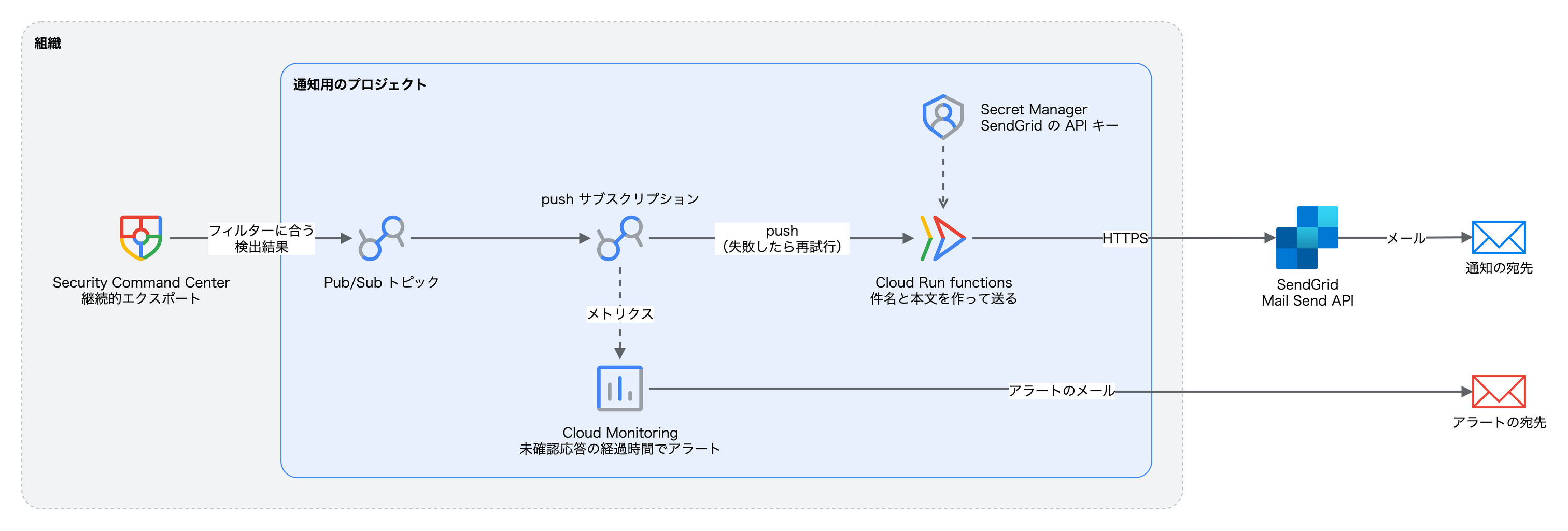
- SCC continuous export sends the findings you want to be notified about to a Pub/Sub topic
- A push subscription invokes a Cloud Run functions function
- The function builds a subject and body from the finding and sends an email with SendGrid's Mail Send API. The SendGrid API key is stored in Secret Manager
- Cloud Monitoring watches whether unacknowledged messages are piling up in the subscription, and raises an alert
How to invoke Cloud Run from Pub/Sub
There are two ways to invoke a Cloud Run service or function from Pub/Sub: a direct Pub/Sub trigger (push subscription) and a trigger using Eventarc. The Cloud Run documentation recommends the direct trigger. ※1
Direct Pub/Sub trigger (Recommended): Route messages directly to your service or function using Pub/Sub. You manage the subscription directly, and your service or function receives the standard Pub/Sub push request. Use this if you need simpler configuration.
(Translation: The direct Pub/Sub trigger (recommended) uses Pub/Sub to send messages directly to a service or function. You manage the subscription yourself, and the service or function receives a standard Pub/Sub push request. Use it when you want a simpler configuration.)
Since I don't need Eventarc's advanced filtering or routing this time, I chose the direct trigger. The function's Ingress is set to "internal," and authentication uses a service account for push (one with only roles/run.invoker attached). I also confirmed that a push subscription in the same project can invoke a function whose Ingress is set to internal.
Email format
The email the function sends has the key points in the subject and at the top of the body, followed by the original finding (JSON). The subject is 【Google Cloud SCC】{category} (Severity: {severity}) {project ID}.
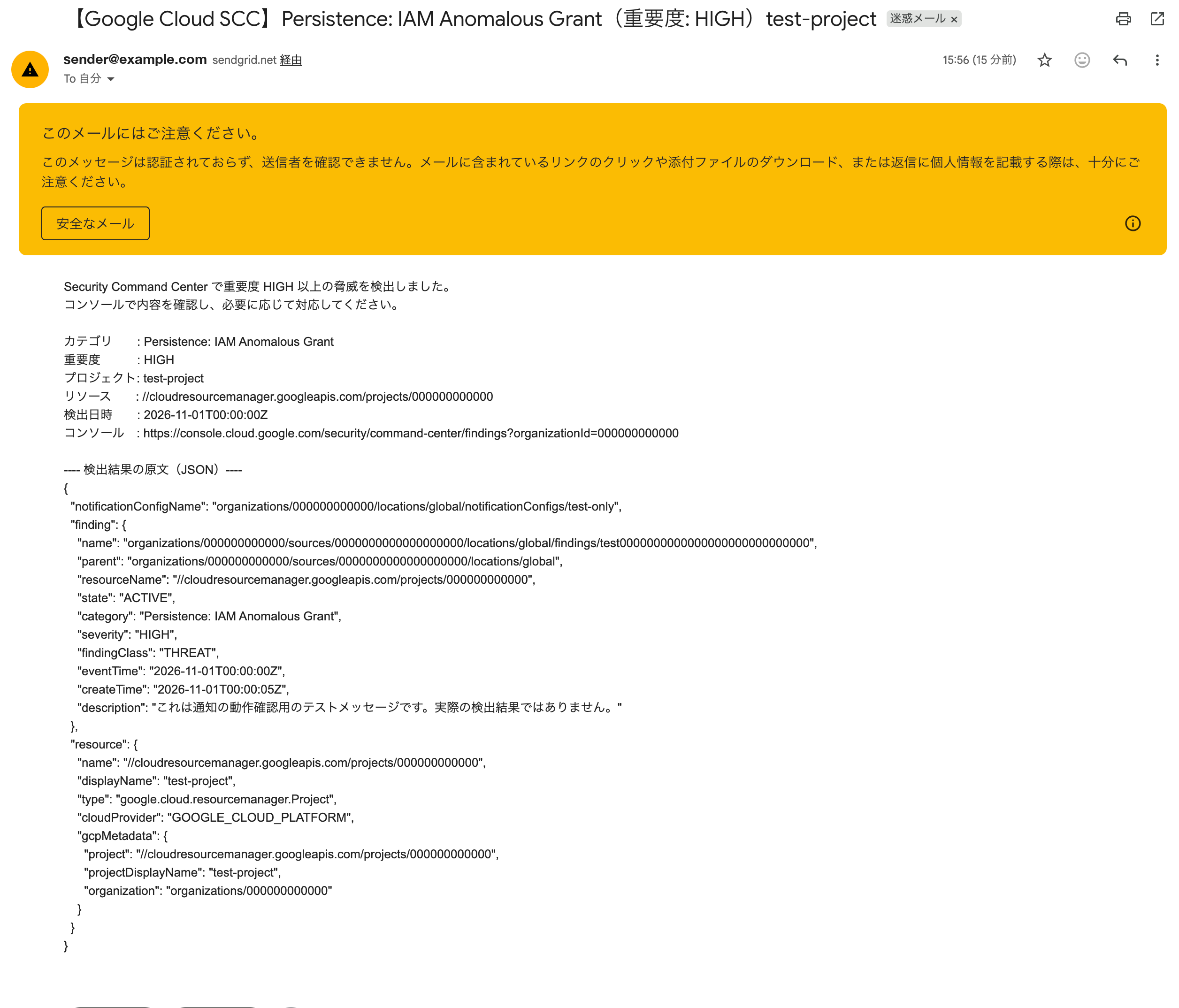
Organization-level findings have no project, so the project field in the subject and body shows "Organization."
Behavior when sending fails
Status codes the function returns
A Pub/Sub push subscription treats a message as received when the endpoint returns 102, 200, 201, 202, or 204. If it returns any other status code, or the acknowledgment deadline passes, the message is resent. ※2
If you send a negative acknowledgment or the acknowledgment deadline expires, Pub/Sub resends the message.
(Translation: If you send a negative acknowledgment or the acknowledgment deadline expires, Pub/Sub resends the message.)
Using this, I made the function return one of the following three codes depending on the situation.
| Situation | Status code returned | Pub/Sub behavior |
|---|---|---|
| The email was sent | 200 | Treated as received |
| The message could not be read (not JSON, etc.) | 204 | Treated as received, because resending would not make it readable |
| Sending to SendGrid failed | 500 | Resent at intervals |
The reason for returning 204 for an unreadable message is that resending would not change the result. Separating 204 from 200 lets you distinguish "sent" from "unreadable and discarded" in the logs. When a message cannot be read, the function logs an ERROR.
Retries and alerts
The interval between resends is determined by the subscription's retry policy. This time I used exponential backoff from a minimum of 10 seconds to a maximum of 600 seconds. While sending keeps failing, resends start at around 10 seconds and the interval gradually widens.
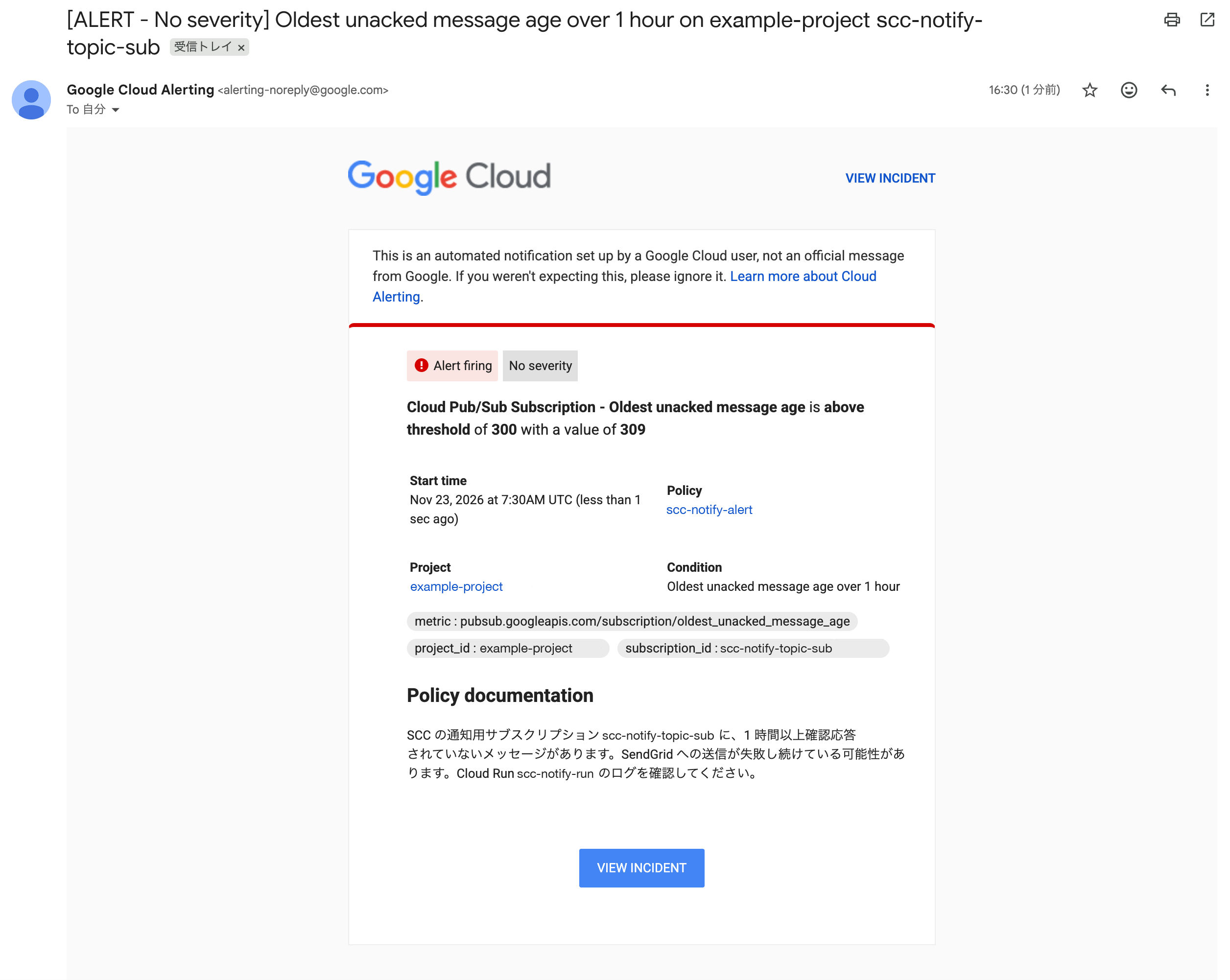
When sending keeps failing, unacknowledged messages pile up in the subscription. So I set up a Cloud Monitoring alert that fires when the age of the oldest unacknowledged message (pubsub.googleapis.com/subscription/oldest_unacked_message_age) exceeds a threshold. The threshold is 3600 seconds (1 hour). The setup commands are introduced in "Steps."
Actually making sending fail
I changed the function's sender address to one not authenticated in SendGrid, and then sent a test message. SendGrid returned 403 and rejected the send, and the function returned 500. To shorten the wait during verification, I changed the alert threshold to 300 seconds for this test.
The Cloud Run logs showed sending failures and 500s repeatedly. The retry interval was initially every dozen or so seconds, and gradually widened to every few minutes.
SEVERITY  STATUS  MESSAGE                          ERROR
ERROR             SendGrid への送信に失敗しました  HTTP Error 403: Forbidden
ERROR     500
ERROR             SendGrid への送信に失敗しました  HTTP Error 403: Forbidden
ERROR     500
ERROR             SendGrid への送信に失敗しました  HTTP Error 403: Forbidden
ERROR     500
After waiting, the Cloud Monitoring alert email arrived.
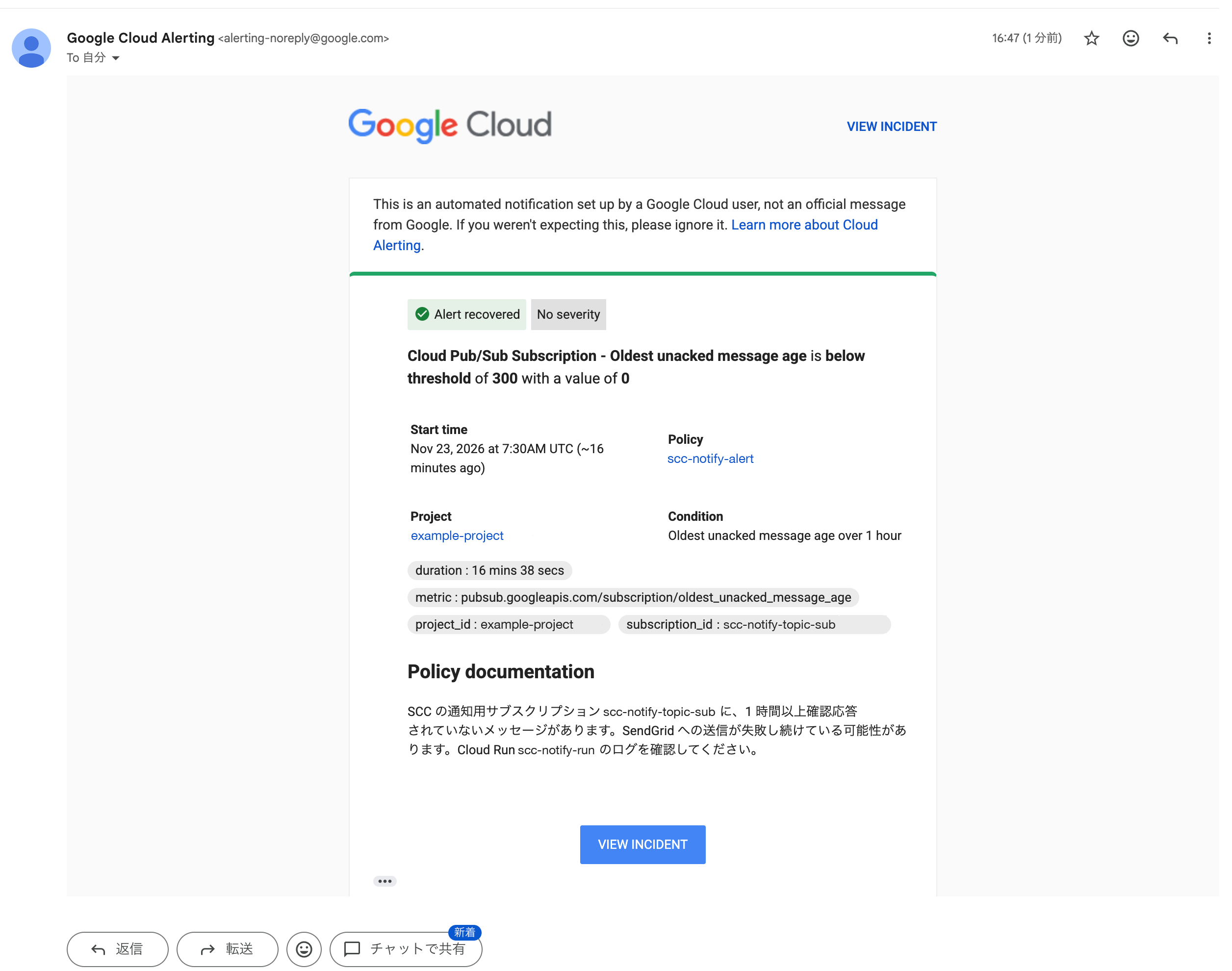
When I changed the sender back to the original address, the accumulated messages were sent on the next retry and the emails arrived. After a while, an email notifying that the alert had recovered also arrived.
When I sent a non-JSON message to the topic, the function returned 204, only one ERROR appeared in the log, and no retry occurred.
Decide whether to use SendGrid click tracking
Looking at the first test email, I found that the "Console" link in the body had been rewritten to a long ct.sendgrid.net URL.
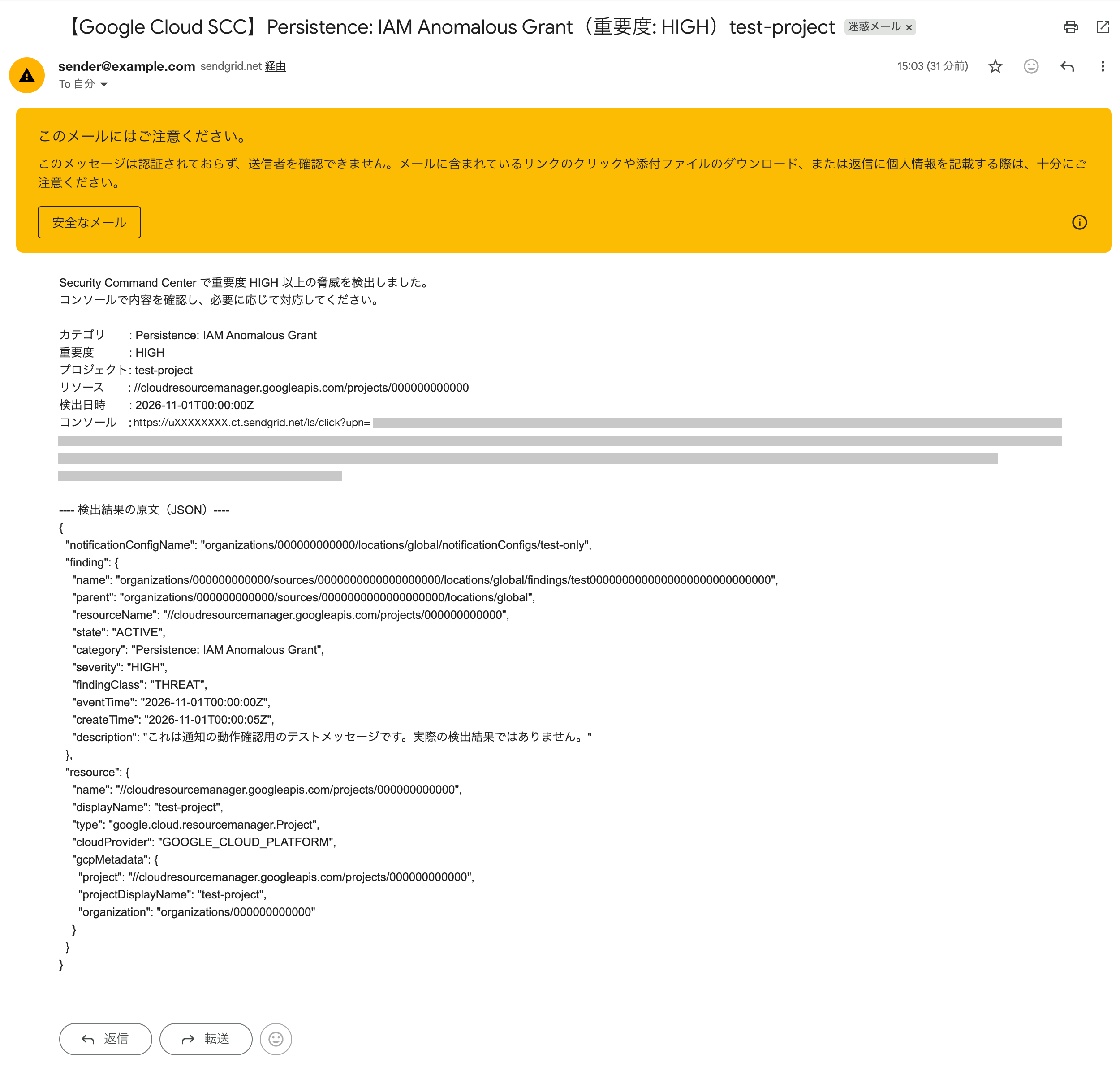
This is because SendGrid's click tracking was enabled. Click tracking is a feature that counts whether recipients clicked links in the email, and when enabled, the links in the email are rewritten. Whether links in plain text emails are also rewritten is determined by the "Also enable click tracking in plain text emails" setting. ※3
Click tracking rewrites all the links and URLs in your emails. The links then point to either Twilio SendGrid's servers or the domain you branded your link.
(Translation: Click tracking rewrites all the links and URLs in your emails. The rewritten links point to either Twilio SendGrid's servers or the domain you set up for branding.)
Clicking forwards you to the original page, so the notification still serves its purpose. Even so, I considered whether to use click tracking for this notification.
- Turning off click tracking does not affect sending the email
- For this notification, I have no plan to look at whether links were clicked
- A long URL whose destination cannot be seen is hard to distinguish from a suspicious link in a security notification
Since I had no plan to use click tracking, I decided to turn it off this time. If you have a use for it, such as wanting to see whether links were clicked, leaving it on is also a reasonable decision.
There are two ways to turn it off: in the SendGrid account settings, or per send. This time I turned it off per send in the function's code. With tracking_settings in the Mail Send API, you can disable click tracking for just that send. ※4 This is also useful when you share the SendGrid account with other uses and find it hard to change the account settings.
from sendgrid.helpers.mail import ClickTracking, Mail, TrackingSettings

message = Mail(
    from_email=FROM_EMAIL_ADDRESS,
    to_emails=TO_EMAIL_ADDRESSES,
    subject=build_subject(notification),
    plain_text_content=build_body(notification),
)
# Turn off click tracking for this send only, so links in the body are not rewritten
message.tracking_settings = TrackingSettings(click_tracking=ClickTracking(enable=False, enable_text=False))
enable_text is the setting for links in plain text emails. Since we send plain text emails this time, I set this to False as well. After redeploying and sending a test email, the links arrived with the original URLs, as in the email shown in "Architecture."
Steps
Here are the commands for building the same setup, in order from the top. The values are examples, so please adapt them to your own environment.
Create the topic and service accounts
Create three service accounts: one for running the function, one for push authentication, and one used for building when deploying from source.
gcloud pubsub topics create scc-notify-topic --project=example-project

gcloud iam service-accounts create scc-notify-run-sa --project=example-project
gcloud iam service-accounts create scc-notify-push-sa --project=example-project
gcloud iam service-accounts create scc-notify-build-sa --project=example-project

gcloud projects add-iam-policy-binding example-project \
  --member="serviceAccount:scc-notify-build-sa@example-project.iam.gserviceaccount.com" \
  --role="roles/run.builder" --condition=None
When I granted a role to a service account right after creating it, it sometimes failed with the error Service account ... does not exist. It seems to take some time for the service account creation to be reflected in IAM. Rerunning the same command after a few minutes succeeded.
Register the SendGrid API key in Secret Manager
Issue the SendGrid API key with only the Mail Send permission. Create a secret, and grant the execution service account a role that can read only this secret.
gcloud secrets create scc-notify-sendgrid-secret --replication-policy=automatic --project=example-project
printf '%s' "<API キー>" | gcloud secrets versions add scc-notify-sendgrid-secret --data-file=- --project=example-project

gcloud secrets add-iam-policy-binding scc-notify-sendgrid-secret \
  --member="serviceAccount:scc-notify-run-sa@example-project.iam.gserviceaccount.com" \
  --role="roles/secretmanager.secretAccessor" --project=example-project
Deploy the function
I split the function code into main.py, which reads the received message and sends the email, and email_format.py, which builds the subject and body.
main.py
"""Pub/Sub の push サブスクリプションから SCC の通知を受け取り、SendGrid でメールを送る Cloud Run functions の関数。

エントリポイント
    handle_pubsub_notification(HTTP 関数。Pub/Sub の push リクエストを受け取る)

環境変数
    FROM_EMAIL_ADDRESS  送信元のアドレス(SendGrid でドメイン認証済みのもの)
    TO_EMAIL_ADDRESSES  宛先のアドレス。複数ある場合は空白かカンマで区切る
    SENDGRID_API_KEY    Secret Manager から渡す SendGrid の API キー

戻り値の考え方
    Pub/Sub は 2xx(102、200、201、202、204)を受け取ったものとして扱い、それ以外のステータスでは送り直す。
    200: 送信できた
    204: 通知メッセージを読み取れず、送らなかった。送り直しても読み取れないため、受け取ったものとして返す
    500: SendGrid への送信に失敗した。Pub/Sub が送り直す
"""

import base64
import json
import os
import re

import functions_framework
from sendgrid import SendGridAPIClient
from sendgrid.helpers.mail import ClickTracking, Mail, TrackingSettings

from email_format import build_body, build_subject

FROM_EMAIL_ADDRESS = os.environ["FROM_EMAIL_ADDRESS"]
TO_EMAIL_ADDRESSES = [a for a in re.split(r"[\s,]+", os.environ["TO_EMAIL_ADDRESSES"]) if a]
SENDGRID_API_KEY = os.environ["SENDGRID_API_KEY"]

def log(severity, message, **fields):
    """Cloud Logging が重要度を読み取れる形で、1行の JSON を出す。"""
    print(json.dumps({"severity": severity, "message": message, **fields}, ensure_ascii=False), flush=True)

def decode_notification(envelope):
    """Pub/Sub の push の形式({"message": {"data": <base64>}})から、SCC の通知の JSON を取り出す。"""
    data = envelope["message"]["data"]
    return json.loads(base64.b64decode(data).decode("utf-8"))

@functions_framework.http
def handle_pubsub_notification(request):
    envelope = request.get_json(silent=True)
    try:
        notification = decode_notification(envelope)
    except (TypeError, KeyError, ValueError) as e:
        log("ERROR", "Pub/Sub のメッセージを読めませんでした。送らずに終了します", error=str(e))
        return "", 204

    finding = notification.get("finding") or {}
    finding_name = finding.get("name", "")
    message = Mail(
        from_email=FROM_EMAIL_ADDRESS,
        to_emails=TO_EMAIL_ADDRESSES,
        subject=build_subject(notification),
        plain_text_content=build_body(notification),
    )
    # クリック計測を止め、本文のコンソールのリンクを SendGrid の計測用の URL に書き換えさせない。
    # この送信だけに効き、SendGrid のアカウントのほかの送信の設定には影響しない
    message.tracking_settings = TrackingSettings(click_tracking=ClickTracking(enable=False, enable_text=False))
    try:
        response = SendGridAPIClient(SENDGRID_API_KEY).send(message)
    except Exception as e:  # SendGrid のライブラリは HTTP エラーを例外で返す
        log("ERROR", "SendGrid への送信に失敗しました", finding=finding_name, error=str(e))
        return "", 500

    log(
        "INFO",
        "メールを送信しました",
        finding=finding_name,
        category=finding.get("category"),
        finding_severity=finding.get("severity"),
        sendgrid_status=response.status_code,
        recipients=len(TO_EMAIL_ADDRESSES),
    )
    return "", 200
email_format.py
"""SCC の通知メッセージ(NotificationMessage)から、メールの件名と本文を作る。

件名と本文の冒頭に検出結果の要点を書き、その後ろに通知メッセージの原文(JSON)を付ける。
メールの形式を変えるときは、build_subject と build_body を差し替える。
"""

import json
import re

NOT_AVAILABLE = "N/A"
# プロジェクトに属さない(組織レベルの)検出結果で、プロジェクトの欄に出す文字
ORGANIZATION_LEVEL = "組織"
CONSOLE_URL = "https://console.cloud.google.com/security/command-center/findings?organizationId={organization_id}"

def _finding(notification):
    return notification.get("finding") or {}

def _project(notification):
    """v2 の通知メッセージでは、プロジェクト ID は resource.gcpMetadata.projectDisplayName に入る。"""
    resource = notification.get("resource") or {}
    gcp_metadata = resource.get("gcpMetadata") or {}
    return gcp_metadata.get("projectDisplayName") or ORGANIZATION_LEVEL

def _console_url(notification):
    """検出結果の名前(organizations/<組織 ID>/sources/...)から組織 ID を取り出し、組織の検出結果のページの URL を作る。"""
    match = re.match(r"organizations/(\d+)/", _finding(notification).get("name", ""))
    if not match:
        return NOT_AVAILABLE
    return CONSOLE_URL.format(organization_id=match.group(1))

def build_subject(notification):
    finding = _finding(notification)
    category = finding.get("category", NOT_AVAILABLE)
    severity = finding.get("severity", NOT_AVAILABLE)
    return f"【Google Cloud SCC】{category}(重要度: {severity}){_project(notification)}"

def build_body(notification):
    finding = _finding(notification)
    lines = [
        "Security Command Center で重要度 HIGH 以上の脅威を検出しました。",
        "コンソールで内容を確認し、必要に応じて対応してください。",
        "",
        f"カテゴリ  : {finding.get('category', NOT_AVAILABLE)}",
        f"重要度   : {finding.get('severity', NOT_AVAILABLE)}",
        f"プロジェクト: {_project(notification)}",
        f"リソース  : {finding.get('resourceName', NOT_AVAILABLE)}",
        f"検出日時  : {finding.get('eventTime', NOT_AVAILABLE)}",
        f"コンソール : {_console_url(notification)}",
        "",
        "---- 検出結果の原文(JSON)----",
        json.dumps(notification, indent=2, ensure_ascii=False),
        "",
    ]
    return "\n".join(lines)
requirements.txt contains functions-framework and sendgrid.
functions-framework>=3.8,<4
sendgrid>=6.11,<7
In the folder containing the code, deploy with gcloud run deploy and the --function option. Set Ingress to "internal" and do not allow unauthenticated invocations.
gcloud run deploy scc-notify-run \
  --source=. \
  --function=handle_pubsub_notification \
  --region=asia-northeast1 \
  --base-image=python314 \
  --service-account=scc-notify-run-sa@example-project.iam.gserviceaccount.com \
  --build-service-account=projects/example-project/serviceAccounts/scc-notify-build-sa@example-project.iam.gserviceaccount.com \
  --no-allow-unauthenticated \
  --ingress=internal \
  --max-instances=3 \
  --timeout=60 \
  --set-env-vars="FROM_EMAIL_ADDRESS=sender@example.com,TO_EMAIL_ADDRESSES=alerts@example.com" \
  --set-secrets="SENDGRID_API_KEY=scc-notify-sendgrid-secret:1" \
  --project=example-project
Create the push subscription
Grant the push service account a role that can invoke the function.
gcloud run services add-iam-policy-binding scc-notify-run \
  --region=asia-northeast1 \
  --member="serviceAccount:scc-notify-push-sa@example-project.iam.gserviceaccount.com" \
  --role="roles/run.invoker" --project=example-project
Create the subscription with the function's URL as the push endpoint.
gcloud pubsub subscriptions create scc-notify-topic-sub \
  --topic=scc-notify-topic \
  --push-endpoint=https://scc-notify-run-abcdefghij-an.a.run.app \
  --push-auth-service-account=scc-notify-push-sa@example-project.iam.gserviceaccount.com \
  --ack-deadline=600 \
  --message-retention-duration=7d \
  --expiration-period=never \
  --min-retry-delay=10s \
  --max-retry-delay=600s \
  --project=example-project
--min-retry-delay and --max-retry-delay are the retry intervals described in "Behavior when sending fails." By default, a subscription is deleted if it goes unused for a certain period, so --expiration-period=never removes the expiration.
Create the alert
Create the notification channel for alert emails with a gcloud beta command. An email notification channel can hold only one address, so if the alert has multiple recipients, create a channel for each recipient.
gcloud beta monitoring channels create \
  --display-name=scc-notify-alert-email \
  --type=email \
  --channel-labels=email_address=alerts@example.com \
  --project=example-project
The alert policy is the following JSON. It fires an alert when the age of the oldest unacknowledged message exceeds 3600 seconds.
{
  "displayName": "scc-notify-alert",
  "severity": "ERROR",
  "documentation": {
    "content": "SCC の通知用サブスクリプション scc-notify-topic-sub に、1 時間以上確認応答されていないメッセージがあります。SendGrid への送信が失敗し続けている可能性があります。Cloud Run scc-notify-run のログを確認してください。",
    "mimeType": "text/markdown"
  },
  "combiner": "OR",
  "conditions": [
    {
      "displayName": "Oldest unacked message age over 1 hour",
      "conditionThreshold": {
        "filter": "resource.type = \"pubsub_subscription\" AND resource.labels.subscription_id = \"scc-notify-topic-sub\" AND metric.type = \"pubsub.googleapis.com/subscription/oldest_unacked_message_age\"",
        "aggregations": [
          {
            "alignmentPeriod": "300s",
            "perSeriesAligner": "ALIGN_MAX"
          }
        ],
        "comparison": "COMPARISON_GT",
        "thresholdValue": 3600,
        "duration": "0s",
        "trigger": {
          "count": 1
        }
      }
    }
  ],
  "alertStrategy": {
    "autoClose": "604800s"
  }
}
Create the policy with the notification channel you created attached.
gcloud monitoring policies create \
  --policy-from-file=alert-policy.json \
  --notification-channels=<作った通知チャネルの名前> \
  --project=example-project
Create the continuous export
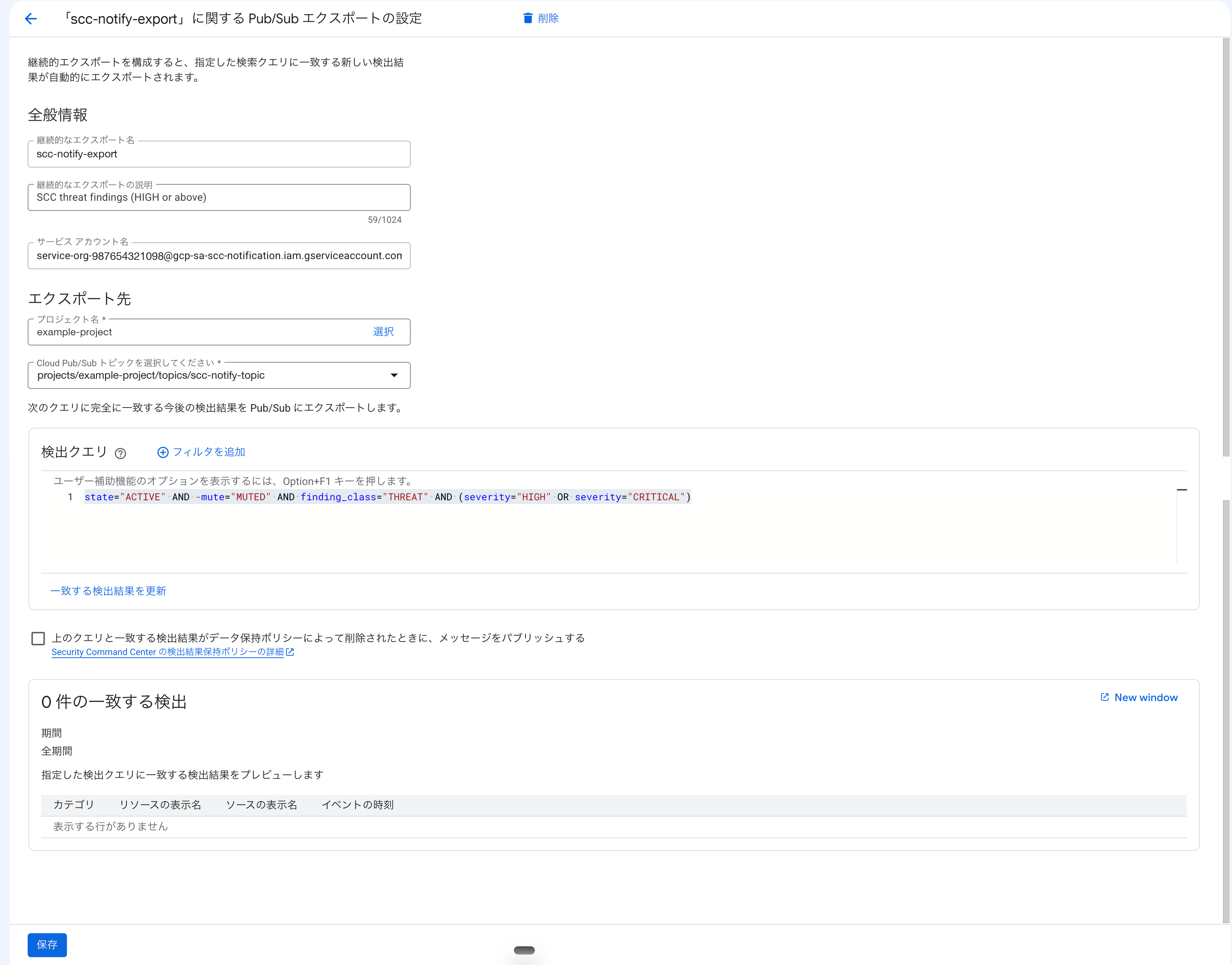
I created the continuous export from SCC's [Settings] > [Continuous exports] in the console. Select the topic you created as the export destination, enter a filter in [Findings query], and save.
Create the filter to match the findings you want to be notified about. This time, as an example, I used the following filter.
state="ACTIVE" AND -mute="MUTED" AND finding_class="THREAT" AND (severity="HIGH" OR severity="CRITICAL")
If you filter by severity alone, misconfiguration findings that are not threats will also be notified when their severity is high. So I narrowed it to threats with finding_class="THREAT". I also added conditions on state and mute so that inactive and muted findings are not notified.
A small tip: if no findings match the query on the [Findings] page, the [Export] button does not appear. When creating this in an environment that has no findings yet, you can proceed by creating it from [Settings] > [Continuous exports].
Conclusion
This time I built a mechanism to notify SCC threat findings by email with SendGrid. When sending fails, the function returns 500 to make Pub/Sub retry, and an alert based on the age of unacknowledged messages lets us notice the failure.
As I wrote at the beginning, I have not tried notifications from actual threat findings. The actual notification format, and the fact that muted or deactivated findings are not notified, need to be confirmed separately.
I hope this helps someone.
That was Yoshida from the Cloud Business Division!