![[Security Hub CSPM Remediation Steps] [RDS.46] RDS DB instances should not be deployed in public subnets that have a route to an internet gateway](https://devio2024-media.developers.io/image/upload/f_auto,q_auto,w_3840/f_auto,q_auto/v1790871196/eyecatch/wr309ednrjrbdx9mtsnl.png)
[Security Hub CSPM Remediation Steps] [RDS.46] RDS DB instances should not be deployed in public subnets that have a route to an internet gateway

This page has been translated by machine translation. View original
Hello, I'm watabo from Classmethod Operations.
In this article, I'll introduce how to address the Security Hub CSPM control [RDS.46] RDS DB instances should not be deployed in public subnets with routes to internet gateways.
This article is intended for those using the "AWS Foundational Security Best Practices standard" in Security Hub CSPM.
For details about AWS Security Hub, please see these blog posts.
Description of the Target Control
[RDS.46] RDS DB instances should not be deployed in public subnets with routes to internet gateways
This control checks whether an RDS DB instance is placed in a subnet that has a route to an internet gateway.
If the route table of the subnet where the DB instance is placed contains a route with a destination of 0.0.0.0/0 or ::/0 pointing to an internet gateway, this control results in FAILED.
By placing the DB instance in a private subnet (a subnet without a route to an internet gateway), this control results in PASSED.
If a DB instance is placed in a subnet with a route to an internet gateway, depending on the security group settings, it may become directly accessible from the public internet.
If public access is unintentionally allowed due to a security group misconfiguration or change, it can lead to unauthorized access or data leakage risks.
Cutting off the access path at the network layer increases the likelihood of preventing damage even if there are configuration flaws at the application layer.
Therefore, we recommend addressing this control.
Verification Environment
This time, I actually tried the procedure in the following environment.
- Region: Tokyo Region (ap-northeast-1)
- DB engine: RDS for MySQL 8.0.46 (db.t4g.micro)
- Initial configuration: Single-AZ, public access disabled, placed in a public subnet
- DB subnet group: Consists of two public subnets (1a, 1c)
I checked where the standby was placed both when proceeding to Step 4 without deleting the public subnet in Step 3, and when proceeding after deleting it.
Details of the Detection Conditions
Findings are generated based on the evaluation results of the AWS Config managed rule rds-instance-subnet-igw-check.
In this article, I also checked the evaluation results of this rule (COMPLIANT or NON_COMPLIANT).
This detection condition is determined solely by the subnet's route table.
Even if the DB instance's "Publicly accessible" setting is disabled, this control remains FAILED as long as the subnet where it is placed has a route to an internet gateway.
In fact, even a DB instance with public access disabled was shown as FAILED in Security Hub.
Also, even after the DB instance's placement moved to a private subnet, the Config rule's evaluation result remained NON_COMPLIANT while public subnets remained in the DB subnet group (I'll confirm this in Step 7).
Remediation Steps
How to Check the Control
- Open the Security Hub console
- Select "Controls" from the left menu
- Enter "RDS.46" in the "ID" filter and search
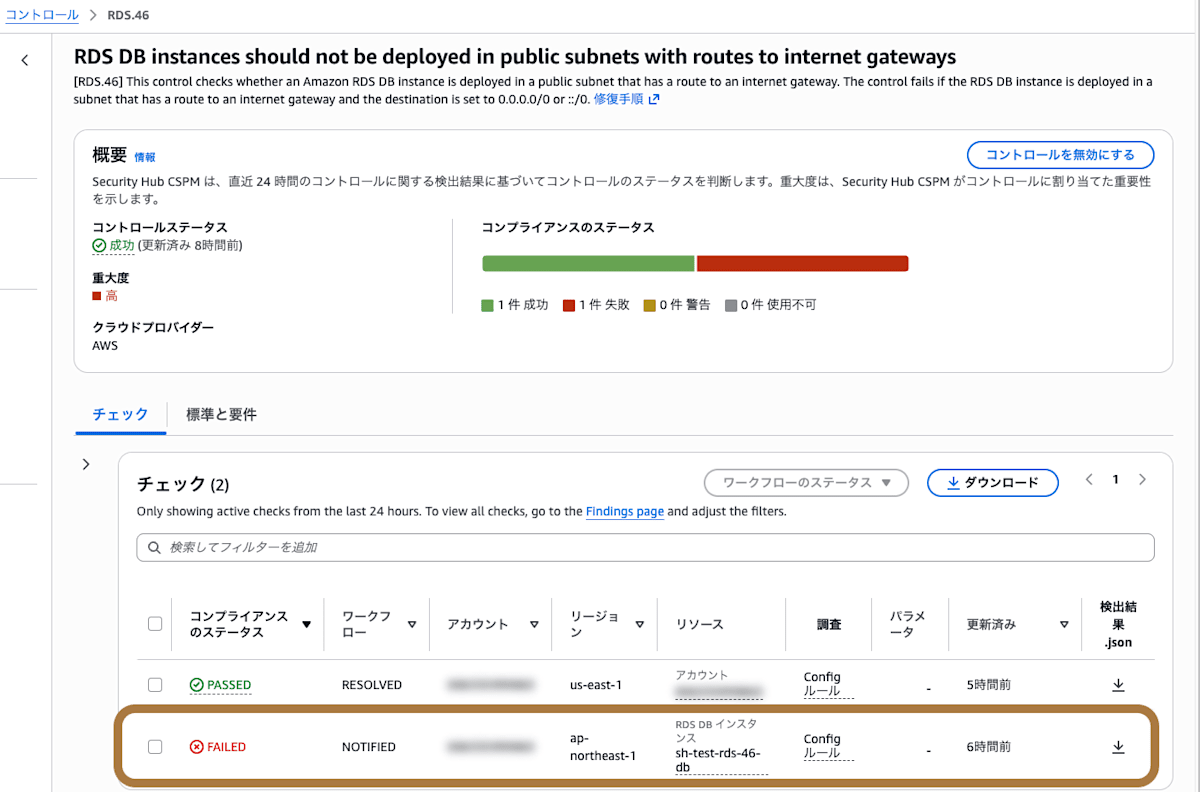
- Click the "RDS.46" link and check the details of the control
The findings list displays the resource names of DB instances placed in subnets that have a route to an internet gateway.
Confirm with Stakeholders
Before performing remediation, please confirm the following points with stakeholders.
- Do you know the connection sources (within the VPC, on-premises, via the internet, etc.) of the applications and clients connecting to the target DB instance?
- To migrate the DB instance from a public subnet to a private subnet, are private subnets available? (Private subnets in two or more Availability Zones within the same VPC are required)
- If there are clients connecting directly to the DB instance via the internet, can you secure alternative connection paths after migration, such as VPN, Direct Connect, or a bastion server?
- Since the private IP address of the DB instance may change after migration, are connections unified to use the connection string or DNS name?
You Cannot Switch Subnet Groups Within the Same VPC
An RDS DB instance cannot be switched to a different DB subnet group within the same VPC.
When I tried switching to a DB subnet group consisting only of private subnets on the DB instance modification screen, I got the following error.
You cannot move DB instance sh-test-rds-46-db to subnet group sh-test-rds-46-private-sg. The specified DB subnet group and DB instance are in the same VPC. Choose a DB subnet group in different VPC than the specified DB instance and try again.
The same restriction is described in an AWS Knowledge Center (re:Post) article.
The workaround introduced in that article follows this flow.
- Add private subnets to the existing DB subnet group
- Migrate to the private subnet through a Multi-AZ failover
- Remove the public subnets
The remediation steps below are based on actually trying this workaround, with additional findings.
A brief connection interruption occurs when the failover happens.
Overview of the Remediation Steps
| Step | Content | Purpose |
|---|---|---|
| 1 | Disable Multi-AZ deployment and public access | Only if originally Multi-AZ. Eliminates the standby on the public subnet side |
| 2 | Identify the subnet of the current primary | Understand the current state |
| 3 | Add private subnets to the DB subnet group and delete public subnets other than the one used by the primary | Prepare the migration destination and make the standby get created in the private subnet |
| 4 | Enable Multi-AZ deployment | Create the standby on the private subnet side |
| 5 | Perform a failover | Make the private subnet side the primary |
| 6 | Disable Multi-AZ deployment | Eliminate the standby remaining in the public subnet |
| 7 | Remove the public subnets from the DB subnet group | Make the control PASSED |
| 8 | Re-enable Multi-AZ deployment | Only if originally Multi-AZ |
Operations for Each Step
Step 1: Disable Multi-AZ Deployment and Public Access
If the instance is already a Single-AZ configuration with public access disabled, skip this step (proceed to Step 2).
If the original configuration is Multi-AZ, the standby instance is in a public subnet.
Because the standby will be recreated in the private subnet in Step 4, disable Multi-AZ deployment once here.
The procedure in the AWS Knowledge Center also aims to make the DB instance non-public, so I disable public access as well.
The Publicly accessible setting does not affect the RDS.46 determination.
- Open the RDS console
- Select "Databases" from the left menu and select the target DB instance
- Click "Modify" at the top right
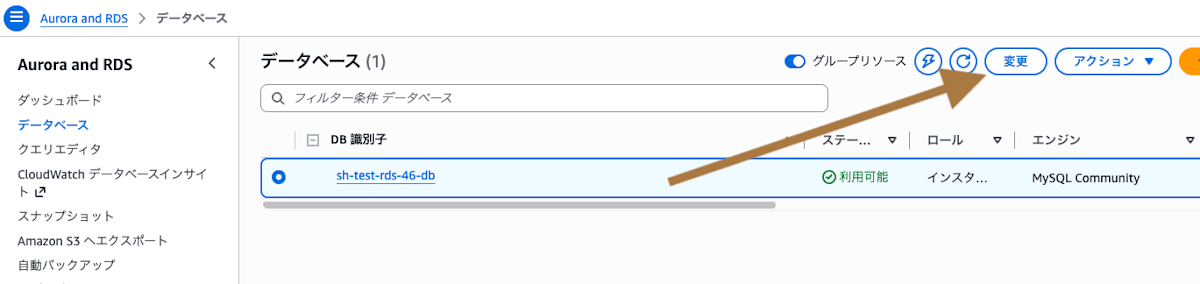
- In the "Availability & durability" section, change "Multi-AZ deployment" to "Do not create a standby instance"

- In the "Connectivity" section, change "Publicly accessible" to "Not publicly accessible"

- At the bottom of the screen, select "Continue" → "Apply immediately", and click "Modify DB instance"
During the modification, the DB instance status will be "Modifying".
Step 2: Identify the Subnet Used by the Current Primary Instance
Run the dig command against the DB instance's endpoint, and identify the subnet from the IP address the DNS name resolves to.
For a DB instance with public access enabled, running it from outside the VPC returns a public IP address.
If public access is disabled, a private IP address is returned.
This command is also used after Step 5 to confirm the location of the primary.
dig +short <DBインスタンスのエンドポイント>
On Windows, use nslookup.
nslookup <DBインスタンスのエンドポイント>
Compare the output IP address with the CIDR blocks of each subnet registered in the existing DB subnet group, and confirm which subnet the primary instance is using.
Step 3: Add Private Subnets to the DB Subnet Group and Delete Unnecessary Public Subnets
Add the private subnets.
At the same time, delete from the group the public subnets other than the one used by the primary, which you identified in Step 2.
The subnet in use by the primary cannot be deleted.
- Select "Subnet groups" from the left menu of the RDS console
- Select the target DB subnet group and click "Edit"
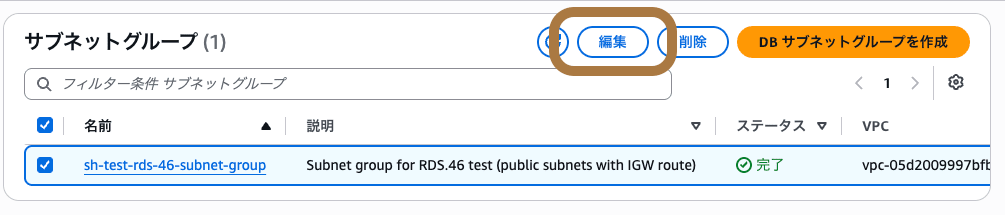
- In the "Add subnets" section, select the Availability Zone you want to add and a private subnet (one without a route to an internet gateway)
- Among the subnets in the group, deselect the public subnets other than the one used by the primary
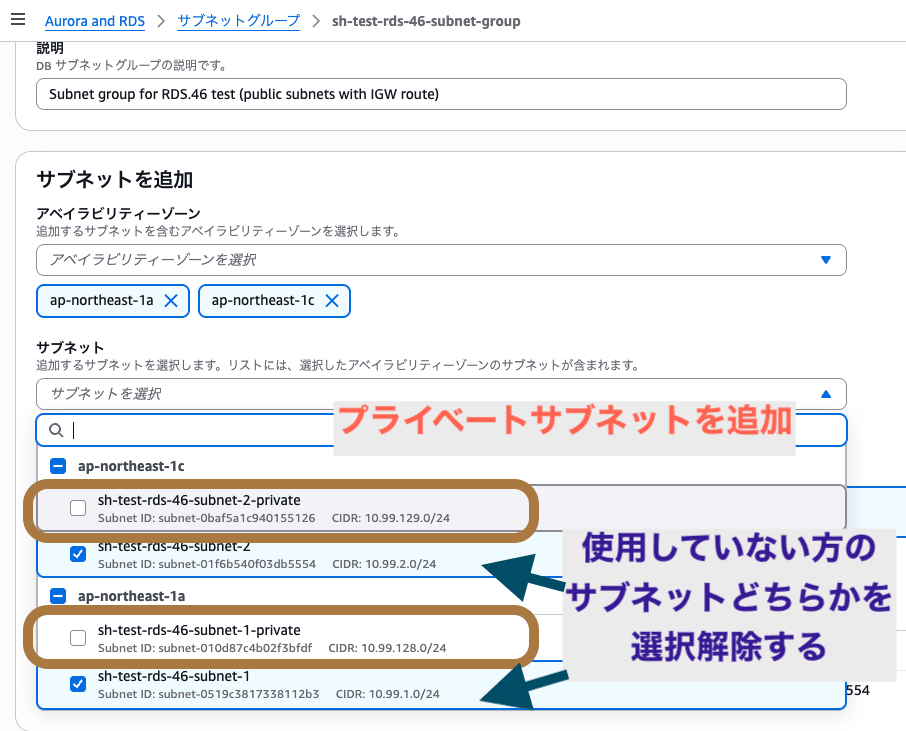
- Click "Save"
At this point, the group consists only of the public subnet used by the primary and the private subnets.
The reason for deleting the other public subnets is to limit the standby's placement in Step 4 to private subnets only.
In this verification, when I proceeded to Step 4 leaving the public subnets in place, I tried twice with the same configuration, and the standby was created in a private subnet the first time and in a public subnet the second time.
The AWS documentation does not describe how the placement destination is chosen.
Step 4: Enable Multi-AZ Deployment
This step is required whether the original configuration was Single-AZ or Multi-AZ.
Create a standby instance so that the failover in Step 5 can switch to the private subnet side.
- Click "Modify" on the details screen of the target DB instance
- In the "Availability & durability" section, change "Multi-AZ deployment" to "Create a standby instance"
- Select "Apply immediately" and click "Modify DB instance"
In this environment, the change took around 10 minutes (around 30 minutes at the longest) to complete.
The standby instance is created in an Availability Zone different from the primary's.
If you deleted the public subnets in Step 3, only a private subnet remains in that AZ, so the standby is created in the private subnet.
Before the failover, check the standby instance's subnet using the following steps.
- Select "Network Interfaces" from the left menu of the EC2 console
- Using filters, find the interfaces whose description is "RDSNetworkInterface" and which are in the same VPC as the DB instance
- Check the subnet IDs of the primary and the standby
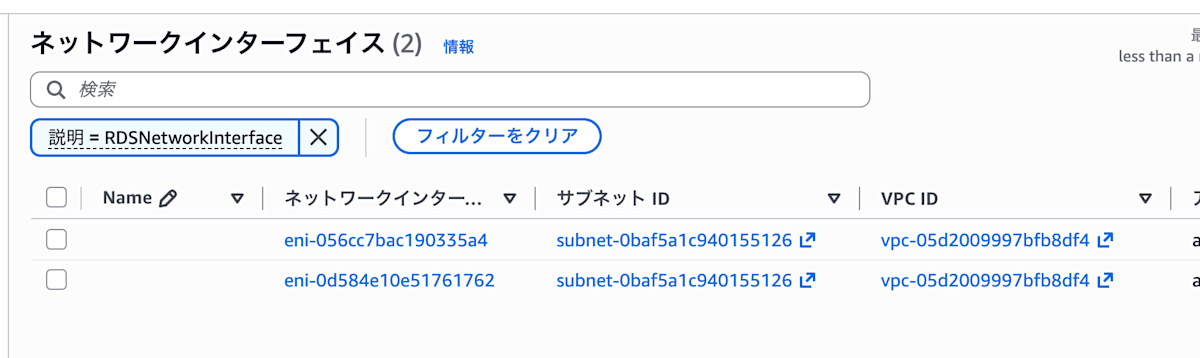
If the standby was created in a public subnet, the primary will not move to a private subnet even after a failover.
In this case, disable Multi-AZ deployment to delete the standby, delete the public subnet of that AZ from the DB subnet group, and then enable Multi-AZ deployment again.
In this verification, the standby was created in the private subnet with this method.
Step 5: Perform a Failover to Switch to the Private Subnet Side
- Select the target DB instance and click "Actions" → "Reboot"
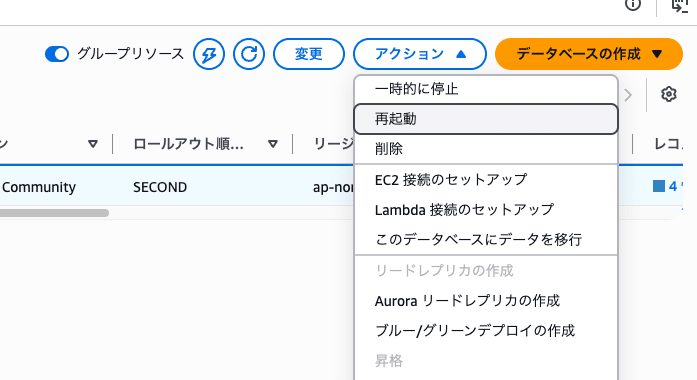
- At "Reboot with failover?", select "Yes" and reboot
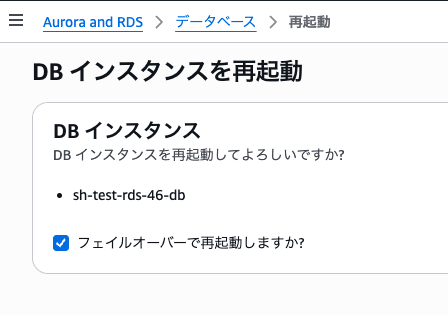
After the failover completes, the previous secondary instance (on the private subnet side) becomes the primary.
The time from the start to the completion of the failover, as confirmed in the RDS events, was about 30 to 45 seconds across two verification runs.
You can confirm the primary's location with the dig command from Step 2.
If the endpoint resolves to an IP address in the private subnet, the switch is complete.
Note that the AZ shown by the AWS CLI's describe-db-instances had not been updated immediately after the failover completed.
Using the dig result is the reliable way to confirm the primary.
Step 6: Disable Multi-AZ Deployment
In a failover, only the roles of the primary and standby are swapped; the locations of the instances do not change.
The previous primary remains placed in the public subnet and has become the standby.
In this state, when I tried to delete the public subnet from the DB subnet group as in Step 7, I got the following error.
Some of the subnets to be deleted are currently in use: subnet-xxxxxxxxxxxxxxxxx
Therefore, disable Multi-AZ deployment to delete the standby on the public subnet side.
- Click "Modify" on the details screen of the target DB instance
- In the "Availability & durability" section, change "Multi-AZ deployment" to "Do not create a standby instance"
- Select "Apply immediately" and click "Modify DB instance"
In this environment, it took a few minutes to complete.
Step 7: Remove the Public Subnets from the DB Subnet Group
- Select "Subnet groups" from the left menu of the RDS console and select the target subnet group
- Click "Edit" and deselect the remaining public subnets
- Click "Save"
Now only private subnets are registered in the DB subnet group.
In this verification, the evaluation results of the Config rule (rds-instance-subnet-igw-check) changed as follows.
| Timing | DB instance location | DB subnet group | Evaluation result |
|---|---|---|---|
| At start | Public subnet | Public + Private | NON_COMPLIANT |
| After Step 5 | Primary in private, standby in public | Public + Private | NON_COMPLIANT |
| After Step 6 | Private (Single-AZ) | Public + Private | NON_COMPLIANT |
| After Step 7 | Private (Single-AZ) | Private only | COMPLIANT |
Even when the DB instance was actually only in a private subnet, it remained NON_COMPLIANT while public subnets remained in the DB subnet group.
This behavior is not described in the AWS documentation.
The table above shows the results observed in this environment.
Step 8: Re-enable Multi-AZ Deployment
If the original configuration was Multi-AZ, set Multi-AZ deployment back to "Create a standby instance".
Since only private subnets remain in the DB subnet group, the standby is also created in a private subnet.
If the original configuration was Single-AZ, this step is not needed.
It has already returned to a Single-AZ configuration in Step 6.
Verifying the Remediation
After remediation, confirm that the finding becomes "PASSED" in Security Hub.
- Open the Security Hub console
- Select "Controls" from the left menu
- Enter "RDS.46" in the "ID" filter and search
- Click the "RDS.46" link and check the details of the control
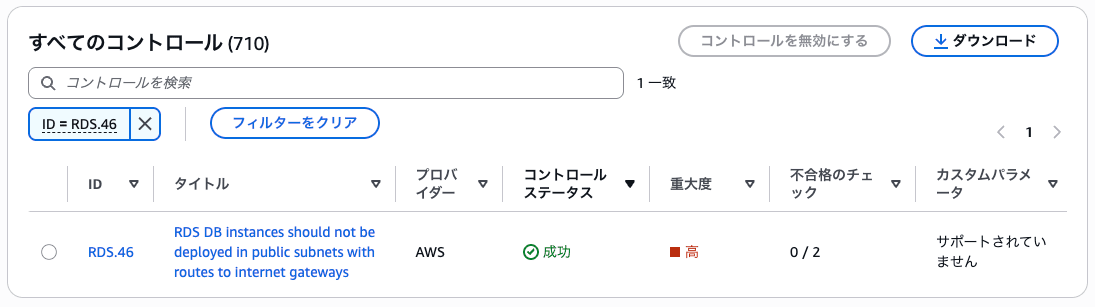
Note: RDS.46 has a schedule type of "Periodic", so it is not reflected in the findings immediately after a configuration change.
Periodic checks run automatically within 12 or 24 hours of the previous run.
The execution interval cannot be changed.
Reference:
Finally
The procedure is somewhat more complicated than for other controls, but considering the goal of shutting off public access, I think it is highly worthwhile.
Let's fix the control and improve the security score of your AWS environment.
I hope this entry helps someone.
