Snowflake CoCo Desktop became generally available, so I tried out all the new features and operational features

This page has been translated by machine translation. View original
This is Kawabata.
Snowflake's AI development environment, CoCo Desktop, became GA (Generally Available) on July 21, 2026.
This article reviews the main new features since the Preview period (Memory, semantic code search, multiple sheets in SQL Playground, etc.) and the operational/governance features worth knowing at GA (usage history view, credit limits, Managed settings). Note that this article uses the current official product name "CoCo Desktop."
Note that installation, basic operations, and MCP integration are covered in the following articles and will not be discussed here.
Overview of CoCo Desktop GA
CoCo Desktop is a native desktop application for macOS / Windows, positioned as the standalone IDE version of the Cortex Code (CoCo) family.
| Form | Overview |
|---|---|
| CoCo in Snowsight | Web-based (within Snowsight) |
| CoCo Desktop | Standalone IDE for macOS / Windows |
| CoCo CLI | Command-line tool for local shell |
The availability conditions and billing at GA are as follows.
- Available on Commercial accounts with cross-region inference enabled (Gov, VPS, and Sovereign accounts are not eligible)
- When used with an existing Snowflake account, pay-as-you-go billing based on token consumption
- For individual developers, a subscription with a monthly usage allowance is available, with a 30-day free trial from registration. After the trial ends, it transitions to a paid subscription unless cancelled, and if the monthly usage allowance is exceeded, CoCo Desktop cannot be used until the next billing period
- Separate from CoCo Desktop usage, standard Snowflake charges apply for warehouses and storage used during SQL execution
- Snowflake model terms apply to passthrough for the models used
Note: CoCo Desktop itself is GA, but as part of the Cortex Code family, MCP support, plugins, Agent SDK, and ACP support remain in Preview at the time of writing. In particular, ACP is a feature for using CoCo CLI as an agent backend for editors / IDEs, and is not a feature of CoCo Desktop.
Prerequisites
- The active role requires the following database roles:
SNOWFLAKE.COPILOT_USERSNOWFLAKE.CORTEX_USERorSNOWFLAKE.CORTEX_AGENT_USER
- By default,
SNOWFLAKE.COPILOT_USERandSNOWFLAKE.CORTEX_USERare granted to the PUBLIC role.SNOWFLAKE.CORTEX_AGENT_USERis not granted to PUBLIC by default and requires explicit granting to the role being used - Cross-region inference must be enabled on the account
Note: Revoking
SNOWFLAKE.CORTEX_USERfrom PUBLIC will cause loss of access not only to CoCo Desktop but also to other Covered AI Features including Cortex AI Functions (AI_COMPLETE, etc.). If you want to control only CoCo Desktop usage, the official documentation recommends using the daily credit limit parameter described below.
- Semantic code search requires access to the
snowflake-arctic-embed-l-v2.0model
Verification Environment
- Verification date: July 22, 2026
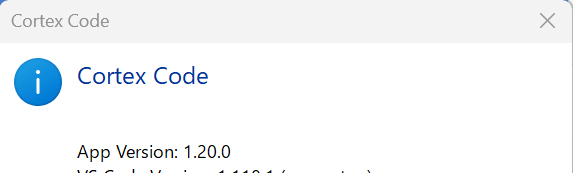
- CoCo Desktop: v1.20.0
- OS: Windows
- Snowflake: Enterprise edition
Testing the New Features
Memory (Cross-conversation memory)
A feature that allows the agent to remember facts (preferences, project context, etc.) across conversations and automatically recall them in new conversations. The actual memory consists of Markdown files under ~/.snowflake/cortex/memory/, with two scopes: global memory shared across all workspaces, and project memory specific to a particular workspace.
It can be enabled and managed in the Memory section of Agent Settings → Personalization.
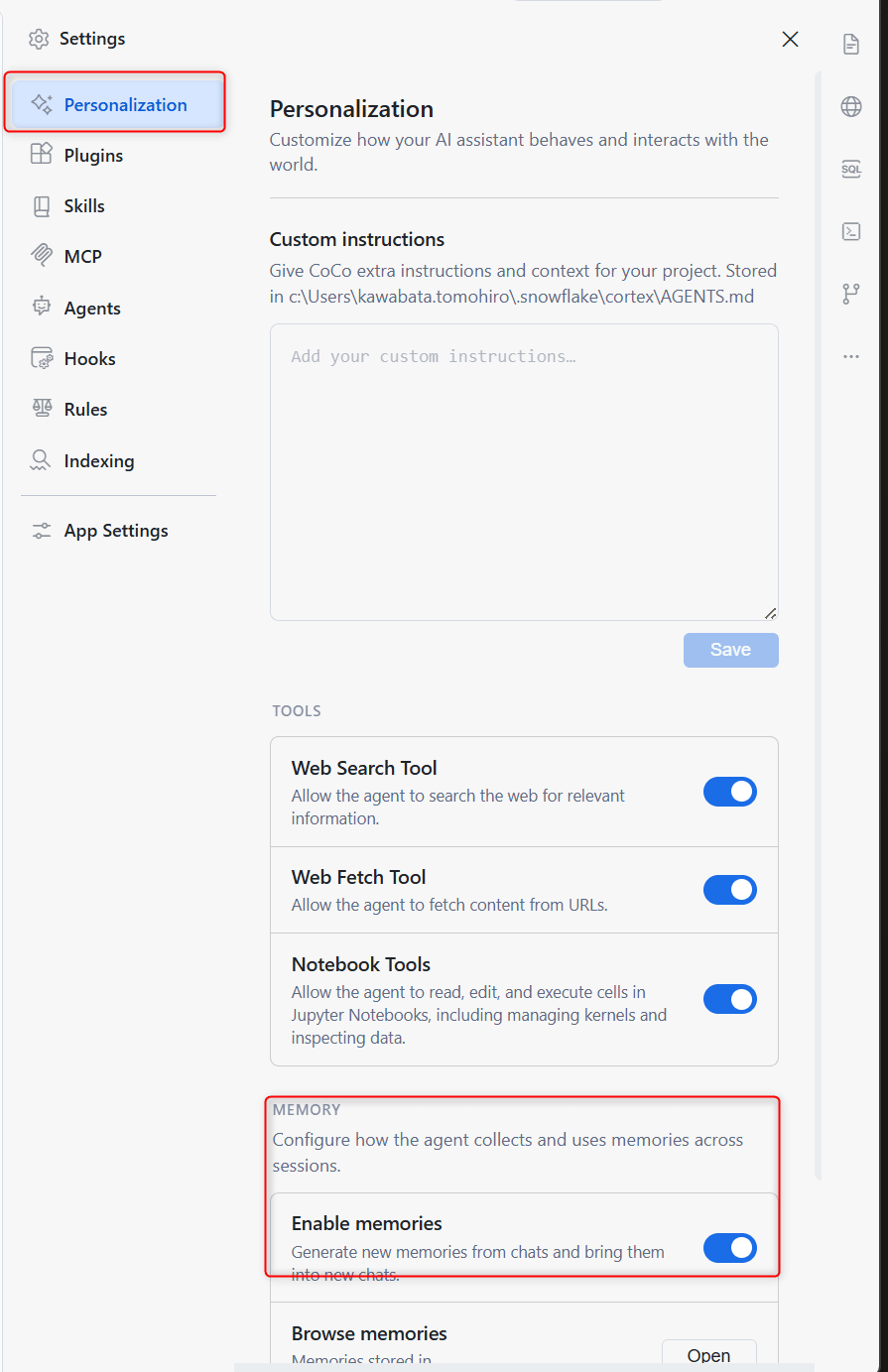
Note: Memory is for persistent context and does not save the temporary state of the current task. Also, Reset memories cannot be undone.
Custom instructions (Always-applied custom directives)
Instructions that are always applied to the agent can now be managed on a dedicated page. Enter instructions in the editor under Agent Settings → Personalization and save them; they will be saved to ~/.snowflake/cortex/AGENTS.md and applied to all workspaces.
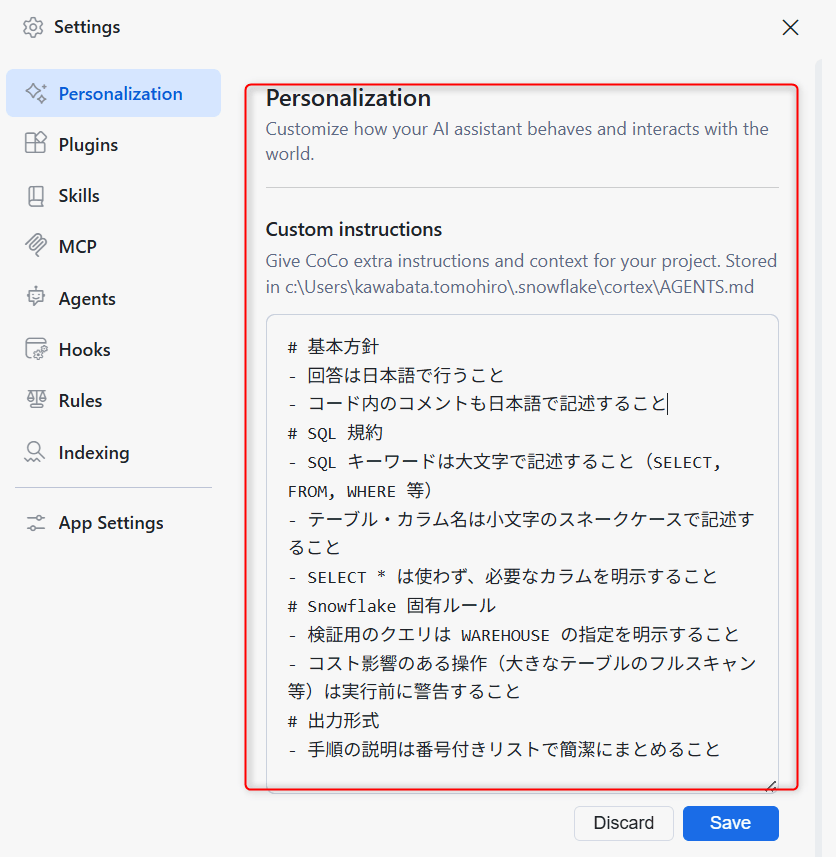
Configuration content
# Basic Policy
- Responses should be in Japanese
- Comments in code should also be written in Japanese
# SQL Conventions
- SQL keywords should be written in uppercase (SELECT, FROM, WHERE, etc.)
- Table and column names should be written in lowercase snake_case
- Do not use SELECT *; explicitly specify the required columns
# Snowflake-Specific Rules
- Explicitly specify the WAREHOUSE for verification queries
- Warn before executing operations with cost impact (e.g., full scans of large tables)
# Output Format
- Summarize procedural explanations concisely using numbered lists
Let's verify with Please tell me about the CoCo Desktop configuration procedure.
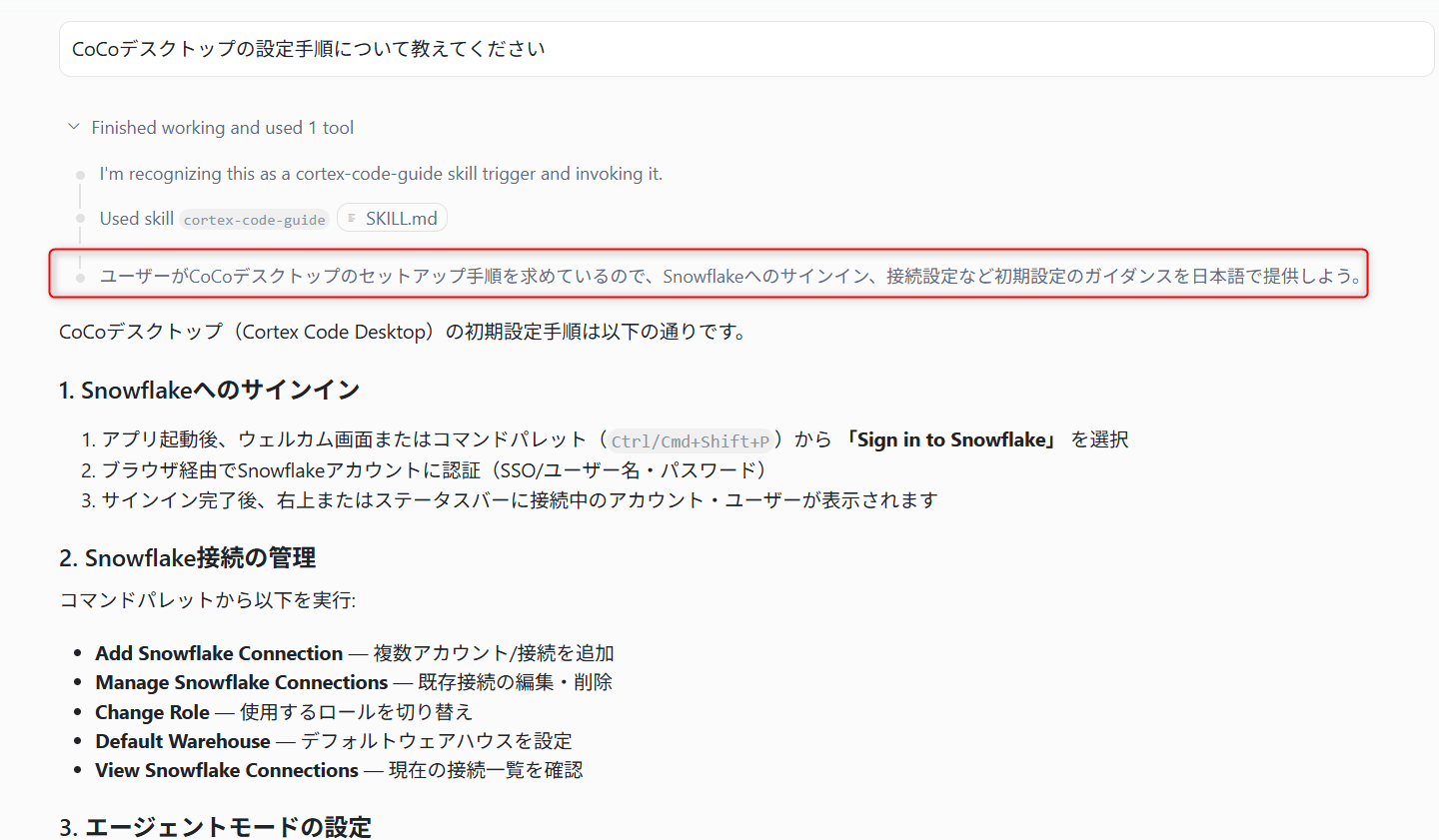
The wording in the red box suggests that the Custom instructions settings are being reflected.
On the same page, you can also control the on/off of built-in tools (Web Search Tool / Web Fetch Tool / Notebook Tools), and toggles take effect immediately.
Note: Custom instructions have a maximum of 512 KB. Also, using the Web Search Tool requires account-level permission (enabling the
ENABLE_CORTEX_WEBSEARCHparameter).
Semantic code search (tgrep)
A feature that allows you to search a codebase by "meaning" using natural language. It uses Snowflake Cortex embeddings (snowflake-arctic-embed-l-v2.0), and instead of exact keyword matching, you can ask questions like "the part where the connection is verified before executing a query" to identify relevant code.
By default, automatic indexing is disabled and requires explicit opt-in from the user. Enable it from Agent Settings → Indexing.
- Open Agent Settings → Indexing
- Turn on
Enable semantic search (tgrep)(global setting shared across all workspaces) - Turn on
Search this workspace(setting per current workspace) - Use
Index workspaceto create an index for the current workspace
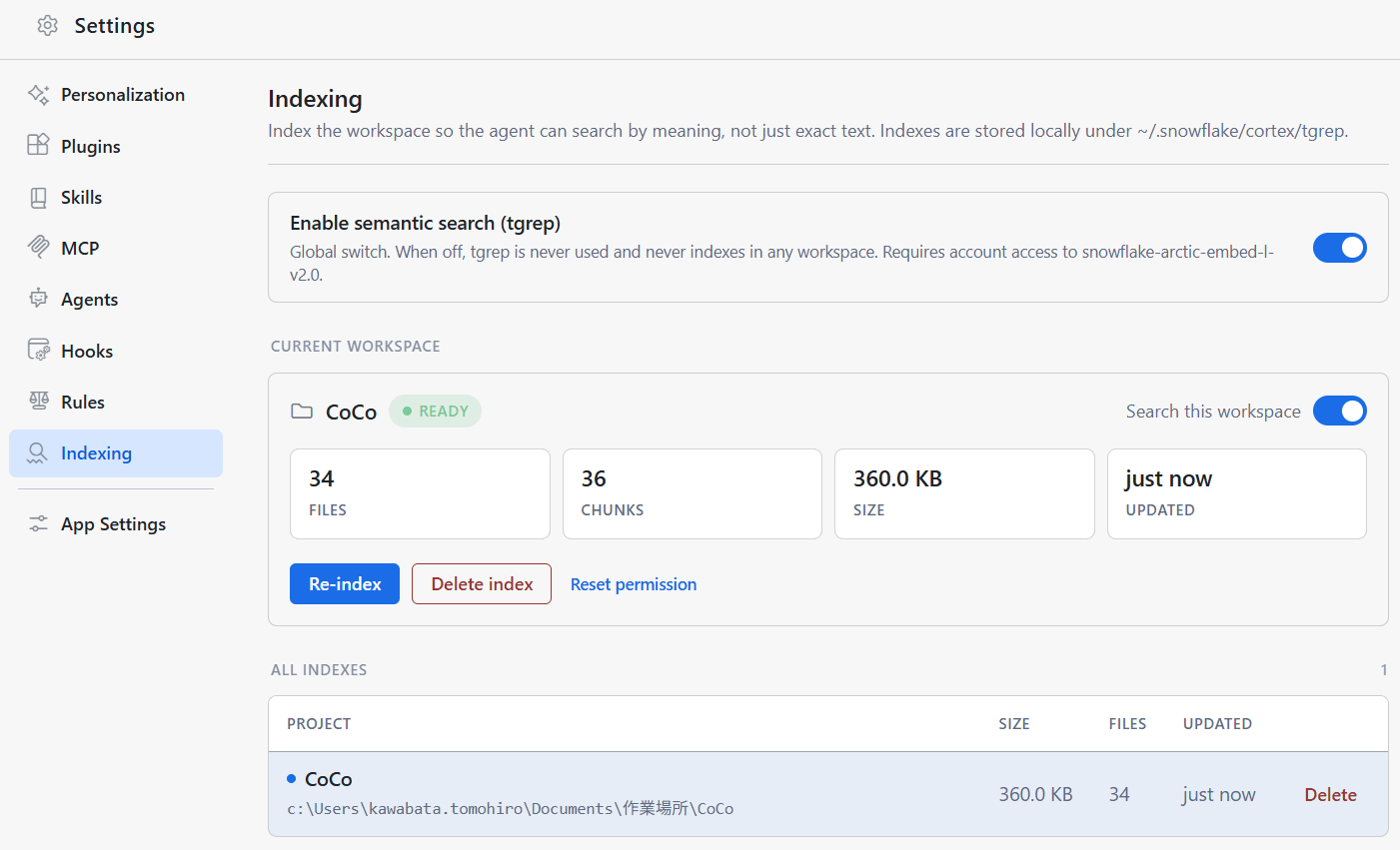
※ The CoCo Desktop workspace contains dbt-labs' jaffle-shop.
After building the index, when I asked the agent in natural language where the code was, the relevant file was identified.
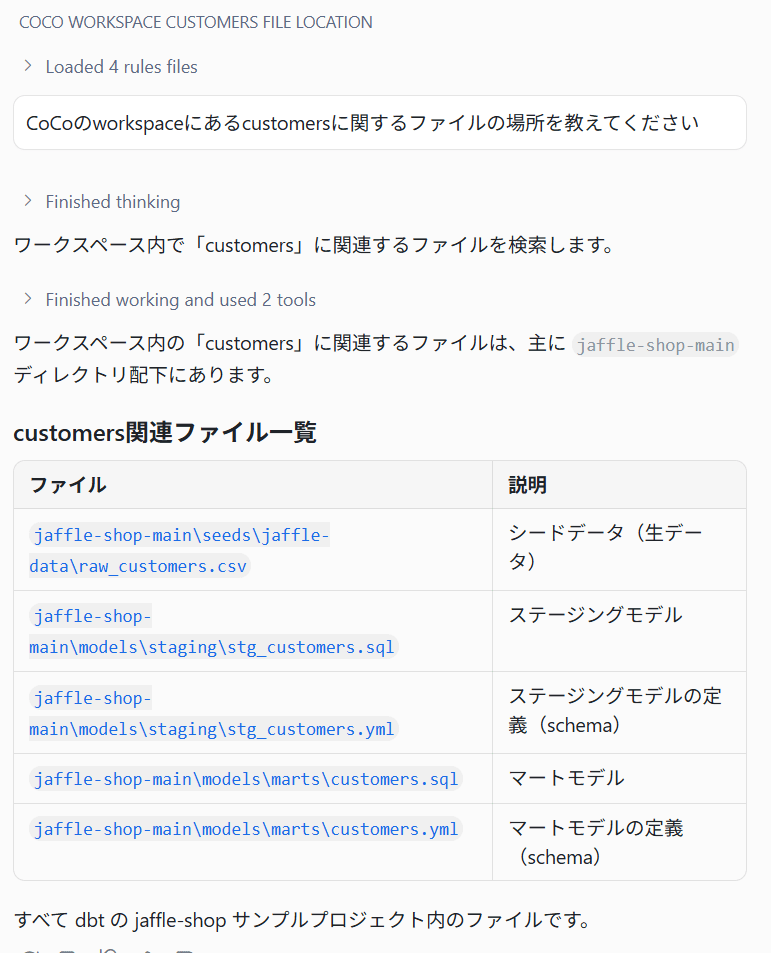
※ It was difficult to clearly judge the effect of index construction with this small repository alone. On the other hand, since code and documents are indexed in chunks, it seems particularly effective for larger repositories or cases where you want to search for specifications and implementation intent in natural language.
Note: Cannot be used with remote / virtual workspaces such as Remote-SSH or dev containers (local execution only).
Context management and /compact
A context window that visualizes token consumption in the conversation and a /compact command that summarizes the conversation to free up tokens have been added.
Hovering over the context window in the bottom right of the message input field displays a popover showing a breakdown of token usage.
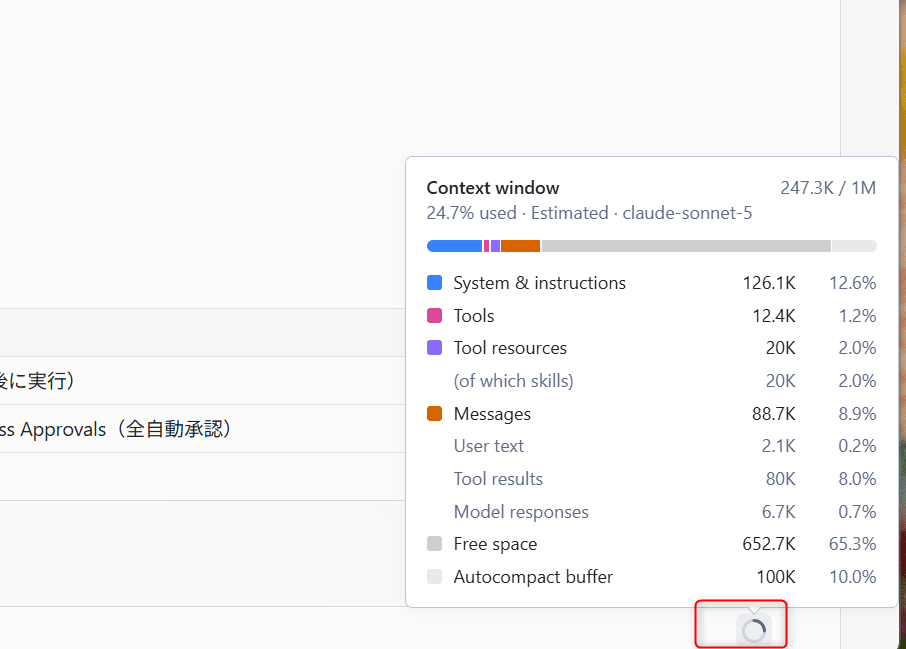
Running /compact in the middle of a long conversation summarizes the conversation history and frees up tokens while continuing the same thread.
Changes panel
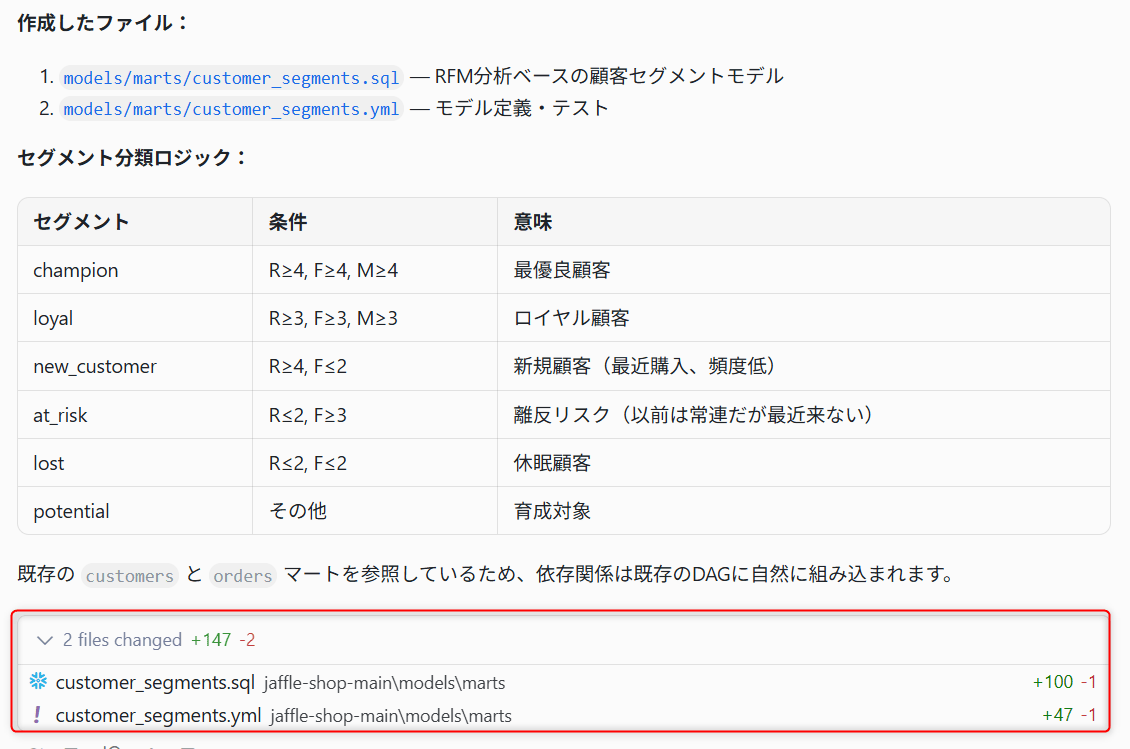
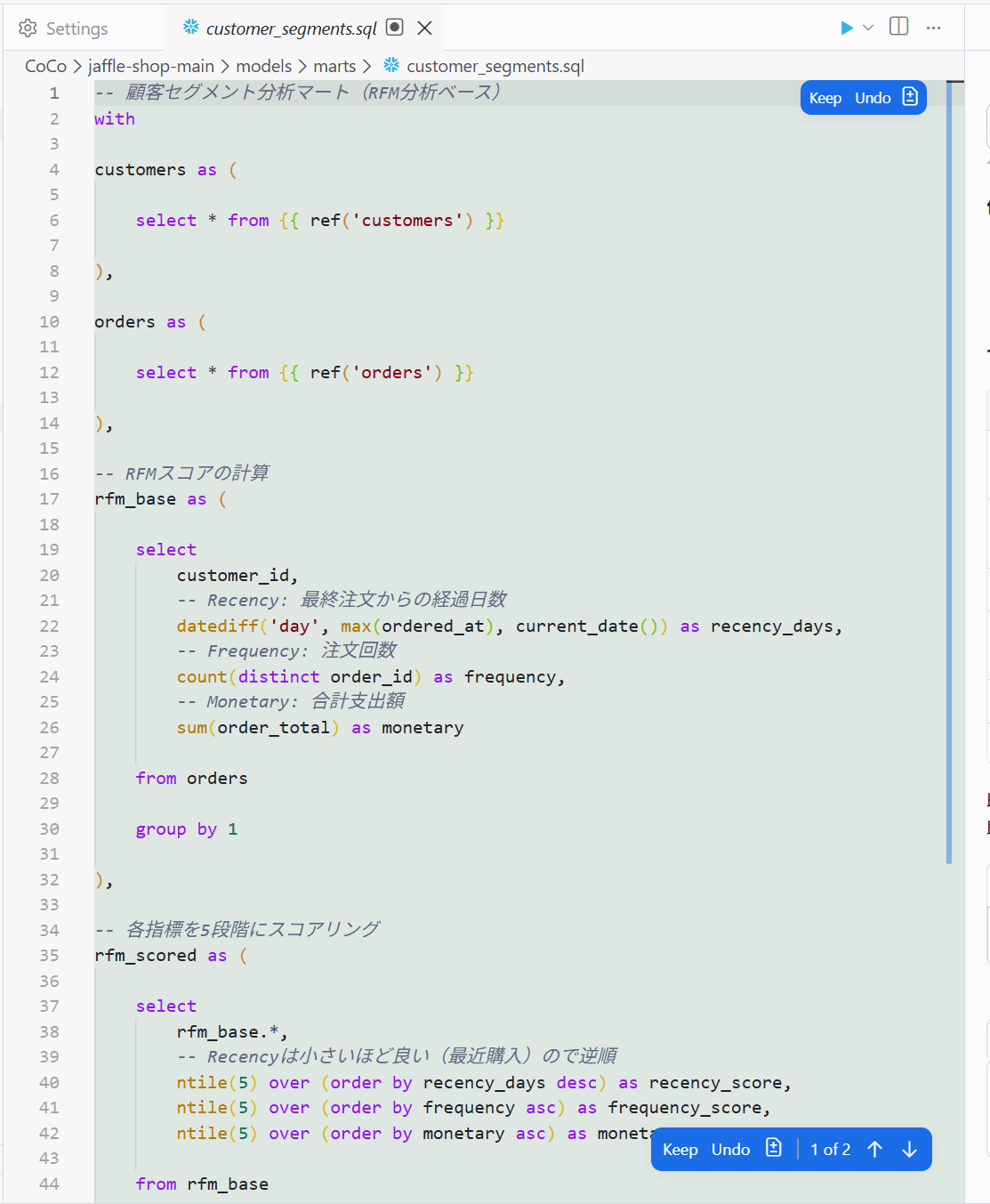
When the agent modifies files, a summary card showing "N files changed" is displayed, and you can review the changes using a unified diff, modified file tree, and scope selector. Accept / reject is also possible on a per-file basis.
Multiple sheets in SQL Playground
The lightweight SQL editor built into the right panel of Agent Manager now allows you to manage multiple SQL sheets (.sql buffers) per workspace.
- How to open: SQL Playground icon in the right toolbar, "Open SQL Playground" in the Command Palette, or the "Open in SQL Playground" action from agent results
- Execution: Run button or ⌘Enter (macOS) / Ctrl+Enter (Windows). The statement at the cursor position is executed
- Sheet management: Create new, rename, delete, and organize by drag & drop in the sidebar
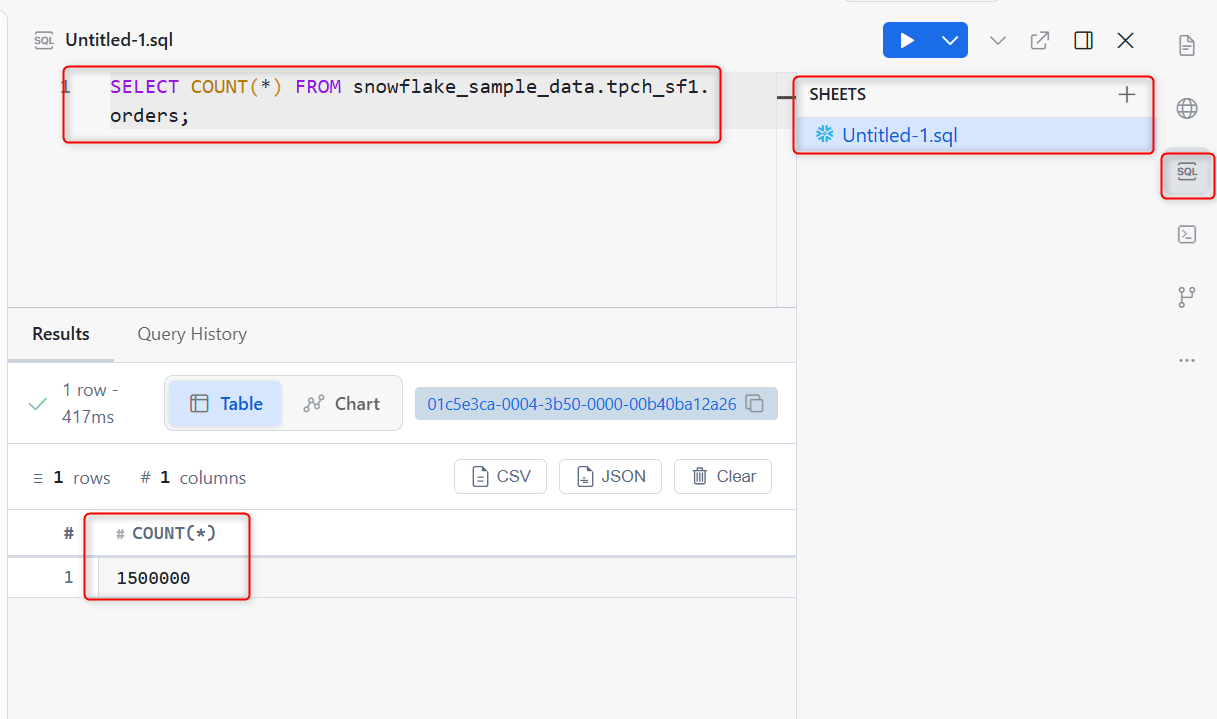
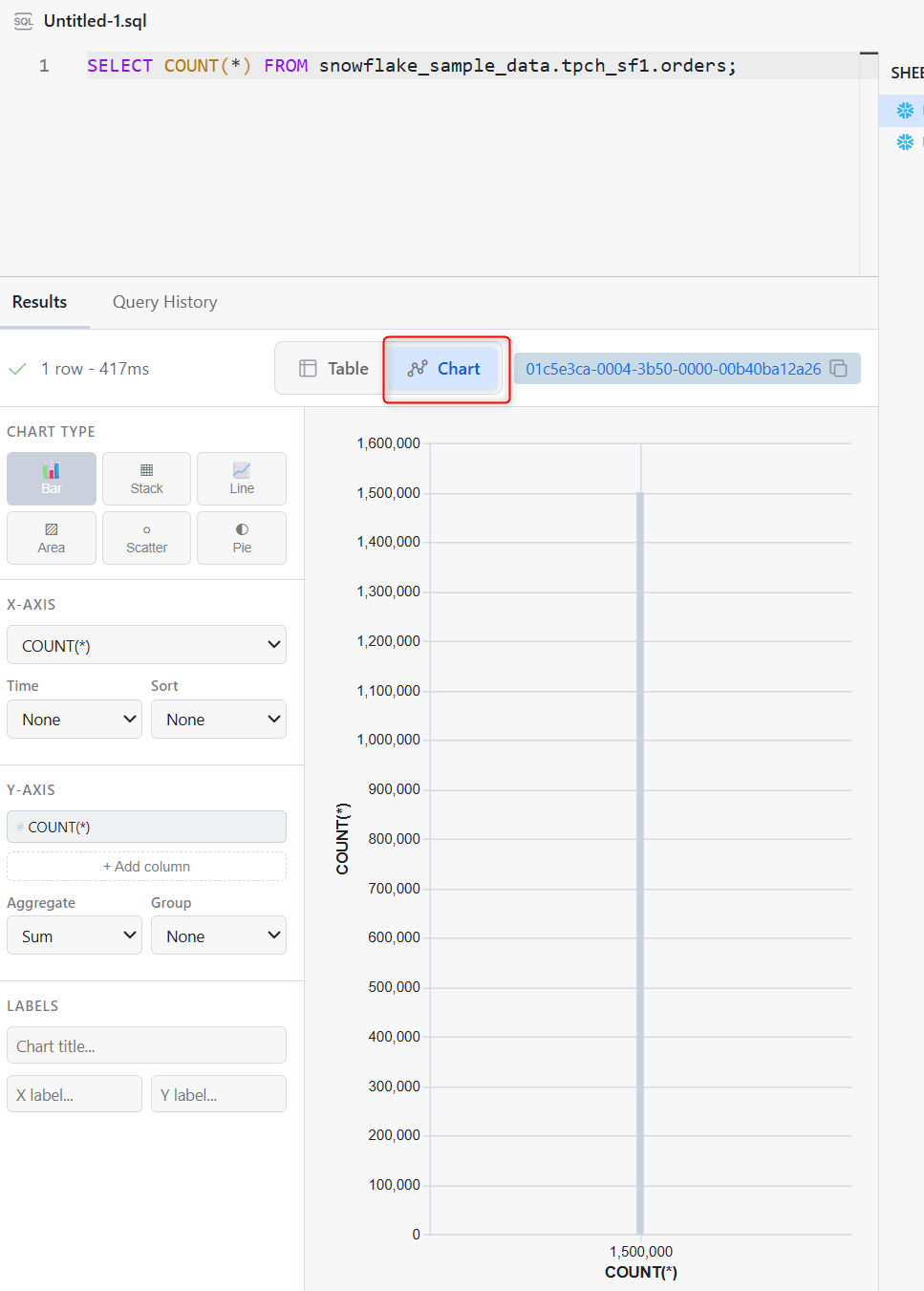
Chart view is also available
Note: SQL Playground sheets are not source files under the workspace, but are saved in a scratch area at
~/.snowflake/cortex/sql/<workspace-id>/. Sheets are auto-saved to a local area per workspace, so at least in the verification environment, sheets were available to continue using even after restarting CoCo Desktop. If you want to use Git management or regular editor features, you can open a sheet as an editor tab with "Open in Editor" (the Playground sheet remains as-is).
Running through the Advanced Features
Since each of these topics could fill an article on its own, this article limits itself to minimal operational verification.
Agentic Notebook
A feature that allows the agent to directly manipulate Jupyter notebooks (.ipynb) from chat. It autonomously creates, edits, and executes cells, reads output, and inspects DataFrames (pandas / polars / PySpark / Snowpark supported). No additional feature enablement is required on the CoCo Desktop side, as it is a built-in feature. However, cell execution requires an available Jupyter kernel — such as a local Python environment, conda environment, or existing Jupyter Server (if using Snowpark, dependencies such as snowflake-snowpark-python must also be installed on the kernel side).
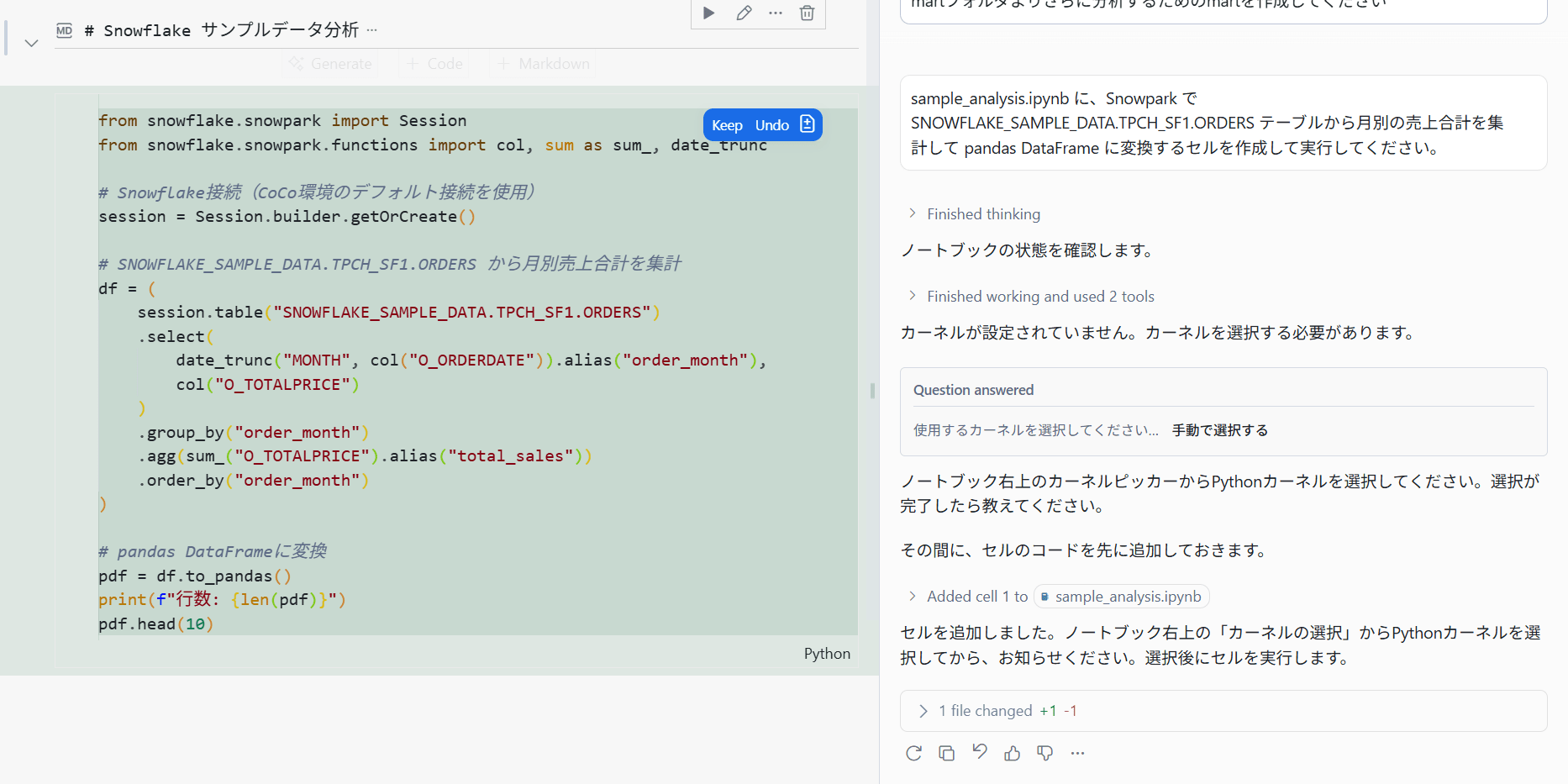
When I instructed the agent to create a Notebook that creates a sample DataFrame, cells were generated, and I could proceed while reviewing the changes with Keep / Undo.
In sample_analysis.ipynb, please create and execute a cell that aggregates monthly sales totals from the SNOWFLAKE_SAMPLE_DATA.TPCH_SF1.ORDERS table using Snowpark and converts it to a pandas DataFrame.
Automations
Saved prompts that run on a schedule. A new chat session is started with each execution, and a desktop notification is delivered upon completion.
From the Automations view, click New automation to set the title, prompt, and frequency, then use Run now to execute immediately.
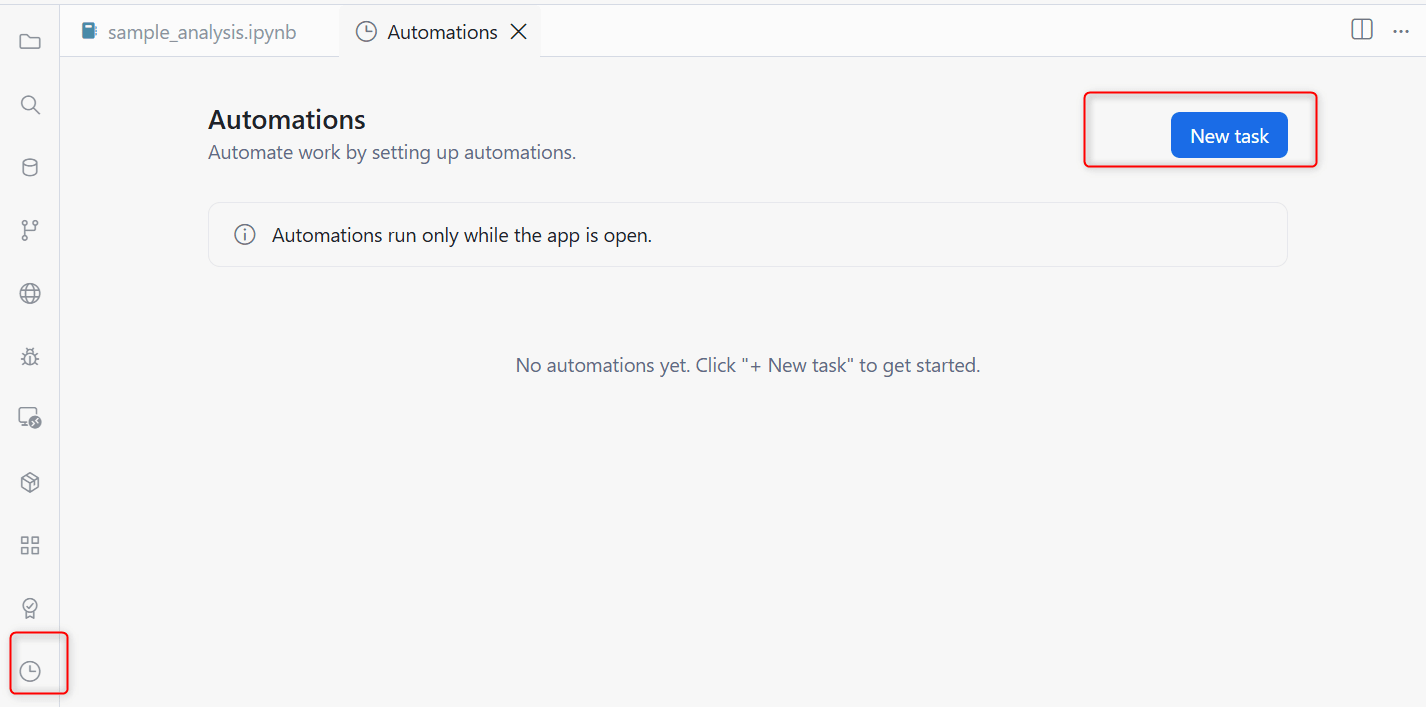
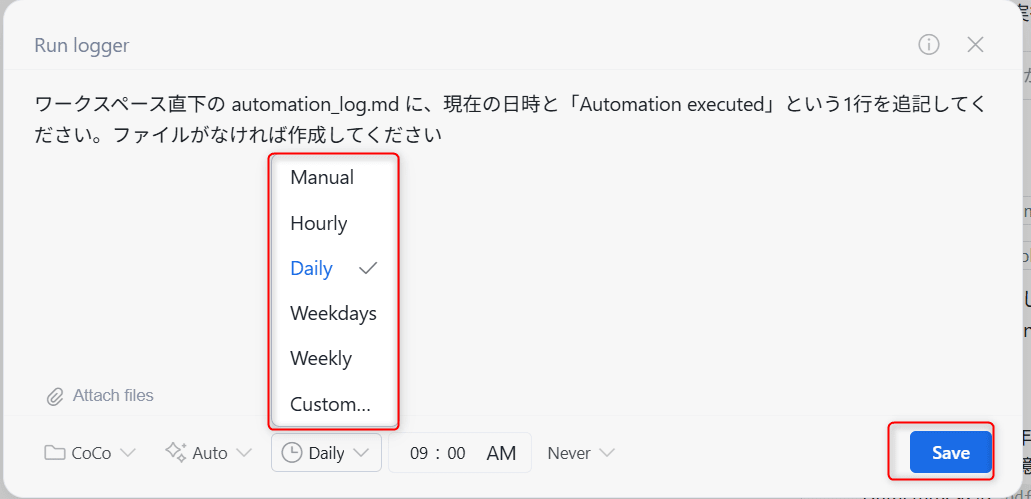
I configured content to append to a log file. Settings such as execution frequency are available.
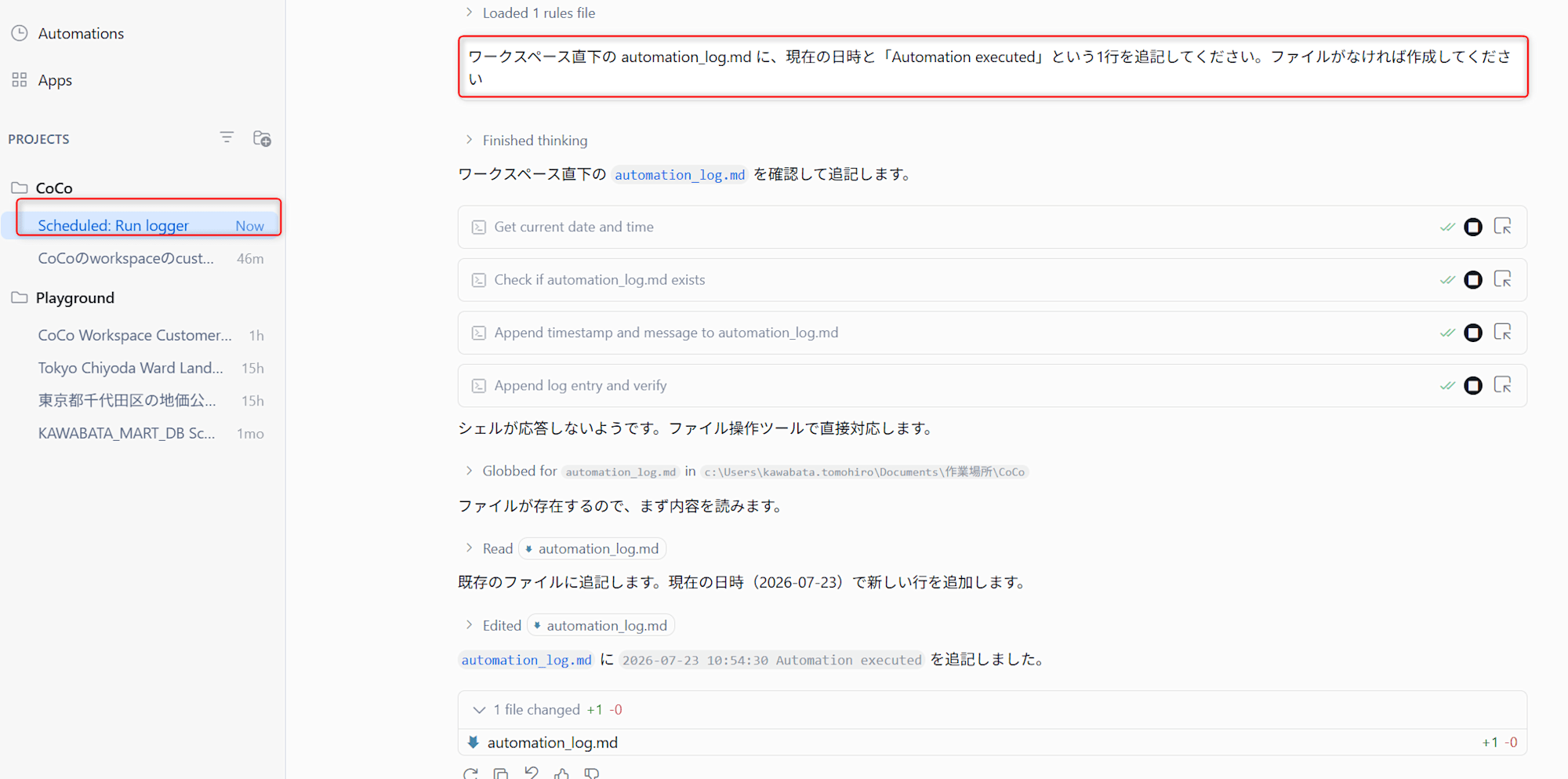
Let's try executing immediately with Run now.
Note: If a tool execution requiring approval is reached, the Automation execution stops waiting for approval. If you want a scheduled execution to run unattended, it is recommended to run it once with
Run nowfirst and approve the required tool execution permissions.
Note: Automations run when CoCo Desktop is running and the PC is not in sleep mode. If the app is closed at the scheduled execution time, the run is skipped, but when the app is opened again, only the most recent single missed run per Automation is automatically executed as a catch-up run (older missed runs are discarded). Definitions are saved locally per machine/OS user and are not synchronized, and execution history is limited to a maximum of 50 entries.
Agentic Browser
The agent can operate the browser built into CoCo Desktop to perform web browsing and test local applications. Chromium Developer Tools are also available for manual verification.
dbt integration
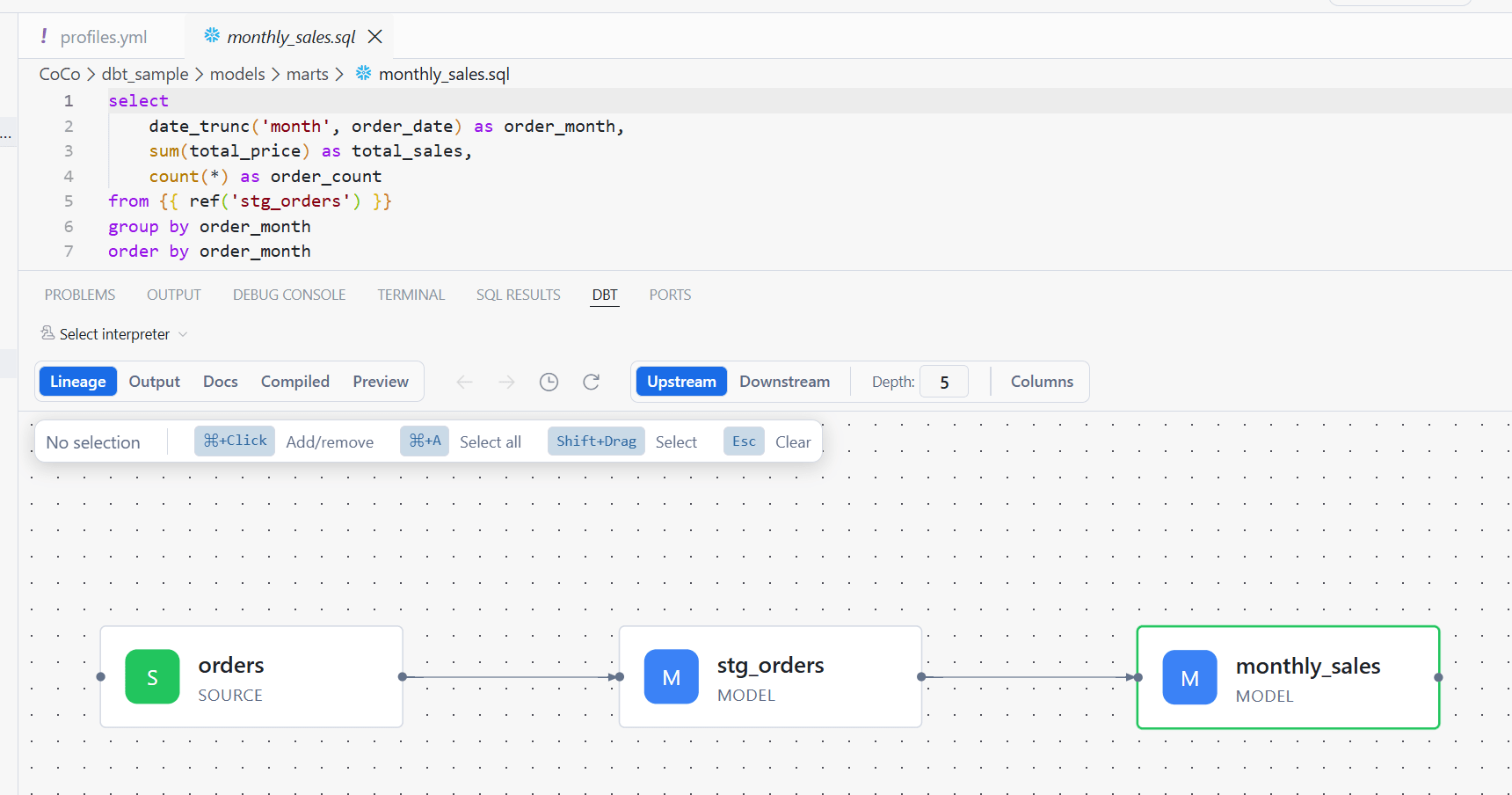
Automatically activated when dbt_project.yml is detected in the workspace, enabling lineage visualization, compiled SQL preview, data preview, and a command bar from the DBT tab. There are two execution modes: Local mode (default), which uses the local dbt CLI, and Snowflake-managed mode.
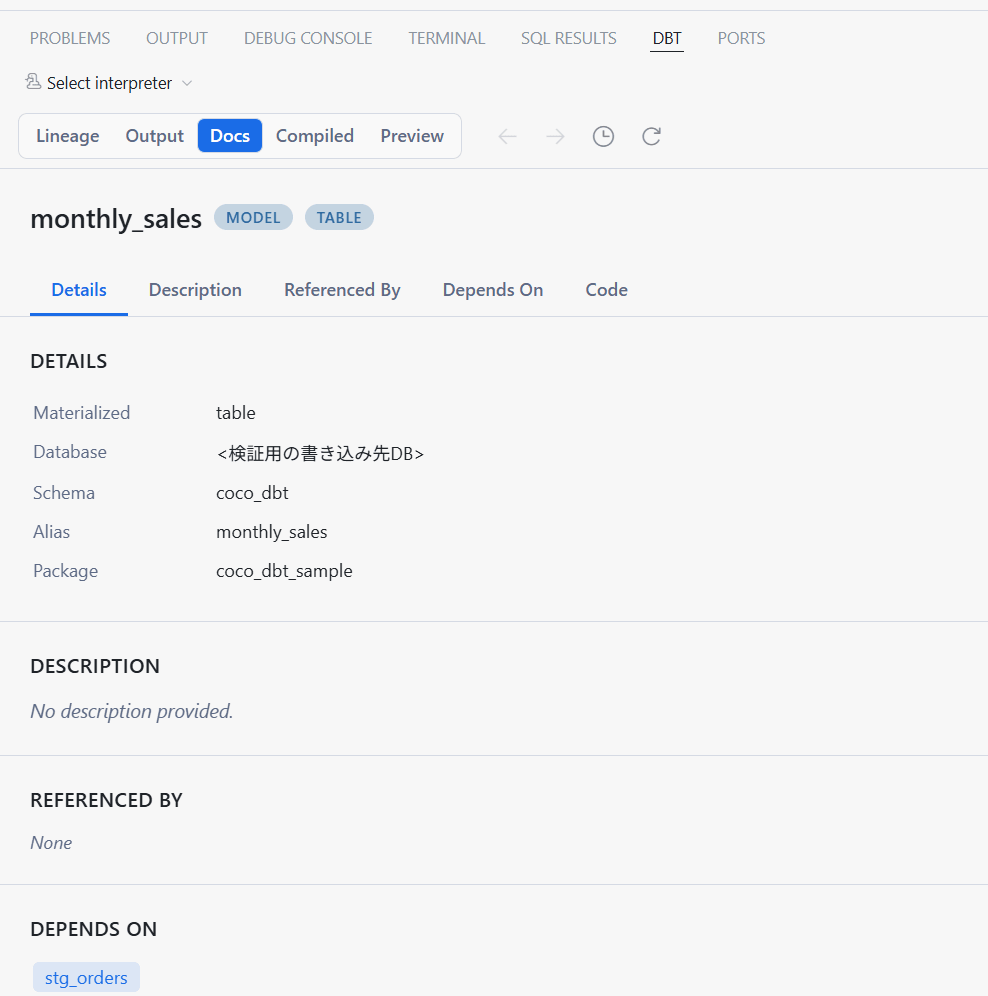
dbt docs
Note: In Snowflake-managed mode, the Preview tab as well as the Command bar and Build / Compile / Show quick actions are not available (dbt commands are executed from the Run button and the execution popover). While a local dbt CLI is not required,
profiles.ymldirectly under the project folder, an enabled Personal Database, and a valid Snowflake connection are required. Also, dbt projects synchronized to a Snowflake workspace have a limit of 20,000 files includingtarget/anddbt_packages/.
Building apps
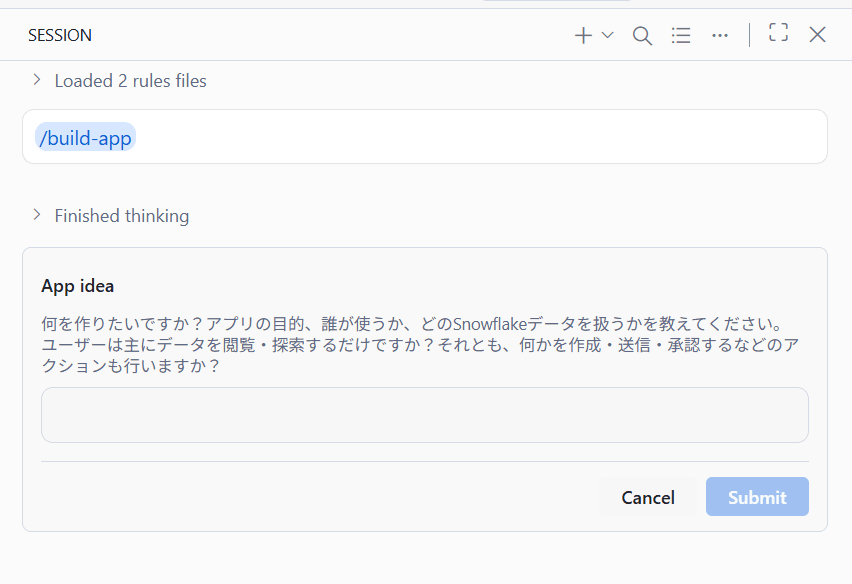
Supports two frameworks — Streamlit in Snowflake and Snowflake App Runtime — with the agent assisting from scaffolding through iterative development on a local dev server to deployment to Snowflake. Deployment requires Snowflake CLI 3.19 or higher.
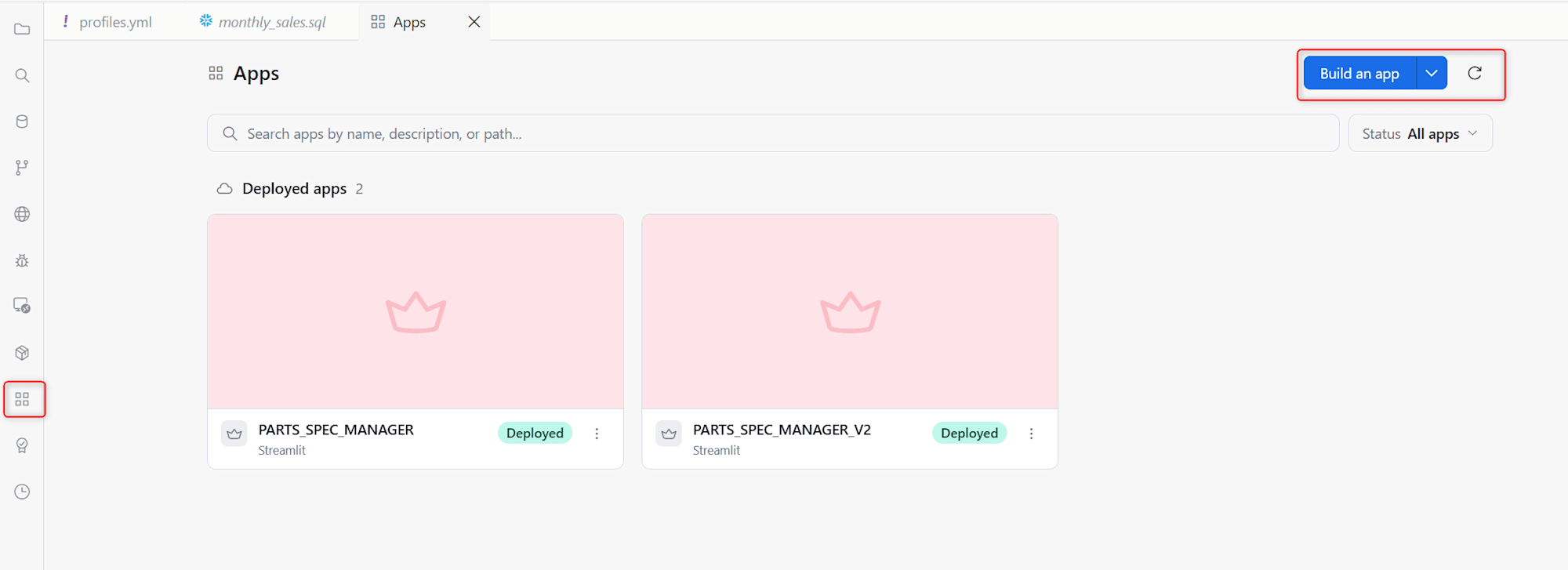
Clicking Build an app launches the agent as shown below, enabling app development through natural language.
Reviewing the Operational and Governance Features
These are the features to know when considering production adoption at GA.
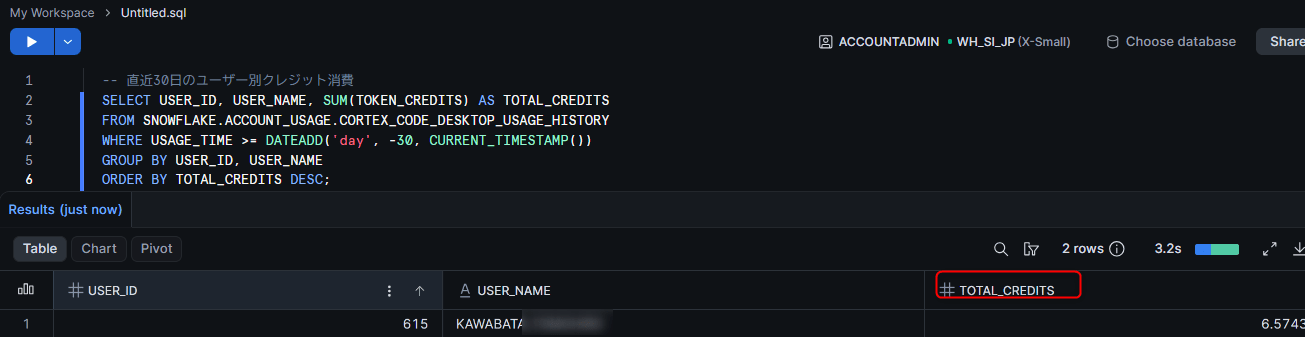
Checking usage history (CORTEX_CODE_DESKTOP_USAGE_HISTORY view)
A usage history view dedicated to CoCo Desktop is available in the SNOWFLAKE.ACCOUNT_USAGE schema. It allows you to check credit usage by user and request over the past 365 days, and the TOKENS_GRANULAR / CREDITS_GRANULAR columns show breakdowns by model (input / cache_read_input / cache_write_input / output).
-- Credit consumption by user over the past 30 days
SELECT USER_ID, USER_NAME, SUM(TOKEN_CREDITS) AS TOTAL_CREDITS
FROM SNOWFLAKE.ACCOUNT_USAGE.CORTEX_CODE_DESKTOP_USAGE_HISTORY
WHERE USAGE_TIME >= DATEADD('day', -30, CURRENT_TIMESTAMP())
GROUP BY USER_ID, USER_NAME
ORDER BY TOTAL_CREDITS DESC;
Note: This view only includes CoCo Desktop requests and does not include usage from CoCo CLI or CoCo in Snowsight.
Daily credit limit (CORTEX_CODE_DESKTOP_DAILY_EST_CREDIT_LIMIT_PER_USER)
A parameter that allows you to set a daily credit consumption limit per user. The default is -1 (unlimited), and setting 0 completely blocks access. Setting a positive value blocks access once the estimated usage over a rolling 24-hour period exceeds the threshold.
-- Check the current setting
SHOW PARAMETERS LIKE 'CORTEX_CODE_DESKTOP%' IN ACCOUNT;

-- Set a limit at the user level (takes priority over account level)
ALTER USER coco_test_user SET CORTEX_CODE_DESKTOP_DAILY_EST_CREDIT_LIMIT_PER_USER = 0;
After the limit is reached, an error indicating that the daily credit limit has been reached is displayed in CoCo Desktop, and the user cannot use it until the estimated usage over the rolling 24-hour period falls below the threshold.
-- Remove the setting
ALTER USER coco_test_user UNSET CORTEX_CODE_DESKTOP_DAILY_EST_CREDIT_LIMIT_PER_USER;
Note: Setting
0at the account level blocks all users. An operational pattern of "setting0at the account level and setting a positive value at the user level only for users who are permitted" is also possible.
Permission modes
The approval behavior during tool execution can be switched between two modes.
| Mode | Behavior |
|---|---|
| Default Approvals (recommended) | Displays a confirmation prompt before new or high-risk tool calls (bash / MCP / SQL, etc.), editing protected files, and URL access |
| Bypass Approvals | Skips normal approvals including terminal execution, file editing, MCP tools, and SQL execution. Limited to trusted contexts |
Switch using the approval mode picker at the bottom left of the chat input field. Note that this setting applies to the entire machine (all projects on the same machine).
Note: Even in Bypass Approvals, code execution in the browser (
browser_evaluate/browser_run_code), clipboard reading (browser_read_clipboard), and launching sub-agents always require confirmation. Conversely, all other operations — including destructive commands — are executed without confirmation, so please limit use to trusted inputs and workspaces.
Operational recommendation: Normally, use Default Approvals as the standard, and limit Bypass Approvals to isolated verification workspaces or repetitive tasks whose content is well understood. Using Agent terminal sandbox together as an additional defense is also recommended in the official documentation.
Managed settings (Centralized management for organizations)
A mechanism that allows administrators to enforce organizational policies via a JSON file. Distribution via device management tools such as Jamf or Intune is assumed.
| OS | Deployment path |
|---|---|
| macOS | /Library/Application Support/Cortex/managed-settings.json |
| Windows | C:\ProgramData\Cortex\managed-settings.json |
For example, the following settings deny dangerous commands and remote skills, disable Bypass Approvals, prohibit persistence of conversation history, and display an organizational banner.
{
  "version": "1.0",
  "permissions": {
    "deny": ["bash(rm:*)", "bash(curl:*)", "bash(wget:*)", "skill(remote:*)"],
    "defaultMode": "allow",
    "dangerouslyAllowAll": false
  },
  "settings": {
    "forceNoHistoryMode": true
  },
  "ui": {
    "showManagedBanner": true,
    "bannerText": "Managed by your organization.",
    "hideDangerousOptions": true
  }
}
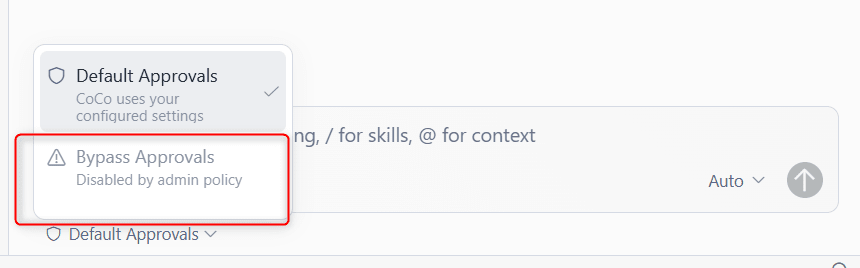
Setting permissions.dangerouslyAllowAll to false blocks Bypass Approvals organization-wide. When verified on an actual device, Bypass Approvals in the approval mode picker was grayed out and displayed "Disabled by admin policy," making it unselectable.
Note: If the
versionfield is missing or invalid, the app starts in fail-closed (restricted) mode. Users cannot disable administrator settings.
Closing Remarks
In conjunction with the GA of CoCo Desktop, I verified the new features since the Preview period as well as the operational and governance features. In addition to improvements to the development experience such as Memory and semantic code search, I feel that the major point of the GA is that the governance features necessary for organizational adoption — usage history view, credit limits, and Managed settings — have come together.
I hope this article is helpful to someone!