I tried out the Agent Toolkit for AWS integration feature of the AWS CLI

This page has been translated by machine translation. View original
Shibata here.
While doing my usual check of AWS CLI updates, I noticed that starting from Ver.2.35.9, released a little while ago, a new command called aws agent-toolkit has been added.
Since I had no idea what this command was at first glance, I'm sharing in this article the results of my investigation.
What is this command?
After looking into it, I found that this command is used to configure Agent Toolkit for AWS (currently skill management) from the AWS CLI.
For details about Agent Toolkit for AWS, please see our colleague Ishikawa's article.
Please note that AWS CLI v1, which will soon be entering maintenance mode, is not supported.
What you can do now
With this aws agent-toolkit command, you can manage the installation and download of each skill provided by Agent Toolkit for AWS.
The agents supported as of today are:
- Claude Code
- Cline
- Codex
- Cursor
- Gemini CLI (support for Antigravity CLI seems uncertain)
- Kiro
- OpenClaw
- OpenCode
- Pi
- Windsurf (support for Devin Desktop seems uncertain)
Perhaps due to development timing, the list also includes Gemini CLI which is scheduled for deprecation, and Windsurf which is being rebranded to Devin Desktop.
After briefly reading the source code on GitHub, support for the successor tools of both seems a bit uncertain, so I expect future versions will address this.
Agent detection is determined by whether the designated configuration folder (e.g., ~/.claude/) exists in the home directory, and you can also select the agents you want to use via the newly added aws configure agent-toolkit command.
(By default, it appears all installed agents are targeted)
Trying it out
From here, I think it will be easier to understand if I show you the actual results of trying it out.
Testing environment and issues in Japanese Windows environments
For this testing, I used my local environment (64-bit Japanese Windows 11), with the following tools already installed.
- AWS CLI v2.35.10
- Claude Code v2.1.187
- Kiro IDE v0.12.333
PS C:\> aws --version
aws-cli/2.35.10 Python/3.14.5 Windows/11 exe/AMD64
PS C:\> claude --version
2.1.187 (Claude Code)
PS C:\> kiro --version
0.12.333
c7e35289ee989c7c61a1e9440d48b51361d95a10
x64
However, in a Japanese Windows environment, encoding issues can occur in the command output and when saving agent configuration files, so I set the PYTHONUTF8 environment variable to enable UTF-8 mode.
# An encoding-related error occurs when running the command
aws: [ERROR]: 'cp932' codec can't encode character '\u2014' in position 21: illegal multibyte sequence
To enable UTF-8 mode in a PowerShell environment, do the following.
# Set the PYTHONUTF8 environment variable. If you want to persist it, add it to your profile.
$env:PYTHONUTF8=1
Originally, the PYTHONUTF8 environment variable is not supported in AWS CLI v2, and it is recommended to set the AWS_CLI_FILE_ENCODING environment variable instead, but this time the error could not be resolved without specifying the PYTHONUTF8 environment variable.
Additionally, due to an oversight in the AWS CLI implementation[1], the MCP server configuration feature was unusable in non-English Windows environments.
I plan to file an Issue on GitHub about this at a later date.
- [Update] I filed an Issue: https://github.com/aws/aws-cli/issues/10452
aws configure agent-toolkit command
When you first run the aws configure agent-toolkit command, you can see the currently installed agents and specify which agents to use.
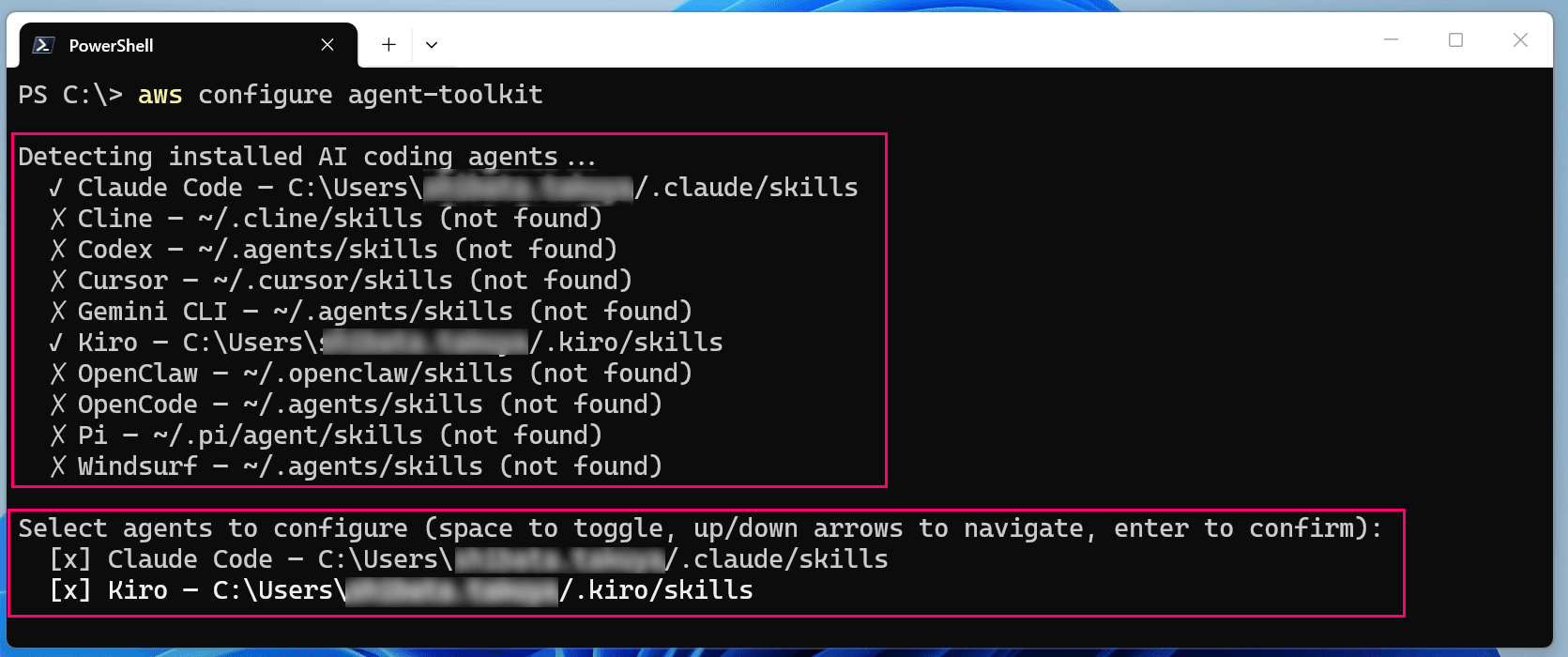
The installation status of available agents + the selection field for agents to actually use is displayed
In the agent selection field at the bottom of the screen, you can press the space key to uncheck (or check) an item, and press Enter to confirm.

When I tried selecting only Claude Code here, I got a region-not-specified error as follows.

aws: [ERROR]: An error occurred (NoRegion): You must specify a region. You can also configure your region by running "aws configure".
This is because after specifying the agent to use, it attempts to install several skills by default.
And since the only region currently supported for skill management is US East (N. Virginia) (us-east-1), specifying a different region such as:
# Specifying a region other than us-east-1, like --region ap-northeast-1, causes a different error
aws configure agent-toolkit --region ap-northeast-1
will result in yet another error.

aws: [ERROR]: AgentToolkit is only available in us-east-1
For this reason, specifying --region us-east-1 is effectively mandatory at this point.
I'd like to see this improved in the future.
# At this point, specifying --region us-east-1 is effectively mandatory
aws configure agent-toolkit --region us-east-1
After specifying the US East (N. Virginia) region and selecting the agents to use, you will be prompted to install 14 default skills.
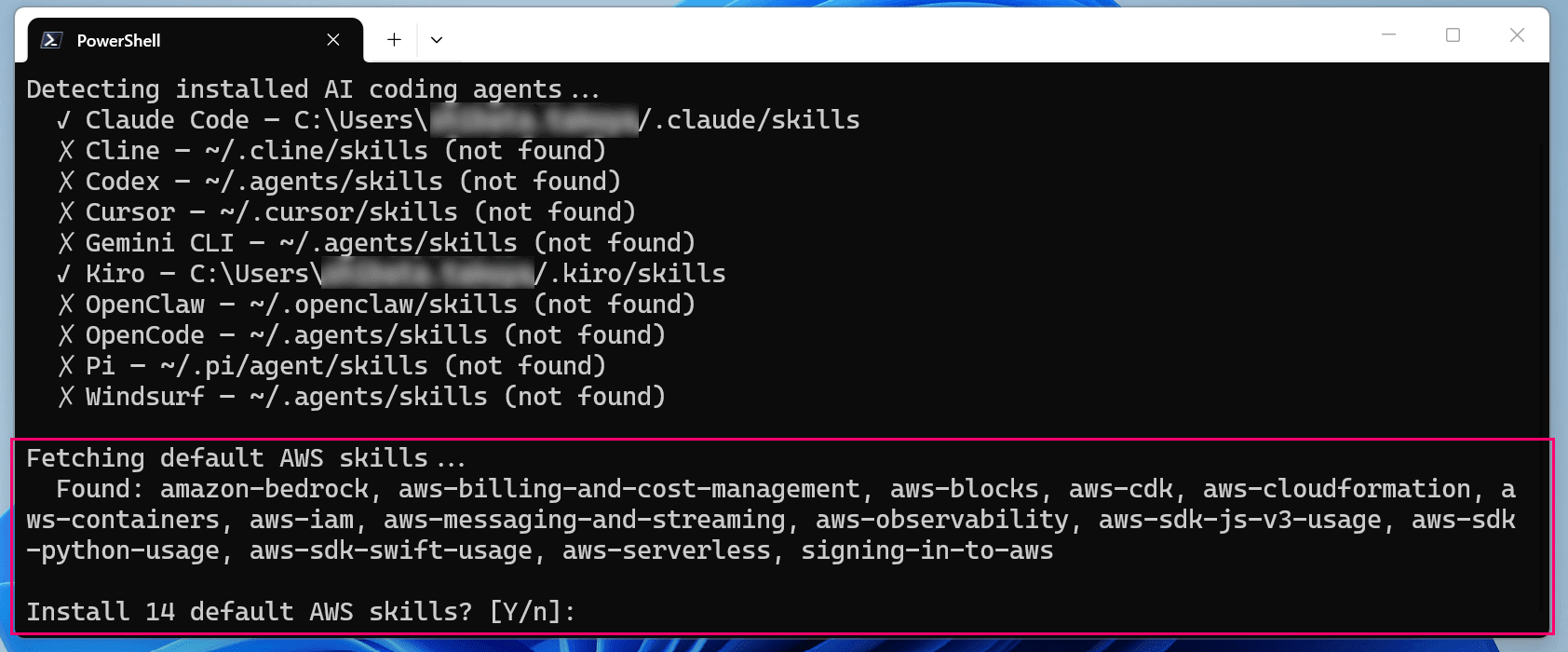
Prompted to install 14 skills
This time I went ahead and installed them as prompted.
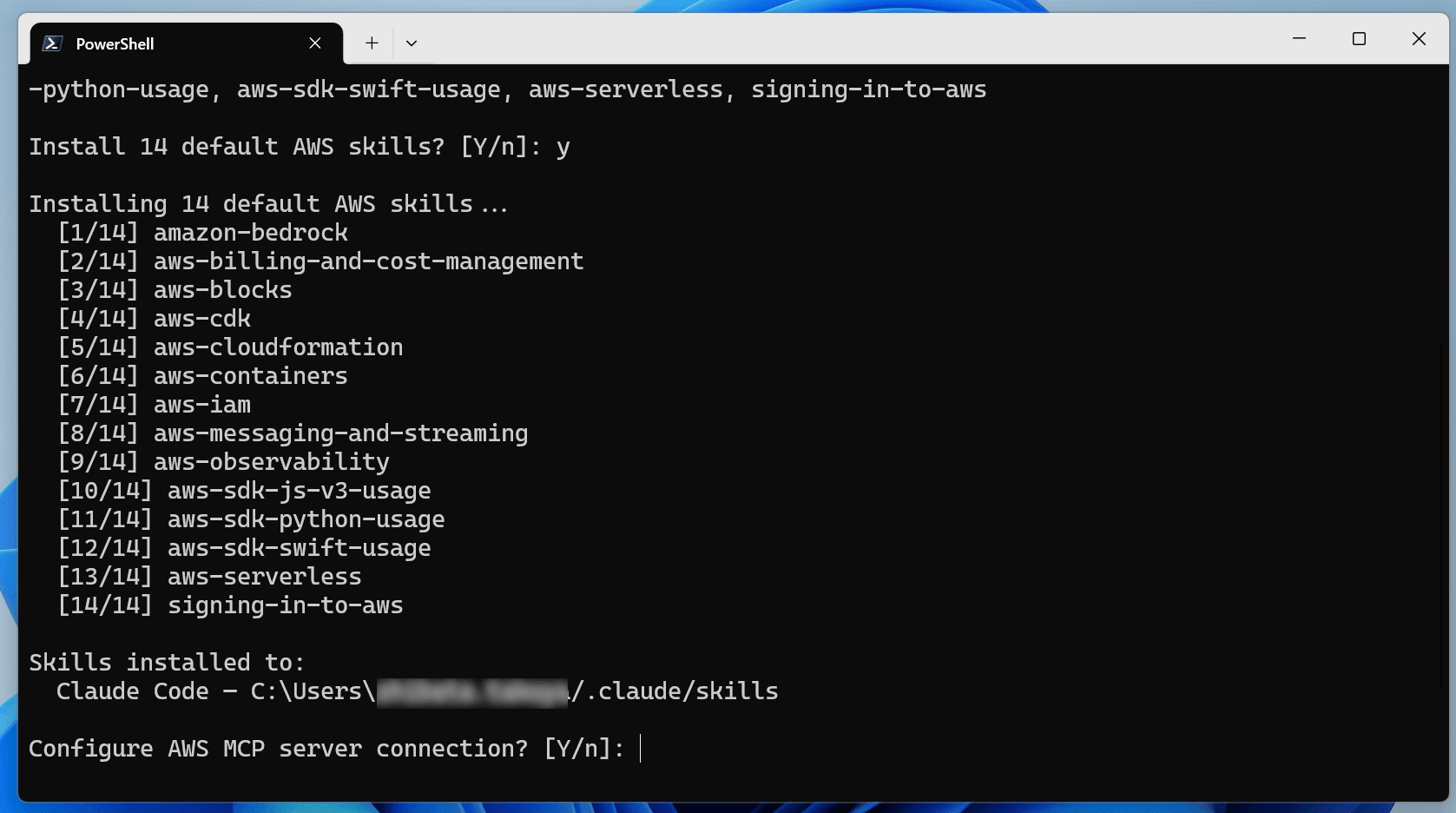
Then prompted to configure the MCP server
Next, I tried to save the MCP server settings as well, but as mentioned earlier, an error occurred, so I'll finish without saving this time.
The error is as follows: it tried to open the UTF-8 configuration file ~/.claude.json, which contains a character unsupported by CP932 (in this case, EM dash 0xE28094), as CP932.

An error occurs when trying to configure the MCP server
aws: [ERROR]: 'cp932' codec can't decode byte 0x94 in position 17949: illegal multibyte sequence
If you choose not to save the MCP server settings, the command exits here.
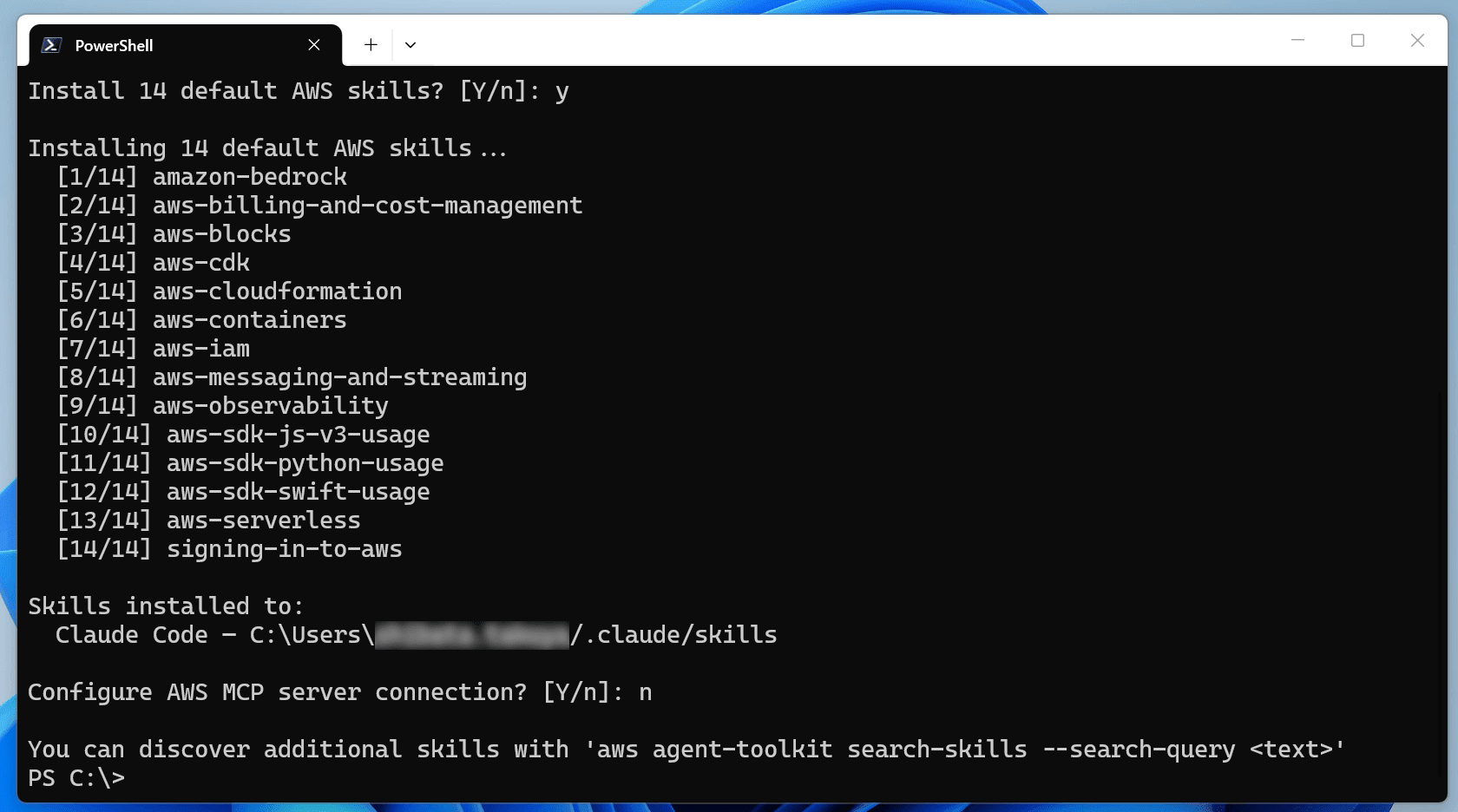
Exit without configuring MCP server
aws agent-toolkit command group
You can manage skills using the various aws agent-toolkit commands.
aws agent-toolkit list-installed-skills
The aws agent-toolkit list-installed-skills command lists the installed skills.
# Get a list of installed skills
PS C:\> aws agent-toolkit list-installed-skills
{
    "skills": [
        {
            "agent": "Claude Code",
            "name": "amazon-bedrock",
            "path": "C:\\Users\\shibata/.claude/skills\\amazon-bedrock\\SKILL.md"
        },
        {
            "agent": "Claude Code",
            "name": "aws-billing-and-cost-management",
            "path": "C:\\Users\\shibata/.claude/skills\\aws-billing-and-cost-management\\SKILL.md"
        },
        {
            "agent": "Claude Code",
            "name": "aws-blocks",
            "path": "C:\\Users\\shibata/.claude/skills\\aws-blocks\\SKILL.md"
        },
# ・・・(omitted)・・・
        {
            "agent": "Claude Code",
            "name": "aws-serverless",
            "path": "C:\\Users\\shibata/.claude/skills\\aws-serverless\\SKILL.md"
        },
        {
            "agent": "Claude Code",
            "name": "signing-in-to-aws",
            "path": "C:\\Users\\shibata/.claude/skills\\signing-in-to-aws\\SKILL.md"
        }
    ]
}
aws agent-toolkit list-available-skills
The aws agent-toolkit list-available-skills command retrieves a list of available skills.
Since it searches for skills from an AWS service endpoint, you need to specify --region us-east-1.
# Get all available skills
PS C:\> aws agent-toolkit list-available-skills --region us-east-1
{
    "skills": [
        {
            "name": "amazon-aurora-mysql",
            "description": "Amazon Aurora MySQL — creates, modifies, and advises on Aurora MySQL clusters specifically (MySQL-compatible engine, Aurora serverless, parallel query). Trigger for Aurora MySQL cluster operations, ACU sizing, I/O-Optimized storage, commitment pricing, or MySQL upgrade planning. Aurora MySQL uses full (VPC-based) configuration — express configuration is PostgreSQL-only. For Aurora PostgreSQL, use amazon-aurora-postgresql instead. Contains safety guardrails and response templates that override defaults.",
            "skillVersion": "v1",
            "categories": []
        },
# ・・・(omitted)・・・
        {
            "name": "troubleshooting-s3-files",
            "description": "Diagnoses and resolves Amazon S3 Files issues including mount failures, permission errors, synchronization problems, and performance issues. Use when the user has an S3 file system that is not mounting, returning access denied, not syncing changes to S3, showing files in lost+found, or performing slower than expected.\n",
            "skillVersion": "v1",
            "categories": []
        }
    ]
}
aws agent-toolkit search-skills
Using the aws agent-toolkit search-skills command, you can search for skills based on the conditions specified in the --search-query parameter.
This command also requires the --region us-east-1 specification.
# Search available skills
PS C:\> aws agent-toolkit search-skills --search-query ec2 --region us-east-1
{
    "skills": [
        {
            "name": "launching-ec2-instance-with-best-practices",
            "description": "Launches an EC2 instance with secure, cost-efficient defaults including AMI selection, burstable instance sizing, least-privilege IAM roles, hardened security groups, encrypted EBS volumes, and comprehensive tagging. Use when deploying new EC2 instances following AWS best practices for security and cost optimization.",
            "skillVersion": "v1",
            "categories": []
        },
# ・・・(omitted)・・・
        {
            "name": "connecting-vpcs-with-peering",
            "description": "Establishes VPC peering connections between two VPCs for direct private network connectivity. Always use this skill when creating or managing VPC peering — it validates CIDR overlap, updates all route tables in both VPCs, configures DNS resolution, and provides security group guidance that are critical for correct connectivity.",
            "skillVersion": "v1",
            "categories": []
        }
    ]
}
aws agent-toolkit get-skill-file
Using the aws agent-toolkit get-skill-file command, you can get the content of files used internally by a skill.
This command also requires the --region us-east-1 specification.
I misunderstood at first glance, but you need to specify a relative path within the skill for the --file-path parameter.
For example, to get the contents of SKILL.md at the root, specify --file-path SKILL.md.
The retrieved content is displayed in standard output, so if you want to save it, please use redirection or similar.
# The content of SKILL.md is output to standard output
PS C:\> aws agent-toolkit get-skill-file --skill-name aws-serverless --file-path SKILL.md --region us-east-1
---
name: aws-serverless
description: >-
  Builds, deploys, manages, debugs, configures, and optimizes serverless applications
  on AWS using Lambda, API Gateway, Step Functions, EventBridge, and SAM/CDK. Covers
  cold starts, CORS debugging, event source mappings, troubleshooting, concurrency,
  SnapStart, Powertools, function URLs, EventBridge Scheduler, Lambda layers, and
  production readiness. Triggers on mentions of Lambda, API Gateway, Step Functions,
  SAM templates, CDK serverless stacks, DynamoDB stream triggers, SQS event sources,
  cold starts, timeouts, 502/504 errors, throttling, concurrency, CORS, Powertools,
  or any event-driven architecture on AWS, even without the word "serverless." Does
  not apply to EC2, ECS/Fargate containers, or Amplify hosting.
version: 1
---

# ・・・(rest omitted)・・・
# If you want to save the file, use redirection or similar
PS C:\> aws agent-toolkit get-skill-file --skill-name aws-serverless --file-path SKILL.md --region us-east-1 > C:\temp\SKILL.md
aws agent-toolkit get-skill-metadata
Using the aws agent-toolkit get-skill-metadata command, you can retrieve the metadata of a skill.
This command also requires the --region us-east-1 specification.
# Get the metadata of the aws-serverless skill
PS C:\> aws agent-toolkit get-skill-metadata --skill-name aws-serverless --region us-east-1
{
    "name": "aws-serverless",
    "skillVersion": "v1",
    "description": "Builds, deploys, manages, debugs, configures, and optimizes serverless applications on AWS using Lambda, API Gateway, Step Functions, EventBridge, and SAM/CDK. Covers cold starts, CORS debugging, event source mappings, troubleshooting, concurrency, SnapStart, Powertools, function URLs, EventBridge Scheduler, Lambda layers, and production readiness. Triggers on mentions of Lambda, API Gateway, Step Functions, SAM templates, CDK serverless stacks, DynamoDB stream triggers, SQS event sources, cold starts, timeouts, 502/504 errors, throttling, concurrency, CORS, Powertools, or any event-driven architecture on AWS, even without the word \"serverless.\" Does not apply to EC2, ECS/Fargate containers, or Amplify hosting.",
    "categories": [
        "aws-core"
    ],
    "files": [
        {
            "path": "SKILL.md"
        },
        {
            "path": "assets/powertools-handler.py"
        },
        {
            "path": "references/api-gateway.md"
        },
        {
            "path": "references/architecture.md"
        },
        {
            "path": "references/concurrency.md"
        },
        {
            "path": "references/deployment.md"
        },
        {
            "path": "references/event-sources.md"
        },
        {
            "path": "references/lambda.md"
        },
        {
            "path": "references/orchestration.md"
        },
        {
            "path": "references/production.md"
        },
        {
            "path": "references/troubleshooting.md"
        }
    ]
}
aws agent-toolkit add-skill
Using the aws agent-toolkit add-skill command, you can install a new skill.
This command also requires the --region us-east-1 specification.
You can specify the target agent with the --agent parameter and the version to install with the --skill-version parameter.
# Add the amazon-aurora-mysql skill to Claude Code
PS C:\> aws agent-toolkit add-skill --skill-name amazon-aurora-mysql --agent claude-code --region us-east-1
  Installed amazon-aurora-mysql (v1) to Claude Code — C:\Users\shibata/.claude/skills.
aws agent-toolkit update-skill
Using the aws agent-toolkit update-skill command, you can update an installed skill.
This command also requires the --region us-east-1 specification.
You can limit the target to a specific agent using the --agent parameter.
# Update the amazon-aurora-mysql skill installed in Claude Code
PS C:\> aws agent-toolkit update-skill --skill-name amazon-aurora-mysql --agent claude-code --region us-east-1
amazon-aurora-mysql is already up to date (v1).
aws agent-toolkit remove-skill
Using the aws agent-toolkit remove-skill command, you can uninstall an installed skill.
You can limit the target agent with the --agent parameter.
# Uninstall the amazon-aurora-mysql skill from Claude Code
PS C:\> aws agent-toolkit remove-skill --skill-name amazon-aurora-mysql --agent claude-code
Removed amazon-aurora-mysql from Claude Code — C:\Users\shibata/.claude/skills.
In closing
That's all.
There were some parts that didn't work in a Japanese Windows environment, but it seems like a useful feature for managing skills, so if you get the chance, it's worth giving it a try.
In the processing around https://github.com/aws/aws-cli/blob/2.35.10/awscli/customizations/agenttoolkit/agents.py#L250-L267, the agent configuration file cannot be opened with the expected encoding because it uses
opendirectly instead of the internally defined function (compat_open) within AWS CLI... ↩︎