
Unused Amazon WorkDocs Drive Was Slowing Down Windows Explorer in WorkSpaces

This page has been translated by machine translation. View original
Introduction
Hello, this is watabo from Classmethod Operations.
While operating Amazon WorkSpaces, I received the following reports from users.
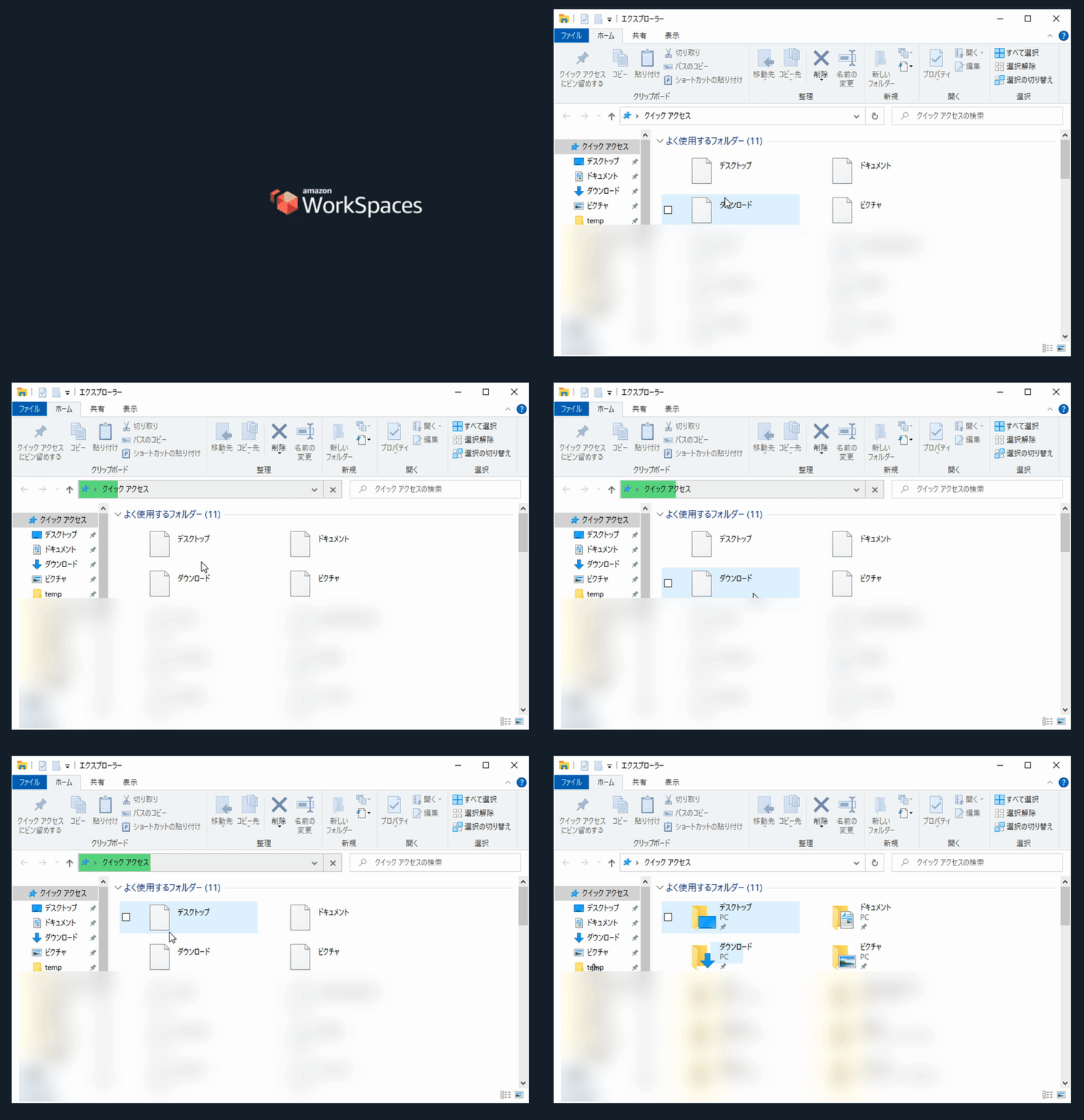
"Every time I open a folder in Explorer, it freezes. I can't do anything until loading finishes."
"The menu is slow to expand every time I right-click. It takes 7-8 seconds."
The same phenomenon occurred for all Explorer operations, not just the user drive. Once loading finished there was no impact, but it repeated every time they navigated to a folder.
In this article, I will introduce the cause and the solution.
The Phenomenon
- Every time Explorer is opened, loading takes more than ten seconds
- Until loading completes, no operations such as moving, deleting, or renaming folders can be performed
- After loading, it works without problems, but the issue occurs almost every time you navigate to a folder
Cause
The cause was that Explorer kept waiting for a response while Amazon WorkDocs Drive was not running.
WorkDocs Drive is integrated into Explorer as a "shell extension," and even when the main application is not running, only its DLL remains registered. Explorer calls this DLL every time a folder is opened, but because the main application is not there, no response is returned, and the OS keeps waiting for the timeout.
This showed up as the "slowness."
Solutions
1. Get WorkDocs Drive running (temporary workaround)
If WorkDocs Drive is installed, registering it in startup so that it is always running resolves the issue.
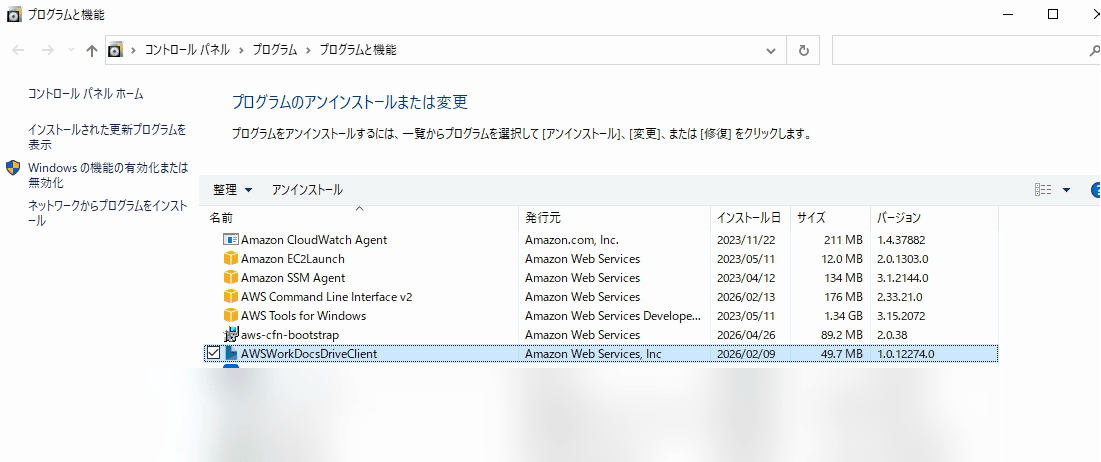
2. Uninstall WorkDocs Drive (permanent fix, recommended)
Support for Amazon WorkDocs ended on April 25, 2025. If you are not using it, uninstalling is the most fundamental solution.
You can uninstall it from "Control Panel → Uninstall a program."
Supplement: If you distribute a bundled image
If WorkDocs is included in your WorkSpaces golden image (custom image), we recommend rebuilding the image with it uninstalled and distributing that.
Otherwise, the same problem will recur every time you create a new workspace.
Details of the Cause: Steps I Used to Investigate with PowerShell
Since "it feels slow somehow" doesn't narrow down the cause, I ran diagnostics with PowerShell.
These steps can also be used when WorkDocs is not the cause.
1. First, identify heavy processes
Get-Process | Sort-Object CPU -Descending | Select-Object -First 10 Name, CPU, WorkingSet
In this case, no specific process was hogging the CPU; Explorer itself was getting stuck.
So this command itself was a dead end.
2. Check shell extensions
There are cases where shell extensions integrated into Explorer (such as additions to the right-click menu) are the cause.
Get-ChildItem "HKLM:\SOFTWARE\Classes\*\shellex\ContextMenuHandlers" |
    ForEach-Object { $_.Name } | Sort-Object
I ran it, but no WorkDocs-related entries appeared.
Normally the cause should be identified here, but this was also a dead end.
3. Check the actual state of WorkDocs Drive
# Whether the DLL exists
Test-Path "C:\Program Files\Amazon\AWSWorkDocsDriveClient\AWSWorkDocsDriveShell.dll"

# Whether the process is running
Get-Process | Where-Object { $_.Name -like "*WorkDocs*" -or $_.Name -like "*AWSWorkDocs*" }

# Check installation information
Get-WmiObject -Class Win32_Product |
    Where-Object { $_.Name -like "*WorkDocs*" } |
    Select-Object Name, Version
The DLL exists, but the process is not running.
This is the state of "the shell extension DLL is there, but the main application is not."
Because Explorer waits for a timeout every time it calls the DLL, it was slow every time.
4. (Side note) Why WorkDocs didn't show up in ContextMenuHandlers
One thing bothers me here.
WorkDocs Drive is clearly registered as a shell extension, so why didn't it appear in the command from step 2?
The answer is "because it was a different type of shell extension."
What WorkDocs Drive registers is a type of shell extension called an "icon overlay handler." It's the thing that displays a small checkmark or cloud mark over file icons in Dropbox or OneDrive, indicating for each file whether it is "syncing" or "locked." This is a separate mechanism from the right-click menu, and is registered under a dedicated registry key.
Get-ChildItem "HKLM:\SOFTWARE\Microsoft\Windows\CurrentVersion\Explorer\ShellIconOverlayIdentifiers" |
    Select-Object PSChildName, @{Name="CLSID"; Expression={ (Get-ItemProperty $_.PSPath)."(default)" }}
When you run it, you can confirm that five entries are registered: AWSWorkDrive (Favorite) / (Lock) / (PlaceHolder) / (Present) / (Syncing).
(一部略)
Name                         CLSID
----                         -----
  AWSWorkDrive (Favorite)    {30B4C2C9-7E76-4A9F-A75C-0A135C98F55B}
  AWSWorkDrive (Lock)        {4FCF1BA1-B3BF-4791-948E-543A7F3E9029}
  AWSWorkDrive (PlaceHolder) {DDC70970-8DE6-3374-A35C-57125CA5FFBE}
  AWSWorkDrive (Present)     {1377935E-EF0C-362A-A37C-917AE82FB516}
  AWSWorkDrive (Syncing)     {6A92C860-5DD3-3896-A8E8-2CE3AF6E2749}
Moreover, because icon overlay handlers are called for every single file in a folder, their impact is far broader than a context menu that only runs on right-click, and if the main application is down, things become even slower.
As a further aside, Windows has a specification that enables only the first 15 icon overlays in alphabetical order. Since AWSWorkDrive comes before Box (starting with B) and Dropbox (starting with D), there is also a side effect that in environments where they coexist, those overlays get pushed out.
Summary
| Item | Details |
|---|---|
| Phenomenon | Explorer takes more than ten seconds to load every time |
| Cause | The WorkDocs Drive shell extension is registered but the main application is not running |
| Solution | Start WorkDocs Drive, or uninstall it |
Since support for WorkDocs has ended, if you don't plan to use it in the future, uninstalling is the only choice. Similar "shell extension not responding" problems can occur with other software as well, so it's useful to remember these as investigation steps when Explorer is slow.
I hope this entry helps someone.