![[Copilot Studio] I tried distributing a generated Word report as a download link via a flow](https://images.ctfassets.net/ct0aopd36mqt/wp-thumbnail-00eddef75cb5ee39286e0aa370a96e4f/040bbf127b84da0ee2c483485da1dd29/microsoft-eyecatch.jpg?w=3840&fm=webp)
[Copilot Studio] I tried distributing a generated Word report as a download link via a flow

This page has been translated by machine translation. View original
Introduction
Hello, I'm Keima.
In the 9th installment, I used Copilot Studio's Document output to insert values into a template and generate a Word report.
However, one issue remained. When calling it from the agent's chat, the download link for the generated Word file does not appear in the chat.
To deliver the actual file to users, a bit more work is needed.
In this article, I used Copilot Studio's agent flow to save the generated Word report to OneDrive and return a download sharing link to the chat, verified on actual hardware as of June 2026.
I'll walk through the end-to-end flow of "request in natural language → agent selects a tool → Word is generated → file download link is returned."
I hope this serves as a reference for those who want to have an agent create documents and automate distribution all at once.
Target audience: Those who want to let users download files generated by Copilot Studio, and those who want to automate document distribution with agent flows.
Series Article List
This article is the 11th installment in a series on building agents with Copilot Studio.
The series as a whole aims to build an agent that handles "collection → aggregation → charts → insights → documentation" end-to-end, and this article covers "distribution" of generated files as the finishing touch.
| # | Theme | Article |
|---|---|---|
| 1st | First agent | Creating My First Agent |
| 2nd | Knowledge | Trying Knowledge-Grounded Answers Based on Files |
| 3rd | Topics, Tools, Flows | Building "Actions" with Topics, Tools, and Agent Flows |
| 4th | Templates, Autonomous Triggers, Multi-agent | Expanding the Configuration with Templates, Autonomous Triggers, and Multi-agent |
| 5th | Collection (passing data) | Comparing Methods to Provide KPI Data to an Agent for Aggregation |
| 6th | Aggregation | Performing KPI Aggregation Deterministically Without Relying on LLM |
| 7th | Charts | Displaying KPIs as Charts Inside the Chat |
| 8th | Insights | Generating Insights (Comparison Comments and Points of Interest) from Aggregated Numbers |
| 9th | Documentation (Word) | Auto-generating a Word Report by Inserting Values into a Template |
| 10th | Documentation (PowerPoint / Excel) | Generating .pptx/.xlsx from Scratch with Code Interpreter |
| 11th | Distribution | (this article) |
1. What This Article Verifies
In the 9th installment, I created a prompt tool called "KPI Report Insertion (Word)" that inserts values into the placeholders of a Word template.
In this article, I call this prompt tool from an agent flow, save the generated Word file to OneDrive, and return a download sharing link to the chat.
Specifically, I verify the following flow on actual hardware.
- Create an agent flow and save the prompt tool's output to OneDrive
- Create a sharing link for the saved file and return it to the agent
- Register the flow as a tool for the agent
- Request in natural language from the test chat and receive the download link
For verification, I use the same fictional KPI data from three fictional SaaS companies (CloudNova / StreamForge / Datapeak) as in the 9th installment.
This article assumes that the template and prompt tool created in the documentation (Word) installment are already prepared.
2. Why a Flow Is Necessary
Even if you call the prompt tool from the agent's chat, the Word download link will not appear in the chat.
This is by design — the Document output result (Document Output Content Bytes) does not become a direct output of a topic or agent.
Unlike cloud flows and agent flows, the Document Output Content Bytes output isn't directly available as a node output in a topic. To allow a user to download the generated document in a topic, use a cloud flow as an intermediary to save the document and return a download link.
Source: Document output (preview) | Microsoft Learn
Therefore, we insert a flow in between.
The flow runs the prompt, saves its output as a file, creates a sharing link, and returns it to the agent.
The steps shown in the official documentation are as follows.
- Add a Run a prompt action and select the prompt created in Create a prompt with document output.
- Add the action Create file from OneDrive or SharePoint.
- From the prompt action in the File content field, select Document Output Content Bytes.
- Add a Create sharing link action for the file to generate a shareable download URL.
- Add a Return value(s) to Power Virtual Agents action and return the sharing link URL as an output variable.
Source: Document output (preview) | Microsoft Learn
I'll assemble these steps as an agent flow.
3. Creating the Agent Flow
Open "Flows" from the left menu of Copilot Studio and create a "New agent flow".
Ultimately, I'll build a flow with the following 5 steps.
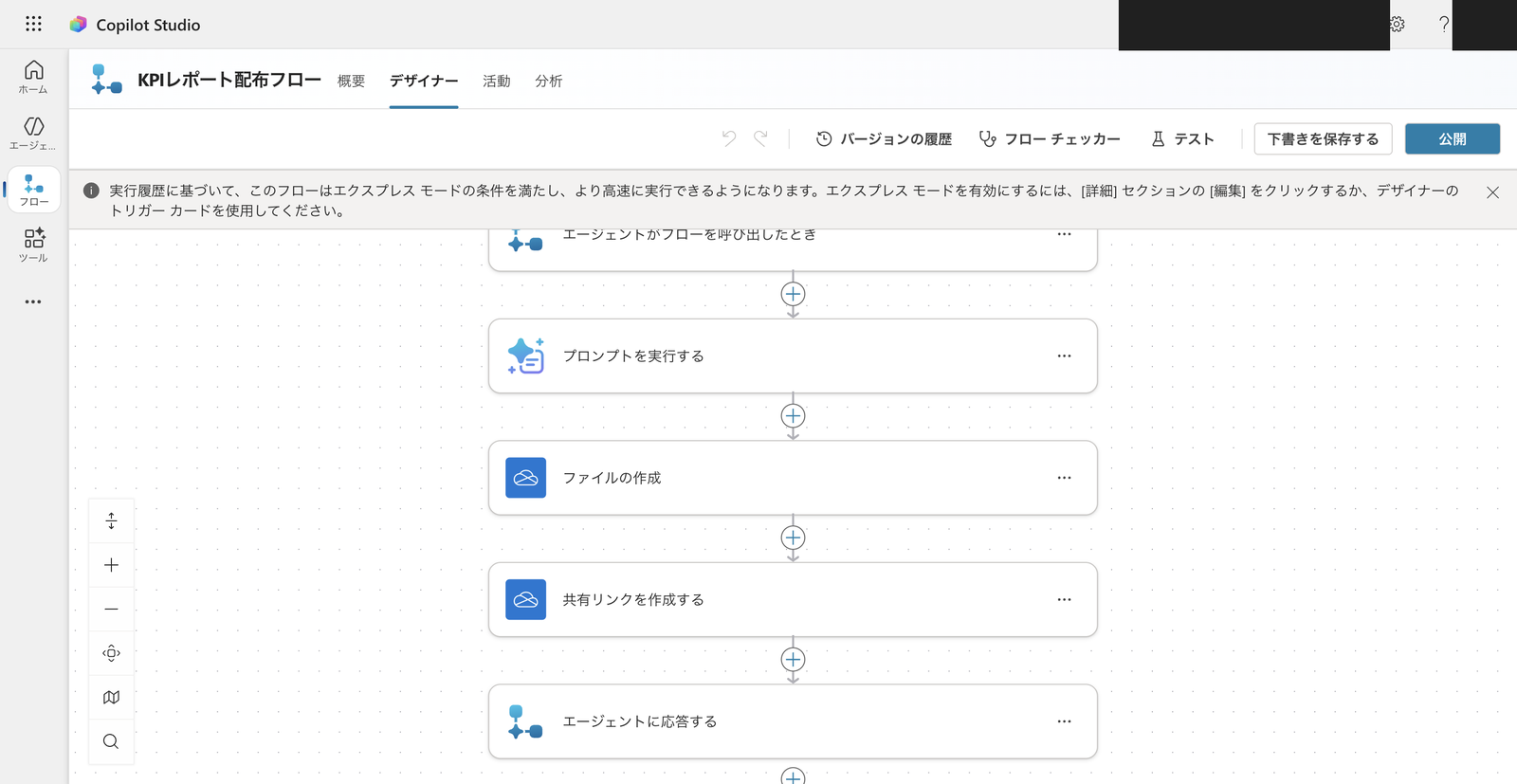
5 steps: Trigger → Run prompt → Create file → Create sharing link → Respond to agent
3.1 Trigger: "When an agent calls a flow"
First, select the trigger.
This was the first stumbling block.
This flow is called from an agent and returns results to the agent.
Therefore, the trigger must be "When an agent calls a flow".
You can find it by searching for "Copilot" in the trigger search box.
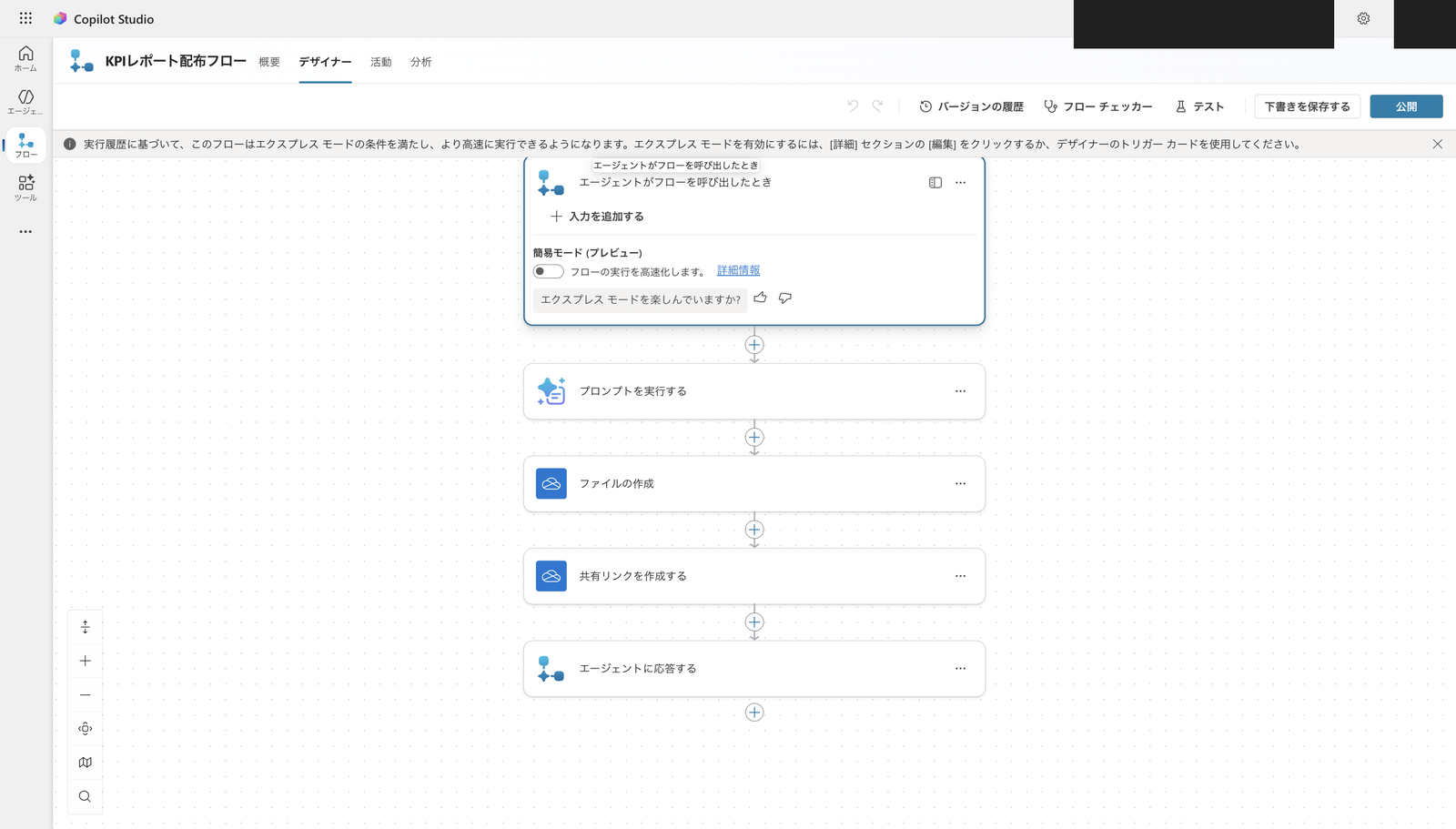
Select "When an agent calls a flow" (Skills connector) as the trigger
Since we're keeping the data fixed on the prompt side this time, no input is added to the trigger.
3.2 Run a Prompt
Add a "Run a prompt" action after the trigger.
On the first use, you'll be prompted to connect to Microsoft Dataverse, so sign in and create a connection.
From the list of prompts, select "KPI Report Insertion (Word)" created in the 9th installment.
This prompt has Document output configured and outputs a Word file with KPI data inserted.
3.3 Create a File (OneDrive)
Next, add "Create file" (OneDrive for Business).
On the first use, you'll be prompted to connect to OneDrive for Business, so sign in and create a connection.
Set three items.
- Folder path: The destination folder. This time, select the root (
/) - File name:
kpi-report-flow.docx - File content: Press
/in the input field to open dynamic content, then select "Document Output Content Bytes" from the Run prompt output
"Document Output Content Bytes" is the content of the Word file generated by Document output.
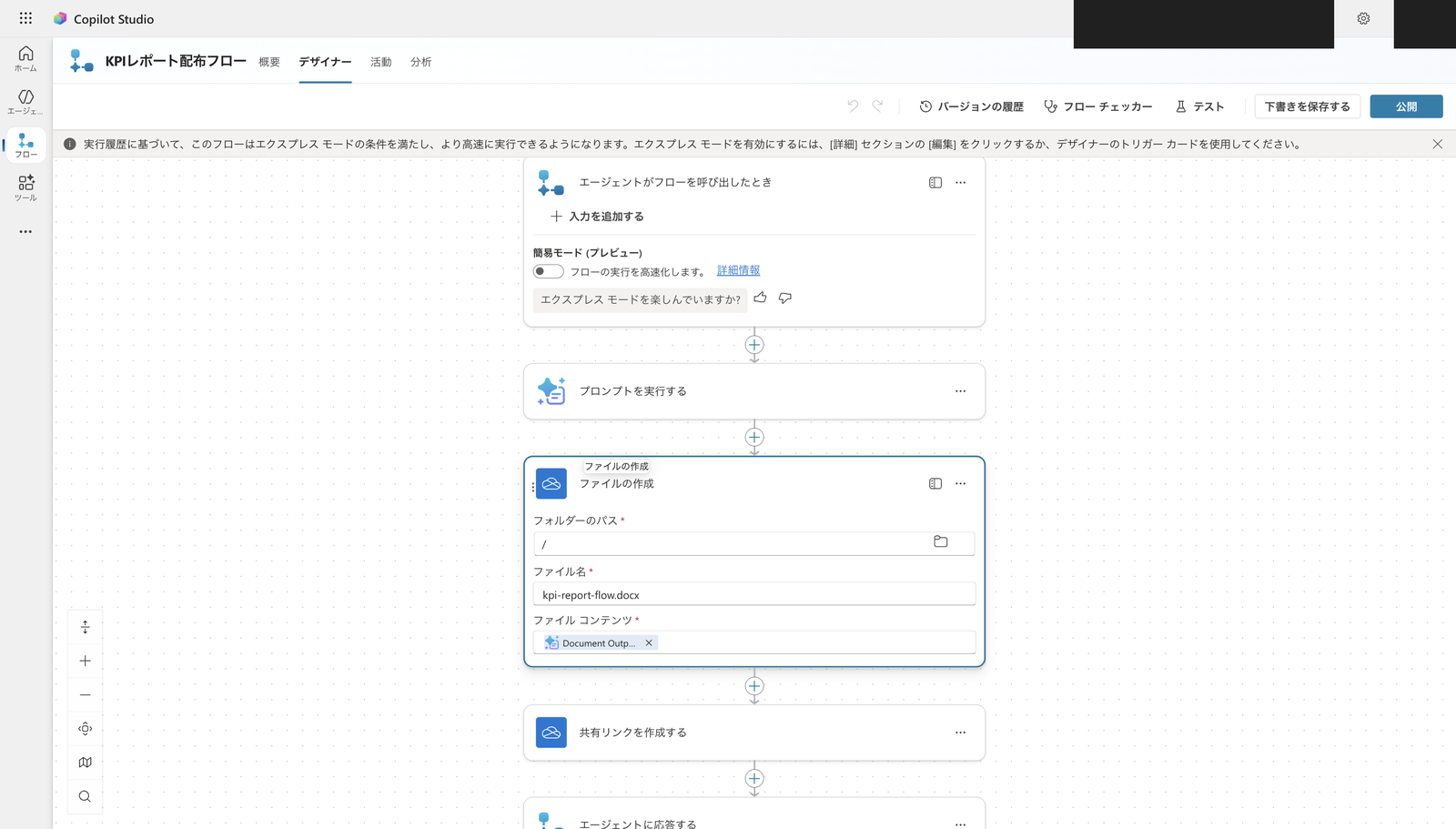
Save the generated Word content (Document Output Content Bytes) to OneDrive
3.4 Create a Sharing Link (Limited to Organization)
Next, add "Create sharing link" (OneDrive for Business).
Set three items.
- File: Press
/to open dynamic content, then select "ID" from the Create file output - Link type:
View(read-only) - Link scope:
Organization(within the organization)
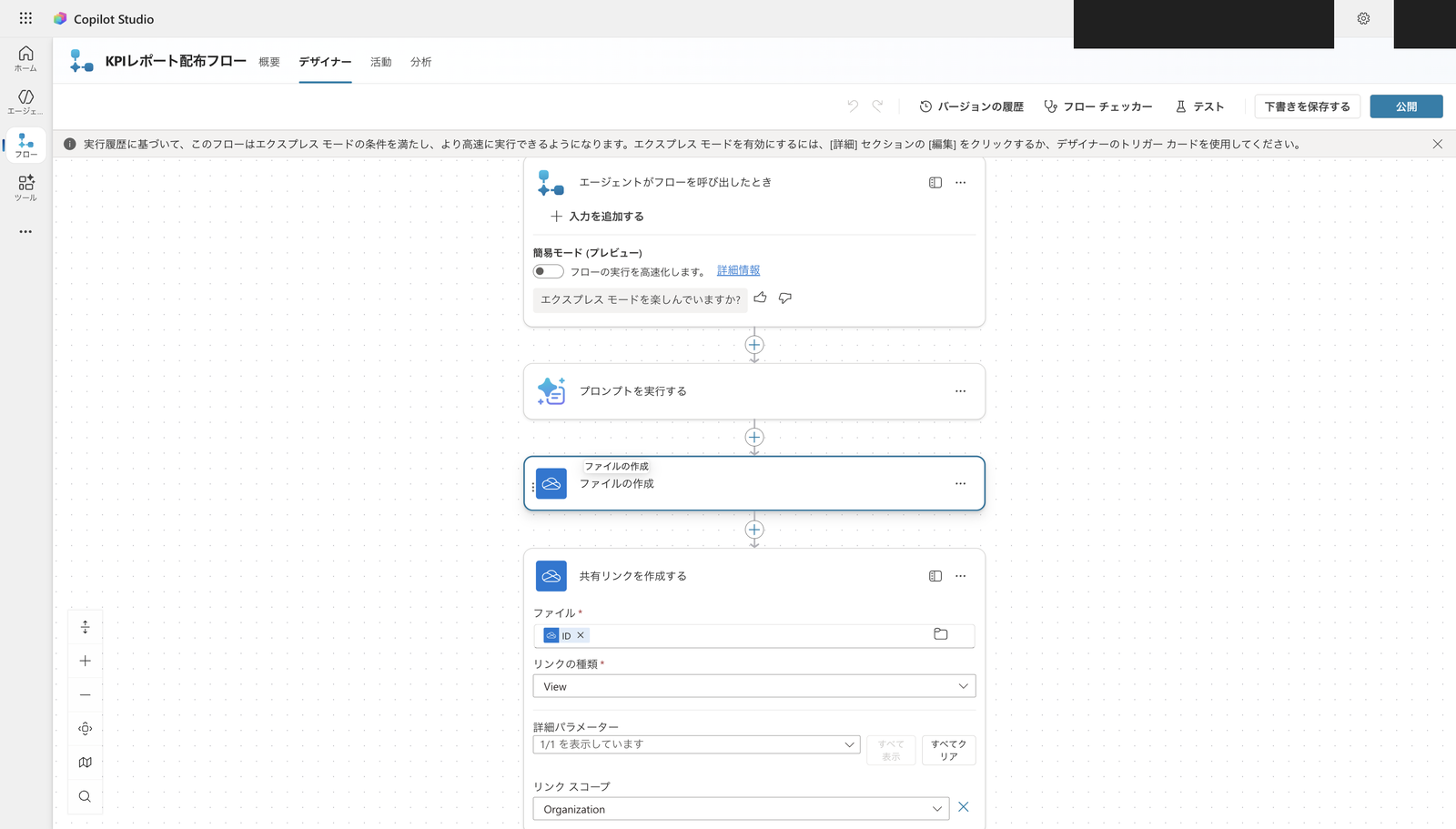
Set Link scope to Organization to make it an organization-only sharing link
3.5 Respond to an Agent
Finally, add "Respond to an agent" and return the sharing link URL to the agent.
Select "Text" as the output type from "Add an output", and configure as follows.
- Output name:
DocumentURL - Value: Press
/to open dynamic content and select "Web URL" from the Create sharing link output
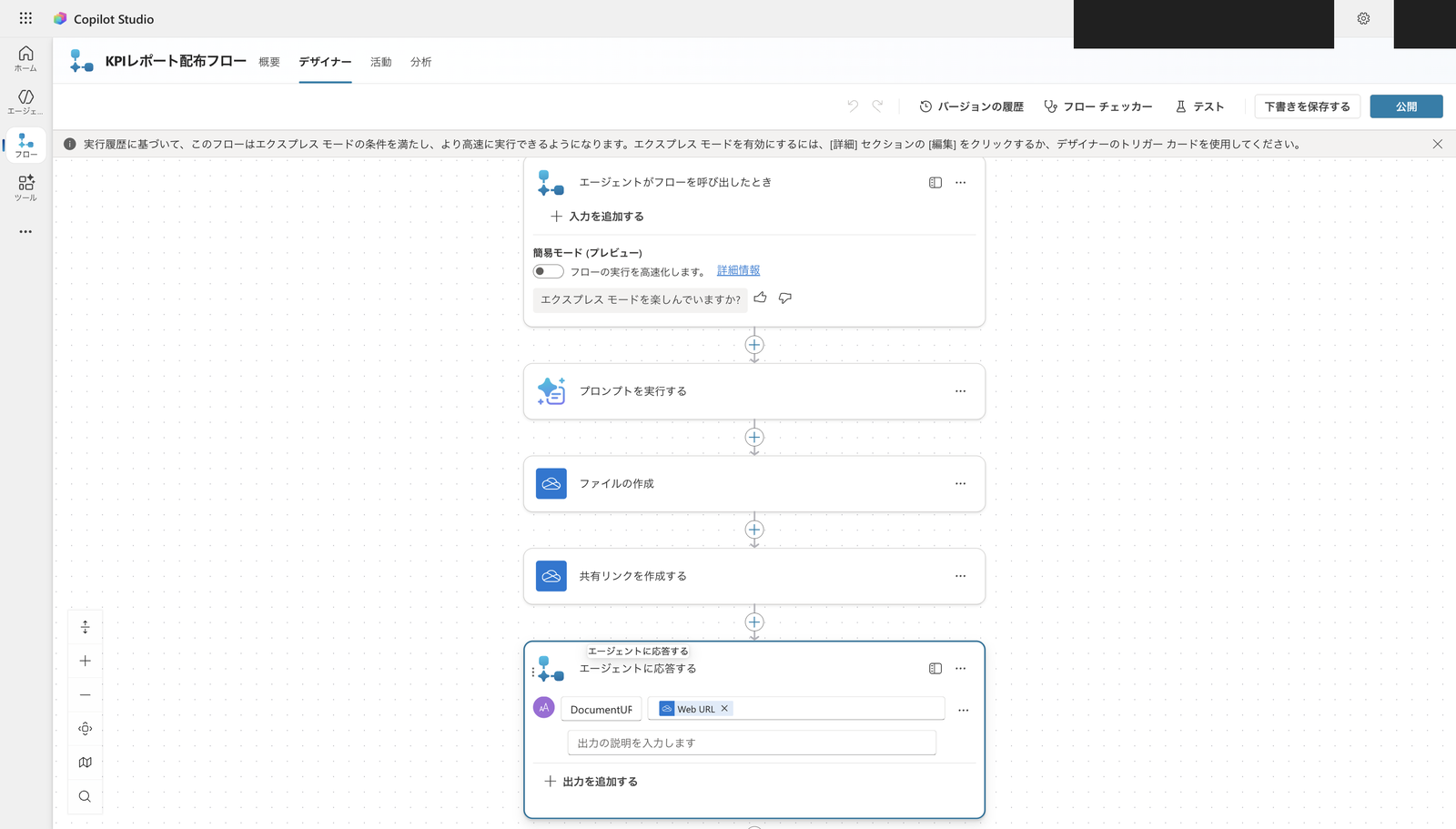
Return the sharing link Web URL to the agent as an output named DocumentURL
Once assembled, give the flow a name (in this case, "KPI Report Distribution Flow") and "Publish" it.
When publishing succeeds, "This agent flow has been published" is displayed.
4. Registering the Flow as a Tool for the Agent
Register the created flow as a tool so it can be called from the agent.
Open the "Tools" tab of the agent, select "Add a tool" → "Flow", choose "KPI Report Distribution Flow" from the list, and click "Add and configure".
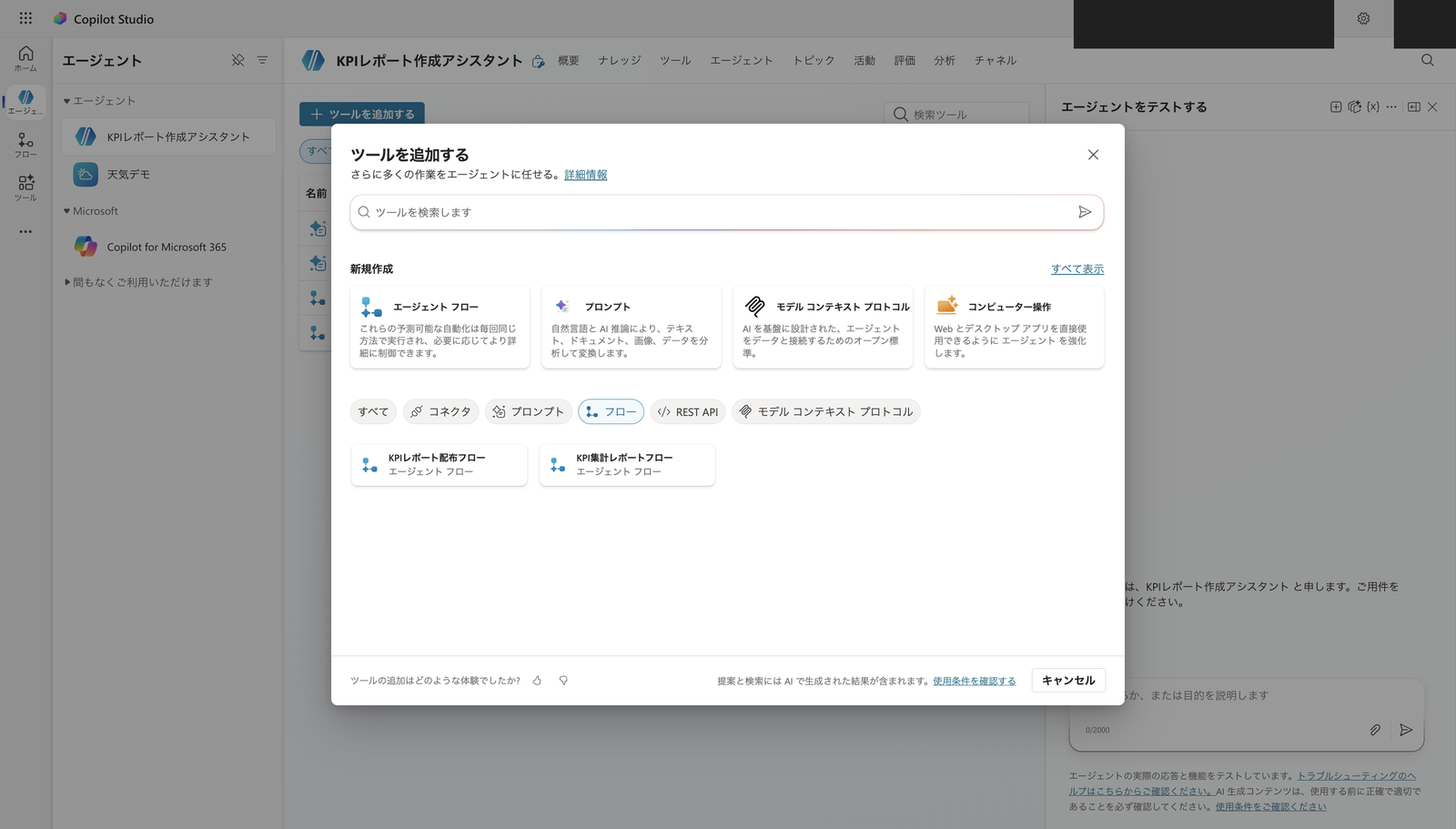
Add the created flow as a tool for the agent
After adding, configure the tool description.
The description is used by the agent's orchestrator to decide which tool to select.
To differentiate it from the prompt tool in the 9th installment, I wrote a description that conveys the use case of "returning a shareable download link."
Inserts KPIs of three SaaS companies (CloudNova/StreamForge/Datapeak) into a Word template to generate a KPI comparison report (Word document), saves it to OneDrive, and returns an organization-wide download sharing link (DocumentURL). Use this when you want to download the report as a file or obtain a sharing link.
Enter the description and click "Save".
5. Verifying Operation in the Test Chat
Send a request from the agent's test chat that conveys the need for a download link.
Please create a KPI comparison report for the three companies in Word and return a shareable download link.
On the first run, a card appears in the chat asking you to authorize the OneDrive for Business connection used by the flow.
Click "Allow" to approve the connection.
After approval, the agent automatically selects and runs the flow tool.
In my environment, the flow took about 50 seconds to complete.
Upon completion, the agent returned a link saying "Download the KPI comparison report" along with an overview of the report.
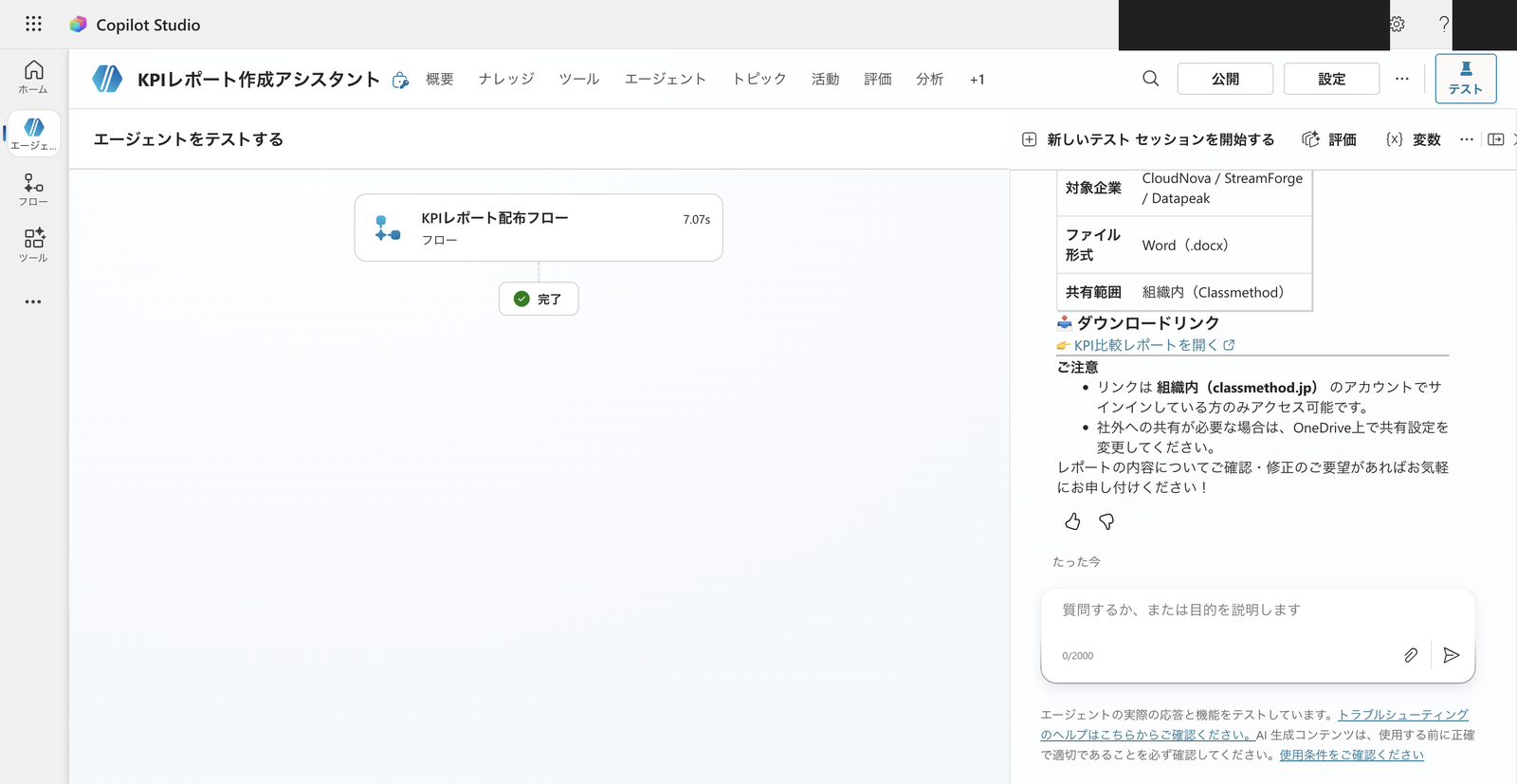
The flow was executed from a natural language request, and an organization-only download link was returned
The returned link is a OneDrive sharing link in the format https://<tenant>-my.sharepoint.com/..., and clicking it allows you to download the Word file.
The agent's response also included a note: "This link is accessible only to members within the organization (company domain)."
This reflects the result of setting the Link scope to Organization in step 3.4.
This confirmed that the end-to-end flow of "natural language request → tool selection → Word generation with template insertion → OneDrive save → return organization-only sharing link" works all at once.
6. Billing and Connectors
The flow in this article uses OneDrive for Business (standard connector) and the Microsoft Dataverse connection for running the prompt.
Microsoft Dataverse is classified as Premium in terms of connector classification (listed in the official premium connector list).
Regarding billing, test runs in the test chat or from the flow designer do not consume capacity for agent flow actions.
Test runs: Testing an agent flow in the flow designer or from the agent's test chat doesn't consume capacity for agent flow actions. Test runs aren't blocked by enforcement.
Source: Billing rates and management | Microsoft Learn
Also, messages in the embedded test chat do not count as billed sessions.
Messages in the embedded test chat don't count toward billed sessions.
Source: FAQ for Copilot Studio billing and licensing | Microsoft Learn
Within the scope of verification (template creation, flow building, test runs), you can try these out without worrying about billing for these reasons.
On the other hand, billing in production use depends on the connector classification, license, and number of executions. Check the prerequisites in the Power Platform admin center (Licensing > Copilot Studio) before production deployment.
7. Summary
Word files generated by Document output cannot be distributed directly through the agent's chat.
By inserting an agent flow as the distribution boundary, you can save the file to OneDrive and return an organization-only sharing link.
In this verification, the end-to-end flow from a natural language request to Word generation, saving, and returning a sharing link all worked seamlessly.
Including distribution means you also need to be aware of the sharing link's scope (default is anonymous), as well as the connector classification and billing.
Verification can be tried easily with test runs, but for production use, plan for the prerequisites of channel publishing (user license) and connectors/billing.
In the next installment (the final one), I'll integrate all the steps so far (collection, aggregation, charts, insights, documentation, and distribution) into a single agent.