![[Copilot Studio] Tried Generating Insights from Aggregated Numbers: Also Includes Settings to Block Responses Without Evidence](https://images.ctfassets.net/ct0aopd36mqt/wp-thumbnail-00eddef75cb5ee39286e0aa370a96e4f/040bbf127b84da0ee2c483485da1dd29/microsoft-eyecatch.jpg?w=3840&fm=webp)
[Copilot Studio] Tried Generating Insights from Aggregated Numbers: Also Includes Settings to Block Responses Without Evidence

This page has been translated by machine translation. View original
Introduction
Hello, I'm Keima.
In KPI reports, it's often desirable not only to line up numbers, but also to add comments (insights) about "where things are growing" and "what deserves attention."
Since these insights are written text, they're the kind of task we'd like to leave to generative AI.
However, when we hand numbers to generative AI and ask it to comment, there's concern that it might fabricate numbers we didn't provide, or make comparisons that don't match the facts.
This article covers methods for generating insights from aggregated numbers, along with techniques to keep those insights from straying from the facts, verified on actual hardware as of June 2026.
The core approach is to leave calculations to deterministic means, and have generative AI handle only the "interpretation of numbers."
I hope this serves as a reference for those who want to attach accurate comments to numerical reports.
This article is the 8th installment in a series on building agents with Copilot Studio.
The series as a whole aims to build an agent that handles "collection → aggregation → charts → insights → documentation" end-to-end, and this article covers the "insights" portion.
Target audience: Those who want to generate comparison comments and points of interest from numbers in Copilot Studio, in a way that stays true to the facts.
Series Article List
| # | Theme | Article |
|---|---|---|
| Part 1 | Your first agent | Creating Your First Agent |
| Part 2 | Knowledge | Trying Knowledge-Grounded Answers Based on Files |
| Part 3 | Topics, Tools, and Flows | Building "Actions" with Topics, Tools, and Agent Flows |
| Part 4 | Templates, Autonomous Triggers, Multi-Agent | Expanding the Configuration with Templates, Autonomous Triggers, and Multi-Agent |
| Part 5 | Collection (how to pass data) | Comparing Methods for Giving an Agent KPI Data for Aggregation |
| Part 6 | Aggregation | Performing KPI Aggregation Deterministically Without Relying on LLMs |
| Part 7 | Charts | Displaying KPIs as Charts Within a Chat |
| Part 8 | Insights | (This article) |
In the previous installment (Part 7), we got as far as displaying KPIs as charts within a chat.
This time, we'll generate insights — comparison comments and points of interest — as written text from those numbers and charts.
1. What We'll Do This Time
We'll generate insights from aggregated numbers.
The key point is to separate the calculation of numbers from the interpretation of numbers.
- Have generative AI handle only "interpreting the numbers provided"
- Apply techniques to prevent straying from the facts (passing pre-calculated numbers / anchoring numbers through instructions)
- Confirm on actual hardware that insights are generated from the KPIs of three companies
- As an advanced topic, also try the setting that blocks responses not grounded in tools or knowledge
For verification, we'll use the same fictional KPI data (fictional values) from three fictional SaaS companies (CloudNova / StreamForge / Datapeak) as in previous installments.
2. Insights Are Interpretation, Not Calculation
In previous installments, calculations such as totals, averages, and year-over-year ratios were handled by deterministic means rather than generative AI.
Insights are the work of reading those pre-calculated numbers and writing text about "where things are growing" and "what deserves attention."
This is interpretation, not calculation, which is where generative AI excels.
In other words, we divide the roles as follows.
| Step | Owner | Example |
|---|---|---|
| Calculation | Deterministic means (code interpreter / Office Script that runs fixed code identically every time) | Computing averages and year-over-year ratios |
| Interpretation (insights) | Generative AI | Commenting that "Datapeak has the highest figure, with double-digit year-over-year growth" |
With this division of responsibilities, the numbers themselves stay accurate while only the comments are generated by AI.
The remaining challenge is to prevent generative AI from "fabricating numbers we didn't provide" or "making comparisons that don't match the facts," after which we can confidently delegate insights to it.
3. Techniques for Keeping Insights Grounded in Facts
When passing numbers in a prompt and asking for insights, there are two techniques to prevent straying from the facts.
| Technique | Goal |
|---|---|
| 1. Pass pre-calculated numbers | Prevent generative AI from doing calculations |
| 2. Anchor numbers through instructions | Allow only the numbers provided to be used, preventing new numbers from being fabricated |
By passing pre-calculated numbers (Technique 1) and instructing the AI to use only those numbers (Technique 2), we confine generative AI's role to interpretation only.
Additionally, Copilot Studio has a setting to "block responses not grounded in tools or knowledge," but since it serves a different purpose, we'll cover it as an advanced topic in Section 5.
3.1 Passing Pre-Calculated Numbers
The first technique is to pass the aggregated results (pre-calculated numbers) from previous steps.
If you ask generative AI all at once to "aggregate this Excel file and comment on it," calculation and interpretation get mixed together, creating room for numbers to be mixed up.
Complete the calculation in the preceding step, and at the insights step, pass only "confirmed numbers."
This way, all generative AI has to do is interpret.
3.2 Anchoring Numbers Through Instructions
The second technique is to explicitly state in the instructions (prompt) that "only the numbers provided should be used."
You can control generative AI's behavior through custom instructions or prompts.
When asking for insights, the instructions might look like this:
Please comment using only the aggregated values below as your basis. Do not calculate new numbers or bring in numbers not listed here.
- CloudNova: 2025 ARR 1,950 million yen (YoY +20.0%), NRR 120%, Operating profit margin 13.5%
- StreamForge: 2025 ARR 1,300 million yen (YoY +10.2%), NRR 109%, Operating profit margin 1.0%
- Datapeak: 2025 ARR 2,810 million yen (YoY +12.4%), NRR 128%, Operating profit margin 19.0%
Please structure the output in two parts: "Key points for each company" and "What can be said by comparing the three companies."
By embedding the numbers directly in the text and constraining the AI with "don't bring in numbers not listed here," we confine generative AI's role to interpretation.
4. Generating Insights on Actual Hardware
We'll run the techniques covered so far on the integrated agent "KPI Report Creation Assistant," which handles the KPIs of all three companies together.
4.1 Confirming Agent Settings
Before generating insights, confirm two things.
The first is to make sure the generative AI orchestration is set to "Generative" (Settings → Generative AI → Orchestration).
This allows the agent to autonomously select and use tools and knowledge as needed.

Generative orchestration enabled. "Yes, use available tools and knowledge as appropriate and make responses dynamic" is selected
The second is to confirm that the deterministic aggregation tool built in previous installments is incorporated.
The tool list includes "KPIScriptAgg Quarterly Aggregation (Office Script · Deterministic)," and this forms the foundation for delegating calculations to this tool and having generative AI handle only interpretation (Technique 1).
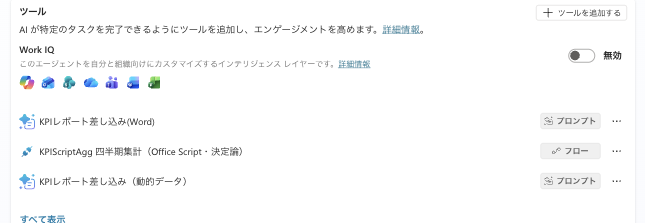
Tool configuration. The "KPIScriptAgg Quarterly Aggregation (Office Script · Deterministic)" tool for deterministic aggregation is incorporated. It also includes a prompt tool for Word mail merge
Note that for this installment's insights, we're passing numbers directly in the prompt, so no knowledge or tools are used.
Therefore, "Allow ungrounded responses" (the setting covered in Section 5) is left on.
4.2 Passing Aggregated Values and Requesting Insights
In the test panel chat, we send the instruction text from Section 3.2 as-is.
The constraint that "only the provided aggregated values should be used as the basis," the values confirmed by the preceding aggregation step (2025 ARR, YoY ratio, NRR, and operating profit margin for CloudNova / StreamForge / Datapeak), and the output structure of "Key points for each company" and "What can be said by comparing the three companies" are all combined into one message.
The actual text sent is as follows.
Please comment using only the aggregated values below as your basis. Do not calculate new numbers or bring in numbers not listed here.
- CloudNova: 2025 ARR 1,950 million yen (YoY +20.0%), NRR 120%, Operating profit margin 13.5%
- StreamForge: 2025 ARR 1,300 million yen (YoY +10.2%), NRR 109%, Operating profit margin 1.0%
- Datapeak: 2025 ARR 2,810 million yen (YoY +12.4%), NRR 128%, Operating profit margin 19.0%
Please structure the output in two parts: "Key points for each company" and "What can be said by comparing the three companies."
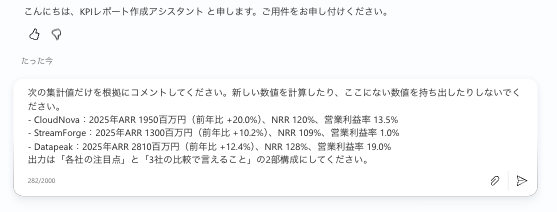
Requesting insights in the test panel. The instruction "Please comment using only the aggregated values below as your basis…" is accompanied by the confirmed aggregated values and output structure
4.3 Reviewing the Generated Insights
Upon sending, the key points for each company along with a comparison table and comments for all three companies were returned in the same response.
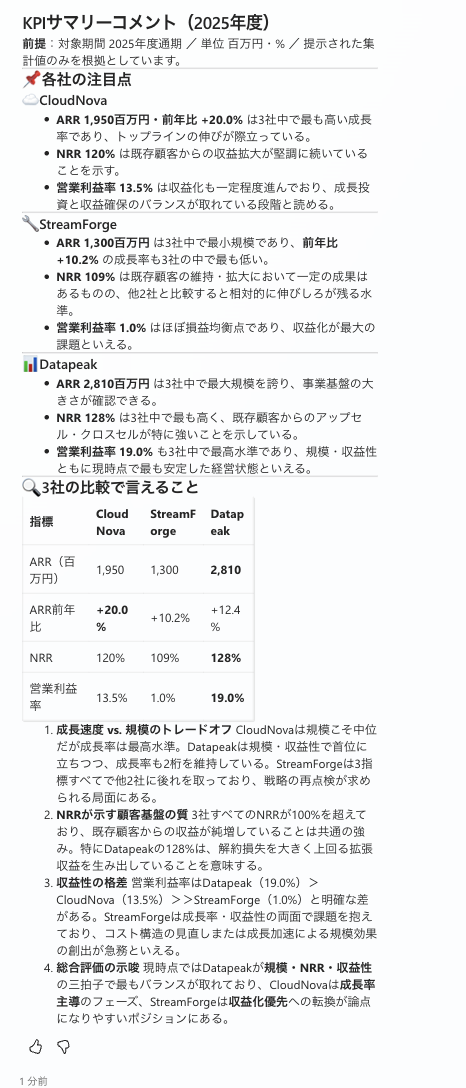
Agent response. Key points per company and a cross-company comparison table and comments were generated in line with the provided aggregated values
In this verification, the returned comments were consistent with the provided aggregated values (ARR, NRR, and operating profit margin for CloudNova / StreamForge / Datapeak), and no numbers that weren't provided were introduced.
However, since generative AI responses vary with each invocation, the content may differ even for the same request.
In this way, by completing the calculations in a preceding step, even when insights are delegated to generative AI, comments can be added while maintaining a reasonable degree of numerical accuracy.
It's safer to review the output results multiple times before publication.
5. (Advanced) Setting to Block Ungrounded Responses
Through Section 4, we passed numbers directly in the prompt and used Techniques 1 and 2 to keep things grounded in facts.
From here, as an advanced topic, we'll look at the Copilot Studio setting "Allow ungrounded responses."
This is a setting that blocks responses generated without using any tools or knowledge, and it takes effect when configured to pass numbers via tool output or knowledge.
This setting is located under "Settings" → "Generative AI" → "Knowledge".
When turned off, responses generated without using knowledge or tools in that turn can be blocked.
Note that this setting is used with agents that have generative orchestration enabled.
This setting requires that the agent has generative orchestration turned on.
Source: Knowledge sources summary | Microsoft Learn

"Allow ungrounded responses" under "Settings" → "Generative AI" → "Knowledge." When turned off, responses that don't use a knowledge source or tool (including responses that only reference conversational context) are blocked
When turned off, what gets blocked is "responses where neither knowledge nor tools were used in that turn."
Turns where the AI attempted to answer by relying only on conversation history or general knowledge, without calling any knowledge source or tool, are blocked and the fallback topic is triggered.
When you turn off this setting, the agent blocks any response generated in a turn where it didn't use a knowledge source or tool. This condition means that if the agent decides to answer a question directly from the conversation history or its general knowledge, without calling a knowledge source or tool, the response is blocked and the fallback topic triggers.
Source: Knowledge sources summary | Microsoft Learn
5.1 Relationship Between How Numbers Are Passed and This Setting
The key point is that the judgment is determined by "whether tools or knowledge were used in that turn."
The following diagram organizes the combinations of how numbers are "passed" and this setting.
A turn like Section 4 where numbers are only written directly into the prompt body is considered to be looking only at "conversational context" and is not regarded as having used tools or knowledge.
Therefore, if this setting is turned off, the insights themselves get blocked (this is why it was left on in Section 4 — the lower-left path in the diagram).
On the other hand, if aggregated values are passed as the output of a preceding tool (flow or code interpreter) or as knowledge, the insights turn is treated as being based on tools/knowledge, and it won't be blocked even when turned off (the right-side path in the diagram).
However, even turning this setting off does not guarantee that generative AI will stop using general knowledge entirely.
Turning the Allow ungrounded responses setting off doesn't guarantee that the agent never uses general knowledge.
Source: Knowledge sources summary | Microsoft Learn
Therefore, rather than relying on this setting alone, use it in combination with Techniques 1 and 2 from Section 4.
5.2 Seeing Responses Actually Get Blocked
When this setting is off, we confirmed on a minimal-configuration agent what actually happens to responses in turns where neither tools nor knowledge are used.
The steps are as follows.
- Create a new agent with no tools and no knowledge
- Turn "Allow ungrounded responses" off (the state in the screenshot above)
- Also turn "Use web information" off (if left on, general questions can be answered based on web search without being blocked)
- With no source material to base an answer on, send a general question ("What is the tallest mountain in Japan?")
The result is as shown below — the generated-only response was blocked and switched to the fallback message.
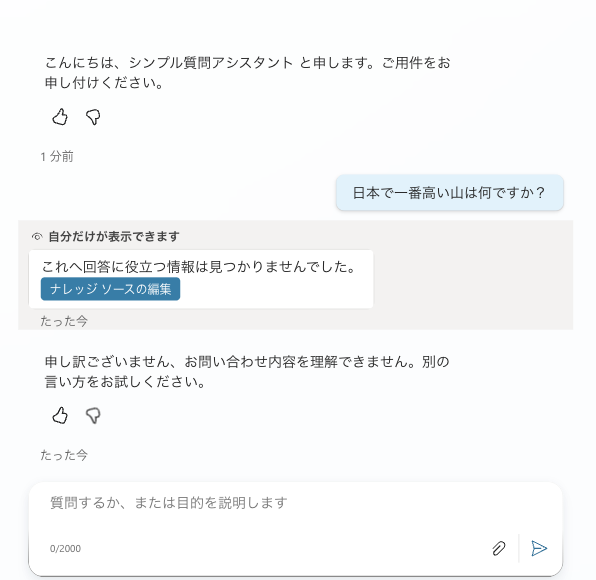
Response when none of tools, knowledge, or web search are available. "No information useful for answering this was found" is displayed, the generated response is blocked, and it switches to the fallback "I'm sorry, I don't understand your inquiry"
With the same question, if "Allow ungrounded responses" is turned back on, it now answers from general knowledge that "The tallest mountain in Japan is Mt. Fuji."
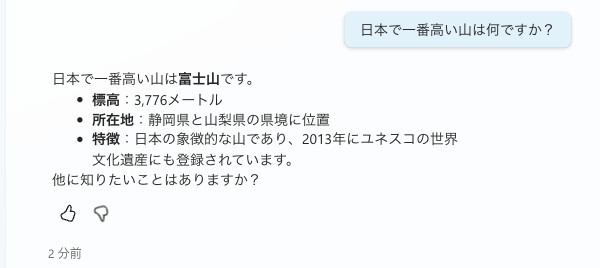
The same agent and same question with "Allow ungrounded responses" turned back on. Without using any tools or knowledge, it answers from general knowledge: "Mt. Fuji"
The same logic applies to generating insights.
If aggregated values are passed as tool output or knowledge, insights will go through even with this setting off, and only answers that bypass the data will be blocked.
Since Section 4 of this article uses the procedure of writing directly in the prompt, this setting was left on.
6. Summary
Since insights are interpretation rather than calculation, they are a step that can be delegated to generative AI.
For comments that stay grounded in the facts, the basics are to pass pre-calculated numbers (Technique 1) and anchor those numbers through instructions so only they are used (Technique 2). These two are what keep deviations in check in today's procedure.
If you want to impose tighter constraints, you can pass numbers as tool output or knowledge and then turn off "Allow ungrounded responses" to block any generation that isn't based on data (Section 5).
By ensuring numerical accuracy in the preceding deterministic aggregation step and having generative AI handle only interpretation, you can automate all the way through to insights while maintaining report reliability.
Starting next time, we'll move on to placing the numbers, charts, and insights built so far into Word and PowerPoint documents.