![[Copilot Studio] I tried automatically generating a Word report by inserting numbers into a template: Document output](https://images.ctfassets.net/ct0aopd36mqt/wp-thumbnail-00eddef75cb5ee39286e0aa370a96e4f/040bbf127b84da0ee2c483485da1dd29/microsoft-eyecatch.jpg?w=3840&fm=webp)
[Copilot Studio] I tried automatically generating a Word report by inserting numbers into a template: Document output

This page has been translated by machine translation. View original
Introduction
Hello, I'm Keima.
When creating regular internal reports or customer presentation materials, there's often a task where "the format is the same every time, and only the numbers inside change."
The theme of this article is whether we can delegate this "filling in fixed templates with numbers" part to a Copilot Studio agent.
In this article, I'll cover Copilot Studio's Document output (preview) feature and summarize my verification results as of June 2026.
I'll focus on the basics of document generation — inserting values into Word template placeholders to generate reports.
I hope this will be helpful for those considering agents that automate document creation.
This article is the 9th installment in a series on building agents with Copilot Studio.
The series aims to build an agent that performs "collection → aggregation → charts → insights → documentation" end-to-end, and this article covers the "documentation (Word)" part.
Target audience: Those who want to automatically generate Word documents by filling templates with numbers using Copilot Studio
Series Article List
| # | Theme | Article |
|---|---|---|
| Part 1 | First Agent | Creating Your First Agent |
| Part 2 | Knowledge | Trying Knowledge-Based File Answers |
| Part 3 | Topics, Tools, Flows | Building "Actions" with Topics, Tools, and Agent Flows |
| Part 4 | Templates, Autonomous Triggers, Multi-agent | Expanding Configurations with Templates, Autonomous Triggers, and Multi-agent |
| Part 5 | Collection (How to Pass Data) | Comparing Methods to Provide KPI Data for Aggregation to an Agent |
| Part 6 | Aggregation | Performing KPI Aggregation Deterministically Without Relying on LLM |
| Part 7 | Charts | Displaying KPIs as Charts in Chat |
| Part 8 | Insights | Generating Insights from Aggregated Numbers |
| Part 9 | Documentation (Word) | (This article) |
1. What This Article Verifies
The goal is to reach a state where, when you ask an agent to "create a report summarizing the KPIs of three companies," a Word document with a fixed format comes out.
In this article, I'll first confirm that values are inserted into the template using a minimum configuration with fixed KPI data. Dynamic insertion where values change based on user input or variables is an advanced form that combines with the input passing covered in the collection and aggregation articles.
Specifically, I'll verify the following flow on an actual machine:
- Prepare
{{field}}format placeholders in a Word template - Use Copilot Studio's prompt tool to insert values for each placeholder from KPI data written in the instructions
- Confirm that Word can be generated by calling it with natural language from the agent's test chat
For verification, I'll use KPI data (fictional) from three fictional SaaS companies (CloudNova / StreamForge / Datapeak).
2. Overview of Output Methods (Word Uses Document Output, PPT/Excel Uses Code Interpreter)
There are several ways to generate documents in Copilot Studio.
I'll organize the Document output used in this article and Code interpreter, the other option.
Document output is a preview feature that turns prompt output into a Word document.
The output of the Document (preview) feature lets you generate a Microsoft Word document for your prompt response instead of text. The generated document follows a layout that needs to be provided in the document output settings.
Source: Document output (preview) | Microsoft Learn
It's a method where AI generates and inserts values into template placeholders. Only Word can be output.
Generating only a Word document is supported.
Source: Document output (preview) | Microsoft Learn
For generating PowerPoint or Excel, use the Code interpreter.
It can execute Python to process Word / Excel / PowerPoint / PDF files.
Execute Python code for data analysis, processing Word, Excel, PowerPoint, and PDF files, and visualizations
Source: Use code interpreter in a prompt to generate and execute Python code | Microsoft Learn
However, Code interpreter is a premium feature that consumes Copilot Credits.
Code generation and execution count as text and generative AI tools (premium) features.
Source: Use code interpreter in a prompt to generate and execute Python code | Microsoft Learn
| Method | Supported Formats | Insertion Method | Billing |
|---|---|---|---|
| Document output | Word only | AI generates values into template {{field}} |
Consumes Copilot Credits as prompt execution (separate meter from Code interpreter) |
| Code interpreter | Word / Excel / PowerPoint / PDF | Python execution | Premium (Copilot Credits) |
In the later test screen (Step 5), Copilot Credits (0.3) for prompt execution will also be displayed.
This is consumption as normal prompt execution, separate from Code interpreter.
In this article, I'll first confirm the template insertion mechanism with Word (Document output).
3. Preparing the Word Template
Create the Word template where values will be inserted.
In Document output, write the parts you want to replace in the format {{field name}}.
The rules are as follows:
- Fields to replace should be enclosed in double curly braces
{{ }}(e.g.,{{FirstName}}) - Fields to replace in a table should identify the table name and column name, separated by a period (e.g.,
{{items.quantity}}) - Field names should not contain spaces
- Fields to replace should be identified using double curly brackets. Example:
{{FirstName}}- Fields to replace in a table should identify the table name and the column name, separated with a period. Example:
{{items.quantity}}- Fields to replace shouldn't contain space in the name.
Source: Document output (preview) | Microsoft Learn
Since this time we have three fixed companies, I configured individual fields in each table cell (such as {{CN_ARR}}).
The template is generated using python-docx.
Template generation script (click to expand)
#!/usr/bin/env python3
"""Generate a Word template for KPI comparison report (for Document output)."""
from docx import Document

OUT = "kpi-report-template.docx"

# Comparison table rows: (fixed company name, ARR field, NRR field, operating profit margin field)
TABLE_ROWS = [
    ("CloudNova", "{{CN_ARR}}", "{{CN_NRR}}", "{{CN_OPM}}"),
    ("StreamForge", "{{SF_ARR}}", "{{SF_NRR}}", "{{SF_OPM}}"),
    ("Datapeak", "{{DP_ARR}}", "{{DP_NRR}}", "{{DP_OPM}}"),
]
HEADERS = ["Company", "ARR (million JPY)", "NRR (%)", "Operating Profit Margin (%)"]


def main() -> None:
    doc = Document()
    doc.add_heading("SaaS Company KPI Comparison Report", level=0)
    doc.add_paragraph("Target Period: {{ReportPeriod}}")

    doc.add_heading("Key KPI Comparison", level=1)
    table = doc.add_table(rows=len(TABLE_ROWS) + 1, cols=len(HEADERS))
    table.style = "Light Grid Accent 1"
    for i, h in enumerate(HEADERS):
        table.rows[0].cells[i].text = h
    for r, row in enumerate(TABLE_ROWS, start=1):
        for c, val in enumerate(row):
            table.rows[r].cells[c].text = val

    doc.add_heading("Insights from the Comparison", level=1)
    doc.add_paragraph("{{Insights}}")
    doc.save(OUT)


if __name__ == "__main__":
    main()
Save the above as make_docx_template.py.
Then run the following command:
pip install python-docx
python make_docx_template.py
A template with placeholders is created, containing a cover, a comparison table for three companies, and an insights section.
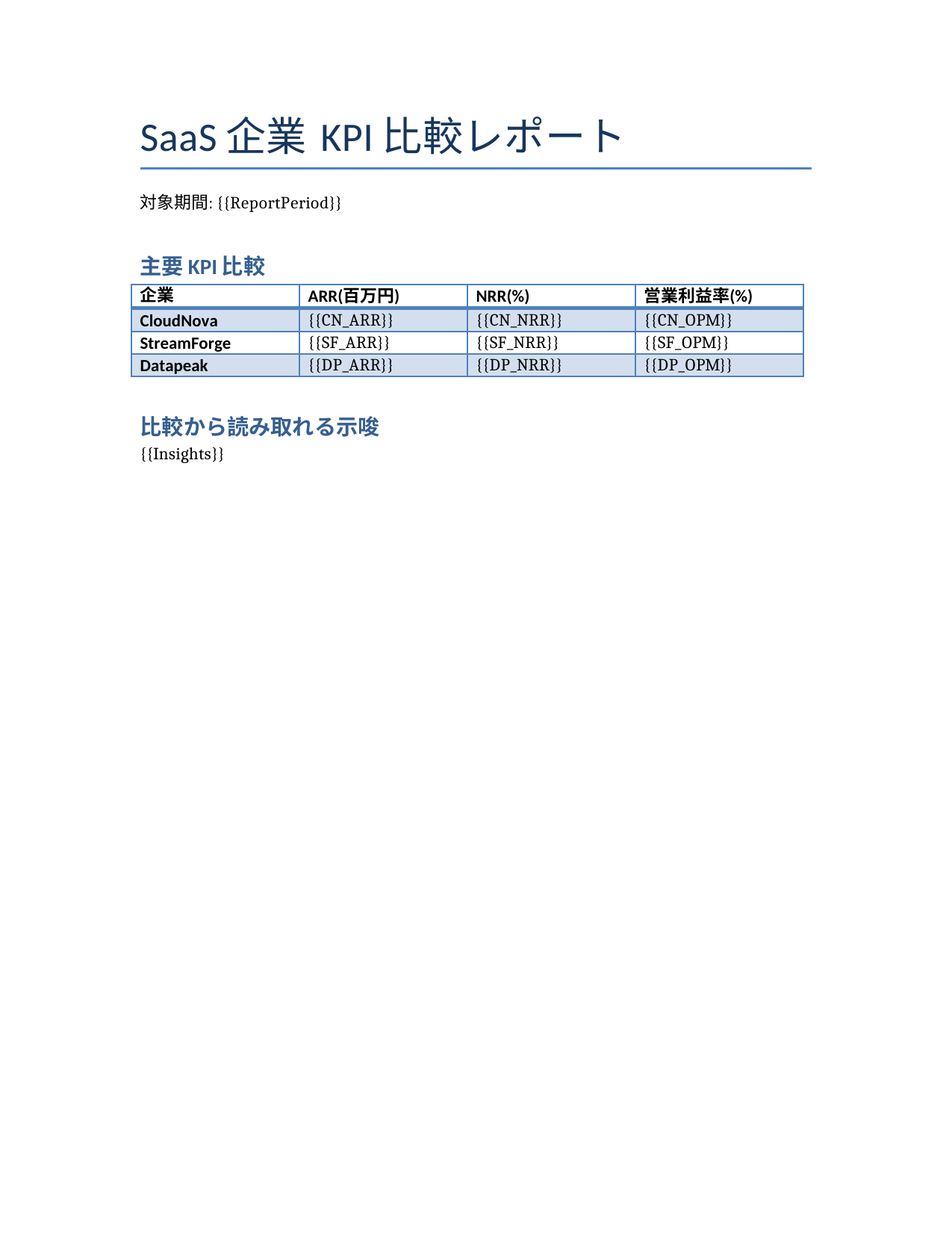
A Word template with replacement locations written as {{field}}
4. Creating a Prompt Tool with Document Output
From the agent's "Tools", create a new prompt tool.
Select "Add a tool" → "Prompt".
Once the prompt editor opens, change the output on the right side from "Text" to "Document".
This "Document" is Document output.
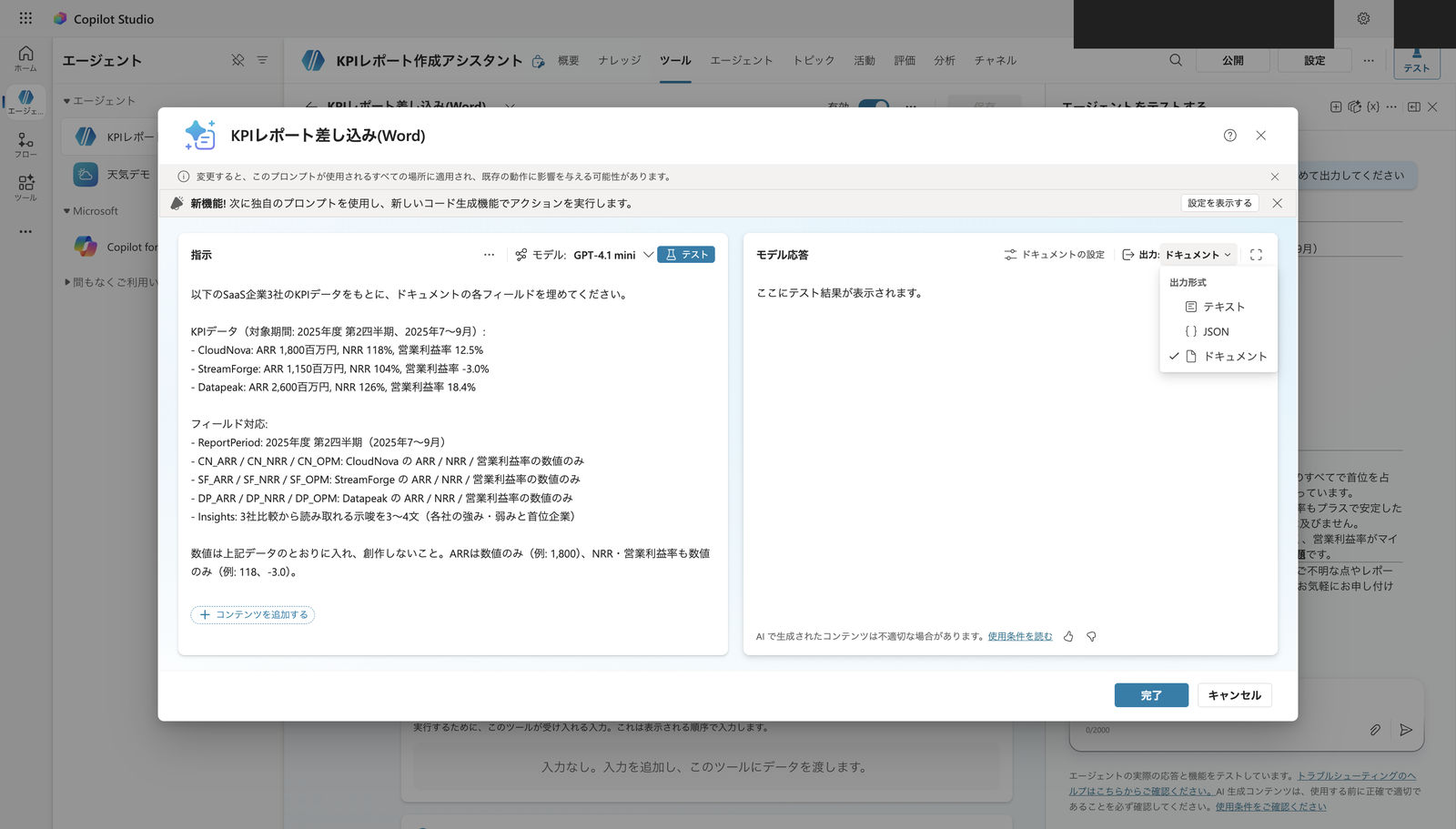
Changing the output format to "Document"
Open "Document settings" and upload the template created in Step 3.
Once uploaded, the placeholders in the template are automatically recognized.
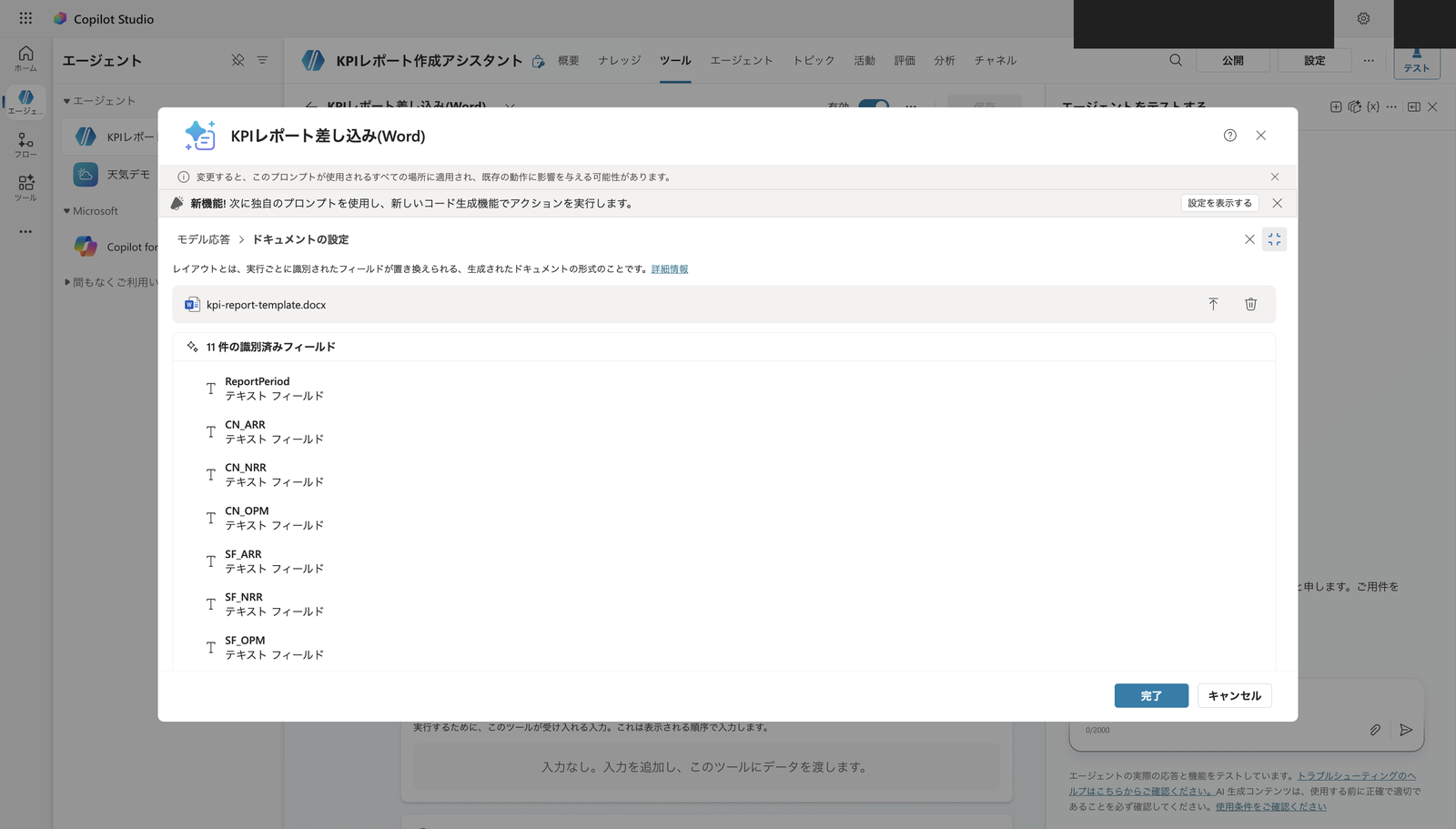
11 fields recognized as "Identified fields"
Next, write in the left-side instructions "what to put in each field."
When field names are meaningful, AI can fill them correctly with minimal instructions, but for abbreviations like CN, SF, and DP, it's safer to explicitly state the correspondence.
Please fill in each field of the document based on the KPI data for the following three SaaS companies.

KPI data (Target period: FY2025 Q2, July–September 2025):
- CloudNova: ARR 1,800 million JPY, NRR 118%, Operating profit margin 12.5%
- StreamForge: ARR 1,150 million JPY, NRR 104%, Operating profit margin -3.0%
- Datapeak: ARR 2,600 million JPY, NRR 126%, Operating profit margin 18.4%

Field correspondence:
- ReportPeriod: FY2025 Q2 (July–September 2025)
- CN_ARR / CN_NRR / CN_OPM: CloudNova's ARR / NRR / operating profit margin values only
- SF_ARR / SF_NRR / SF_OPM: StreamForge's ARR / NRR / operating profit margin values only
- DP_ARR / DP_NRR / DP_OPM: Datapeak's ARR / NRR / operating profit margin values only
- Insights: 3–4 sentences of insights from comparing the three companies (each company's strengths/weaknesses and the top company)

Enter the numbers exactly as in the above data; do not fabricate them.
5. Verifying Field Insertion in the Test
Once the instructions are entered, the "Test" button becomes active.
Running the test displays the values inserted into each field and a download link for the generated Word file.
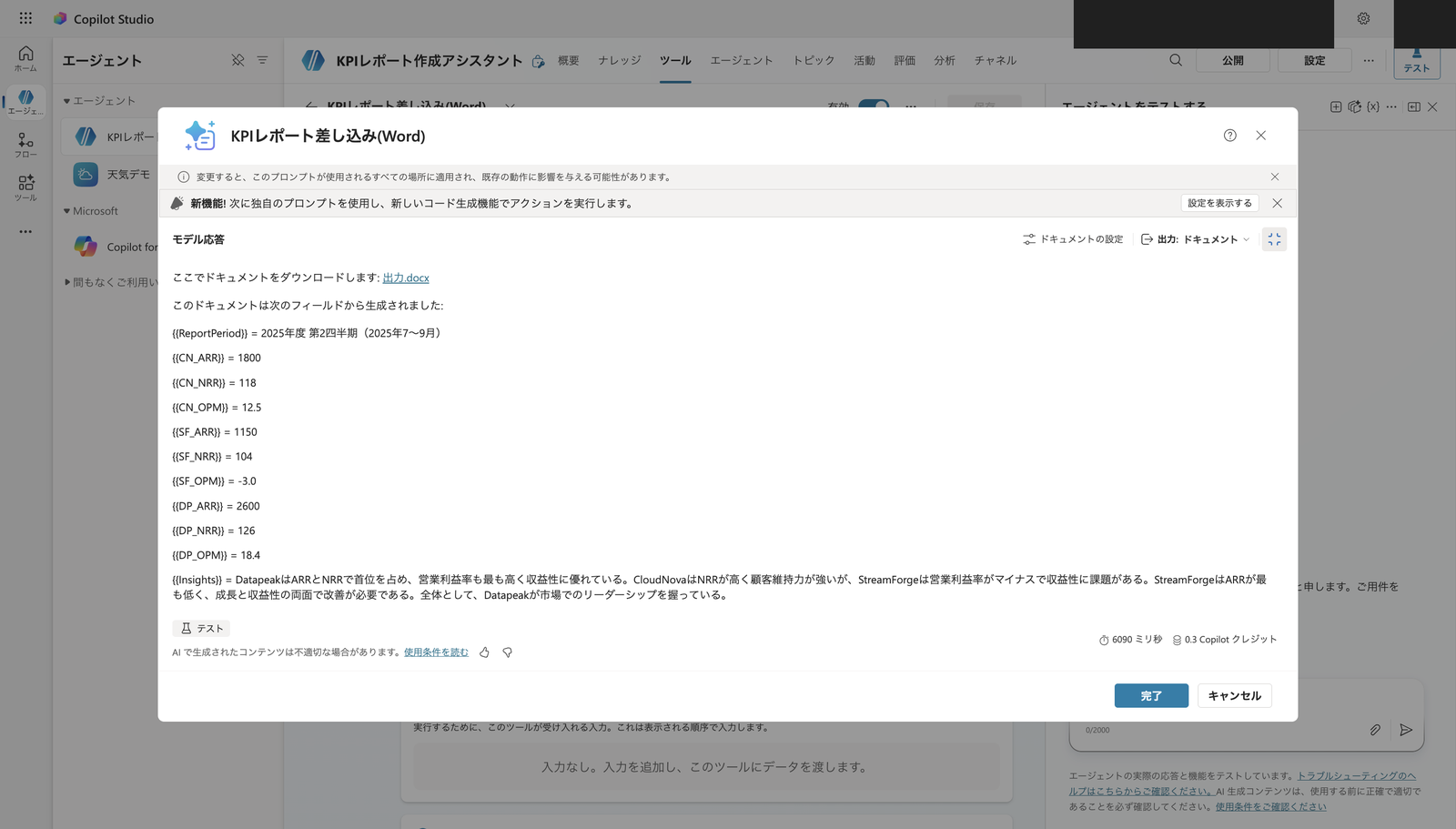
All 11 fields correctly filled with values, and a download link for "output.docx" appeared
In my environment, the ARR, NRR, and operating profit margin values were all inserted exactly as in the input data, and Insights were also generated from the input.
The downloaded Word file is an editable native Word table with numbers filled into the template's table.
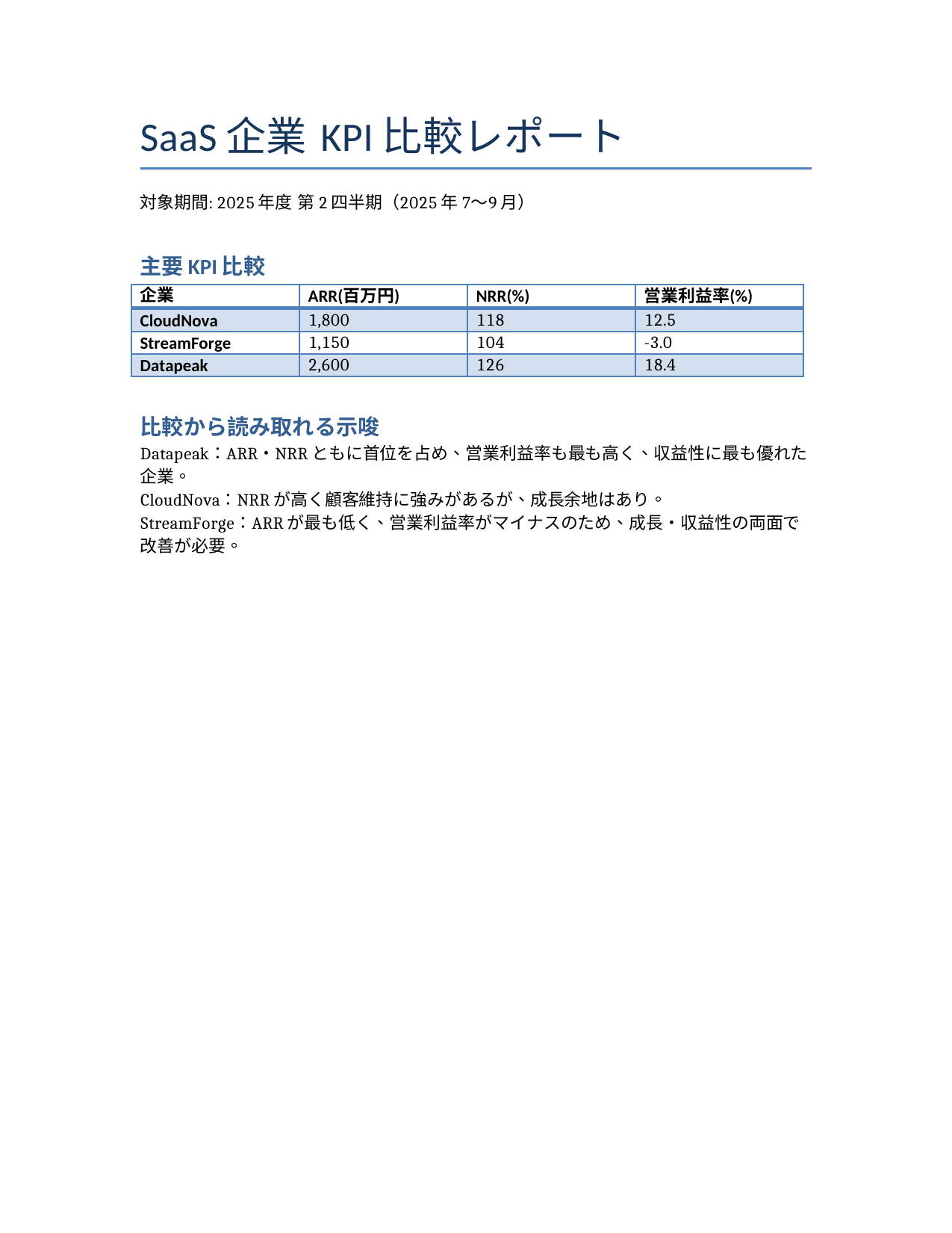
Word document with numbers inserted into the template. The table is a native Word table and is editable
Once confirmed, save the prompt tool.
You'll be asked for a name and description when saving.
Since the description is used by the agent's orchestrator to decide which tool to use, write something that makes it clear "when this tool should be used."
6. Calling from the Agent with Natural Language
The created prompt tool is registered as a tool in the agent.
Let's try making a request from the test chat in natural language.
When I sent "Please output a Word report summarizing the KPIs of the three companies," the agent automatically selected this tool, executed it, and a message appeared saying that Word had been generated.
However, no download link for the Word file appeared.
The official documentation also notes that since the generated document byte sequence cannot be directly handled as a node output in a topic, the recommended approach is to return a sharing link via a flow.
Unlike cloud flows and agent flows, the Document Output Content Bytes output isn't directly available as a node output in a topic. To allow a user to download the generated document in a topic, use a cloud flow as an intermediary to save the document and return a download link.
Source: Document output (preview) | Microsoft Learn
To allow users to receive the actual file, you go through a flow.
The steps in the official documentation are as follows:
- Add a "Run a prompt" action and select the prompt created with Document output
- Add a "Create file" action from OneDrive or SharePoint
- Specify the prompt output "Document Output Content Bytes" in the "File content" field
- Add a "Create sharing link" action for the created file to generate a shareable download URL
- Return the sharing link URL as an output variable using the "Return value(s) to Power Virtual Agents" action
- Add a Run a prompt action and select the prompt created in Create a prompt with document output.
- Add the action Create file from OneDrive or SharePoint.
- From the prompt action in the File content field, select Document Output Content Bytes.
- Add a Create sharing link action for the file to generate a shareable download URL.
- Add a Return value(s) to Power Virtual Agents action and return the sharing link URL as an output variable.
Source: Document output (preview) | Microsoft Learn
By calling this flow as a tool, you can return a sharing link to the chat.
Since this article does not cover verification of distribution via flow, that will be addressed in a separate article.
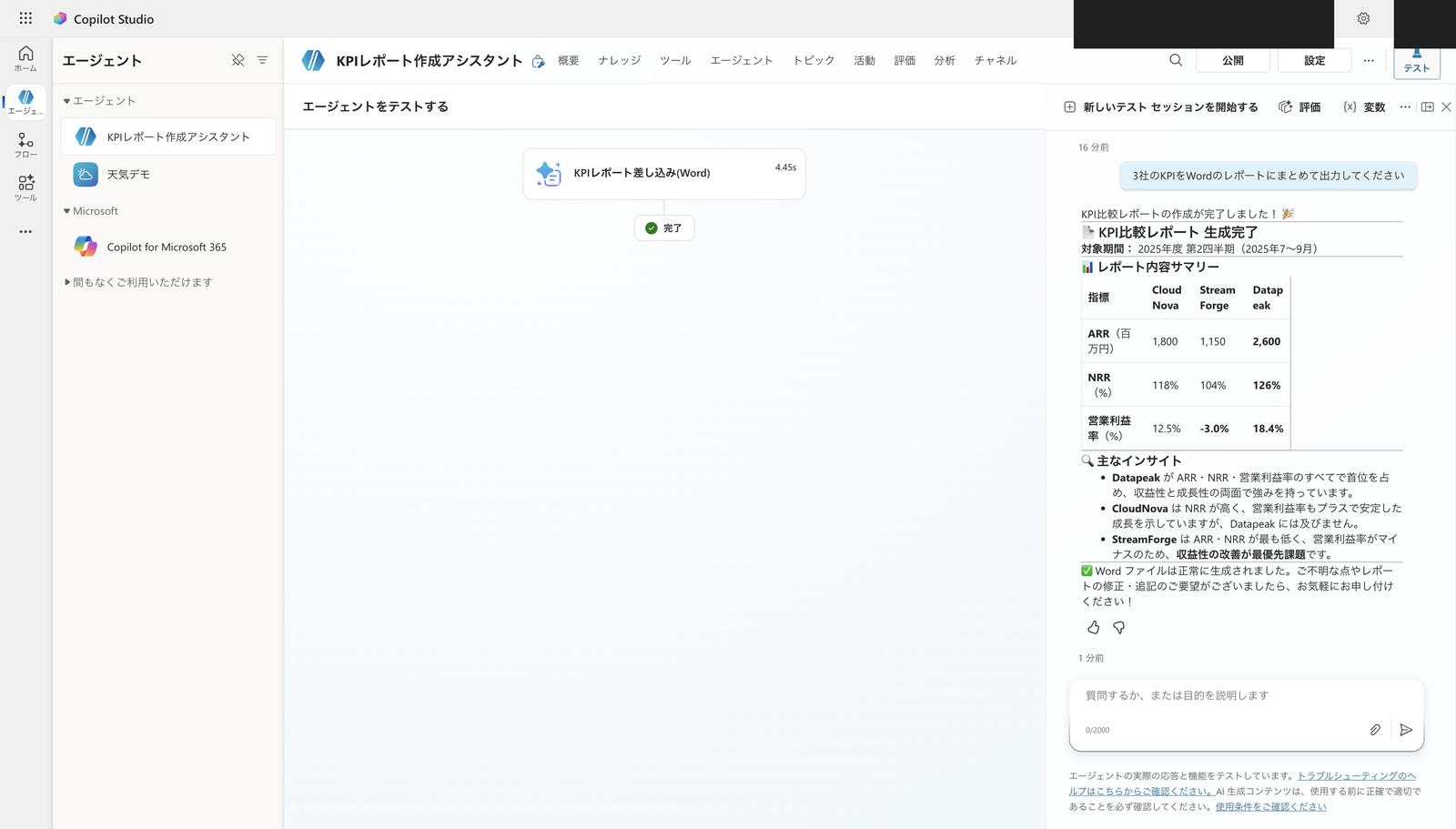
From a natural language request, the tool was automatically selected and executed, generating a KPI comparison report
7. Summary
For standard Word reports, you can build a minimal configuration of "generating by inserting numbers into a template" using only the standard Document output feature, without using any third-party connectors.
In this verification, using fixed data, I was able to confirm the flow from a natural language request to tool selection, value insertion, and Word generation.
On the other hand, file distribution to users (sharing links) and expansion to PowerPoint / Excel are outside the scope of this article.
Distribution requires a flow, and PowerPoint / Excel requires Code interpreter — different means are needed. These will be covered in future installments.