![A Japanese-affiliated SME in Germany tried implementing Personio ― [Part 3] Approval Workflows, Automation, and Document Management](https://devio2024-media.developers.io/image/upload/f_auto,q_auto,w_3840/f_auto,q_auto,w_3840/v1784102263/user-gen-eyecatch/mbyydrfpabsxme6dklfq.png)
A Japanese-affiliated SME in Germany tried implementing Personio ― [Part 3] Approval Workflows, Automation, and Document Management

This page has been translated by machine translation. View original
This is Ito from Berlin.
At Classmethod Europe (German entity), with our headcount reaching 16 employees, we switched our time tracking and HR system from Timetac to Personio. In this series, we share the knowledge gained during the implementation as "tried it" articles, organized by feature.
In Part 1 we covered the implementation background and DATEV integration, and in Part 2 we covered attendance management (Attendance & Time off), along with a brief look at approval workflows.
In this article, we dive deeper into the approval features while introducing automation capabilities such as notifications and scheduled processing. We also cover HR document creation and signing, which was not available in Timetac.
These are critical features for reducing operational overhead and eliminating knowledge silos in SME back offices where staffing is limited.
Approval Workflows
Approval workflows in Personio are technically part of the Automations feature described later, but since only Admin users can manage the settings and the nature differs from other automations, we treat them separately here.
What Can Be Made Subject to Approval
In Personio, three things can be made subject to approval: attendance, time off, and employee data.
(1) Attendance Requests
Even in Timetac, which specializes in time tracking, both attendance and time off can be made subject to approval, but the two systems differ in their approach:
- Personio: Exceptional attendance matching specific conditions
- Timetac: Past attendance entries beyond a specified number of days
Timetac's attendance approval targets past entries and updates that exceed a specified number of days, before attendance is finalized. The practice was to review items flagged with warnings all at once when closing attendance. (See Part 2 for details)
In Personio, employees cannot submit edit requests for attendance entries beyond a specified number of days. This doesn't happen frequently but is somewhat inconvenient.
On the other hand, attendance requests can target violations of rules such as ArbZG (Working Hours Act), and by adding an approval requirement on top of warnings before entry, rule violations can be efficiently prevented.
(2) Time Off Requests
From the perspective of being able to make specific time off types subject to approval, both systems are similar, but Personio's ability to flexibly manage approval steps and exception conditions per time off type is extremely convenient.
For example, at our company shift workers regularly take compensatory days off for working on holidays. We were able to configure it so that only shift workers can skip approval for compensatory leave requests, while other members go through the approval process.
(3) Employee Data Changes (Personio only)
Timetac manages almost no employee data to begin with, so this aspect simply doesn't exist there.
In Personio, important data that directly affects payroll, such as address, bank account, and contract terms, can be entered directly by the employee while being controlled through approval so it cannot be freely modified. The ability to track who changed what and when is also powerful from an internal controls and audit response perspective.
How Approvals Are Delivered and the Interface
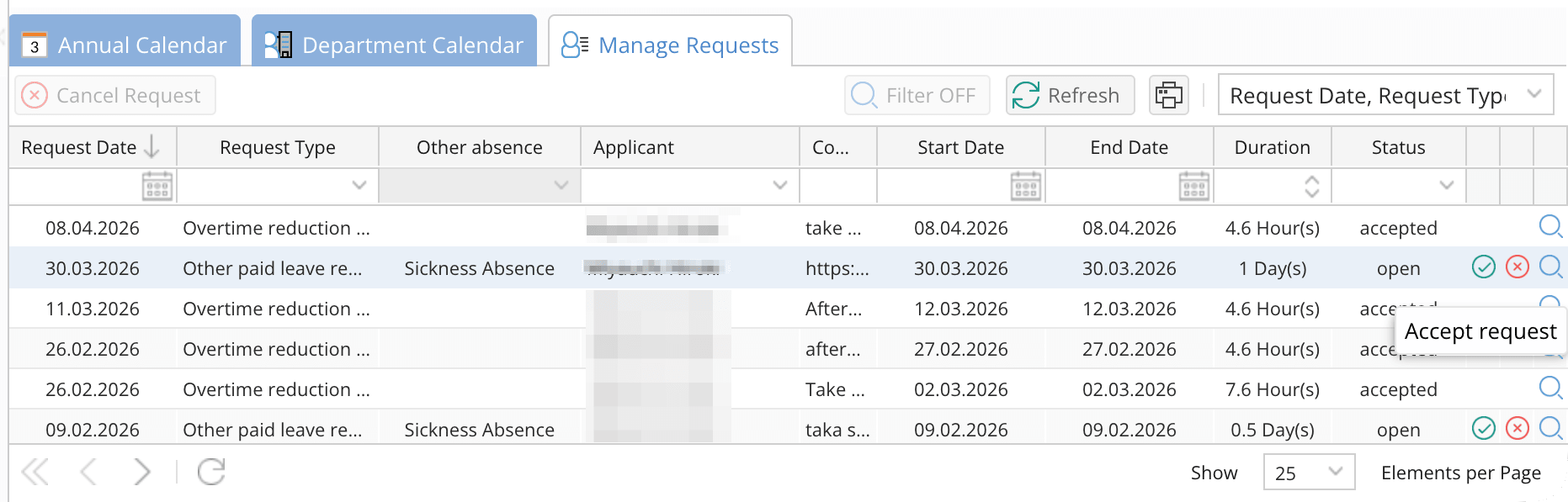
As mentioned in Part 2, there is a difference between Timetac, where "approvers go to view a list of requests (pull model)," and Personio, where "requests arrive in the approver's notification inbox (push model)."
Timetac approval screen (attendance change):
Personio approval request in the notification inbox:

Personio does have a request list screen, but it is only for checking statuses and cannot be used to perform approval actions.
We found Personio's approach, where only the requests you need to approve are delivered to you, to be clearer and more efficient for approval work.
Flexible Approval Settings
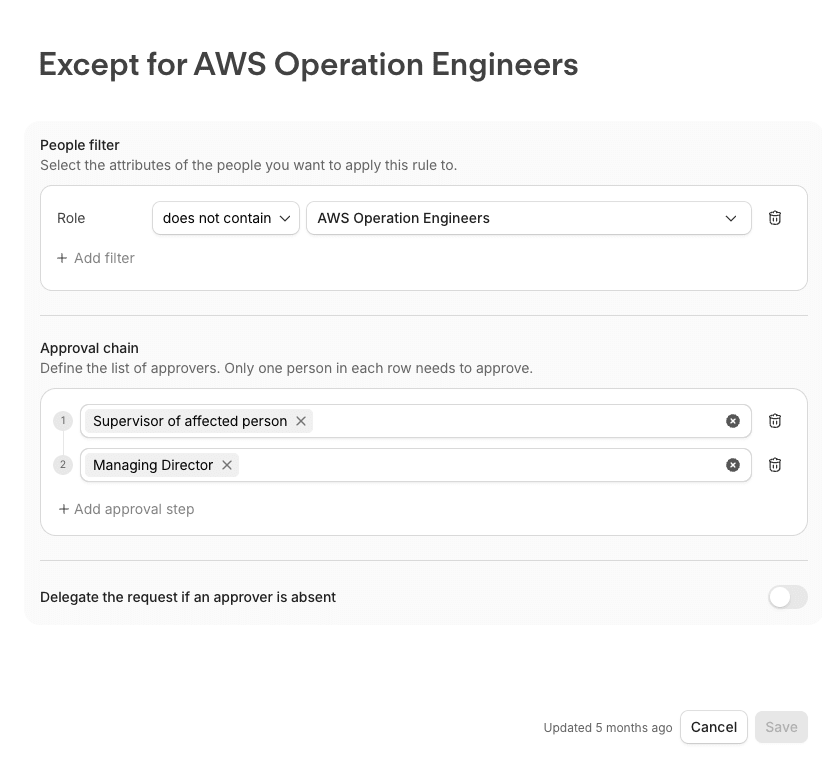
While Timetac uses a permission-based model that makes all department managers and administrators approvers, Personio allows you to specify arbitrary users or groups per request type.
Additionally, you can configure exception conditions to apply a different flow only to specific targets, and delegate approvers who are automatically assigned if a request remains unapproved within a deadline. This makes it easier to avoid approval bottlenecks and knowledge silos even in SMEs with limited staffing.
Scheduled and Event-Triggered Automated Processing
What used to barely work through cumbersome management with reminder notifications across different tools and person-dependent operations was naturally replaced with a "system" through this automation.
You can configure custom automated processing triggered by events such as scheduled times or employee data changes.
At our company, we set up configurations like the following, for example:
- 👤 Two weeks before a new hire's start date, notify the manager, HR, internal IT, and supervisor
- 🔄 When an employee's weekly working hours changes, task HR to issue updated contract documents and task the admin to adjust the Work schedule
- ⏰ At year-end, notify all employees to use their remaining paid leave, notify leaders to check remaining balances, and task HR to send a day count report to the accounting firm
- ⌛ Send HR reminder notifications 3 months, 1.5 months, and on the day of an employee's visa expiration
- 📋 On the 3rd of every month, notify team leaders to review their members' attendance
- 🚃 On the 1st of every month, notify employees based in Germany to submit their German rail pass (Deutschlandticket)
Monthly reminders and the effort of individually checking details and reaching out to people were significantly reduced.
The notification inbox displays approval requests and configured automatic notifications like this:
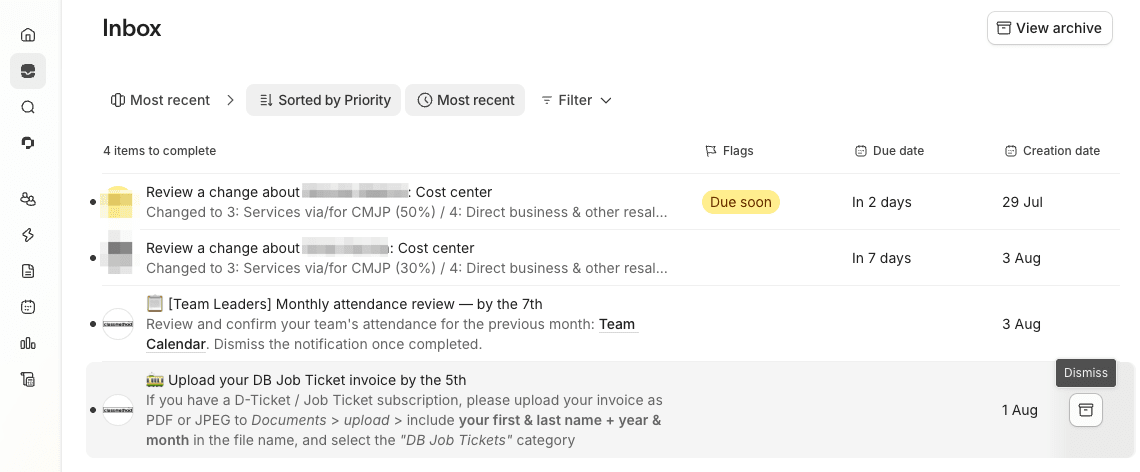
💡 Notifications, tasks, and reminders all arrive in the notification inbox. When one of the assigned people checks off a task, it is archived from everyone's inboxes, but notifications and reminders must be archived individually.
Creating an Automation
This time we will create an approval workflow for attendance requests. Feel free to skip this section if you just want to understand the mechanism.
Open the Automations menu. The top page lets you check the status of onboarding and offboarding, links to pending approval requests, and the status of document signing requests.
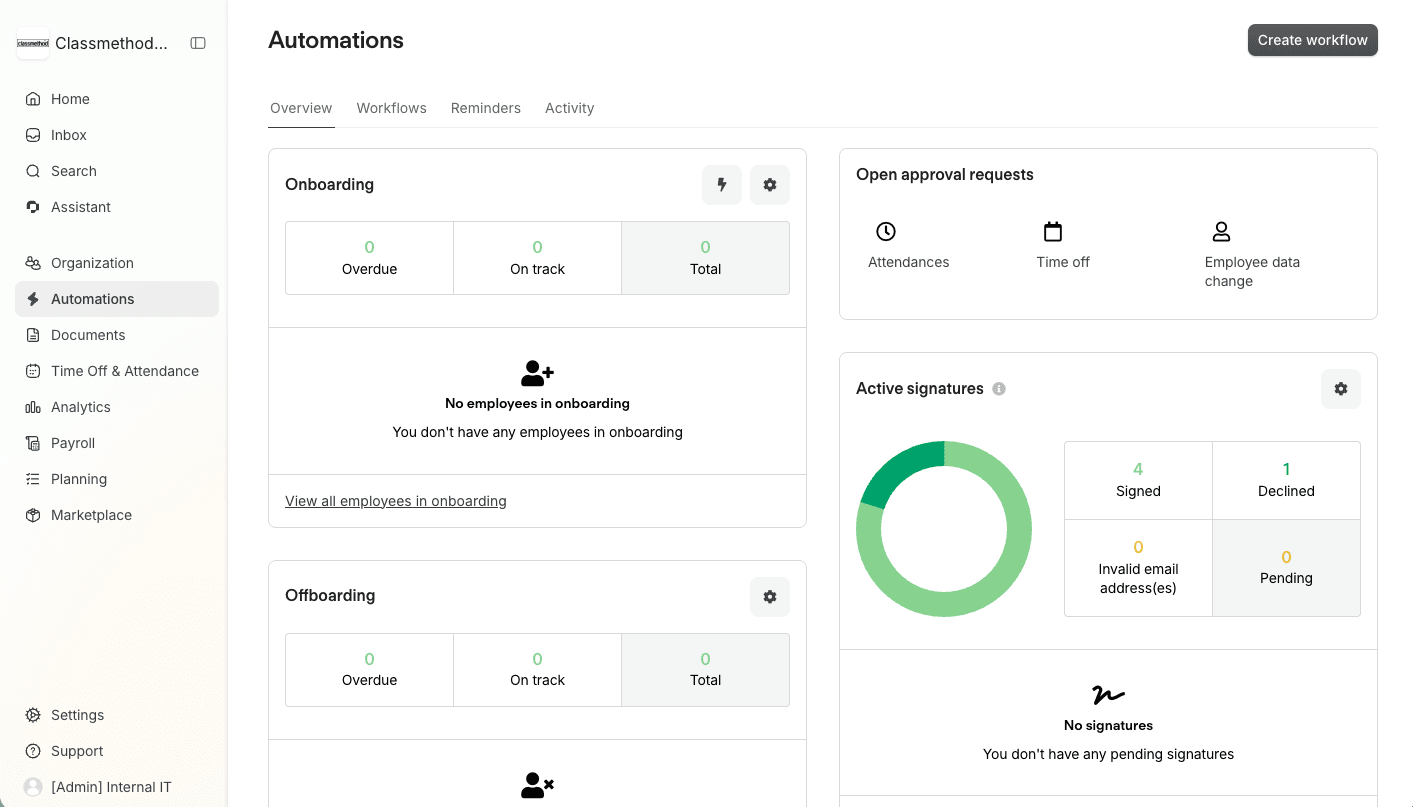
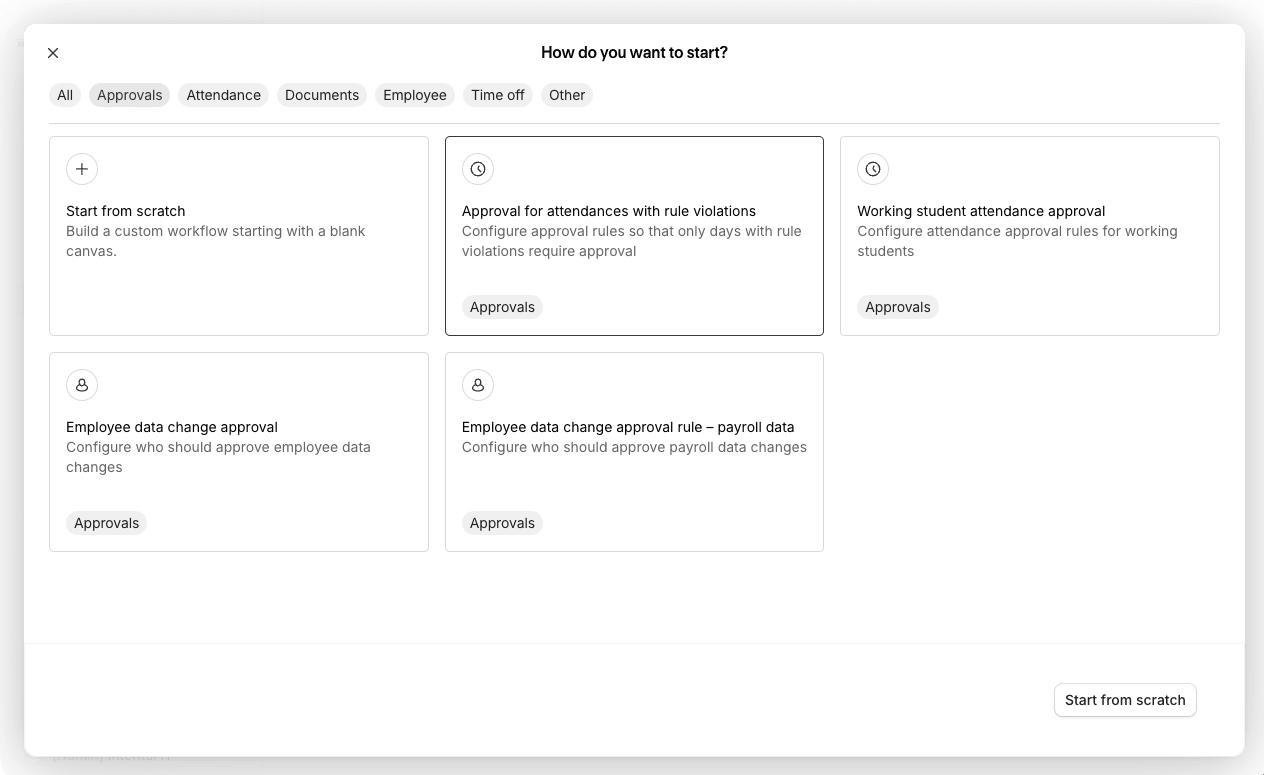
Click the [Create workflow] button to create one. You can create from scratch or base it on a template. This time, we select the second item under Approvals.
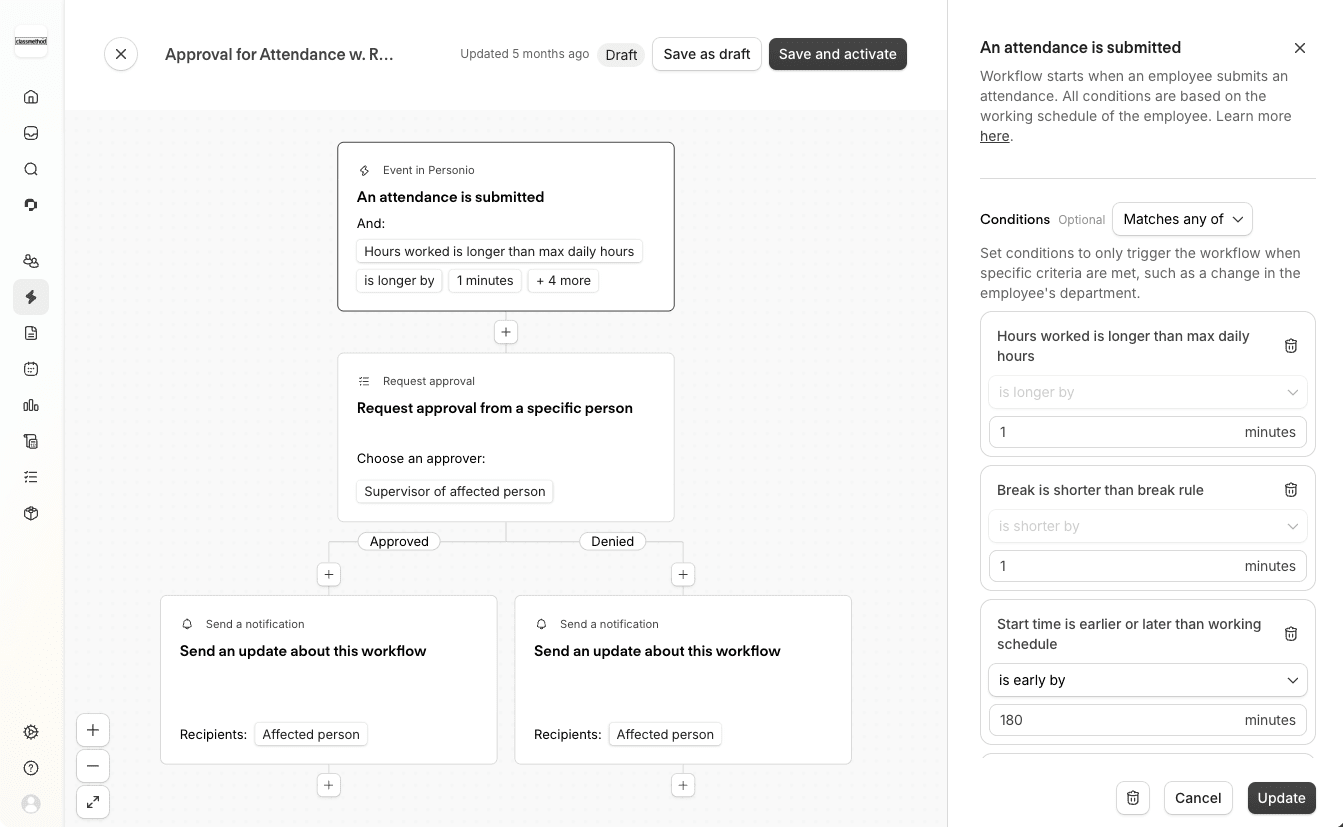
Edit the flowchart as follows to create steps for approval and rejection:
- Request trigger conditions:
- (Template default) Daily working hours exceed the maximum, or breaks are shorter than required
- Or, start time is 3 hours earlier or end time is 5 hours later than the configured Work schedule
- Approver: The target user's Supervisor
- Action: Notify the target user with messages for approval and rejection respectively
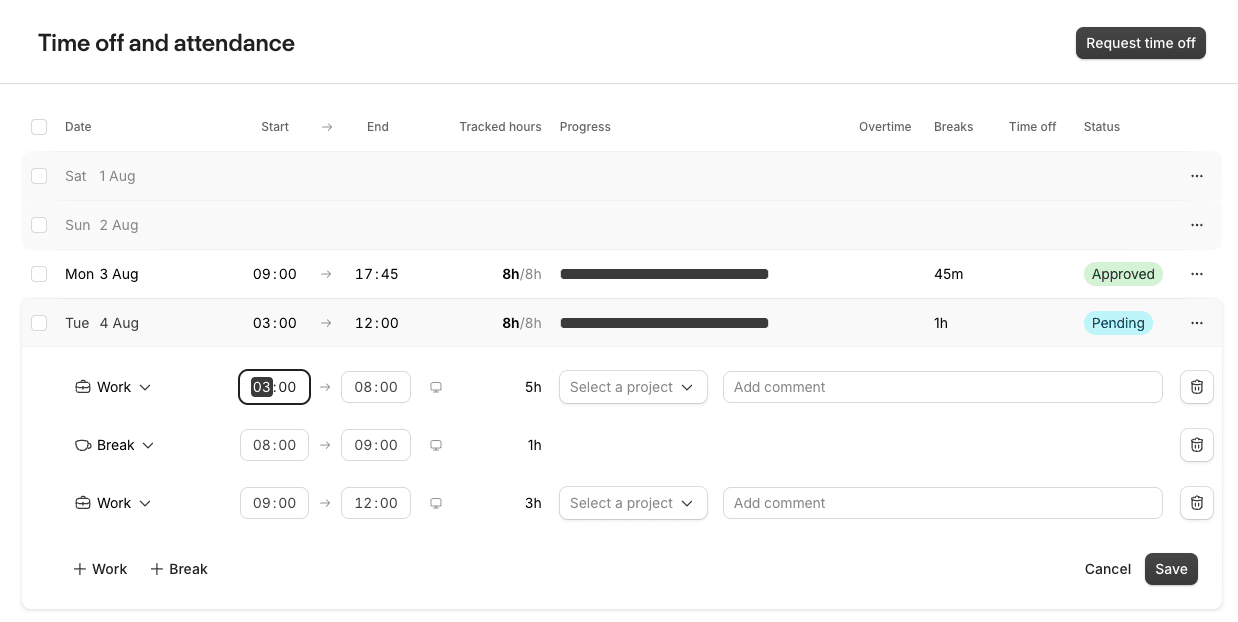
Let's verify the behavior. Log in as a user and enter an attendance record with a late-night start time. By default, entered attendance is immediately Approved, but since it matches the request trigger conditions and goes through the approval workflow, it becomes Pending.
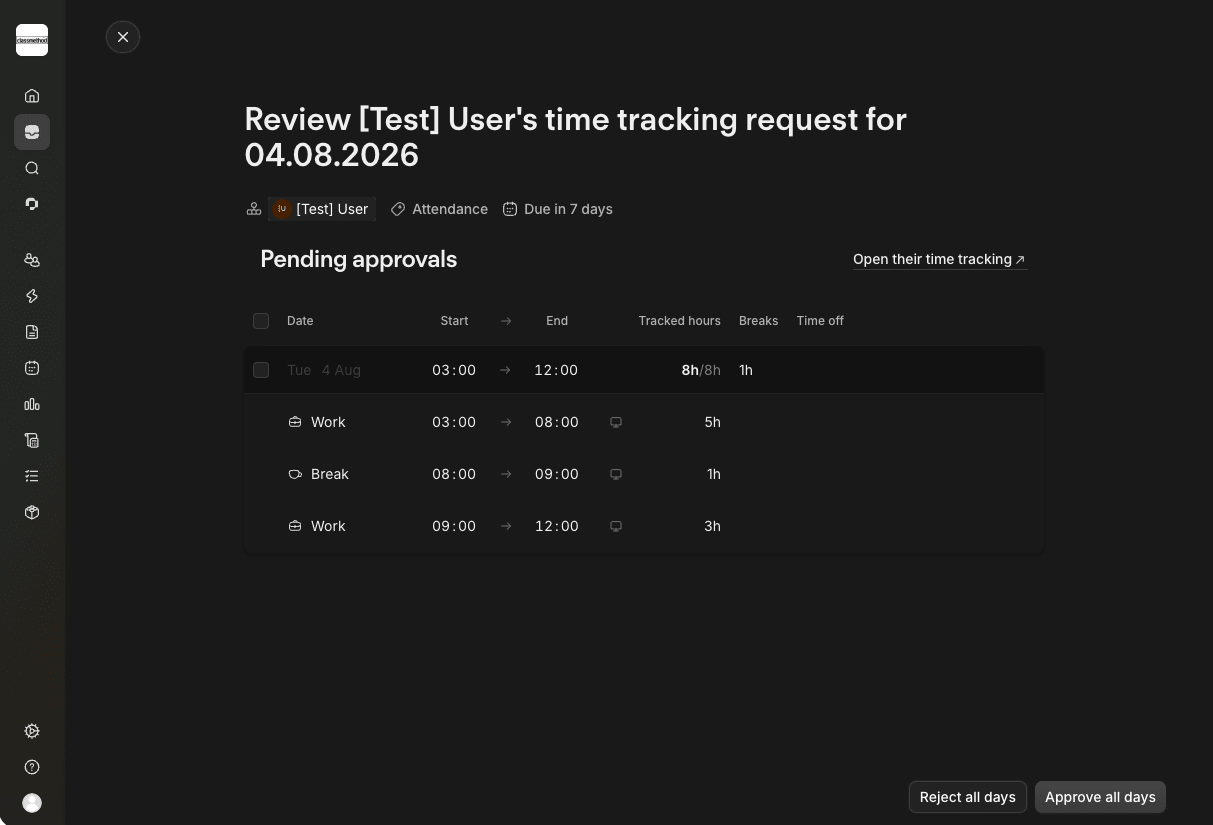
The supervisor user receives a notification in their Inbox. Clicking it shows the details as follows. This time we click Reject.
Returning to the user who entered the attendance, the configured rejection message has arrived in their Inbox. Also, the entered record in the attendance screen has changed from Pending to Rejected status.
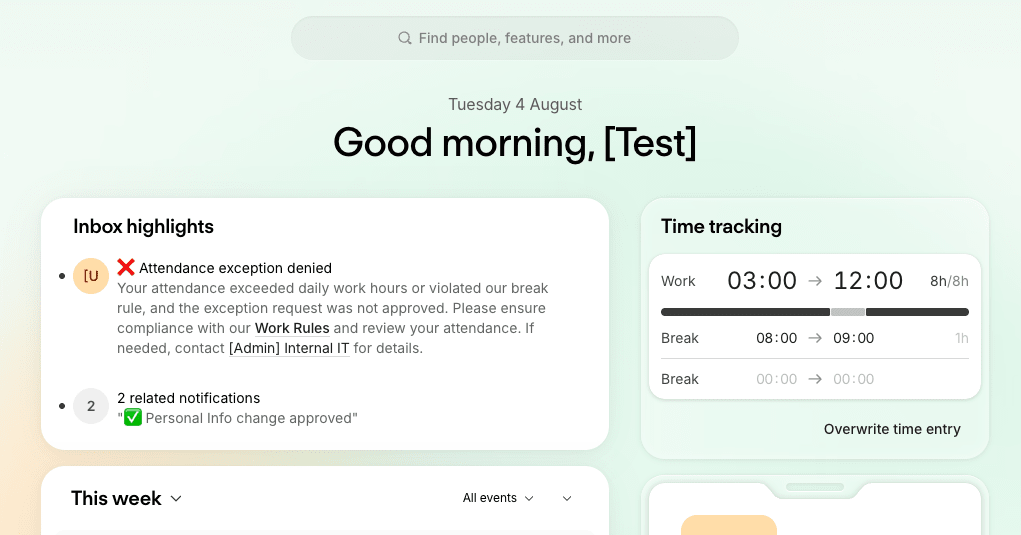
As shown, automated processing and approval workflows can be configured through a relatively intuitive UI.
Document Creation and Electronic Signatures
As seen in the Automations menu screen earlier, document signing can also be digitized and turned into a workflow.
HR document creation and signing is an area that tends to rely on manual work by the person in charge and become person-dependent, especially in smaller offices. Personio allows you to handle document management, creation, and signing all in one place.
Document Management Linked to Employees
- What you can do:
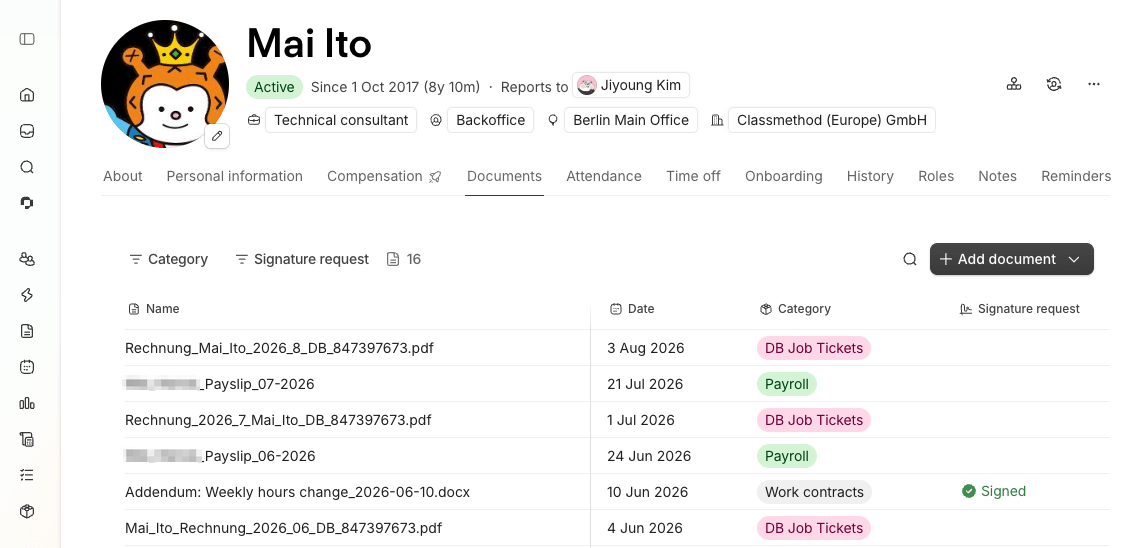
- Create and upload documents linked to each employee − Payroll and contract-related documents created externally, maternity leave certificates linked to maternity leave requests, and more can all be centrally managed here.
- View all employee documents together by category from the Documents menu
- Grant External user access to an external accounting firm so they can directly view materials in specific categories
- What you cannot do:
- Managing documents not linked to a specific employee − Company-wide HR-related materials are best stored in SharePoint, and if HR costs are also tied to accounting, managing them in an accounting tool is more appropriate.
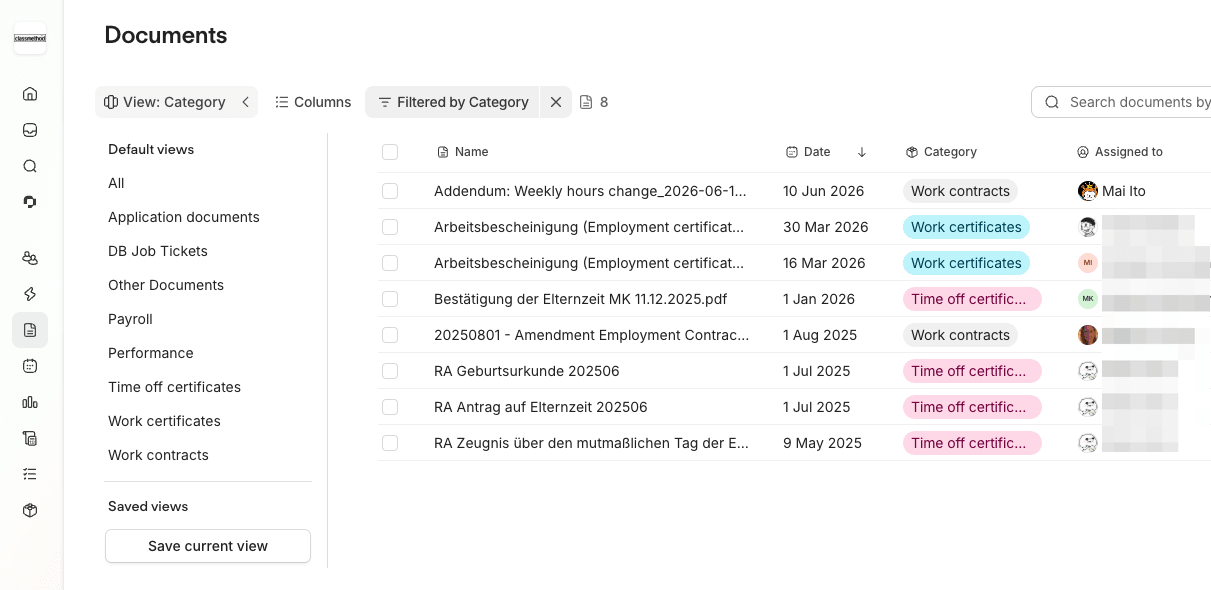
💡 Through granular permission settings, it is also possible to grant access to the Documents menu while restricting viewing and editing to only specific categories or specific users' documents.
Creating Documents from Templates
Even more convenient is the ability to prepare document templates and generate documents electronically from them.
At our company, we have prepared employment verification certificates in three templates — German (general), German (detailed for specific purposes), and English — allowing employees themselves to create and request signatures directly in Personio.
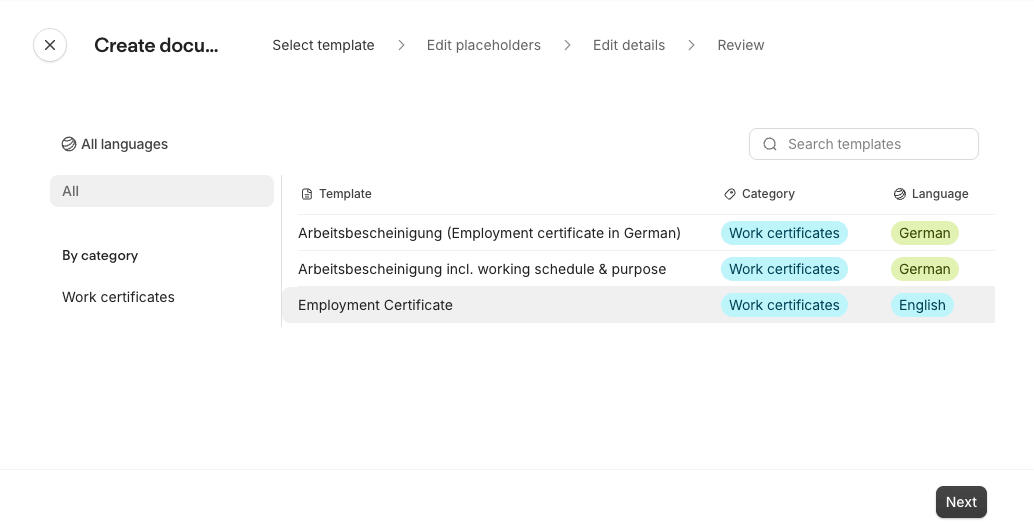
Using Placeholders, employee data such as name and address can be automatically pulled from information registered in Personio, eliminating manual entry. Information that is not registered can also be filled in via selection or auto-input.
This enables outstanding efficiency gains for documents that reuse the same format repeatedly.
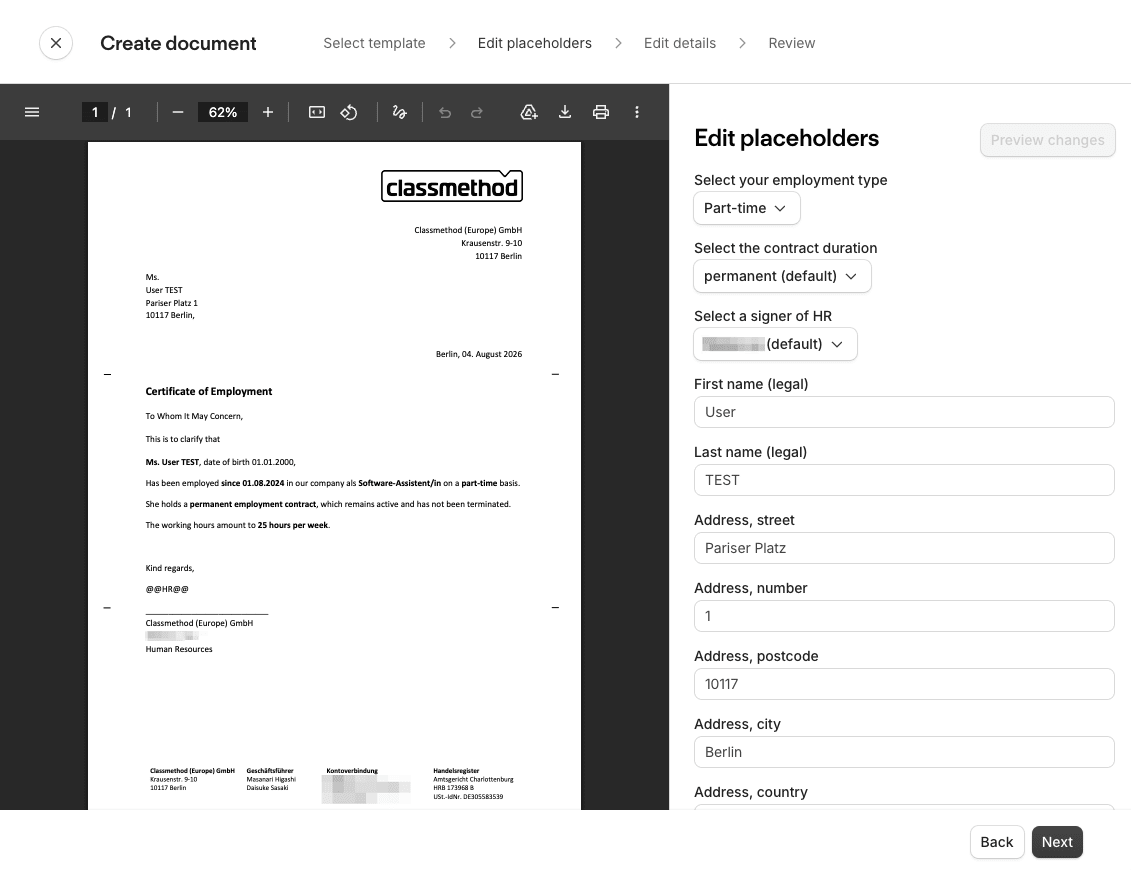
In the case of employment verification certificates, the person in charge used to edit a Word document each time a request came in, but now their only task is to apply an electronic signature in Personio.
Electronic Signatures (No DocuSign Required)
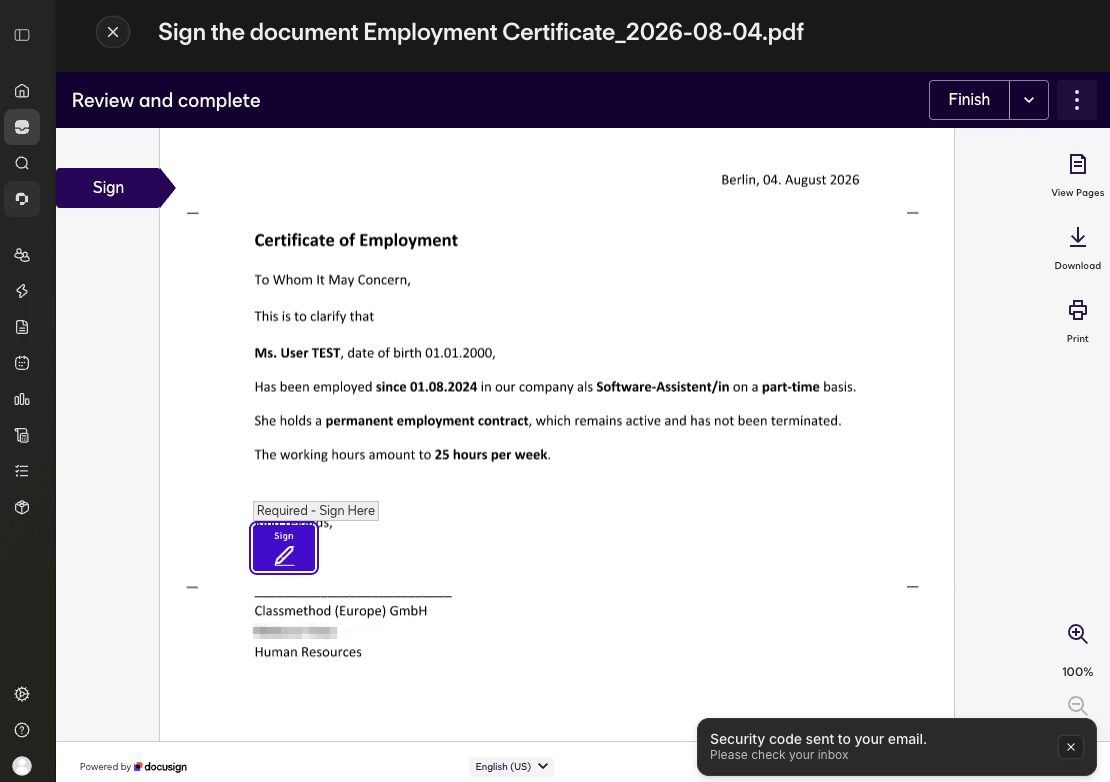
Multiple signers can be designated for a document. The designated signers receive a signing request in their notification inbox.
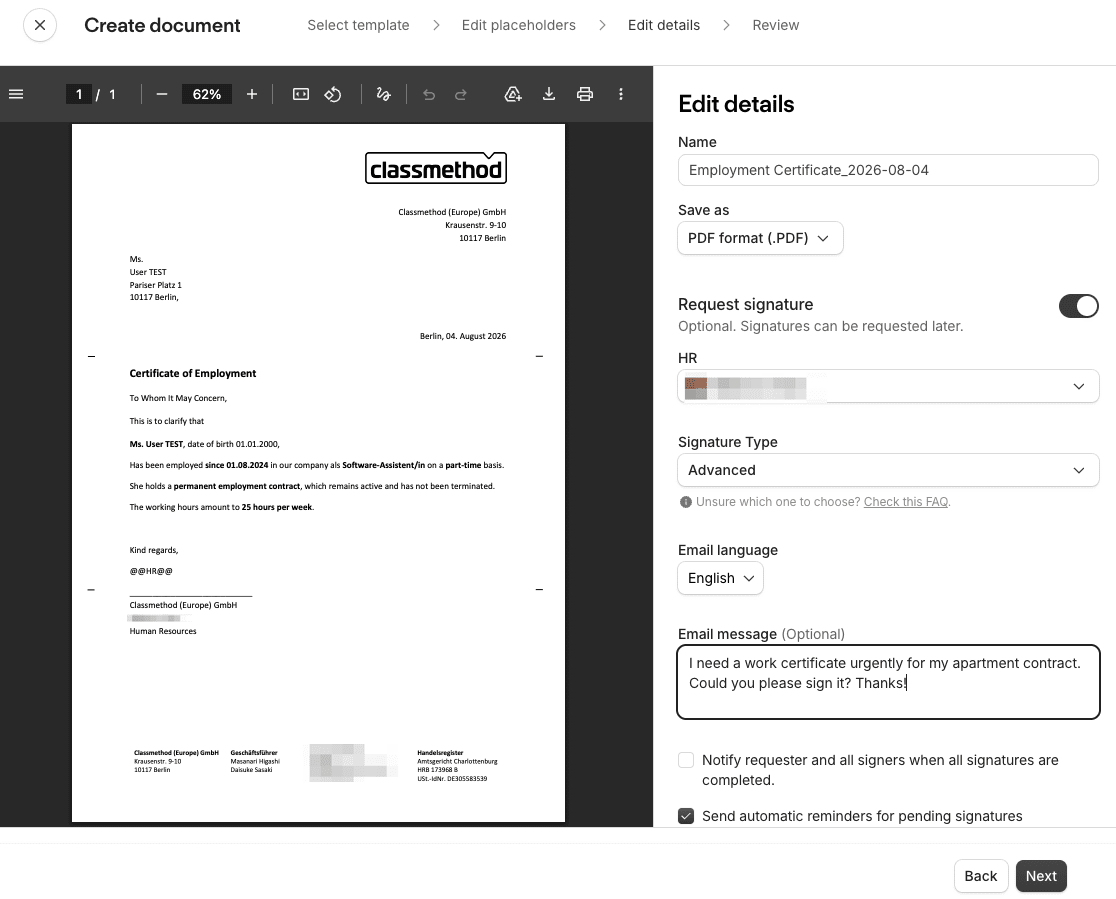
An electronic signature integrated into Personio is available by default, so no separate DocuSign license is required. This is also a significant cost benefit for SMEs.
Creating Document Templates
Templates are created in Word just like regular documents, but Placeholders are written following Personio's syntax.
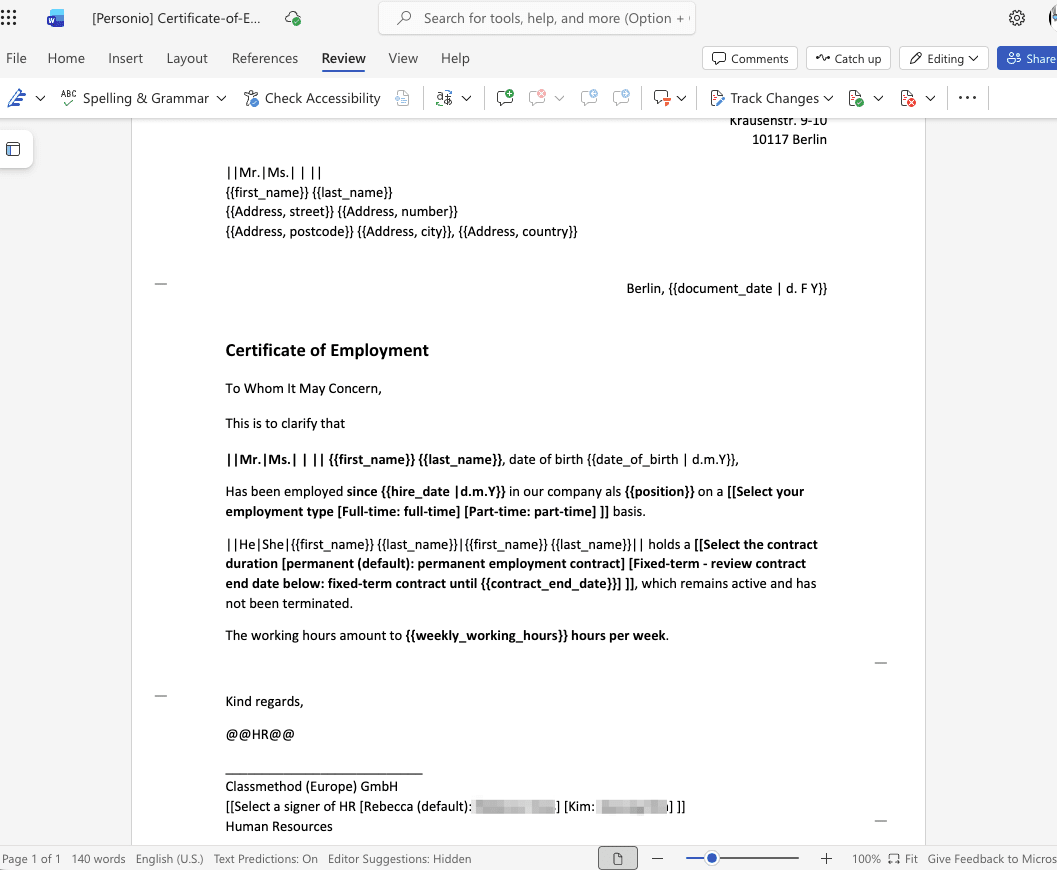
Placeholders include Predefined/Custom, which automatically pull from employee data, and Free, which allow free-text or selection-based input.
For example, by specifying a gender-based placeholder and a formatted date like this:
||Mr.|Ms.| | || {{first_name}} {{last_name}}, date of birth {{date_of_birth | d.m.Y}}
The employee data is automatically filled in on screen as follows:
Ms. User TEST, date of birth 01.01.2020
Summary
The approval workflows, automation, and document creation introduced in this article are all features designed to "reduce manual work and knowledge silos."
While it takes effort to think through the requirements and design them carefully, doing this thoroughly allows you to build a powerful organizational structure where back-office workload does not scale with headcount.
At our company, we gradually increased the number of automations and document types after implementation, and were able to significantly reduce repetitive manual work.
Classmethod Europe supports European offices with back-office operations and system selection, drawing on our own real-world operational expertise. Feel free to reach out.