![[Update] "S3 Policy" has been introduced in AWS Organizations, allowing integrated management of account-level S3 Block Public Access (BPA)](https://images.ctfassets.net/ct0aopd36mqt/wp-thumbnail-2eddd7f989fa67416ea2d27b4223cc32/8f5b157eb82ee11cc288225119e0c290/aws-organizations?w=3840&fm=webp)
[Update] "S3 Policy" has been introduced in AWS Organizations, allowing integrated management of account-level S3 Block Public Access (BPA)

This page has been translated by machine translation. View original
This is Ashizawa.
AWS Organizations now enables S3 policies, allowing centralized management of S3 resource configurations across your entire organization.
Let's take a closer look.
Overview
What are Organizations policies?
S3 policies are one of the management policies in AWS Organizations.
Management policies are features that allow centralized management of certain AWS services and functions at the OU or AWS account level.
When thinking about Organizations policies, many may recall SCP (Service Control Policy) or RCP (Resource Control Policy), but these are called authorization policies.
As of November 28, 2025, there are 10 types of management policies:
- EC2 declarative policies
- Backup policies
- Tag policies
- Chat application policies
- AI service opt-out policies
- Security Hub policies
- Amazon Bedrock policies
- Amazon Inspector policies
- Upgrade deployment policies
- Amazon S3 policies
Management policies have been significantly expanded in recent updates and can be considered a very hot feature for governing multi-account environments going forward.
- [Update] AWS Organizations introduces "Inspector policies" for flexible management of Amazon Inspector scan settings | DevelopersIO
- [Update] "Upgrade rollout policy" has been added to AWS Organizations, allowing priority setting for AWS service automatic upgrades | DevelopersIO
Previous S3 Block Public Access (BPA)
S3 Block Public Access (BPA) consists of four settings designed to restrict public access to S3 resources:
BlockPublicAcls: Prohibits setting access control lists (ACLs) to allow public accessIgnorePublicAcls: Ignores public access control lists (ACLs) set on S3 buckets and objectsBlockPublicPolicy: Prohibits setting bucket policies to allow public accessRestrictPublicBuckets: Prevents public and cross-account access to S3 buckets even if bucket policies are public
Previously, BPA could be set at either the bucket level (individual S3 bucket) or the account level (entire AWS account).
"Bucket-level BPA" applied to individual S3 buckets is now the default setting for newly created S3 buckets.
Enabling "account-level BPA" that targets the entire AWS account prevents disabling bucket-level BPA.
However, account-level BPA becomes ineffective if the setting itself is disabled. It was necessary to use AWS Organizations SCPs to prohibit managed AWS accounts from executing APIs (s3:PutBucketPublicAccessBlock, s3:PutAccountPublicAccessBlock) that disable BPA.
Additionally, when creating new AWS accounts, account-level BPA settings needed to be explicitly enabled through some means.
About S3 Policies
S3 policy features include:
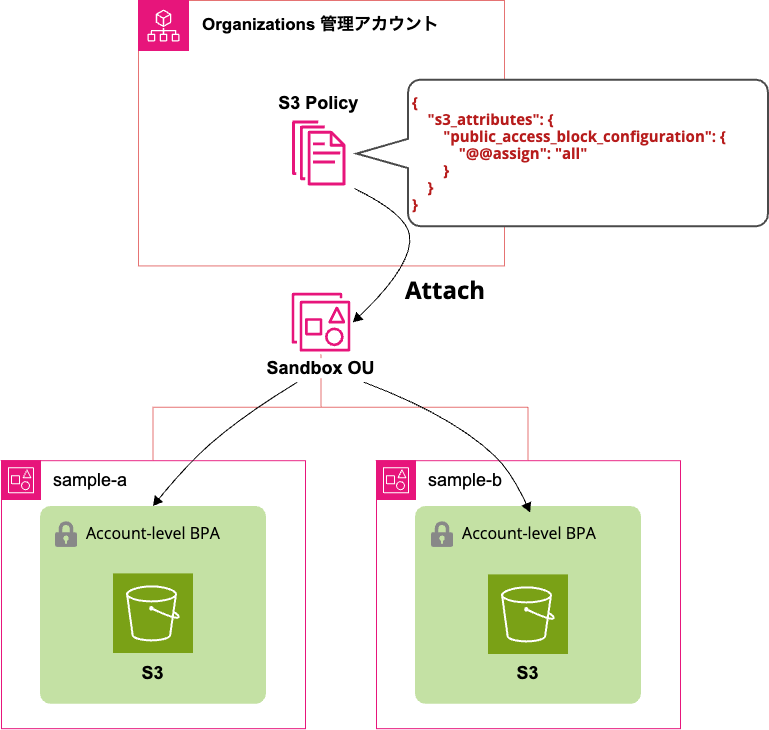
- Setting account-level BPA for AWS accounts in the organization
- Preventing changes to account-level BPA settings
It covers both previous challenges: account-level BPA configuration and prevention of changes. This is truly a divine feature that everyone has been waiting for!
Here's the S3 policy syntax:
{
    "s3_attributes": {
        "public_access_block_configuration": {
            "@@assign": "all"
        }
    }
}
The available values for @@assign are:
"all": Enable all four BPA settings at the organization level"none": Disable organization-level BPA setting control
Simple, isn't it?
Let's try it
I tested the actual settings in a test environment.
I used an existing Organizations structure for testing.
The test was done in this environment:
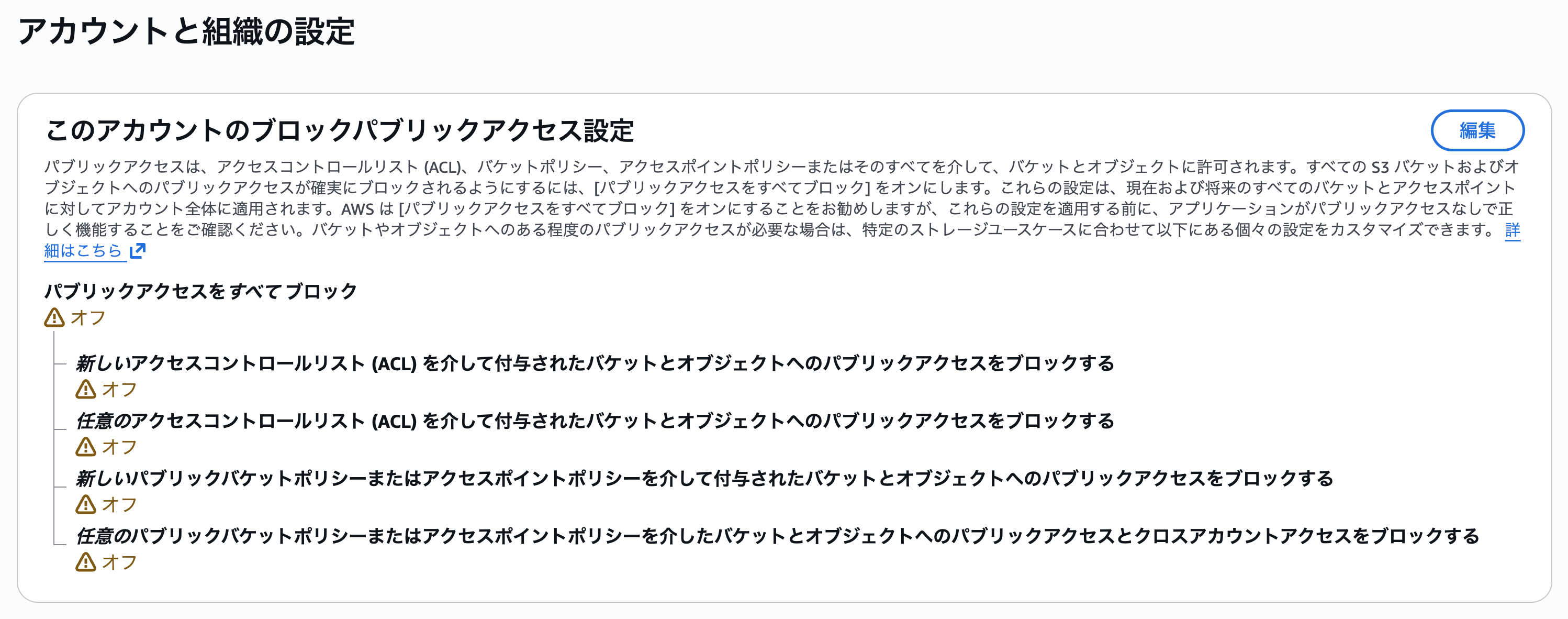
First, I confirmed that the S3 BPA settings were disabled in the two accounts under the Sandbox OU that will be targeted by the policy.
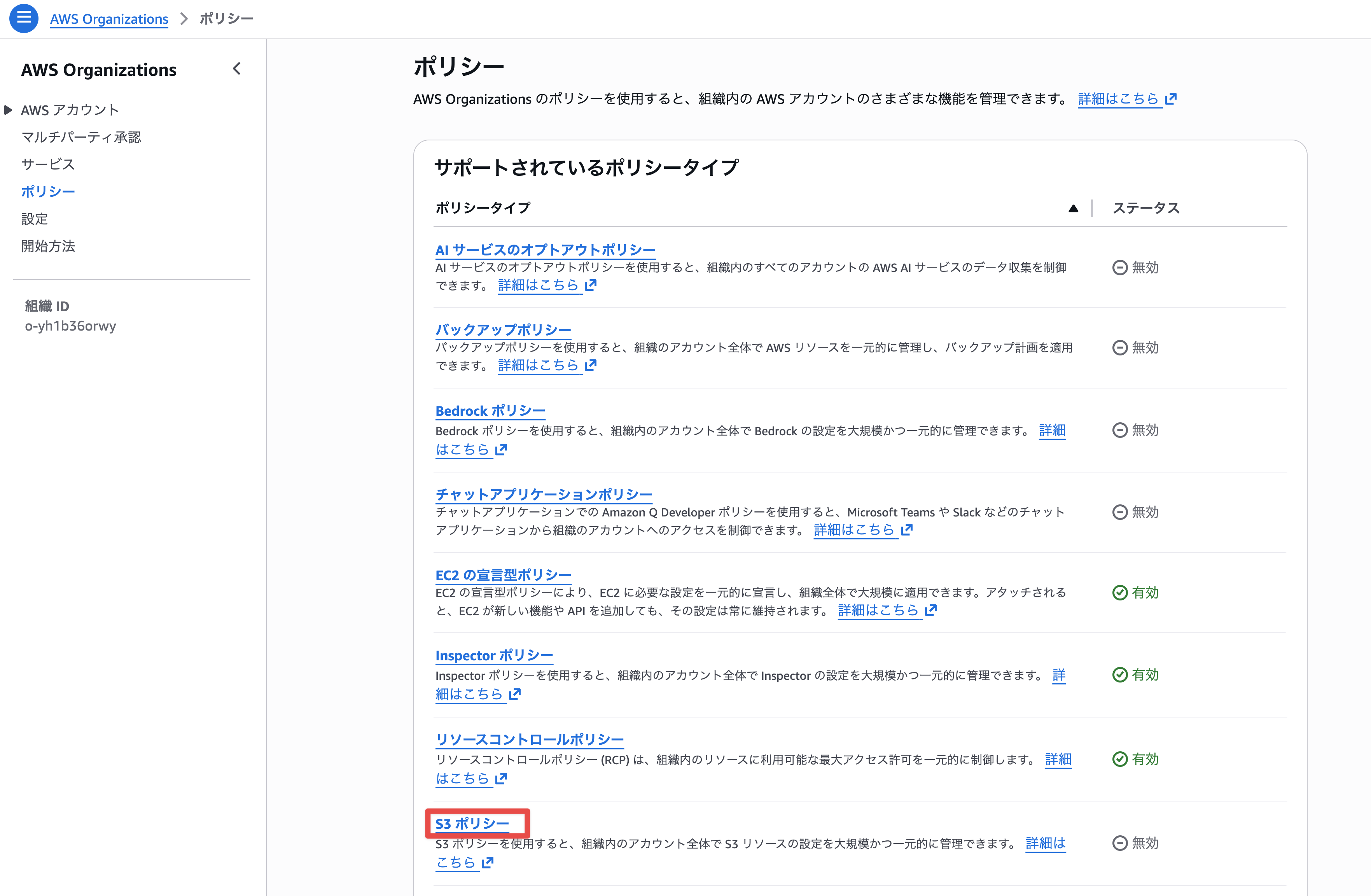
I switched to the Organizations management account and selected S3 policy from the policy tab.
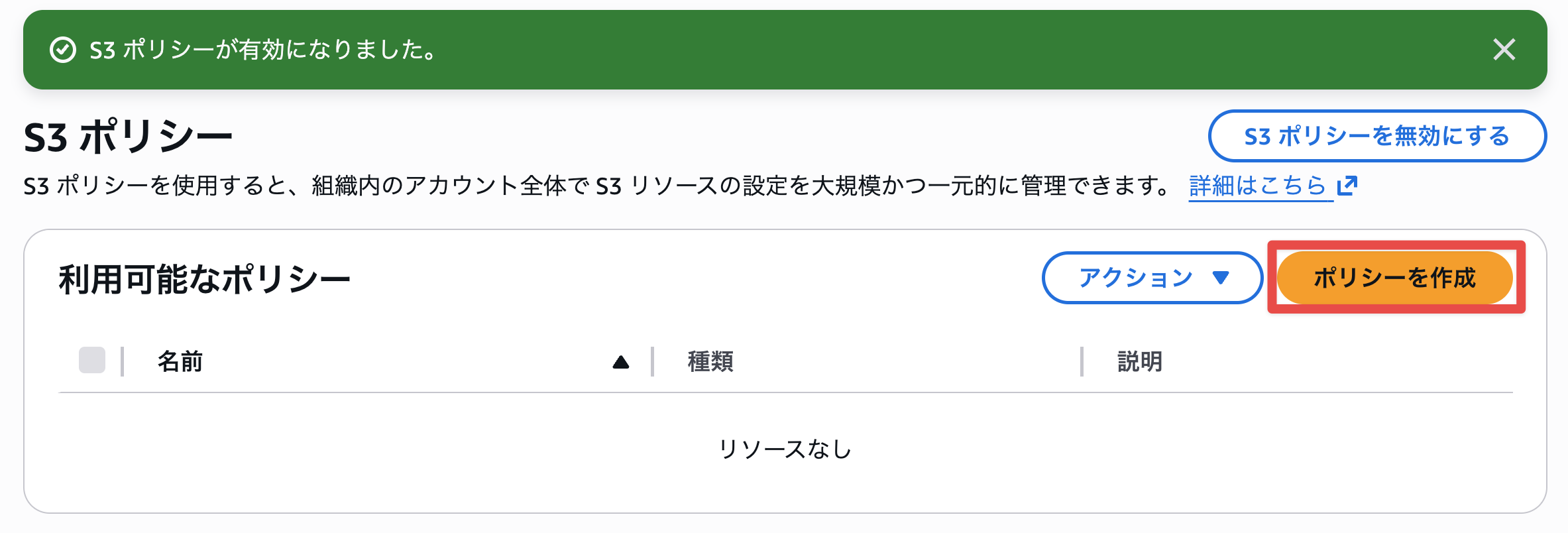
I enabled the S3 policy.

Successfully enabled. Now creating a policy.
I entered a policy name and checked Block all public access in the S3 Block Public Access settings. It was convenient to be able to use the visual editor.
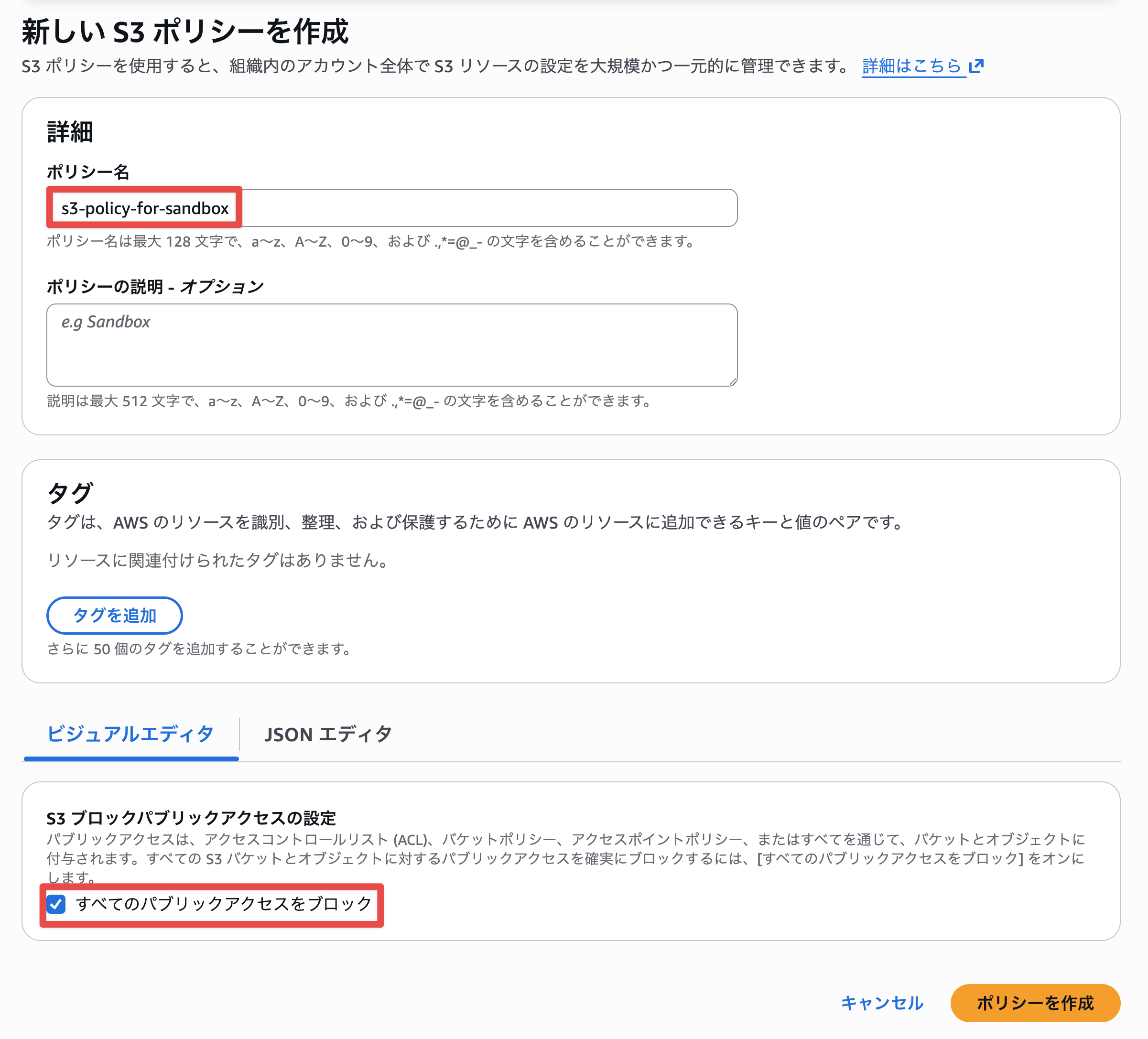
Settings can also be viewed in the JSON editor. Checking the box sets "@@assign": "all", unchecking sets "@@assign": "none".
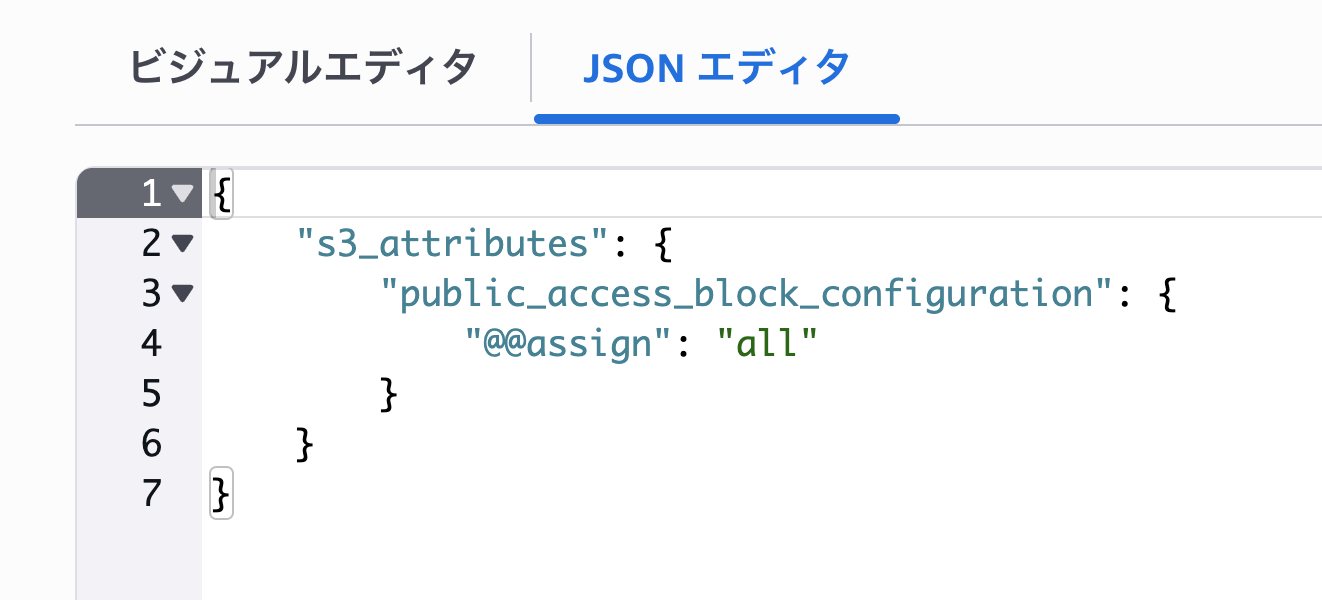
I could also edit from the JSON editor, and changes made there were reflected in the visual editor settings.
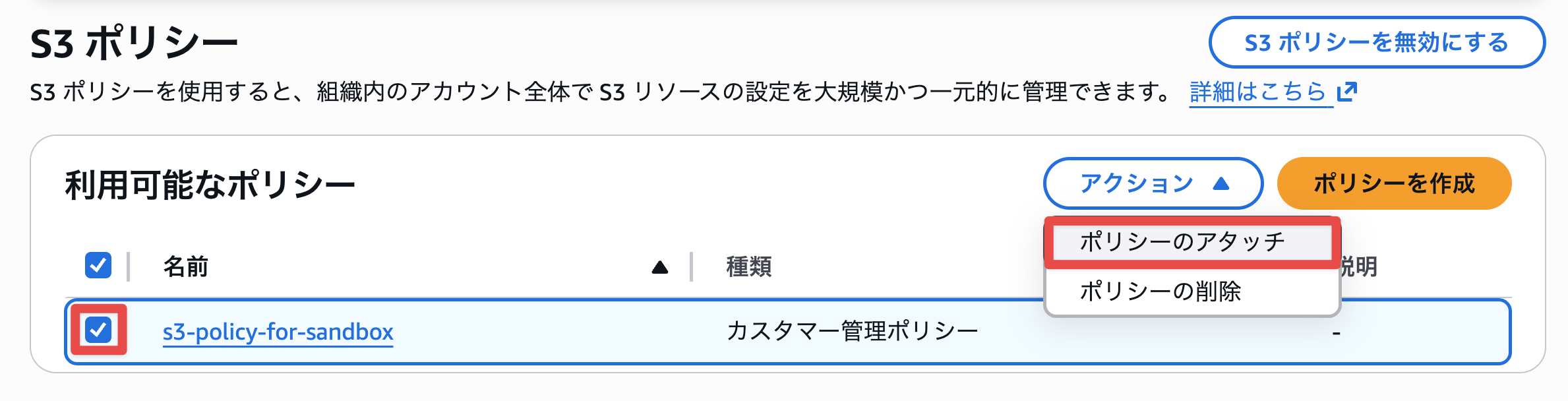
I created the policy and selected policy attachment.
I selected the Sandbox OU and attached the policy.
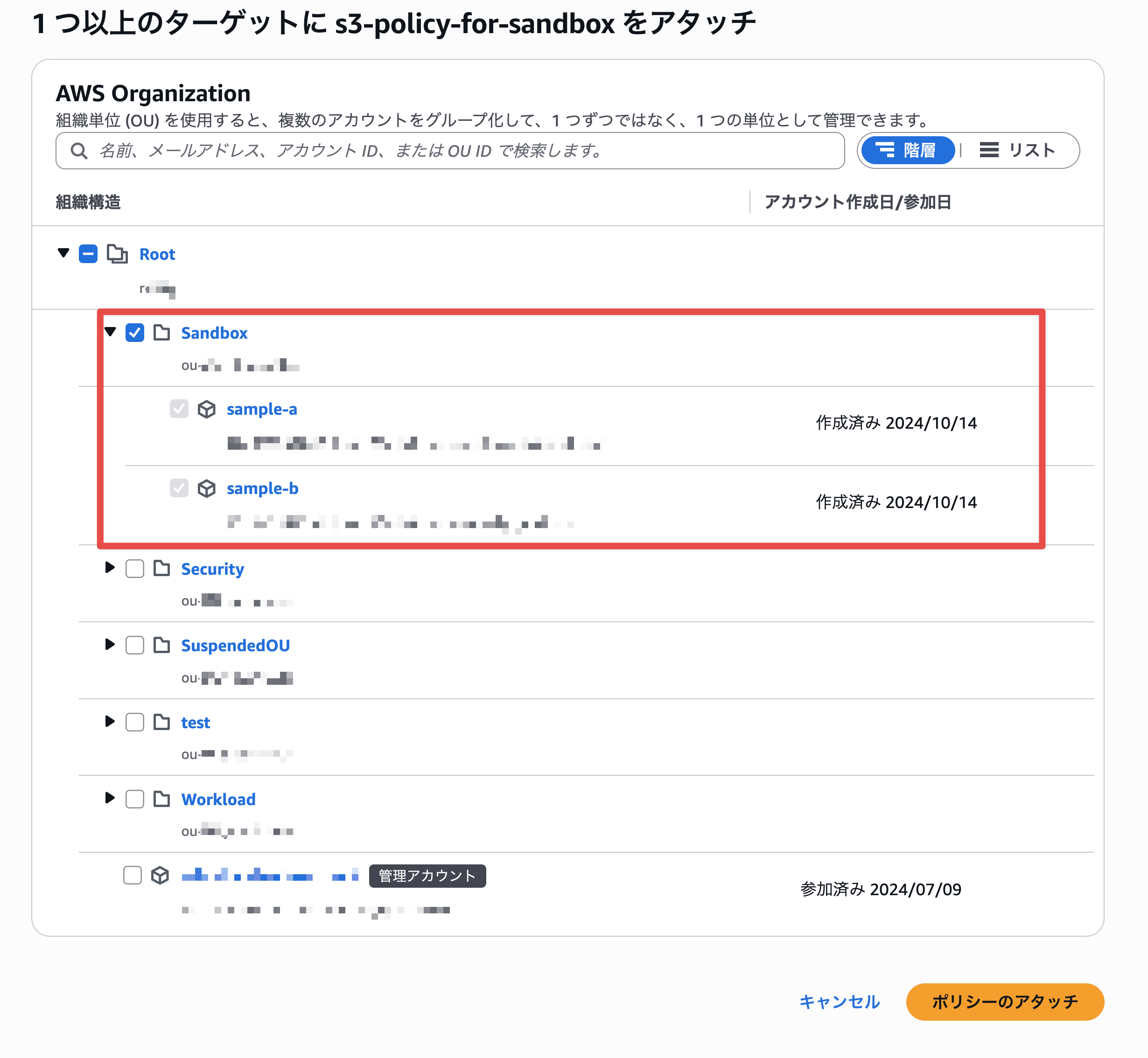
Successfully attached the policy to the Sandbox OU.
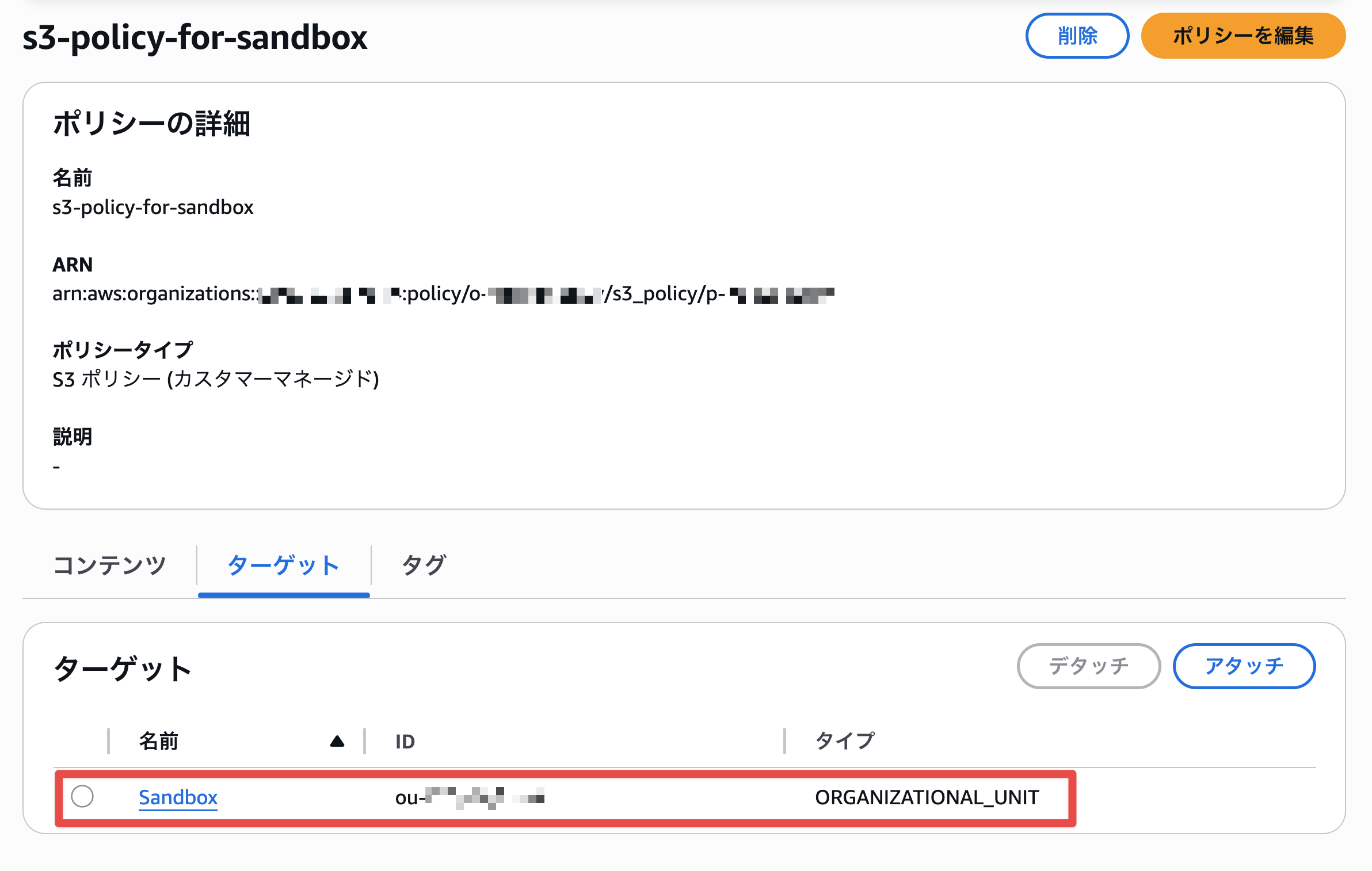
Now, let's switch to a member account under the Sandbox OU to check the S3 BPA settings.
The account-level S3 BPA setting was enabled.
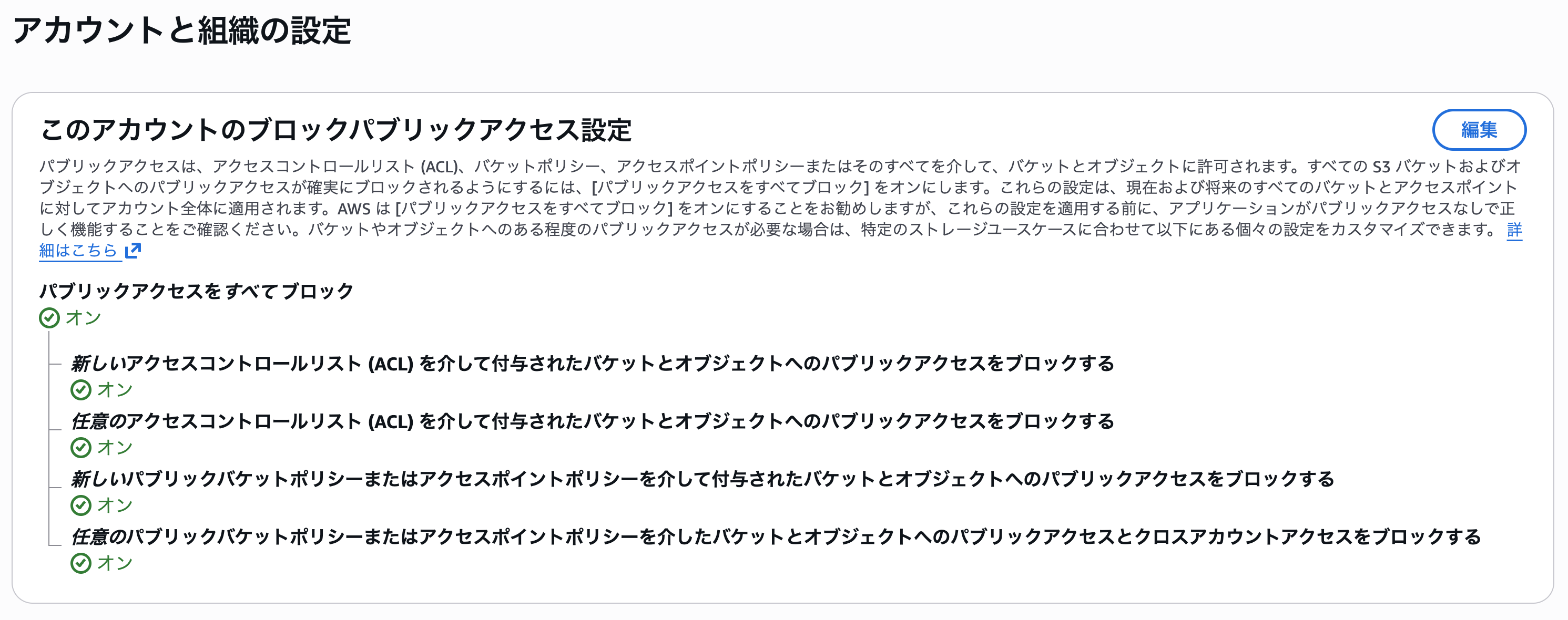
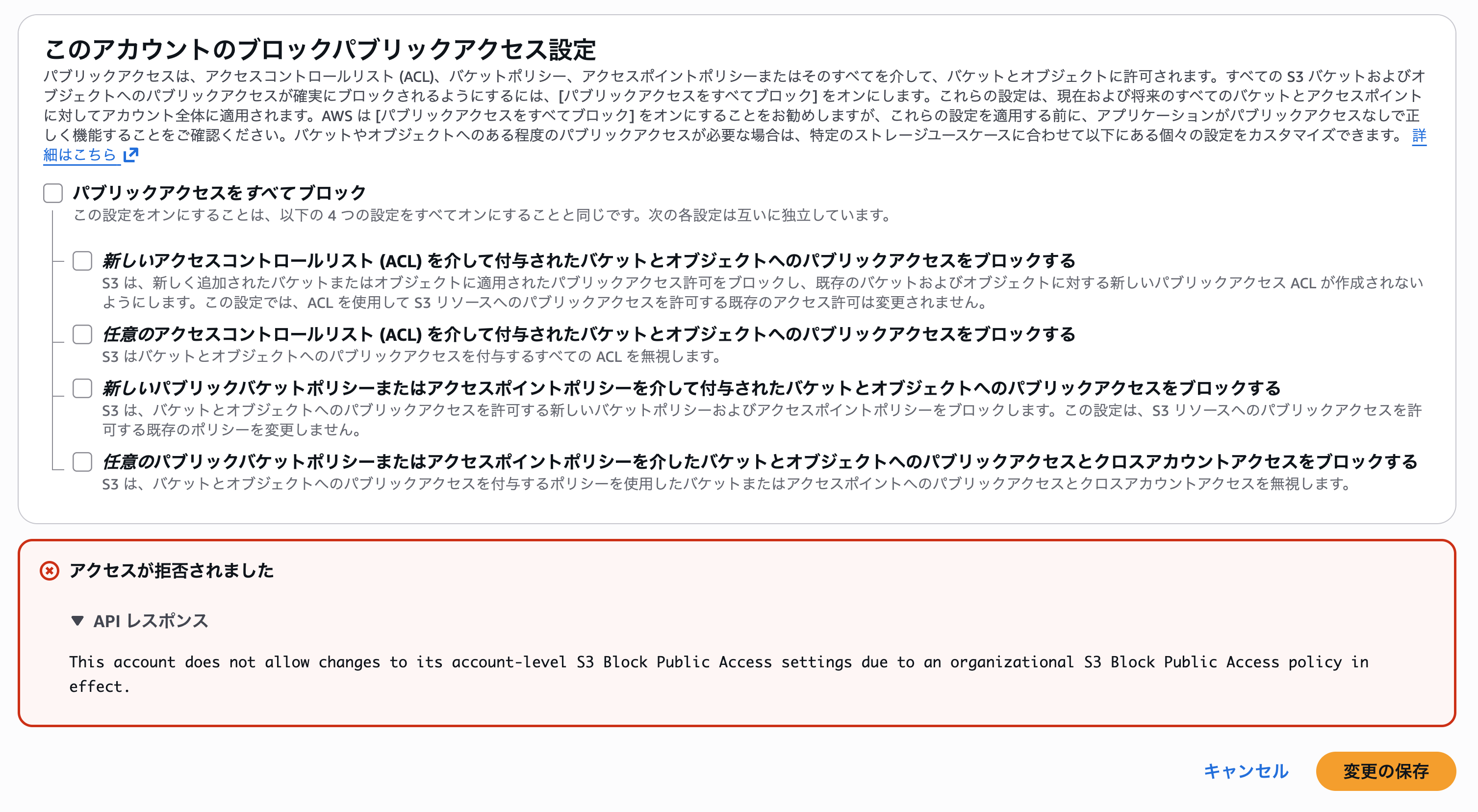
When I tried to disable the setting, I got the following API error with access denied. This was expected:
This account does not allow changes to its account-level S3 Block Public Access settings due to an organizational S3 Block Public Access policy in effect.
Conclusion
In this blog, I introduced and tested the "S3 Policy," a management policy added to AWS Organizations in this update.
Previously, to control S3 BPA settings across Organizations, a two-step approach was required: enable account-level BPA and then prohibit changes using SCPs. Additionally, a separate mechanism was needed to enable BPA each time a new account was created, which was a subtle but real hassle.
The new S3 policy enables all of this in one stop, which is extremely helpful. The configuration is simple and can be completed with just a few clicks in the visual editor.
Recently, many management policies have been added to Organizations, making it increasingly easier to strengthen governance in multi-account environments. I hope this trend continues.
If you're concerned about S3 public access settings, please give this a try.
That's all.