検証用の Azure Application Gateway を構築できるように Bicep テンプレートやスクリプトなどを整備してみた

いわさです。
Microsoft Azure には Azure Application Gateway というサービスがあります。
たまに検証したい時があるのですが、Azure Application Gateway は設定項目が多く、プロビジョニングのリードタイムもかかります。
そこで今回 macOS 上で気軽に検証できるようにスクリプトやテンプレートを作成しました。
テンプレート&スクリプト
Bicepのテンプレートを用意しました。以下のリポジトリにアップロードしています。
加えて、HTTPS リスナーも構築したかったので TLS/SSL 証明書をインポートできるように自己署名証明書の作成スクリプトも用意しています。
以下の3つをローカル環境に配置し、deploy.shを実行するような使い方を想定しています。
Application Gateway の SKU はStandard_v2です、カスタムオリジンでhttps://classmethod.jpが設定されています。ここは適宜修正してください。
param location string = resourceGroup().location
param appGwName string = 'appgw-${uniqueString(resourceGroup().id)}'
param backendFqdn string = 'classmethod.jp'
param certData string
param certPassword string

resource vnet 'Microsoft.Network/virtualNetworks@2023-05-01' = {
  name: 'vnet-appgw'
  location: location
  properties: {
    addressSpace: {
      addressPrefixes: ['10.0.0.0/16']
    }
    subnets: [
      {
        name: 'appgw-subnet'
        properties: {
          addressPrefix: '10.0.0.0/24'
        }
      }
    ]
  }
}

resource pip 'Microsoft.Network/publicIPAddresses@2023-05-01' = {
  name: 'pip-appgw'
  location: location
  sku: {
    name: 'Standard'
  }
  properties: {
    publicIPAllocationMethod: 'Static'
  }
}

resource appgw 'Microsoft.Network/applicationGateways@2023-05-01' = {
  name: appGwName
  location: location
  properties: {
    sku: {
      name: 'Standard_v2'
      tier: 'Standard_v2'
      capacity: 1
    }
    gatewayIPConfigurations: [
      {
        name: 'appgw-ip-config'
        properties: {
          subnet: {
            id: vnet.properties.subnets[0].id
          }
        }
      }
    ]
    sslCertificates: [
      {
        name: 'appgw-ssl-cert'
        properties: {
          data: certData
          password: certPassword
        }
      }
    ]
    frontendIPConfigurations: [
      {
        name: 'appgw-frontend-ip'
        properties: {
          publicIPAddress: {
            id: pip.id
          }
        }
      }
    ]
    frontendPorts: [
      {
        name: 'port-80'
        properties: {
          port: 80
        }
      }
      {
        name: 'port-443'
        properties: {
          port: 443
        }
      }
    ]
    backendAddressPools: [
      {
        name: 'backend-pool'
        properties: {
          backendAddresses: [
            {
              fqdn: backendFqdn
            }
          ]
        }
      }
    ]
    backendHttpSettingsCollection: [
      {
        name: 'backend-http-settings'
        properties: {
          port: 443
          protocol: 'Https'
          cookieBasedAffinity: 'Disabled'
          pickHostNameFromBackendAddress: true
          requestTimeout: 30
        }
      }
    ]
    httpListeners: [
      {
        name: 'http-listener'
        properties: {
          frontendIPConfiguration: {
            id: resourceId('Microsoft.Network/applicationGateways/frontendIPConfigurations', appGwName, 'appgw-frontend-ip')
          }
          frontendPort: {
            id: resourceId('Microsoft.Network/applicationGateways/frontendPorts', appGwName, 'port-80')
          }
          protocol: 'Http'
        }
      }
      {
        name: 'https-listener'
        properties: {
          frontendIPConfiguration: {
            id: resourceId('Microsoft.Network/applicationGateways/frontendIPConfigurations', appGwName, 'appgw-frontend-ip')
          }
          frontendPort: {
            id: resourceId('Microsoft.Network/applicationGateways/frontendPorts', appGwName, 'port-443')
          }
          protocol: 'Https'
          sslCertificate: {
            id: resourceId('Microsoft.Network/applicationGateways/sslCertificates', appGwName, 'appgw-ssl-cert')
          }
        }
      }
    ]
    requestRoutingRules: [
      {
        name: 'routing-rule-http'
        properties: {
          ruleType: 'Basic'
          priority: 100
          httpListener: {
            id: resourceId('Microsoft.Network/applicationGateways/httpListeners', appGwName, 'http-listener')
          }
          backendAddressPool: {
            id: resourceId('Microsoft.Network/applicationGateways/backendAddressPools', appGwName, 'backend-pool')
          }
          backendHttpSettings: {
            id: resourceId('Microsoft.Network/applicationGateways/backendHttpSettingsCollection', appGwName, 'backend-http-settings')
          }
        }
      }
      {
        name: 'routing-rule-https'
        properties: {
          ruleType: 'Basic'
          priority: 200
          httpListener: {
            id: resourceId('Microsoft.Network/applicationGateways/httpListeners', appGwName, 'https-listener')
          }
          backendAddressPool: {
            id: resourceId('Microsoft.Network/applicationGateways/backendAddressPools', appGwName, 'backend-pool')
          }
          backendHttpSettings: {
            id: resourceId('Microsoft.Network/applicationGateways/backendHttpSettingsCollection', appGwName, 'backend-http-settings')
          }
        }
      }
    ]
  }
}

output publicIpAddress string = pip.properties.ipAddress
output appGwName string = appgw.name
自己署名証明書は以下のスクリプトで作成します。
CNはexample.comを指定しています。証明書エラーを無視できるのであればこのままでも良いです。
#!/bin/bash

openssl req -x509 -newkey rsa:2048 -keyout appgw-cert.key -out appgw-cert.crt -days 365 -nodes \
  -subj "/C=JP/ST=Tokyo/L=Tokyo/O=Test/CN=*.example.com"

openssl pkcs12 -export -out appgw-cert.pfx -inkey appgw-cert.key -in appgw-cert.crt -passout pass:P@ssw0rd123

echo "Certificate created: appgw-cert.pfx (password: P@ssw0rd123)"
以下のスクリプトでデプロイを行います。
東日本リージョンへリソースグループの作成から行います。
#!/bin/bash

RESOURCE_GROUP="rg-appgw-test"
LOCATION="japaneast"
CERT_PASSWORD="P@ssw0rd123"

if [ ! -f appgw-cert.pfx ]; then
  echo "Certificate not found. Generating..."
  ./generate-cert.sh
fi

CERT_DATA=$(cat appgw-cert.pfx | base64 -w 0 2>/dev/null || cat appgw-cert.pfx | base64)

echo "Creating resource group..."
az group create --name $RESOURCE_GROUP --location $LOCATION

echo "Deploying Application Gateway..."
DEPLOYMENT_NAME="appgw-$(date +%s)"
az deployment group create \
  --resource-group $RESOURCE_GROUP \
  --name $DEPLOYMENT_NAME \
  --template-file appgw.bicep \
  --parameters certData="$CERT_DATA" certPassword="$CERT_PASSWORD"

echo "Deployment complete!"
echo "Getting Public IP..."
az deployment group show \
  --resource-group $RESOURCE_GROUP \
  --name $DEPLOYMENT_NAME \
  --query properties.outputs.publicIpAddress.value -o tsv
実行
あとはdeploy.shを実行するだけです。事前にaz loginだけ済ませておきましょう。
% ./deploy.sh
Creating resource group...
{
  "id": "/subscriptions/a50aeedb-979c-428f-8b2d-28974d5e3d3b/resourceGroups/rg-appgw-test",
  "location": "japaneast",
  "managedBy": null,
  "name": "rg-appgw-test",
  "properties": {
    "provisioningState": "Succeeded"
  },
  "tags": null,
  "type": "Microsoft.Resources/resourceGroups"
}
Deploying Application Gateway...

:

Deployment complete!
Getting Public IP...
4.214.28.6
完了するまで数分かかりますが、デプロイされヘルスチェックまで成功すればスクリプトは正常終了します。
表示された IP アドレスにブラウザにアクセスしてみましょう。
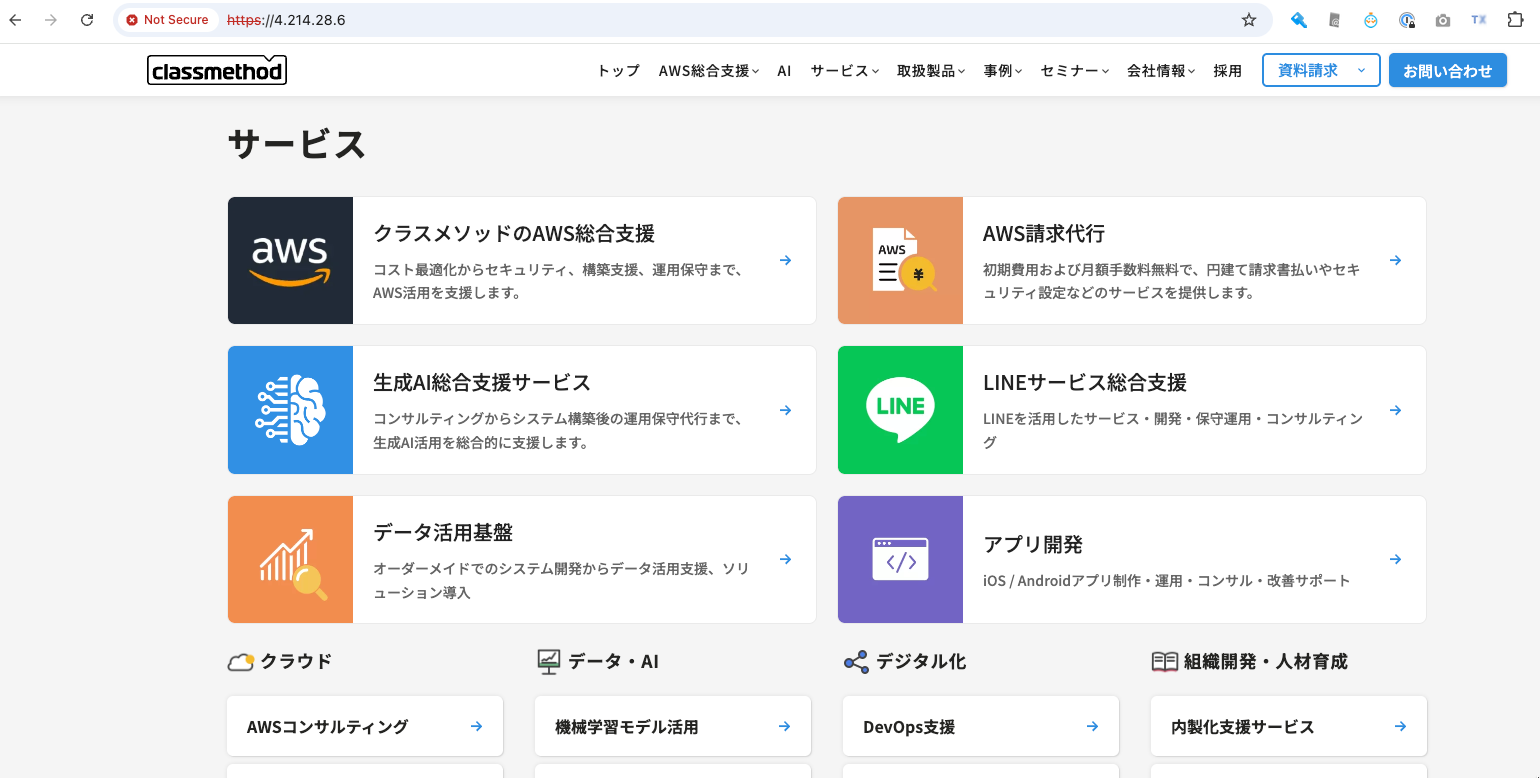
無事 Application Gateway 経由でアクセスすることが出来ました。
さいごに
本日は検証用の Azure Application Gateway を構築できるように Bicep テンプレートやスクリプトなどを整備してみました。
今後 Application Gateway や WAF の検証を行う時に使いたいと思います。