GitHub Actions で ECS Fargate へのデプロイパイプラインを作ってみた

GitHub Actions から Amazon ECS Fargate にコンテナアプリをデプロイしてみました。
GitHub 公式のチュートリアルを参考にしました。
構成
GitHub Actions用のOIDC用IAMロールや、デプロイ先のECSサービスはCloudFormationで作成しました。
| テンプレート | 役割 | 実行頻度 |
|---|---|---|
oidc.yaml |
GitHub OIDC Provider と GitHub Actions が assume する IAM ロール | アカウントで一度だけ |
app-resources.yaml |
VPC・ECR・ALB・ECS クラスタ/サービス | アプリごと |
前提
- AWS アカウントと、CloudFormation を実行できる権限
- GitHub アカウントと、ワークフローを作成できるリポジトリ
- ECS Fargate の基本(タスク定義・サービス・クラスタの関係)を理解している
CloudFormation のデプロイは AWS CloudShell から実行する想定です。手元の AWS CLI でも構いませんが、CloudShell ならクレデンシャル設定不要で aws コマンドが使えます。CloudShell でのテンプレートアップロードと aws cloudformation deploy の流れは以下の記事が参考になります。
OIDC 用テンプレート
AWSTemplateFormatVersion: '2010-09-09'
Description: GitHub Actions OIDC provider and IAM role for ECS deploy hands-on

Parameters:
  GitHubOrg:
    Type: String
    Description: GitHub owner / organization name
  GitHubRepo:
    Type: String
    Description: GitHub repository name
  RoleName:
    Type: String
    Default: HandsOnGitHubOIDCRole
  ExistingOidcProviderArn:
    Type: String
    Description: |
      ARN of an existing GitHub OIDC provider in this account, if any.
      Leave empty to create a new one.
    Default: ''

Conditions:
  CreateOidcProvider: !Equals [!Ref ExistingOidcProviderArn, '']

Resources:
  GitHubOIDCProvider:
    Type: AWS::IAM::OIDCProvider
    Condition: CreateOidcProvider
    Properties:
      Url: https://token.actions.githubusercontent.com
      ClientIdList:
        - sts.amazonaws.com

  GitHubActionsRole:
    Type: AWS::IAM::Role
    Properties:
      RoleName: !Ref RoleName
      AssumeRolePolicyDocument:
        Version: '2012-10-17'
        Statement:
          - Effect: Allow
            Principal:
              Federated: !If
                - CreateOidcProvider
                - !Ref GitHubOIDCProvider
                - !Ref ExistingOidcProviderArn
            Action: sts:AssumeRoleWithWebIdentity
            Condition:
              StringEquals:
                token.actions.githubusercontent.com:aud: sts.amazonaws.com
              StringLike:
                token.actions.githubusercontent.com:sub: !Sub repo:${GitHubOrg}/${GitHubRepo}:ref:refs/heads/*
      Policies:
        - PolicyName: EcrPushPull
          PolicyDocument:
            Version: '2012-10-17'
            Statement:
              - Effect: Allow
                Action:
                  - ecr:GetAuthorizationToken
                Resource: '*'
              - Effect: Allow
                Action:
                  - ecr:BatchCheckLayerAvailability
                  - ecr:GetDownloadUrlForLayer
                  - ecr:BatchGetImage
                  - ecr:InitiateLayerUpload
                  - ecr:UploadLayerPart
                  - ecr:CompleteLayerUpload
                  - ecr:PutImage
                Resource: !Sub arn:${AWS::Partition}:ecr:${AWS::Region}:${AWS::AccountId}:repository/handson-app-*
        - PolicyName: EcsDeploy
          PolicyDocument:
            Version: '2012-10-17'
            Statement:
              - Effect: Allow
                Action:
                  - ecs:DescribeServices
                  - ecs:DescribeTaskDefinition
                  - ecs:DescribeTasks
                  - ecs:ListTasks
                  - ecs:RegisterTaskDefinition
                  - ecs:UpdateService
                Resource: '*'
        - PolicyName: PassRoleToEcsTasks
          PolicyDocument:
            Version: '2012-10-17'
            Statement:
              - Effect: Allow
                Action:
                  - iam:PassRole
                Resource:
                  - !Sub arn:${AWS::Partition}:iam::${AWS::AccountId}:role/handson-task-execution-role-*
                  - !Sub arn:${AWS::Partition}:iam::${AWS::AccountId}:role/handson-task-role-*

Outputs:
  RoleArn:
    Value: !GetAtt GitHubActionsRole.Arn
  OidcProviderArn:
    Value: !If
      - CreateOidcProvider
      - !Ref GitHubOIDCProvider
      - !Ref ExistingOidcProviderArn
OIDC Provider は AWS アカウントに同じ issuer URL のものを1つしか作れません。すでにある場合は ExistingOidcProviderArn に既存 ARN を渡せば Provider 作成をスキップして trust policy だけ作ります。
trust 条件 repo:${GitHubOrg}/${GitHubRepo}:ref:refs/heads/* で対象リポジトリの全ブランチからの push を許可しています。検証用に広めにしているので、本番運用するなら ref:refs/heads/main のようにデプロイ元のブランチを絞っておくのが安全です。
sub クレームの形式は GitHub 公式ドキュメントをご参照ください。
デプロイします。
aws cloudformation deploy \
  --template-file oidc.yaml \
  --stack-name handson-oidc \
  --capabilities CAPABILITY_NAMED_IAM \
  --parameter-overrides \
      GitHubOrg=<your-github-org> \
      GitHubRepo=<your-repo-name> \
  --region ap-northeast-1
Outputs から Role ARN を控えます。
aws cloudformation describe-stacks \
  --stack-name handson-oidc \
  --region ap-northeast-1 \
  --query 'Stacks[0].Outputs'
控えた Role ARN は GitHub リポジトリの Secrets に登録します。後で書くワークフローからは ${{ secrets.AWS_ROLE_ARN }} で参照するので、ARN をワークフローファイルに直接書く必要がなくなります。
GitHub の Web UI から登録する場合は、対象リポジトリの Settings → Secrets and variables → Actions → New repository secret を開いて、以下のように設定します。
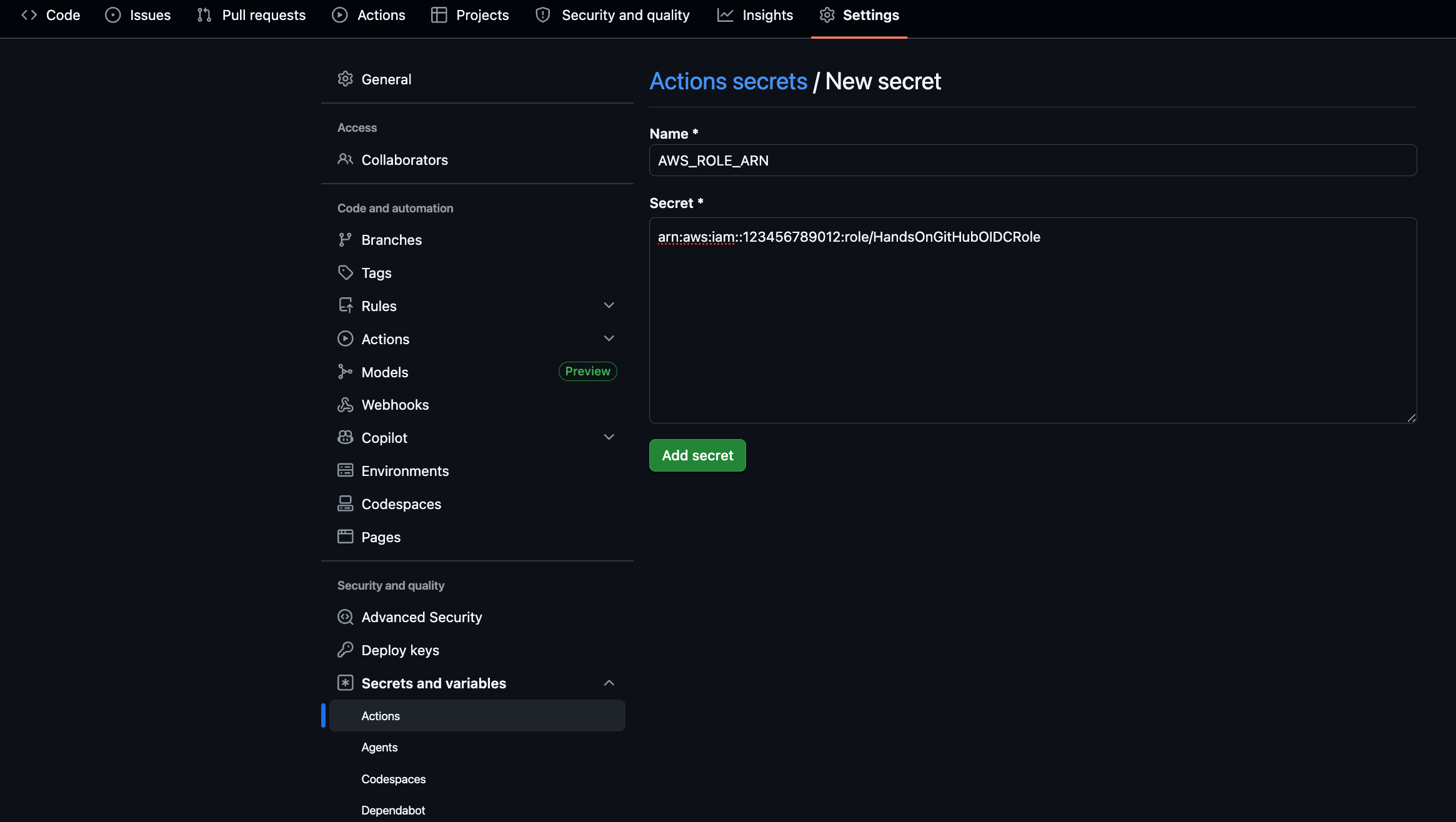
- Name:
AWS_ROLE_ARN - Secret: 上で控えた Role ARN(例:
arn:aws:iam::123456789012:role/HandsOnGitHubOIDCRole)
gh CLI から登録する場合は以下のコマンドです。
gh secret set AWS_ROLE_ARN \
  --repo <your-github-org>/<your-repo-name> \
  --body "<role-arn-from-cfn-outputs>"
アプリリソース用テンプレート
VPC・ECR・ALB・ECS クラスタ/サービス・関連ロールを別テンプレートで一括作成します。
AWSTemplateFormatVersion: '2010-09-09'
Description: VPC / ECR / ALB / ECS Fargate resources for GitHub Actions deploy hands-on

Parameters:
  UserSuffix:
    Type: String
    Default: taro-yamada
    AllowedPattern: '^[a-z0-9-]{1,20}$'
    ConstraintDescription: lowercase letters, numbers, and hyphens only (max 20 chars)

Resources:
  # ---- VPC ----
  Vpc:
    Type: AWS::EC2::VPC
    Properties:
      CidrBlock: 10.0.0.0/16
      EnableDnsSupport: true
      EnableDnsHostnames: true
      Tags:
        - Key: Name
          Value: !Sub handson-vpc-${UserSuffix}

  InternetGateway:
    Type: AWS::EC2::InternetGateway
    Properties:
      Tags:
        - Key: Name
          Value: !Sub handson-igw-${UserSuffix}

  InternetGatewayAttachment:
    Type: AWS::EC2::VPCGatewayAttachment
    Properties:
      VpcId: !Ref Vpc
      InternetGatewayId: !Ref InternetGateway

  PublicSubnet1:
    Type: AWS::EC2::Subnet
    Properties:
      VpcId: !Ref Vpc
      CidrBlock: 10.0.1.0/24
      AvailabilityZone: !Select [0, !GetAZs '']
      MapPublicIpOnLaunch: true
      Tags:
        - Key: Name
          Value: !Sub handson-public-1-${UserSuffix}

  PublicSubnet2:
    Type: AWS::EC2::Subnet
    Properties:
      VpcId: !Ref Vpc
      CidrBlock: 10.0.2.0/24
      AvailabilityZone: !Select [1, !GetAZs '']
      MapPublicIpOnLaunch: true
      Tags:
        - Key: Name
          Value: !Sub handson-public-2-${UserSuffix}

  PublicRouteTable:
    Type: AWS::EC2::RouteTable
    Properties:
      VpcId: !Ref Vpc
      Tags:
        - Key: Name
          Value: !Sub handson-public-rt-${UserSuffix}

  DefaultPublicRoute:
    Type: AWS::EC2::Route
    DependsOn: InternetGatewayAttachment
    Properties:
      RouteTableId: !Ref PublicRouteTable
      DestinationCidrBlock: 0.0.0.0/0
      GatewayId: !Ref InternetGateway

  PublicSubnet1RouteTableAssociation:
    Type: AWS::EC2::SubnetRouteTableAssociation
    Properties:
      RouteTableId: !Ref PublicRouteTable
      SubnetId: !Ref PublicSubnet1

  PublicSubnet2RouteTableAssociation:
    Type: AWS::EC2::SubnetRouteTableAssociation
    Properties:
      RouteTableId: !Ref PublicRouteTable
      SubnetId: !Ref PublicSubnet2

  # ---- ECR ----
  EcrRepository:
    Type: AWS::ECR::Repository
    Properties:
      RepositoryName: !Sub handson-app-${UserSuffix}
      EmptyOnDelete: true
      ImageScanningConfiguration:
        ScanOnPush: true

  # ---- Security Groups ----
  AlbSecurityGroup:
    Type: AWS::EC2::SecurityGroup
    Properties:
      GroupName: !Sub handson-alb-sg-${UserSuffix}
      GroupDescription: Allow inbound HTTP for ALB
      VpcId: !Ref Vpc
      SecurityGroupIngress:
        - IpProtocol: tcp
          FromPort: 80
          ToPort: 80
          CidrIp: 0.0.0.0/0
          Description: HTTP from anywhere

  TaskSecurityGroup:
    Type: AWS::EC2::SecurityGroup
    Properties:
      GroupName: !Sub handson-task-sg-${UserSuffix}
      GroupDescription: Allow inbound from ALB to ECS task
      VpcId: !Ref Vpc
      SecurityGroupIngress:
        - IpProtocol: tcp
          FromPort: 80
          ToPort: 80
          SourceSecurityGroupId: !Ref AlbSecurityGroup
          Description: HTTP from ALB

  # ---- ALB ----
  LoadBalancer:
    Type: AWS::ElasticLoadBalancingV2::LoadBalancer
    Properties:
      Name: !Sub handson-alb-${UserSuffix}
      Type: application
      Scheme: internet-facing
      Subnets:
        - !Ref PublicSubnet1
        - !Ref PublicSubnet2
      SecurityGroups:
        - !Ref AlbSecurityGroup

  TargetGroup:
    Type: AWS::ElasticLoadBalancingV2::TargetGroup
    Properties:
      Name: !Sub handson-tg-${UserSuffix}
      VpcId: !Ref Vpc
      Protocol: HTTP
      Port: 80
      TargetType: ip
      HealthCheckPath: /
      HealthCheckIntervalSeconds: 5
      HealthCheckTimeoutSeconds: 2
      HealthyThresholdCount: 2
      UnhealthyThresholdCount: 2
      TargetGroupAttributes:
        - Key: deregistration_delay.timeout_seconds
          Value: '5'

  Listener:
    Type: AWS::ElasticLoadBalancingV2::Listener
    Properties:
      LoadBalancerArn: !Ref LoadBalancer
      Protocol: HTTP
      Port: 80
      DefaultActions:
        - Type: forward
          TargetGroupArn: !Ref TargetGroup

  # ---- IAM ----
  TaskExecutionRole:
    Type: AWS::IAM::Role
    Properties:
      RoleName: !Sub handson-task-execution-role-${UserSuffix}
      AssumeRolePolicyDocument:
        Version: '2012-10-17'
        Statement:
          - Effect: Allow
            Principal:
              Service: ecs-tasks.amazonaws.com
            Action: sts:AssumeRole
      ManagedPolicyArns:
        - arn:aws:iam::aws:policy/service-role/AmazonECSTaskExecutionRolePolicy

  TaskRole:
    Type: AWS::IAM::Role
    Properties:
      RoleName: !Sub handson-task-role-${UserSuffix}
      AssumeRolePolicyDocument:
        Version: '2012-10-17'
        Statement:
          - Effect: Allow
            Principal:
              Service: ecs-tasks.amazonaws.com
            Action: sts:AssumeRole

  # ---- Logs ----
  LogGroup:
    Type: AWS::Logs::LogGroup
    Properties:
      LogGroupName: !Sub /ecs/handson-${UserSuffix}
      RetentionInDays: 1

  # ---- ECS ----
  Cluster:
    Type: AWS::ECS::Cluster
    Properties:
      ClusterName: !Sub handson-cluster-${UserSuffix}

  TaskDefinition:
    Type: AWS::ECS::TaskDefinition
    Properties:
      Family: !Sub handson-task-${UserSuffix}
      RequiresCompatibilities:
        - FARGATE
      NetworkMode: awsvpc
      Cpu: '256'
      Memory: '512'
      ExecutionRoleArn: !GetAtt TaskExecutionRole.Arn
      TaskRoleArn: !GetAtt TaskRole.Arn
      ContainerDefinitions:
        - Name: app
          Image: public.ecr.aws/nginx/nginx:alpine
          Essential: true
          StopTimeout: 2
          PortMappings:
            - ContainerPort: 80
              Protocol: tcp
          LogConfiguration:
            LogDriver: awslogs
            Options:
              awslogs-group: !Ref LogGroup
              awslogs-region: !Ref AWS::Region
              awslogs-stream-prefix: app

  Service:
    Type: AWS::ECS::Service
    DependsOn: Listener
    Properties:
      ServiceName: !Sub handson-service-${UserSuffix}
      Cluster: !Ref Cluster
      TaskDefinition: !Ref TaskDefinition
      LaunchType: FARGATE
      DesiredCount: 1
      DeploymentConfiguration:
        MinimumHealthyPercent: 0
        MaximumPercent: 100
      NetworkConfiguration:
        AwsvpcConfiguration:
          AssignPublicIp: ENABLED
          Subnets:
            - !Ref PublicSubnet1
            - !Ref PublicSubnet2
          SecurityGroups:
            - !Ref TaskSecurityGroup
      LoadBalancers:
        - ContainerName: app
          ContainerPort: 80
          TargetGroupArn: !Ref TargetGroup

Outputs:
  EcrRepositoryUri:
    Value: !GetAtt EcrRepository.RepositoryUri
  EcrRepositoryName:
    Value: !Ref EcrRepository
  AlbDnsName:
    Value: !GetAtt LoadBalancer.DNSName
  ClusterName:
    Value: !Ref Cluster
  ServiceName:
    Value: !GetAtt Service.Name
  TaskFamily:
    Value: !Sub handson-task-${UserSuffix}
  TaskExecutionRoleArn:
    Value: !GetAtt TaskExecutionRole.Arn
  TaskRoleArn:
    Value: !GetAtt TaskRole.Arn
  LogGroupName:
    Value: !Ref LogGroup
ECS Service は MinimumHealthyPercent: 0 / MaximumPercent: 100 にしています。旧タスクを止めてから新タスクを起動する単純な置き換えパターンで、検証サイクルを回すための割り切り設定です。
DesiredCount=1 だとこの間ダウンタイムが発生しますが、デプロイ検証の時間短縮のためこの設定にしています。
HealthCheckIntervalSeconds: 5 と deregistration_delay.timeout_seconds: 5、コンテナの StopTimeout: 2 も同じくデプロイ短縮目的です。詳しくは以下の記事が参考になります。
ECR の EmptyOnDelete: true は、スタック削除時にリポジトリ内のイメージを自動で消す設定です。これがないと「リポジトリにイメージが残っている」エラーで CFn の delete が失敗します。
CFn 側で TaskDefinition を作っていますが、これは初回起動用の仮置きで、image にはプレースホルダの public.ecr.aws/nginx/nginx:alpine を入れています。GitHub Actions が走る前にも ECS Service が起動できるようにするためです。
以降の更新は CFn ではなく、リポジトリに置く task-definition.json(後述)を使ってワークフローが新しいリビジョンを登録し、Service が参照する TaskDefinition を切り替えます。
デプロイします。同じ値が以降のコマンドにも出てくるので、シェル変数で先頭にまとめておきます。taro-yamada の部分は自分の名前など、リソース名として使える文字列(小文字英数とハイフン、20文字以内)に置き換えてください。
USER_SUFFIX=taro-yamada
aws cloudformation deploy \
  --template-file app-resources.yaml \
  --stack-name handson-app-${USER_SUFFIX} \
  --capabilities CAPABILITY_NAMED_IAM \
  --parameter-overrides UserSuffix=${USER_SUFFIX} \
  --region ap-northeast-1
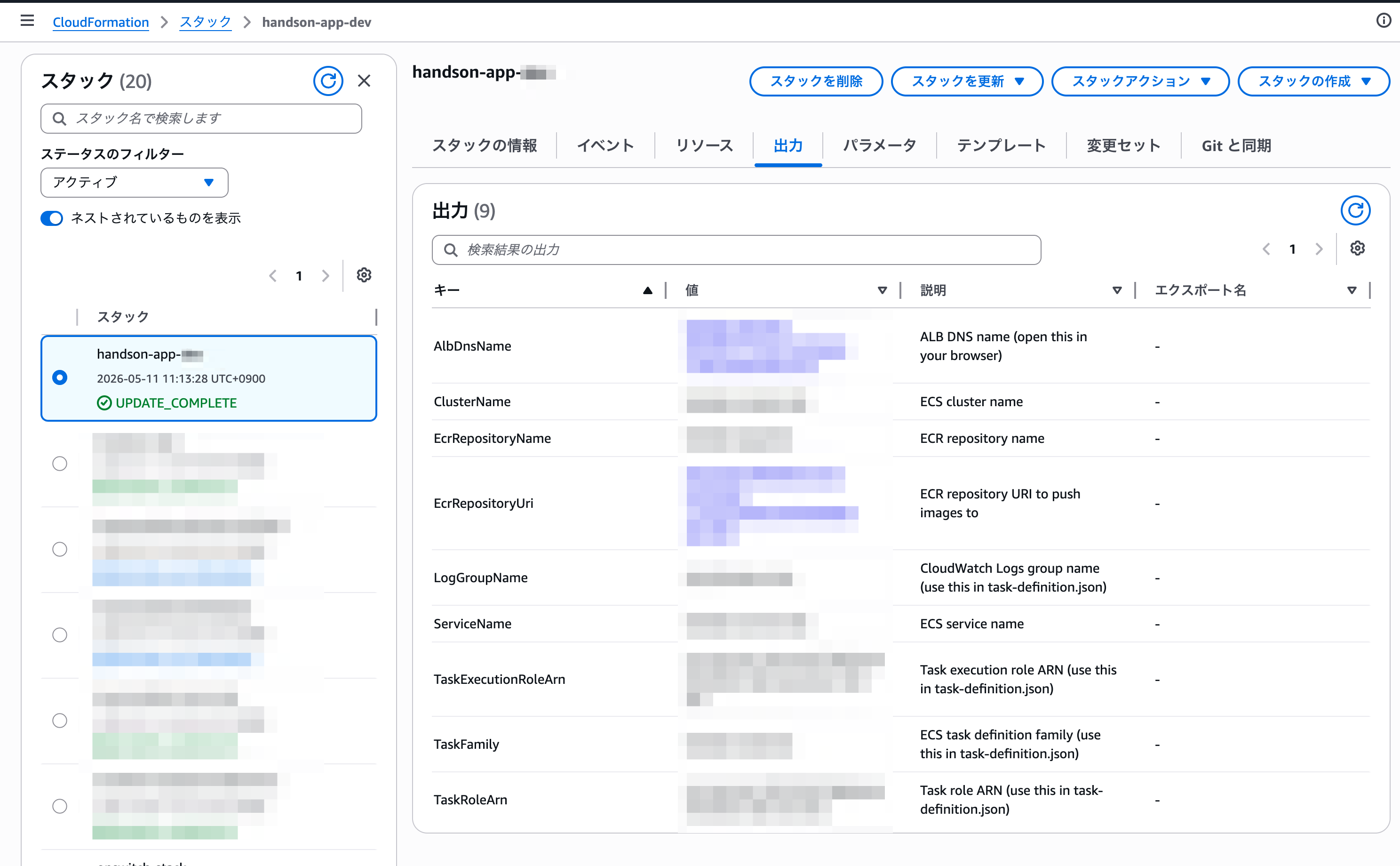
Outputs を取得して、後でワークフローと task-definition.json に書き写します。
aws cloudformation describe-stacks \
  --stack-name handson-app-${USER_SUFFIX} \
  --region ap-northeast-1 \
  --query 'Stacks[0].Outputs'
マネジメントコンソールの場合は、CloudFormation -> handson-app-${USER_SUFFIX} スタック -> 出力から確認できます。
ALB の DNS 名にブラウザでアクセスして nginx のデフォルトページが返れば、プレースホルダ image でサービスが正しく起動しています。
リポジトリの初期ファイル
GitHub にリポジトリを作って、以下のファイルを初期コミットします。
FROM nginx:alpine
COPY index.html /usr/share/nginx/html/index.html
<!DOCTYPE html>
<html lang="ja">
<head>
  <meta charset="utf-8">
  <title>Hands-on</title>
</head>
<body>
  <h1>Hello, ECS Fargate!</h1>
</body>
</html>
{
  "family": "handson-task-taro-yamada",
  "networkMode": "awsvpc",
  "requiresCompatibilities": ["FARGATE"],
  "cpu": "256",
  "memory": "512",
  "executionRoleArn": "arn:aws:iam::<your-account-id>:role/handson-task-execution-role-taro-yamada",
  "taskRoleArn": "arn:aws:iam::<your-account-id>:role/handson-task-role-taro-yamada",
  "containerDefinitions": [
    {
      "name": "app",
      "image": "public.ecr.aws/nginx/nginx:alpine",
      "essential": true,
      "portMappings": [
        {
          "containerPort": 80,
          "protocol": "tcp"
        }
      ],
      "logConfiguration": {
        "logDriver": "awslogs",
        "options": {
          "awslogs-group": "/ecs/handson-taro-yamada",
          "awslogs-region": "ap-northeast-1",
          "awslogs-stream-prefix": "app"
        }
      }
    }
  ]
}
task-definition.json の以下の箇所は自分の値に書き換えます。
| キー | 書き換え内容 |
|---|---|
family |
handson-task-<UserSuffix> |
executionRoleArn |
CFn Outputs の TaskExecutionRoleArn の値(<your-account-id> と <UserSuffix> を反映) |
taskRoleArn |
CFn Outputs の TaskRoleArn の値(<your-account-id> と <UserSuffix> を反映) |
awslogs-group |
/ecs/handson-<UserSuffix> |
image は触らなくて構いません。ワークフロー側で実際にビルドした ECR イメージの URI に置き換えられます。containerDefinitions[0].name の app は CFn の LoadBalancer 設定の ContainerName と一致させる必要があるので変えません。
ワークフロー
.github/workflows/deploy.yml を作成します。
name: Deploy to ECS
run-name: Deploy ${{ github.ref_name }}

on:
  push:
    branches:
      - '**'

permissions:
  id-token: write
  contents: read

env:
  AWS_REGION: ap-northeast-1
  ECR_REPOSITORY: handson-app-taro-yamada      # taro-yamada を自分の UserSuffix に置き換え
  ECS_CLUSTER: handson-cluster-taro-yamada     # taro-yamada を自分の UserSuffix に置き換え
  ECS_SERVICE: handson-service-taro-yamada     # taro-yamada を自分の UserSuffix に置き換え
  CONTAINER_NAME: app
  TASK_DEFINITION: task-definition.json

jobs:
  deploy:
    runs-on: ubuntu-latest
    steps:
      - uses: actions/checkout@v6

      - name: Configure AWS credentials
        uses: aws-actions/configure-aws-credentials@v6
        with:
          role-to-assume: ${{ secrets.AWS_ROLE_ARN }}
          aws-region: ${{ env.AWS_REGION }}

      - name: Login to Amazon ECR
        id: ecr
        uses: aws-actions/amazon-ecr-login@v2

      - name: Build, tag, and push image to ECR
        id: build
        run: |
          IMAGE=${{ steps.ecr.outputs.registry }}/${{ env.ECR_REPOSITORY }}:${{ github.sha }}
          docker build -t "$IMAGE" .
          docker push "$IMAGE"
          echo "image=$IMAGE" >> "$GITHUB_OUTPUT"

      - name: Render task definition
        id: render
        uses: aws-actions/amazon-ecs-render-task-definition@v1
        with:
          task-definition: ${{ env.TASK_DEFINITION }}
          container-name: ${{ env.CONTAINER_NAME }}
          image: ${{ steps.build.outputs.image }}

      - name: Deploy to ECS
        uses: aws-actions/amazon-ecs-deploy-task-definition@v2
        with:
          task-definition: ${{ steps.render.outputs.task-definition }}
          service: ${{ env.ECS_SERVICE }}
          cluster: ${{ env.ECS_CLUSTER }}
          wait-for-service-stability: true
各ステップの動きはこんな感じです。
configure-aws-credentials@v6: OIDC で IAM ロールを assume し、一時クレデンシャルを以降のステップに渡すamazon-ecr-login@v2: ECR の認証トークンを取得してdocker login相当を済ませるdocker build / push: コミット SHA をタグにしてイメージをビルド・pushamazon-ecs-render-task-definition@v1:task-definition.jsonの image だけを差し替えた新しい定義を出力amazon-ecs-deploy-task-definition@v2: 差し替え後の定義で新リビジョンを ECS に登録し、Service を更新。wait-for-service-stability: trueでロールアウト完了まで待機
env のうち、自分の値に書き換える箇所はこのあたりです。
| キー | 書き換え内容 |
|---|---|
ECR_REPOSITORY |
handson-app-<UserSuffix> |
ECS_CLUSTER |
handson-cluster-<UserSuffix> |
ECS_SERVICE |
handson-service-<UserSuffix> |
AWS_REGION / CONTAINER_NAME / TASK_DEFINITION は固定で構いません。OIDC ロール ARN は ${{ secrets.AWS_ROLE_ARN }} で参照しているので、事前準備で登録した Secret がそのまま使われます。
run-name: Deploy ${{ github.ref_name }} を入れると、Actions タブの run 一覧に Deploy main や Deploy feature/xxx のようにブランチ名入りで表示されます。複数ブランチを切って開発しているとき、自分の run を見つけやすくなります。
デプロイしてみる
ブランチを切って push します。
git checkout -b feature/taro-yamada
git add .github/workflows/deploy.yml task-definition.json
git commit -m "Add deploy workflow"
git push -u origin feature/taro-yamada
GitHub の Actions タブを開くと Deploy feature/taro-yamada という run が始まっています。すべてのステップが緑になったらブラウザで ALB の DNS 名にアクセスして Hello, ECS Fargate! が表示されることを確認します。
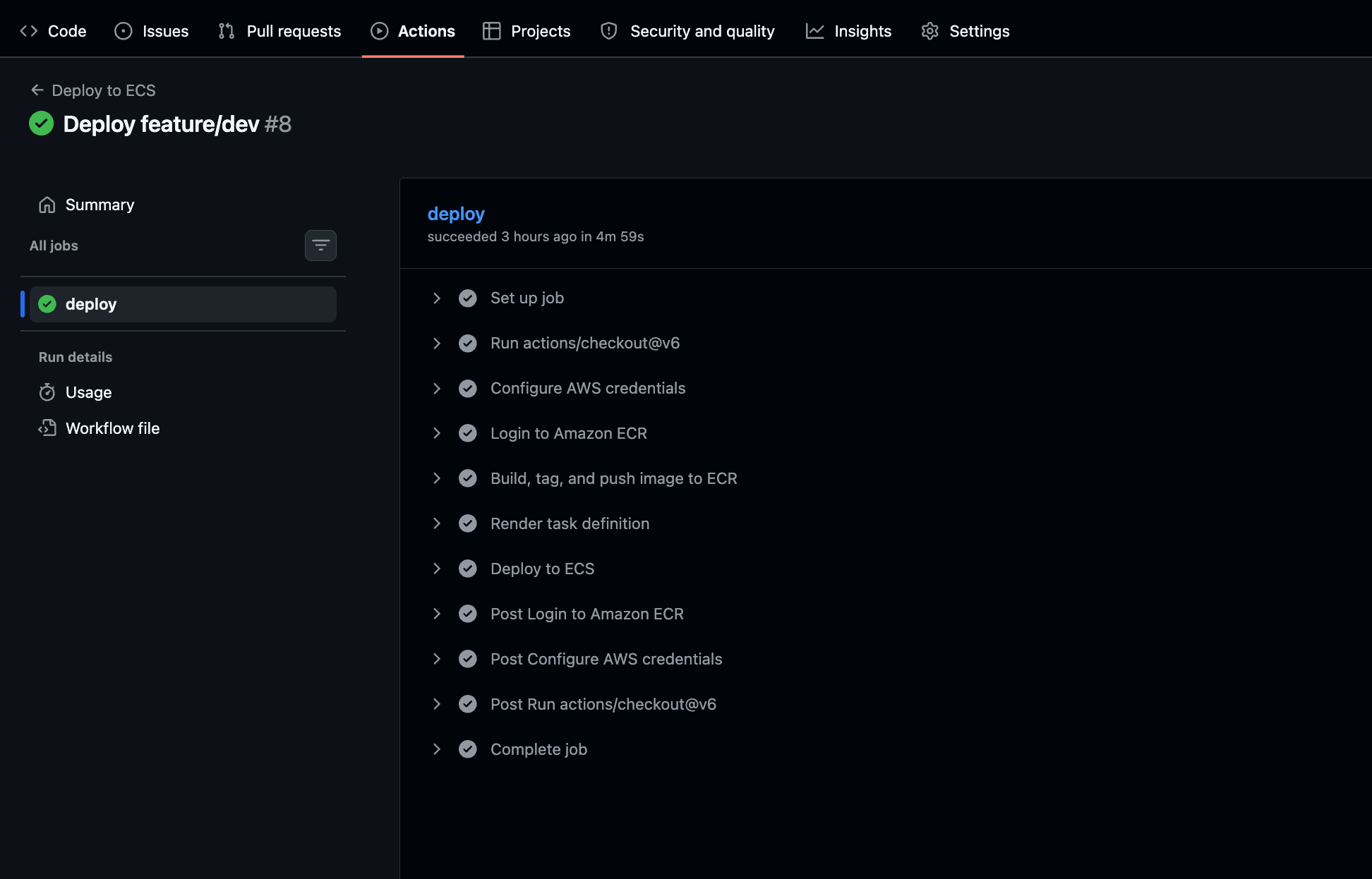
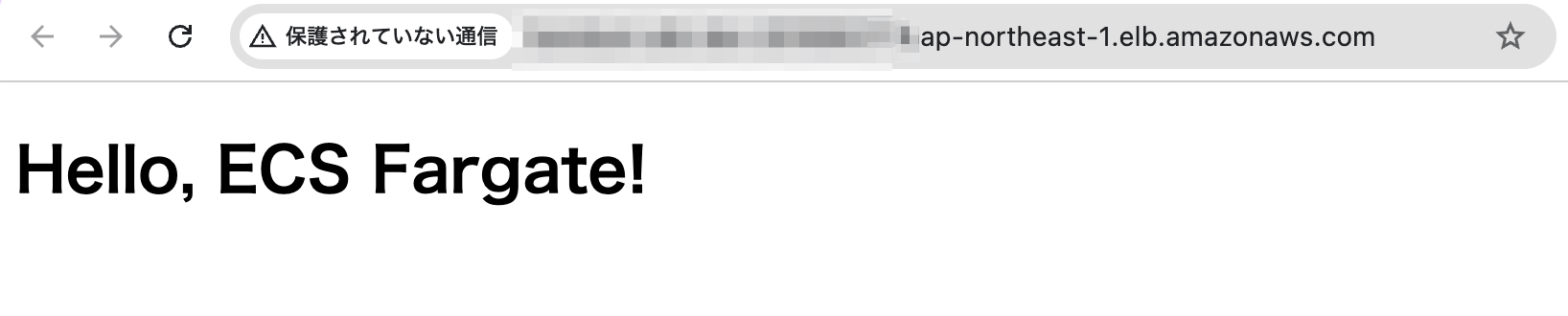
push から ALB に反映されるまでに4分程度かかります。
コードを変更して再デプロイ
index.html を書き換えて push します。
- <h1>Hello, ECS Fargate!</h1>
+ <h1>Hello, ECS Fargate! (v2)</h1>
git add index.html
git commit -m "Update message"
git push
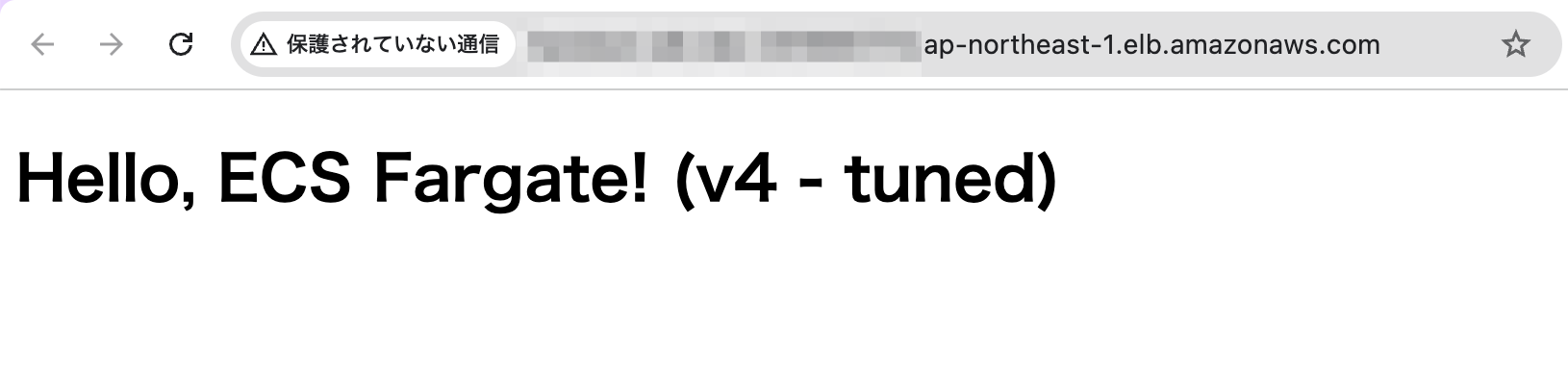
ワークフローが再び走り、デプロイ完了後にブラウザをリロードすると変更が反映されています。
クリーンアップ
ECS関連リソース
ALB と ECS Fargate は起動したままだと費用が発生するので、不要になったら削除します。ECR は EmptyOnDelete: true を入れているので、リポジトリ内のイメージは自動で消えます。
aws cloudformation delete-stack \
  --stack-name handson-app-${USER_SUFFIX} \
  --region ap-northeast-1
GitHub Actions OIDCロール
aws cloudformation delete-stack \
  --stack-name handson-oidc \
  --region ap-northeast-1
おわりに
ハンズオン用の設定なので、OIDC ロールの sub 条件は全ブランチ許可、ECS のデプロイ設定もダウンタイム前提で検証時間を短くする値に倒しています。
実運用に寄せる場合は、ブランチ条件を refs/heads/main などに絞ったり、MinimumHealthyPercent を上げてダウンタイムをなくす設定に変えるところから始めるとよさそうです。