S3 File Gateway 로컬 콘솔 확인해보기

오늘 블로그에서는 프라이빗 서브넷에 배포된 S3 File Gateway용 EC2 인스턴스에 SSH로 접속하여, 로컬 콘솔에서 설정, 확인할 수 있는 항목들을 정리해 보겠습니다.
AWS Storage Gateway의 로컬 콘솔은 네트워크 설정, 프록시 설정, 연결 테스트 등 게이트웨이 운영에 필요한 다양한 기능을 제공합니다.
공식 문서는 아래를 참고하였습니다.
1. S3 File Gateway 로컬 콘솔에 접속하기
1.1. 검증 환경
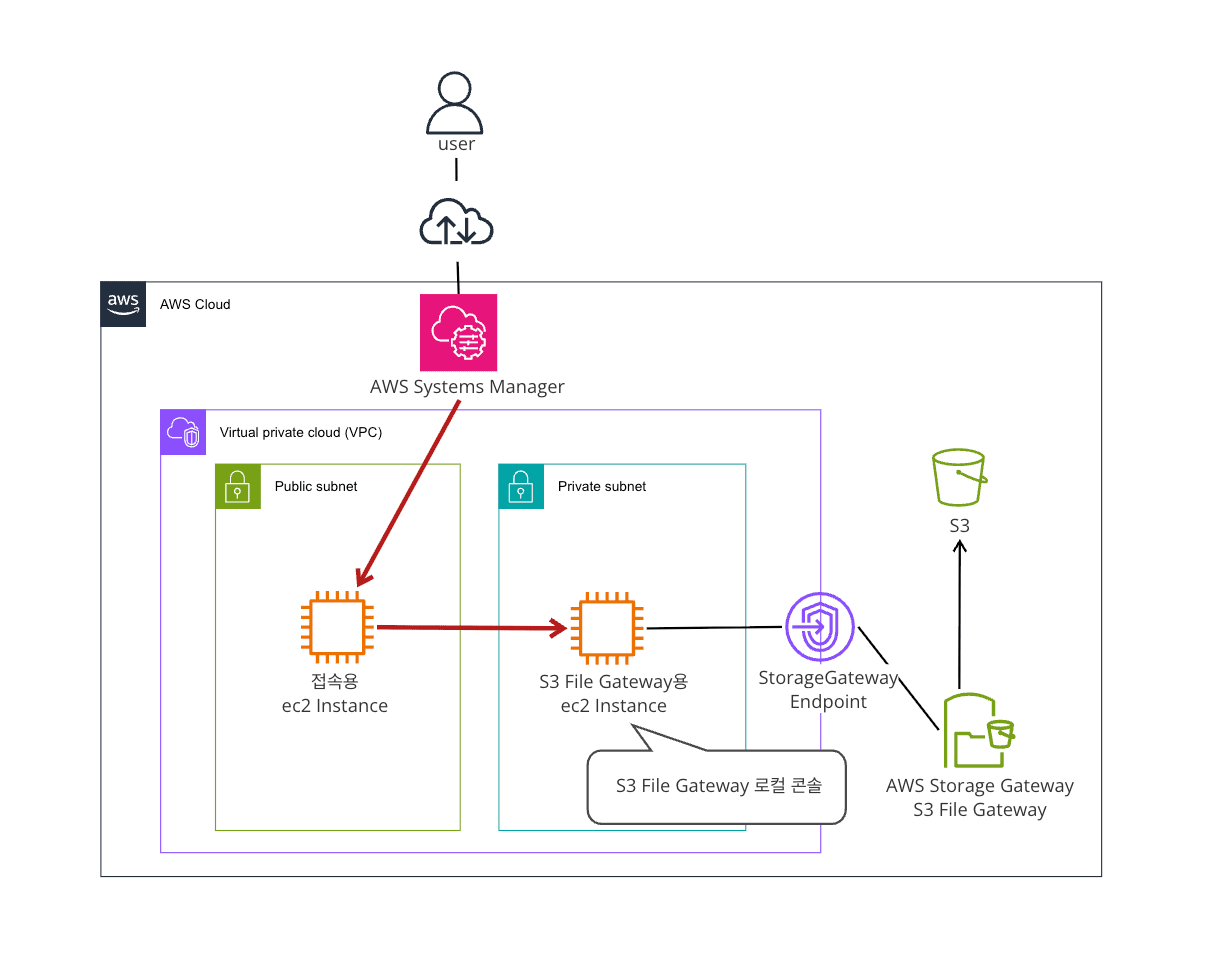
- 도쿄 리전
- EC2 인스턴스
- 접속용 EC2
- 게이트웨이용 EC2 (S3 File Gateway)
- VPC 엔드포인트를 통해 Storage Gateway 서비스와 통신(인터넷 경유 없이 AWS 내부 네트워크로 접속)
1.2. 로컬 콘솔 접속 방법
먼저 게이트웨이용 EC2의 세큐리티 그룹에 인바운드 룰의 설정을 합니다.
- 프로토콜 : SSH
- 포트 : 22
- 소스 : <접속용 EC2의 IP 어드레스>
접속용 EC2에서 SSH로 게이트웨이용 EC2 인스턴스에 접속하면 로컬 콘솔에 접속할 수 있습니다.
ssh -i <키페어>.pem admin@<게이트웨이용 EC2 IP 주소>
접속 시 호스트 키 신뢰 확인이 나타나면 yes를 입력합니다.
접속에 성공하면 아래와 같은 메인 메뉴 화면이 자동으로 표시됩니다.
AWS Storage Gateway - Configuration

        #######################################################################
        ##  Currently connected network adapters:
        ##
        ##  ens5: 10.0.136.188
        #######################################################################

        1: HTTP/SOCKS Proxy Configuration
        2: Network Configuration
        3: Test Network Connectivity
        4: Test S3 Connectivity
        5: View System Resource Check (2 WARNINGS)
        6: License Information
        7: Command Prompt

        Press "x" to exit session
2. 로컬 콘솔 살펴보기
2.1. HTTP/SOCKS 프록시 설정
게이트웨이가 Storage Gateway 서비스에 접근하는 방식에 따라 프록시 필요 여부가 달라집니다.
- VPC 엔드포인트를 통해 접속하는 구성이라면 → 프록시 불필요
- 인터넷을 통해야 하는데 직접 통신이 안 되는 환경이라면 → 프록시 필요
하위 메뉴는 세 가지로 구성됩니다.
        AWS Storage Gateway - HTTP/SOCKS Proxy Configuration

         1: Configure HTTP proxy (AWS Storage Gateway)
         2: View current network proxy configuration
         3: Remove network proxy configuration

        Press "x" to exit

        Enter command:
1: 프록시 설정
하위 메뉴의 첫번째 메뉴에서 프록시를 설정할 수 있습니다.
        AWS Storage Gateway - HTTP/SOCKS Proxy Configuration

         1: Configure HTTP proxy (AWS Storage Gateway)
         2: View current network proxy configuration
         3: Remove network proxy configuration

        Press "x" to exit

        Enter command: 1 ⭐️

        Enter hostname for HTTP proxy: (①)
        Enter port for HTTP proxy: (②)

        The gateway software must be restarted for changes in proxy
        settings to become active.

        Restart gateway now [y/N]: y (③)
        Restarting....SUCCESS

        Press Return to Continue
① 프록시 IP주소를 입력
② 프록시 포트를 입력
③ 설정을 적용하기 위해서는 게이트웨이를 재시작해야 하기 때문에 y 를 입력
2: 프록시 설정 확인
하위 메뉴의 두번째 메뉴에서 설정한 프록시의 값을 확인할 수 있습니다.
        AWS Storage Gateway - HTTP/SOCKS Proxy Configuration

         1: Configure HTTP proxy (AWS Storage Gateway)
         2: View current network proxy configuration
         3: Remove network proxy configuration

        Press "x" to exit

        Enter command: 2 ⭐️

        Network proxy not configured

        Press Return to Continue
        AWS Storage Gateway - HTTP/SOCKS Proxy Configuration

         1: Configure HTTP proxy (AWS Storage Gateway)
         2: View current network proxy configuration
         3: Remove network proxy configuration

        Press "x" to exit

        Enter command: 2 ⭐️

        Hostname for existing HTTP proxy: 10.0.0.0
        Port for existing HTTP proxy: 80

        Press Return to Continue
3: 프록시 설정 삭제
하위 메뉴의 세번째 메뉴에서 프록시 설정을 삭제할 수 있습니다.
        AWS Storage Gateway - HTTP/SOCKS Proxy Configuration

         1: Configure HTTP proxy (AWS Storage Gateway)
         2: View current network proxy configuration
         3: Remove network proxy configuration

        Press "x" to exit

        Enter command: 3 ⭐️

        The gateway software must be restarted for changes in proxy
        settings to become active.

        Restart gateway now [y/N]: y (①)
        Restarting.........SUCCESS

        Press Return to Continue
① 설정을 적용하기 위해서는 게이트웨이를 재시작해야 하기 때문에 y 를 입력
2.2. 네트워크 설정
하위 메뉴는 다섯 가지로 구성됩니다.
        AWS Storage Gateway - Network Configuration

        1: Edit DNS Configuration
        2: View DNS Configuration
        3: Configure Hostname
        4: View Hostname Configuration
        5: Endpoint Selection

        Press "x" to exit

        Enter command:
1: DNS 서버 변경 (DHCP 또는 수동 입력)
DHCP를 사용하면 VPC DHCP 옵션셋의 DNS를 자동으로 취득합니다.
도쿄 리전 기본 DNS는 VPC CIDR + 2 입니다.
        AWS Storage Gateway - Network Configuration

        1: Edit DNS Configuration
        2: View DNS Configuration
        3: Configure Hostname
        4: View Hostname Configuration
        5: Endpoint Selection

        Press "x" to exit

        Enter command: 1 ⭐️

        DNS Configuration:

        Available adapters: ens5
        Enter network adapter: ens5 (①)

        Assign by DHCP [y/N]: y (②)

        Apply config [y/N]: y (③)

        DNS config saved for adapter ens5
        You must exit Network Configuration to complete this configuration.

        Press return to continue
① 설정을 적용할 네트워크 어댑터를 선택. 여기서는 ens5를 입력
② DHCP를 사용하기 위해 y 입력
③ 적용할 건지 재확인하는 항목. 적용하기 위해서 y 입력
수동으로 설정하게 되면 희망하는 DNS 서버의 IP 어드레스를 지정할 수 있습니다.
        AWS Storage Gateway - Network Configuration

        1: Edit DNS Configuration
        2: View DNS Configuration
        3: Configure Hostname
        4: View Hostname Configuration
        5: Endpoint Selection

        Press "x" to complete your network configuration and exit

        Enter command: 1

        DNS Configuration:

        Available adapters: ens5
        Enter network adapter: ens5 (①)

        Assign by DHCP [y/N]: n (②)

        Enter primary DNS [10.0.0.2]: 10.0.0.10 (③)
        Enter secondary DNS [10.0.0.2]: 10.0.0.11 (④)

        Apply config [y/N]: y (⑤)

        DNS config saved for adapter ens5
        You must exit Network Configuration to complete this configuration.

        Press return to continue
① 설정을 적용할 네트워크 어댑터를 선택. 여기서는 ens5를 입력
② 수동으로 설정하기 위해 n 입력 (DHCP를 사용하지 않음)
③ 적용할 primary DNS 값 입력
④ 적용할 secondary DNS 값 입력
⑤ 적용할 건지 재확인하는 항목. 적용하기 위해서 y 입력
2: 현재 DNS 설정 확인
두번째 메뉴에서는 DNS 설정을 확인할 수 있습니다.
        AWS Storage Gateway - Network Configuration

        1: Edit DNS Configuration
        2: View DNS Configuration
        3: Configure Hostname
        4: View Hostname Configuration
        5: Endpoint Selection

        Press "x" to exit

        Enter command: 2 ⭐️

        DNS Configuration

        Available adapters: ens5
        Enter network adapter: ens5 (①)

        DNS: 10.0.0.2
        Domain search list: ap-northeast-1.compute.internal

        Press any key to continue
① 확인하고 싶은 네트워크 어댑터를 선택
3: 호스트명 변경 (Static / Dynamic)
호스트명을 변경하는 방법은 두 가지가 있습니다.
먼저, 원하는 호스트명을 지정하는 방법입니다.
이번 환경에서는 검증을 위해 임의의 값으로 지정을 했기 때문에 중간에 WARNING 이 발생하고 있습니다.
        AWS Storage Gateway - Network Configuration

        1: Edit DNS Configuration
        2: View DNS Configuration
        3: Configure Hostname
        4: View Hostname Configuration
        5: Endpoint Selection

        Press "x" to exit

        Enter command: 3 ⭐️

        Hostname Configuration

        Select hostname acquisition mode:

        1: Static
        2: Dynamic (DHCP or rDNS)

        Selection: 1 (①)

        Enter new static hostname: fgw-tokyo-01 (②)

        WARNING: Unable to resolve new hostname.

        New hostname configuration:

        Acquisition mode: Static
        Static hostname: fgw-tokyo-01

        Apply configuration [y/N]: y (③)

        Hostname configuration saved.
        You must exit Network Configuration to complete this configuration.

        Press return to continue
① 정적으로 호스트명을 지정하기 위해 1 입력
② 희망하는 호스트명 지정
③ 적용을 위해 y 입력
혹은 DHCP 또는 rDNS 을 통해 자동으로 취득할 수도 있습니다.
        AWS Storage Gateway - Network Configuration

        1: Edit DNS Configuration
        2: View DNS Configuration
        3: Configure Hostname
        4: View Hostname Configuration
        5: Endpoint Selection

        Press "x" to complete your network configuration and exit

        Enter command: 3 ⭐️

        Hostname Configuration

        Select hostname acquisition mode:

        1: Static
        2: Dynamic (DHCP or rDNS)

        Selection: 2 (①)

        New hostname configuration:

        Acquisition mode: Dynamic

        Apply configuration [y/N]: y (②)

        Hostname configuration saved.
        You must exit Network Configuration to complete this configuration.

        Press return to continue
① Dynamic 을 사용하기 위해 2 입력
② 적용을 위해 y 입력
4: 현재 호스트명 확인
네번째 메뉴에서는 설정된 호스트명을 확인할 수 있습니다.
        AWS Storage Gateway - Network Configuration

        1: Edit DNS Configuration
        2: View DNS Configuration
        3: Configure Hostname
        4: View Hostname Configuration
        5: Endpoint Selection

        Press "x" to complete your network configuration and exit

        Enter command: 4 ⭐️

        Hostname Configuration

            Mode: Assigned statically
        Hostname: ip-10-0-136-188.ap-northeast-1.compute.internal
          Domain: ap-northeast-1.compute.internal
        AD Realm: (none)

        Press return to continue
5: IPv4 / IPv6 선택
        AWS Storage Gateway - Network Configuration

        1: Edit DNS Configuration
        2: View DNS Configuration
        3: Configure Hostname
        4: View Hostname Configuration
        5: Endpoint Selection

        Press "x" to complete your network configuration and exit

        Enter command: 5 ⭐️

        Select IP version:
         1: IPv4
         2: IPv6

        Press "x" to exit

        Select IP version or exit: (①)

        You must restart your gateway to complete the network configuration.

        Restart gateway now [y/N]: y (②)
        Restarting.............SUCCESS
        Press return to continue
① 원하는 설정 값 입력
② 적용을 위해서는 게이트웨이의 재시작이 필요하기 때문에 y 입력
각 항목을 설정하고 나서 메인 메뉴로 돌아갈때 한번 더 재시작을 하지 않으면 설정 값이 적용되지 않습니다. (확인 작업은 예외)
        AWS Storage Gateway - Network Configuration

        1: Edit DNS Configuration
        2: View DNS Configuration
        3: Configure Hostname
        4: View Hostname Configuration
        5: Endpoint Selection

        Press "x" to complete your network configuration and exit

        Enter command: x (①)

        Restarting networking...

        You must restart your gateway to complete the network configuration.

        Restart gateway now [y/N]: y (②)
        Restarting..........SUCCESS
        Press return to continue
① 메인메뉴로 돌아가기 위해 x 입력
② 설정 적용하기 위해 다시 한번 게이트웨이의 재시작할 건지 확인
2.3. 네트워크 연결 테스트
Storage Gateway 서비스의 각 엔드포인트에 대한 연결을 직접 테스트할 수 있습니다.
하위 메뉴는 다음과 같습니다.
        Testing network connection

        Select IP version or exit:
         1: IPv4
         2: IPv6

        Press "x" to exit

        Select IP version or exit:
VPC 엔드포인트를 통한 테스트 결과
VPC 엔드포인트를 통한 테스트 결과는 아래와 같습니다.
        Testing network connection

        Select IP version or exit:
         1: IPv4
         2: IPv6

        Press "x" to exit

        Select IP version or exit: 1 ⭐️

        client-cp.storagegateway.ap-northeast-1.amazonaws.com:443
        via vpce-0d296098ae5ae4ff7-mf599z1a.storagegateway.ap-northeast-1.vpce.amazonaws.com:1026
          [ PASSED ]

        dp-1.storagegateway.ap-northeast-1.amazonaws.com:443
        via vpce-0d296098ae5ae4ff7-mf599z1a.storagegateway.ap-northeast-1.vpce.amazonaws.com:1031
          [ PASSED ]

        proxy-app.storagegateway.ap-northeast-1.amazonaws.com:443
        via vpce-0d296098ae5ae4ff7-mf599z1a.storagegateway.ap-northeast-1.vpce.amazonaws.com:1028
          [ PASSED ]

        Software Update Download Speed test (y/n): y (①)

        Starting Software Update Download Speed test...

        This test could take a few minutes for slow connections.

        ***Software Update Download Speed Test Results***
          Download bandwidth:    18 MB/s
          [ PASSED ]

        Press Return to Continue
① Software Update Download Speed test 도 실행할 지 물어보는 항목 (선택)
세 엔드포인트 모두 VPC 엔드포인트를 경유하여 정상 연결되고, 다운로드 속도 테스트까지 통과하고 있는 걸 결과에서 확인할 수 있습니다.
2.4. S3 연결 테스트
S3 버킷에 대한 연결을 직접 테스트할 수 있습니다。
엔드포인트 타입은 세 가지 중에서 선택할 수 있습니다。
        AWS Storage Gateway - Test S3 Connectivity

        Choose the S3 endpoint type:

        1: Public
        2: VPC (PrivateLink)
        3: FIPS

        Press "x" to exit

        Select endpoint type or exit:
1: Public
먼저 인터넷을 통해 s3.ap-northeast-1.amazonaws.com으로 테스트하는 항목입니다.
        AWS Storage Gateway - Test S3 Connectivity

        Choose the S3 endpoint type:

        1: Public
        2: VPC (PrivateLink)
        3: FIPS

        Press "x" to exit

        Select endpoint type or exit: 1 ⭐️
        Enter S3 region (e.g. us-east-1): (①)
        Enter S3 bucket name: (②)

        Connectivity Test Results

        > s3.ap-northeast-1.amazonaws.com:443

         [ NETWORK TEST: PASSED ]
         [ SSL TEST: PASSED ]

        > s3-filegateway-test2026.s3.ap-northeast-1.amazonaws.com:443

         [ NETWORK TEST: PASSED ]
         [ SSL TEST: PASSED ]

        Press return to continue
① S3 버킷이 있는 리전을 입력합니다.
② S3 버킷명을 입력합니다.
2: VPC (PrivateLink)
VPC 엔드포인트를 통해 VPC의 내부 네트워크로 테스트하는 항목입니다.
        AWS Storage Gateway - Test S3 Connectivity

        Choose the S3 endpoint type:

        1: Public
        2: VPC (PrivateLink)
        3: FIPS

        Press "x" to exit

        Select endpoint type or exit: 2 ⭐️
        Enter S3 VPC Endpoint DNS name in full (e.g. vpce-1a2b3c4d-5e6f.s3.us-east-1.vpce.amazonaws.com):  (①)

        Connectivity Test Results

        > s3.dualstack.ap-northeast-1.amazonaws.com:443

         [ NETWORK TEST: PASSED ]
         [ SSL TEST: PASSED ]

        > bucket.s3.dualstack.ap-northeast-1.amazonaws.com:443

         [ NETWORK TEST: PASSED ]
         [ SSL TEST: PASSED ]

        Press return to continue
① S3 VPC Endpoint의 DNS명을 입력
3: FIPS
FIPS는 Federal Information Processing Standards의 약자로 FIPS는 미국 연방 정부 보안 표준으로, 미국 리전(us-east-1 등)에서만 지원합니다.
이번 검증은 도쿄 리전에서 진행했기 때문에 다음과 같이 FAILED 가 출력됩니다.
        AWS Storage Gateway - Test S3 Connectivity

        Choose the S3 endpoint type:

        1: Public
        2: VPC (PrivateLink)
        3: FIPS

        Press "x" to exit

        Select endpoint type or exit: 3 ⭐️
        Enter S3 region (e.g. us-east-1): (①)
        Enter S3 bucket name: (②)

        Connectivity Test Results

        > s3-filegateway-test2026.s3-fips.ap-northeast-1.amazonaws.com:443

         [ NETWORK TEST: FAILED ]
         [ SSL TEST: FAILED ]

        Press return to continue
① S3 버킷이 있는 리전을 입력합니다.
② S3 버킷명을 입력합니다.
2.5. 시스템 리소스 확인
게이트웨이 동작에 필요한 최소 하드웨어 조건을 점검합니다.
        AWS Storage Gateway - System Resource Check Results

        Last Checked at 2026-04-15 09:31:23 +0000

                [WARN] Memory Check: System memory 7734 MiB (16000 MiB recommended)
                [WARN] CPU Check: System has 2 virtual processors (4 required)
                [ OK ] Disk Size Check

        Press Return to Continue
검증 환경에서는 메모리와 CPU가 권장 사양에 미치지 못해 WARN이 표시되었습니다.
실제 운영 환경에서는 권장 사양(메모리 16GB, vCPU 4개 이상)을 충족하는 인스턴스 타입을 선택해야 합니다.
2.6. 라이센스 정보
해당 메뉴에서는 게이트웨이의 라이센스 정보를 확인할 수 있습니다.
        AWS Storage Gateway - License Information

        AWS Customer Agreement:
        https://aws.amazon.com/agreement/

        Information about third-party components is available at:
        https://docs.aws.amazon.com/aws-backup/latest/devguide/bgw-third-party-source.html
        https://docs.aws.amazon.com/filegateway/latest/files3/AboutAWSStorageGatewaySoftware.html
        https://docs.aws.amazon.com/storagegateway/latest/tgw/AboutAWSStorageGatewaySoftware.html
        https://docs.aws.amazon.com/storagegateway/latest/vgw/AboutAWSStorageGatewaySoftware.html

        Press Return to Continue
2.7. 커맨드 프롬프트
커맨드 프롬프트를 통해서 각종 항목을 설정, 확인할 수 있습니다.
        AWS Storage Gateway - Command Prompt

          type 'h <ENTER>' to get help

Command:
사용 가능한 명령어 목록 확인
h 명령어로 사용 가능한 명령어 목록을 확인할 수 있습니다.
        AWS Storage Gateway - Command Prompt

          type 'h <ENTER>' to get help

Command:h

AVAILABLE COMMANDS
dig                   Collect output from dig for dns troubleshooting
exit                  Return to Configuration menu
h                     Display available command list
ifconfig              View or configure network interfaces
ip                    Show / manipulate routing, devices, and tunnels
iptables              Administration tool for IPv4 packet filtering and NAT
ip6tables             Administration tool for IPv6 packet filtering and NAT
ncport                Test connectivity to a specific TCP port on a network
nping                 Collect output from nping for network troubleshooting
open-support-channel  Connect to AWS Support
save-iptables         Persist IPv4 and IPv6 tables
save-routing-table    Save newly added routing table entry
sslcheck              Check whether the certificate is valid and trusted
tcptraceroute         Collect traceroute output on TCP traffic to a destination
명령어 목록
| 명령어 | 용도 |
|---|---|
ifconfig |
IP/MAC 주소, 네트워크 인터페이스 상태 확인 |
ip |
라우팅 테이블, 인터페이스 상세 정보 확인 |
dig |
DNS 조회 (도메인 → IP 해석 확인) |
ncport |
특정 호스트:포트 TCP 연결 테스트 |
nping |
네트워크 패킷 송신 상세 진단 |
iptables |
IPv4 방화벽 규칙 확인/설정 |
ip6tables |
IPv6 방화벽 규칙 확인/설정 |
save-iptables |
iptables 규칙 재부팅 후에도 유지되도록 저장 |
save-routing-table |
라우팅 경로 재부팅 후에도 유지되도록 저장 |
sslcheck |
SSL 인증서 유효성/만료/신뢰 여부 확인 |
tcptraceroute |
TCP 기반 경로 추적 (방화벽 환경에서 정확) |
open-support-channel |
AWS Support 엔지니어 접근 채널 오픈 |
exit |
상위 설정 메뉴로 복귀 |
3. 마무리
S3 File Gateway의 로컬 콘솔에서 설정, 확인가능한 항목에 대해 정리했습니다.