Run AI Models on Your Own Machine: A Practical Guide to Open-Weight Models with LM Studio, Ollama, and OpenCode

Introduction
Most of us are used to AI that lives somewhere else. You type a prompt, it travels to a data centre, and an answer comes back. That works well — until you hit a wall: your company will not allow source code to leave the network, you are on a flight with no Wi-Fi, or the monthly API bill starts to look uncomfortable.
Open-weight models solve this. These are models where the trained parameters (the "weights") are published for anyone to download. You can run them on your own laptop, keep every byte of data local, and pay nothing per token.
In this post I will walk through three practical ways to use them:
- LM Studio — a desktop app, easiest place to start
- Ollama — a command-line tool, great for developers and scripting
- OpenCode — a terminal coding agent that can use free DeepSeek models
Everything below was run on a MacBook, but all three tools work on macOS, Windows, and Linux.
What Exactly Is an "Open-Weight" Model?
It helps to separate three terms that often get mixed up:
| Term | What you get | Example |
|---|---|---|
| Closed / Proprietary | API access only. Weights never leave the vendor. | Claude, GPT, Gemini |
| Open-weight | Downloadable weights you can run offline. Training data and code usually not released. | Llama, Gemma, Qwen, DeepSeek, GPT-OSS |
| Fully open-source | Weights plus training data, training code, and recipe. | OLMo, Pythia |
Almost everything you will download in practice is open-weight. That is more than enough for real work.
Why bother running models locally?
- Privacy — your code and documents never leave the machine. This matters a lot for client work and regulated industries.
- Cost — after the download, inference is free. No per-token billing.
- Offline — works on a plane, in a lab, or behind an air-gapped network.
- Control — the model version is pinned. It will not silently change under you.
- Learning — you can inspect, fine-tune, and experiment freely.
The honest trade-offs
Local models are not a drop-in replacement for frontier models:
- A 7B–14B model running on a laptop is noticeably weaker than a frontier cloud model on hard reasoning.
- Speed depends entirely on your hardware. Apple Silicon with unified memory and NVIDIA GPUs do well; older CPU-only machines will be slow.
- Model files are large — expect 4–30 GB per model.
- You are responsible for updates, quantisation choices, and configuration.
Sizing guide: what can my machine run?
| RAM / VRAM | Realistic model size | Examples |
|---|---|---|
| 8 GB | 3B–4B (4-bit) | Gemma 4 E2B, Qwen3 4B |
| 16 GB | 7B–9B (4-bit) | Qwen3.5 9B, DeepSeek R1 Qwen3 8B, Gemma 4 E4B |
| 32 GB | 14B–27B (4-bit) | Bonsai 27B, GPT-OSS 20B |
| 64 GB+ | 30B–70B+ | Larger MoE and dense models |
Quantisation is the trick that makes this possible. It compresses weights from 16-bit to 8-, 6-, or 4-bit. A 4-bit ("4BIT" / Q4_K_M) build is roughly a quarter of the original size with only a small quality loss. For most local work, 4-bit is the sweet spot.
Method 1: LM Studio (The Easy Way)
If you have never run a local model before, start here. LM Studio gives you a full GUI — browse models, download with one click, and chat immediately.
Step 1 — Download and install
Go to https://lmstudio.ai/ and grab the build for your OS (macOS Apple Silicon / Intel, Windows, Linux). Install it like any normal desktop application.
Step 2 — Find a model in Explore
Open the app and go to the Explore tab in the sidebar. This is a searchable front-end for Hugging Face plus a curated "Staff picks" list.
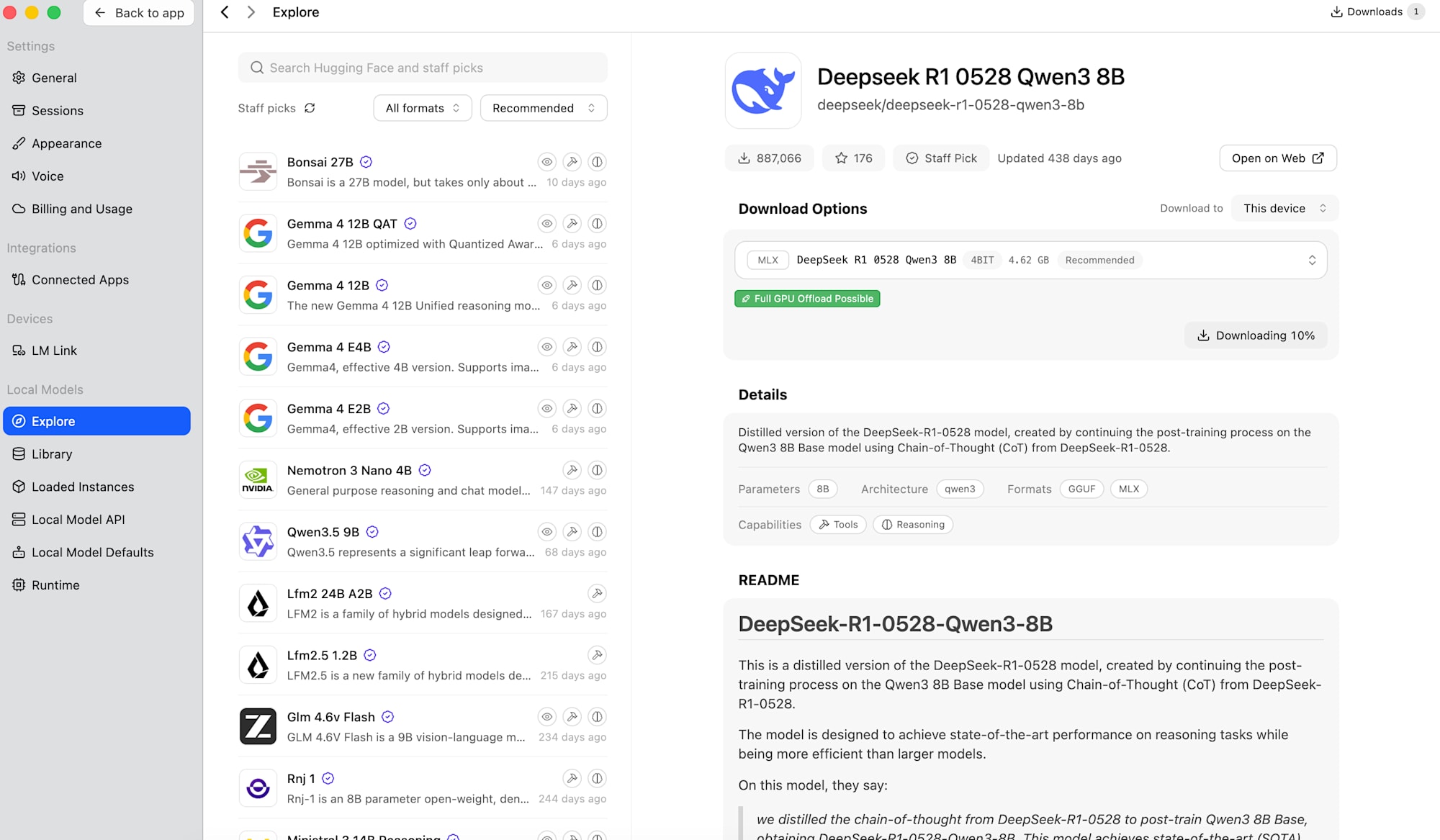
Here I am looking at DeepSeek R1 0528 Qwen3 8B — a distilled reasoning model. The right-hand panel tells you everything you need before committing to a download:
- Parameters:
8B - Architecture:
qwen3 - Formats:
GGUF,MLX - Capabilities:
Tools,Reasoning - Download size: 4.62 GB at 4-bit
- Full GPU Offload Possible — the green badge means the whole model fits in your GPU/unified memory. This is the single most important thing to check. If it is green, the model will run fast.
GGUF vs MLX: GGUF is the cross-platform format (llama.cpp) and works everywhere. MLX is Apple's framework and is usually faster on Apple Silicon. On a Mac, prefer MLX when it is offered.
Step 3 — Sort by Downloads to find proven models
Switch the sort dropdown from Recommended to Downloads to see what the community actually uses.
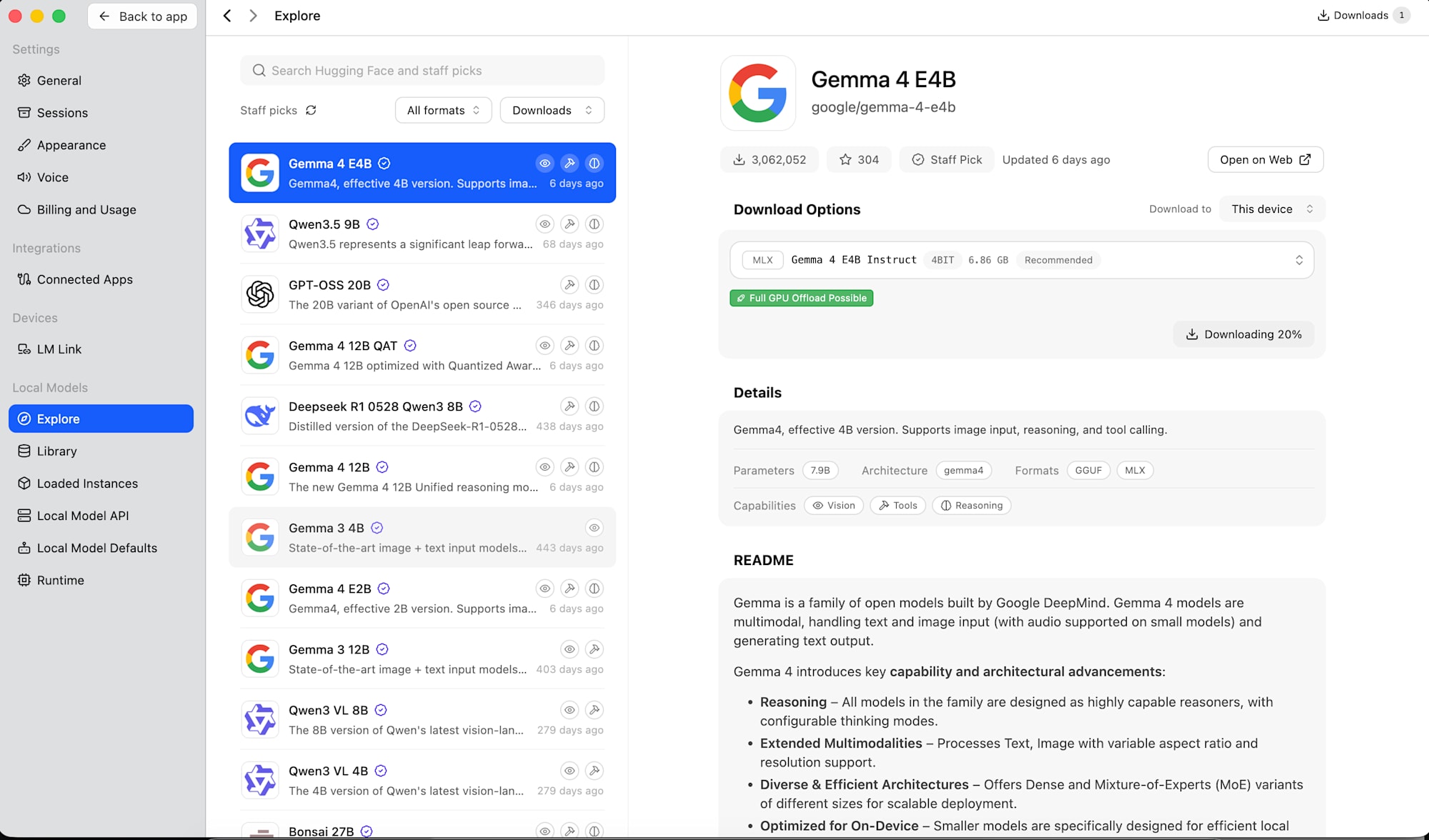
Gemma 4 E4B from Google DeepMind sits near the top with over 3 million downloads. Note its capability badges: Vision, Tools, Reasoning — it accepts images, can call tools, and does structured reasoning, all in a 6.86 GB download.
A few solid starting points visible in this list:
- Gemma 4 E4B / E2B — multimodal, small, excellent quality per GB
- Qwen3.5 9B — strong all-rounder, good at code
- DeepSeek R1 0528 Qwen3 8B — reasoning-focused
- GPT-OSS 20B — OpenAI's open-weight release
- Qwen3 VL 4B / 8B — vision-language models
Click Download. LM Studio shows live progress; the model lands in your local Library.
Step 4 — Chat with it
Once downloaded, open a chat, pick the model from the selector at the bottom, and start typing. Everything runs on your machine.
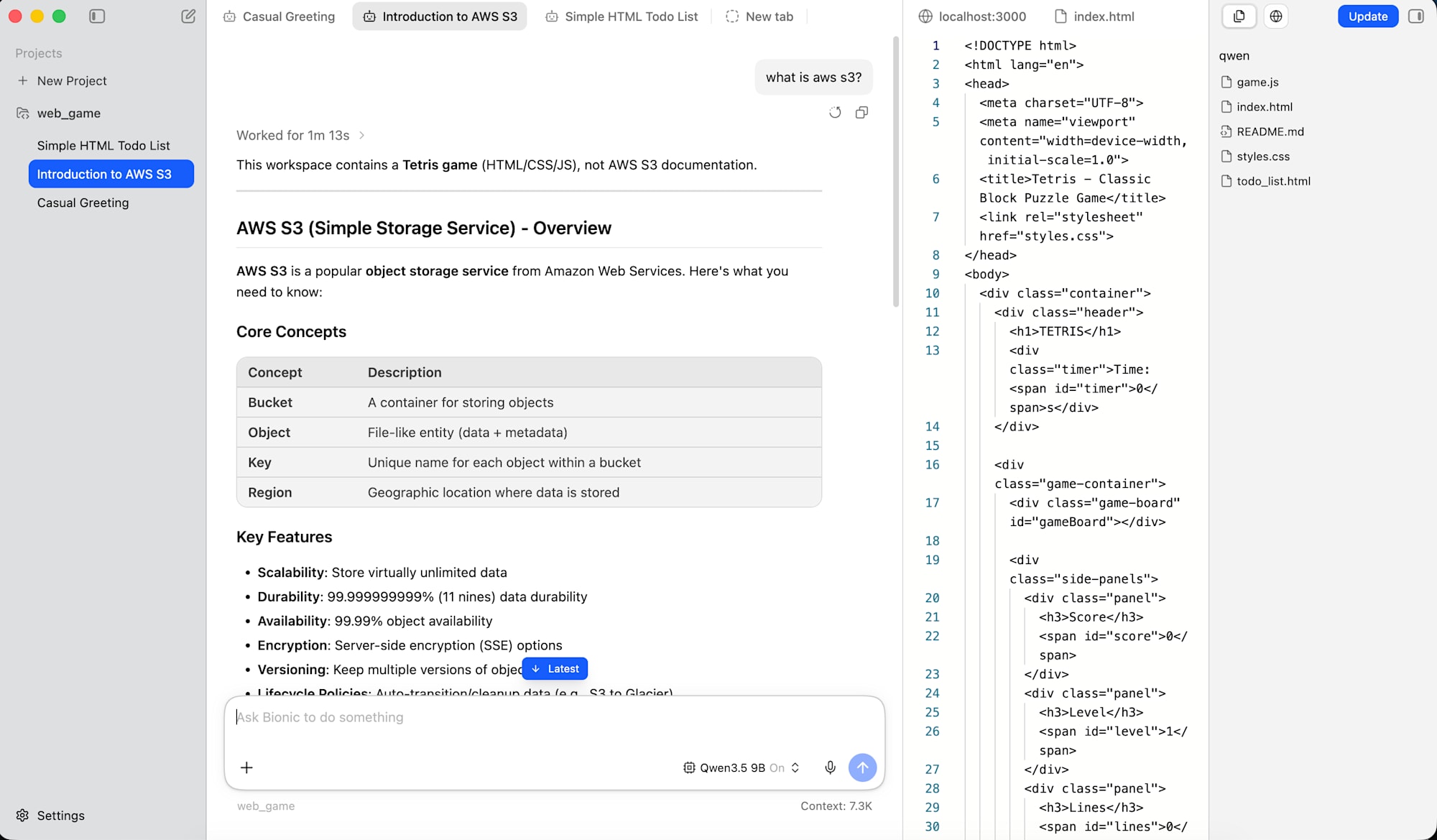
Here Qwen3.5 9B answers "what is aws s3?" — it produced a proper structured explanation with a concepts table (Bucket, Object, Key, Region) and a feature list covering durability, versioning, and lifecycle policies. Note the Context: 7.3K counter at the bottom: local models have a context window just like cloud models, and you need to keep an eye on it.
Useful LM Studio settings
- Local Model Defaults — set default temperature, context length, and system prompt for all models
- Runtime — choose and update the inference engine (llama.cpp / MLX)
- Loaded Instances — see what is currently in memory and unload models to free RAM
- Appearance — includes a "Power User" / "Developer" mode toggle that exposes more controls
Method 2: Ollama (The Developer Way)
If you prefer the terminal, Ollama is the fastest path. One command downloads and runs a model.
Step 1 — Install
macOS / Linux:
curl -fsSL https://ollama.com/install.sh | sh
macOS with Homebrew:
brew install ollama
Windows: download the installer from ollama.com/download.
Verify it worked:
ollama --version
Step 2 — Pull and run a model
A single command downloads the model and drops you into a chat session:
ollama run qwen3.5:9b
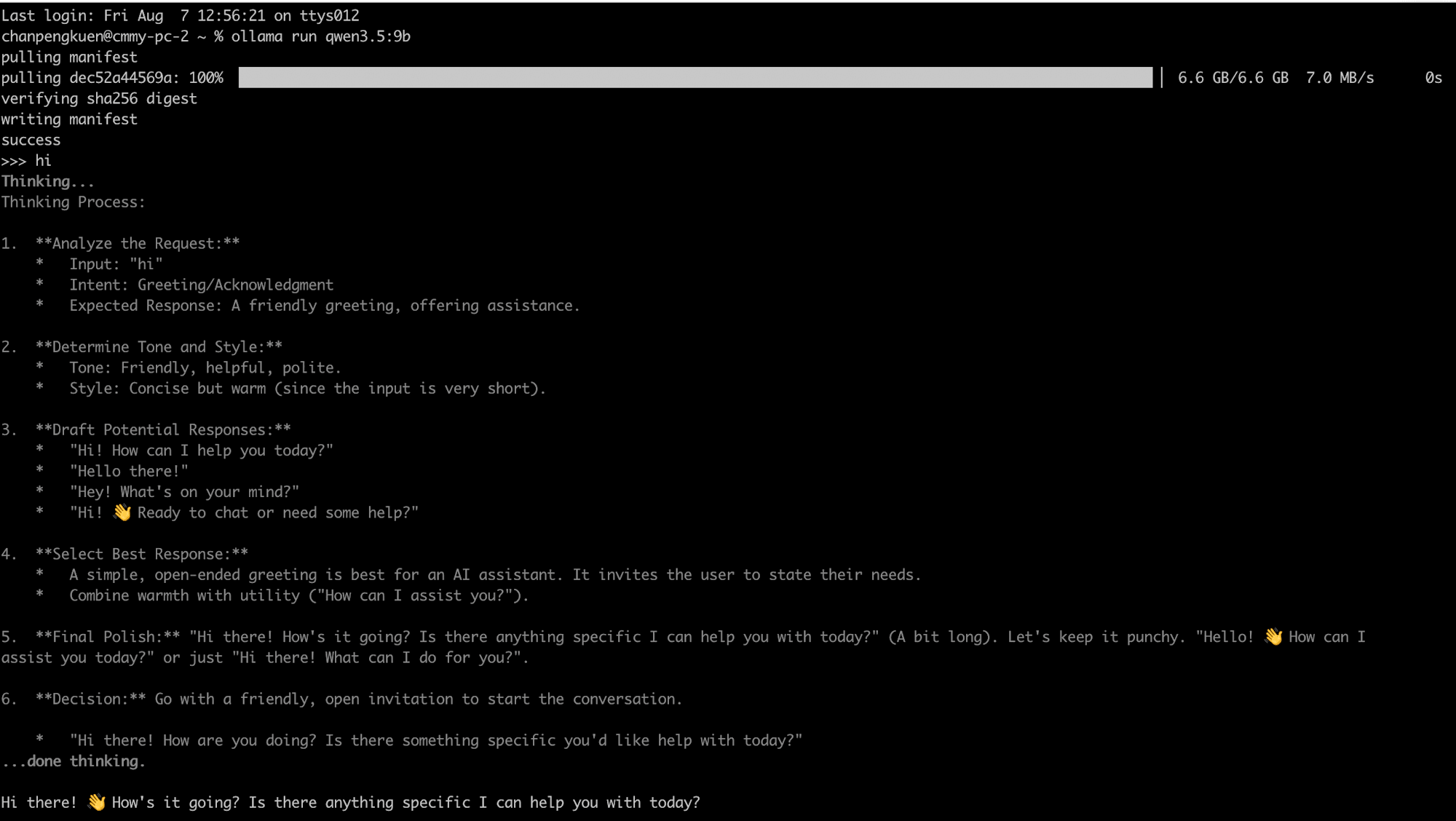
You can see the full flow: pulling manifest → download (6.6 GB at 7.0 MB/s) → verifying sha256 digest → writing manifest → success, then the >>> prompt.
What is interesting here is the thinking process. Reasoning models like Qwen3.5 expose their intermediate steps between Thinking... and ...done thinking.. For a simple "hi", the model worked through analysing the request, deciding on tone, drafting several candidate responses, selecting the best one, and polishing it — before finally replying with a single friendly line.
That visible chain-of-thought is genuinely useful when debugging prompts: you can see why the model went the direction it did.
Step 3 — Real work
The same session handles actual engineering tasks. Here I asked it to generate an AWS CDK template:
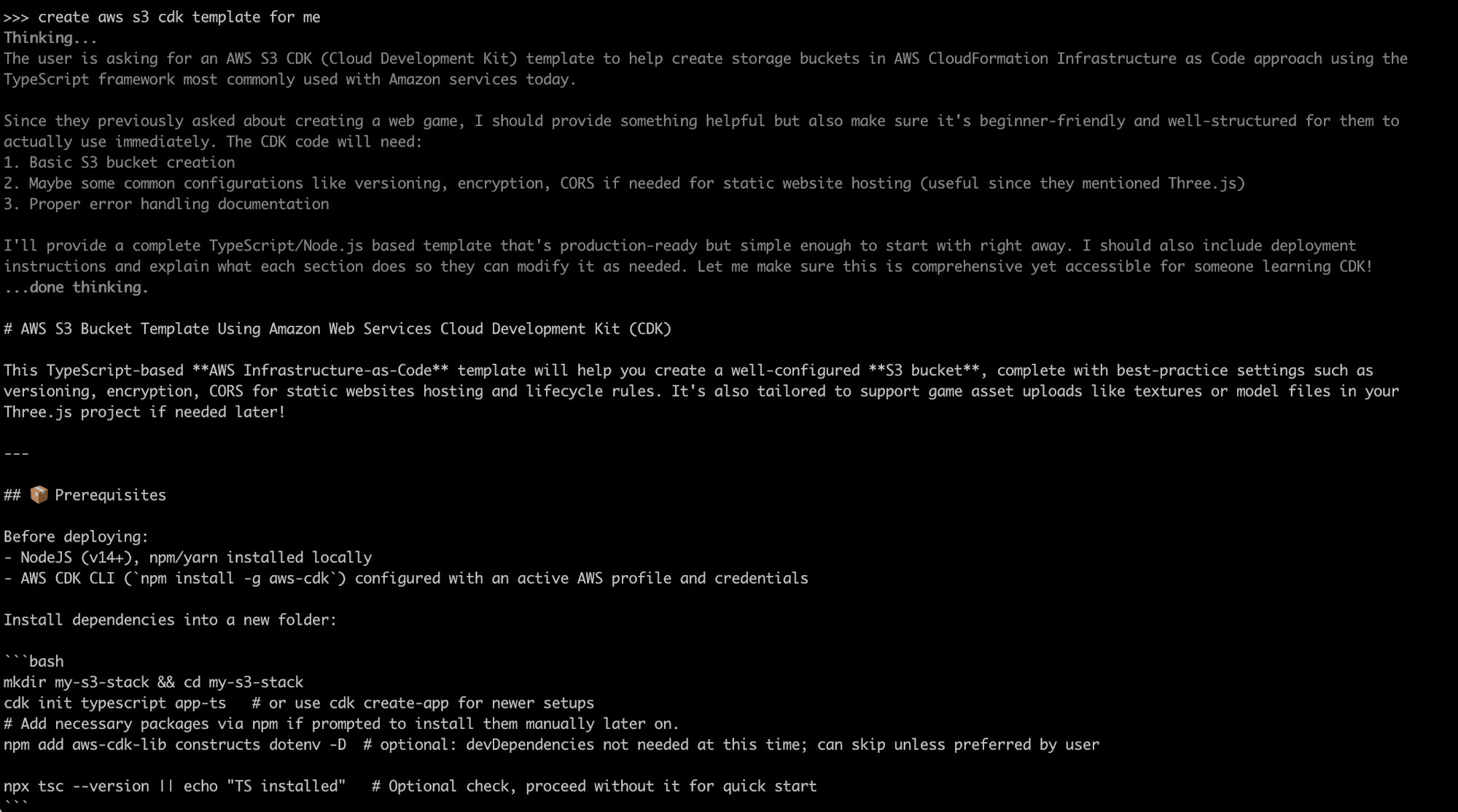
Notice the reasoning step again — the model recalls earlier context (a web game project), decides the answer should cover bucket creation, versioning, encryption, and CORS, and plans to keep it beginner-friendly. Then it writes out prerequisites and setup commands.
And the generated code:
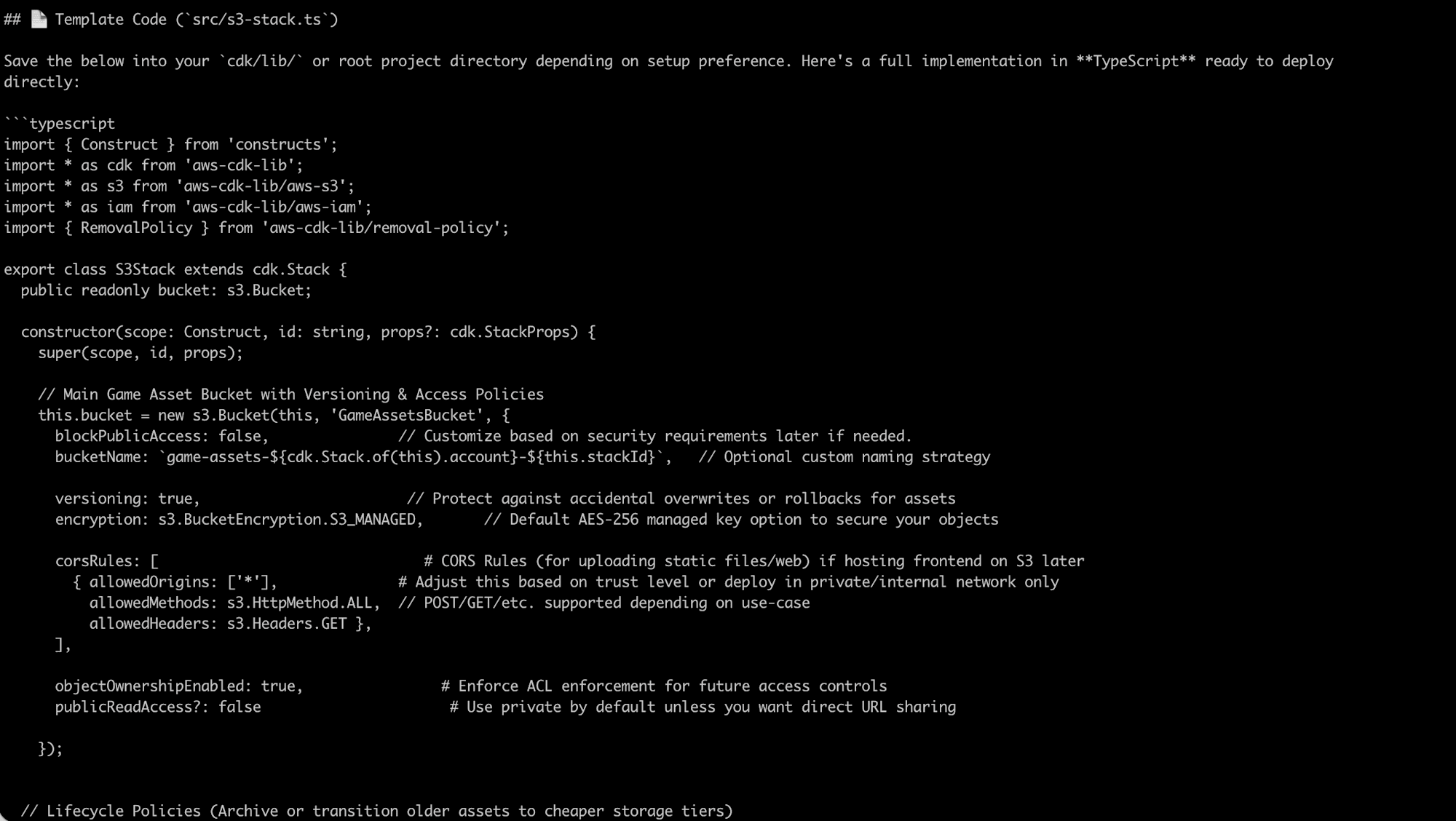
It produced a complete TypeScript CDK stack with versioning, S3-managed encryption, CORS rules, and lifecycle policies — with inline comments explaining each option.
Essential Ollama commands
# List models you have downloaded
ollama list

# Download without starting a chat
ollama pull gemma3:4b

# Run a model interactively
ollama run qwen3.5:9b

# One-shot prompt (great for scripts and pipes)
ollama run qwen3.5:9b "Explain the CAP theorem in 3 bullet points"

# Pipe a file in
cat error.log | ollama run qwen3.5:9b "Summarise the errors in this log"

# Show model details (parameters, context length, license)
ollama show qwen3.5:9b

# See what is currently loaded in memory
ollama ps

# Remove a model to free disk space
ollama rm qwen3.5:9b

# Run as a background service
ollama serve
Inside a chat session:
/set system You are a senior AWS solutions architect.
/set parameter temperature 0.3
/show info
/clear      # clear conversation context
/bye        # exit
LM Studio vs Ollama — which one?
| LM Studio | Ollama | |
|---|---|---|
| Interface | Full GUI | CLI |
| Best for | Beginners, exploring models, chatting | Developers, automation, scripting |
| Model discovery | Built-in Hugging Face browser | ollama.com/library + Hugging Face |
| Local API | Yes (:1234, OpenAI-compatible) |
Yes (:11434, native + OpenAI-compatible) |
| Apple Silicon | MLX support (faster) | llama.cpp based |
| Customisation | GUI settings | Modelfile |
They are not mutually exclusive. Most people end up with both — LM Studio for exploring and chatting, Ollama for scripts and background services.
Method 3: OpenCode + Free DeepSeek Models
Chat is one thing. An agent that reads your files, writes code, and runs commands is another. OpenCode is an open-source terminal coding agent — think of it as an AI pair programmer living in your shell.
Note on the repo URL: the original
opencode-ai/opencoderepository was archived in September 2025 (that codebase continued as Charm's Crush). The actively developed OpenCode is now at https://github.com/sst/opencode — that is the version shown below, and the one you want.
Step 1 — Install
# Recommended
curl -fsSL https://opencode.ai/install | bash

# npm
npm i -g opencode-ai@latest

# Homebrew
brew install opencode

# Windows
scoop install opencode
# or
choco install opencode
Step 2 — Launch it
cd into a project directory and run:
opencode
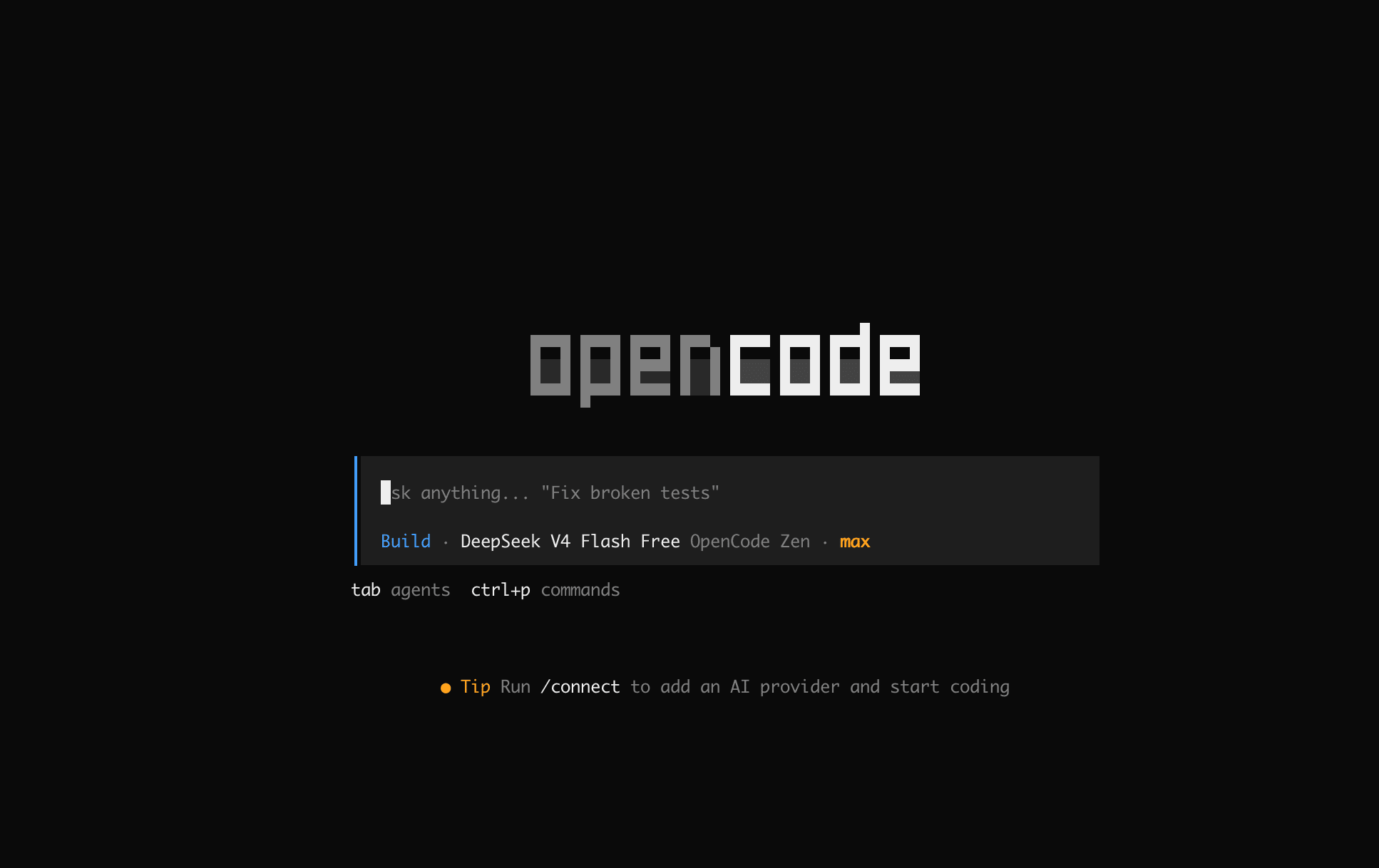
The status line tells you the current state: agent mode (Build), model (DeepSeek V4 Flash Free), and provider (OpenCode Zen). Two keyboard hints matter immediately:
tab— switch agents (Build / Plan)ctrl+p— command palette
Step 3 — Get free DeepSeek models via OpenCode Zen
This is the part that makes OpenCode attractive for experimenting. OpenCode Zen is a curated AI gateway maintained by the OpenCode team, and it currently offers a set of free models — including DeepSeek V4 Flash Free, plus others such as MiMo-V2.5 Free, LongCat-2.0 Free, and Nemotron 3 Ultra Free.
To connect:
/connect
Select OpenCode Zen, then paste your API key (sign up at opencode.ai/auth). Then browse what is available:
/models
Pick DeepSeek V4 Flash Free and you are coding for free.
These free tiers are offered while the team gathers feedback, so treat them as temporary rather than a permanent guarantee. Also note this routes through a hosted gateway — it is free, but it is not local. For fully offline work, point OpenCode at Ollama or LM Studio instead (see below).
Step 4 — Give it a task
Type a request in plain English and OpenCode plans, edits files, and reports back.
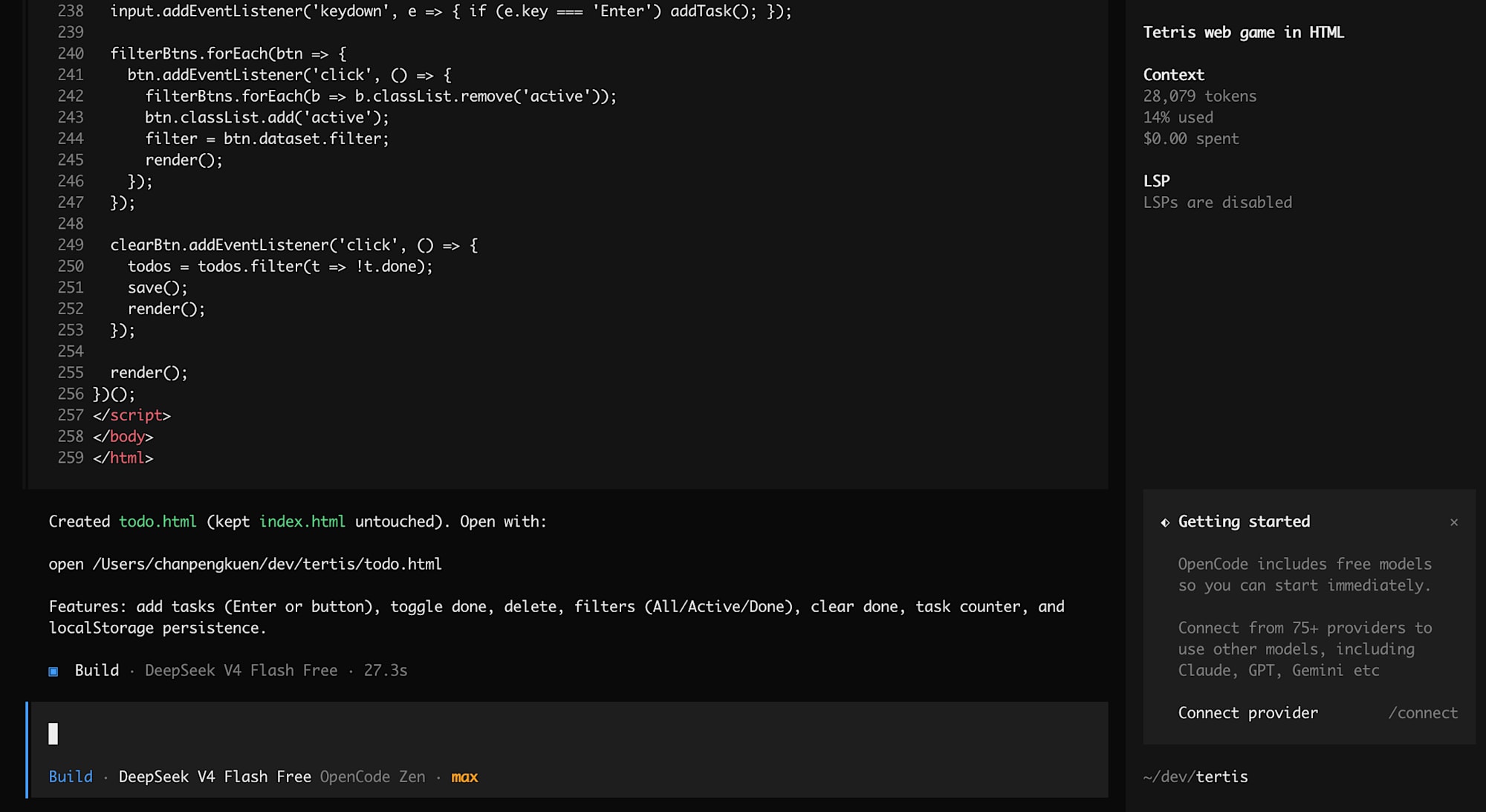
Here it built a complete todo list app — 259 lines of HTML/CSS/JS — in 27.3 seconds using DeepSeek V4 Flash Free. The summary reports exactly what it did: created todo.html, deliberately kept index.html untouched, and implemented add tasks (Enter or button), toggle done, delete, All/Active/Done filters, clear done, a task counter, and localStorage persistence.
The right panel is worth noting too:
- Context: 28,079 tokens, 14% used — live context tracking, so you know when you are approaching the limit
- $0.00 spent — running on a free model
- The Getting started panel confirms OpenCode ships with free models and can connect to 75+ providers including Claude, GPT, and Gemini
Reading a model name
Take deepseek/deepseek-r1-0528-qwen3-8b:
deepseek— the organisationr1-0528— model family and release dateqwen3— the base architecture it was distilled onto8b— 8 billion parameters
And a quantisation tag like Q4_K_M: Q4 = 4-bit, K = k-quant method, M = medium. Q4_K_M is the usual best balance; Q8_0 is near-lossless but twice the size.
Conclusion
Open-weight models have crossed the line from "interesting experiment" to "genuinely useful daily tool". A 9B model on a laptop can explain AWS services, scaffold CDK stacks, and build working web apps — with your data never leaving the machine and no per-token cost.
A reasonable path in:
- Install LM Studio, download Gemma 4 E4B or Qwen3.5 9B, and chat with it. Get a feel for what local models can and cannot do.
- Install Ollama and pull the same model. Try
ollama run <model> "your prompt"in a script or pipe a log file into it. - Install OpenCode and let an agent build something real. Start with the free DeepSeek V4 Flash tier, then point it at your local Ollama once you are comfortable.
The right mental model is not "local replaces cloud". It is the right tool for the job: local models for privacy-sensitive work, offline situations, high-volume repetitive tasks, and learning — frontier cloud models for the genuinely hard problems.
The barrier to entry is now a download and one command. Worth an afternoon.
References
- LM Studio — https://lmstudio.ai/
- Ollama — https://ollama.com/ | Model library
- OpenCode — https://github.com/sst/opencode | Docs | OpenCode Zen
- Hugging Face Models — https://huggingface.co/models
- llama.cpp — https://github.com/ggerganov/llama.cpp
- Apple MLX — https://github.com/ml-explore/mlx
- (Archived) Original OpenCode repo — https://github.com/opencode-ai/opencode, continued as Crush