Amazon Bedrock AgentCore Gateway の Response Interceptor で利用できるツール情報一覧をフィルタリングしてみた

こんにちは、スーパーマーケットが大好きなコンサルティング部の神野です。
最近はロピアが気になっています。地味に行ったことがないので行ってみたいですね。
今回はAmazon Bedrock AgentCoreの Gateway Interceptors がずっと気になっていた機能で、まずはResponse Interceptor 機能を試してみたので、その内容を記事にまとめました。
Gateway Interceptorsとは
Gateway Interceptorsは2025年11月にリリースされた機能で、下記のようにGateway のリクエスト・レスポンス前後に Lambda 関数を介してインターセプトする機能になっています。
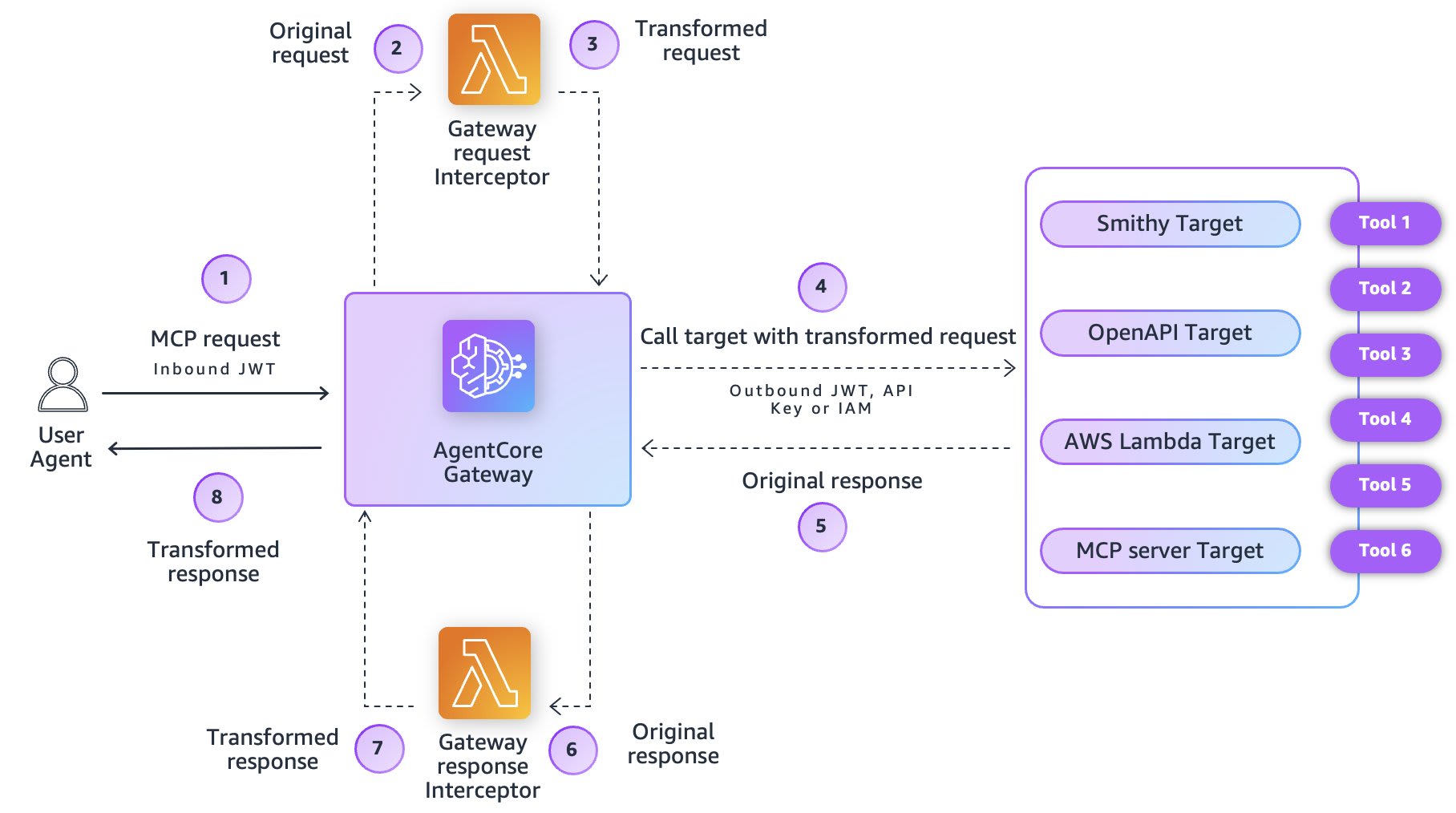
ただこの絵を見てもパッと見て何ができるの?どういった形で有効活用できるの?と疑問が湧いてくるかと思います。
Request/Response Interceptorそれぞれの役割を確認しながらどういったケースで有効なのか押さえていきましょう。
Request Interceptor
Request Interceptor は Gateway がターゲットを呼び出す前に実行されます。
具体的なユースケースを何個か例に出して確認していきます。
ユーザーの権限に応じたツールの認可制御
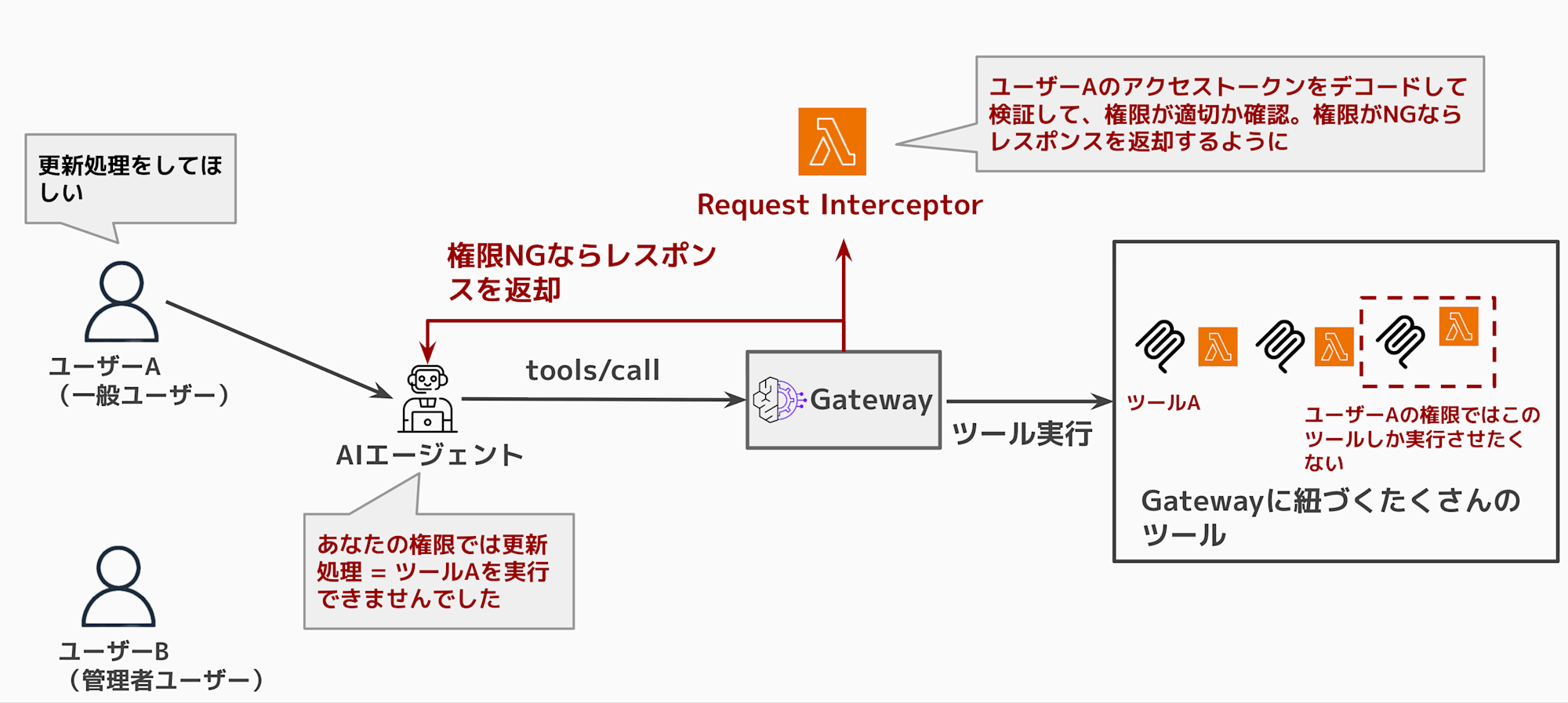
例えば細かい認可制御をしたいケースがあると思います。AさんはZZZグループに所属しているからあるツールを実行できる、グループに属していないBさんには実行させたくないなど。そういった際にこのInterceptorを使って、きめ細やかに認可の制御を実現可能にします。
Gatewayそのままを使用すると、認証されたユーザーであれば全てのツールを実行できる状態になります。
そうなると実行させたくないユーザーでも特定のツールを実行できてしまうといった好ましくない状況が起こり得ます。
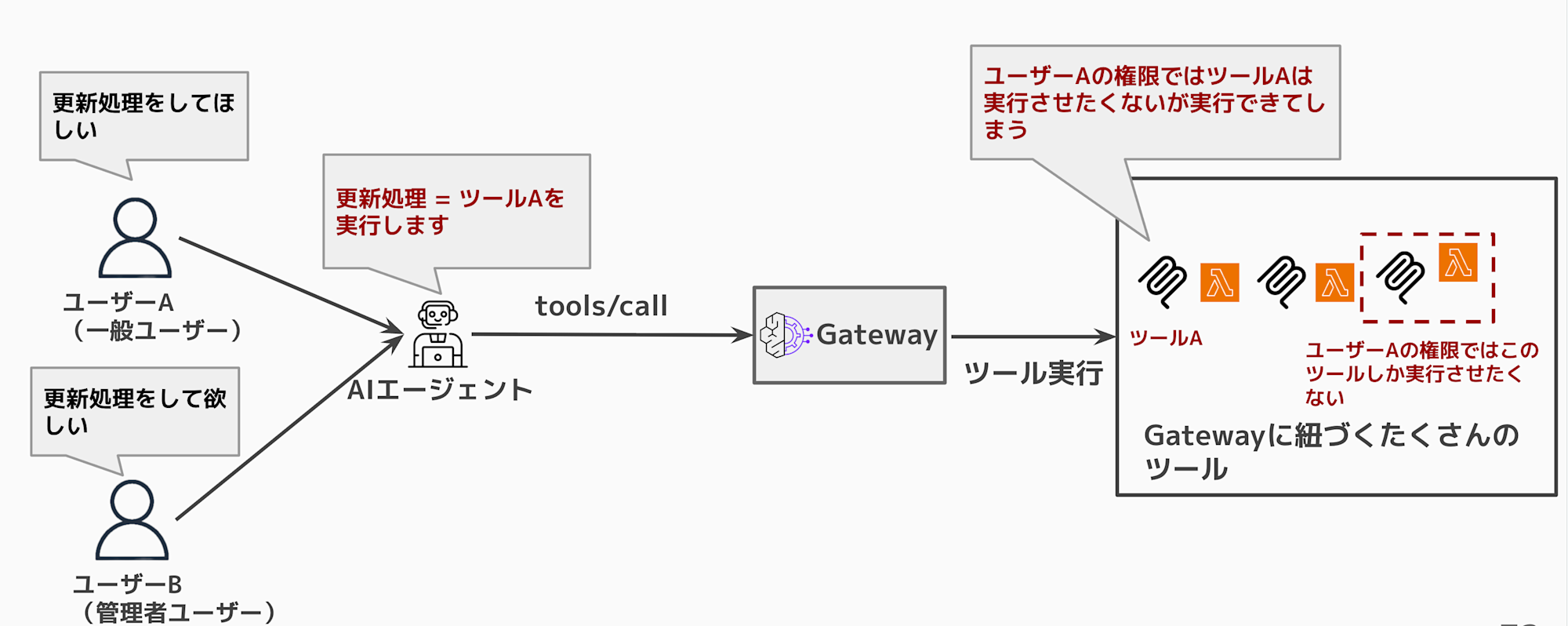
ここでRequest Interceptorを活用して権限チェックを取り入れられます。
ユーザーの権限が適切でなければツールを実行させず権限エラーとしてレスポンスを返却することも可能です。
適切なアクセストークンへの変換
クライアントから受け取ったアクセストークンをそのままターゲットに渡してしまうと、なりすましのリスクがあります。
例えば、クライアントのJWTトークンには下記のような情報が含まれています。
{
  "sub": "user-123",
  "email": "user@example.com",
  "cognito:groups": ["power_user"],
  "aud": "gateway-client-id",
  "exp": 1735400000
}
このトークンをそのままターゲット(外部API等)に渡すと、ターゲット側でこのトークンを使ってユーザーになりすまし、別のサービスにアクセスできてしまう可能性があります。
Request Interceptor を使えば、ターゲットに渡す前にトークンを変換し、必要最小限の情報だけを含む新しいトークンを発行できます。
{
  "sub": "internal-service",
  "scope": "tools:execute",
  "original_user": "user-123",
  "exp": 1735400060
}
これにより、ターゲット側ではユーザーのフルアクセス権限ではなく、必要な操作だけに制限されたトークンで処理を行うことができます。
Response Interceptor
Response Interceptor は Gateway がレスポンスを返す前に実行されます。
Interceptor の有無で何ができるのかみてみます。
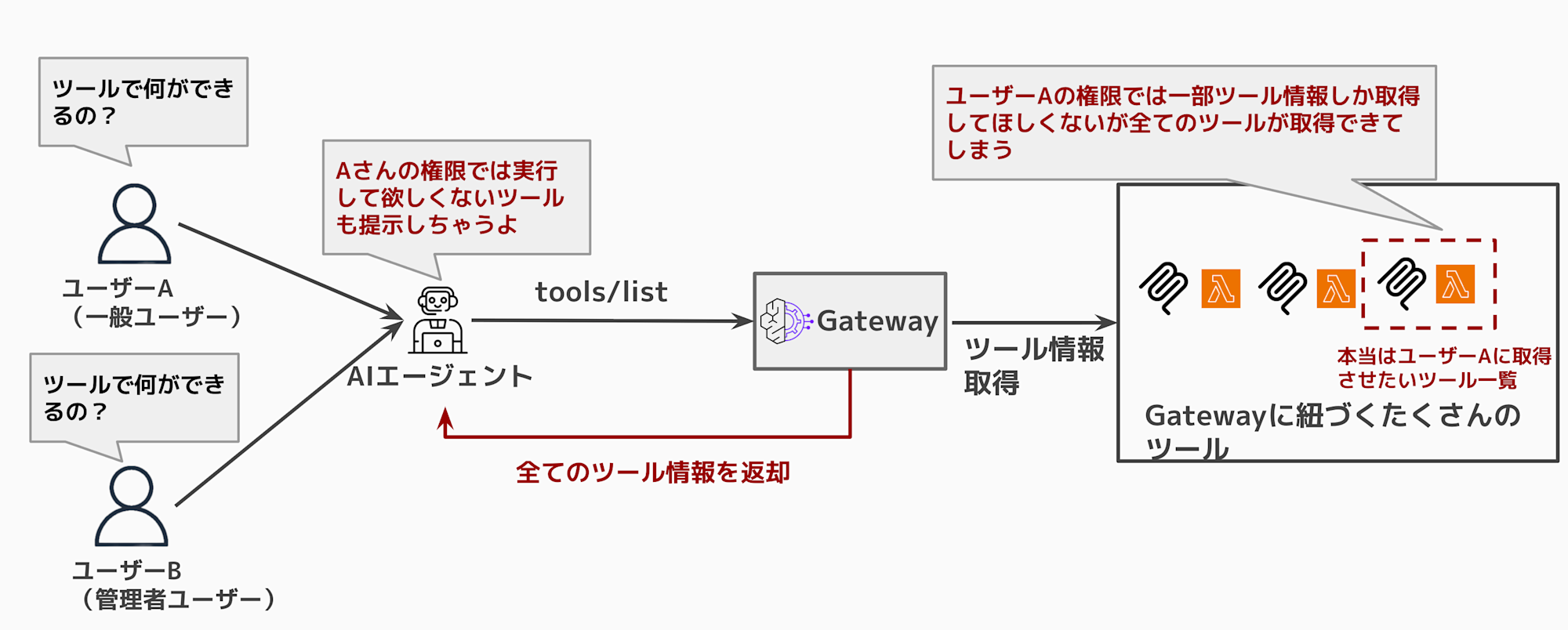
何も設定せずにGatewayを使用していると、全ての紐づくツール一覧が返却されます。ユーザーによっては実行して欲しくない、権限的に実行して欲しくないツールが一覧に含まれているのは好ましくありません。AIエージェントも実行できると勘違いします。
このケースでResponse Interceptor を活用すると下記のようになります。
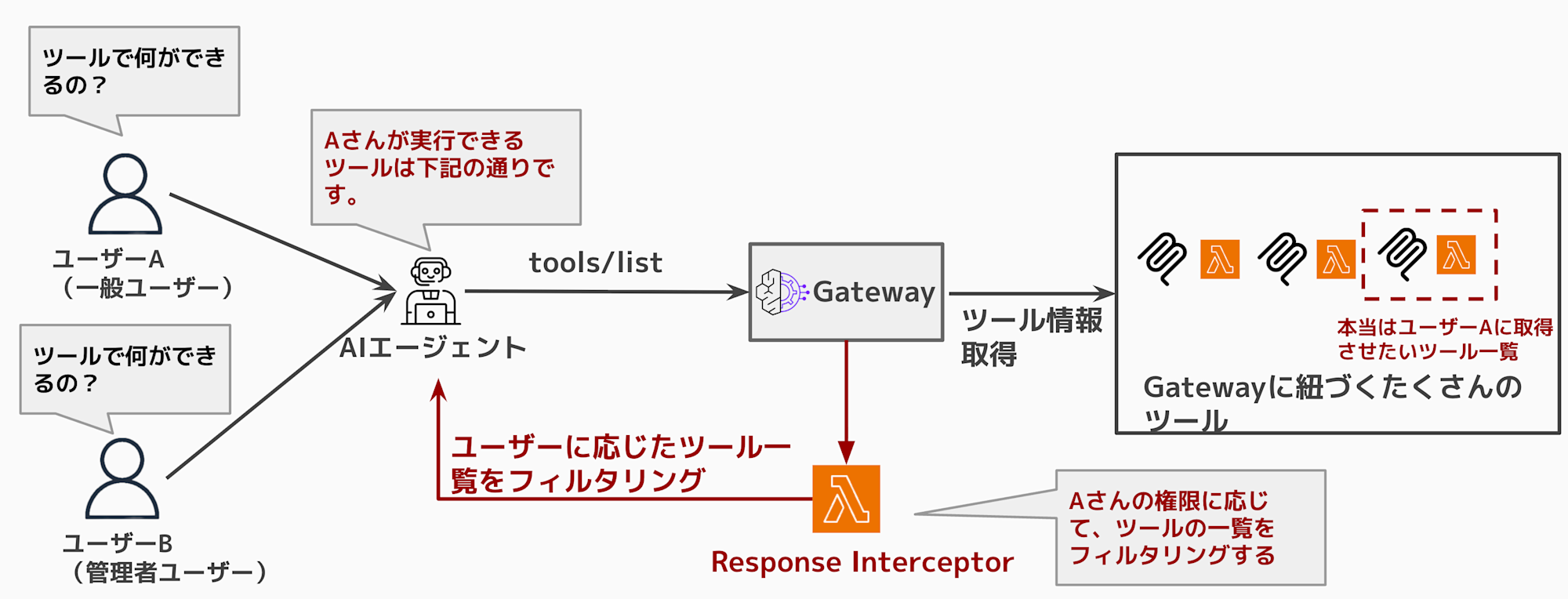
tools/list を実行した際に、権限に応じて必要なツールだけを返却することが可能です。
使用できないツールを提供してもエージェント側も混乱する可能性があるので、
必要なものだけで十分かと思います。
紹介したユースケース以外でも、機密情報が含まれていないかチェックするなどガードレール的な活用や、独自の認可ロジックを実装したいなどあるかと思います。
今回はこの Response Interceptor を使って、ユーザーの権限に応じたツールフィルタリングを実装してみます。
今回作成する検証環境
今回は Terraform を使用してサクッと環境を作ります。
ソースコードは下記レポジトリにアップロードしているので必要に応じてご参照ください。
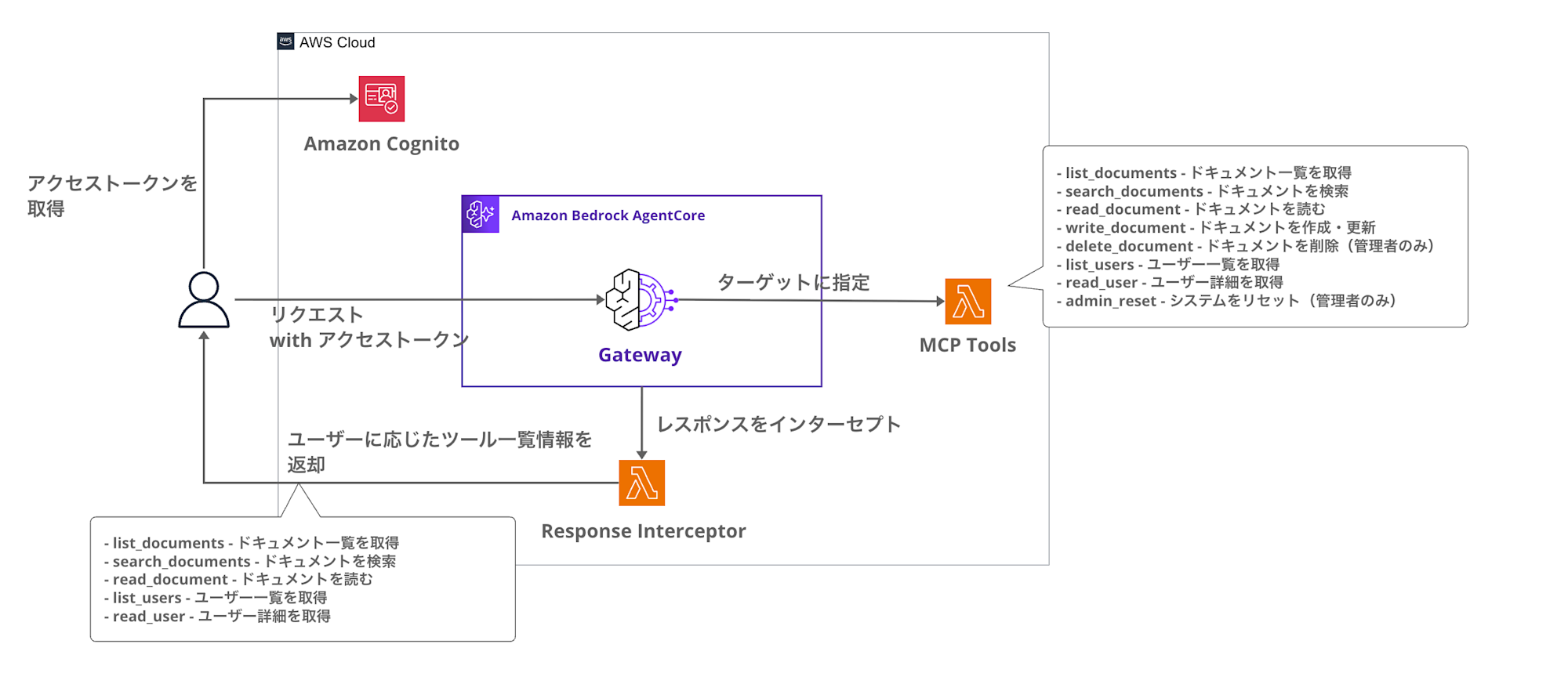
下記イメージとなります。
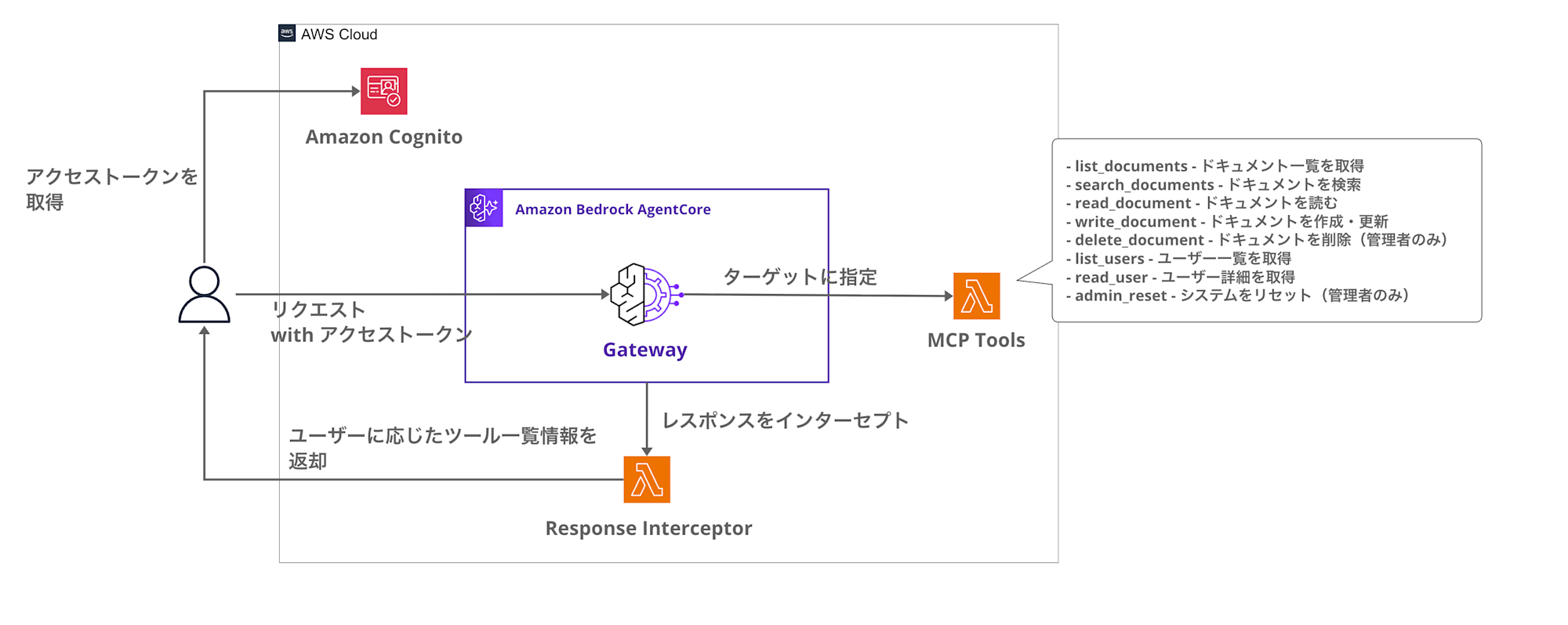
構成のポイントは下記となります。
- Cognito User Pool でユーザー認証とグループ管理を行う
- AgentCore Gateway は JWT 認証を使用し、Cognito と連携
- Response Interceptor Lambda で
tools/listのレスポンスをフィルタリング - ユーザーのグループに応じて、利用可能なツールを動的に制御
権限モデル
今回は4つのグループを用意して、それぞれ異なる権限を付与します。
| グループ | 許可されるツール | 説明 |
|---|---|---|
| admin | 全ツール | システム管理者向け |
| power_user | search, read, write, list | 読み書き可能なユーザー |
| reader | search, read, list | 読み取り専用ユーザー |
| guest | list | リスト表示のみ |
異なる権限に応じてツール一覧が適切にフィルタリングできるかを確認してみます。
実装
ディレクトリ構成
今回のディレクトリ構成は下記のようになっています。
sample-terraform-agentcore/
├── gateway.tf           # AgentCore Gateway と Targets
├── lambda.tf            # Lambda 関数の定義
├── cognito.tf           # Cognito User Pool とグループ
├── variables.tf         # 変数定義
├── outputs.tf           # 出力値
├── versions.tf          # Provider 設定
└── lambda/
    ├── interceptor/     # Response Interceptor
    │   └── handler.py
    └── mcp_tools/       # MCP Tools Target
        └── handler.py
前提
今回使用したTerraformのバージョンは下記となります。
| 項目 | バージョン |
|---|---|
| Terraform | 1.5.0 |
| AWS Provider | 6.25.0 |
| hashicorp/archive | 2.4.0 |
| hashicorp/random | 3.5.0 |
Response Interceptor の動作
Response Interceptor の処理の流れは以下のように実装しました。
- Gateway から Interceptor Lambda が呼び出される
gatewayResponseの有無で REQUEST/RESPONSE インターセプターかを判定- 両方を同じLambda関数で処理したい場合は有効なチェックかと思いますが、今回はあまり意味をなしてはおりませんが、同一の場合は参考にしてください。
tools/listメソッドの場合のみフィルタリング処理を実行- Terraformで設定したLambdaの環境変数に権限マッピング情報が存在し、ユーザーの属性と付き合わせてフィルタリングを実施します。
- JWT の
cognito:groupsクレームからユーザーのグループを取得 - グループに応じた許可ツールのみをレスポンスに含めて返却
Interceptorのソースコードは下記となります。長いので折りたたんでいます。
コード全量
"""
Response Interceptor Lambda for AgentCore Gateway

Cognitoのグループ情報に基づいて tools/list のレスポンスをフィルタリングする
"""

import json
import logging
import base64
import os
from typing import Any

logger = logging.getLogger()
logger.setLevel(logging.INFO)

# 環境変数からツール権限マッピングを取得
TOOL_PERMISSIONS = json.loads(os.environ.get('TOOL_PERMISSIONS', '{}'))

def decode_jwt_payload(token: str) -> dict:
    """JWTのペイロード部分をデコード(署名検証はGatewayが実施済み)"""
    try:
        # Bearer プレフィックスを除去
        if token.startswith('Bearer '):
            token = token[7:]

        # JWTのペイロード部分を取得(ヘッダー.ペイロード.署名)
        parts = token.split('.')
        if len(parts) != 3:
            return {}

        # Base64デコード(パディング調整)
        payload = parts[1]
        padding = 4 - len(payload) % 4
        if padding != 4:
            payload += '=' * padding

        decoded = base64.urlsafe_b64decode(payload)
        return json.loads(decoded)
    except Exception as e:
        logger.warning(f"Failed to decode JWT: {e}")
        return {}

def get_user_groups(event: dict) -> list[str]:
    """リクエストからユーザーのCognitoグループを取得"""
    try:
        gateway_request = event.get('mcp', {}).get('gatewayRequest', {})
        headers = gateway_request.get('headers', {})

        # Authorization ヘッダーから JWT を取得
        auth_header = headers.get('Authorization', '') or headers.get('authorization', '')
        if not auth_header:
            logger.info("No Authorization header found")
            return ['guest']

        payload = decode_jwt_payload(auth_header)

        # Cognito の cognito:groups クレームを取得
        groups = payload.get('cognito:groups', [])
        if not groups:
            # カスタム属性もチェック
            custom_groups = payload.get('custom:groups', '')
            if custom_groups:
                groups = custom_groups.split(',')

        logger.info(f"User groups: {groups}")
        return groups if groups else ['guest']

    except Exception as e:
        logger.error(f"Error getting user groups: {e}")
        return ['guest']

def get_allowed_tools(groups: list[str]) -> set[str]:
    """グループに基づいて許可されたツール名のセットを返す"""
    allowed = set()

    for group in groups:
        group_tools = TOOL_PERMISSIONS.get(group, [])
        if '*' in group_tools:
            # 全ツールアクセス可
            return {'*'}
        allowed.update(group_tools)

    # デフォルトでguestの権限
    if not allowed:
        allowed.update(TOOL_PERMISSIONS.get('guest', ['list']))

    return allowed

def filter_tools_response(response_body: dict, allowed_tools: set[str]) -> dict:
    """tools/list レスポンスをフィルタリング"""
    if '*' in allowed_tools:
        return response_body

    result = response_body.get('result', {})
    tools = result.get('tools', [])

    filtered_tools = []
    for tool in tools:
        tool_name = tool.get('name', '')

        # AgentCore Gateway のツール名形式: {target-name}___{tool-name}
        # 例: agentcore-demo-list-documents___list_documents
        if '___' in tool_name:
            actual_tool_name = tool_name.split('___')[-1]  # list_documents
        else:
            actual_tool_name = tool_name

        # ツール名のカテゴリでマッチング(例: list_documents -> list)
        tool_category = actual_tool_name.split('_')[0] if '_' in actual_tool_name else actual_tool_name

        logger.info(f"Checking tool: {tool_name} -> actual: {actual_tool_name} -> category: {tool_category}")

        if actual_tool_name in allowed_tools or tool_category in allowed_tools:
            filtered_tools.append(tool)
            logger.info(f"Tool allowed: {tool_name}")
        else:
            logger.info(f"Tool filtered out: {tool_name}")

    # フィルタリング後のレスポンスを構築
    filtered_response = response_body.copy()
    filtered_response['result'] = result.copy()
    filtered_response['result']['tools'] = filtered_tools

    return filtered_response

def lambda_handler(event: dict, context: Any) -> dict:
    """
    AgentCore Gateway Response Interceptor

    tools/list のレスポンスをユーザーの権限に基づいてフィルタリング
    """
    logger.info(f"Interceptor invoked with event keys: {list(event.keys())}")

    mcp_data = event.get('mcp', {})

    # REQUEST or RESPONSE インターセプターかを判定
    gateway_response = mcp_data.get('gatewayResponse')

    if gateway_response is None:
        # REQUEST インターセプター: パススルー
        logger.info("Processing REQUEST interceptor - passing through")
        gateway_request = mcp_data.get('gatewayRequest', {})
        return {
            "interceptorOutputVersion": "1.0",
            "mcp": {
                "transformedGatewayRequest": {
                    "body": gateway_request.get('body', {})
                }
            }
        }

    # RESPONSE インターセプター
    logger.info("Processing RESPONSE interceptor")

    gateway_request = mcp_data.get('gatewayRequest', {})
    request_body = gateway_request.get('body', {})
    response_body = gateway_response.get('body', {})

    # MCP メソッドを確認
    mcp_method = request_body.get('method', '')
    logger.info(f"MCP method: {mcp_method}")

    # tools/list 以外はパススルー
    if mcp_method != 'tools/list':
        logger.info(f"Method '{mcp_method}' - passing through unchanged")
        return {
            "interceptorOutputVersion": "1.0",
            "mcp": {
                "transformedGatewayResponse": {
                    "statusCode": gateway_response.get('statusCode', 200),
                    "body": response_body
                }
            }
        }

    # tools/list の場合: 権限に基づいてフィルタリング
    logger.info("Filtering tools/list response based on user permissions")

    # ユーザーのグループを取得
    user_groups = get_user_groups(event)

    # 許可されたツールを取得
    allowed_tools = get_allowed_tools(user_groups)
    logger.info(f"Allowed tools for groups {user_groups}: {allowed_tools}")

    # レスポンスをフィルタリング
    filtered_body = filter_tools_response(response_body, allowed_tools)

    original_count = len(response_body.get('result', {}).get('tools', []))
    filtered_count = len(filtered_body.get('result', {}).get('tools', []))
    logger.info(f"Tools filtered: {original_count} -> {filtered_count}")

    return {
        "interceptorOutputVersion": "1.0",
        "mcp": {
            "transformedGatewayResponse": {
                "statusCode": gateway_response.get('statusCode', 200),
                "body": filtered_body
            }
        }
    }
レスポンスの形式は指定されているので注意しましょう。下記のように記載します。
interceptorOutputVersionやtransformedGatewayResponseといったinterceptor特有のフィールドを記載する必要があるので気をつけたいですね。
return {
        "interceptorOutputVersion": "1.0",
        "mcp": {
            "transformedGatewayResponse": {
                "statusCode": gateway_response.get('statusCode', 200),
                "body": filtered_body
            }
        }
    }
フィルタリングのイメージ
例えば reader グループのユーザーが tools/list を呼び出した場合、下記のようにフィルタリングされます。
admin ユーザーであれば delete や admin_reset といった管理系ツールも見えますが、reader ユーザーには表示されません。
エージェントに対してツールを見せない状態を作ることで、不要なツール呼び出しを防ぐことができますね。例えばRequest Interceptorなどで認可制御を行なっている場合に、ユーザーの権限によっては使えないものを見せる必要ないと思うので。
動作確認
実際にデプロイして動作を確認していきます。
環境のデプロイ
まずは Terraform で環境をデプロイします。
terraform init
terraform apply --auto-approve
デプロイが完了すると、下記のような出力が表示されます。
Apply complete! Resources: 18 added, 0 changed, 0 destroyed.

Outputs:

cognito_client_id = "xxxxxxxxxxxxxxxxxxxxxxxxxx"
cognito_user_pool_id = "us-east-1_XXXXXXXXX"
gateway_endpoint = "https://xxxxxxxxxx.gateway.bedrock-agentcore.us-east-1.amazonaws.com/mcp"
gateway_id = "XXXXXXXXXX"
これで環境が整いました。出力された値を使ったAWS CLIを実行していくので環境変数に設定しておきます。
# 環境変数に保存
export AWS_REGION=us-east-1
export GATEWAY_URL=$(terraform output -raw gateway_url)
export USER_POOL_ID=$(terraform output -raw cognito_user_pool_id)
export CLIENT_ID=$(terraform output -raw cognito_client_id)
テストユーザーの作成
次に Cognito にテストユーザーを作成します。
今回は admin グループと reader グループのユーザーを作成して比較してみます。
# Admin ユーザーの作成
aws cognito-idp admin-create-user \
  --user-pool-id ${USER_POOL_ID} \
  --username admin-user \
  --user-attributes Name=email,Value=admin@example.com \
  --temporary-password 'TempPass123!'

# Admin グループに追加
aws cognito-idp admin-add-user-to-group \
  --user-pool-id ${USER_POOL_ID} \
  --username admin-user \
  --group-name admin

# Reader ユーザーの作成
aws cognito-idp admin-create-user \
  --user-pool-id ${USER_POOL_ID} \
  --username reader-user \
  --user-attributes Name=email,Value=reader@example.com \
  --temporary-password 'TempPass123!'

# Reader グループに追加
aws cognito-idp admin-add-user-to-group \
  --user-pool-id ${USER_POOL_ID} \
  --username reader-user \
  --group-name reader
パスワードの変更
admin-create-user で作成したユーザーは FORCE_CHANGE_PASSWORD 状態になっているため、パスワードを変更する必要があります。
# Admin ユーザーのパスワード変更
aws cognito-idp admin-set-user-password \
  --user-pool-id ${USER_POOL_ID} \
  --username admin-user \
  --password 'NewPass123!' \
  --permanent

# Reader ユーザーのパスワード変更
aws cognito-idp admin-set-user-password \
  --user-pool-id ${USER_POOL_ID} \
  --username reader-user \
  --password 'NewPass123!' \
  --permanent
アクセストークンの取得
各ユーザーで認証してアクセストークンを取得します。
# Admin ユーザーのトークン取得
ADMIN_TOKEN=$(aws cognito-idp admin-initiate-auth \
  --user-pool-id ${USER_POOL_ID} \
  --client-id ${CLIENT_ID} \
  --auth-flow ADMIN_USER_PASSWORD_AUTH \
  --auth-parameters USERNAME=admin-user,PASSWORD='NewPass123!' \
  --query 'AuthenticationResult.AccessToken' \
  --output text)

# Reader ユーザーのトークン取得
READER_TOKEN=$(aws cognito-idp admin-initiate-auth \
  --user-pool-id ${USER_POOL_ID} \
  --client-id ${CLIENT_ID} \
  --auth-flow ADMIN_USER_PASSWORD_AUTH \
  --auth-parameters USERNAME=reader-user,PASSWORD='NewPass123!' \
  --query 'AuthenticationResult.AccessToken' \
  --output text)
tools/list の実行比較
いよいよ本題です。
各ユーザーで tools/list を実行して、返ってくるツール一覧の違いを確認してみます。
Admin ユーザーの場合
curl -s -X POST ${GATEWAY_URL} \
  -H "Content-Type: application/json" \
  -H "Authorization: Bearer ${ADMIN_TOKEN}" \
  -d '{"jsonrpc":"2.0","id":1,"method":"tools/list"}' | jq .
{
  "jsonrpc": "2.0",
  "id": 1,
  "result": {
    "tools": [
      {
        "inputSchema": {
          "type": "object",
          "properties": {
            "target": {
              "description": "Target to reset (cache, database, etc)",
              "type": "string"
            }
          },
          "required": [
            "target"
          ]
        },
        "name": "agentcore-demo-admin-reset___admin_reset",
        "description": "Reset system (admin only)"
      },
      {
        "inputSchema": {
          "type": "object",
          "properties": {
            "document_id": {
              "description": "Document ID to delete",
              "type": "string"
            }
          },
          "required": [
            "document_id"
          ]
        },
        "name": "agentcore-demo-delete-document___delete_document",
        "description": "Delete a document (admin only)"
      },
      {
        "inputSchema": {
          "type": "object"
        },
        "name": "agentcore-demo-list-documents___list_documents",
        "description": "List available documents in the system"
      },
      {
        "inputSchema": {
          "type": "object"
        },
        "name": "agentcore-demo-list-users___list_users",
        "description": "List all users"
      },
      {
        "inputSchema": {
          "type": "object",
          "properties": {
            "document_id": {
              "description": "Document ID to read",
              "type": "string"
            }
          },
          "required": [
            "document_id"
          ]
        },
        "name": "agentcore-demo-read-document___read_document",
        "description": "Read a specific document"
      },
      {
        "inputSchema": {
          "type": "object",
          "properties": {
            "user_id": {
              "description": "User ID to retrieve",
              "type": "string"
            }
          },
          "required": [
            "user_id"
          ]
        },
        "name": "agentcore-demo-read-user___read_user",
        "description": "Get user details"
      },
      {
        "inputSchema": {
          "type": "object",
          "properties": {
            "query": {
              "description": "Search query string",
              "type": "string"
            }
          },
          "required": [
            "query"
          ]
        },
        "name": "agentcore-demo-search-documents___search_documents",
        "description": "Search documents by query"
      },
      {
        "inputSchema": {
          "type": "object",
          "properties": {
            "title": {
              "description": "Document title",
              "type": "string"
            },
            "content": {
              "description": "Document content",
              "type": "string"
            }
          },
          "required": [
            "content",
            "title"
          ]
        },
        "name": "agentcore-demo-write-document___write_document",
        "description": "Create or update a document"
      }
    ]
  }
}
Admin ユーザーは全8ツールが表示されていますね。delete_document や admin_reset といった管理系ツールも含まれています。
Reader ユーザーの場合
curl -s -X POST ${GATEWAY_URL} \
  -H "Content-Type: application/json" \
  -H "Authorization: Bearer ${READER_TOKEN}" \
  -d '{"jsonrpc":"2.0","id":1,"method":"tools/list"}' | jq .
{
  "jsonrpc": "2.0",
  "id": 1,
  "result": {
    "tools": [
      {
        "inputSchema": {
          "type": "object"
        },
        "name": "agentcore-demo-list-documents___list_documents",
        "description": "List available documents in the system"
      },
      {
        "inputSchema": {
          "type": "object"
        },
        "name": "agentcore-demo-list-users___list_users",
        "description": "List all users"
      },
      {
        "inputSchema": {
          "type": "object",
          "properties": {
            "document_id": {
              "description": "Document ID to read",
              "type": "string"
            }
          },
          "required": [
            "document_id"
          ]
        },
        "name": "agentcore-demo-read-document___read_document",
        "description": "Read a specific document"
      },
      {
        "inputSchema": {
          "type": "object",
          "properties": {
            "user_id": {
              "description": "User ID to retrieve",
              "type": "string"
            }
          },
          "required": [
            "user_id"
          ]
        },
        "name": "agentcore-demo-read-user___read_user",
        "description": "Get user details"
      },
      {
        "inputSchema": {
          "type": "object",
          "properties": {
            "query": {
              "description": "Search query string",
              "type": "string"
            }
          },
          "required": [
            "query"
          ]
        },
        "name": "agentcore-demo-search-documents___search_documents",
        "description": "Search documents by query"
      }
    ]
}
おおお、Reader ユーザーでは5ツールのみ表示されていますね。write_document、delete_document、admin_reset がフィルタリングされて見えなくなっています。
結果の比較
| グループ | 表示されるツール数 | フィルタリング |
|---|---|---|
| admin | 8 | なし(全ツール表示) |
| reader | 5 | write, delete, admin 系を除外 |
無事に Response Interceptor によるツールフィルタリングが動作していることが確認できました!
おわりに
今回は Response Interceptor のみを試しましたが、Request Interceptor を使えばツール実行前の認可チェックも可能です。両方を組み合わせることで、より細かい権限制御が実現できますね。
次はRequest Interceptor も試してみたいです!!
本記事が少しでも参考になりましたら幸いです。最後までご覧いただきありがとうございましたー!!
補足
より詳細にGateway Interceptorsの仕組みを知りたい場合は下記記事が徹底的に検証されていてとても勉強になります・・・!!
ぜひご参照ください!