相互認証を利用したClient VPN証明書の取得

こんにちは。
今回のブログでは、相互認証を利用したAWS Client VPNで使用するサーバーおよびクライアント証明書をEasyRSAで発行し、ACMに登録する方法をまとめました。
1. 事前確認
検証に使用したツールと実行環境は以下のとおりです。
証明書発行ツール : EasyRSA
Client VPN 認証オプション : 相互認証(Mutual Authentication)使用
実行環境 : Mac
2. EasyRSAのインストールと初期化
EasyRSAをクローンし、PKI環境を初期化します。
git clone https://github.com/OpenVPN/easy-rsa.git
cd easy-rsa/easyrsa3
./easyrsa init-pki
WARNINGが発生する場合
% ./easyrsa init-pki

WARNING!!!

You are about to remove the EASYRSA_PKI at:
* /Users/<ユーザー名>/easy-rsa/easyrsa3/pki

and initialize a fresh PKI here.

Type the word 'yes' to continue, or any other input to abort.
  Confirm removal: ⭐️yes⭐️

Notice
------
'init-pki' complete; you may now create a CA or requests.

Your newly created PKI dir is:
* /Users/<ユーザー名>/easy-rsa/easyrsa3/pki
3. CA(認証局)の作成
すべての証明書の信頼ルートとなるルートCAを作成します。
nopass オプションはCA秘密鍵にパスワードを設定しないという意味です。
./easyrsa build-ca nopass
実行結果
..+...(省略)++++++
You are about to be asked to enter information that will be incorporated
into your certificate request.
What you are about to enter is what is called a Distinguished Name or a DN.
There are quite a few fields but you can leave some blank
For some fields there will be a default value,
If you enter '.', the field will be left blank.
-----
Common Name (eg: your user, host, or server name) [Easy-RSA CA]:test-CA(①)

Notice
------
CA creation complete. Your new CA certificate is at:
* /Users/<ユーザー名>/easy-rsa/easyrsa3/pki/ca.crt

Build-ca completed successfully.
① CA名を入力(識別用)。入力しない場合は Easy-RSA CA がデフォルト設定される
CA発行が完了すると、以下のファイルが生成されます。
| ファイル | パス | 説明 |
|---|---|---|
| CA 証明書 | pki/ca.crt |
すべての証明書の信頼ルート |
| CA 秘密鍵 | pki/private/ca.key |
CA署名に使用(漏洩厳禁) |
4. サーバー証明書の発行
以下のコマンドでドメイン名とCN名を指定し、サーバー証明書を発行します。
# SAN(Subject Alternative Name)を含めて発行
./easyrsa --subject-alt-name="DNS:{ドメイン名}" build-server-full {CN名} nopass
実行結果
% ./easyrsa --subject-alt-name="DNS:server.test" build-server-full server-test nopass
..+...(省略)++++++
-----

Notice
------
Private-Key and Public-Certificate-Request files created.
Your files are:
* req: /Users/<ユーザー名>/easy-rsa/easyrsa3/pki/reqs/server-test.req
* key: /Users/<ユーザー名>/easy-rsa/easyrsa3/pki/private/server-test.key

You are about to sign the following certificate:

  Requested CN:     'server-test'
  Requested type:   'server'
  Valid for:        '825' days

subject=
    commonName                = server-test

            X509v3 Subject Alternative Name:
                DNS:server.test

Type the word 'yes' to continue, or any other input to abort.
  Confirm requested details: yes(①)

Using configuration from /Users/<ユーザー名>/easy-rsa/easyrsa3/pki/e7eb4a16/temp.02
Check that the request matches the signature
Signature ok
The Subject's Distinguished Name is as follows
commonName            :ASN.1 12:'server-test'
Certificate is to be certified until Sep  4 02:01:29 2028 GMT (825 days)

Write out database with 1 new entries
Database updated

WARNING
=======
INCOMPLETE Inline file created:
* /Users/<ユーザー名>/easy-rsa/easyrsa3/pki/inline/private/server-test.inline

Missing TLS Key, see 'easyrsa help gen-tls'

Notice
------
Certificate created at:
* /Users/<ユーザー名>/easy-rsa/easyrsa3/pki/issued/server-test.crt
① 発行前に証明書の内容(CN、SAN、有効期限など)を確認し、問題なければ yes を入力
証明書を発行すると生成されるファイルは以下のとおりです。
| ファイル | パス | 説明 |
|---|---|---|
| サーバー証明書 | pki/issued/{CN名}.crt |
サーバーの認証に使用する証明書 |
| サーバー秘密鍵 | pki/private/{CN名}.key |
サーバーで使用する秘密鍵 |
| サーバーCSR | pki/reqs/{CN名}.req |
証明書発行リクエストファイル |
5. クライアント証明書の発行
以下のコマンドでドメイン名とCN名を指定し、クライアント証明書を発行します。
# SANを含めて発行
./easyrsa --subject-alt-name="DNS:{ドメイン名}" build-client-full {CN名} nopass
実行結果
% ./easyrsa --subject-alt-name="DNS:client.test" build-client-full user1 nopass
..+...(省略)++++++
-----

Notice
------
Private-Key and Public-Certificate-Request files created.
Your files are:
* req: /Users/<ユーザー名>/easy-rsa/easyrsa3/pki/reqs/user1.req
* key: /Users/<ユーザー名>/easy-rsa/easyrsa3/pki/private/user1.key

You are about to sign the following certificate:

  Requested CN:     'user1'
  Requested type:   'client'
  Valid for:        '825' days

subject=
    commonName                = user1

            X509v3 Subject Alternative Name:
                DNS:client.test

Type the word 'yes' to continue, or any other input to abort.
  Confirm requested details: yes(①)

Using configuration from /Users/<ユーザー名>/easy-rsa/easyrsa3/pki/d337d212/temp.02
Check that the request matches the signature
Signature ok
The Subject's Distinguished Name is as follows
commonName            :ASN.1 12:'user1'
Certificate is to be certified until Sep  4 02:08:21 2028 GMT (825 days)

Write out database with 1 new entries
Database updated

WARNING
=======
INCOMPLETE Inline file created:
* /Users/<ユーザー名>/easy-rsa/easyrsa3/pki/inline/private/user1.inline

Missing TLS Key, see 'easyrsa help gen-tls'

Notice
------
Certificate created at:
* /Users/<ユーザー名>/easy-rsa/easyrsa3/pki/issued/user1.crt
① 発行前に証明書の内容(CN、SAN、有効期限など)を確認し、問題なければ yes を入力
証明書を発行すると生成されるファイルは以下のとおりです。
| ファイル | パス | 説明 |
|---|---|---|
| クライアント証明書 | pki/issued/{CN名}.crt |
クライアントの認証に使用する証明書 |
| クライアント秘密鍵 | pki/private/{CN名}.key |
クライアントで使用する秘密鍵 |
| クライアントCSR | pki/reqs/{CN名}.req |
証明書発行リクエストファイル |
6. AWSへ証明書インポート
作成した証明書を、AWS ACM(Certificate Manager)の証明書インポート機能を使ってACMにアップロードします。
サーバー証明書の登録に必要なファイル
| 入力欄 | ファイルパス | ファイル種別 |
|---|---|---|
| 証明書本文 | pki/issued/{CN名}.crt |
サーバー証明書 |
| 証明書のプライベートキー | pki/private/{CN名}.key |
サーバー秘密鍵 |
| 証明書チェーン | pki/ca.crt |
CA証明書 |
クライアント証明書の登録に必要なファイル
| 入力欄 | ファイルパス | ファイル種別 |
|---|---|---|
| 証明書本文 | pki/issued/{CN名}.crt |
クライアント証明書 |
| 証明書のプライベートキー | pki/private/{CN名}.key |
クライアント秘密鍵 |
| 証明書チェーン | pki/ca.crt |
CA証明書 |
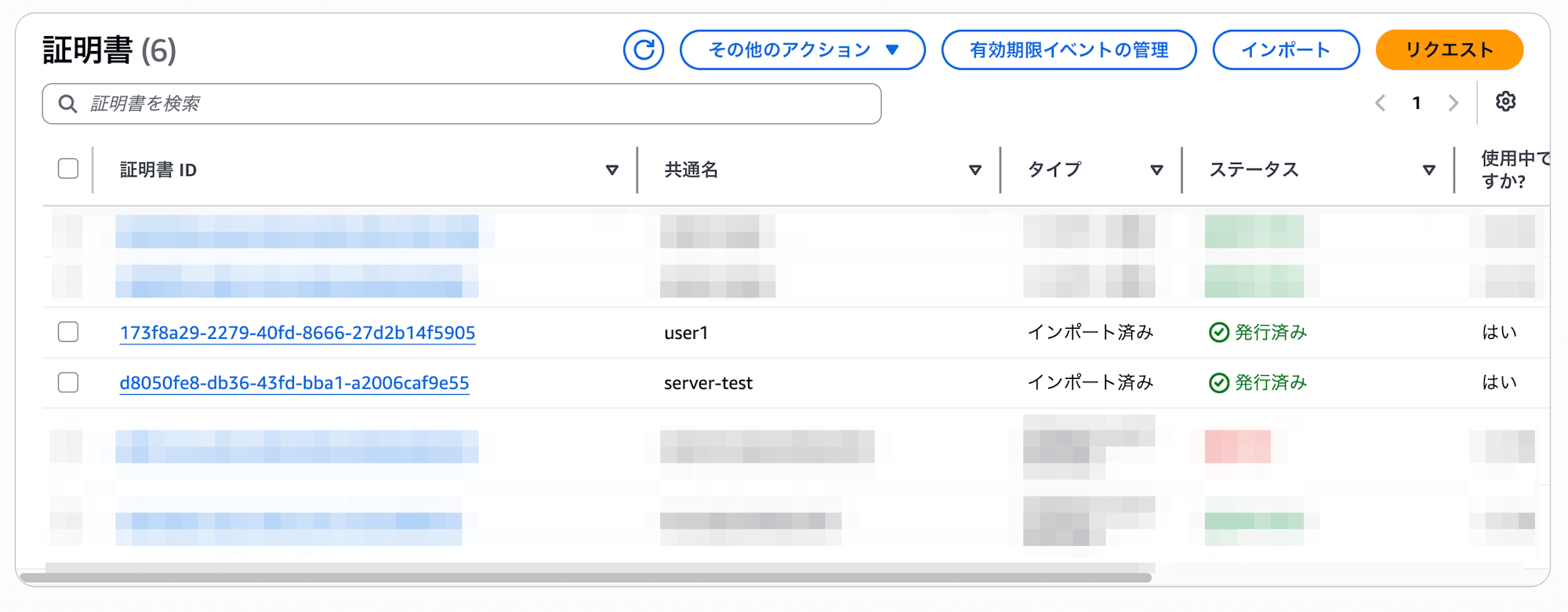
アップロードすると、以下のように証明書の一覧と状態が確認できます。
7. 注意点
7.1. 証明書の有効期限
各証明書には有効期限があります。
| 証明書 | 有効期限 |
|---|---|
| CA | 3650日(10年) |
| サーバー | 825日(約2年3ヶ月) |
| クライアント | 825日(約2年3ヶ月) |
登録した証明書の有効期限を確認する
 % ./easyrsa show-ca

Notice
------
Showing details for CA certificate, at:
* /Users/<ユーザー名>/easy-rsa/easyrsa3/pki/ca.crt

Certificate:
    Data:
        Version: 3 (0x2)
        (省略)
        Issuer:
            commonName                = test-CA
        Validity
            Not Before: Jun  2 01:56:32 2026 GMT
            Not After : May 30 01:56:32 2036 GMT
        (省略)
% ./easyrsa show-cert {CN名}

Notice
------
Showing 'cert' details for: 'server-test'

This file is stored at:
* /Users/<ユーザー名>/easy-rsa/easyrsa3/pki/issued/server-test.crt

Certificate:
    Data:
        Version: 3 (0x2)
        (省略)
        Issuer:
            commonName                = test-CA
        Validity
            Not Before: Jun  2 02:01:29 2026 GMT
            Not After : Sep  4 02:01:29 2028 GMT
        Subject:
            commonName                = server-test
        (省略)
            X509v3 Subject Alternative Name:
                DNS:server.test
有効期限を任意に設定するには、以下のオプションを追加します。
--days={希望の日数}
変更テスト
テストとして、クライアント証明書の有効期限を変更して作成してみます。
% ./easyrsa --days=3650 --subject-alt-name="DNS:client.test" build-client-full user2 nopass
..+...(省略)++++++
-----

Notice
------
Private-Key and Public-Certificate-Request files created.
Your files are:
* req: /Users/<ユーザー名>/easy-rsa/easyrsa3/pki/reqs/user2.req
* key: /Users/<ユーザー名>/easy-rsa/easyrsa3/pki/private/user2.key

You are about to sign the following certificate:

  Requested CN:     'user2'
  Requested type:   'client'
  Valid for:        '3650' days ⭐️⭐️⭐️
  (省略)
結果を確認すると、変更した有効期限で表示されていることが確認できます。
証明書の有効期限は長いほどセキュリティリスクが高まります。
一方、短すぎると期限切れのたびに再発行 → ACM再登録の作業が必要となり、運用負荷が増えます。
セキュリティと運用の利便性を考慮して、適切な有効期限を設定してください。
7.2. クライアント証明書の数
証明書を複数のユーザーで共有すると、特定のユーザーのみアクセスを遮断することが難しくなるため、VPNに接続するユーザー数分のクライアント証明書を発行することを推奨します。
ユーザーごとに証明書を発行しておくことで、必要に応じて該当の証明書のみを失効(revoke)させ、個別にアクセスを制御できます。
また、クライアント証明書はACMにすべて登録する必要はありません。
ACMに登録するクライアント証明書は「このCAから発行された証明書を信頼する」という設定用途であるため、同じCAから発行された証明書であれば1枚だけ登録すれば十分です。
おわりに
今回のブログでは、相互認証を利用したClient VPNで使用する証明書について、EasyRSAを使った発行からACM登録までの流れをまとめました。
参考になれば幸いです。