![[プレビュー] Partner Cross-Cloud Interconnect for AWS で Google Cloud と AWS のネットワークを実際に接続してみる](https://images.ctfassets.net/ct0aopd36mqt/wp-thumbnail-5e174145e24b89a2d2b8031416a2e289/23e54ae08160427e623f2e4735113931/googlecloud-cloud-network?w=3840&fm=webp)
[プレビュー] Partner Cross-Cloud Interconnect for AWS で Google Cloud と AWS のネットワークを実際に接続してみる

ウィスキー、シガー、パイプをこよなく愛する大栗です。
メソッド Google Cloud Advent Calendar 2025 の 12 月 20 日のエントリーです。
Google Cloud と AWS のネットワークを直結する Interconnect について実際にネットワークを接続してみます。
AWS と Google Cloud が連携してマルチクラウド ネットワーキングを簡素化
Partner Cross-Cloud Interconnect for AWS
Partner Cross-Cloud Interconnect for AWS は Google Cloud と AWS のネットワークを直結する Interconnect の機能である、AWS Interconnect - multicloud の Google Cloud 側の機能です。
AWS Interconnect - multicloud については、以下のエントリをご確認ください。
Google Cloud には元々 AWS と接続する Cross-Cloud Interconnect という機能がありましたが、以下のような違いがあります。
| Interconnect 接続タイプ | Cross-Cloud Interconnect | Partner Cross-Cloud Interconnect for AWS |
|---|---|---|
| 説明 | OCI、AWS、Azure、Alibaba などのプロバイダと Google Cloud 間の専用接続を提供します。 | Google Cloud と AWS などのプロバイダ間の専用接続を提供します。 |
| 物理的なプロビジョニング | 必要 | 不要 |
| 物理的な接続とポート | 必要 | 不要 |
| 接続の増強 | 10 Gbps または 100 Gbps | 1 Gbps から 100 Gbps までの細かく選べる事前承認済みの接続速度(プレビュー中は 1 Gbps) |
| プロビジョニング時間 | 1~4 週間 | 1 日以内 |
| 接続順序 | Google Cloudから開始する必要があります | 双方向。 Google Cloud または Amazon Web Services から開始できます |
リージョン
パブリックプレビュー時点で対応しているリージョンは以下のとおりです。
| Google Cloud のロケーション | AWS のロケーション |
|---|---|
| europe-west2 (ロンドン) | eu-west-2 欧州 (ロンドン) |
| europe-west3 (フランクフルト) | eu-central-1 欧州 (フランクフルト) |
| us-east4 (北バージニア) | us-east-1 米国 (バージニア北部) |
| us-west1 (オレゴン) | us-west-2 米国 (オレゴン) |
| us-west2 (ロサンゼルス) | us-west-1 米国 (北カリフォルニア) |
料金
プレビュー中は transport リソースに料金は請求されません。また AWS Interconnect にも料金は請求されません。
やってみる
Interconnect の接続は、Google Cloud からでも AWS からでも接続設定を開始できます。今回は Google Cloud 側から開始してみます。
ここではシンプルな設定にするため、Google Cloud と AWS でそれぞれ VPC は 1 個ずつで、オレゴンで Interconnect を接続します。
- Google Cloud
- us-west1|us-west1 (オレゴン)
- AWS
- us-west-2 米国 (オレゴン)
なお、現在 Google Cloud では Partner Cross-Cloud Interconnect for AWS についてコンソールの準備がされていないため gcloud コマンドで設定を行います。
事前準備
Interconnect を接続するための準備を Google Cloud と AWS で実施します。Interconnect は Google Cloud 側は Cloud Router、AWS 側は Direct Connect Gateway と接続するため、事前に作成します。
Google Cloud の事前準備
接続する Google Cloud の VPC は以下の内容とします。
| Public / Private | Subnet Name | Region | CIDR |
|---|---|---|---|
| Public | public1-us-west1 | us-west1 | 10.1.0.0/20 |
| Private | private1-us-west1 | us-west1 | 10.1.128.0/20 |
Network Connectivity API を有効化します。有効化していない場合には、以下の URL から有効化しておきます。
https://console.cloud.google.com/marketplace/product/google/networkconnectivity.googleapis.com に
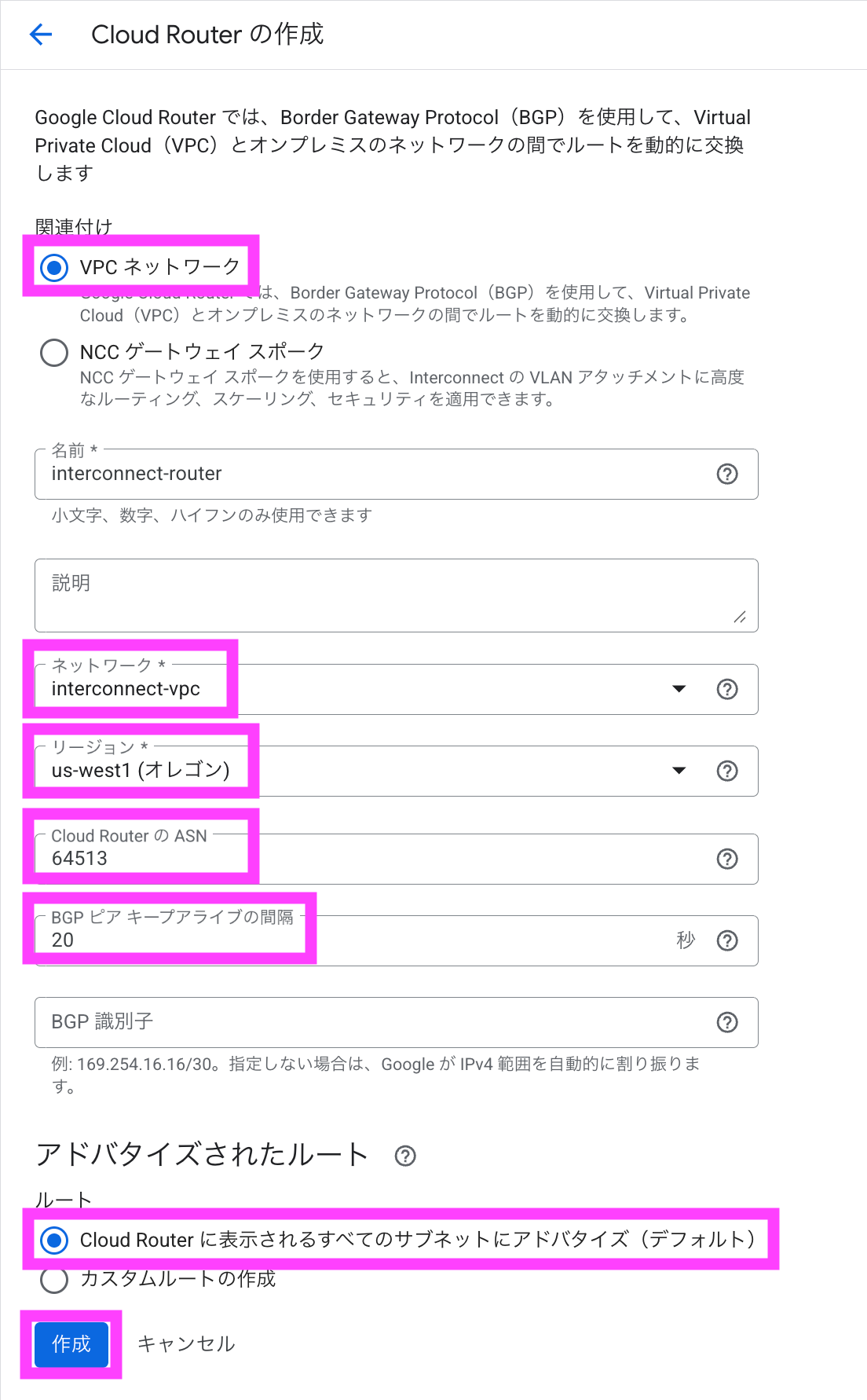
次に Cloud Router を作成します。関連付けは VPC ネットワーク で、対象の VPC ネットワークと関連付けます。ここではルートを Cloud Router に表示されるすべてのサブネットにアドバタイズ にします。
AWS の事前準備
接続する AWS の VPC は以下の内容とします。
| Public / Private | Subnet Name | Availability Zone | CIDR |
|---|---|---|---|
| Public | interconnect-subnet-public1-us-west-2a | us-west-2a | 10.0.0.0/20 |
| Public | interconnect-subnet-public1-us-west-2b | us-west-2b | 10.0.16.0/20 |
| Public | interconnect-subnet-public1-us-west-2c | us-west-2c | 10.0.32.0/20 |
| Private | interconnect-subnet-private1-us-west-2a | us-west-2a | 10.0.128.0/20 |
| Private | interconnect-subnet-private1-us-west-2b | us-west-2b | 10.0.144.0/20 |
| Private | interconnect-subnet-private1-us-west-2c | us-west-2c | 10.0.160.0/20 |
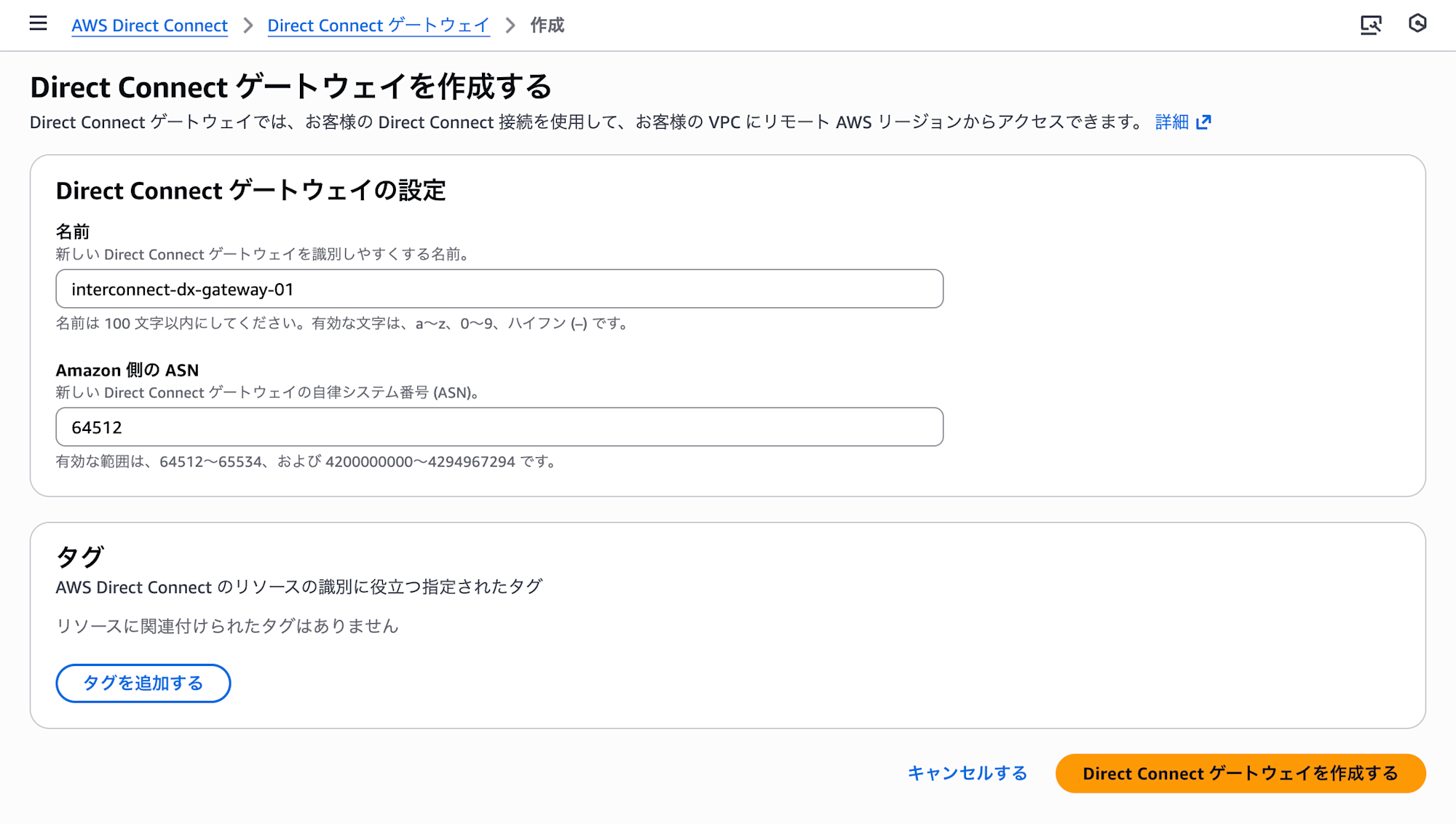
Direct Connect Gateway を作成します。
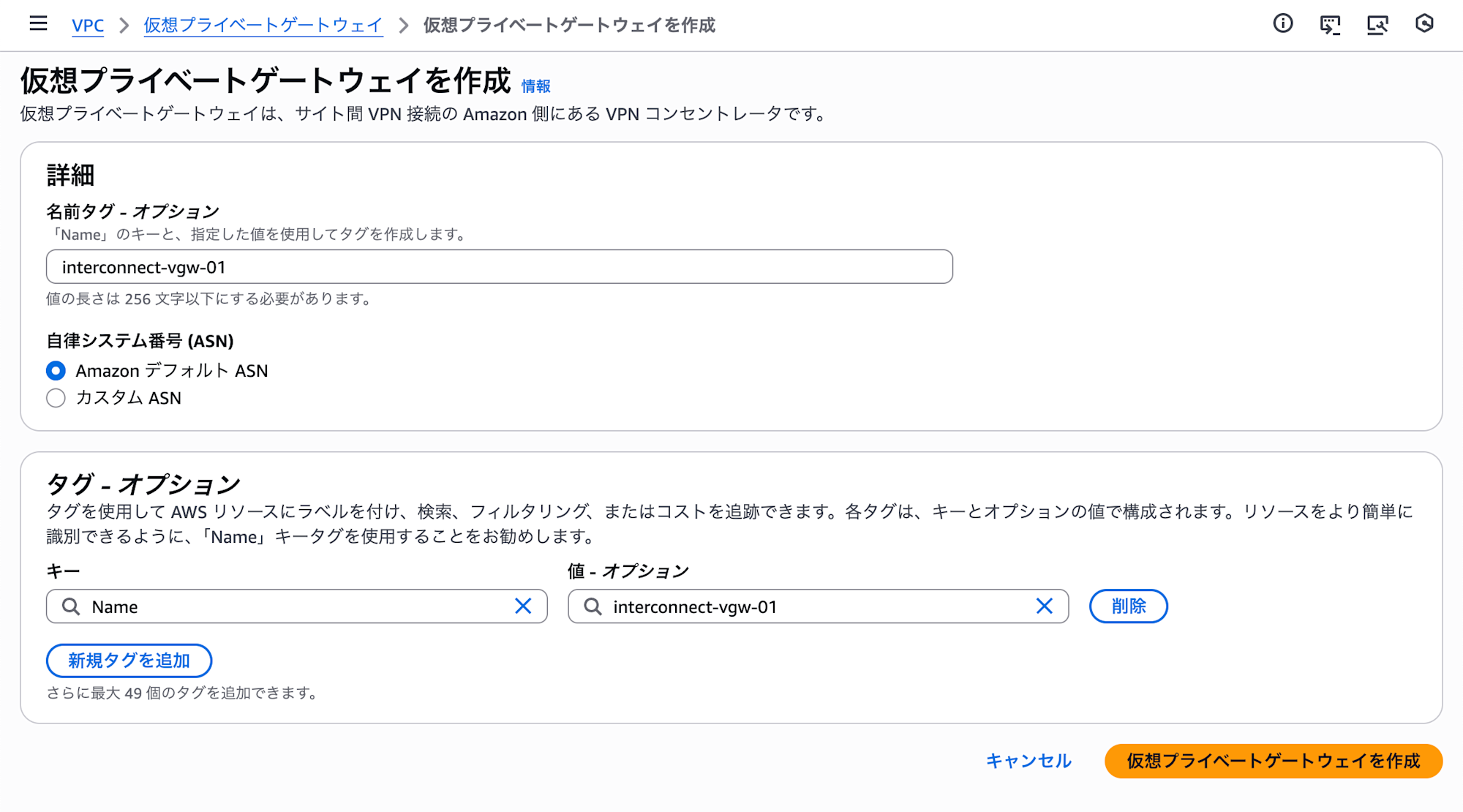
仮想プライベートゲートウェイを作成します。
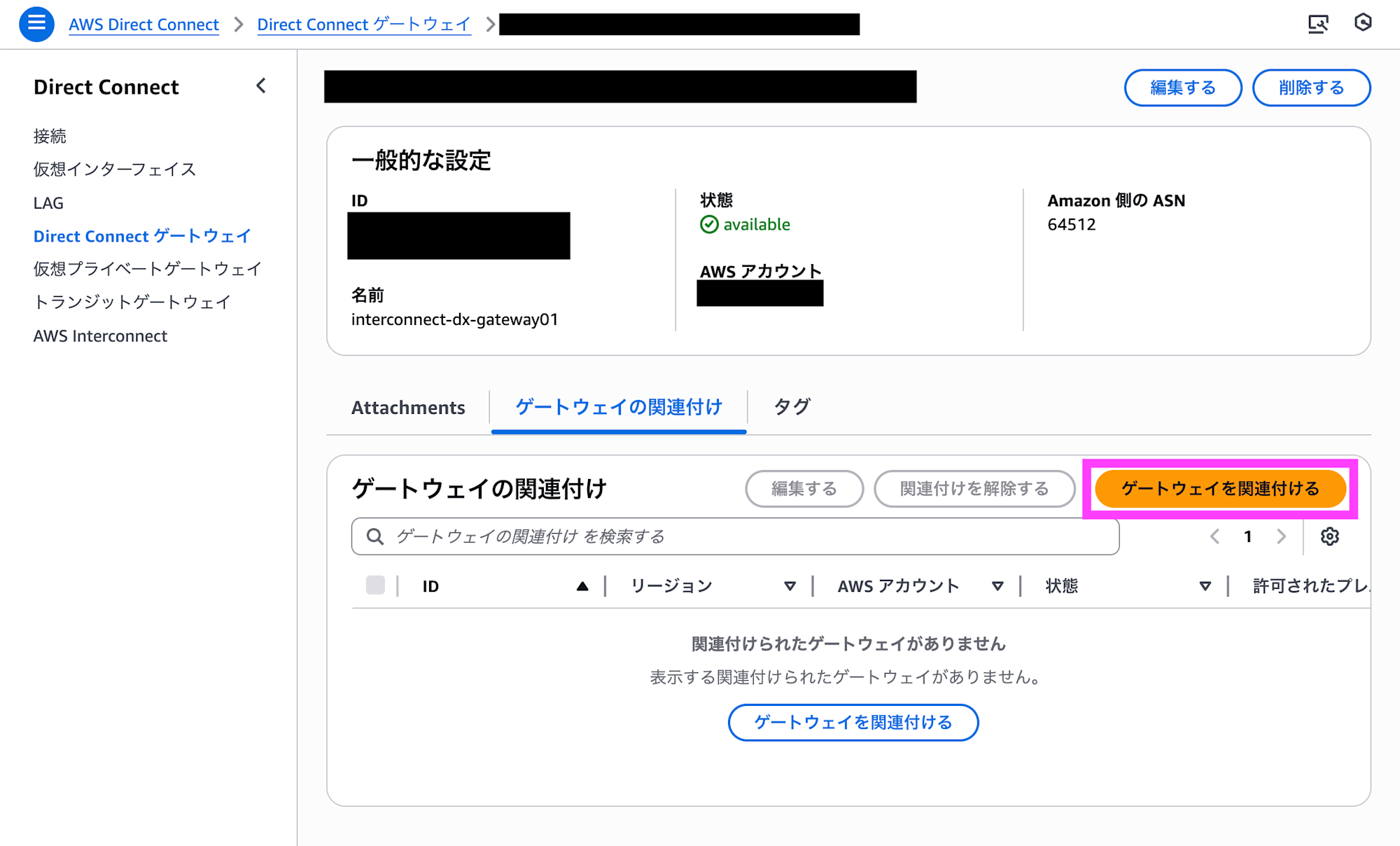
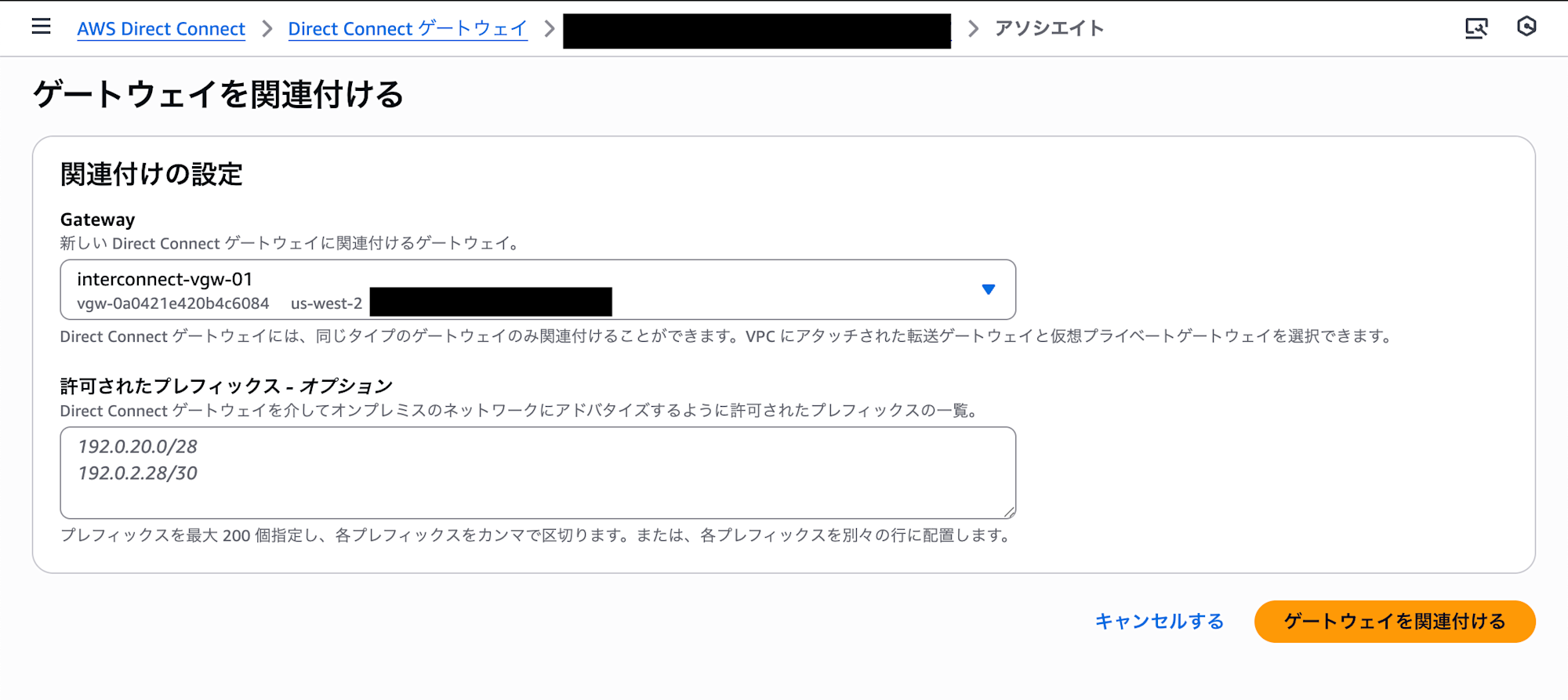
Direct Connect Gateway の詳細からゲートウェイの関連付けを行います。
Interconnect の作成
Interconnect に関する操作は gcloud コマンドで行います。
利用可能なプロファイルを確認します。ここで、AWS のオレゴンリージョンの名称が aws-us-west-2 と分かりました。
$ gcloud beta network-connectivity transports remote-profiles list --region us-west1
NAME: aws-us-west-2
PROVIDER: Amazon Web Services
LOCATION: us-west-2
Interconnect を作成します。ここでは以下のような内容を入力しています。実行結果の generatedActivationKey と peeringNetwork をメモしておいてください。
| 項目名 | 値 | 備考 |
|---|---|---|
| Transport Name | <任意> | 任意の名称 |
| AWS Account ID | 123456789012 | 12桁 |
| Google Cloud Region | us-west1 | |
| bandwidth | 1G | プレビューでは 1G のみ |
| AWS Region | aws-us-west-2 | 確認したプロファイル名 |
| VPC Name | interconnect-vpc | VPC の名称 |
| Advertised Route | 10.1.0.0/16 | 広告するルート |
| Stack Type | IPV4_ONLY | IPV4_IPV6 も選択可能 |
$ gcloud beta network-connectivity transports create <Transport Name> \
    --remote-account-id=<AWS Account ID> \
    --region=<Google Cloud Region> \
    --bandwidth=<Bandwidth> \
    --remote-profile=<AWS Region> \
    --network=<VPC Name> \
    --advertised-routes=<Advertised Route> \
    --stack-type=<Stack Type>
Create request issued for: [intereconnect01]
Waiting for operation [projects/alpha-123456/locations/us-west1/operations/operation-1234567890123-12345678901123-12345678-123456789] to c
omplete...done.
Created transport [intereconnect01].
advertisedRoutes:
- 10.1.0.0/16
bandwidth: BPS_1G
createTime: '2025-12-20T00:27:18.497288913Z'
generatedActivationKey: abcdefghijklmnopqrstuvwxyzabcdefghijklmnopqrstuvwxyzabcdefghijklmnopqrstuvwxyzabcdefghijklmnopqrstuvwxyzabcdefghijklmnopqrstuvwxyzabcdefghijklmnopqrstuvwxyzabcdefghijklmnopqrstuvwxyzabcdefghijklmnopqrstuvwxyzabcdefghijklmnopqrstuvwxyzabcdefghijklmnopqrstuvwxyzabcdefghijklmnopqrstuvwxyzabcdefghijklmnopqrstuvwxyzabcdefghijklmnopqrstuvwxyzabcdefghijklmnop==
name: projects/alpha-123456/locations/us-west1/transports/intereconnect01
network: interconnect-vpc
peeringNetwork: projects/123456789012345678-tp/global/networks/transport-123456789012345-vpc
remoteAccountId: '123456789012'
remoteProfile: aws-us-west-2
stackType: IPV4_ONLY
state: PENDING_KEY
updateTime: '2025-12-20T00:29:16.614173350Z'
Interconnect の承認
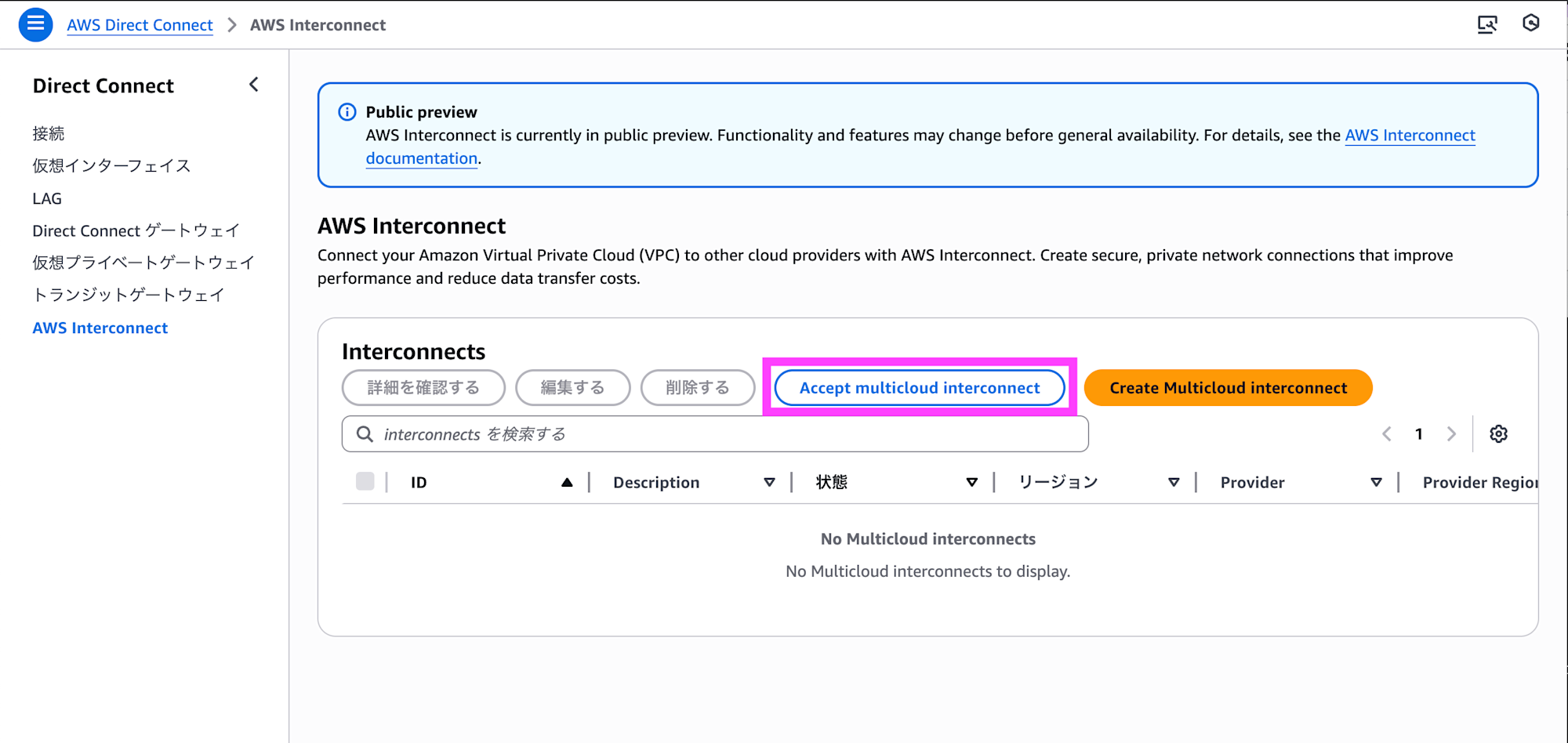
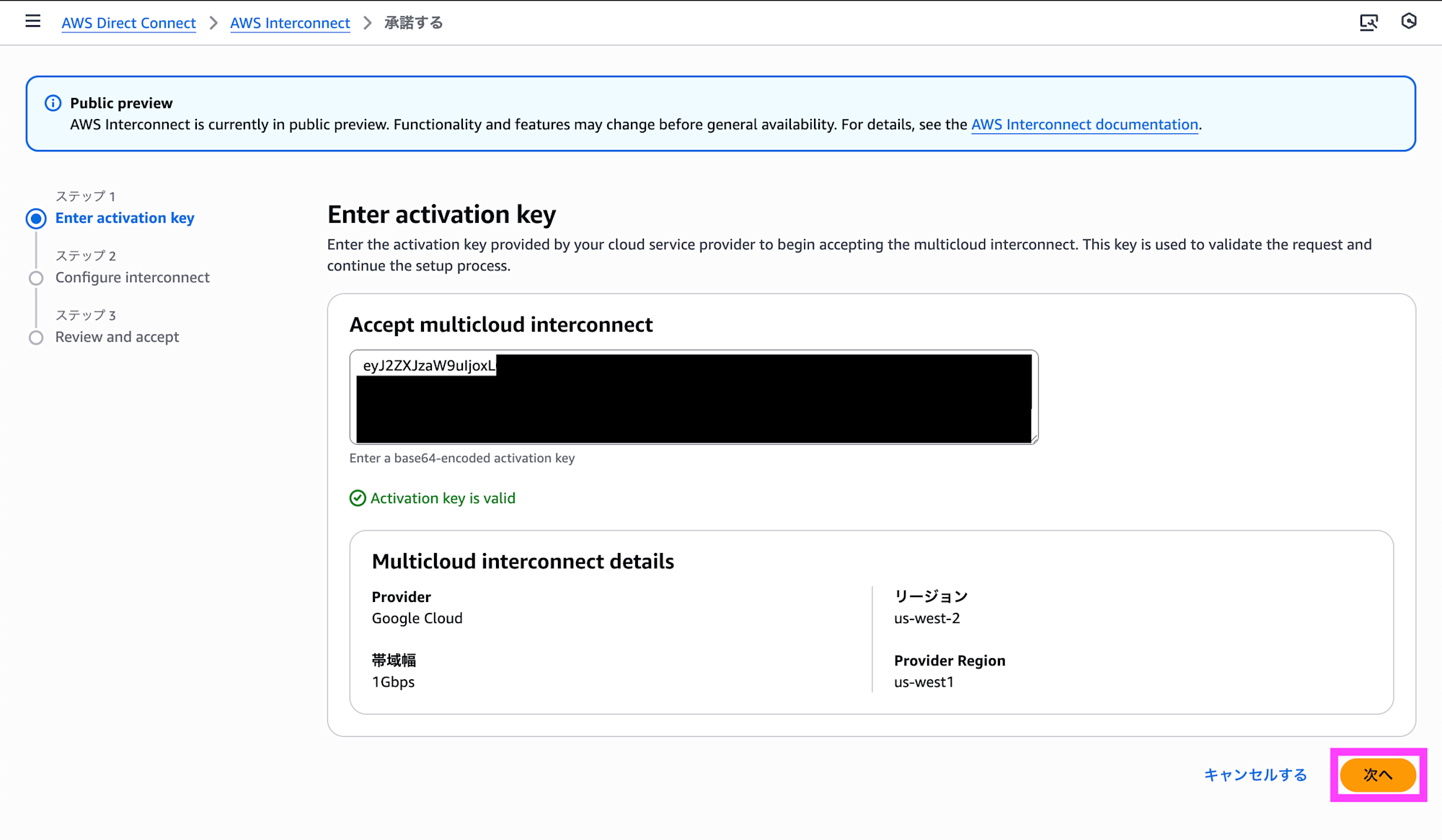
AWS 側で Interconnect を承認します。AWS Interconnect のコンソールで Accept multicloud interconnect をクリックします。
generatedActivationKey の内容を入力します。
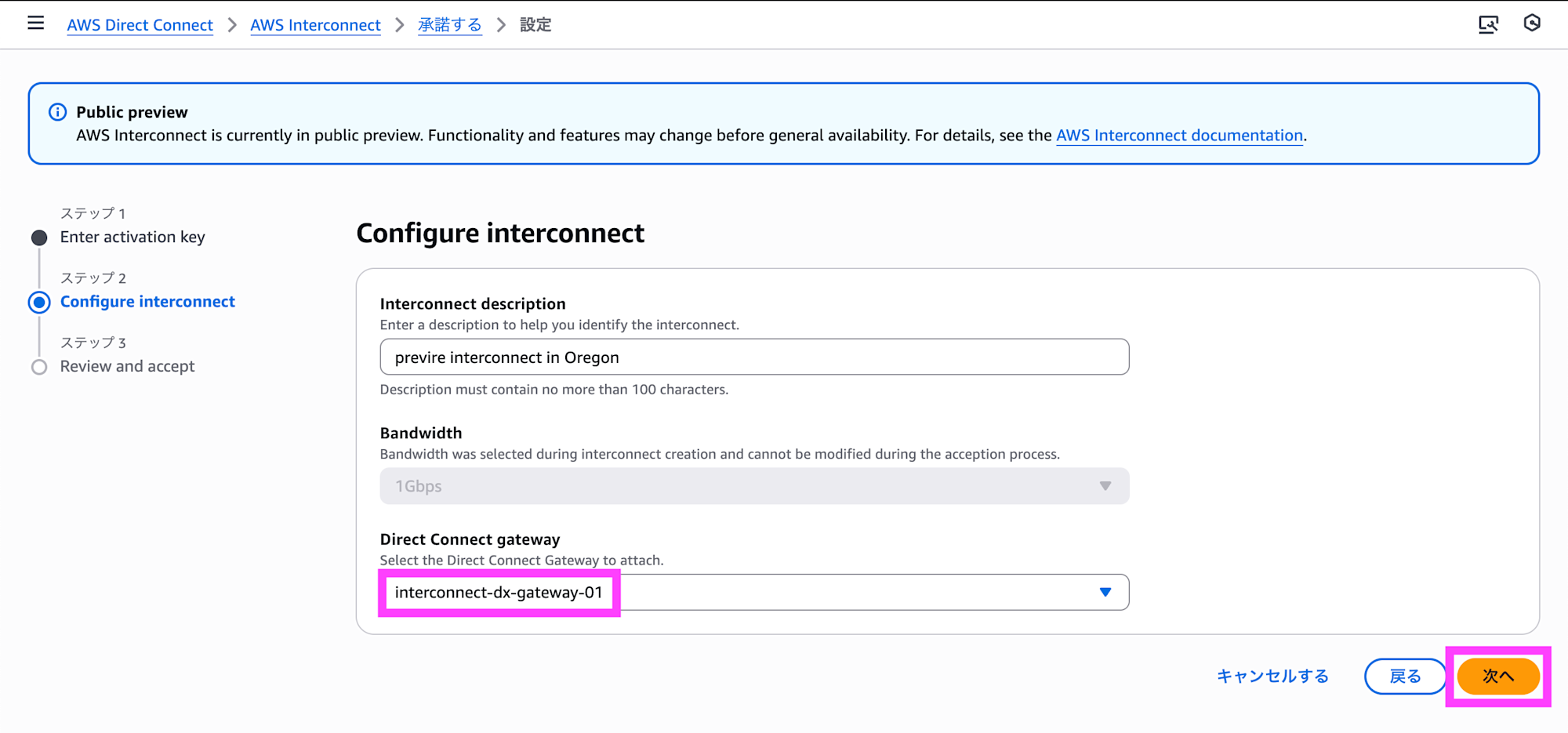
接続する Direct Connect Gateway を指定します。
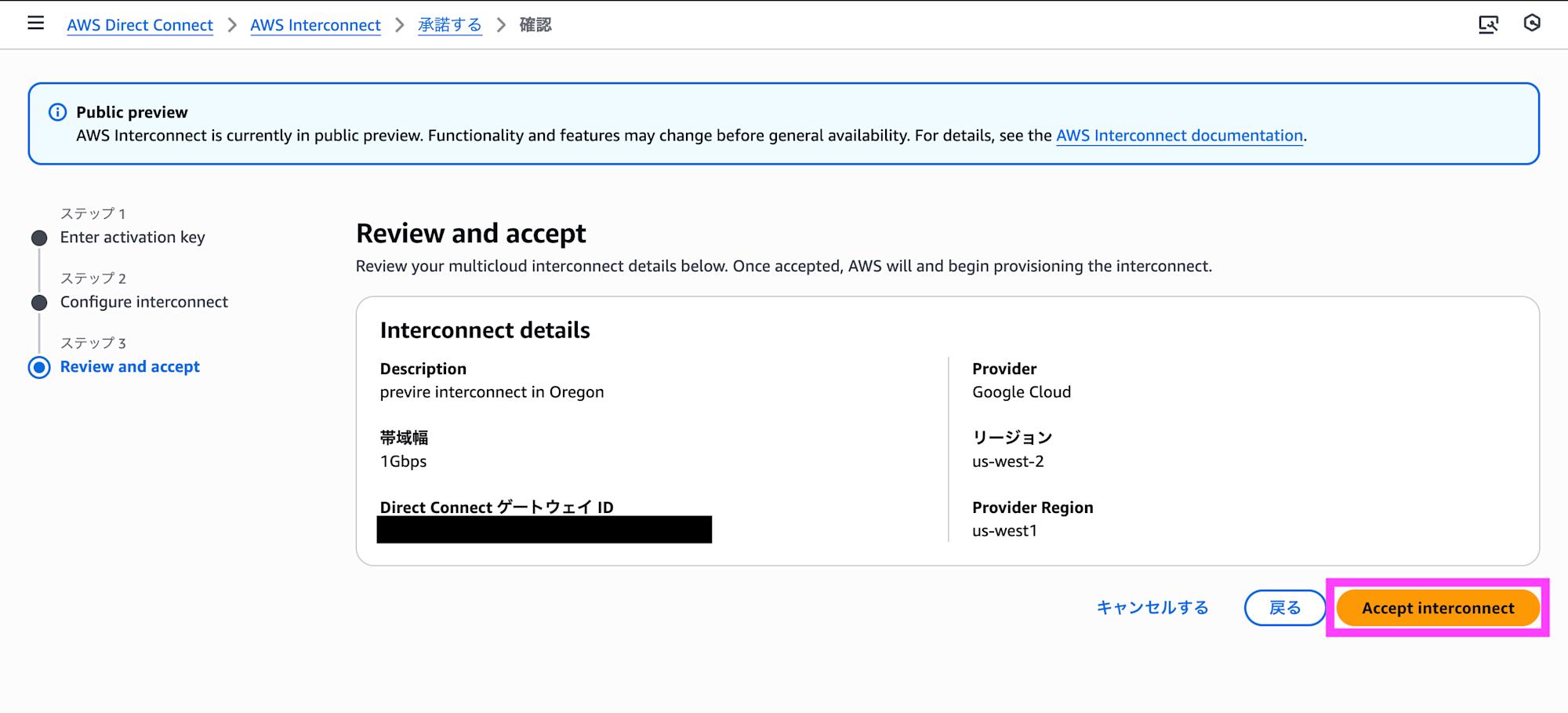
内容を確認して承認します。
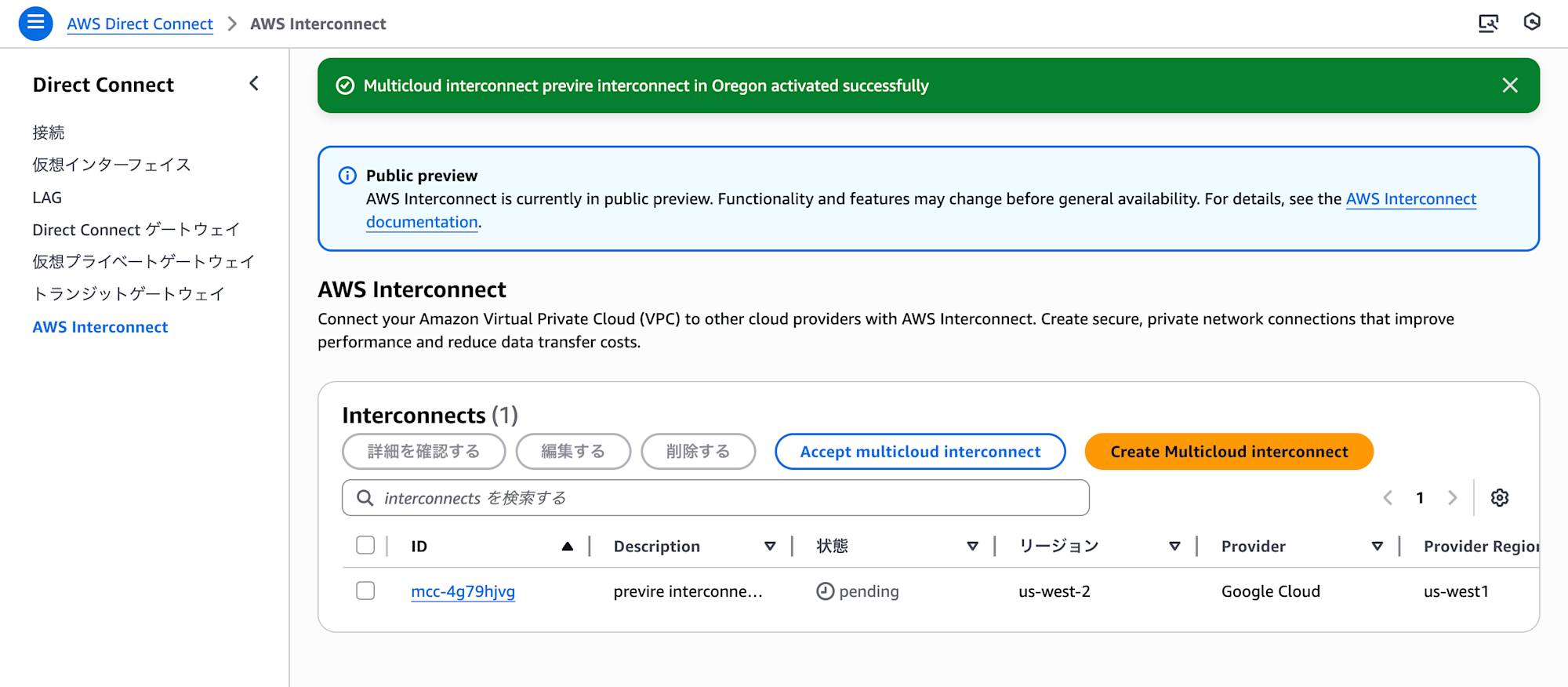
Interconnect が作成されます。
VPC ネットワーク ピアリングを確立する
VPC ネットワーク ピアリングを確立します。ここでは以下のような内容を入力しています。
| 項目名 | 値 | 備考 |
|---|---|---|
| Transport Name | <任意> | 作成したトランスポートの名称 |
| VPC Name | interconnect-vpc | VPC の名称 |
| Peering Network | Interconnect 作成時の peeringNetwork の内容 |
projects/<Project ID>/global/networks/<transport> の形式 |
$ gcloud compute networks peerings create "<Transport Name>" \
    --network="<VPC Name>" \
    --peer-network="<Peering Network>" \
    --import-custom-routes \
    --export-custom-routes
Updated [https://www.googleapis.com/compute/v1/projects/alpha-123456/global/networks/interconnect-vpc].
WARNING: Some requests generated warnings:
 - Network MTU 1460B does not match the peer's MTU 8896B

---
autoCreateSubnetworks: false
creationTimestamp: '2025-12-19T01:55:05.019-08:00'
description: ''
id: '1234567890123456789'
kind: compute#network
mtu: 1460
name: interconnect-vpc
networkFirewallPolicyEnforcementOrder: AFTER_CLASSIC_FIREWALL
peerings:
- autoCreateRoutes: true
  connectionStatus:
    trafficConfiguration:
      exportCustomRoutesToPeer: true
      exportSubnetRoutesWithPublicIpToPeer: false
      importCustomRoutesFromPeer: true
      importSubnetRoutesWithPublicIpFromPeer: false
      stackType: IPV4_ONLY
    updateStrategy: INDEPENDENT
  exchangeSubnetRoutes: true
  exportCustomRoutes: true
  exportSubnetRoutesWithPublicIp: true
  importCustomRoutes: true
  importSubnetRoutesWithPublicIp: false
  name: intereconnect01
  network: https://www.googleapis.com/compute/v1/projects/123456789012345678-tp/global/networks/transport-123456789012345-vpc
  peerMtu: 8896
  stackType: IPV4_ONLY
  state: ACTIVE
  stateDetails: '[2025-12-19T16:42:00.681-08:00]: Connected.'
  updateStrategy: INDEPENDENT
routingConfig:
  bgpBestPathSelectionMode: LEGACY
  routingMode: REGIONAL
selfLink: https://www.googleapis.com/compute/v1/projects/alpha-123456/global/networks/interconnect-vpc
selfLinkWithId: https://www.googleapis.com/compute/v1/projects/alpha-123456/global/networks/1234567890123456789
subnetworks:
- https://www.googleapis.com/compute/v1/projects/alpha-123456/regions/us-west1/subnetworks/private1-us-west1
- https://www.googleapis.com/compute/v1/projects/alpha-123456/regions/us-west1/subnetworks/public1-us-west1
ルーティングの設定
Google Cloud 側は Interconnect 作成時に --advertised-routes オプションでルートを設定しています。
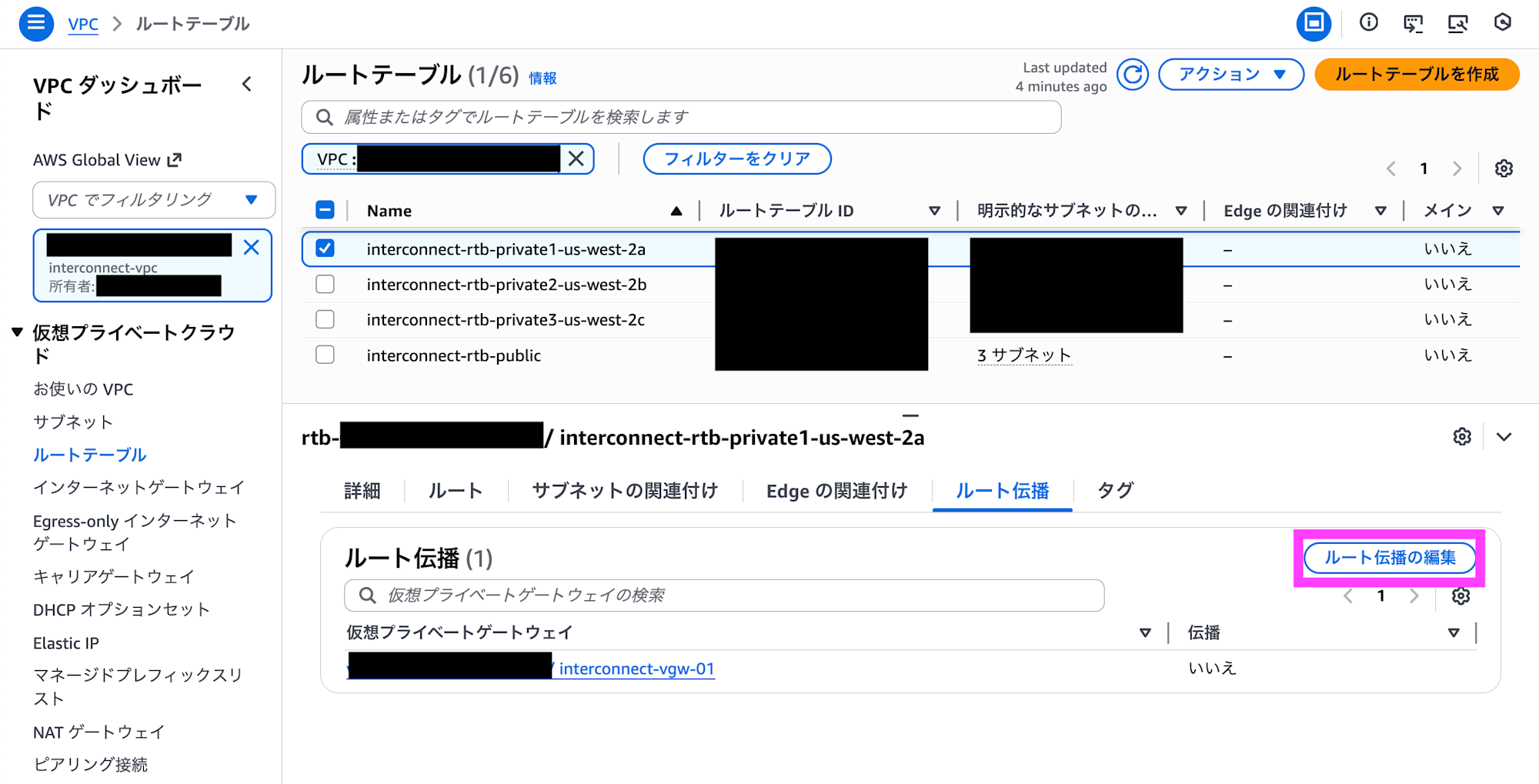
AWS のルートテーブルを設定します。対象のルートテーブルで ルート伝播の編集 をクリックします。
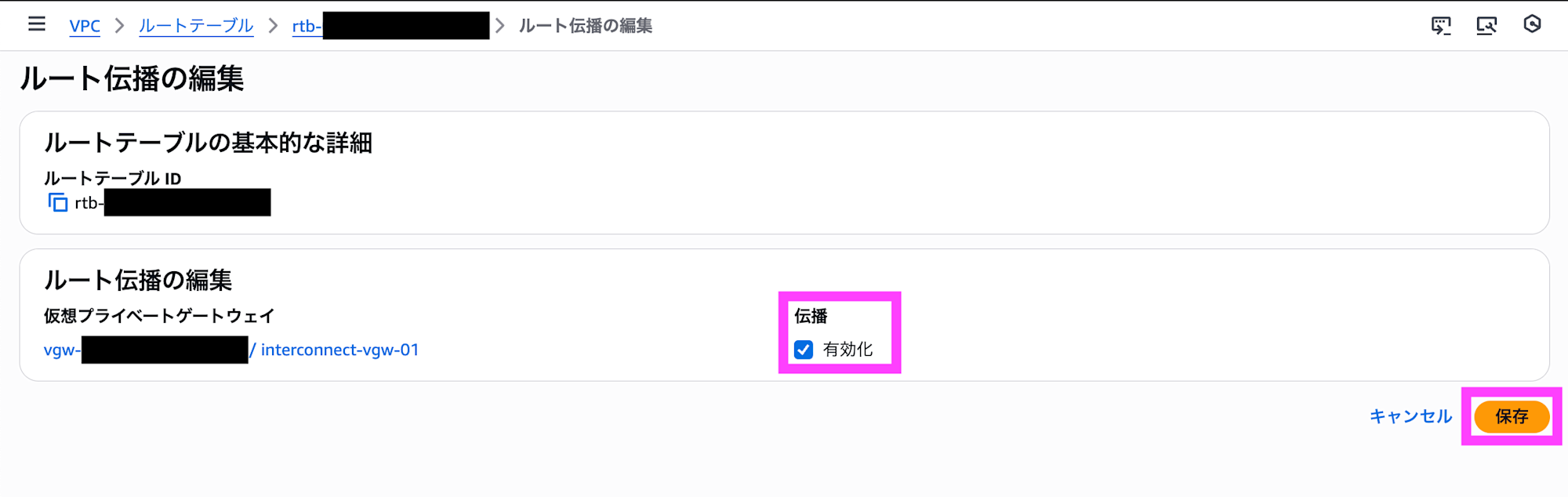
伝播の有効化をチェックして保存します。
通信確認
Google Cloud と AWS に、Compute Engine と EC2 を起動して Web サーバーを立てました。index.html には uname -a の内容を記述しています。必要に応じて HTTP を受信できるようにファイアウォールを設定しておきます。
Google Cloud で実行
$ uname -a
Linux instance-20251220-022945 6.1.0-41-cloud-amd64 #1 SMP PREEMPT_DYNAMIC Debian 6.1.158-1 (2025-11-09) x86_64 GNU/Linux
$ curl http://10.0.135.220/
Linux ip-10-0-135-220.us-west-2.compute.internal 6.1.158-180.294.amzn2023.x86_64 #1 SMP PREEMPT_DYNAMIC Mon Dec  1 05:36:50 UTC 2025 x86_64 x86_64 x86_64 GNU/Linux
$ sudo traceroute -T -p 80 10.0.135.220
traceroute to 10.0.135.220 (10.0.135.220), 30 hops max, 60 byte packets
 1  * * *
 2  10.0.135.220 (10.0.135.220)  13.475 ms  12.413 ms  14.977 ms
AWS で実行
$ uname -a
Linux ip-10-0-135-220.us-west-2.compute.internal 6.1.158-180.294.amzn2023.x86_64 #1 SMP PREEMPT_DYNAMIC Mon Dec  1 05:36:50 UTC 2025 x86_64 x86_64 x86_64 GNU/Linux
$ curl http://10.1.128.2/
Linux instance-20251220-022945 6.1.0-41-cloud-amd64 #1 SMP PREEMPT_DYNAMIC Debian 6.1.158-1 (2025-11-09) x86_64 GNU/Linux
$ sudo traceroute -T -p 80 10.1.128.2
traceroute to 10.1.128.2 (10.1.128.2), 30 hops max, 60 byte packets
 1  169.254.249.5 (169.254.249.5)  0.364 ms  0.358 ms  0.368 ms
 2  169.254.190.97 (169.254.190.97)  6.350 ms  6.335 ms  7.700 ms
 3  ip-10-1-128-2.us-west-2.compute.internal (10.1.128.2)  12.470 ms  11.608 ms  13.058 ms
この様に Google Cloud と AWS でプライベートネットワークが接続できました。
さいごに
Google Cloud と AWS がプライベートに簡単に接続できるようなりました。BGP を意識せずとも接続できるのですが、周りの設定のためにどうしても AS 番号などは出てきてしまいます。しかし、接続自体は作成と承認だけなので、極めて簡単に接続できました。あとは、Google Cloud 側でコンソール上で設定できるとより楽になるなと思います。
それと、日本のロージョン対応をお願いします!