![[Kiro] Kiro IDE? CLI? Crew? Choose the App According to Your Style](https://devio2024-media.developers.io/image/upload/f_auto,q_auto,w_3840/f_auto,q_auto/v1790874832/eyecatch/ka0q8r1fii0ptkuwmyu2.png)
[Kiro] Kiro IDE? CLI? Crew? Choose the App According to Your Style

This is AnonymousPenguin~(ゝ∀・)
When I want to use Kiro...
Surprise! There are three choices!
"So which one do I use?"
With this question in mind, I tested these three applications~
I gave the same jobs to all three apps, on the same Snake game, and compared the results~
Summary first
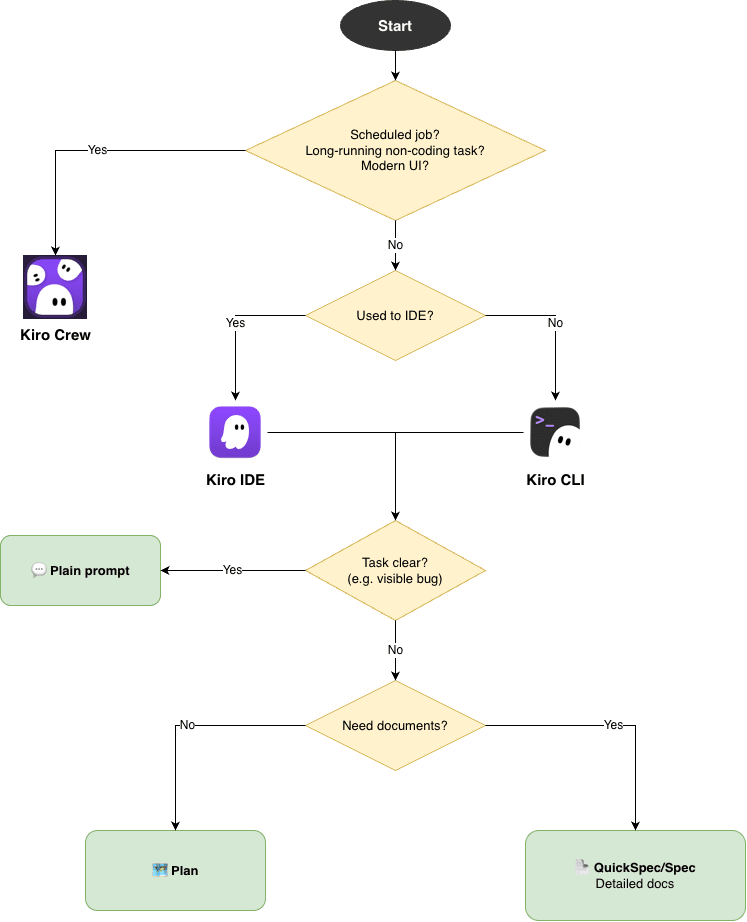
The app matters less than you think. The mode matters more.
| What I tested | What happened |
|---|---|
| Small bug, IDE vs CLI | Same fix and same cost (~0.55 credits each) |
| New feature, plain prompt | Both worked without asking about any detail |
| Plan | Asked about most open details for 4–5 credits |
| Spec | Decided every detail in documents for 27–35 credits |
| Crew, scheduled health check | Report correct both times |
| Crew, its own idea | Made its own script job that failed first run |
The three apps in 10 seconds
| Kiro IDE | Kiro CLI (V3) | Kiro Crew | |
|---|---|---|---|
| In one sentence | A VS Code-based editor with a Kiro agent panel. | Kiro's coding agent, right in your terminal. | A personal agent app with schedules, built on Kiro CLI. |
| Preview | 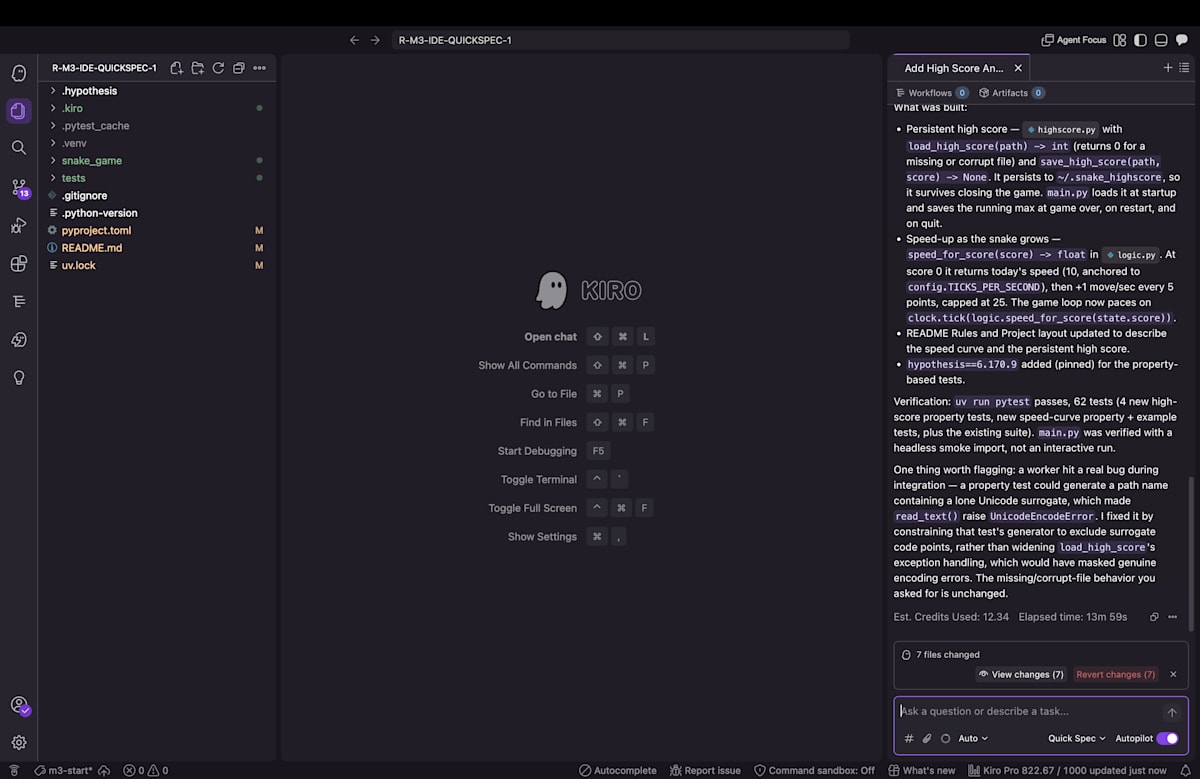 |
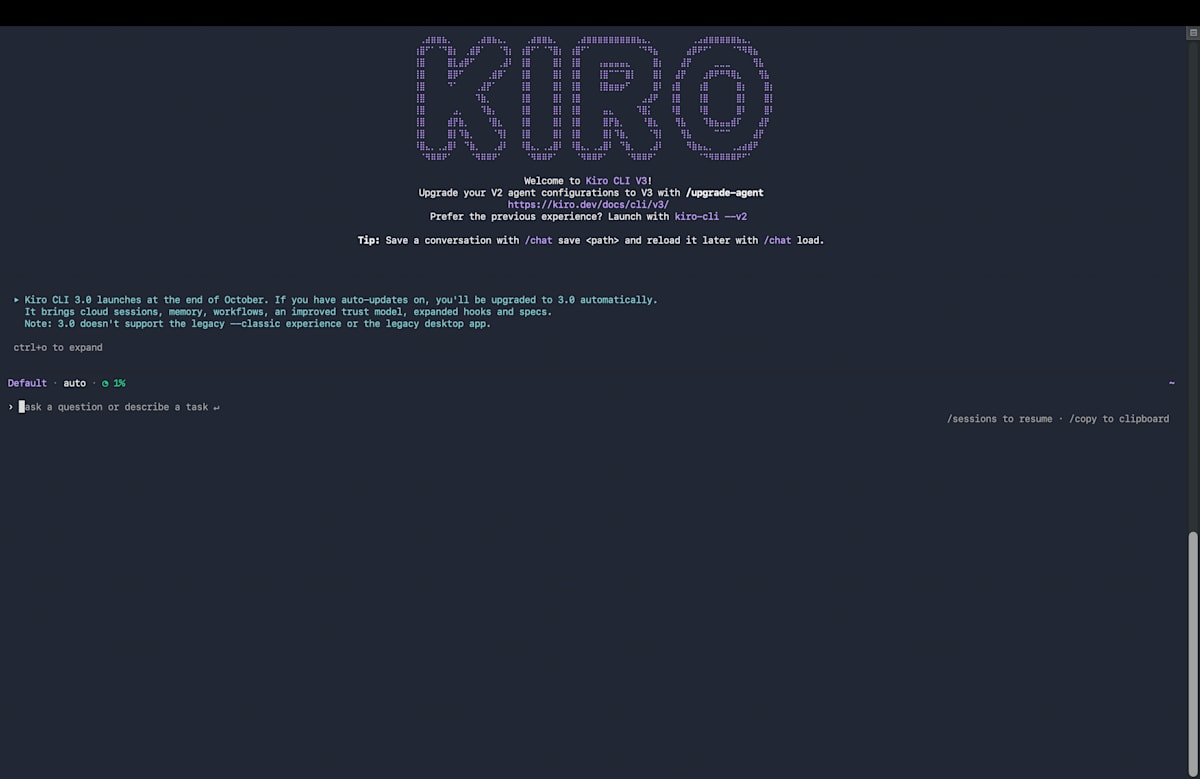 |
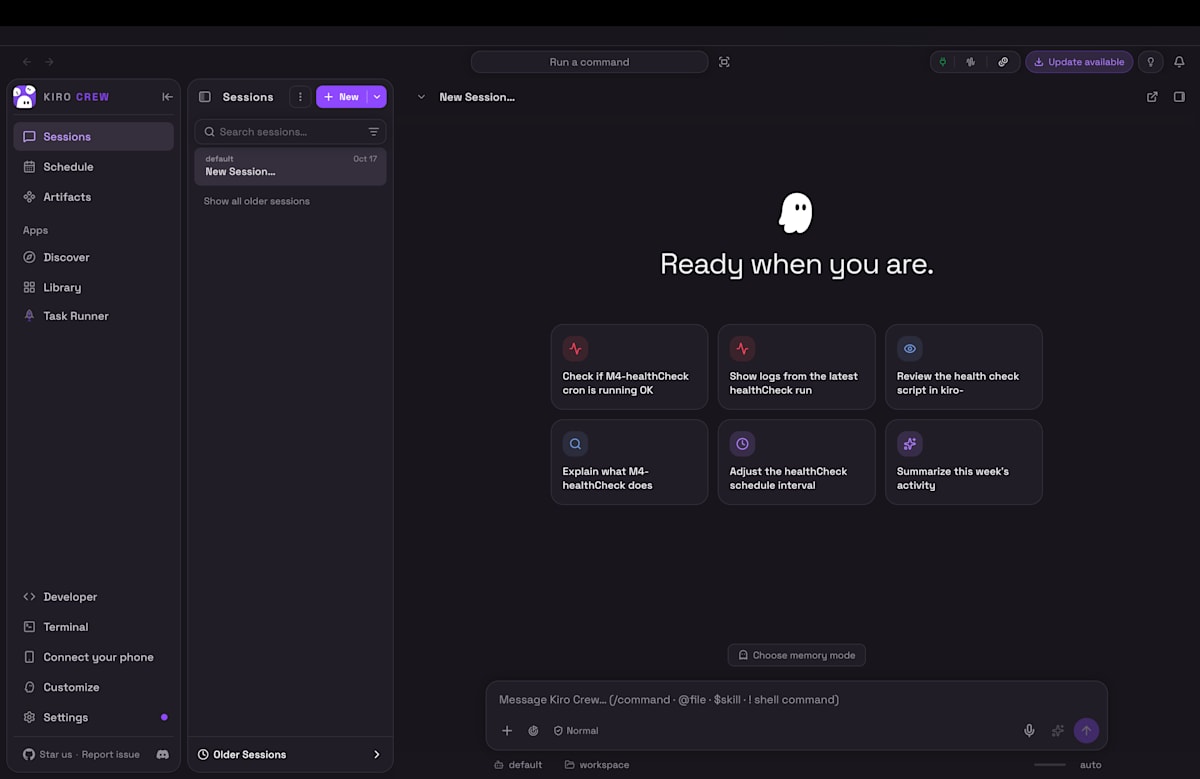 |
Steering, skills, MCP and hooks work across all three, so your setup isn't a reason to pick one over another.
How I tested
The demo repo
A classic Snake game in Python with Pygame, managed with uv.
Four jobs
| Job | Scope |
|---|---|
| 1. Just prompt it and let it build | Kiro IDE vs Kiro CLI |
| 2. Plan before you code | Plan vs Quick Spec vs Spec, in IDE and CLI |
| 3. Fix a small bug fast | Kiro IDE vs Kiro CLI |
| 4. Work done while you're away | Kiro Crew only |
Why each job compares only these
- Jobs 1–3: IDE vs CLI. Crew is based on Kiro CLI, with extra features like scheduled jobs.
- Job 4: Crew only. Scheduled jobs are one of those extra features.
Rules
| Rule | Setting |
|---|---|
| Starting point | Same git tag, same prompt, fresh copy per run |
| Model | Auto everywhere |
| Freedom | IDE in Autopilot, CLI with file writes allowed. Shell commands ask in both |
| Agent's questions | Answered from a fixed sheet, else "Your choice." |
| Time and credits | From Kiro's session logs, not my clicking speed |
Versions
| App | Version |
|---|---|
| Kiro IDE | 1.4.26 |
| Kiro CLI | 2.34.0 (V3, the default from CLI 3.0 at the end of October 2026, per docs) |
| Kiro Crew | 0.10.0 |
Tested 2026-10-27 to 2026-10-29.
Job 1: Just prompt it and let it build (IDE vs CLI)
Features to build: Best score kept between games, speed up when the snake grows
Prompt:
Add two things to the Snake game:

1. A high score that is kept between games, even after I close the game.
2. The game gets faster as the snake grows.

So that I can test it, put the high score code in `snake_game/highscore.py` with
`load_high_score(path) -> int`
and
`save_high_score(path, score) -> None`,
where `path` is a `pathlib.Path`.
Before any high score is saved, the high score is 0.
Also add `speed_for_score(score) -> float` to `snake_game/logic.py`,
which returns the speed in moves per second.
At score 0 it is today's speed.

Update the README. You are done when `uv run pytest` passes, including tests for the new code.
Each run, I recorded the following:
| Agent time | Credits | Corrections | Extra prompts | Asked first? | Asked / written / silent | Worked? | Play check | |
|---|---|---|---|---|---|---|---|---|
| IDE | 119 s | 2.64 | 0 | 0 | No | 0 / 0 / 8 | ✅ | ✅ |
| CLI V3 | 129 s | 2.88 | 0 | 0 | No | 0 / 0 / 8 | ✅ | ✅ |
So: Tie.
Job 2: Plan before you code (Plan vs Quick Spec vs Spec)
Features to build: same as Job 1, but started in a planning mode
Prompt (same as Job 1):
Add two things to the Snake game:

1. A high score that is kept between games, even after I close the game.
2. The game gets faster as the snake grows.

So that I can test it, put the high score code in `snake_game/highscore.py` with
`load_high_score(path) -> int`
and
`save_high_score(path, score) -> None`,
where `path` is a `pathlib.Path`.
Before any high score is saved, the high score is 0.
Also add `speed_for_score(score) -> float` to `snake_game/logic.py`,
which returns the speed in moves per second.
At score 0 it is today's speed.

Update the README. You are done when `uv run pytest` passes, including tests for the new code.
How to start each mode
| Mode | What it does | IDE | CLI V3 |
|---|---|---|---|
| Plan | Asks questions, decides the plan in chat | Agent picker | /plan |
| Quick Spec | Like Plan, but also produces documents (requirements, design, tasks .md) | Agent picker | ❌ I couldn't find a way to start it |
| Spec | Decides the details itself and produces documents | Specs + button |
/agent, then pick "spec" |
Results
| Mode / app | Asked / written / silent | Extra prompts | Agent time | Credits | Worked? |
|---|---|---|---|---|---|
| Plan / IDE | 5 / 3 / 0 | 3 | 212 s | 3.95 | ✅, with defect |
| Plan / CLI | 4 / 3 / 1 | 3 | 262 s | 4.81 | ✅ |
| Quick Spec / IDE | 3 / 5 / 0 | 4 | 839 s | 20.24 | ✅, with defect |
| Quick Spec / CLI | — | — | — | — | Couldn't start |
| Spec / IDE | 0 / 8 / 0 | 6 | 1,453 s | 34.52 | ✅, with defect |
| Spec / CLI | 0 / 8 / 0 | 6 | 1,160 s | 27.22 | ✅ |
Defect?
The 3 IDE planning runs never show the high score on screen. It is saved and loaded, just not displayed. My prompt said "keep a high score between games", not "show it". The planning modes built exactly what was written, while the plain prompts added a display on their own. With one run each, I can't say it's an IDE thing. The lesson is: planning modes follow your words strictly, so write down everything you want.
What I noticed:
-
Plan asked the most. It asked about where to save, the format, broken files, the speed-up and the maximum speed. It wrote the rest down in the plan.
-
Spec asked none. Spec mode decides all the details and writes them into the documents, so you have to read through the whole document to check them.
-
Spec costs a lot more:
Mode Credits Agent time Plan 4–5 3.5–4.5 min Spec 27–35 19–24 min
KiroIDE spec mode preview
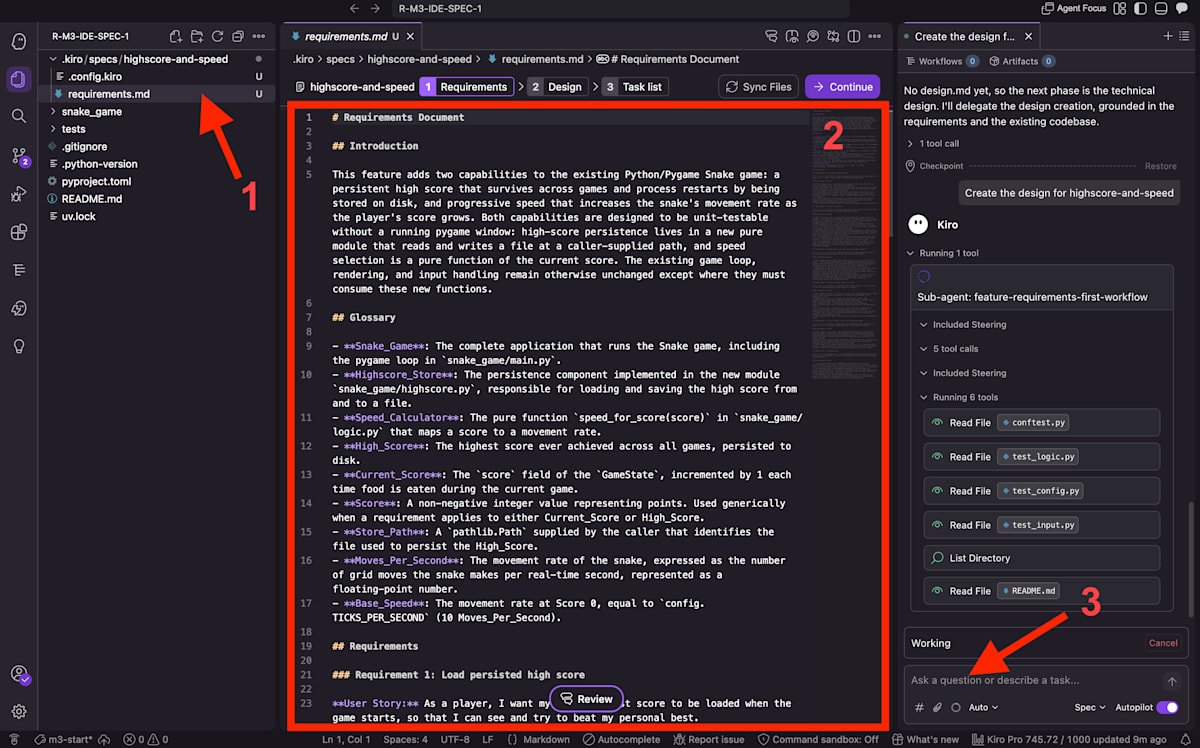
- The document create by Kiro
- View panel (currently showing the requirement.md, you can modify it)
- Chat panel
Sync Filesbutton: When you update the document on the view panel, you press this buttion to inform Kiro (Kiro doesn't read your changes in real-time, you have to press that button to update Kiro)
Continuebutton: Sent a prompt to Kiro to proceed to next document (You also can proceed by prompt Kiro manually via Chat panel)
Job 3: Fix a small bug fast (IDE vs CLI)
The bug: no snake drawn, only see the grid, the food and the score.
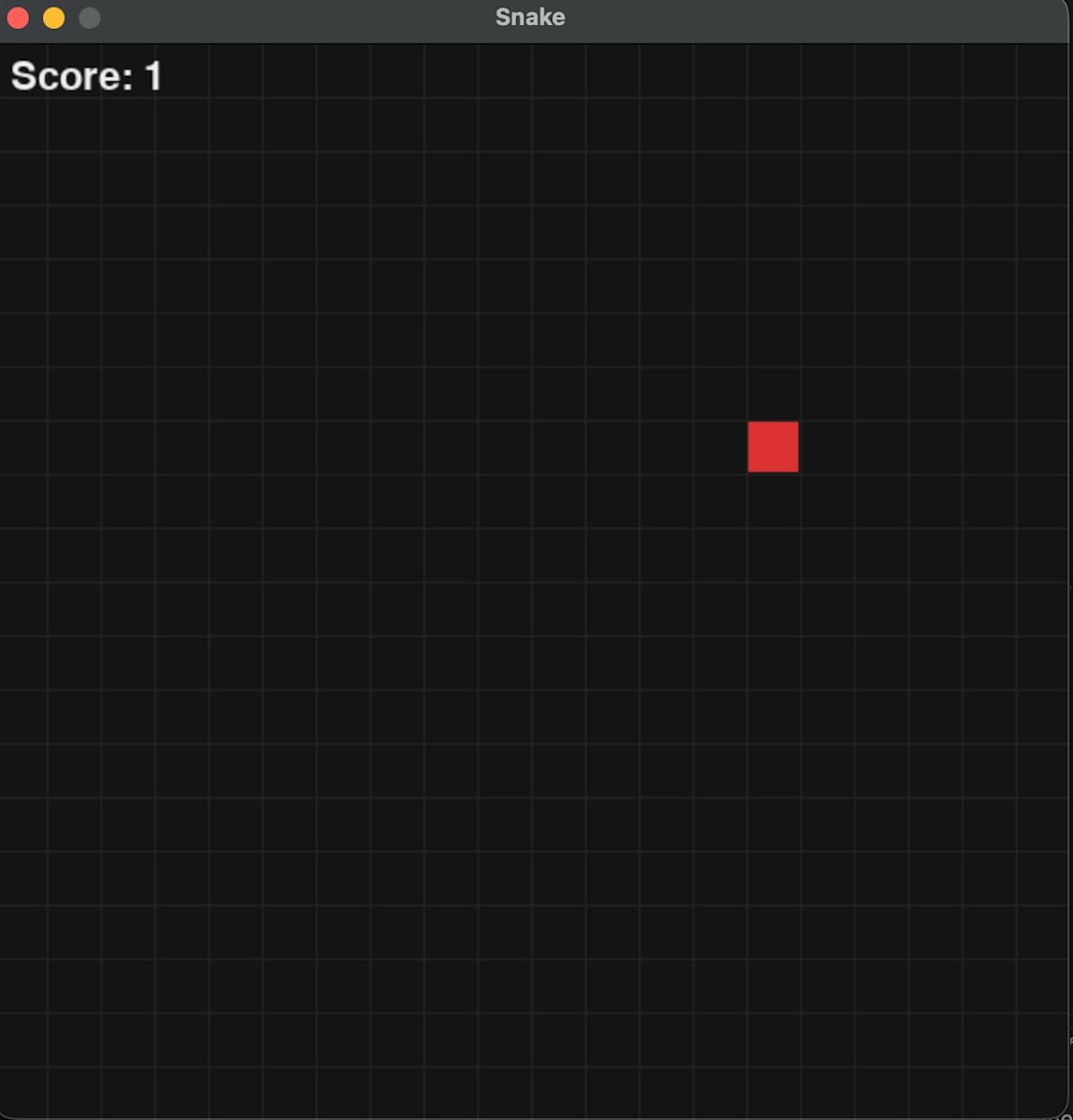
Prompt:
When I run the game with `uv run python -m snake_game.main`, there is no snake.
I can see the grid, the food and the score, but not the snake. Please fix it.
Results
| Agent time | Credits | Corrections | Approvals | Play check | Run ID | |
|---|---|---|---|---|---|---|
| IDE | 26 s | 0.59 | 0 | 1 (run the tests) | ✅ Snake is back | R-M2-IDE-1 |
| CLI V3 | 30 s | 0.52 | 0 | 1 (run the tests) | ✅ Snake is back | R-M2-CLI-1 |
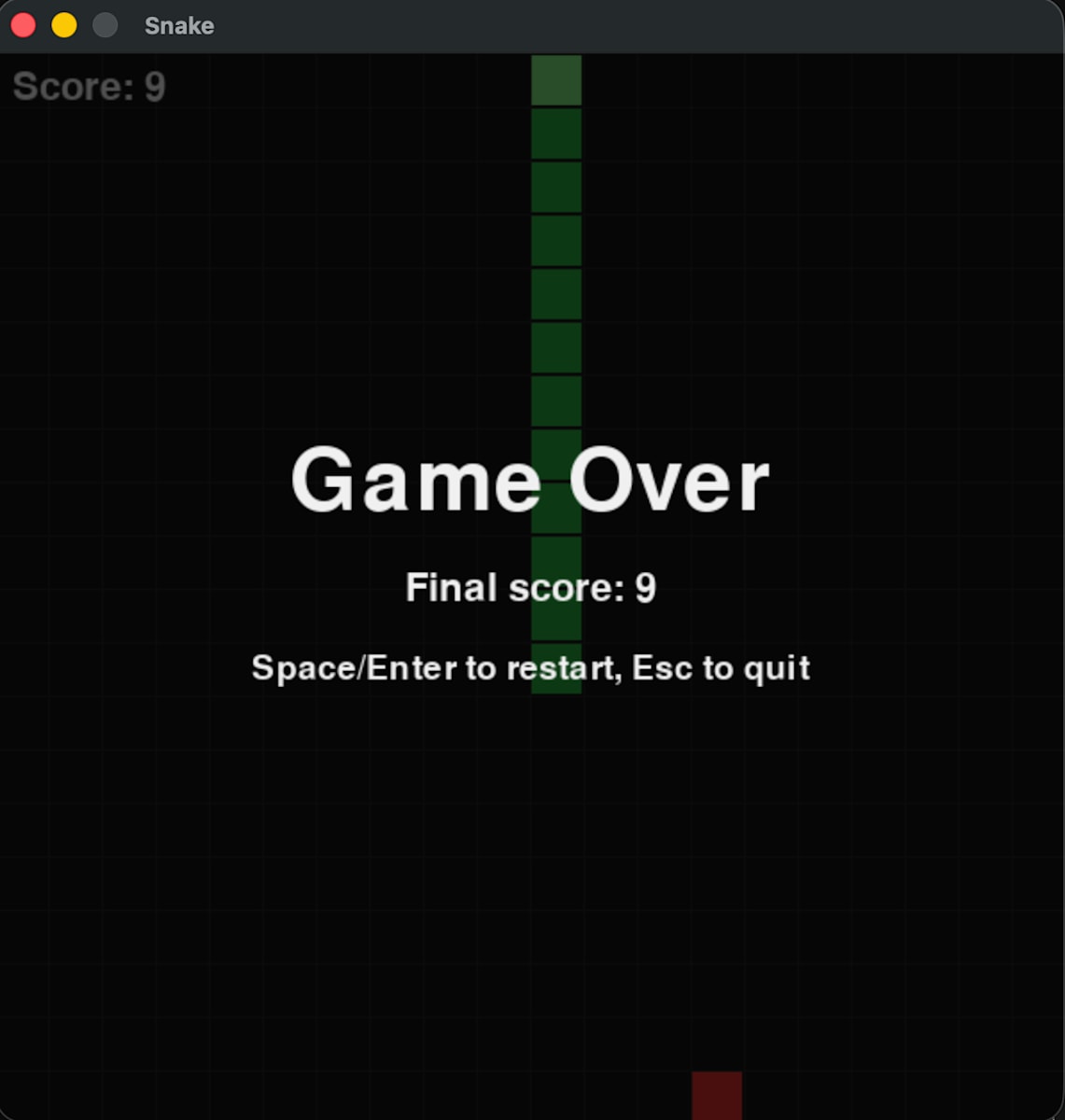
Both apps made the exact same fix, byte for byte. Neither asked me anything first.
So: a tie
Job 4: Work done while you're away (Crew)
Task to schedule: run the tests every 30 minutes, write a report only
Setup
I opened Crew's Schedule panel, added a job and pasted this into the message:
Every 30 minutes, go to the folder `~/Project/kiro-runs-snake/R-M4-CREW-1`,
run `uv run pytest` there, and add an entry to `reports/health.md` in that folder with the time,
how many tests passed and failed, and the name of each failing test.
Only report. Don't change any other file.
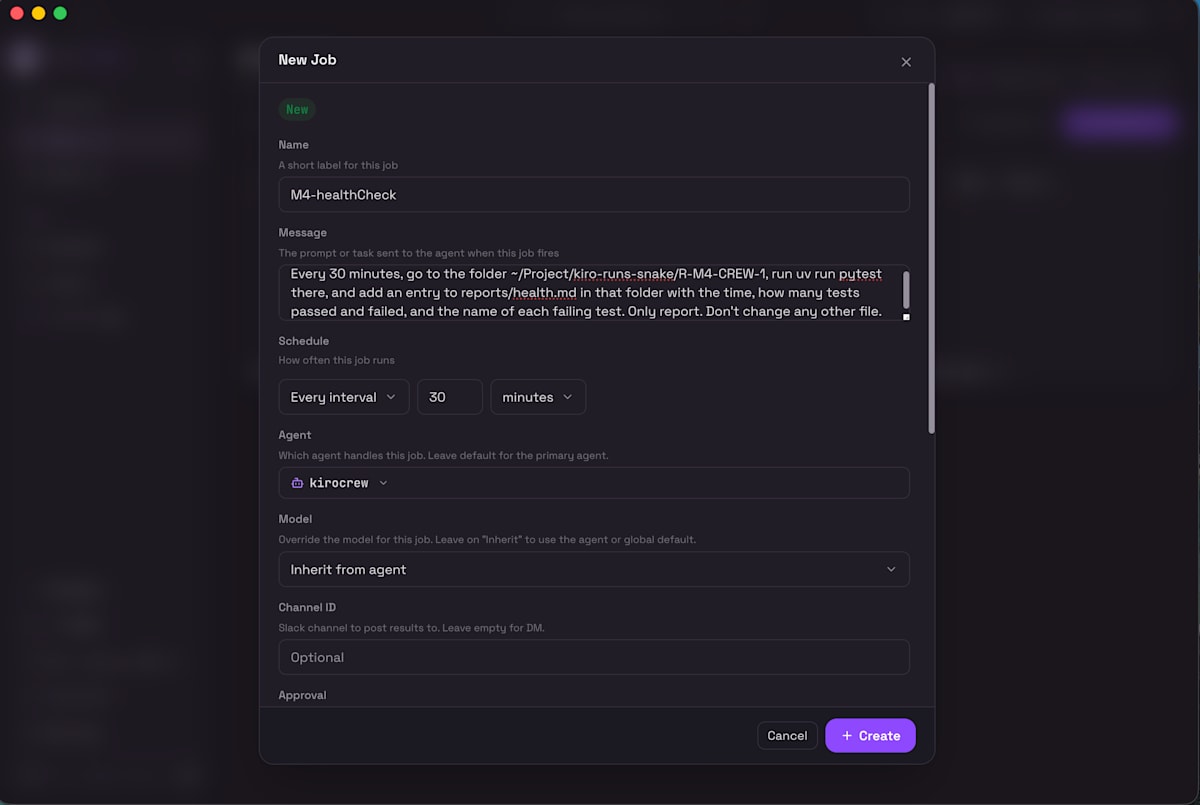
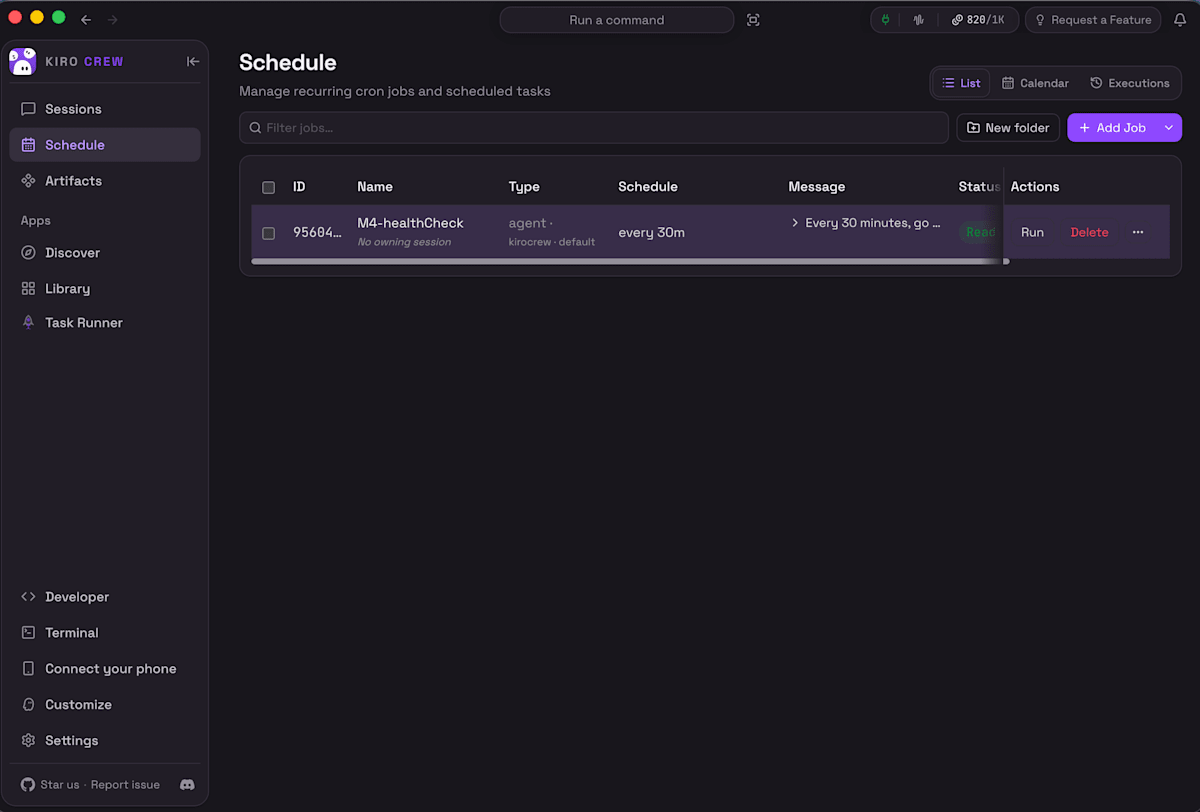
Adding a job only creates it. It doesn't run until you click its Run button.
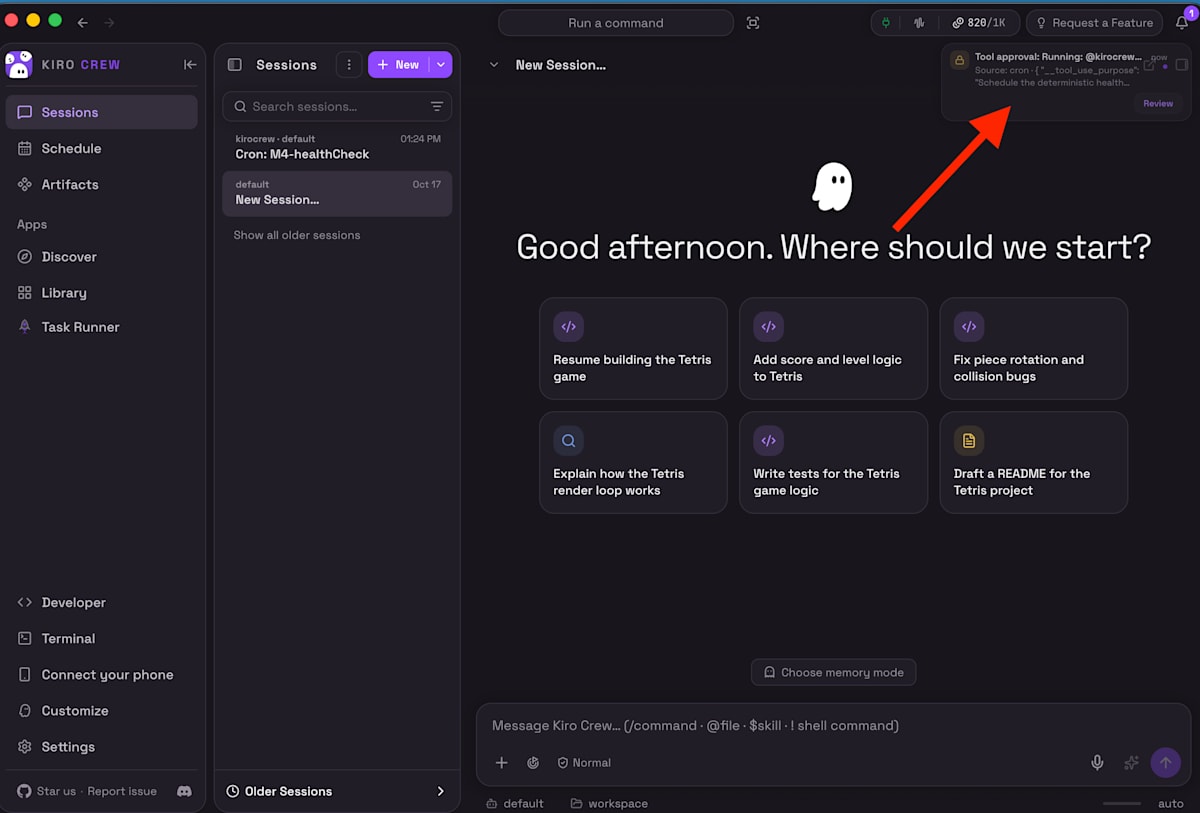
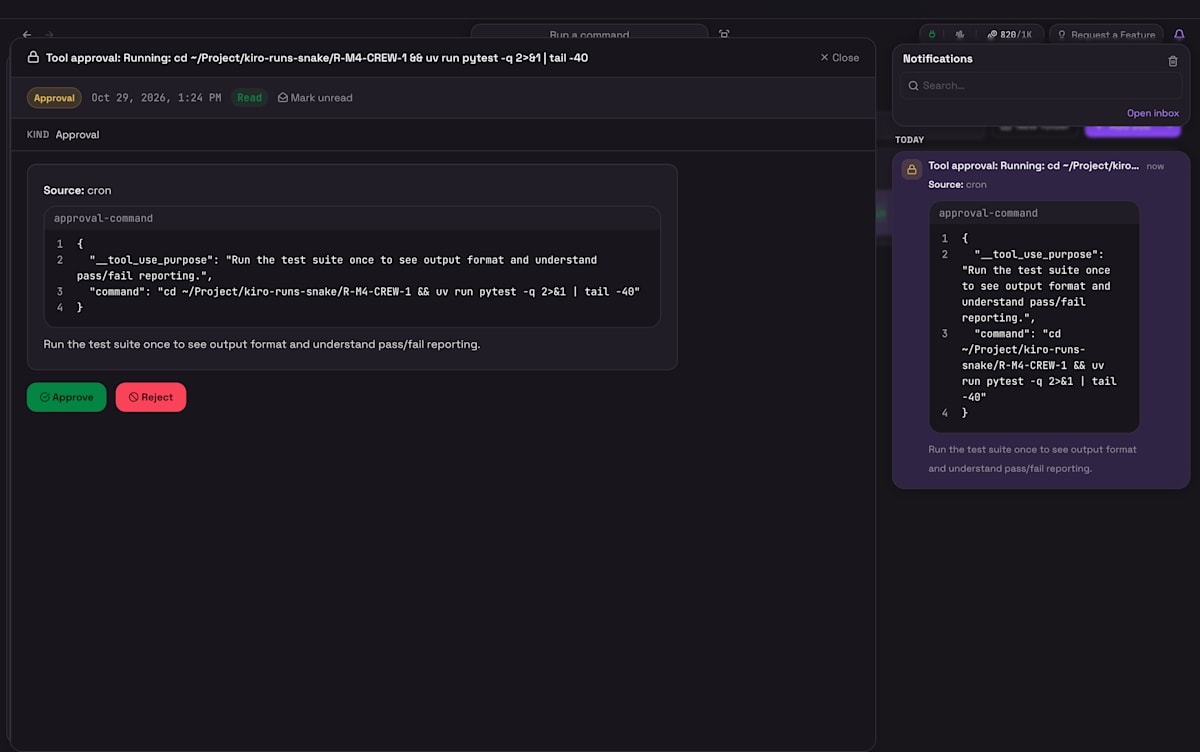
When it runs, Crew shows a notification in the app. When it needs my approval, the notification has Approve and Reject buttons.
Results
| Run | Time | Report | Correct? |
|---|---|---|---|
| 1st | 13:24 (when I clicked Run) | 47 passed, 1 failed: test_draw_normal_frame |
✅ |
| 2nd | 13:54 | 47 passed, 1 failed: test_draw_normal_frame |
✅ |
- Both reports matched the known answer, and no other file in the folder changed
- Each run asked me to approve its shell commands in a notification: 7 times in total (4 in the first run, 3 in the second). I didn't test what happens if nobody clicks.
- Crew's logs don't show credits, so I can't give a number here.
Out of expectation: Crew wrote its own job
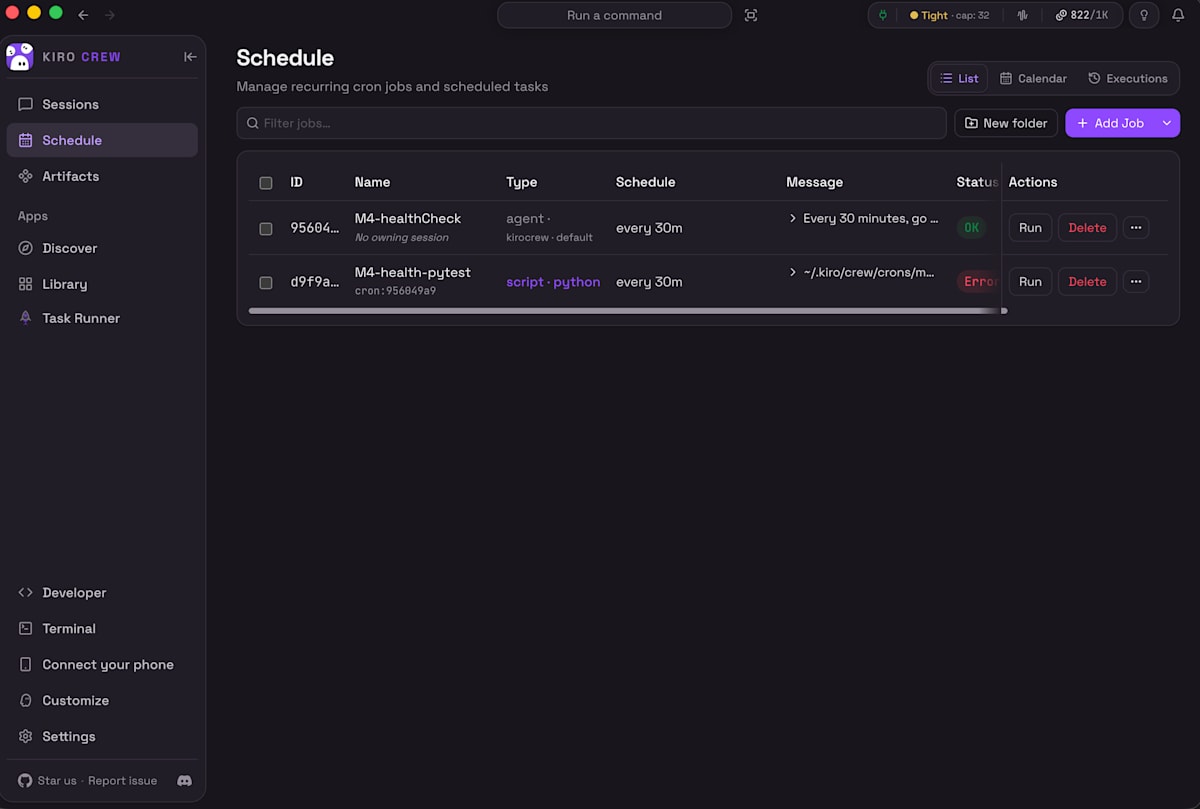
Here's the whole story:
- I created the job in the Schedule panel, then clicked Run.
- 1st run: Crew wrote the report, and also created a second job,
M4-health-pytest, every 30 minutes. It's a small Python script that runs tests and writes report. Crew told me about it in its summary. I never clicked Run on that job. - 2nd run: Crew just wrote the report, and created nothing new.
So: Use Crew when you have scheduled job, or you like modern UI.
Other things I noticed
The three apps can do mostly the same things
Apart from the standout features (scheduled jobs in Crew, Quick Spec in the IDE), what you can ask Kiro to do is pretty much the same in all three.
Crew just wraps it in a friendlier interface with more buttons:
- a chat with a Send button, like a chat app
- a Schedule panel with Run and Delete buttons, plus List, Calendar and Executions views
- a notification inbox, with Approve and Reject buttons right in the notification
- a sidebar with Sessions, Schedule, Artifacts, Discover, Library etc.
If you like clicking more than typing, that alone may be a reason to pick Crew.
Image input is not a reason to choose
All three can read images. Only the way you give the image is different:
- Crew: click the upload button.
- IDE and CLI: put the image's file path in your prompt.
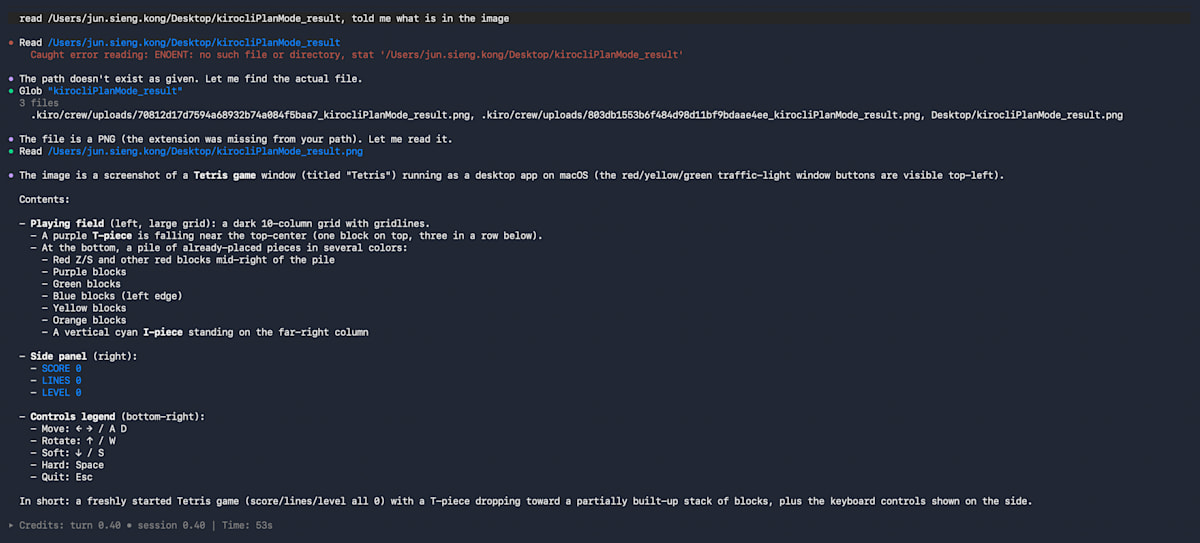
Yes, CLI can read image. Read image capability is depends on the model if it's a multimodal model, not related to what appllication you use.
Good to know
- Quick Spec in CLI V3: the docs list Quick Spec as a CLI agent, but I couldn't find a way to start it in CLI 2.34.0.
- Supervised mode The IDE has Supervised mode, and lets you undo the agent's change in one click, while CLI only go ahead according to your setting(
permissions.yaml) and approval - Plain prompts decide for you. If a detail matters, use Plan, or write the detail into your prompt.
Limits of this test
- One small Python repo. A bigger codebase may change the picture.
- Crew credits aren't in its logs, so Crew's cost isn't compared.
Closing
Everything I tested this time is fairly basic. The CLI and the IDE are about what you'd expect, but Crew really has lots and lots of extra features I haven't tested yet. Those are for things beyond everyday tasks, so to prevent this from turning into a feature list, I only compared these. I hope this helps you!
Thank you for following along until here!
ByeBye~(∠・ω< )⌒★
Appendix: Run log
| Run ID | Job | App / mode | Start tag | Play check | Worked? | Corrections | Extra prompts | Asked / written / silent | Agent time | Credits |
|---|---|---|---|---|---|---|---|---|---|---|
| R-M2-IDE-1 | 3 | IDE / default | m2-start | ✅ | — | 0 | 0 | — | 26 s | 0.59 |
| R-M2-CLI-1 | 3 | CLI V3 / default | m2-start | ✅ | — | 0 | 0 | — | 30 s | 0.52 |
| R-M3-IDE-PLAIN-1 | 1 | IDE / default | m3-start | ✅ | ✅ | 0 | 0 | 0 / 0 / 8 | 119 s | 2.64 |
| R-M3-CLI-PLAIN-1 | 1 | CLI V3 / default | m3-start | ✅ | ✅ | 0 | 0 | 0 / 0 / 8 | 129 s | 2.88 |
| R-M3-IDE-PLAN-1 | 2 | IDE / Plan | m3-start | High score not shown | ✅ | 0 | 3 | 5 / 3 / 0 | 212 s | 3.95 |
| R-M3-CLI-PLAN-1 | 2 | CLI V3 / Plan | m3-start | ✅ | ✅ | 0 | 3 | 4 / 3 / 1 | 262 s | 4.81 |
| R-M3-IDE-QUICKSPEC-1 | 2 | IDE / Quick Spec | m3-start | High score not shown | ✅ | 0 | 4 | 3 / 5 / 0 | 839 s | 20.24 |
| R-M3-CLI-QUICKSPEC-1 | 2 | CLI V3 / Quick Spec | — | — | Couldn't start | — | — | — | — | — |
| R-M3-IDE-SPEC-1 | 2 | IDE / Spec | m3-start | High score not shown | ✅ | 0 | 6 | 0 / 8 / 0 | 1,453 s | 34.52 |
| R-M3-CLI-SPEC-1 | 2 | CLI V3 / Spec | m3-start | ✅ | ✅ | 0 | 6 | 0 / 8 / 0 | 1,160 s | 27.22 |
| R-M4-CREW-1 | 4 | Crew / Schedule | m2-start | — | ✅ Report correct twice | 0 | 7 approvals | — | — | Not logged |