画像だけの PDF をナレッジベースで検索可能にする — Bedrock FM パーサーの解析結果の精度を検証してみた

はじめに
こんにちは!AI 事業本部のこーすけです。
Amazon Bedrock Knowledge Bases には、取り込み時のパーサーとして標準の デフォルトパーサー のほかに、基盤モデル(FM)をパーサーとして使うオプション(Foundation models as a parser)があります。FM パーサーは vision 対応モデルで文書を解釈するため、画像・図・表の内容もテキスト化してインデックスできるのが特徴です。
そこで本記事では、星取り表やグラフなど複雑な画像情報を含む資料を Knowledge Base に取り込み、デフォルトパーサーと FM パーサーで回答精度がどう変わるか を東京リージョンで検証してみました。
パーサーオプションについて
Bedrock Knowledge Bases のデータ取り込み(Ingestion)時に選べるパーサーは 2 種類あります。
| パーサー | 画像・図・表 | 料金 | 備考 |
|---|---|---|---|
| デフォルトパーサー | ❌ テキストのみ | 無料 | .txt / .md / .html / .docx / .xlsx / .pdf のテキスト部分だけ抽出 |
| FM パーサー | ✅ | 入出力トークン課金 | vision 対応 FM(Claude / Nova / Llama 4 系)で解釈。 |
ポイントは以下のとおりです。
- デフォルトパーサーは画像の中の文字や図を一切見ず、データ内のテキストのみを情報として抽出できる
- FM パーサーは、PDF 内の図・グラフ・表や .jpeg / .png 画像ファイルそのものを FM が見てキャプションに起こしてくれる
検証の設計
サンプルデータ
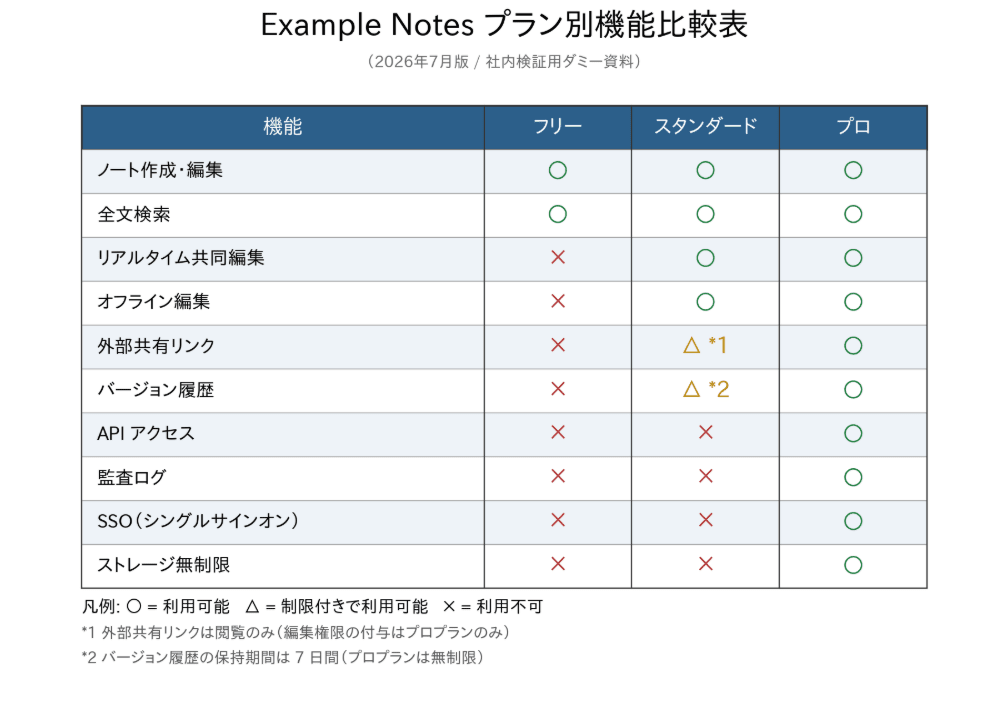
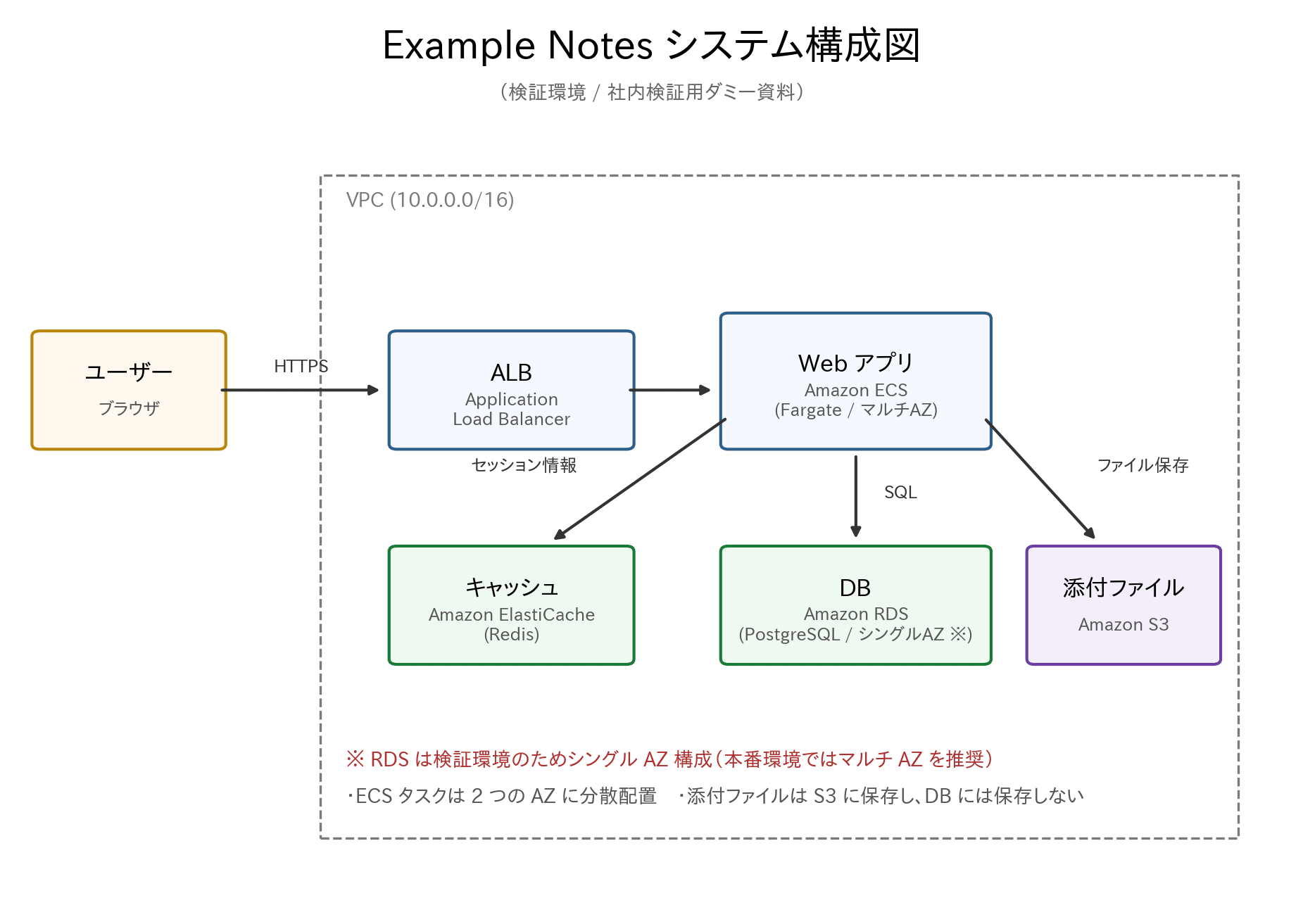
以下のダミー資料を用意しました。こちらは画像を PDF 化したもので、テキストレイヤーがないためデフォルトパーサーでは抽出ができません。
hoshitori.pdf
architecture.pdf
比較する構成
同じ S3 データソースを、パーサー設定だけ変えた 2 つの Knowledge Base に取り込みます。
| KB-A(デフォルトパーサー) | KB-B(FM パーサー) | |
|---|---|---|
| パーサー | デフォルト | FM パーサー(Claude vision 系) |
| 埋め込みモデル | Titan Text Embeddings V2 | Titan Text Embeddings V2 |
| チャンク戦略 | デフォルト | デフォルト |
評価用の質問セット
それぞれの KB の性能を試す質問セットを用意しました。
hoshitori.pdf についての質問
- 「機能『外部共有』はスタンダードプランで使えますか」
- 「プロプランでしか使えない機能をすべて挙げてください」
- 「○ が一番多いプランはどれですか」
architecture.pdf についての質問
- 「Web サーバーはどのデータベースに接続していますか」
- 「構成図に登場する AWS サービスをすべて挙げてください」
- 「シングル AZ 構成になっているコンポーネントはありますか」
手順
ステップ 1: サンプル資料を S3 に配置する
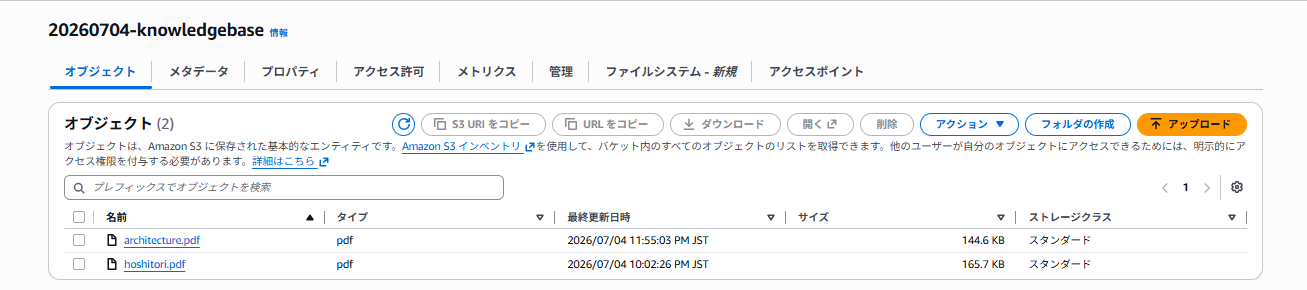
今回の検証用の S3 バケットを作成し、上記の PDF を格納します。
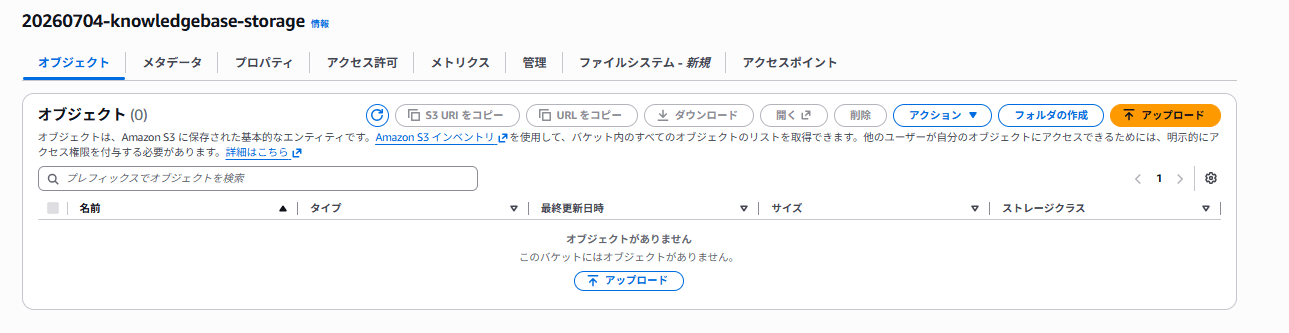
また、FM パーサーで PDF を解析する際に抽出された画像を格納する S3 バケットも作成する必要があります。
ステップ 2: KB-A(デフォルトパーサー)を作成する
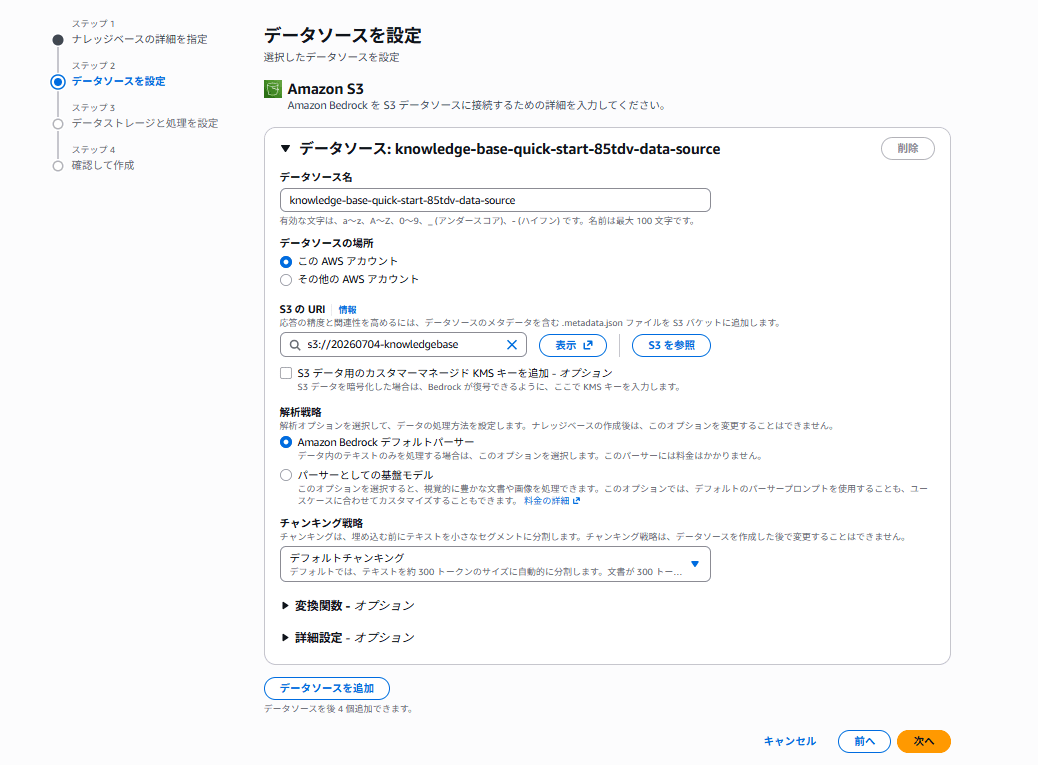
- データソースに S3 を選択し、ステップ 1 のバケットを指定
- パーシング戦略は Amazon Bedrock デフォルトパーサーを選択
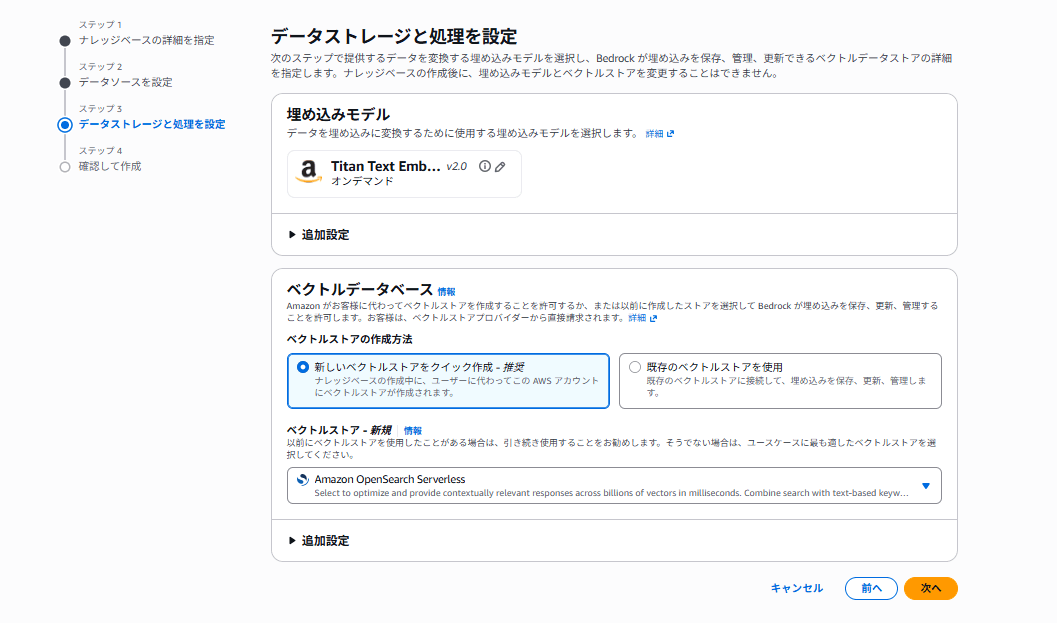
- 埋め込みモデルに Titan Text Embeddings V2、ベクトルストアは OpenSearch Serverless をクイック作成
- データソースを同期
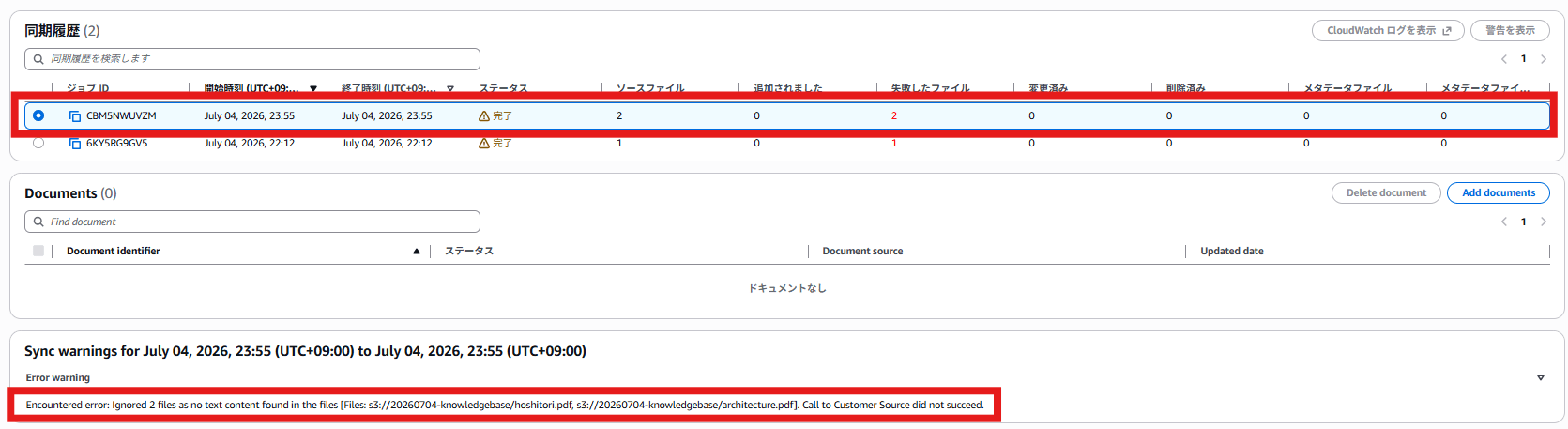
当然ですがデフォルトパーサーではテキストを抽出できないため、同期に失敗し、そもそも成立しません。今回のユースケースではここで脱落です。
ステップ 3: KB-B(FM パーサー)を作成する
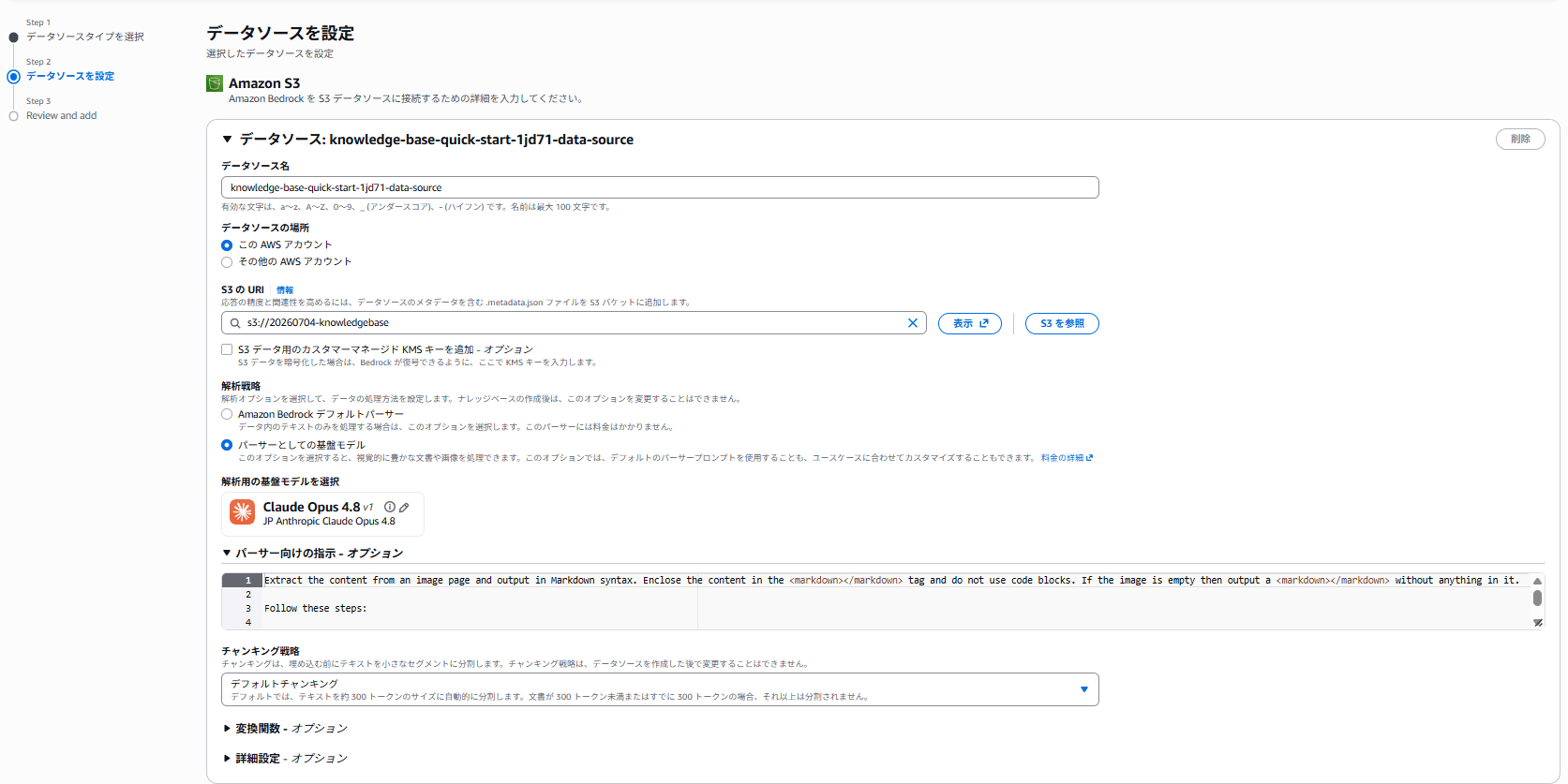
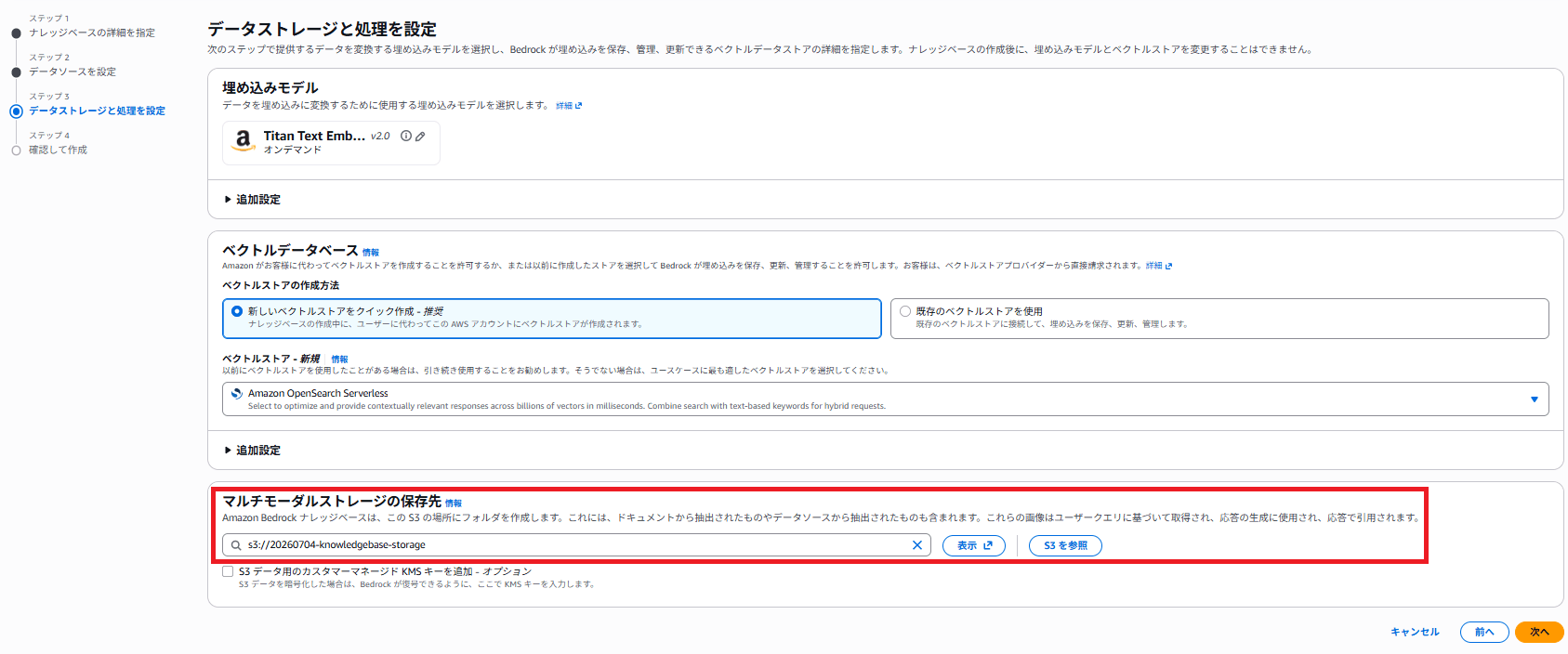
同じ手順で、パーシング戦略だけ変更します。また手順 5 で解析対象の画像を格納するマルチモーダルストレージ(先ほど作成した S3 バケット)を指定する箇所があります。
- データソースに S3 を選択し、ステップ 1 のバケットを指定
- パーシング戦略は パーサーとしての基盤モデル を選択
- パーサー用モデルに Claude Opus 4.8 を選択
- 埋め込みモデルに Titan Text Embeddings V2、ベクトルストアは OpenSearch Serverless をクイック作成
- マルチモーダルストレージの保存先を指定
「パーサー向けの指示 - オプション」の項目では、画像を文字として出力する際のプロンプトをカスタマイズすることができます。
デフォルトのプロンプトには、ざっくり以下の指示が書いてあります。
- 画像内の要素(見出し・本文・表・図・脚注・ページ番号など)を識別する
- Markdown 構文でフォーマットして出力する
- 図・画像は種類を分類し
<figure>タグで囲む - 表は Markdown 表形式で再現する
- 結果を
<markdown></markdown>タグで囲む
プロンプト全文
Extract the content from an image page and output in Markdown syntax. Enclose the content in the <markdown></markdown> tag and do not use code blocks. If the image is empty then output a <markdown></markdown> without anything in it.

Follow these steps:

1. Examine the provided page carefully.

2. Identify all elements present in the page, including headers, body text, footnotes, tables, images, captions, and page numbers, etc.

3. Use markdown syntax to format your output:
    - Headings: # for main, ## for sections, ### for subsections, etc.
    - Lists: * or - for bulleted, 1. 2. 3. for numbered
    - Do not repeat yourself

4. If the element is an image (not table)
    - If the information in the image can be represented by a table, generate the table containing the information of the image
    - Otherwise provide a detailed description about the information in image
    - Classify the element as one of: Chart, Diagram, Logo, Icon, Natural Image, Screenshot, Other. Enclose the class in <figure_type></figure_type>
    - Enclose <figure_type></figure_type>, the table or description, and the figure title or caption (if available), in <figure></figure> tags
    - Do not transcribe text in the image after providing the table or description

5. If the element is a table
    - Create a markdown table, ensuring every row has the same number of columns
    - Maintain cell alignment as closely as possible
    - Do not split a table into multiple tables
    - If a merged cell spans multiple rows or columns, place the text in the top-left cell and output ' ' for other
    - Use | for column separators, |-|-| for header row separators
    - If a cell has multiple items, list them in separate rows
    - If the table contains sub-headers, separate the sub-headers from the headers in another row

6. If the element is a paragraph
    - Transcribe each text element precisely as it appears

7. If the element is a header, footer, footnote, page number
    - Transcribe each text element precisely as it appears

Output Example:
<markdown>
<figure>
<figure_type>Chart</figure_type>
Figure 3: This chart shows annual sales in millions. The year 2020 was significantly down due to the COVID-19 pandemic.
A bar chart showing annual sales figures, with the y-axis labeled "Sales ($Million)" and the x-axis labeled "Year". The chart has bars for 2018 ($12M), 2019 ($18M), 2020 ($8M), and 2021 ($22M).
</figure>

<figure>
<figure_type>Chart</figure_type>
Figure 3: This chart shows annual sales in millions. The year 2020 was significantly down due to the COVID-19 pandemic.
| Year | Sales ($Million) |
|-|-|
| 2018 | $12M |
| 2019 | $18M |
| 2020 | $8M |
| 2021 | $22M |
</figure>

# Annual Report

## Financial Highlights

<figure>
<figure_type>Logo</figure_type>
The logo of Apple Inc.
</figure>

* Revenue: $40M
* Profit: $12M
* EPS: $1.25

| | Year Ended December 31, | |
| | 2021 | 2022 |
|-|-|-|
| Cash provided by (used in): | | |
| Operating activities | $ 46,327 | $ 46,752 |
| Investing activities | (58,154) | (37,601) |
| Financing activities | 6,291 | 9,718 |

</markdown>
- データソースを同期
同期を実行します。

ステップ 4: 取り込み結果の確認
OpenSearch Serverless のインデックスを直接クエリして確認します。
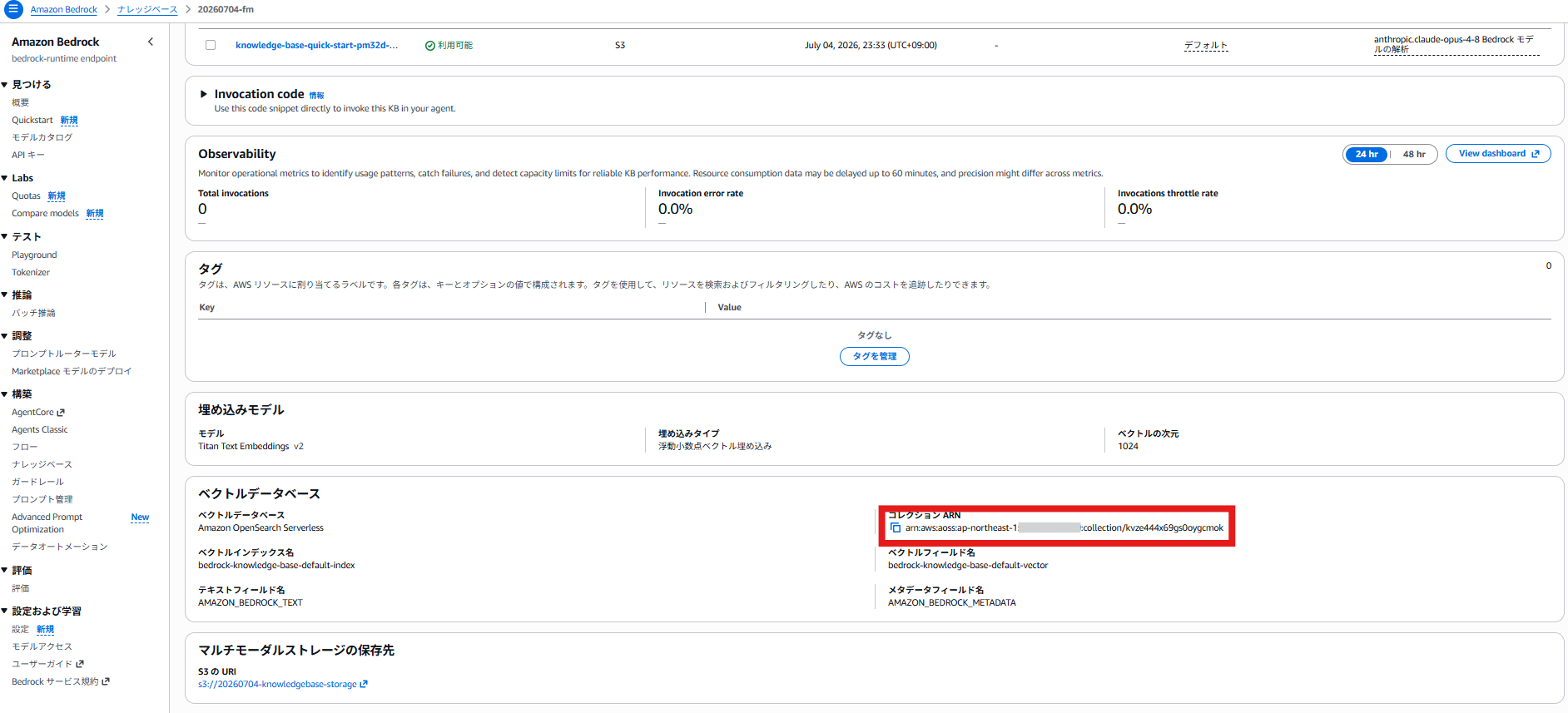
ベクトルデータベースの項目の、コレクション ARN を確認します。
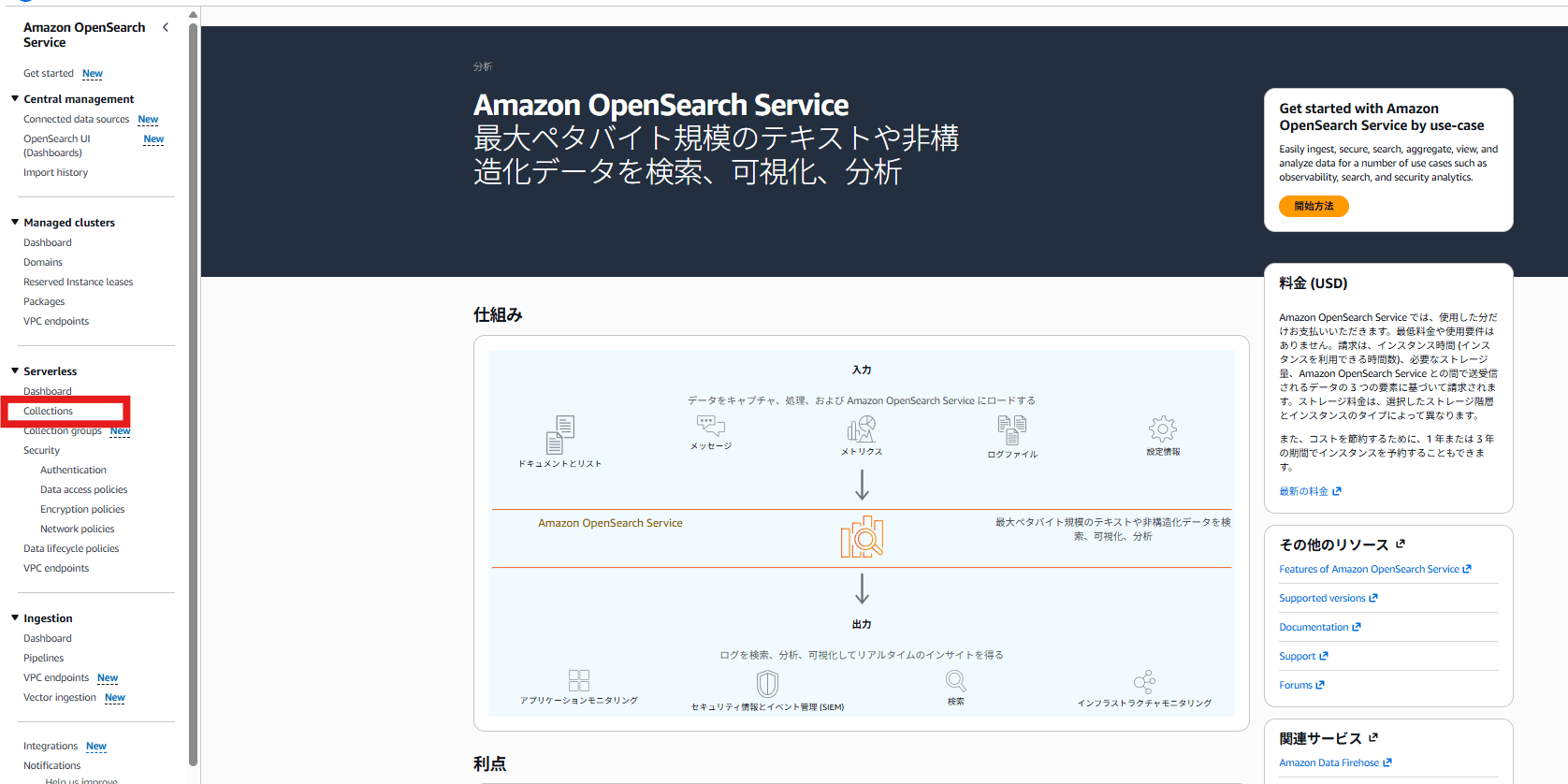
Amazon OpenSearch Service を開き、Collections を選択し、対象のコレクションから OpenSearch ダッシュボードを開きます。
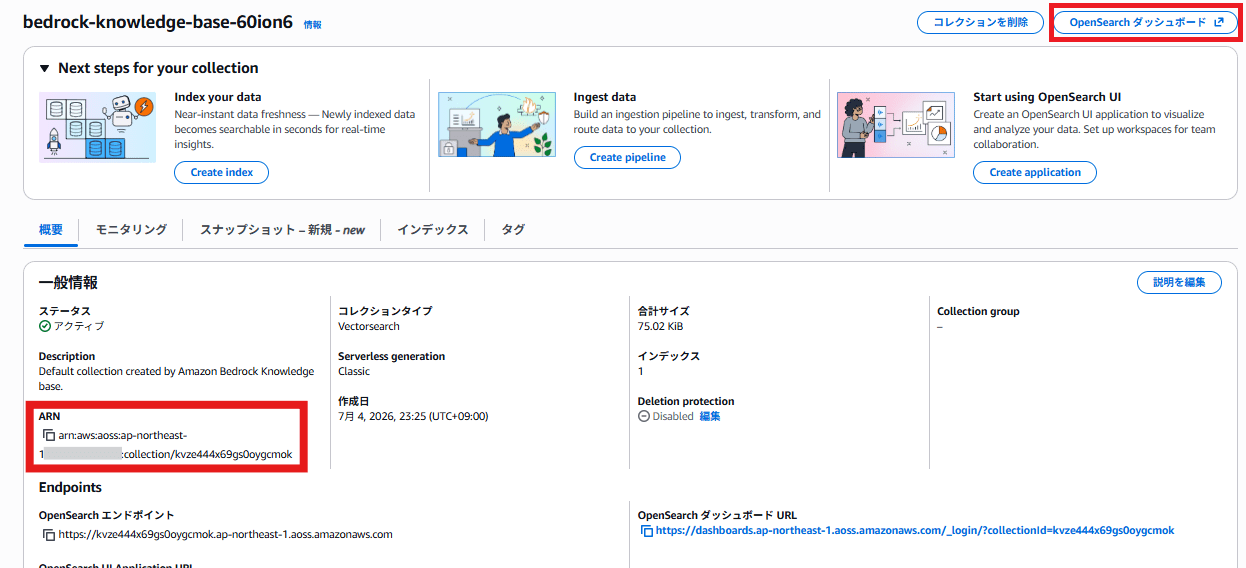
Dev Tools を開き、以下のクエリを実行します。
GET bedrock-knowledge-base-default-index/_search
{
  "size": 20,
  "_source": ["AMAZON_BEDROCK_TEXT", "AMAZON_BEDROCK_METADATA"],
  "query": { "match_all": {} }
}
実行結果は以下となりました。
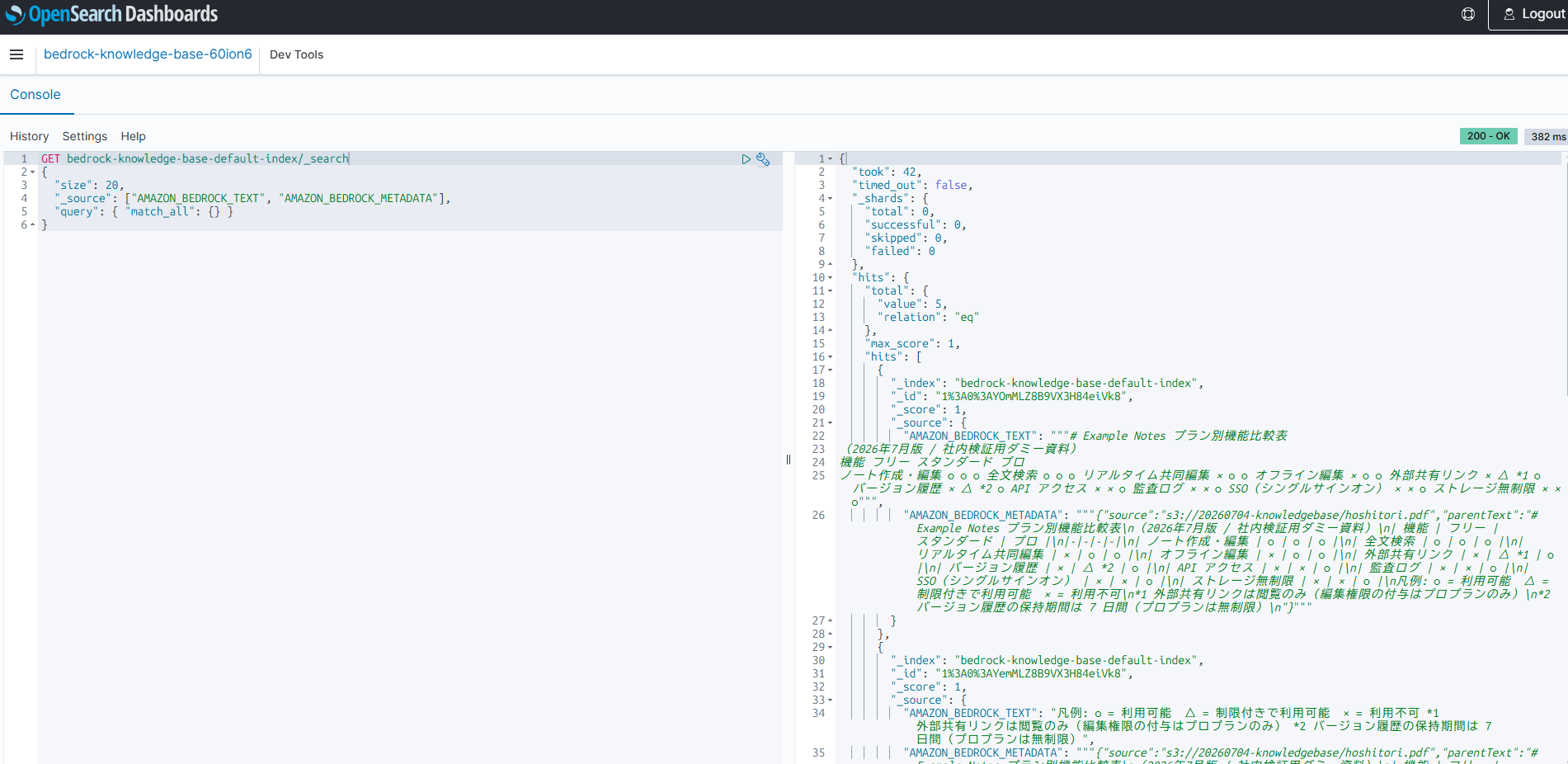
「AMAZON_BEDROCK_TEXT」はチャンク本文で、キーワード検索時の全文検索対象となるデータです。「AMAZON_BEDROCK_METADATA」は、検索ヒット後に返されるメタデータであり、出典表示やチャット応答のためのチャンク分割される前の親ファイルがマークダウン化された情報が入っています。
それぞれの PDF は以下のようにマークダウン化されていることを確認できました。
hoshitori.pdf はページ中にある表として認識されており、表の内容を忠実にマークダウンに落とし込んでいることが確認できました。
一方 architecture.pdf はページ中の画像と認識されており、テキストとして解釈されたキャプションが入っていました。
# Example Notes プラン別機能比較表\n(2026年7月版 / 社内検証用ダミー資料)\n| 機能 | フリー | スタンダード | プロ |\n|-|-|-|-|\n| ノート作成・編集 | ○ | ○ | ○ |\n| 全文検索 | ○ | ○ | ○ |\n| リアルタイム共同編集 | × | ○ | ○ |\n| オフライン編集 | × | ○ | ○ |\n| 外部共有リンク | × | △ *1 | ○ |\n| バージョン履歴 | × | △ *2 | ○ |\n| API アクセス | × | × | ○ |\n| 監査ログ | × | × | ○ |\n| SSO(シングルサインオン) | × | × | ○ |\n| ストレージ無制限 | × | × | ○ |\n凡例: ○ = 利用可能 △ = 制限付きで利用可能 × = 利用不可\n*1 外部共有リンクは閲覧のみ(編集権限の付与はプロプランのみ)\n*2 バージョン履歴の保持期間は 7 日間(プロプランは無制限)\n
# Example Notes システム構成図\n(検証環境 / 社内検証用ダミー資料)\n<figure>\nExample Notes システム構成図(検証環境 / 社内検証用ダミー資料)\nシステム構成図:ユーザー(ブラウザ)からHTTPSでVPC (10.0.0.0/16) 内のALB (Application Load Balancer) へ接続。ALBはセッション情報を経由してWebアプリ(Amazon ECS / Fargate / マルチAZ)へ接続。Webアプリからキャッシュ(Amazon ElastiCache / Redis)、DB(Amazon RDS / PostgreSQL / シングルAZ ※)へSQL接続、および添付ファイル(Amazon S3)へファイル保存。\n注記:\n※ RDS は検証環境のためシングル AZ 構成(本番環境ではマルチ AZ を推奨)\n・ECS タスクは 2 つの AZ に分散配置 ・添付ファイルは S3 に保存し、DB には保存しない\n</figure>\n
比較用までに、元データのpdfを再掲します。
ステップ 5: ナレッジベースのテストを実行する
最後に先ほどの質問に答えられるかを確認します。といってもステップ 4 で正しく抽出できていることが確認できたのでおまけです。
「ナレッジベースのテスト」を実行し、先ほど用意した質問文をテストしていきます。
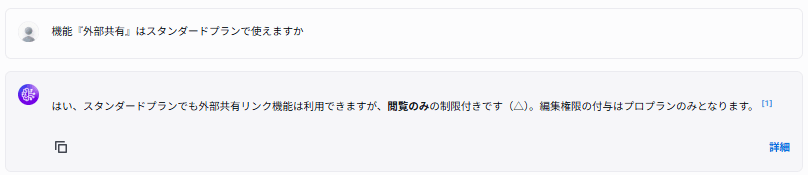
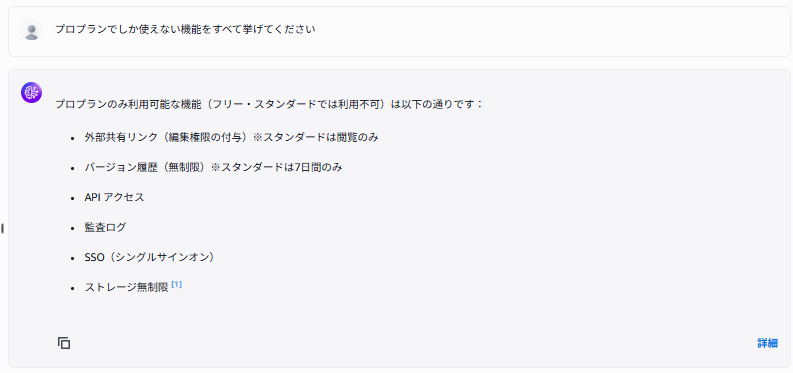
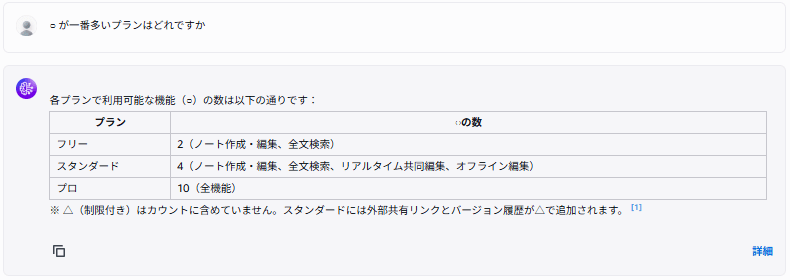
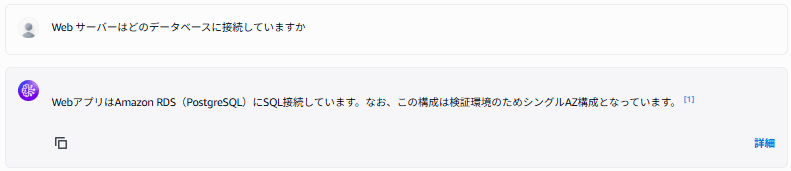
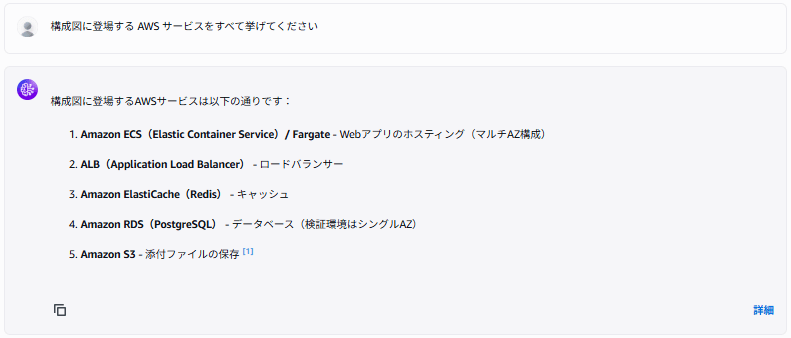
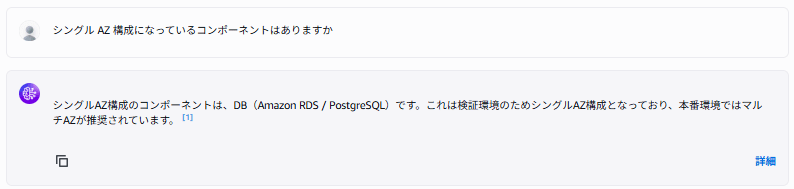
すべて正しく回答できていることが確認できました。
おわりに
本記事では、Bedrock Knowledge Bases の FM パーサーを使って、星取り表や設計図のような画像資料に対する回答精度を検証しました。画像のキャプションを生成させる際に投入するデータの概要をパースプロンプトで教え、詳細にキャプション生成するよう調整すると、さらに精度を高められると感じました。
つづいて、2026 年 6 月に GA した Managed Knowledge Base で同じ資料セットを試して、マルチモーダル対応のパーシング処理の性能がどの程度かを検証してみたいと思います。
参考リンク
- Parsing options for your data source(パーシングオプションの公式解説)
- Supported models and Regions for parsing(FM パーサー対応モデル)
- Create a knowledge base by connecting to a data source(マルチモーダルストレージの保存先・
supplementalDataStorageConfigurationの設定手順) - Prerequisites for using a vector store you created for a knowledge base
- Build a knowledge base for multimodal content(マルチモーダル対応の全体像)
- How content chunking works for knowledge bases(チャンキング戦略)
- 【Amazon Bedrock Knowledge bases】ベクトルデータストアである OpenSearch Serverless の中のデータを覗いてみた | DevelopersIO