AWS Network Firewallで検査できるペイロードの上限はあるのか確認してみた

AWS WAFではリクエストボディの上限があるけど、AWS Network Firewallには検査可能なペイロードサイズの上限はあるのかな
こんにちは、のんピ(@non____97)です。
皆さんはAWS WAFではリクエストボディの上限があるけど、AWS Network Firewallには検査可能なペイロードサイズの上限はあるのかなと気になったことはありますか? 私はあります。
AWS WAFでは以下記事で紹介されているとおり、関連付けるサービスによってリクエストボディの上限が設定されています。上限は最大64KBです。
では、AWS Network Firewallはどうでしょうか。
AWS公式ドキュメントを探しましたが、具体的な値は記載ありませんでした。
ただし、以下ドキュメントのように単一のネットワークフローで検査できる上限は設定されているようでした。このネットワークフローを超過する通信の場合、ルールが一致しない事象が発生するようです。
I have a rule that is intermittently not matching when I think it should
The AWS Network Firewall stateful rule engine has limits for traffic inspection parameters such as the maximum total size of all network packets it can inspect within a single network flow. If your traffic exceeds these limits, the stateful rule engine will not be able to match the rule. You can make use of keywords such as stream-event:reassembly_depth_reached; in your rules to handle these cases or to troubleshoot and diagnose when this happens. Example 1 shows how you might add an alert rule in a strict action order firewall policy to receive alert logs when the tcp reassembly depth limit is reached for a corresponding rule.
Example 1
# Rule 1 is intended to log when rule 2 cannot match due to hitting the TCP reassembly depth limit
alert tcp $HOME_NET any -> $EXTERNAL_NET 80 (flow:established,to_server; stream-event:reassembly_depth_reached; flowbits: set, stream_reassembly_depth_reached; classtype:protocol-command-decode; sid:1;)
# Rule 2
drop tcp $HOME_NET any -> $EXTERNAL_NET 80 (flow:established, to_server; sid:2;)
Troubleshooting rules in AWS Network Firewall - AWS Network Firewall
具体的な単一のネットワークフローの検査上限については言及ありませんでした。実際に確認をしてみます。
いきなりまとめ
- 使用するルールによってはペイロードサイズが大きいと検出できない場合がある
contentのみの場合はペイロードサイズが4GiBでも検出可能http.response_bodyを組み合わせる場合は少なくとも104KiB超でレスポンスボディ内の文字列を検出できなくなる
- ペイロードサイズが約128KiB以上の場合は単一のネットワークフローで扱えるサイズ上限に到達する
- AWS Network FirewallのMTUは8,665
やってみた
検証環境
検証環境は以下のとおりです。
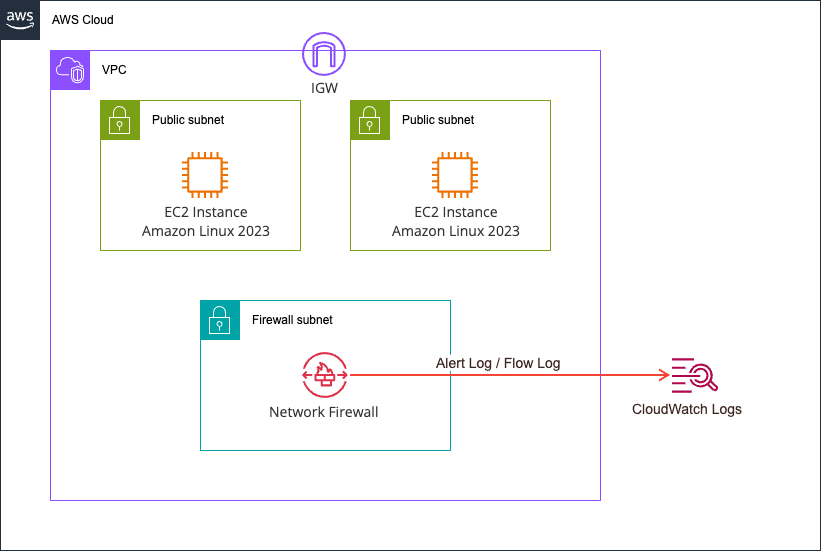
2台のEC2インスタンスを用意し、サーバー上にある各サイズのファイルをcurlで取得します。
各種ファイルは以下のように末尾にPAYLOADCANARYという文字列を付与しています。
sh-5.2$ ls -l /opt/payload/www/
total 136032
-rw-r--r--. 1 root root       30 Jun  8 03:47 baseline.txt
-rw-r--r--. 1 root root       37 Jun  8 03:47 blockme.txt
-rw-r--r--. 1 root root  1048576 Jun  8 03:47 payload_1048576.bin
-rw-r--r--. 1 root root   114688 Jun  8 04:37 payload_114688.bin
-rw-r--r--. 1 root root   131072 Jun  8 03:47 payload_131072.bin
-rw-r--r--. 1 root root  1572864 Jun  8 03:47 payload_1572864.bin
-rw-r--r--. 1 root root    16384 Jun  8 03:47 payload_16384.bin
-rw-r--r--. 1 root root 16777216 Jun  8 04:37 payload_16777216.bin
-rw-r--r--. 1 root root  2097152 Jun  8 03:47 payload_2097152.bin
-rw-r--r--. 1 root root   262144 Jun  8 03:47 payload_262144.bin
-rw-r--r--. 1 root root  3145728 Jun  8 03:47 payload_3145728.bin
-rw-r--r--. 1 root root    32768 Jun  8 03:47 payload_32768.bin
-rw-r--r--. 1 root root 33554432 Jun  8 04:37 payload_33554432.bin
-rw-r--r--. 1 root root  4194304 Jun  8 03:47 payload_4194304.bin
-rw-r--r--. 1 root root   524288 Jun  8 03:47 payload_524288.bin
-rw-r--r--. 1 root root    65536 Jun  8 03:47 payload_65536.bin
-rw-r--r--. 1 root root 67108864 Jun  8 04:37 payload_67108864.bin
-rw-r--r--. 1 root root    73728 Jun  8 04:37 payload_73728.bin
-rw-r--r--. 1 root root    81920 Jun  8 04:37 payload_81920.bin
-rw-r--r--. 1 root root  8388608 Jun  8 04:37 payload_8388608.bin
-rw-r--r--. 1 root root    98304 Jun  8 04:37 payload_98304.bin

$ tail /opt/payload/www/payload_16384.bin -c 30
AAAAAAAAAAAAAAAAAPAYLOADCANARY
AWS Network Firewallのルールは以下のとおりです。
alert tcp any any -> any any (msg:"CANARY-DETECTED"; flow:established; content:"PAYLOADCANARY"; sid:1000001; rev:1;)
drop tcp any any -> any any (msg:"BLOCKME-DROPPED"; flow:established; content:"BLOCKME"; sid:1000002; rev:1;)
alert tcp any any -> any any (msg:"REASSEMBLY-DEPTH-REACHED"; flow:established; stream-event:reassembly_depth_reached; sid:1000003; rev:1;)
PAYLOADCANARYという文字列が出現した場合はアラートログを出力します。また、BLOCKMEという文字列がある場合は通信をドロップさせます。
加えて、stream-event:reassembly_depth_reachedと単一のネットワークフローで扱えるサイズ上限に到達した場合はアラートログを出力するようにしてみます。
検証環境は全てAWS CDKでデプロイしました。使用したコードは以下GitHubリポジトリに保存しています。
動作確認
それでは実際に試してみます。
クライアントのEC2インスタンスにアクセスして、以下のように事前に用意したスクリプトを実行します。
sh-5.2$ sudo su -
[root@ip-10-0-1-215 ~]# /opt/run-test.sh
target server: 10.0.2.103
N=16384 200 size=16384
N=32768 200 size=32768
N=65536 200 size=65536
N=131072        200 size=131072
N=262144        200 size=262144
N=524288        200 size=524288
N=1048576       200 size=1048576
N=1572864       200 size=1572864
N=2097152       200 size=2097152
N=3145728       200 size=3145728
N=4194304       200 size=4194304
16KBから4MBまでファイルサイズを倍々にして試しましたが、いずれもHTTPステータスコードは200が返ってきていますね。
それでは、ログから傾向を確認します。
> START_ISO=2026-06-08T04:09:00Z END_ISO=2026-06-08T04:11:00Z ./scripts/check-alerts.sh
2026-06-08T04:09:56.459207+0000  10.0.2.103:8080       -> 10.0.1.215:43742       SIZE=16384      WIRE=16907      HTTPLEN=16384     CANARY=yes  DEPTH=no
2026-06-08T04:09:59.474014+0000  10.0.2.103:8080       -> 10.0.1.215:43744       SIZE=32768      WIRE=33395      HTTPLEN=32768     CANARY=yes  DEPTH=no
2026-06-08T04:10:02.586904+0000  10.0.2.103:8080       -> 10.0.1.215:43758       SIZE=65536      WIRE=66371      HTTPLEN=65536     CANARY=yes  DEPTH=no
2026-06-08T04:10:05.606068+0000  10.0.2.103:8080       -> 10.0.1.215:43766       SIZE=131072     WIRE=132376     HTTPLEN=124935    CANARY=yes  DEPTH=yes
2026-06-08T04:10:08.619468+0000  10.0.2.103:8080       -> 10.0.1.215:49452       SIZE=262144     WIRE=264280     HTTPLEN=124935    CANARY=yes  DEPTH=yes
2026-06-08T04:10:11.632871+0000  10.0.2.103:8080       -> 10.0.1.215:49458       SIZE=524288     WIRE=528088     HTTPLEN=129276    CANARY=yes  DEPTH=yes
2026-06-08T04:10:14.649200+0000  10.0.2.103:8080       -> 10.0.1.215:49464       SIZE=1048576    WIRE=1055601    HTTPLEN=124935    CANARY=yes  DEPTH=yes
2026-06-08T04:10:17.664735+0000  10.0.2.103:8080       -> 10.0.1.215:52628       SIZE=1572864    WIRE=1583217    HTTPLEN=124935    CANARY=yes  DEPTH=yes
2026-06-08T04:10:20.681558+0000  10.0.2.103:8080       -> 10.0.1.215:52630       SIZE=2097152    WIRE=2110729    HTTPLEN=124935    CANARY=yes  DEPTH=yes
2026-06-08T04:10:23.698711+0000  10.0.2.103:8080       -> 10.0.1.215:52640       SIZE=3145728    WIRE=3165857    HTTPLEN=124935    CANARY=yes  DEPTH=yes
2026-06-08T04:10:26.719656+0000  10.0.2.103:8080       -> 10.0.1.215:46206       SIZE=4194304    WIRE=4220985    HTTPLEN=124935    CANARY=yes  DEPTH=yes
---- summary ----
flows                : 11
CANARY-DETECTED      : 11
REASSEMBLY-DEPTH     : 8
CANARY=yesがPAYLOADCANARYという文字列が出現した通信で、DEPTH=yesが単一のネットワークフローで扱えるサイズ上限に到達した通信です。
実際のログは以下のようになっています。
{
    "firewall_name": "payload-inspection-fw",
    "availability_zone": "ap-northeast-1a",
    "event_timestamp": "1780891805",
    "event": {
        "tx_guessed": true,
        "aws_category": "",
        "tx_id": 0,
        "app_proto": "http",
        "src_ip": "10.0.2.103",
        "src_port": 8080,
        "event_type": "alert",
        "alert": {
            "severity": 3,
            "signature_id": 1000001,
            "rev": 1,
            "signature": "CANARY-DETECTED",
            "action": "allowed",
            "category": ""
        },
        "flow_id": 1458428759307611,
        "dest_ip": "10.0.1.215",
        "proto": "TCP",
        "verdict": {
            "action": "alert"
        },
        "http": {
            "hostname": "10.0.2.103",
            "http_port": 8080,
            "url": "/payload_131072.bin",
            "http_user_agent": "curl/8.17.0",
            "http_content_type": "application/octet-stream",
            "http_method": "GET",
            "protocol": "HTTP/1.1",
            "status": 200,
            "length": 124935
        },
        "dest_port": 43766,
        "pkt_src": "geneve encapsulation",
        "timestamp": "2026-06-08T04:10:05.606068+0000",
        "direction": "to_client"
    }
}
{
    "firewall_name": "payload-inspection-fw",
    "availability_zone": "ap-northeast-1a",
    "event_timestamp": "1780891805",
    "event": {
        "tx_guessed": true,
        "aws_category": "",
        "tx_id": 0,
        "app_proto": "http",
        "src_ip": "10.0.2.103",
        "src_port": 8080,
        "event_type": "alert",
        "alert": {
            "severity": 3,
            "signature_id": 1000003,
            "rev": 1,
            "signature": "REASSEMBLY-DEPTH-REACHED",
            "action": "allowed",
            "category": ""
        },
        "flow_id": 1458428759307611,
        "dest_ip": "10.0.1.215",
        "proto": "TCP",
        "verdict": {
            "action": "alert"
        },
        "http": {
            "hostname": "10.0.2.103",
            "http_port": 8080,
            "url": "/payload_131072.bin",
            "http_user_agent": "curl/8.17.0",
            "http_content_type": "application/octet-stream",
            "http_method": "GET",
            "protocol": "HTTP/1.1",
            "status": 200,
            "length": 124935
        },
        "dest_port": 43766,
        "pkt_src": "geneve encapsulation",
        "timestamp": "2026-06-08T04:10:05.606068+0000",
        "direction": "to_client"
    }
}
{
    "firewall_name": "payload-inspection-fw",
    "availability_zone": "ap-northeast-1a",
    "event_timestamp": "1780891866",
    "event": {
        "tcp": {
            "tcp_flags": "1b",
            "syn": true,
            "fin": true,
            "psh": true,
            "ack": true
        },
        "app_proto": "http",
        "src_ip": "10.0.1.215",
        "src_port": 43766,
        "netflow": {
            "pkts": 16,
            "bytes": 937,
            "start": "2026-06-08T04:10:05.601710+0000",
            "end": "2026-06-08T04:10:05.606882+0000",
            "age": 0,
            "min_ttl": 126,
            "max_ttl": 126,
            "state": "closed",
            "reason": "timeout",
            "alerted": true
        },
        "event_type": "netflow",
        "flow_id": 1458428759307611,
        "dest_ip": "10.0.2.103",
        "proto": "TCP",
        "dest_port": 8080,
        "timestamp": "2026-06-08T04:11:06.760496+0000"
    }
}
{
    "firewall_name": "payload-inspection-fw",
    "availability_zone": "ap-northeast-1a",
    "event_timestamp": "1780891866",
    "event": {
        "tcp": {
            "tcp_flags": "1b",
            "syn": true,
            "fin": true,
            "psh": true,
            "ack": true
        },
        "app_proto": "http",
        "src_ip": "10.0.2.103",
        "src_port": 8080,
        "netflow": {
            "pkts": 21,
            "bytes": 132376,
            "start": "2026-06-08T04:10:05.601710+0000",
            "end": "2026-06-08T04:10:05.606882+0000",
            "age": 0,
            "min_ttl": 126,
            "max_ttl": 126
        },
        "event_type": "netflow",
        "flow_id": 1458428759307611,
        "dest_ip": "10.0.1.215",
        "proto": "TCP",
        "dest_port": 43766,
        "timestamp": "2026-06-08T04:11:06.760522+0000"
    }
}
ここから以下のことが分かります。
- AWS Network Firewallは4MiBまでのペイロードの検査はできる
- 128KiB以上のファイルにアクセスする場合は単一のネットワークフローで扱えるサイズ上限に到達している
- 単一のネットワークフローで扱えるサイズ上限は128KiBである可能性がある
- 128KiB以上のファイルにアクセスする場合、
event.http.lengthのほとんどが124935となっている。
アクセスするファイルを変更して再度確認
単一のネットワークフローで扱えるサイズ上限は128KiBである可能性があるということがわかったので、64KiB - 128KiBの間も試してみて、確かにおおよそ128KiBであることを確認します。
また、ファイルサイズも4MiBではなく、64MiBまで試してみます。
まずはサーバー側で以下のようにファイルを生成します。
# 64KiB - 128KiB のファイルを生成
[root@ip-10-0-2-103 ~]# for N in 73728 81920 98304 114688; do /opt/payload/gen.sh $N; done
generated /opt/payload/www/payload_73728.bin size=73728 marker_at_tail
generated /opt/payload/www/payload_81920.bin size=81920 marker_at_tail
generated /opt/payload/www/payload_98304.bin size=98304 marker_at_tail
generated /opt/payload/www/payload_114688.bin size=114688 marker_at_tail

# 4MiB - 64MiB のファイルを生成
[root@ip-10-0-2-103 ~]# for N in 8388608 16777216 33554432 67108864; do /opt/payload/gen.sh $N; done
generated /opt/payload/www/payload_8388608.bin size=8388608 marker_at_tail
generated /opt/payload/www/payload_16777216.bin size=16777216 marker_at_tail
generated /opt/payload/www/payload_33554432.bin size=33554432 marker_at_tail
generated /opt/payload/www/payload_67108864.bin size=67108864 marker_at_tail
クライアント側で生成したファイルへアクセスします。
[root@ip-10-0-1-215 ~]# for N in 73728 81920 98304 114688; do
    curl -s -o /dev/null -w "N=$N %{http_code} size=%{size_download}\n" \
      "http://10.0.2.103:8080/payload_${N}.bin"
    sleep 3
  done
N=73728 200 size=73728
N=81920 200 size=81920
N=98304 200 size=98304
N=114688 200 size=114688

[root@ip-10-0-1-215 ~]# for N in 8388608 16777216 33554432 67108864; do
    curl -s -o /dev/null -w "N=$N %{http_code} size=%{size_download}\n" \
      "http://10.0.2.103:8080/payload_${N}.bin"
    sleep 3
  done
N=8388608 200 size=8388608
N=16777216 200 size=16777216
N=33554432 200 size=33554432
N=67108864 200 size=67108864
この時出力されたAWS Network Firewallのログを集計すると以下のようになります。
> ./scripts/check-alerts.sh 30 8
2026-06-08T04:40:23.823156+0000  10.0.2.103:8080       -> 10.0.1.215:41272       SIZE=73728      WIRE=74615      HTTPLEN=73728     CANARY=yes  DEPTH=no
2026-06-08T04:40:26.835255+0000  10.0.2.103:8080       -> 10.0.1.215:46320       SIZE=81920      WIRE=82859      HTTPLEN=81920     CANARY=yes  DEPTH=no
2026-06-08T04:40:29.848050+0000  10.0.2.103:8080       -> 10.0.1.215:46328       SIZE=98304      WIRE=99399      HTTPLEN=98304     CANARY=yes  DEPTH=no
2026-06-08T04:40:32.860812+0000  10.0.2.103:8080       -> 10.0.1.215:46340       SIZE=114688     WIRE=115888     HTTPLEN=114688    CANARY=yes  DEPTH=no
2026-06-08T04:41:44.812127+0000  10.0.2.103:8080       -> 10.0.1.215:33830       SIZE=8388608    WIRE=8684598    HTTPLEN=124935    CANARY=yes  DEPTH=yes
2026-06-08T04:41:47.838895+0000  10.0.2.103:8080       -> 10.0.1.215:53800       SIZE=16777216   WIRE=16882522   HTTPLEN=124935    CANARY=yes  DEPTH=yes
2026-06-08T04:41:50.881535+0000  10.0.2.103:8080       -> 10.0.1.215:53814       SIZE=33554432   WIRE=33764466   HTTPLEN=124935    CANARY=yes  DEPTH=yes
2026-06-08T04:41:53.949490+0000  10.0.2.103:8080       -> 10.0.1.215:53826       SIZE=67108864   WIRE=67528562   HTTPLEN=124935    CANARY=yes  DEPTH=yes
---- summary ----
flows                : 8
CANARY-DETECTED      : 8
112KiBまでDEPTH=noであることから、やはり単一のネットワークフローの上限は約128KiBではないかと考えます。
また、ファイルサイズの上限については64MiBであっても問題なく検出できました。以下のように4GiBで試した場合でも問題なく検出できたため、特に上限はないような気がしますね。
# サーバー
[root@ip-10-0-2-103 ~]# { head -c 4294967283 /dev/zero | tr '\0' 'A'; printf 'PAYLOADCANARY'; } > /opt/payload/www/payload_4294967296.bin
[root@ip-10-0-2-103 ~]# ls -l /opt/payload/www/payload_4294967296.bin
-rw-r--r--. 1 root root 4294967296 Jun  8 07:30 /opt/payload/www/payload_4294967296.bin

[root@ip-10-0-2-103 ~]# tail /opt/payload/www/payload_4294967296.bin -c 20
AAAAAAAPAYLOADCANARY

# クライアント
sh-5.2$ curl -s -o /dev/null -w "%{http_code} size=%{size_download} time=%{time_total}s\n" -m 300 "http://10.0.2.103:8080/payload_4294967296.bin"
200 size=4294967296 time=31.792743s

# 手元の端末
> ./scripts/check-alerts.sh 5 8
2026-06-08T07:32:36.315022+0000  10.0.2.103:8080       -> 10.0.1.215:50698       SIZE=4294967296 WIRE=4322860320 HTTPLEN=129352    CANARY=yes  DEPTH=yes
---- summary ----
flows                : 1
CANARY-DETECTED      : 1
REASSEMBLY-DEPTH     : 1
ちなみに、フローログは以下のとおりです。
{
    "firewall_name": "payload-inspection-fw",
    "availability_zone": "ap-northeast-1a",
    "event_timestamp": "1780893770",
    "event": {
        "tcp": {
            "tcp_flags": "1b",
            "syn": true,
            "fin": true,
            "psh": true,
            "ack": true
        },
        "app_proto": "http",
        "src_ip": "10.0.2.103",
        "src_port": 8080,
        "netflow": {
            "pkts": 2021,
            "bytes": 16882522,
            "start": "2026-06-08T04:41:47.834975+0000",
            "end": "2026-06-08T04:41:47.870506+0000",
            "age": 0,
            "min_ttl": 126,
            "max_ttl": 126
        },
        "event_type": "netflow",
        "flow_id": 1052918645453111,
        "dest_ip": "10.0.1.215",
        "proto": "TCP",
        "dest_port": 53800,
        "timestamp": "2026-06-08T04:42:50.874210+0000"
    }
}

{
    "firewall_name": "payload-inspection-fw",
    "availability_zone": "ap-northeast-1a",
    "event_timestamp": "1780893773",
    "event": {
        "tcp": {
            "tcp_flags": "1b",
            "syn": true,
            "fin": true,
            "psh": true,
            "ack": true
        },
        "app_proto": "http",
        "src_ip": "10.0.2.103",
        "src_port": 8080,
        "netflow": {
            "pkts": 4035,
            "bytes": 33764466,
            "start": "2026-06-08T04:41:50.877823+0000",
            "end": "2026-06-08T04:41:50.937285+0000",
            "age": 0,
            "min_ttl": 126,
            "max_ttl": 126
        },
        "event_type": "netflow",
        "flow_id": 1799898488091967,
        "dest_ip": "10.0.1.215",
        "proto": "TCP",
        "dest_port": 53814,
        "timestamp": "2026-06-08T04:42:53.707971+0000"
    }
}

{
    "firewall_name": "payload-inspection-fw",
    "availability_zone": "ap-northeast-1a",
    "event_timestamp": "1780893776",
    "event": {
        "tcp": {
            "tcp_flags": "1b",
            "syn": true,
            "fin": true,
            "psh": true,
            "ack": true
        },
        "app_proto": "http",
        "src_ip": "10.0.2.103",
        "src_port": 8080,
        "netflow": {
            "pkts": 8067,
            "bytes": 67528562,
            "start": "2026-06-08T04:41:53.945234+0000",
            "end": "2026-06-08T04:41:54.068253+0000",
            "age": 1,
            "min_ttl": 126,
            "max_ttl": 126
        },
        "event_type": "netflow",
        "flow_id": 400576477526297,
        "dest_ip": "10.0.1.215",
        "proto": "TCP",
        "dest_port": 53826,
        "timestamp": "2026-06-08T04:42:56.791941+0000"
    }
}
event.netflow.bytes / event.netflow.pkts をした場合、いずれも8,300ほどになります。
Gateway Load BalancerのMTUは8,500です。そのため、AWS Network FirewallもMTUは8,500なのでしょうか。
ネットワーク最大送信単位 (MTU)
最大送信単位 (MTU) は、ネットワーク上で送信できる最大データパケットサイズです。Gateway Load Balancer インターフェイス MTU は、最大 8,500 バイトのパケットをサポートします。8,500 バイトを超えるサイズのパケットが Gateway Load Balancer インターフェイスに到着した場合、そのパケットはドロップされます。
Gateway Load Balancer は、IP トラフィックを GENEVE ヘッダーでカプセル化してアプライアンスに転送します。GENEVE カプセル化プロセスは、元のパケットに 68 バイトを追加します。したがって、最大 8,500 バイトのパケットをサポートするには、アプライアンスの MTU 設定が少なくとも 8,568 バイトのパケットをサポートしていることを確認します。
Gateway Load Balancer は、IP フラグメント化をサポートしていません。また、Gateway Load Balancer は「送信先に到達できません: フラグメント化が必要ですが、フラグメント化しないが設定されています」というICMPメッセージを生成しません。このため、パス MTU 検出 (PMTUD) はサポートされていません。
クライアントのEC2インスタンスからサーバーのEC2インスタンスにパケットサイズを変更しながらpingを打ちます。
sh-5.2$ ip link show
1: lo: <LOOPBACK,UP,LOWER_UP> mtu 65536 qdisc noqueue state UNKNOWN mode DEFAULT group default qlen 1000
    link/loopback 00:00:00:00:00:00 brd 00:00:00:00:00:00
2: ens5: <BROADCAST,MULTICAST,UP,LOWER_UP> mtu 9001 qdisc mq state UP mode DEFAULT group default qlen 1000
    link/ether 06:29:4a:7a:e8:73 brd ff:ff:ff:ff:ff:ff
    altname enp0s5
    altname eni-0606c80994bfe10d9
    altname device-number-0.0

# 8,000
sh-5.2$ sudo ping 10.0.2.103 -s 8000 -f -c 5
PING 10.0.2.103 (10.0.2.103) 8000(8028) bytes of data.

--- 10.0.2.103 ping statistics ---
5 packets transmitted, 5 received, 0% packet loss, time 8ms
rtt min/avg/max/mdev = 0.691/1.695/4.129/1.306 ms, ipg/ewma 2.036/1.778 ms

# 8,600
sh-5.2$ sudo ping 10.0.2.103 -s 8600 -f -c 5
PING 10.0.2.103 (10.0.2.103) 8600(8628) bytes of data.

--- 10.0.2.103 ping statistics ---
5 packets transmitted, 5 received, 0% packet loss, time 4ms
rtt min/avg/max/mdev = 0.563/0.770/1.489/0.360 ms, ipg/ewma 0.920/1.118 ms

# 9,000
sh-5.2$ sudo ping 10.0.2.103 -s 9000 -f -c 5
PING 10.0.2.103 (10.0.2.103) 9000(9028) bytes of data.
.....
--- 10.0.2.103 ping statistics ---
5 packets transmitted, 0 received, 100% packet loss, time 74ms

# 8,900
sh-5.2$ sudo ping 10.0.2.103 -s 8900 -f -c 5
PING 10.0.2.103 (10.0.2.103) 8900(8928) bytes of data.
.....
--- 10.0.2.103 ping statistics ---
5 packets transmitted, 0 received, 100% packet loss, time 79ms

# 8,700
sh-5.2$ sudo ping 10.0.2.103 -s 8700 -f -c 5
PING 10.0.2.103 (10.0.2.103) 8700(8728) bytes of data.
.....
--- 10.0.2.103 ping statistics ---
5 packets transmitted, 0 received, 100% packet loss, time 71ms

# 8,650
sh-5.2$ sudo ping 10.0.2.103 -s 8650 -f -c 5
PING 10.0.2.103 (10.0.2.103) 8650(8678) bytes of data.
.....
--- 10.0.2.103 ping statistics ---
5 packets transmitted, 0 received, 100% packet loss, time 81ms

# 8,620
sh-5.2$ sudo ping 10.0.2.103 -s 8620 -f -c 5
PING 10.0.2.103 (10.0.2.103) 8620(8648) bytes of data.

--- 10.0.2.103 ping statistics ---
5 packets transmitted, 5 received, 0% packet loss, time 5ms
rtt min/avg/max/mdev = 0.690/0.998/2.125/0.563 ms, ipg/ewma 1.165/1.542 ms

# 8,640
sh-5.2$ sudo ping 10.0.2.103 -s 8640 -f -c 5
PING 10.0.2.103 (10.0.2.103) 8640(8668) bytes of data.
.....
--- 10.0.2.103 ping statistics ---
5 packets transmitted, 0 received, 100% packet loss, time 71ms

# 8,630
sh-5.2$ sudo ping 10.0.2.103 -s 8630 -f -c 5
PING 10.0.2.103 (10.0.2.103) 8630(8658) bytes of data.

--- 10.0.2.103 ping statistics ---
5 packets transmitted, 5 received, 0% packet loss, time 5ms
rtt min/avg/max/mdev = 0.640/0.969/2.143/0.587 ms, ipg/ewma 1.140/1.534 ms

# 8,635
sh-5.2$ sudo ping 10.0.2.103 -s 8635 -f -c 5
PING 10.0.2.103 (10.0.2.103) 8635(8663) bytes of data.

--- 10.0.2.103 ping statistics ---
5 packets transmitted, 5 received, 0% packet loss, time 5ms
rtt min/avg/max/mdev = 0.880/1.168/2.089/0.464 ms, ipg/ewma 1.322/1.611 ms

# 8,638
sh-5.2$ sudo ping 10.0.2.103 -s 8638 -f -c 5
PING 10.0.2.103 (10.0.2.103) 8638(8666) bytes of data.
.....
--- 10.0.2.103 ping statistics ---
5 packets transmitted, 0 received, 100% packet loss, time 91ms

# 8,637
sh-5.2$ sudo ping 10.0.2.103 -s 8637 -f -c 5
PING 10.0.2.103 (10.0.2.103) 8637(8665) bytes of data.

--- 10.0.2.103 ping statistics ---
5 packets transmitted, 5 received, 0% packet loss, time 5ms
rtt min/avg/max/mdev = 0.719/0.967/1.840/0.436 ms, ipg/ewma 1.133/1.388 ms

sh-5.2$ sudo ping -M do -s 8637 -c 3 10.0.2.103 -c 1
PING 10.0.2.103 (10.0.2.103) 8637(8665) bytes of data.
8645 bytes from 10.0.2.103: icmp_seq=1 ttl=125 time=2.16 ms

--- 10.0.2.103 ping statistics ---
1 packets transmitted, 1 received, 0% packet loss, time 0ms
rtt min/avg/max/mdev = 2.164/2.164/2.164/0.000 ms
AWS Network FirewallのMTUは8,665であるようです。
http.response_body を組み合わせた場合
ふと、http.response_bodyとcontentで見る箇所を指定した場合はどのような挙動になるのか気になりました。
以下のようにhttp.response_bodyでコンテンツに特定の文字列が含まれている場合にアラートログを出力するようにルールを追加しました。
alert tcp any any -> any any (msg:"CANARY-DETECTED"; flow:established; content:"PAYLOADCANARY"; sid:1000001; rev:1;)
drop tcp any any -> any any (msg:"BLOCKME-DROPPED"; flow:established; content:"BLOCKME"; sid:1000002; rev:1;)
alert tcp any any -> any any (msg:"REASSEMBLY-DEPTH-REACHED"; flow:established; stream-event:reassembly_depth_reached; sid:1000003; rev:1;)
alert http any any -> any any (msg:"CANARY-HTTP-BODY"; flow:established,to_client; http.response_body; content:"PAYLOADCANARY"; sid:1000004; rev:1;)
サーバー側でファイルを生成します。
[root@ip-10-0-2-103 ~]#  for N in 73728 81920 90112 98304 106496 114688; do /opt/payload/gen.sh $N; done
generated /opt/payload/www/payload_73728.bin size=73728 marker_at_tail
generated /opt/payload/www/payload_81920.bin size=81920 marker_at_tail
generated /opt/payload/www/payload_90112.bin size=90112 marker_at_tail
generated /opt/payload/www/payload_98304.bin size=98304 marker_at_tail
generated /opt/payload/www/payload_106496.bin size=106496 marker_at_tail
generated /opt/payload/www/payload_114688.bin size=114688 marker_at_tail
クライアント側で以下のようにサーバーにリクエストを投げます。
$ for N in 16384 65536 262144 1048576 8388608; do
    curl -s -o /dev/null "http://10.0.2.103:8080/payload_${N}.bin"; sleep 3
  done

$ for N in 73728 81920 90112 98304 106496 114688 131072; do
    curl -s -o /dev/null "http://10.0.2.103:8080/payload_${N}.bin"; sleep 3
  done
この時のログを分析すると以下のようになります。
> ./scripts/check-alerts.sh 5 8
2026-06-08T07:51:22.582681+0000  10.0.2.103:8080       -> 10.0.1.215:42404       SIZE=16384      WIRE=16907      HTTPLEN=16384     CANARY(raw)=yes HTTPBODY=yes DEPTH=no
2026-06-08T07:51:25.593930+0000  10.0.2.103:8080       -> 10.0.1.215:42414       SIZE=65536      WIRE=66371      HTTPLEN=65536     CANARY(raw)=yes HTTPBODY=yes DEPTH=no
2026-06-08T07:51:28.606219+0000  10.0.2.103:8080       -> 10.0.1.215:53380       SIZE=262144     WIRE=264332     HTTPLEN=124935    CANARY(raw)=yes HTTPBODY=no  DEPTH=yes
2026-06-08T07:51:31.619444+0000  10.0.2.103:8080       -> 10.0.1.215:53382       SIZE=1048576    WIRE=1055653    HTTPLEN=124935    CANARY(raw)=yes HTTPBODY=no  DEPTH=yes
2026-06-08T07:51:34.634590+0000  10.0.2.103:8080       -> 10.0.1.215:53398       SIZE=8388608    WIRE=8442329    HTTPLEN=129352    CANARY(raw)=yes HTTPBODY=no  DEPTH=yes
---- summary ----
flows                : 5
CANARY-DETECTED      : 5
REASSEMBLY-DEPTH     : 3

> ./scripts/check-alerts.sh 10 10
2026-06-08T08:10:48.634444+0000  10.0.2.103:8080       -> 10.0.1.215:54626       SIZE=73728      WIRE=74615      HTTPLEN=73728     CANARY(raw)=yes HTTPBODY=yes DEPTH=no
2026-06-08T08:10:51.645419+0000  10.0.2.103:8080       -> 10.0.1.215:54636       SIZE=81920      WIRE=82911      HTTPLEN=81920     CANARY(raw)=yes HTTPBODY=yes DEPTH=no
2026-06-08T08:10:54.657246+0000  10.0.2.103:8080       -> 10.0.1.215:54648       SIZE=90112      WIRE=91155      HTTPLEN=90112     CANARY(raw)=yes HTTPBODY=yes DEPTH=no
2026-06-08T08:10:57.669630+0000  10.0.2.103:8080       -> 10.0.1.215:57014       SIZE=98304      WIRE=99399      HTTPLEN=98304     CANARY(raw)=yes HTTPBODY=yes DEPTH=no
2026-06-08T08:11:00.682428+0000  10.0.2.103:8080       -> 10.0.1.215:57020       SIZE=106496     WIRE=107644     HTTPLEN=106496    CANARY(raw)=yes HTTPBODY=no  DEPTH=no
2026-06-08T08:11:03.693559+0000  10.0.2.103:8080       -> 10.0.1.215:57034       SIZE=114688     WIRE=115888     HTTPLEN=114688    CANARY(raw)=yes HTTPBODY=no  DEPTH=no
2026-06-08T08:11:12.726607+0000  10.0.2.103:8080       -> 10.0.1.215:58658       SIZE=131072     WIRE=132324     HTTPLEN=124935    CANARY(raw)=yes HTTPBODY=no  DEPTH=yes
---- summary ----
flows                : 7
CANARY-DETECTED      : 7
REASSEMBLY-DEPTH     : 1
なんと、104KiBを超過した場合はhttp.response_bodyを見て検出するルールで検出できませんでした。
つまりはルールによってはサイズが大きいペイロードは検出できないことがありそうです。
REASSEMBLY-DEPTH-REACHEDと一致している訳ではないのがまた難しいですね。
使用するルールによってはペイロードサイズが大きいと検出できない場合がある
AWS Network Firewallで検査できるペイロードの上限はあるのか確認してみました。
結論、使用するルールによってはペイロードサイズが大きいと検出できない場合があります。
AWS Network Firewallを採用する場合のリスクとして捉えなければならないですね。
この記事が誰かの助けになれば幸いです。
以上、クラウド事業本部 コンサルティング部の のんピ(@non____97)でした!