Amazon FSx for NetApp ONTAP内のデータをS3 Access Point経由でBedrock Knowledge Basesに連携してみた

データをAmazon FSx for NetApp ONTAPに移行したんだから他AWSサービスとの連携もさせたいな
こんにちは、のんピ(@non____97)です。
皆さんはデータをAmazon FSx for NetApp ONTAP(以降FSxN)に移行したんだから他AWSサービスとの連携もさせたいなと思ったことはありますか? 私はあります。
ファイルサーバーをオンプレミスからAWSにせっかく移行したのであれば、AI関連など他AWSサービスとの親和性も気になるところです。
FSxNにはボリュームにS3 Access Pointをアタッチする機能があります。
つまりは、この機能を用いることによってS3と連携できるサービスとFSxNも連携できると言うことです。
試しに今回はBedrock Knowledge Basesと連携をさせて、FSxN内の保存したファイルについて質問できるようにしてみます。
いきなりまとめ
- Amazon FSx for NetApp ONTAP内のデータにS3 Access Point経由でBedrock Knowledge Basesと連携することが可能
- マルチモーダル検索も可能
- Amazon FSx for NetApp ONTAPのS3 Access Pointを作成する場合、Windowsユーザー名にバックスラッシュ(
\)を含むとエラーになる- 実質的にドメインのAdministratorユーザーは使用できない
- 別名のドメインユーザーを作成しよう
やってみた
検証環境
検証環境は以下のとおりです。
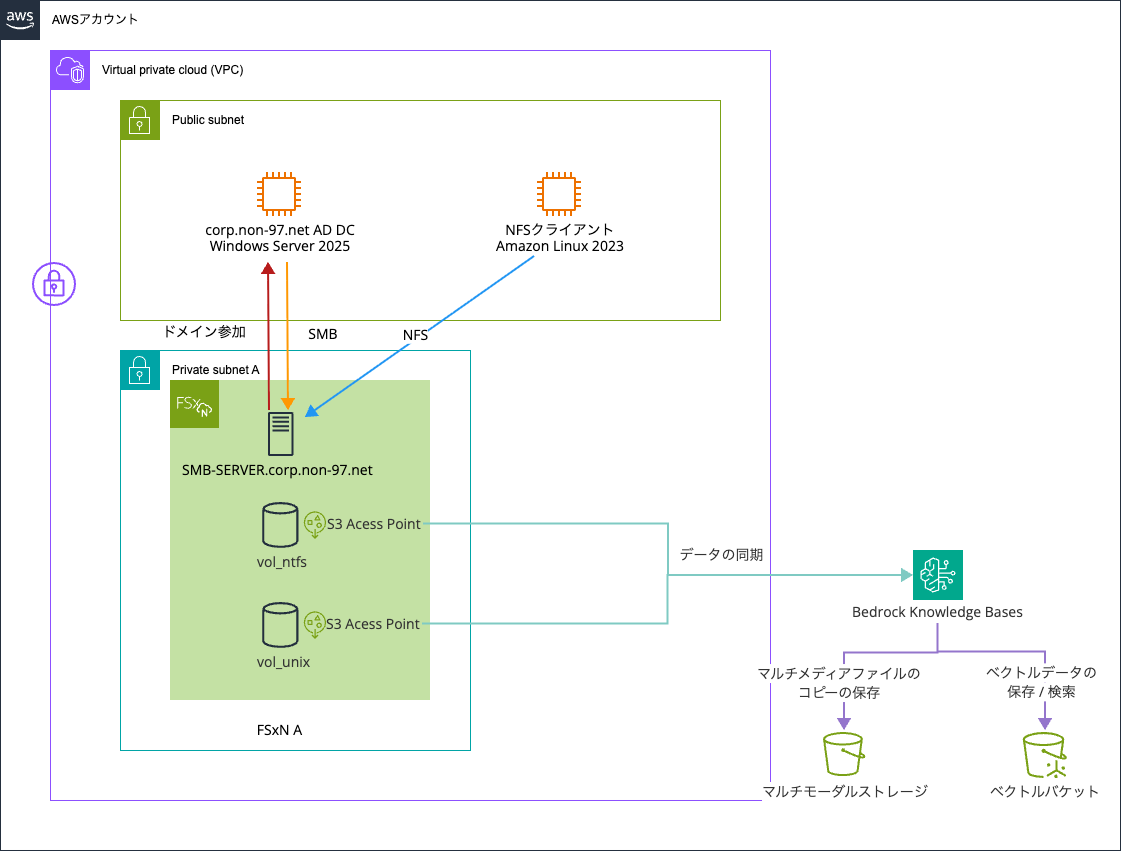
FSxNファイルシステムにセキュリティスタイルがUNIXとNTFSの2種類のボリュームを用意し、NFSおよびSMBで書き込んだファイルの情報について、Bedrock Knowledge Basesで問い合わせます。
ボリュームは以下のとおりです。
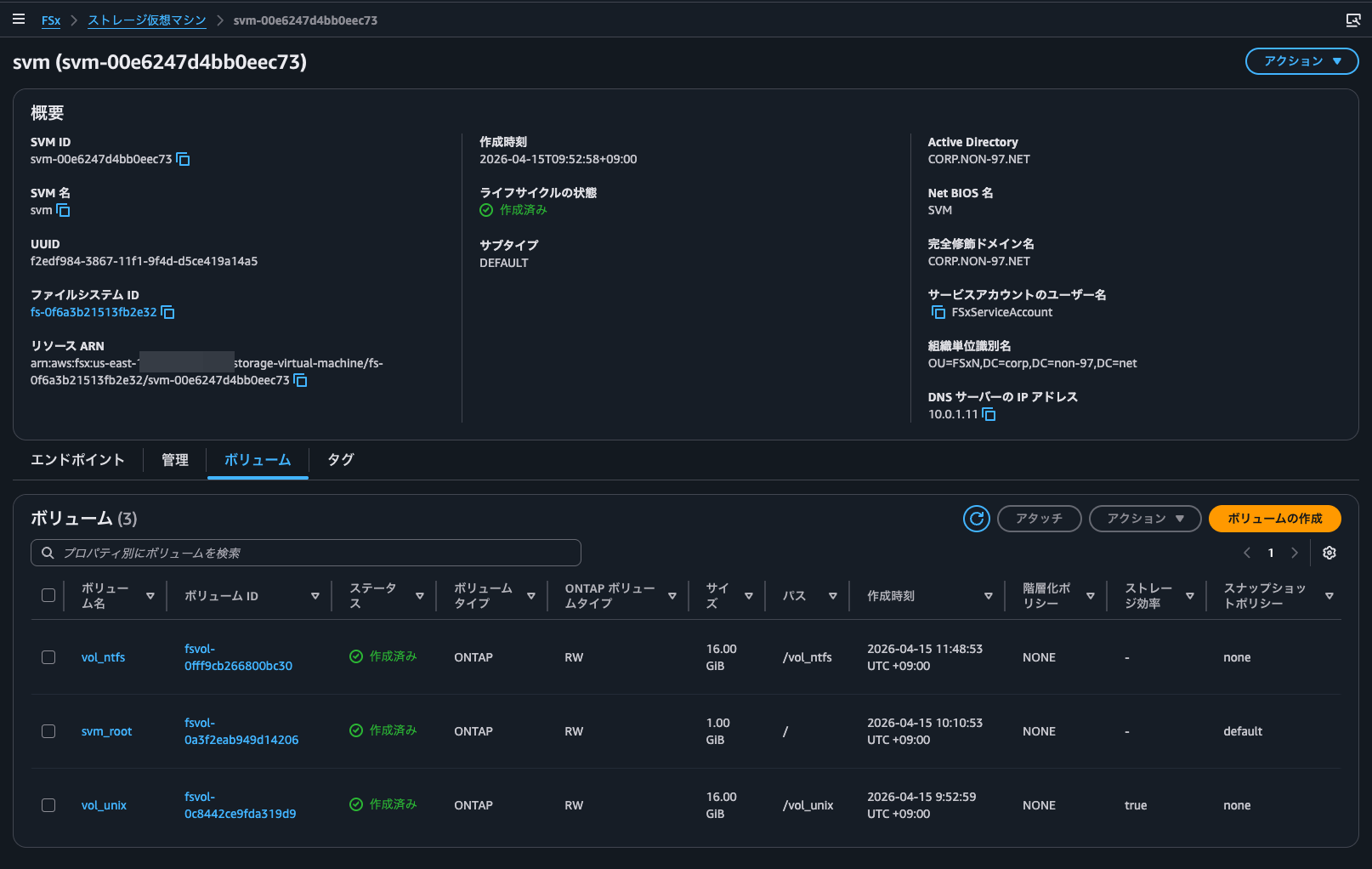
FSxNファイルシステムとAD DCはマネジメントコンソールからポチポチ作成しました。
AD DCの設定やドメイン参加周りは以下記事が参考になります。
FSxNのSMBサーバーのコンピューターオブジェクトがやサービスアカウントが配置されるOUはOU=FSxN,DC=corp,DC=non-97,DC=netで、サービスアカウント名はFSxServiceAccountです。
> New-ADOrganizationalUnit -Name FSxN -Path "DC=corp,DC=non-97,DC=net" -ProtectedFromAccidentalDeletion $True

> New-ADUser `
  -Name "FSxServiceAccount" `
  -UserPrincipalName "FSxServiceAccount@corp.non-97.net" `
  -Accountpassword (Read-Host -AsSecureString "AccountPassword") `
  -Path "OU=FSxN,DC=corp,DC=non-97,DC=net" `
  -PasswordNeverExpires $True `
  -Enabled $True
上述の記事を参考にする場合の注意点はOUの管理をサービスアカウントに委任する項目として、「コンピューターオブジェクトにmsDS-SupportedEncryptionTypesを設定する」権限を付与が追加になっている点です。以前までは不要だったのですが、いつからか必須になっていました。
こちらがない状態でSMBサーバーをドメイン参加させようとすると以下のようにエラーになります。
::> cifs create -vserver svm -cifs-server SVM -domain corp.non-97.net -ou OU=FSxN,DC=corp,DC=non-97,DC=net

In order to create an Active Directory machine account for the CIFS server, you must supply the name and password of a
Windows account with sufficient privileges to add computers to the "OU=FSxN,DC=corp,DC=non-97,DC=net" container within
the "CORP.NON-97.NET" domain.

Enter the user name: FSxServiceAccount

Enter the password:

Error: Machine account creation procedure failed
  [    23] Loaded the preliminary configuration.
  [    75] Created a machine account in the domain
  [    75] SID to name translations of Domain Users and Admins
           completed successfully
  [    76] Successfully connected to ip 10.0.1.11, port 88 using TCP
  [    78] Successfully connected to ip 10.0.1.11, port 464 using TCP
  [   124] Kerberos password set for 'SVM$@CORP.NON-97.NET' succeeded
  [   124] Set initial account password
**[   143] FAILURE: Unable to set machine account attribute
**         'msDS-SupportedEncryptionTypes': Insufficient access
  [   147] Deleted existing account
           'CN=SVM,OU=FSxN,DC=corp,DC=non-97,DC=net'

Error: command failed: Failed to create the Active Directory machine account "SVM". Reason: LDAP Error: The user has
       insufficient access rights.
何回も構築するのは手間だと感じたのでBedrock Knowledge Basesおよびベクトルバケット、マルチモーダルストレージ用のS3バケットなどのリソースはAWS CDKで構築しました。
使用したコードは以下GitHubリポジトリに保存しています。
FSxNボリュームのへのS3 Access Pointのアタッチ
FSxNボリュームのへのS3 Access Pointのアタッチを行います。セキュリティスタイルがNTFSのものとUNIXのものの両方に同じ作業をします。
まずはNTFSのものについてです。
NTFSなのでユーザーのタイプではWindowsを指定しました。また、ユーザー名はFSxNのファイル全てに参照できるようにAdministratorを指定しました。S3 Access Pointへは同一アカウントからのアクセスであり、IAMロール側で許可をするためアクセスポリシーは空欄で問題ありません。
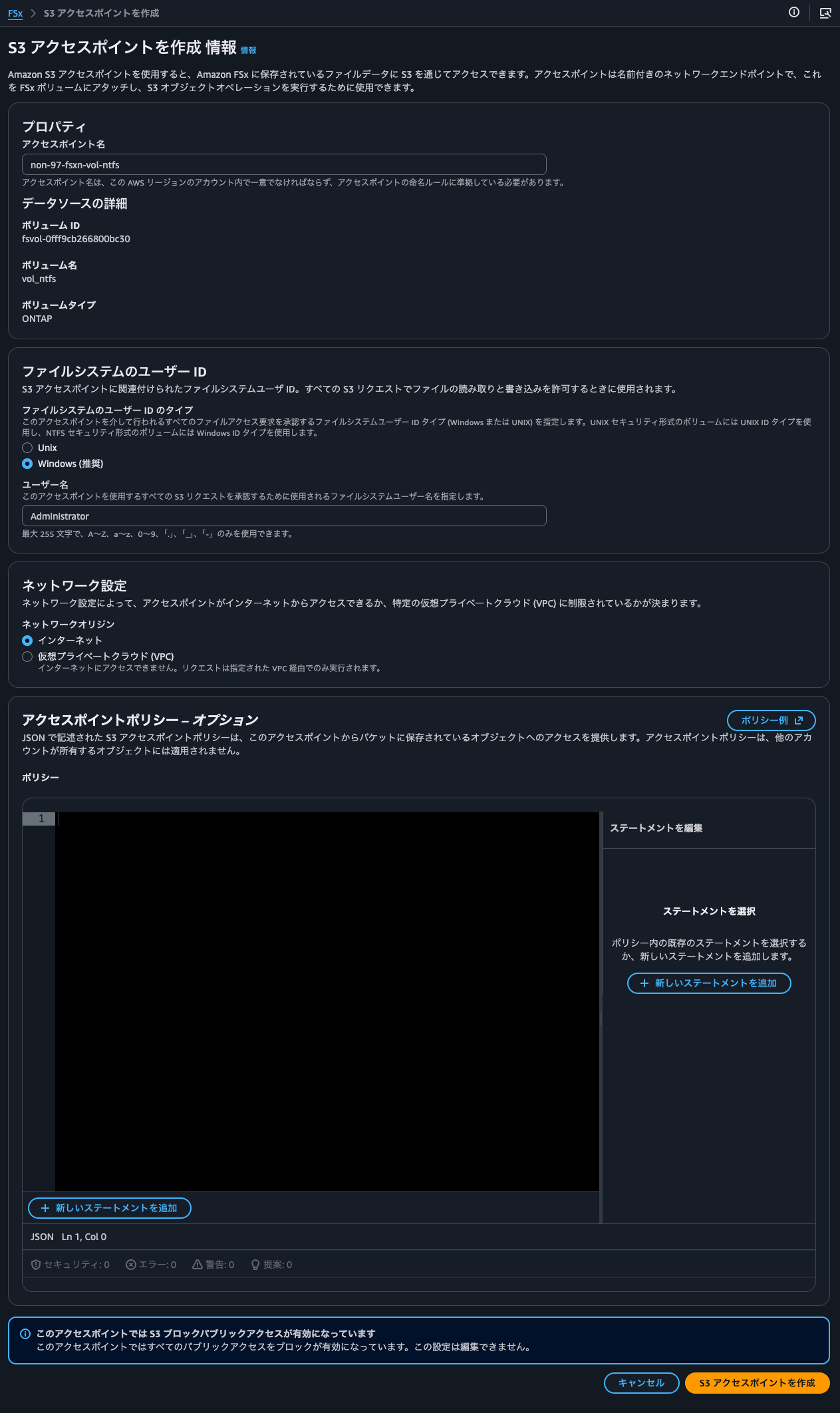
こちらで作成すると、Failed to lookup the provided user in ONTAPとエラーになりました。
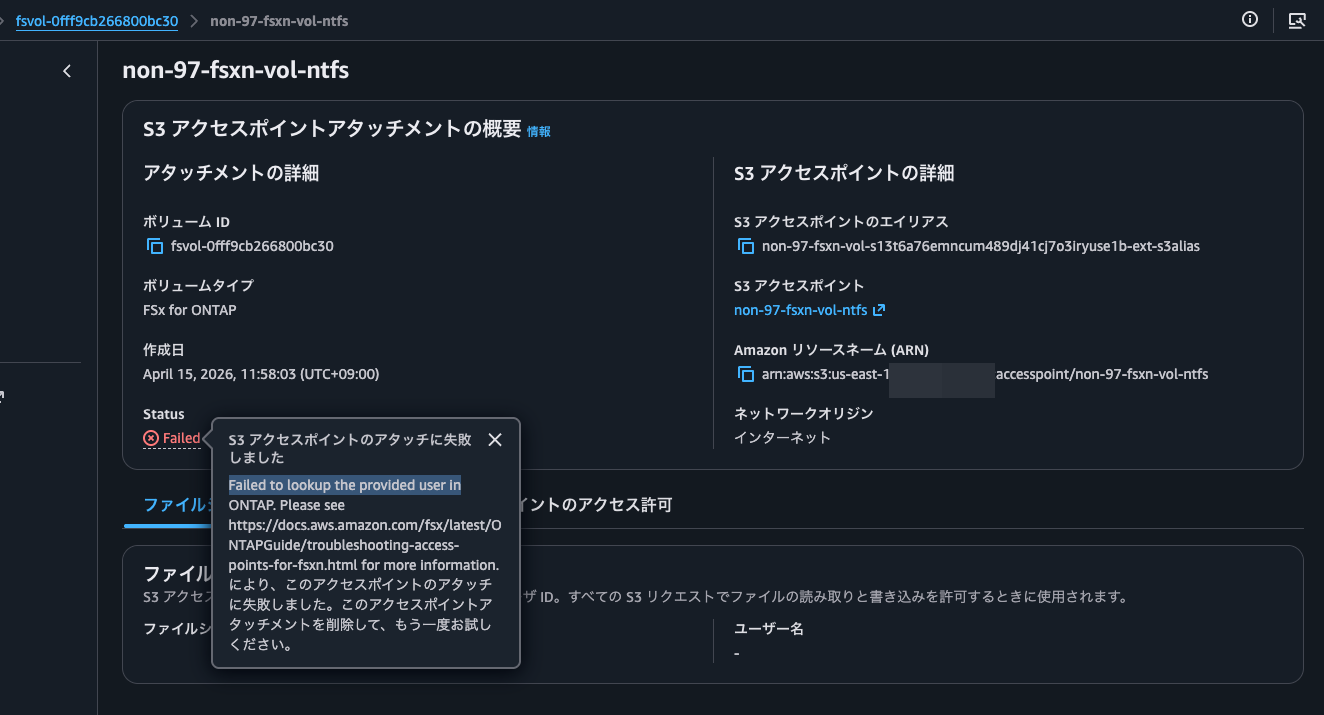
AWS公式ドキュメントを確認すると、使用するユーザーかどうかの判定をするONTAP CLIコマンドが紹介されていました。
vserver services access-check authentication show-creds -node FsxId0fd48ff588b9d3eee-01 -vserver svm_name -unix-user-name root -show-partial-unix-creds true
試しに実行をしてみると確かにエラーになりました。
::> set -privilege diagnostic

::*> vserver services access-check authentication show-creds -node FsxId0f6a3b21513fb2e32-01 -vserver svm -win-name Administrator

Vserver: svm (internal ID: 4)

Error: Get user credentials procedure failed
  [  0 ms] Using cached S-1-5-21-200422539-3497150653-4195399322-500
           to 'SVM\Administrator' mapping
**[     0] FAILURE: Account is disabled for local user
**         'Administrator'
  [     0] Could not get credentials for Windows user
           'Administrator' or SID
           'S-1-5-21-200422539-3497150653-4195399322-500'

Error: command failed: Failed to get user credentials. Reason: "cifs: user or machine account is disabled".
エラー内容的にAdministratorのみだとSVMのローカルのAdministratorと判定されており、またそのSVMのローカルのAdministratorは無効化されているめ失敗しているとった形でしょうか。
対応として、明示的にドメインのAdministratorユーザーであることがわかるようにCORP\Administratorで試してみます。
::*> vserver services access-check authentication show-creds -node FsxId0f6a3b21513fb2e32-01 -vserver svm -win-name CORP\Administrator

 UNIX UID: root <> Windows User: CORP\Administrator (Windows Domain User)

 GID: daemon
 Supplementary GIDs:
  daemon

 Primary Group SID: CORP\Domain Users (Windows Domain group)

 Windows Membership:
  CORP\Domain Users (Windows Domain group)
  CORP\Domain Admins (Windows Domain group)
  CORP\Group Policy Creator Owners (Windows Domain group)
  CORP\Enterprise Admins (Windows Domain group)
  CORP\Schema Admins (Windows Domain group)
  CORP\Denied RODC Password Replication Group (Windows Alias)
  Service asserted identity (Windows Well known group)
  BUILTIN\Users (Windows Alias)
  BUILTIN\Administrators (Windows Alias)
 User is also a member of Everyone, Authenticated Users, and Network Users

 Privileges (0x22b7):
  SeBackupPrivilege
  SeRestorePrivilege
  SeTakeOwnershipPrivilege
  SeSecurityPrivilege
  SeChangeNotifyPrivilege
無事に判断できていそうですね。
こちらを用いてS3 Access Pointをアタッチします。
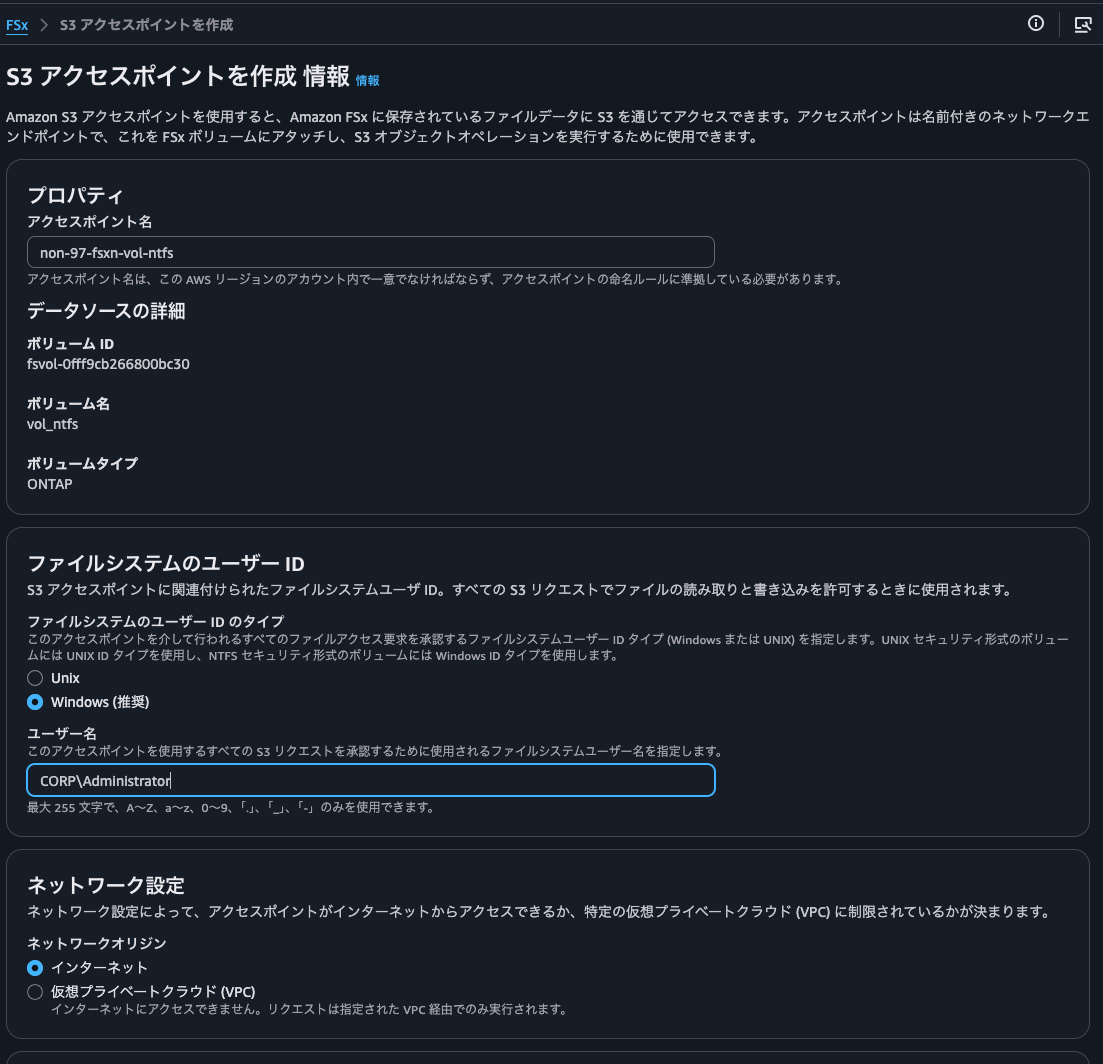
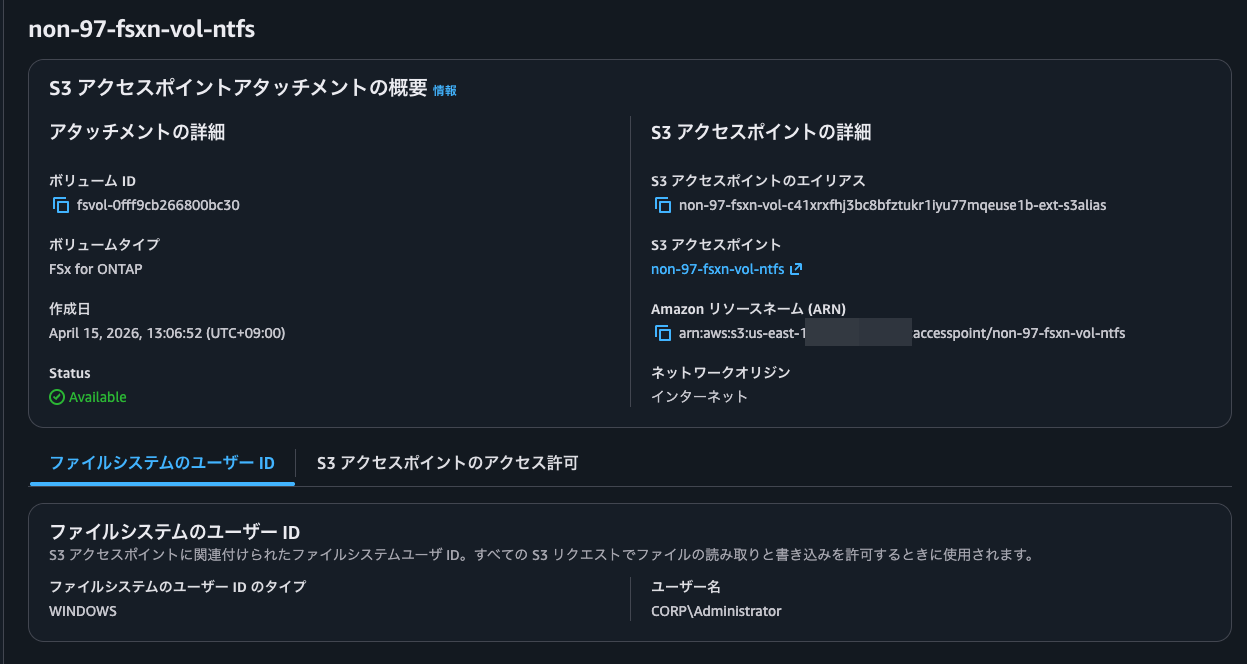
今度は正常に完了しましたね。作成自体は10秒程度で完了しました。
UNIXのボリュームに対しても実施します。ユーザー名はrootです。
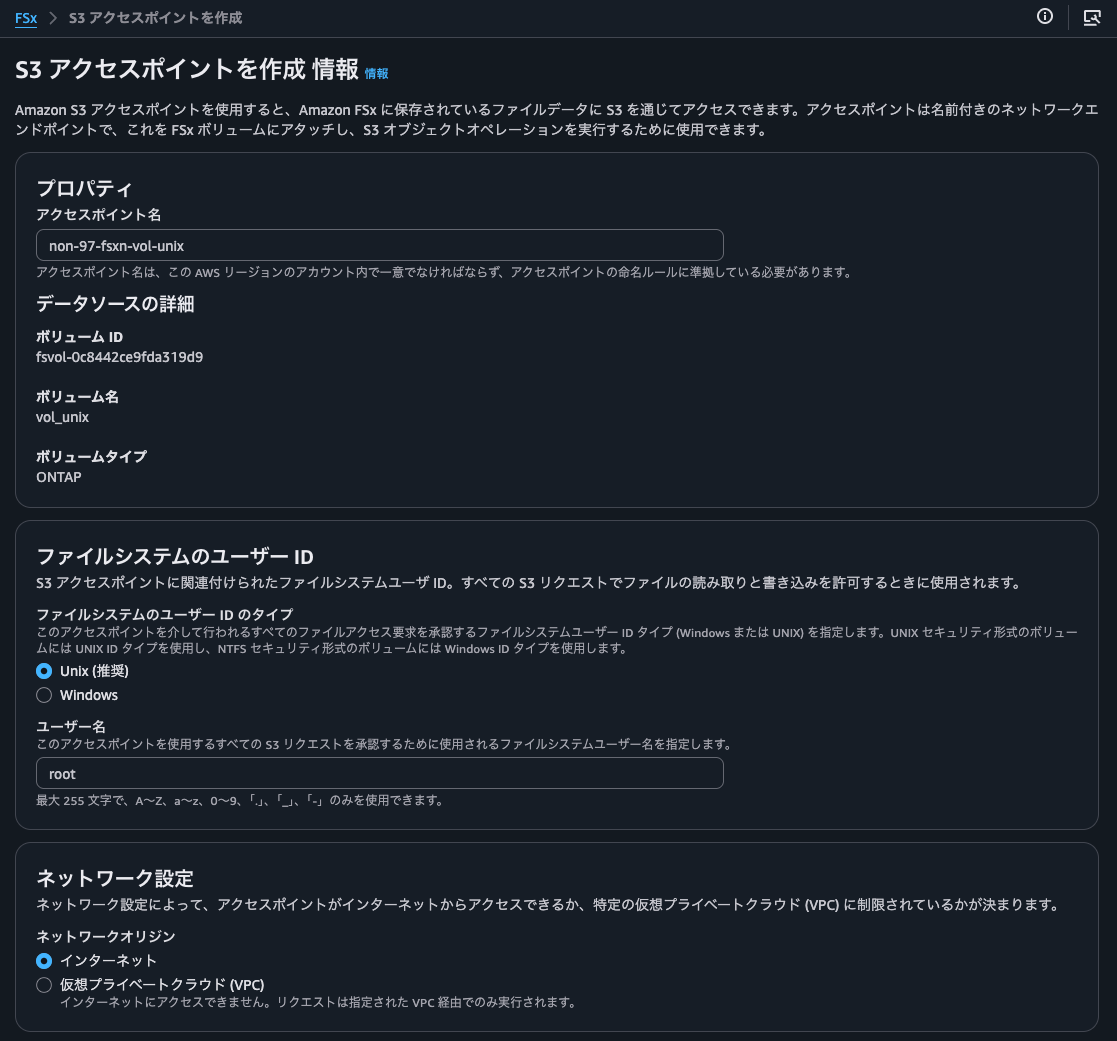
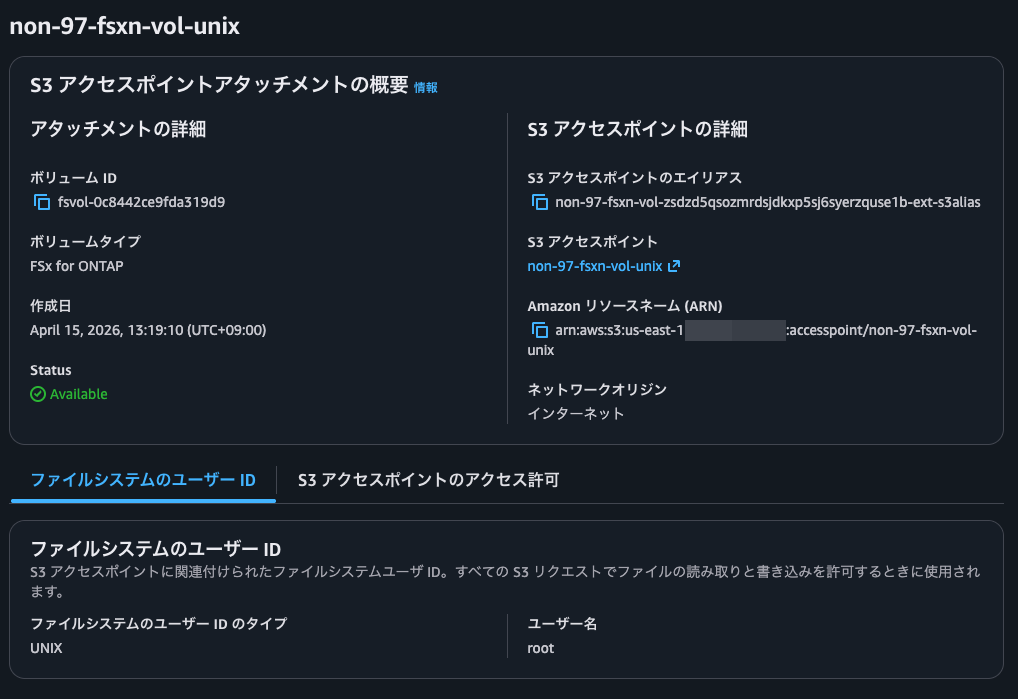
無事に作成できました。
参考までにONTAP CLIでも先ほどと同じコマンドで判定をすると以下のようになります。
# NSSの確認
::*> vserver services name-service ns-switch show
                               Source
Vserver         Database       Order
--------------- ------------   ---------
svm             hosts          files,
                               dns
svm             group          files
svm             passwd         files
svm             netgroup       files
svm             namemap        files
5 entries were displayed.

# root ユーザーの確認
::*> vserver services access-check authentication show-creds -node FsxId0f6a3b21513fb2e32-01 -vserver svm -unix-user-name root  -show-partial-unix-creds true

 UNIX UID: root <>

 GID: daemon
 Supplementary GIDs:
  daemon

# root ユーザーの UID を指定して確認
::*> vserver services access-check authentication show-creds -node FsxId0f6a3b21513fb2e32-01 -vserver svm -uid 0  -show-partial-unix-creds true

 UNIX UID: root <>

 GID: daemon
 Supplementary GIDs:
  daemon

# 存在していないユーザーを指定して確認
::*> vserver services access-check authentication show-creds -node FsxId0f6a3b21513fb2e32-01 -vserver svm -unix-user-name ssm-user

Vserver: svm (internal ID: 4)

Error: Acquire UNIX credentials procedure failed
  [  1 ms] Entry for user-name: ssm-user not found in the current
           source: FILES. Entry for user-name: ssm-user not found in
           any of the available sources
**[     2] FAILURE: Unable to retrieve UID for UNIX user ssm-user

Error: command failed: Failed to resolve user name to a UNIX ID. Reason: "SecD Error: object not found".
AWS CDKでBedrock Knowledge Bases関連のリソースを作成
AWS CDKでBedrock Knowledge Bases関連のリソースを作成します。
先ほど作成した2つのS3 Access Pointを指定します。
export const appConfig: AppConfig = {
  vectorBucketName: "non-97-bedrock-kb-vectors",
  s3AccessPoints: [
    {
      alias:
        "arn:aws:s3:::non-97-fsxn-vol-zsdzd5qsozmrdsjdkxp5sj6syerzquse1b-ext-s3alias",
      arn: "arn:aws:s3:us-east-1:<AWSアカウントID>:accesspoint/non-97-fsxn-vol-unix",
    },
    {
      alias:
        "arn:aws:s3:::non-97-fsxn-vol-ckrnrkqm9ufbcc7daz8tx91qajtk1use1b-ext-s3alias",
      arn: "arn:aws:s3:us-east-1:<AWSアカウントID>:accesspoint/non-97-fsxn-vol-ntfs-fsxadmin",
    },
  ],
  syncSchedule: "rate(1 hour)",
};
S3 Access PointのエイリアスとARNの2種類を指定しているのはBedrock Knowledge Basesのデータソースで指定するパラメーターのフォーマットのバリデーションと、IAMポリシーでResource句で指定するものの都合です。
本来であればどちらか片方だけにしたいところです。しかし、IAMポリシーでは以下のようにエイリアスを指定することはできません。
{
    "Version":"2012-10-17",
    "Statement": [
    {
        "Effect": "Allow",
        "Principal": {
            "AWS": "arn:aws:iam::123456789012:user/Jane"
        },
        "Action": ["s3:GetObject", "s3:PutObject"],
        "Resource": "arn:aws:s3:us-west-2:123456789012:accesspoint/my-access-point/object/Jane/*"
    }]
}
抜粋 : アクセスポイントを使用するための IAM ポリシーの設定 - Amazon Simple Storage Service
これはFSxNのドキュメントにも記載されています。
自動的に作成されたサービスロールのデフォルトの S3 アクセスポイントアクセス許可によるアクセス拒否
一部の S3-integrated AWS サービスは、カスタムサービスロールを作成し、アタッチされたアクセス許可を特定のユースケースにカスタマイズします。S3 アクセスポイントエイリアスを S3 リソースとして指定する場合、アタッチされたアクセス許可には、アクセスポイント ARN 形式 ( などarn:aws:s3:::my-fsx-ap-foo7detztxouyjpwtu8krroppxytruse1a-ext-s3alias) ではなくバケット ARN 形式 ( など) を使用してアクセスポイントが含まれる場合がありますarn:aws:s3:us-east-1:1234567890:accesspoint/my-fsx-ap。これを解決するには、アクセスポイントの ARN を使用するようにポリシーを変更します。
一方、Bedrock Knowledge BasesのデータソースでS3バケットを指定する場合はS3 Access PointのARNの形式はパターンに一致しないためエラーになります。
BucketArn
The Amazon Resource Name (ARN) of the S3 bucket that contains your data.
Required: Yes
Type: String
Pattern: ^arn:aws(-cn|-us-gov|-eusc|-iso(-[b-f])?)?:s3:::[a-z0-9][a-z0-9.-]{1,61}[a-z0-9]$
Minimum: 1
Maximum: 2048
Update requires: No interruption
AWS::Bedrock::DataSource S3DataSourceConfiguration - AWS CloudFormation
データの同期
データの同期を行います。
すると、セキュリティスタイルがNTFSのものはCall to Amazon S3 Source did not succeedとエラーになり、UNIXのものは成功しました。
-
セキュリティスタイルがNTFSのボリュームのS3 Access Pointとの同期
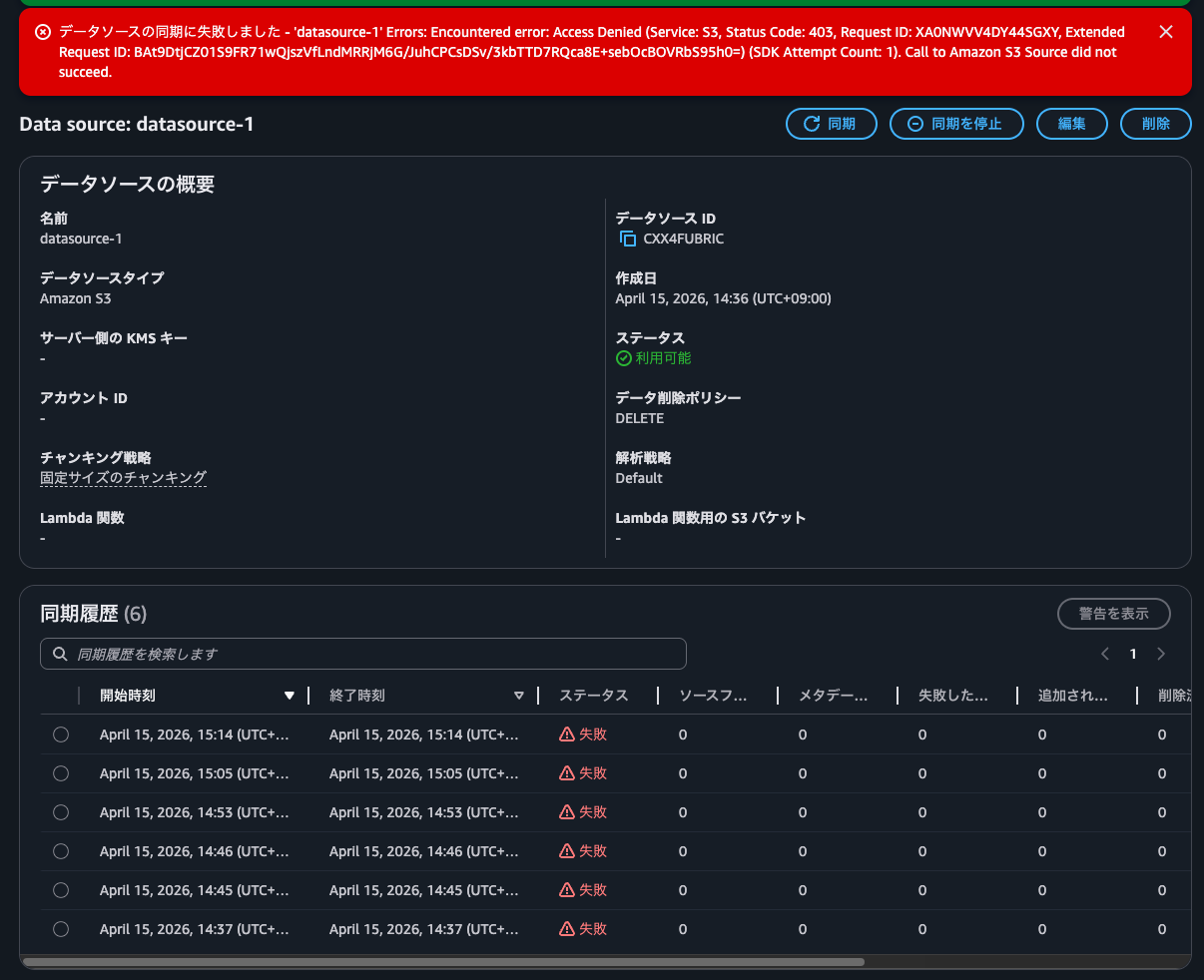
-
セキュリティスタイルがUNIXのボリュームのS3 Access Pointとの同期
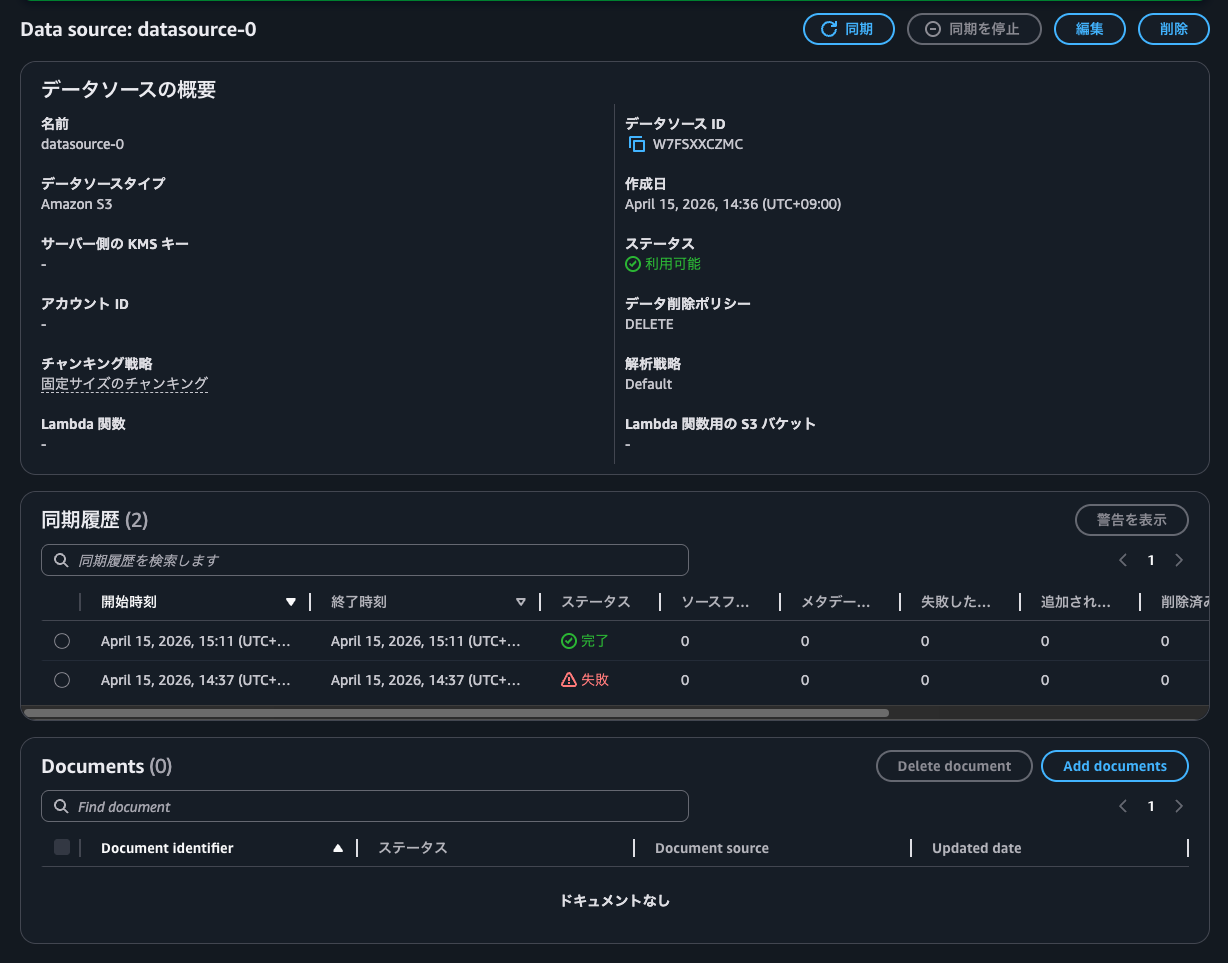
色々調べたところ、これはS3 Access Pointで指定したWindowsユーザー名に\が含まれるためのようです。
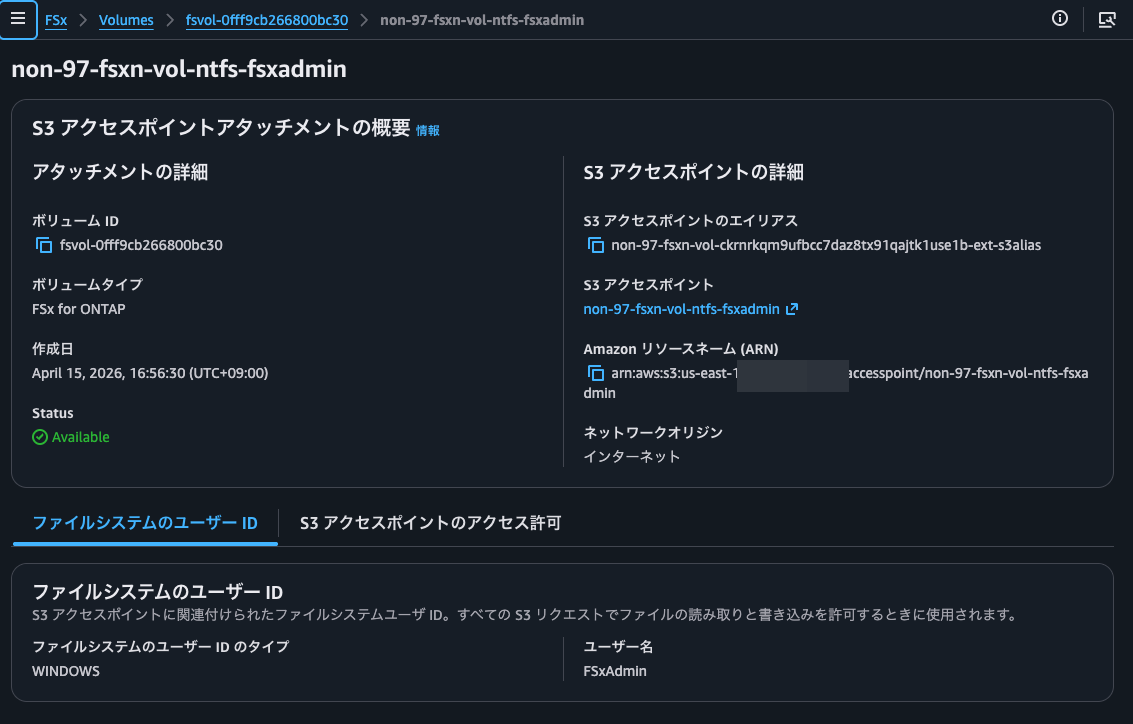
Administratorは先日のとおり使用できません。そのため、委任されたファイルシステム管理者グループに所属するドメインユーザーを作成し、ドメインのNetBIOS名を指定しない形でS3 Access Pointを作成します。
委任されたファイルシステム管理者グループについては以下記事が参考になります。
ドメインユーザーの作成およびセキュリティグループの作成は以下のとおりです。
> New-ADUser `
  -Name "FSxAdmin" `
  -UserPrincipalName "FSxAdmin@corp.non-97.net" `
  -Accountpassword (Read-Host -AsSecureString "AccountPassword") `
  -Path "OU=FSxN,DC=corp,DC=non-97,DC=net" `
  -PasswordNeverExpires $True `
  -Enabled $True

> New-ADGroup `
  -Name FSxAdminGroup `
  -GroupCategory Security `
  -GroupScope Global `
  -Path "OU=FSxN,DC=corp,DC=non-97,DC=net"

> Get-ADGroupMember -Identity FSxAdminGroup

distinguishedName : CN=FSxAdmin,OU=FSxN,DC=corp,DC=non-97,DC=net
name              : FSxAdmin
objectClass       : user
objectGUID        : 60c64b2c-c96c-4c63-843a-d8b175d33ec0
SamAccountName    : FSxAdmin
SID               : S-1-5-21-2619605940-2058633766-932412019-1109
セキュリティグループが委任されたファイルシステム管理者グループに属するようにBUILTIN\Administratorsに所属させます。
::*> cifs users-and-groups local-group add-members -vserver svm -group-name BUILTIN\Administrators -member-names  CORP\FSxAdminGroup

::> cifs users-and-groups local-group show-members
Vserver        Group Name                   Members
-------------- ---------------------------- ------------------------
svm            BUILTIN\Administrators       SVM\Administrator
                                            CORP\Domain Admins
                                            CORP\FSxAdminGroup
               BUILTIN\Guests               CORP\Domain Guests
               BUILTIN\Users                CORP\Domain Users
3 entries were displayed.
作成したドメインユーザーをFSxAdminと、ドメインのNetBIOS名をバックスラッシュで連結させずに認識できるか確認します。
::*> vserver services access-check authentication show-creds -node FsxId0f6a3b21513fb2e32-01 -vserver svm -win-name FSxAdmin -show-partial-unix-creds true

 UNIX UID: root <> Windows User: CORP\FSxAdmin (Windows Domain User)

 GID: daemon
 Supplementary GIDs:
  daemon

 Primary Group SID: CORP\Domain Users (Windows Domain group)

 Windows Membership:
  CORP\FSxAdminGroup (Windows Domain group)
  CORP\Domain Users (Windows Domain group)
  Service asserted identity (Windows Well known group)
  BUILTIN\Administrators (Windows Alias)
  BUILTIN\Users (Windows Alias)
 User is also a member of Everyone, Authenticated Users, and Network Users

 Privileges (0x22b7):
  SeBackupPrivilege
  SeRestorePrivilege
  SeTakeOwnershipPrivilege
  SeSecurityPrivilege
  SeChangeNotifyPrivilege
認識できますね。
それでは、再度S3 Access Pointを作成します。
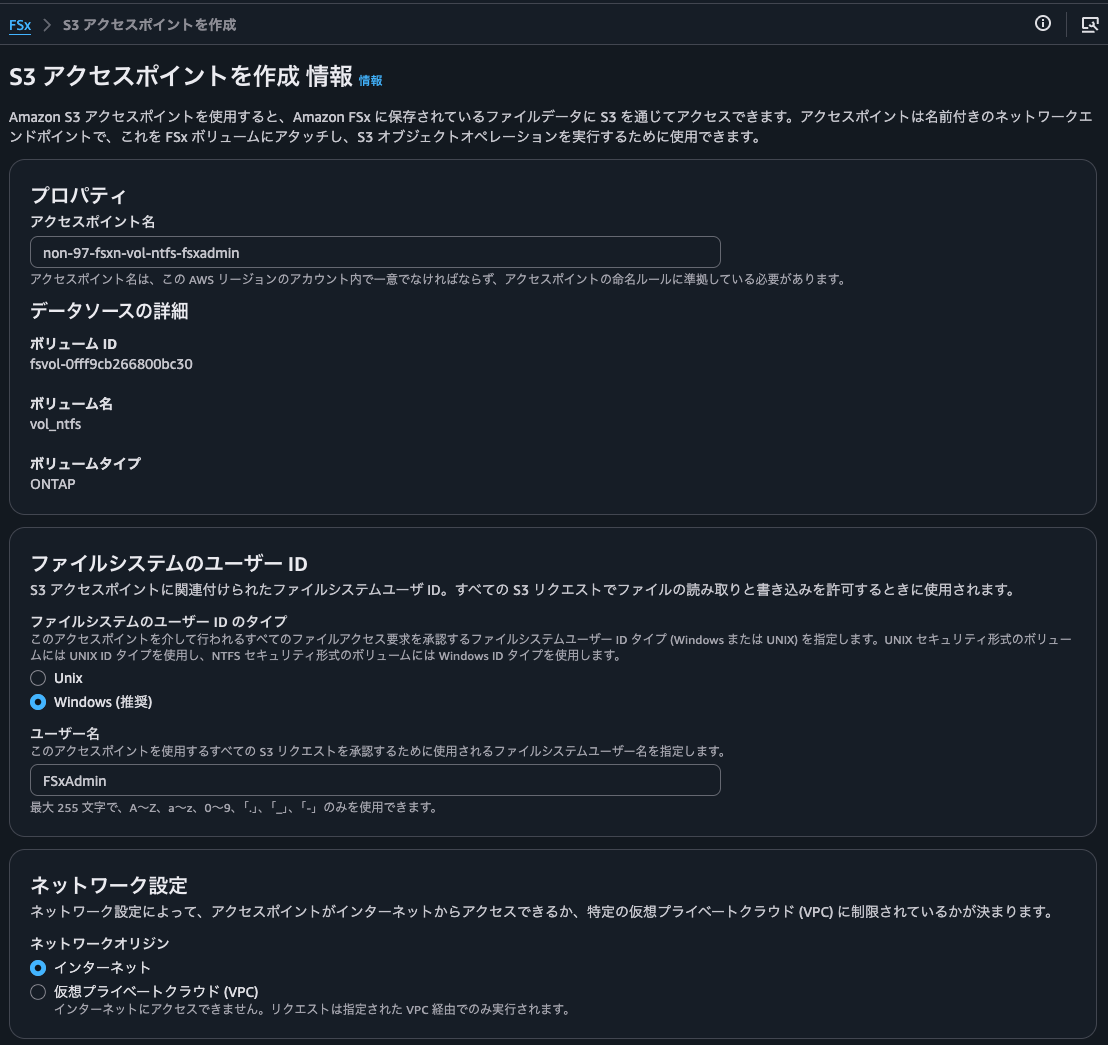
作成できました。
この状態で同期を試します。
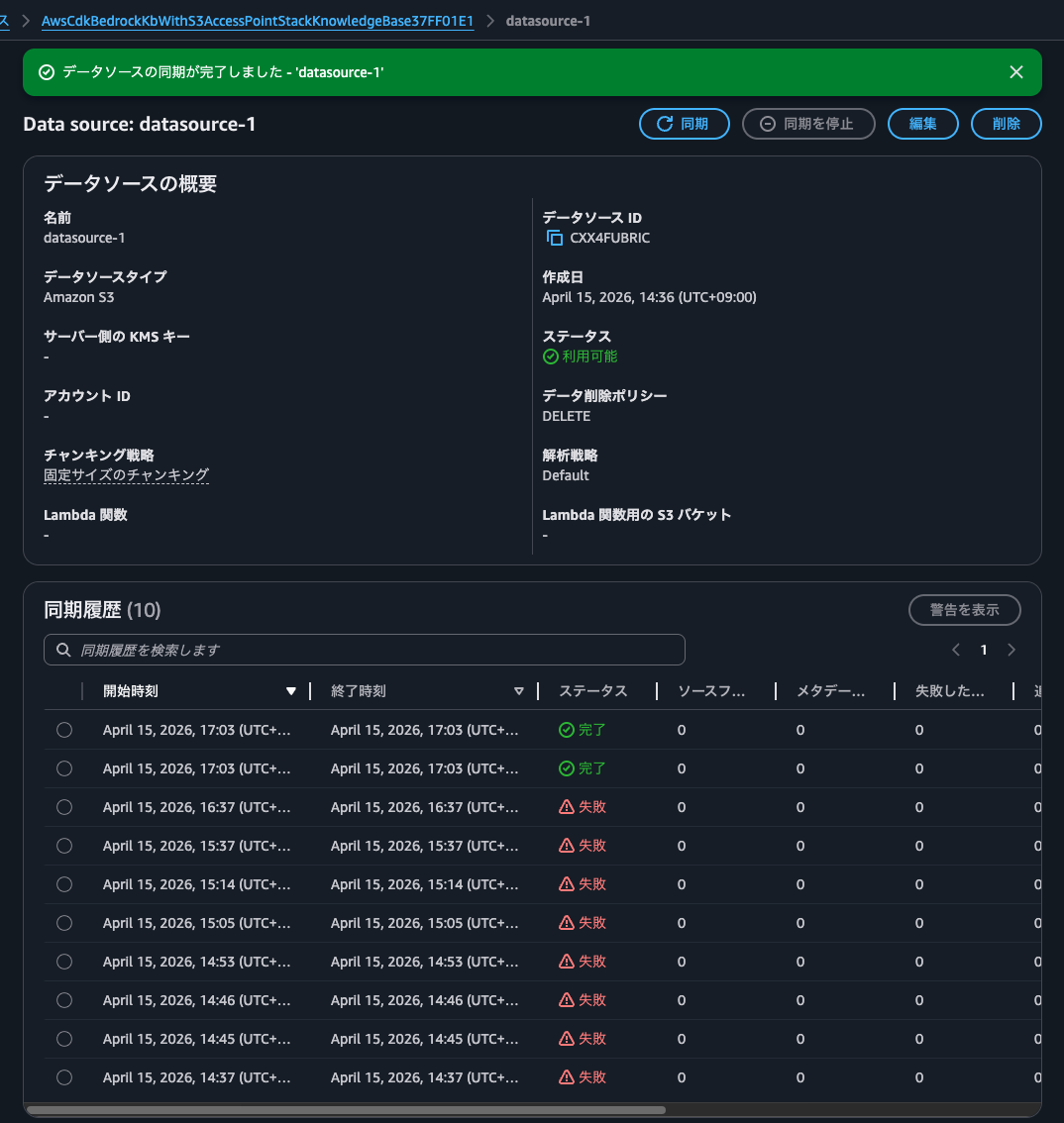
同期できました。やったね。
同期が行われるとマルチモーダルストレージとして指定したS3バケットにaws/bedrock/knowledge_bases/<ナレッジベース ID>/<データソース ID>/のキーを持つオブジェクトが各画像ファイルごとに作成されていました。
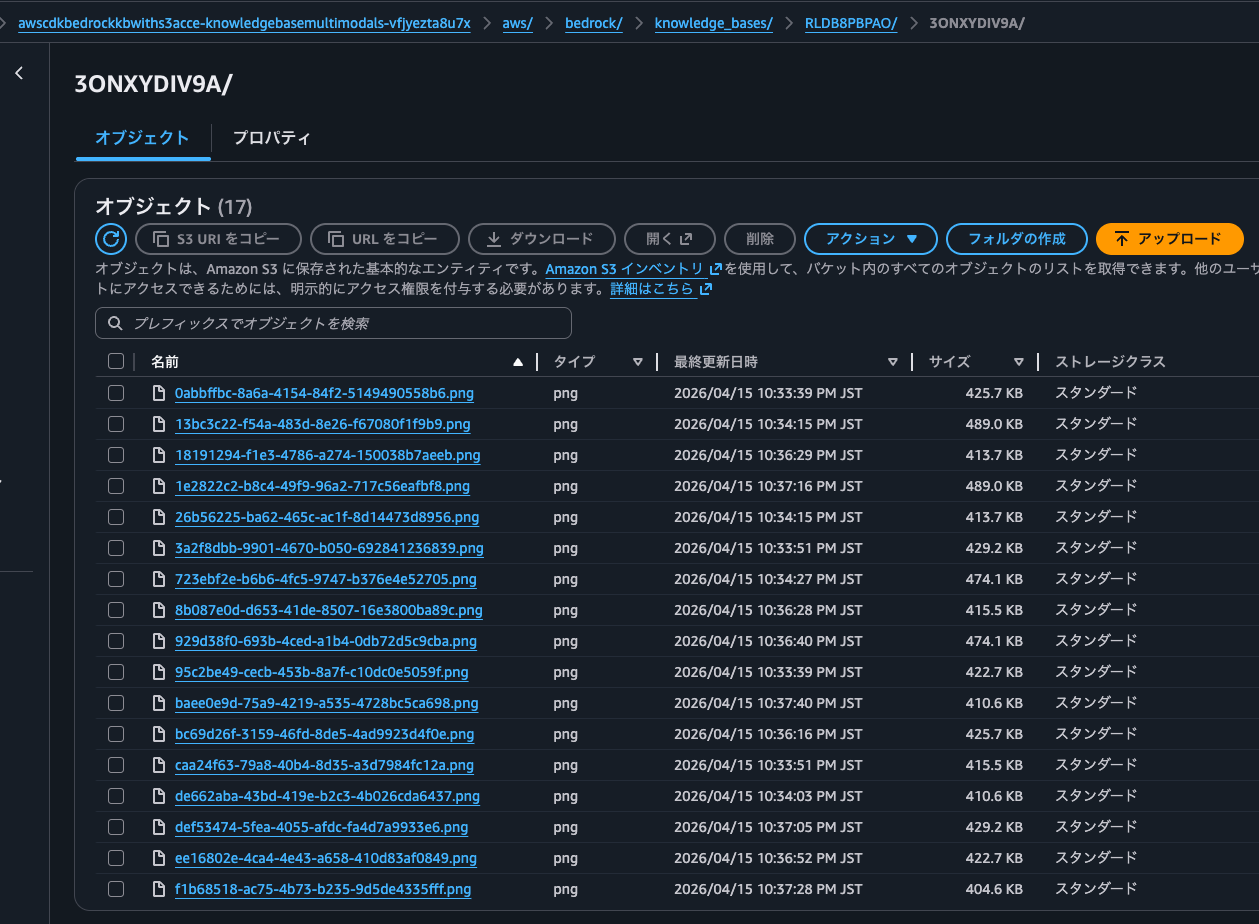
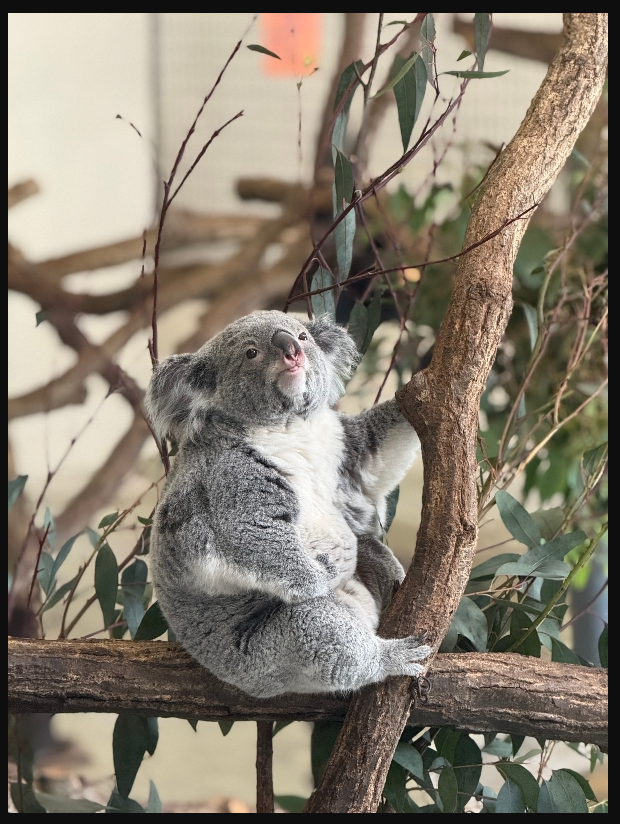
18191294-f1e3-4786-a274-150038b7aeeb.pngを開くと通常の画像ファイルであることが分かります。
マルチモーダルストレージに画像が保存されることは以下AWS公式ドキュメントでも説明されています。
Nova Multimodal Embeddings
Required: You must configure a multimodal storage destination. This destination stores copies of your multimedia files for retrieval and ensures availability even if source files are modified or deleted.
Prerequisites for multimodal knowledge bases - Amazon Bedrock
ちなみに、マルチモーダルストレージはデータソースと別のS3バケットを割り当てることが推奨されています。
Multimodal storage destination configuration
When configuring your multimodal storage destination, consider the following:
Use separate buckets (recommended): Configure different Amazon S3 buckets for your data source and multimodal storage destination. This provides the simplest setup and avoids potential conflicts.
If using the same bucket: You must specify an inclusion prefix for your data source that limits which content is ingested. This prevents re-ingesting extracted media files.
Avoid "aws/" prefix: When using the same bucket for both data source and multimodal storage destination, do not use inclusion prefixes starting with "aws/" as this path is reserved for extracted media storage.
動作確認
それでは動作確認をします。
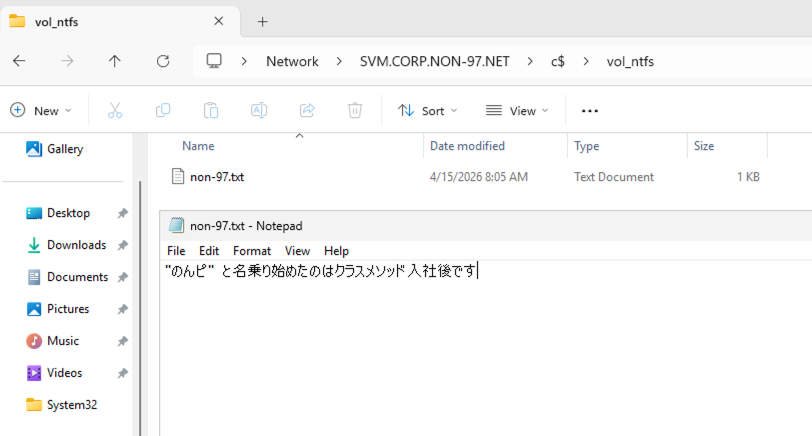
SMBでセキュリティスタイルがNTFSのボリュームに以下のようなテキストファイルを配置します。
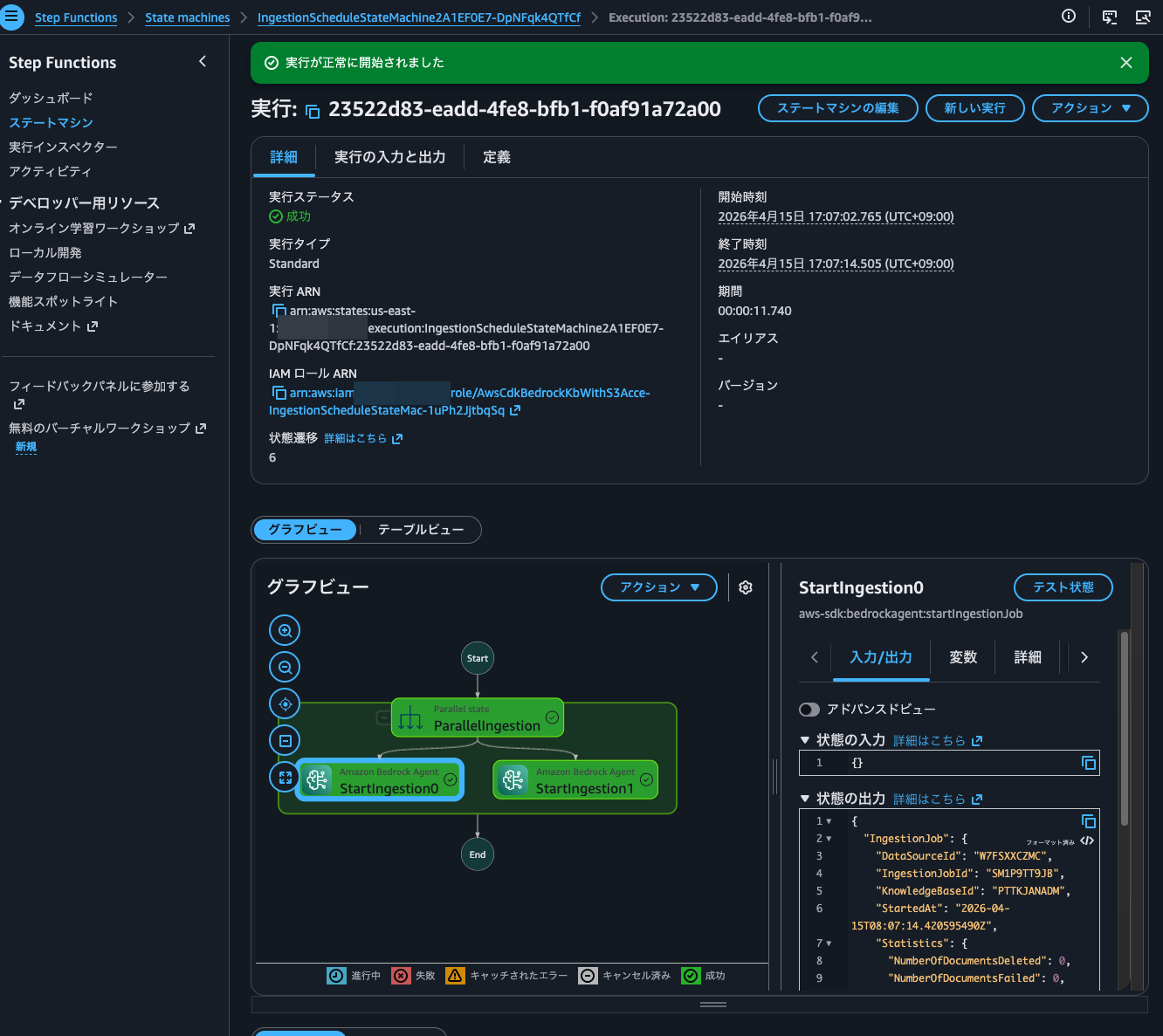
この状態で再度同期をします。せっかくなので、Step Functions経由で行います。
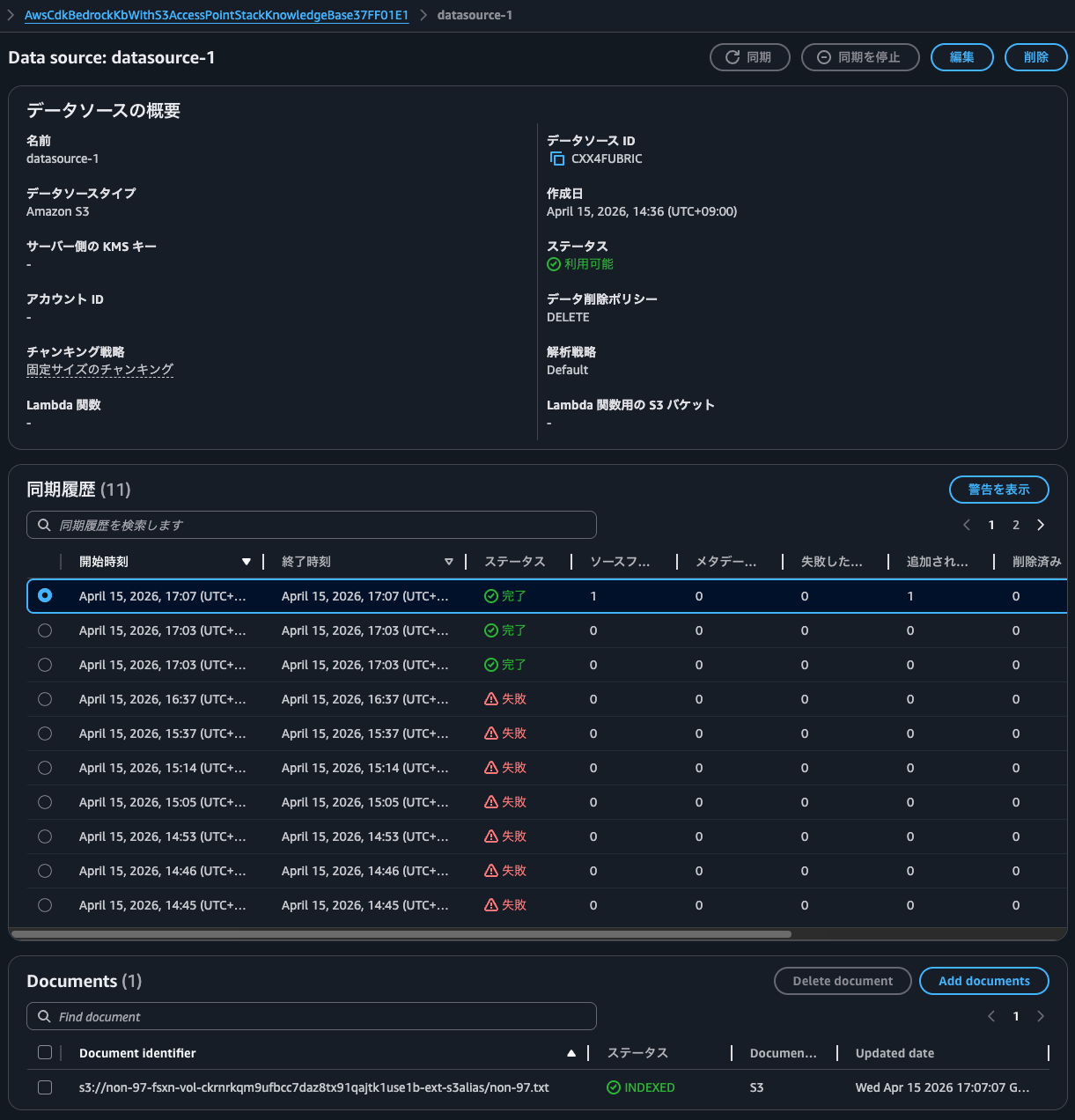
同期履歴を確認すると、先ほど配置したファイルが同期されていることを確認できました。
質問してみます。
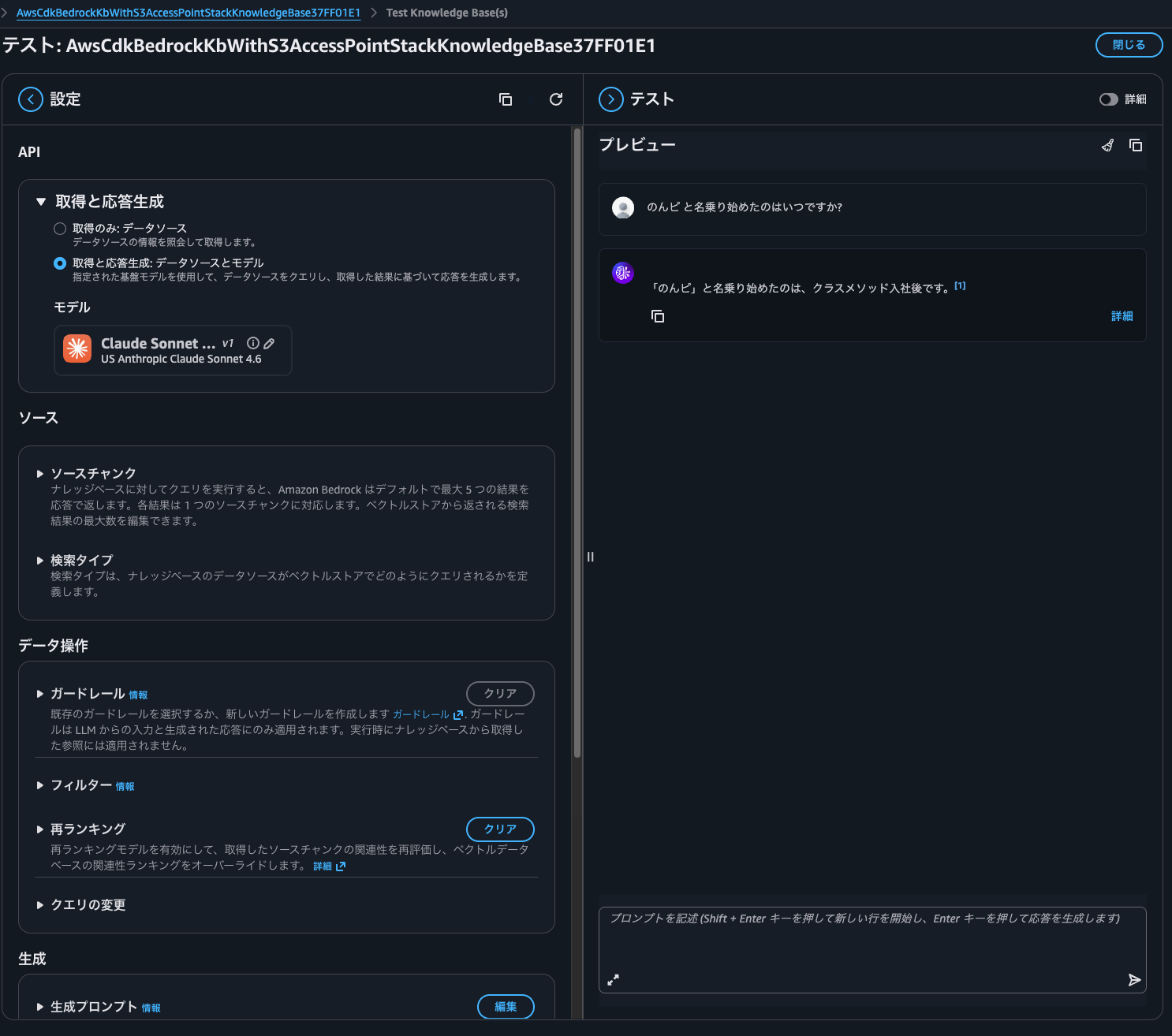
ファイルの内容を元に回答がありましたね。
せっかくAmazon Nova Multimodal Embeddings を埋め込みモデルとして使用しているので、画像の検索も行います。
Amazon Bedrock Knowledge Bases のマルチモーダル検索の詳細は以下記事をご覧ください。
コアラやゾウなど私が動物園で撮影した写真をFSxNのボリューム上に配置しました。
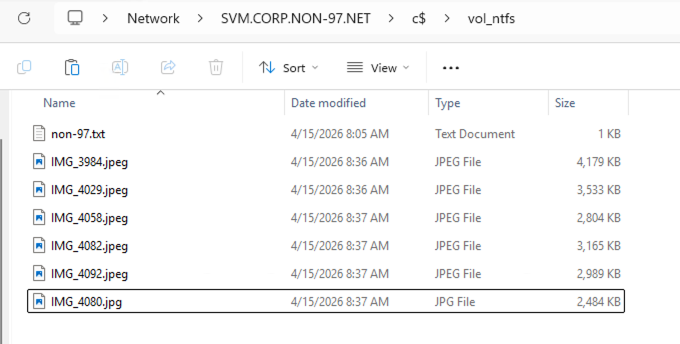
この状態で同期を行うと、以下のようにいくつかのファイルは同期に失敗しました。
| Error warning |
|---|
| Encountered error: Unknown failure code: UNKNOWN [Files: null, null]. Call to Customer Source did not succeed. |
| Encountered error: Ignored 2 files as their file format was not supported. [Files: s3://non-97-fsxn-vol-ckrnrkqm9ufbcc7daz8tx91qajtk1use1b-ext-s3alias/IMG_2970.jpeg, s3://non-97-fsxn-vol-ckrnrkqm9ufbcc7daz8tx91qajtk1use1b-ext-s3alias/IMG_3540.jpeg]. Call to Customer Source did not succeed. |
| Encountered error: Ignored 1 files as their file format was not supported. [Files: s3://non-97-fsxn-vol-ckrnrkqm9ufbcc7daz8tx91qajtk1use1b-ext-s3alias/IMG_1493.jpeg]. Call to Customer Source did not succeed. |
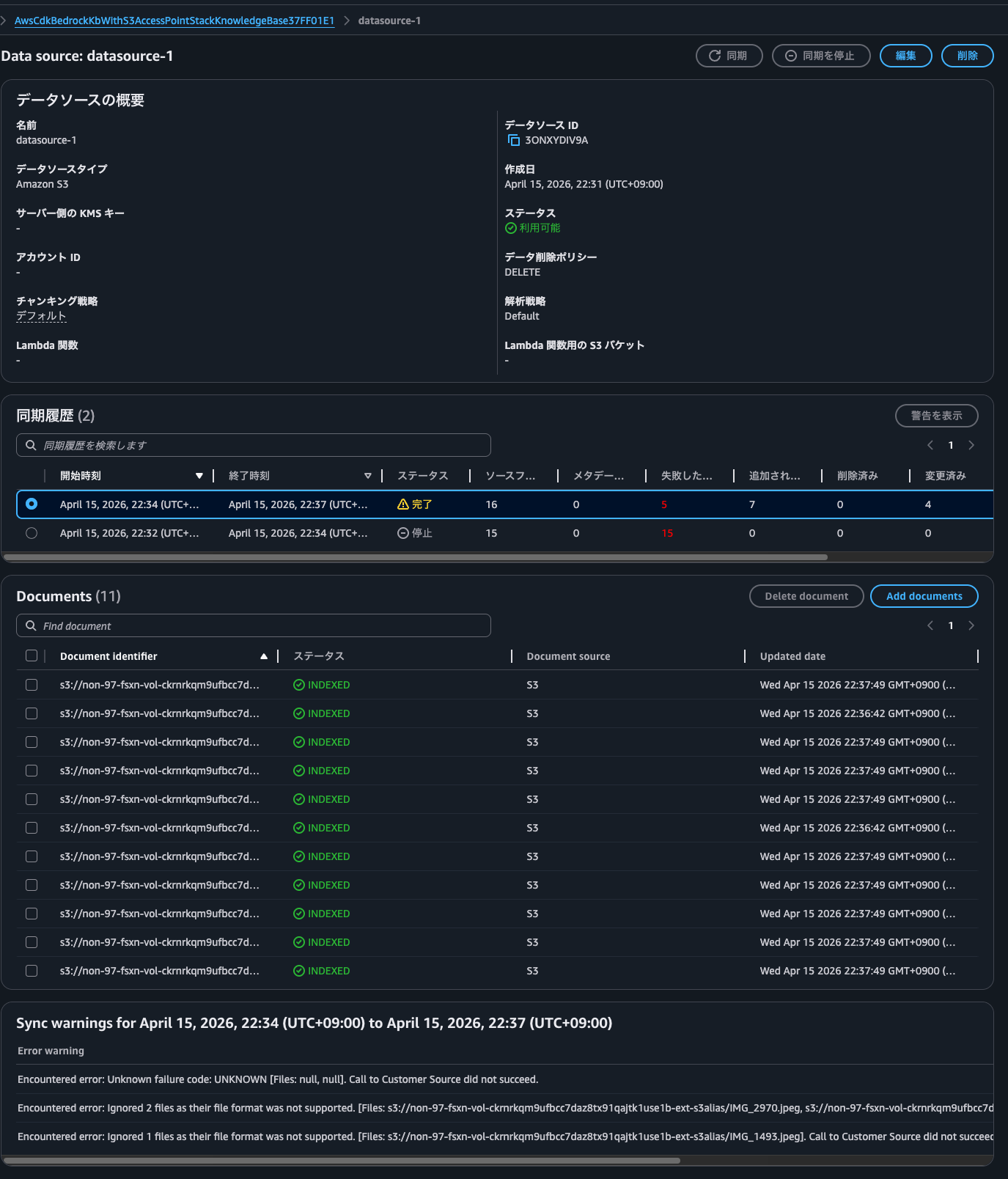
何回同期してもこれらのファイルは失敗するので何かしらの原因はあるかもしれません。
画像のファイルサイズなど、ドキュメントで紹介されている各種制限には抵触していなさそうなので謎です。
When you connect to a supported data source, the content is ingested into your knowledge base.
If you use Amazon S3 to store your files or your data source includes attached files, then you first must check that each source document file adheres to the following:
- The source files are of the following supported formats:
Format Extension Plain text (ASCII only) .txt Markdown .md HyperText Markup Language .html Microsoft Word document .doc/.docx Comma-separated values .csv Microsoft Excel spreadsheet .xls/.xlsx Portable Document Format
- Each file size doesn't exceed the quota of 50 MB.
If you use an Amazon S3 or custom data source, you can use multimodal data, including JPEG (.jpeg) or PNG (.png) images or files that contain tables, charts, diagrams, or other images.
Note
The maximum size of .JPEG and .PNG files is 3.75 MB.
Prerequisites for your Amazon Bedrock knowledge base data - Amazon Bedrock
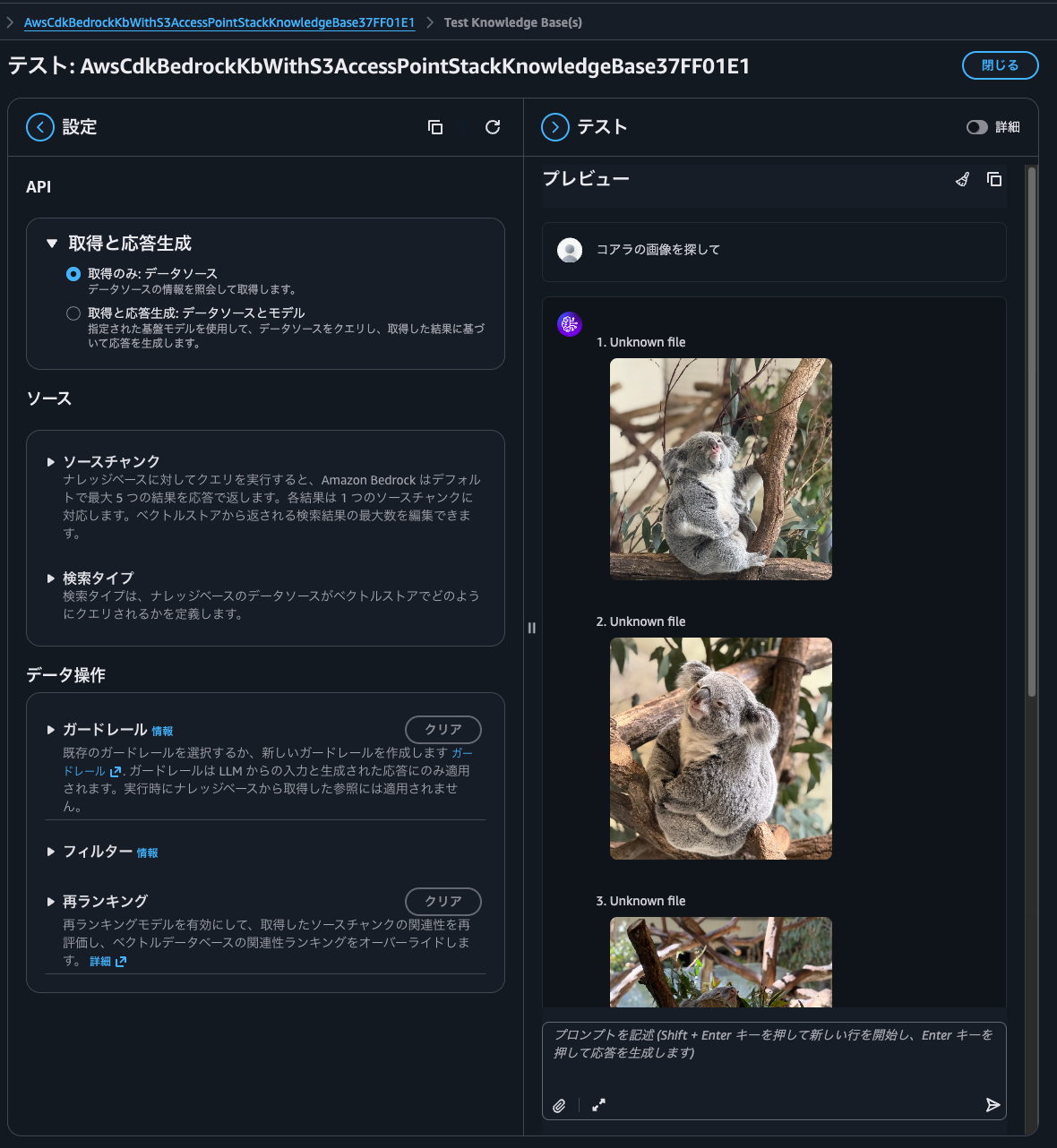
コアラの画像を探してと尋ねると、確かにコアラの画像のみ返してくれました。
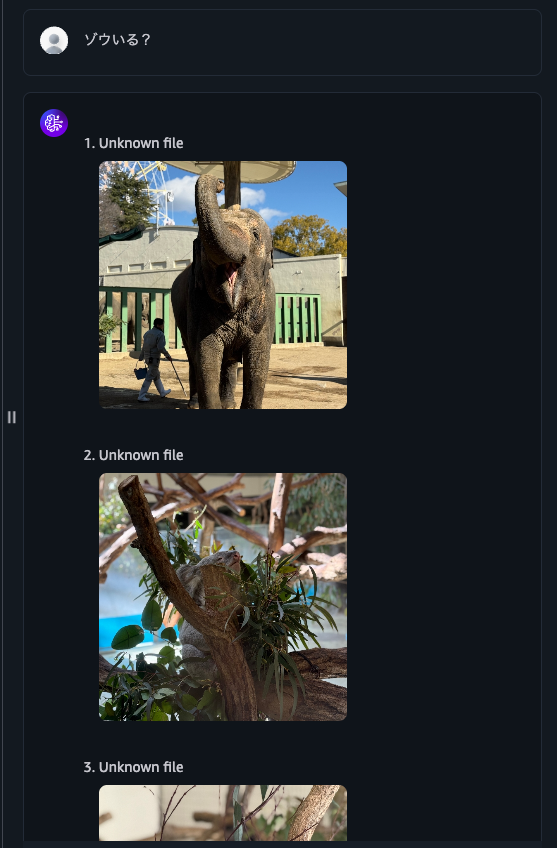
続いて、ゾウいる?と尋ねると、ゾウの画像も出てきたのですがコアラの画像も出てきてしまいました。灰色ということで判定が難しいようです。
鳥の画像と尋ねると、鳥の画像とコアラ、あとはテキストファイルが出力されました。
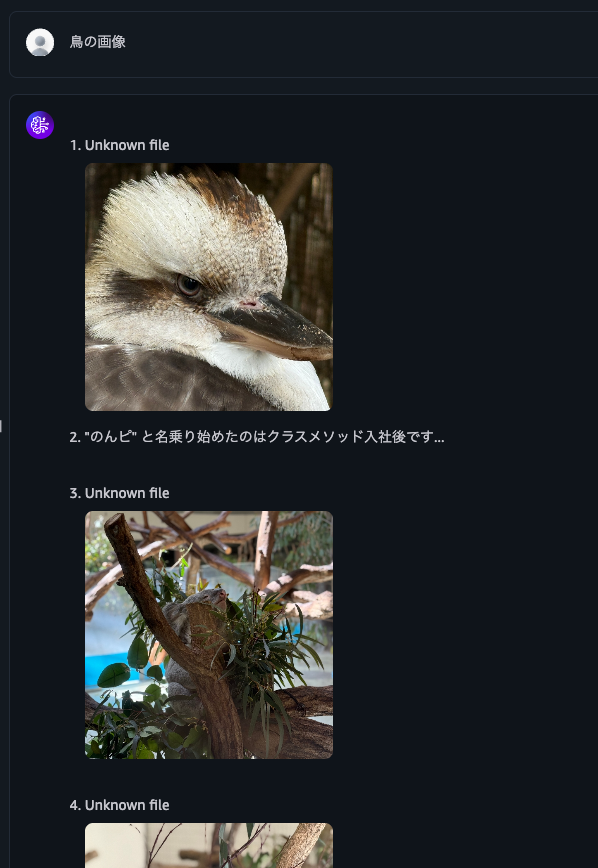
Rerankすることで精度を上げたいところですが、現時点ではRerankモデルはマルチモーダルコンテンツをサポートしていません。
Reranker model limitations: Reranker models are not supported for multimodal content
精度を上げるのであればデフォルトパーサーではなく、基盤モデルを選択する形になりそうです。
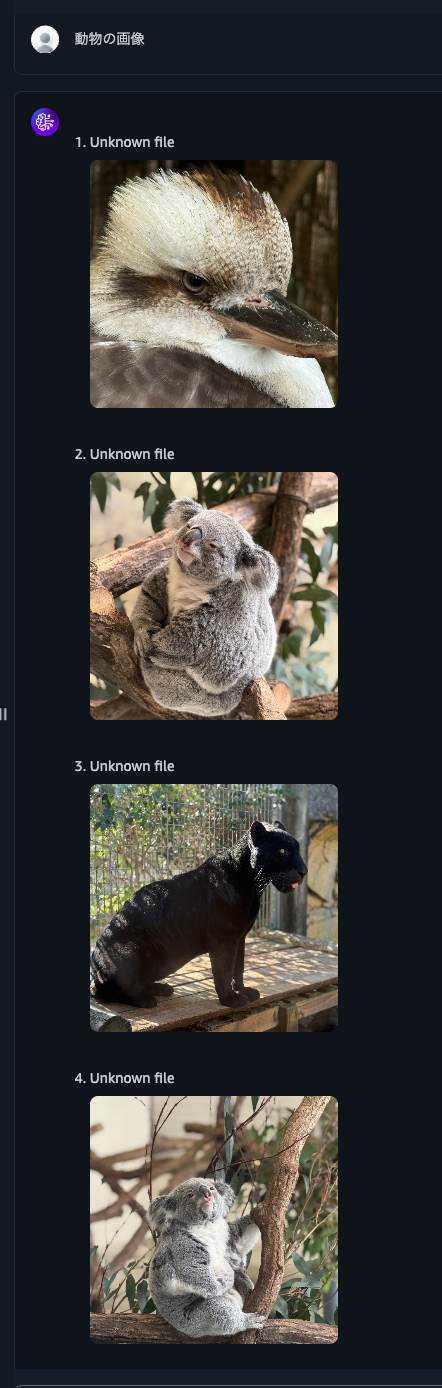
動物の画像と尋ねると、各種動物の画像が返ってきました。
PDFファイルに記載されている内容についても問い合わせてみます。保存しているデータは以下登壇資料をPDFにしたものです。
それでは自己紹介にいつも記載している私の好きなAWSサービスについて問い合わせます。
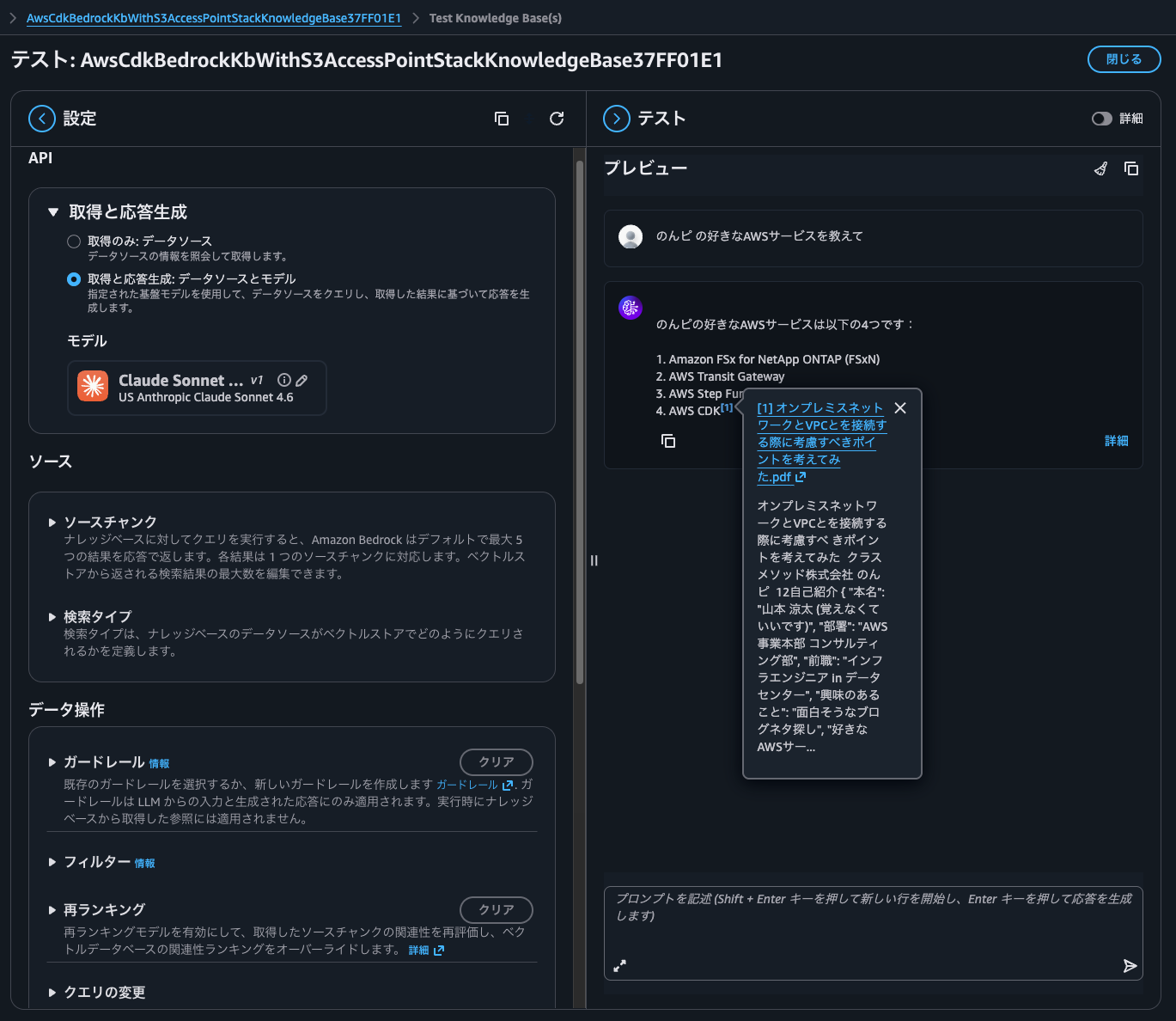
出典とともに回答してくれましたね。
オンプレミスネットワークとVPCとを接続する際に考慮すべきポイントって結局何?も聞いてみます。
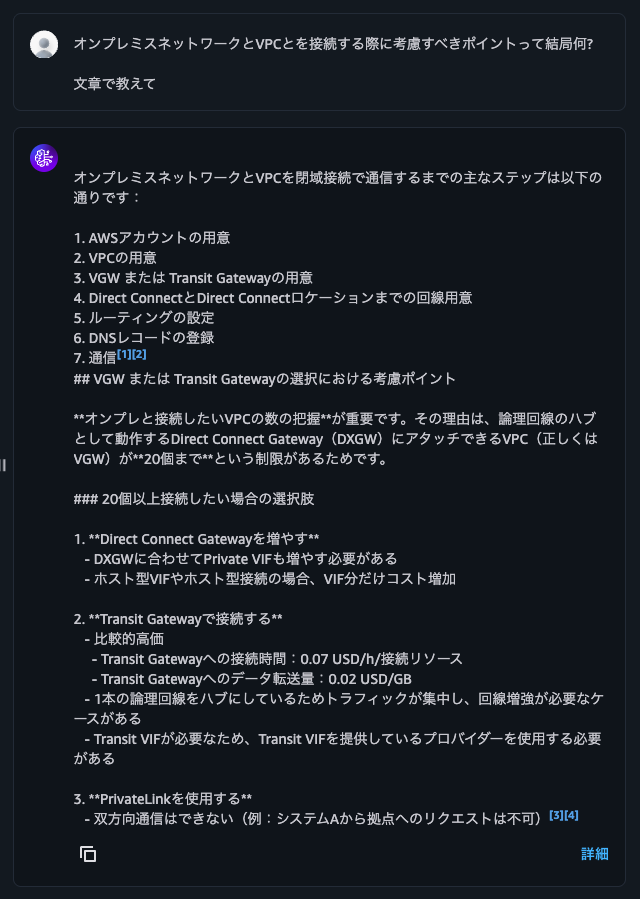
PDFファイルの記載内容をベースにそれっぽいことを返してくれました。
セキュリティスタイルがUNIXのボリュームに配置したファイルの情報についても問い合わせてみます。同期したファイルは僕の好きなコアラの名前を書いています。
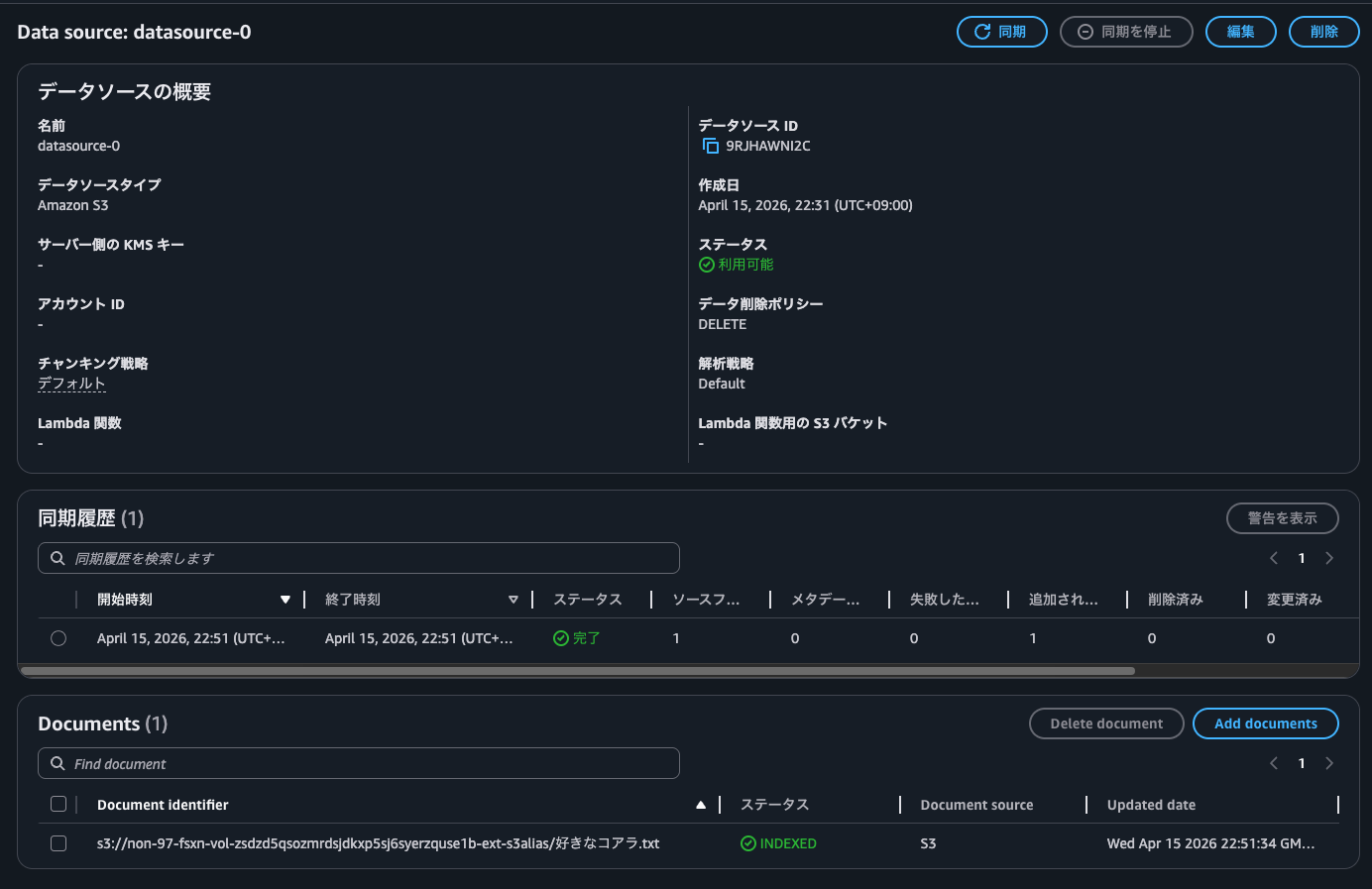
問い合わせてみると、Unable to generate response as the retrieved content contains non-text dataとなってしまいました。
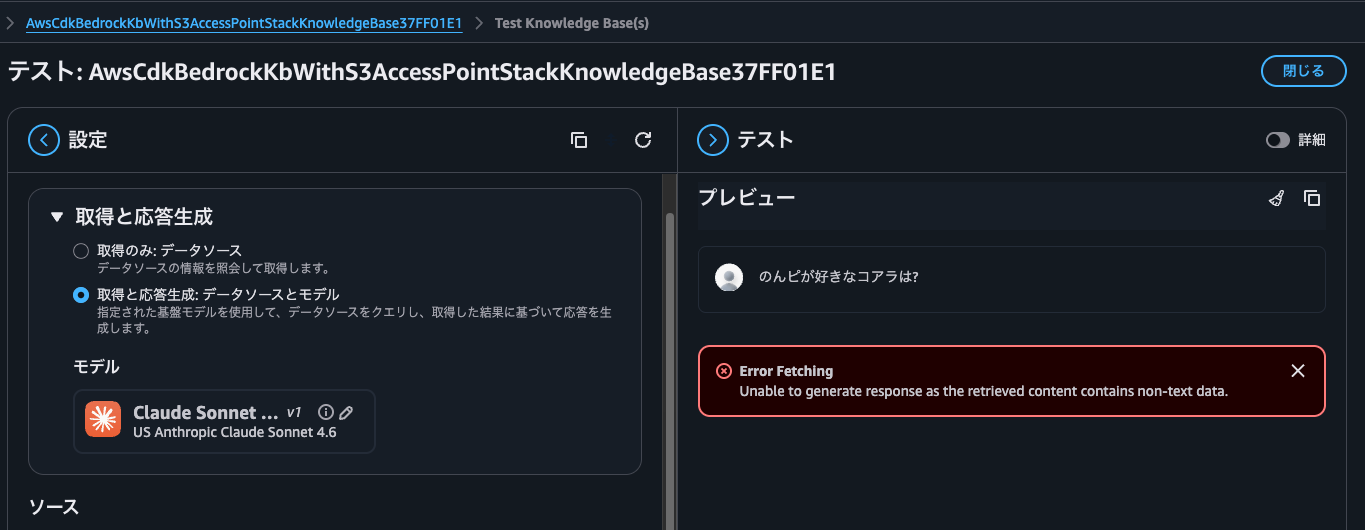
これは回答にヒットする情報がテキストだけではなく、画像も含まれているためです。要するにNTFSボリュームに私がコアラの画像を配置をして同期をしているためです。
今回は画像ではなくテキストのみを返して欲しいので、フィルターでソースファイルの形式であるx-amz-bedrock-kb-source-file-modalityをTEXTにして再度同じ問い合わせをします。
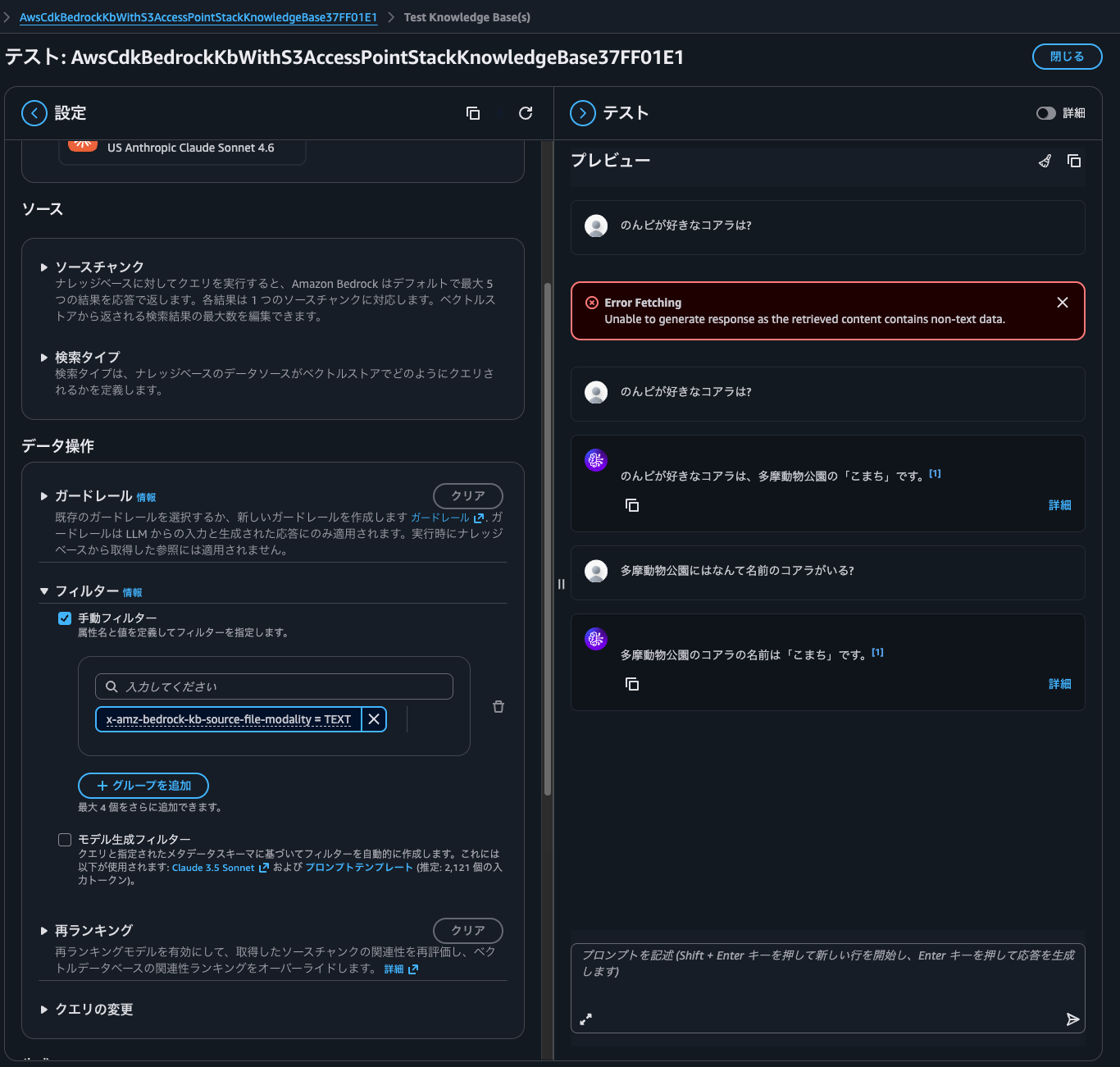
今度は正常に返答がありましたね。
S3 Access Pointを使って各種AWSサービスと連携をさせよう
Amazon FSx for NetApp ONTAP内のデータをS3 Access Point経由でBedrock Knowledge Basesに連携してみました。
可用性や運用保守性などを背景にデータをオンプレミスからAWSに移動することは多くあります。こちらの機能を用いることによってデータの利活用も進めることが可能です。
今回はBedrock Knowledge Basesを用いましたが、他にはAthenaで構造化ファイルの分析をしたり、GlueでETL処理をしたり、SnowflakeやDatabricksなどのSaaSとの連携することも可能です。
ぜひ、S3 Access Pointを使って各種AWSサービスと連携をさせてみましょう。2026/4/19時点ではFSx for Windows File Serverではこちらの機能および、類似の機能は提供されていないため、SMBファイルサーバーに保存しているデータをS3 APIで操作したい場合はFSxNを選択する形になります。
FSxNであればSnapMirrorでブロックレベルでデータの差分同期をすることが可能でもあるので、オンプレミスでONTAPをお使いなのであれば、データ利活用のためにDataSyncを使わなくとも良いのも嬉しいですね。Storage to Storageで同期できるので、DataSync Agentという登場人物を増やす必要がなく、パフォーマンス的にもコスト的にも運用負荷的も良いです。
なお、オブジェクトのコピーなど一部S3 API操作はまだサポートされていません。以下ドキュメントを確認しましょう。
他注意点はFSx for OpenZFSのS3 Access Point機能と同じものと理解しています。詳細は以下記事をご覧ください。
この記事が誰かの助けになれば幸いです。
以上、クラウド事業本部 コンサルティング部の のんピ(@non____97)でした!